The Import Data from Excel feature allows transferring data from an Excel spreadsheet into FirstBit Software. If the import fails, validation errors appear, or data is imported incorrectly, use the following checklist to identify and resolve the issue.
The main explanation of field formats is available in manual - 2.1 Fields Format.
What user may check:
1. Check the data format in the Excel file
Ensure that all fields are completed according to the format specified in the import template.
The Excel Import template provides built-in hints for each column. Hover over the upper-right corner of a column header to view the required data format before importing the file.
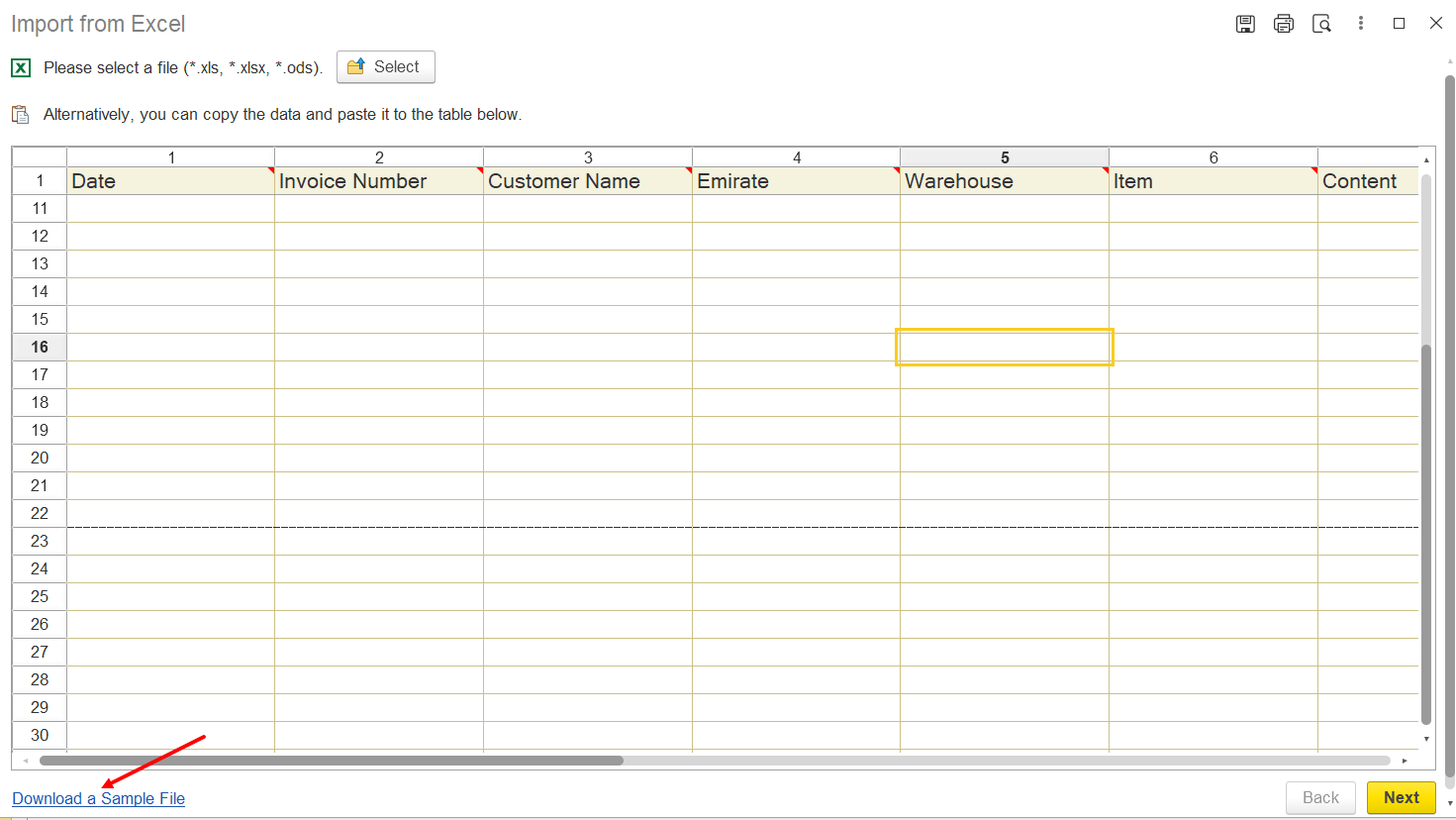
Hints in the file:

What to check
- All mandatory fields are completed.
- Values match the required format specified in the template.
- Dates, text fields and reference values follow the expected format.
- Review the column hints provided in the template before importing.
2. Check numeric values
If numeric values are imported incorrectly or validation errors occur, verify the following:
- Do not enter spaces in numeric values (for example, use 2230 instead of 2 230).
- If a numeric field should remain empty, leave the cell blank instead of entering 0, unless zero is a valid business value for that field.
- Verify that decimal separators match the expected format.

3. Check whether new objects can be created
If the system displays an error while creating new elements in standard catalogs (for example, Items), verify the following:
- The Create Object option is enabled in the Fields tab of the Excel Import Template.
- The template is configured to create new objects where required.
- If object creation is not expected, verify that the referenced catalog elements already exist in the system.
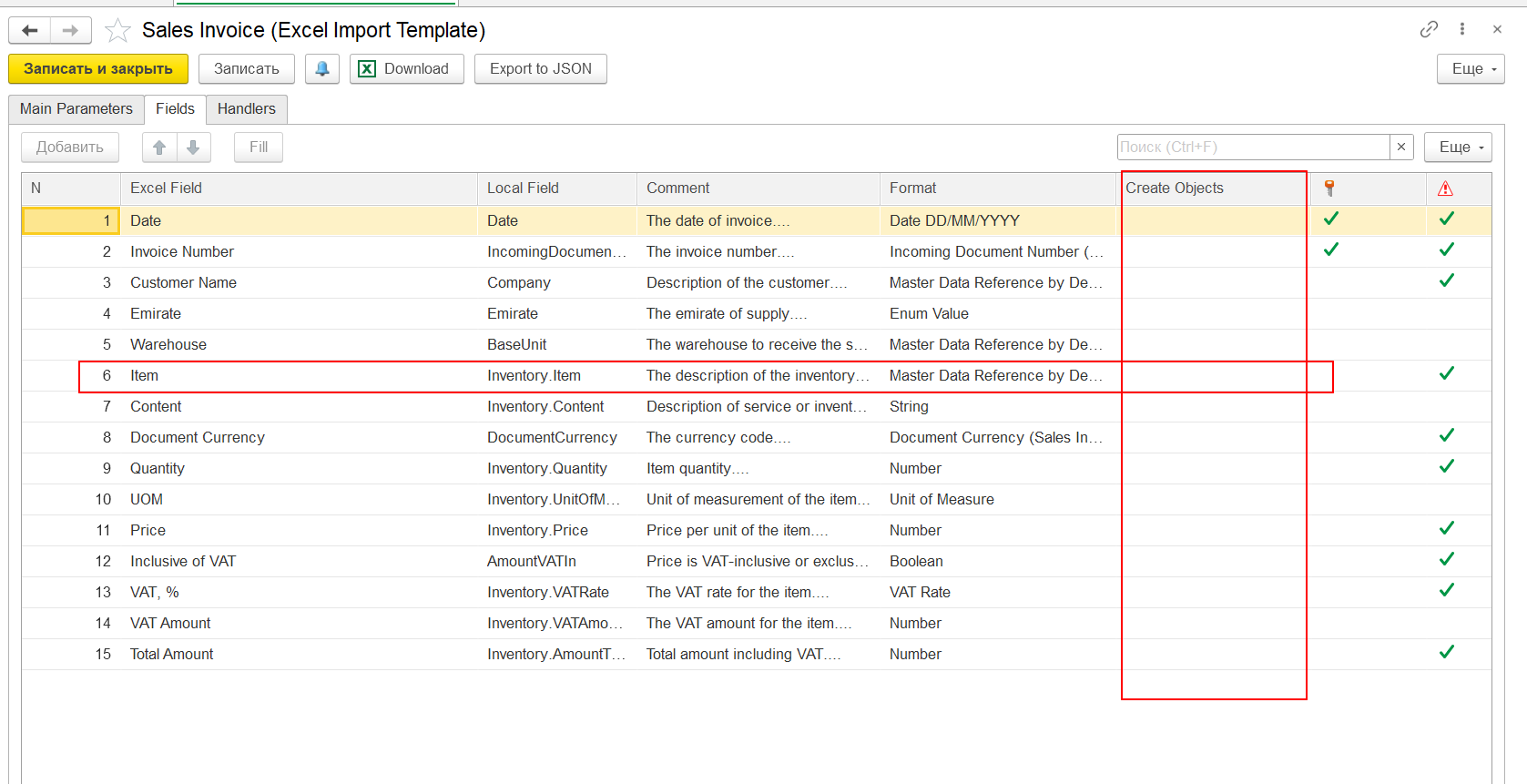
4. Review validation errors
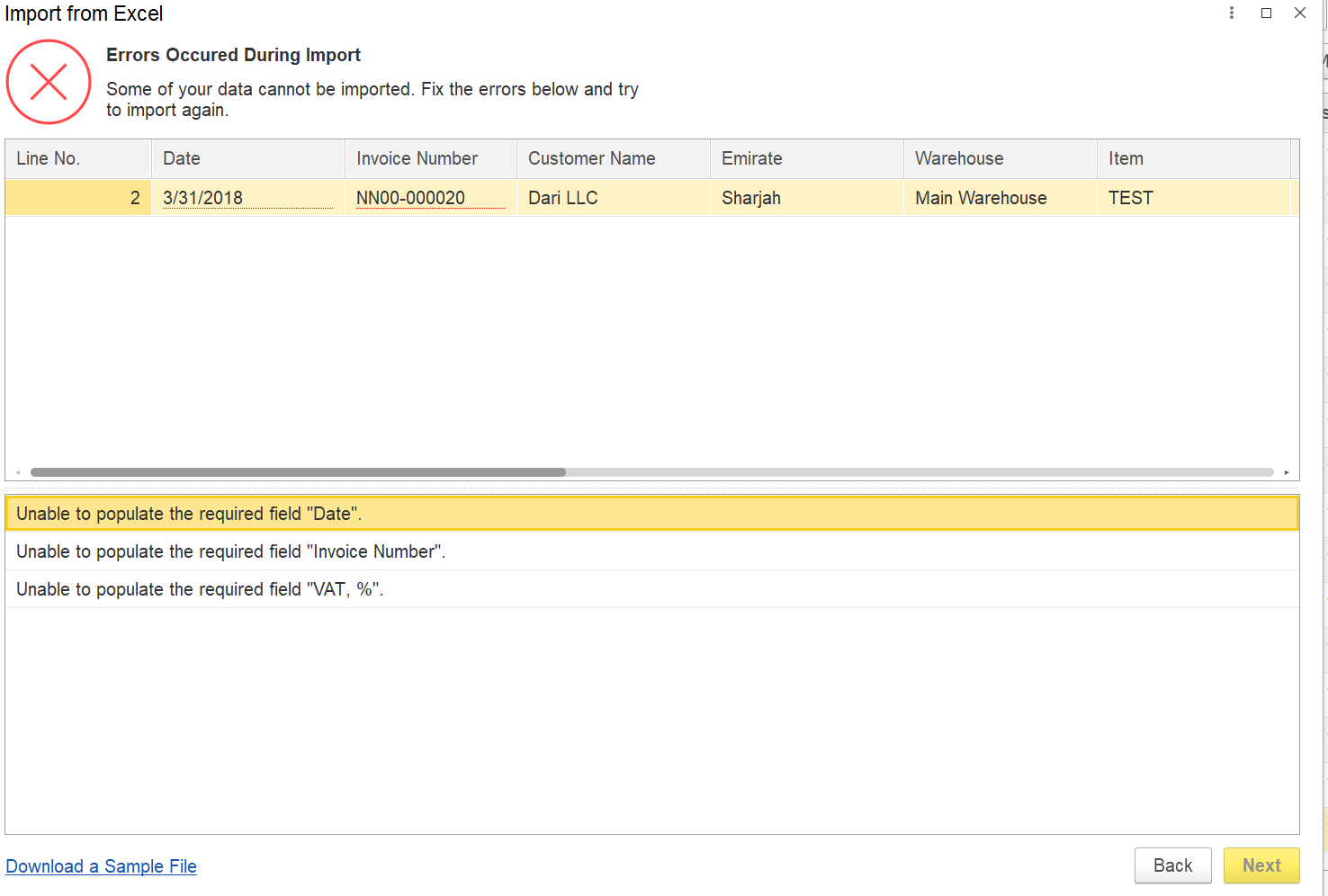
If the import is interrupted or completed with errors, always review the validation messages displayed at the bottom of the import window.
These messages identify:
- the row containing the error;
- the field that caused the problem;
- the reason why the value cannot be imported.
Correct all reported errors before repeating the import.
5. Verify whether the issue is caused by the Excel file or the import mechanism
If the cause of the issue is unclear, manually enter the same data using the Import from Excel with icon  window instead of importing the Excel file.
Copy the values from Excel and paste them into the corresponding fields manually.
This helps determine the source of the issue:
- If the manual entry succeeds, the import mechanism is working correctly and the problem is most likely related to the Excel file or its formatting.
- If the same error occurs during manual entry, review the template configuration and the imported data.
Common symptoms this checklist helps resolve
Use this checklist if you encounter issues such as:
- Import from Excel fails.
- Validation errors are displayed during import.
- Invalid data format errors.
- Numeric values are not imported correctly.
- The system cannot create Items or other catalog objects.
- Objects referenced in the Excel file cannot be found.
- Import stops before completion.
- Data is imported with missing or incorrect values.
See also Overview of Import Templates from Excel files .
Thank you for being a FirstBIT customer! #Import from Excel #Checklist