-
Created by
 Daria Tikhova on 21 Aug, 2026
3 minute read
Daria Tikhova on 21 Aug, 2026
3 minute read
Scope
This functionality is available in FirstBIT Contracting starting from version 2.1.1.35.
The Estimate by Period functionality is available in the following documents:
- Project Estimates
- Project Budget
It allows you to distribute estimated Revenue and Costs across the periods generated for the project.
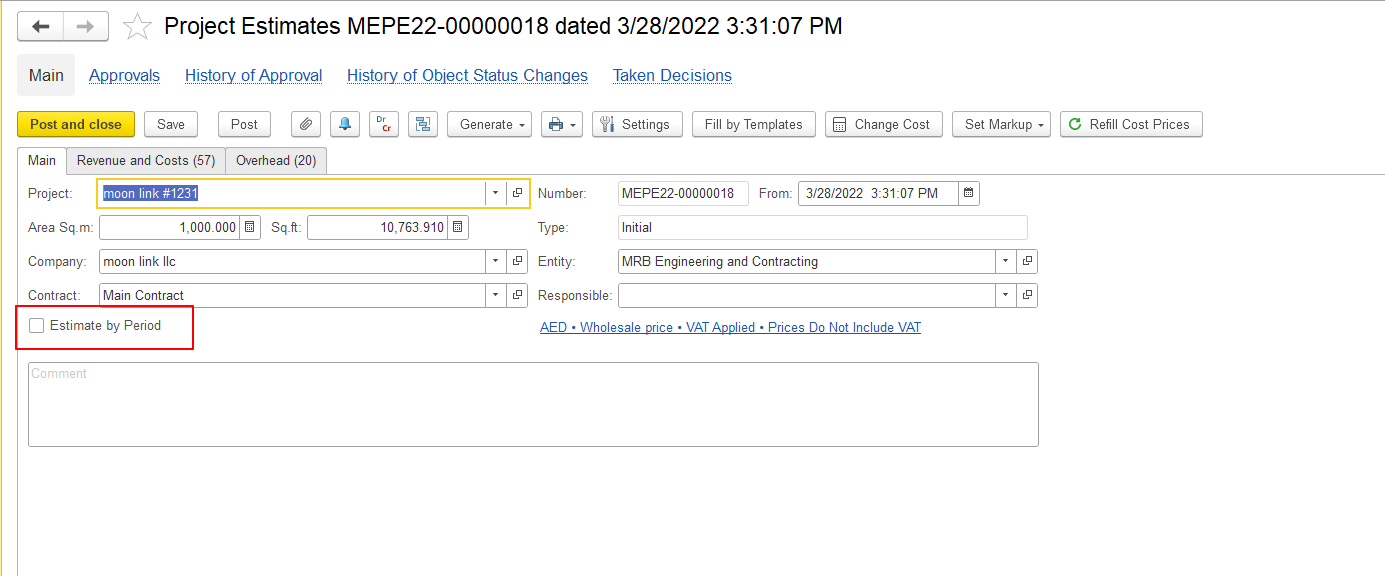
Enable Estimate by Period
- Open the Project Estimates or Project Budget document.
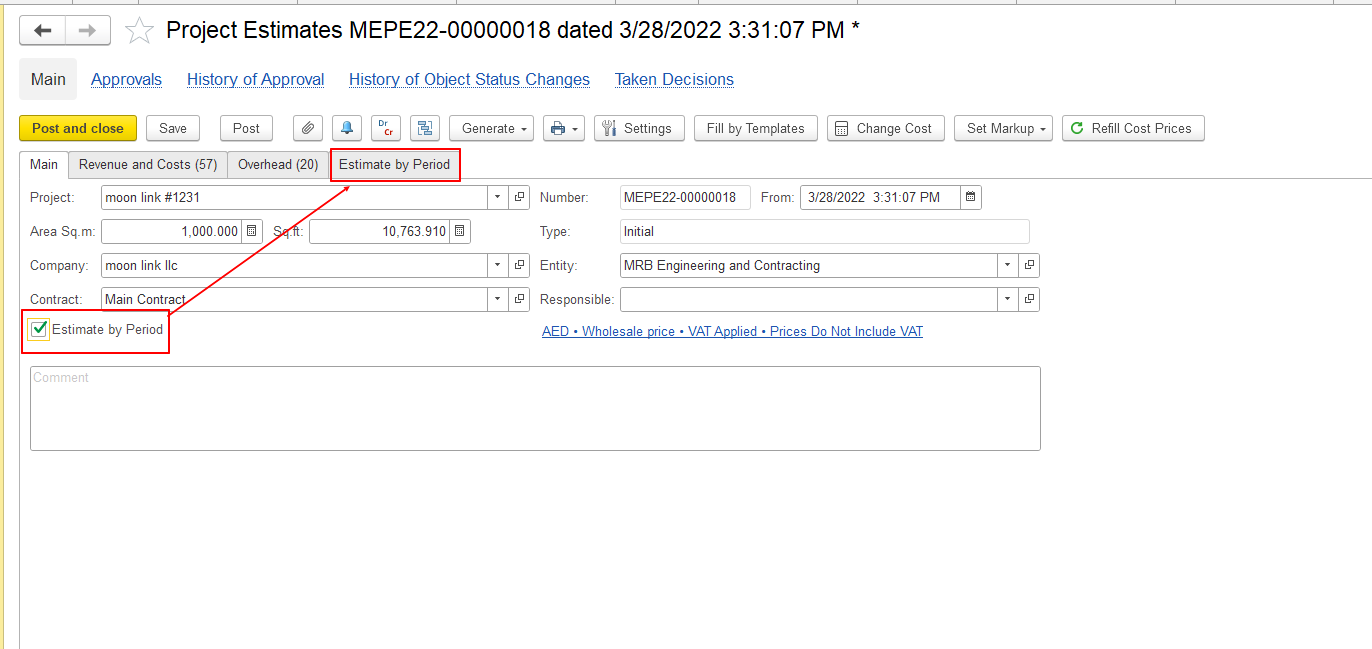
- Enable the Estimate by Period checkbox.
- The Estimate by Period tab becomes available.
Set the Planning Period
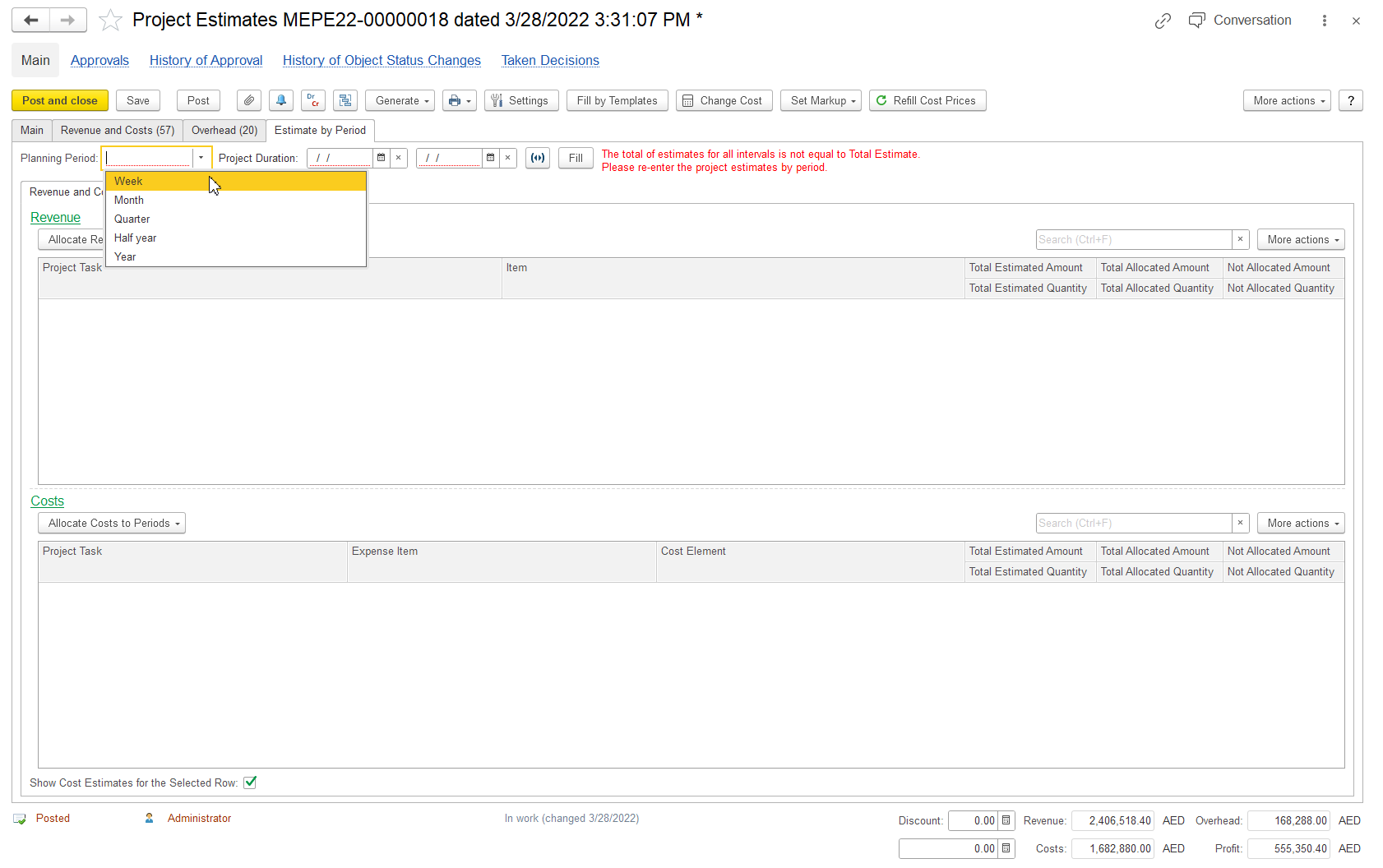
On the Estimate by Period tab:
- Select the required Planning Period:
- Week
- Month
- Quarter
- Half year
- Year
- Specify the Project Duration by entering the start and end dates.
- Click Fill.
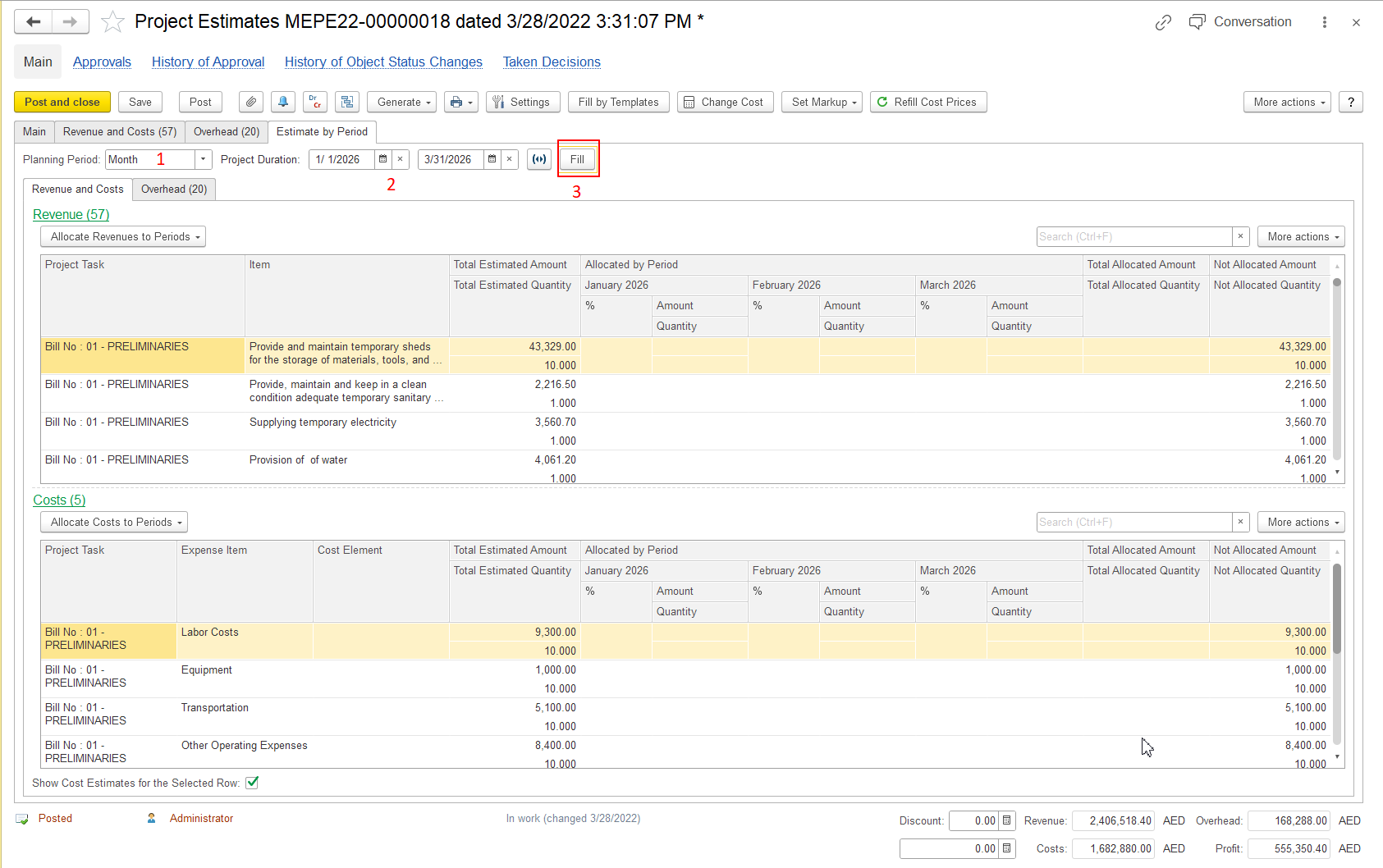
The system generates the periods according to the selected Planning Period and Project Duration.
The document lines are also populated with the corresponding Project Tasks and Items. The total estimated values are displayed in the Total Estimated columns, while the Non Allocated Amount and Non Allocated Quantity columns are also populated because the estimates have not yet been allocated to periods.
Important: Use Fill to generate the periods and populate the total estimates. Then use Allocate Revenues to Periods or Allocate Costs to Periods to distribute the estimates across the generated periods.
Allocate Revenue to Periods
To distribute Revenue estimates, click Allocate Revenues to Periods and select the required option:
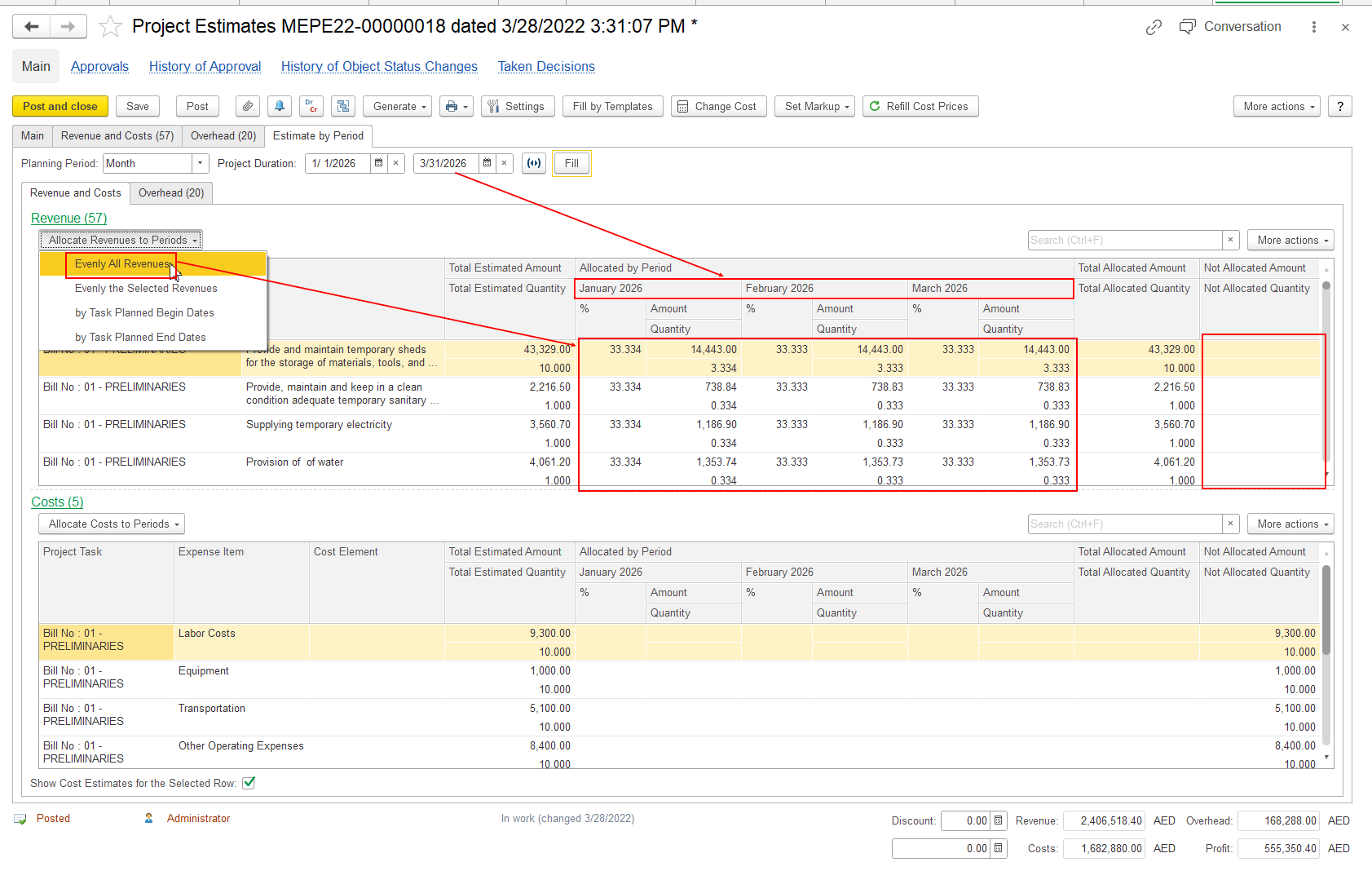
- Evenly All Revenues — distributes all Revenue estimates evenly across the generated periods.
- Evenly the Selected Revenues — distributes only the selected Revenue estimates evenly across the generated periods.
- Allocate by Planned Begin Dates — allocates Revenue based on the Planned Begin Dates of the corresponding Project Tasks.
- Allocate by Planned End Dates — allocates Revenue based on the Planned End Dates of the corresponding Project Tasks.
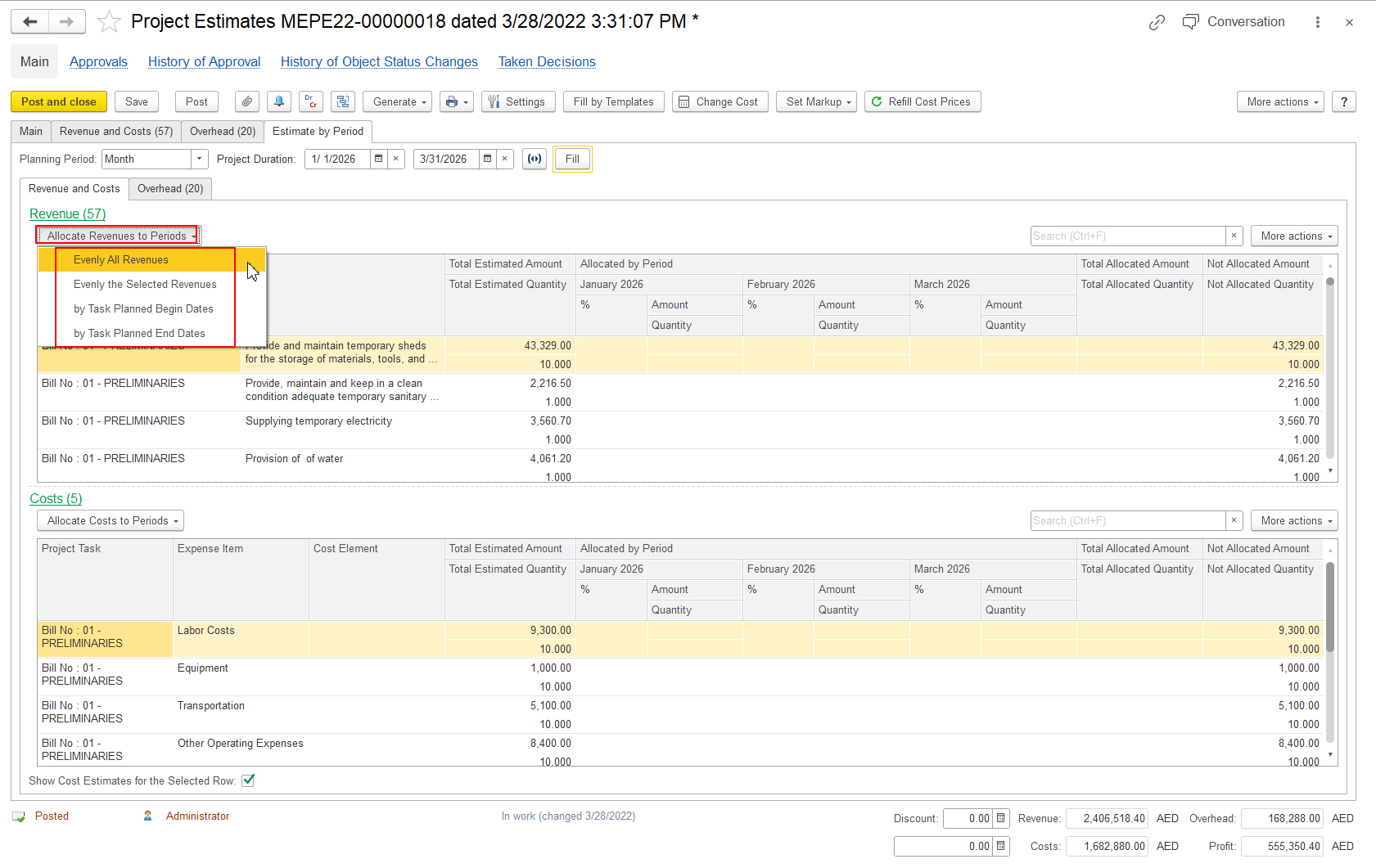
The allocated values are displayed for each period in the Allocated by Period section.
Example:
Allocate Costs to Periods
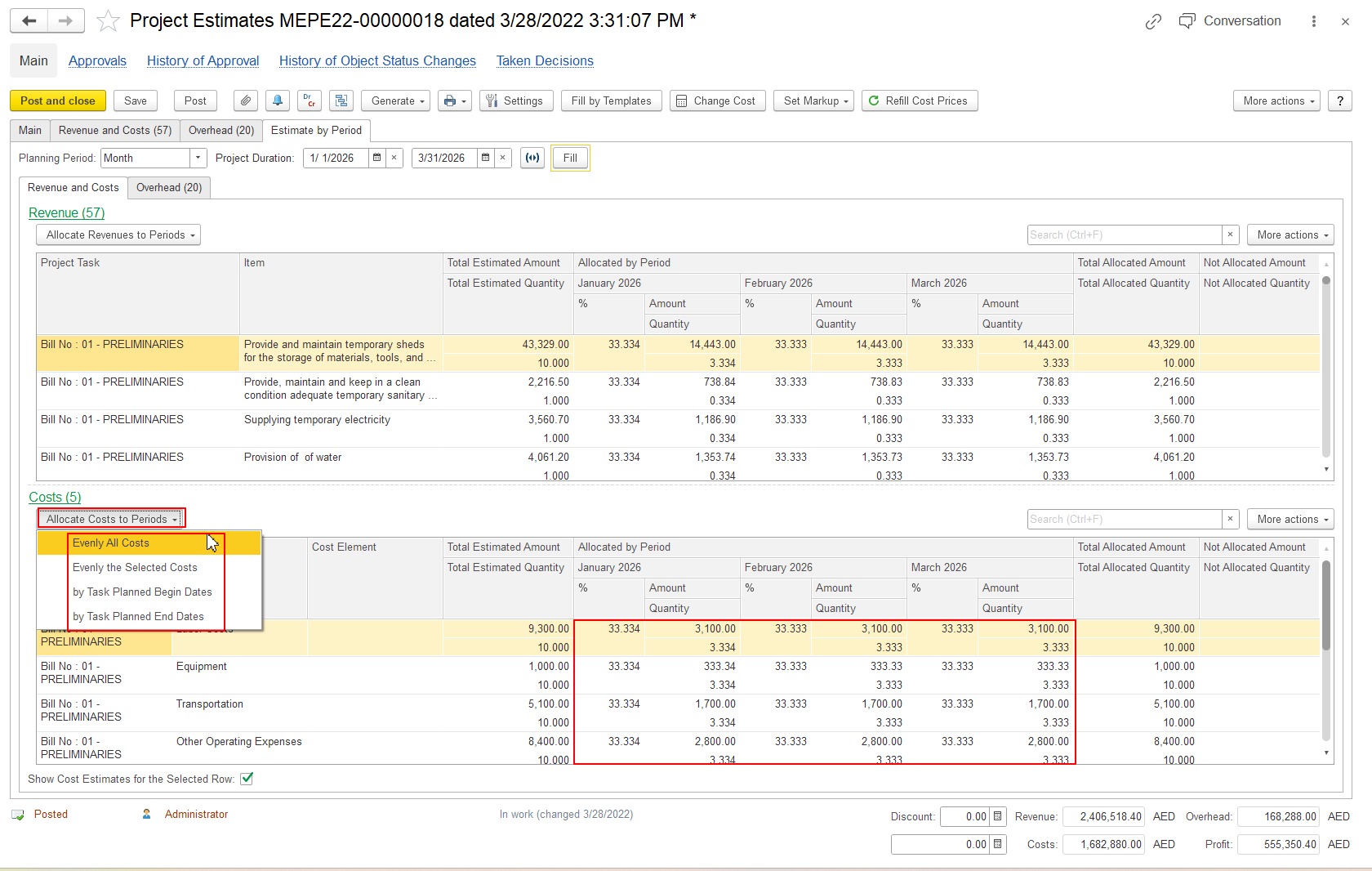
To distribute Cost estimates, click Allocate Costs to Periods and select the required allocation method.
The system distributes the Cost estimates across the generated periods according to the selected method.
The allocated values are displayed for each period in the Allocated by Period section.
Review the Allocation
After allocation, review the values for each period.
Depending on the type of estimate, the system displays the corresponding values, such as:
- Amount
- Quantity
- Discount Amount for Revenue
- Markup Amount for Costs
The total estimated values remain available in the Total Estimated columns for comparison with the amounts allocated by period.
Thank you for being FirstBIT Customer!