In the following cases:
- when setting up automatic payroll calculation
- when no values are calculated after clicking the “Calculate” button in the Payroll Calculation document, or
- when any errors occur during payroll calculation,
Please case, if there are any errors while Payroll Calculation, please check the settings according to this the list :below.
1.. 2.9. Work Day Calendars should be filled correctly for the each year. Please check how to set it up 2.9.1. Adding a Work Day Calendar.
Work Days Calendar (HR & Payroll > See Also > Work Days Calendar) should be filled correctly for the according year. Please check how to set it here.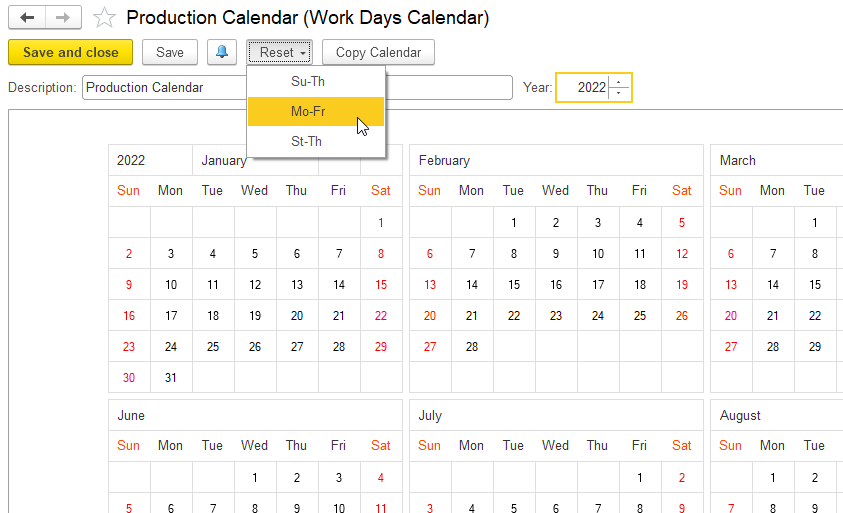
Make sure to Change the Working days according to your company's work schedule.
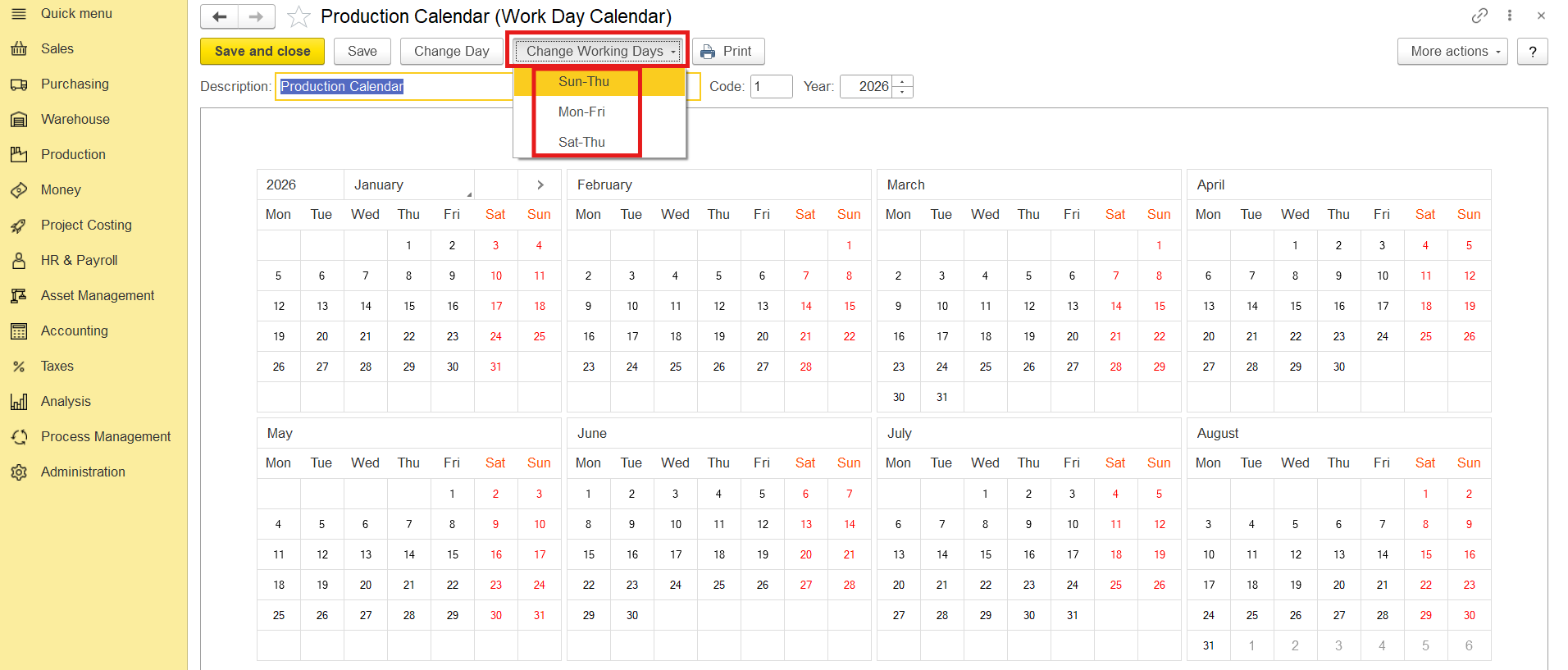
2. In your Entity Setting, select the correct work day calander (on the Main Parameters tab).
2.1.1. Adding an Entity. The Main parameters tab
2. Entity should have correct Work Days Calendar (Accounting > Master Data > Entities):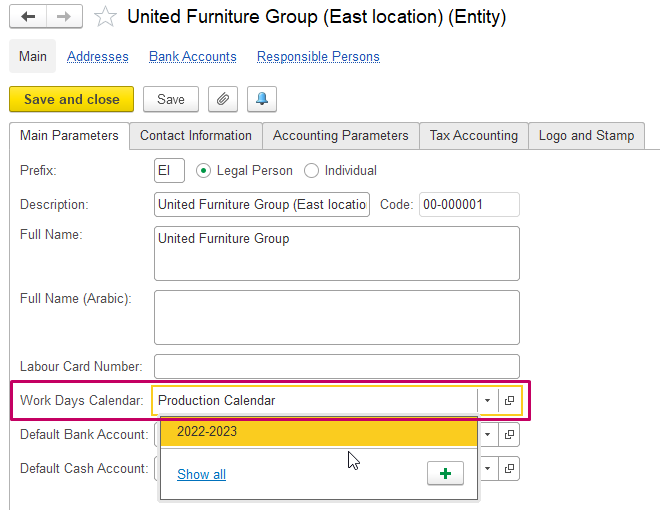
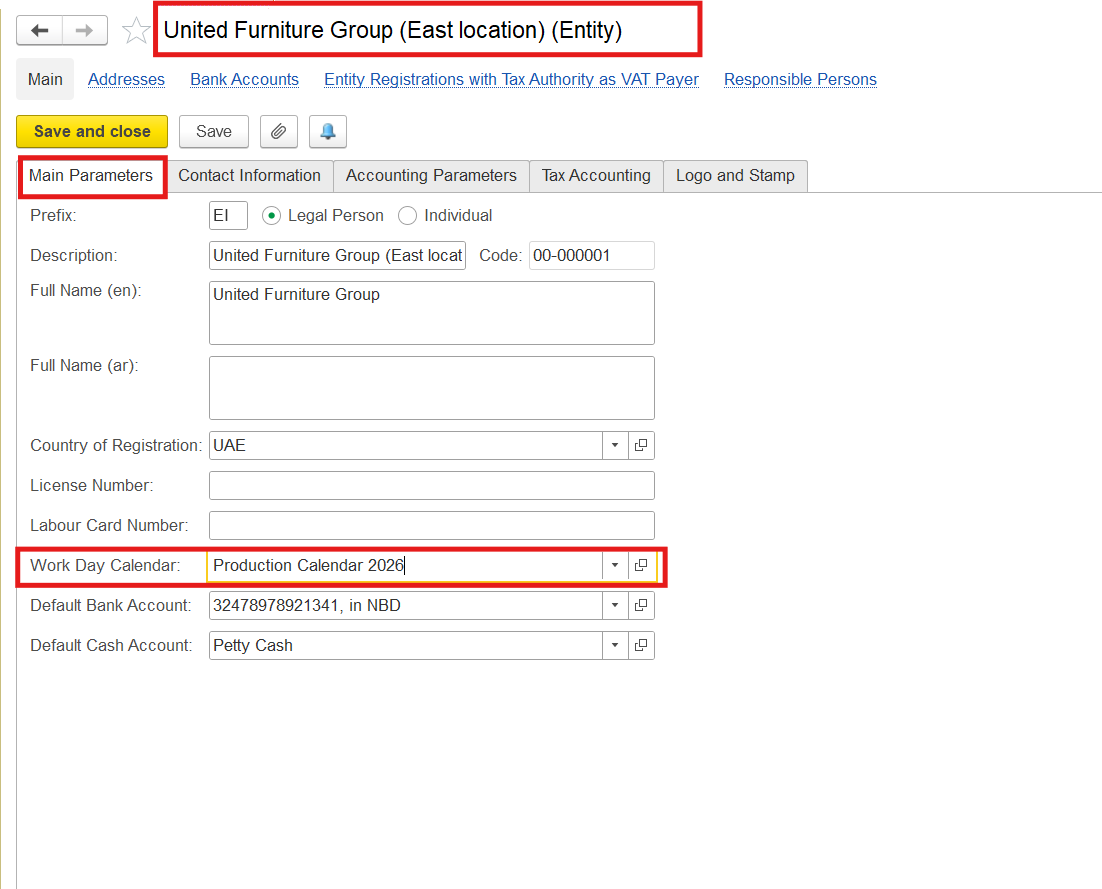
3.10.6.1. Work Schedules should be created and Filled by template:
10.6.1.1. Adding a Work Schedule
(HR & Payroll > Service Tools > Work Schedules) should be created and Filled by template: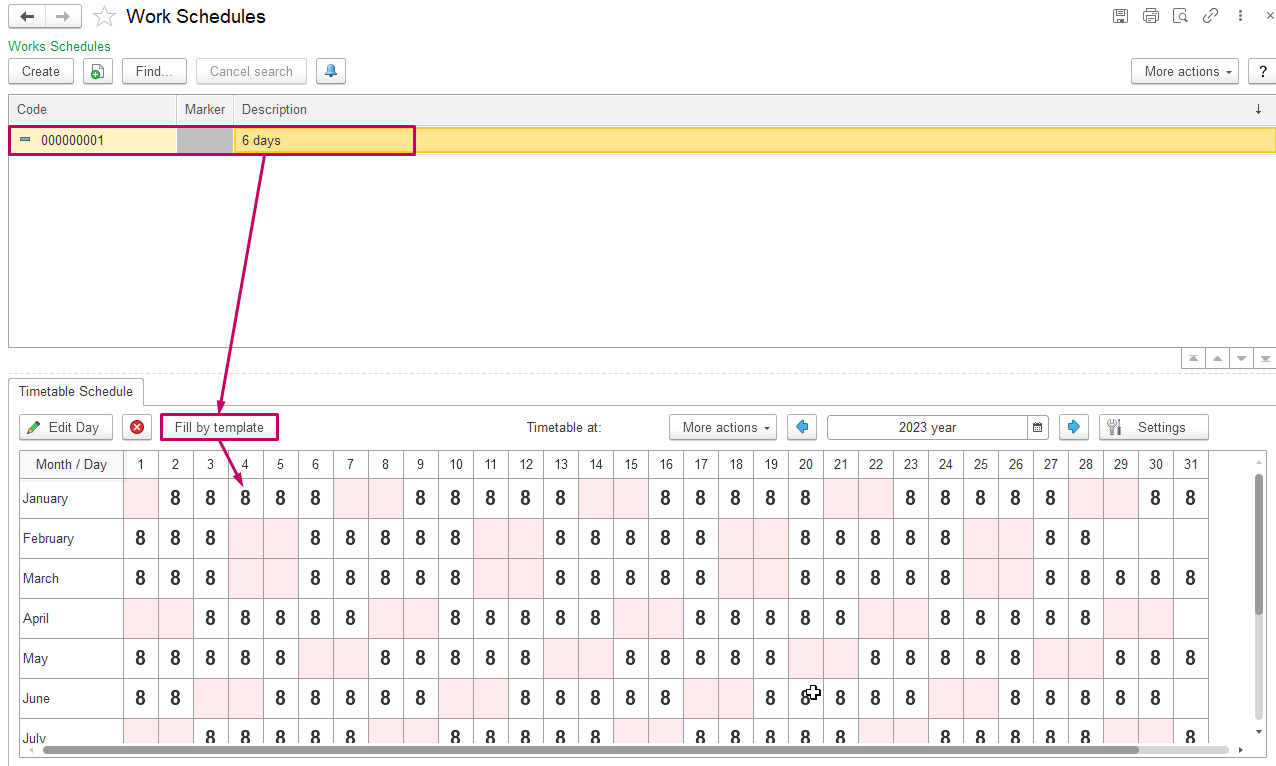
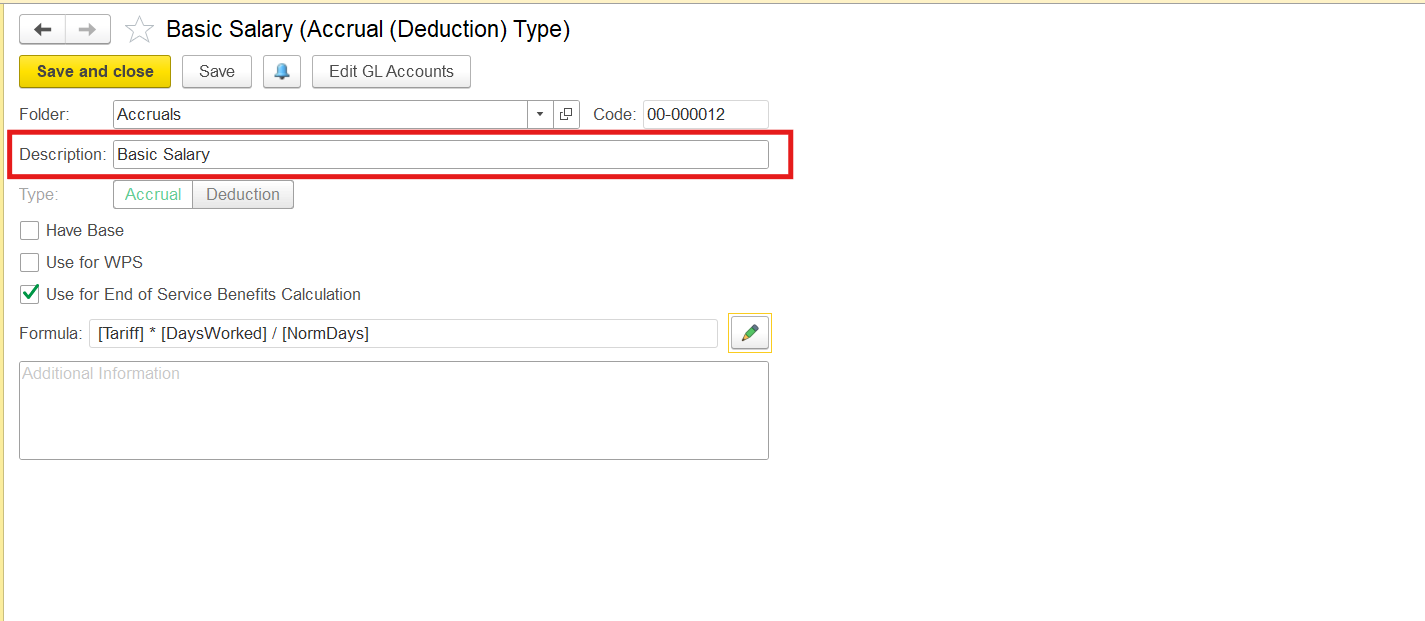
4. Create or Edit Accruals and Deductions according Create or Edit 10.1.4. Accrual and Deduction Types according to entity requirements (video):
See also: Creating Correct Calculation Formulas in FirstBIT Software
(HR & Payroll > Master Data > Accrual and Deduction Types)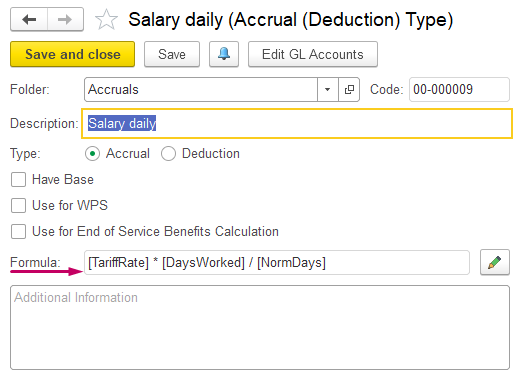
5. Employment Contract should have correct Work Schedule, Accruals and Deductions, Vacations, Provisions and End of Service Provisions (video):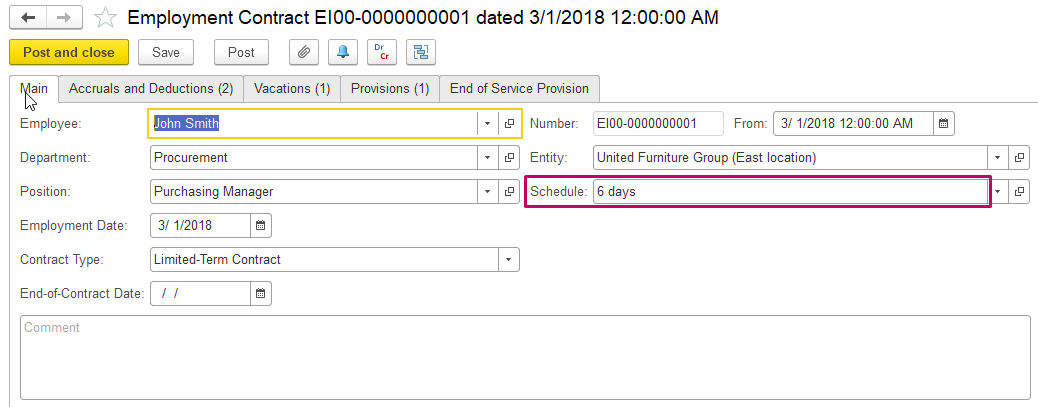
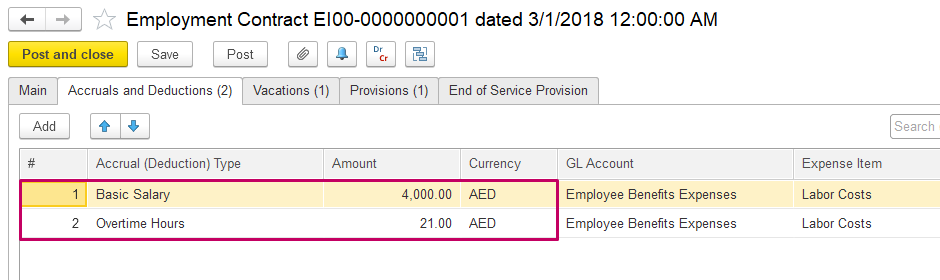
When creating the Employment contract10.2.1. Employment Contracts the following information should be filled out:
- 10.6.1. Work Schedules
- 10.1.4. Accrual and Deduction Types
- 10.4.1. Vacations
- 10.1.5. Employee Benefit Provisions
- End-of-Service Benefits Overview of End-of-Service Benefit Processing
(HR & Payroll > Human Resources Documents > Employment Contract)
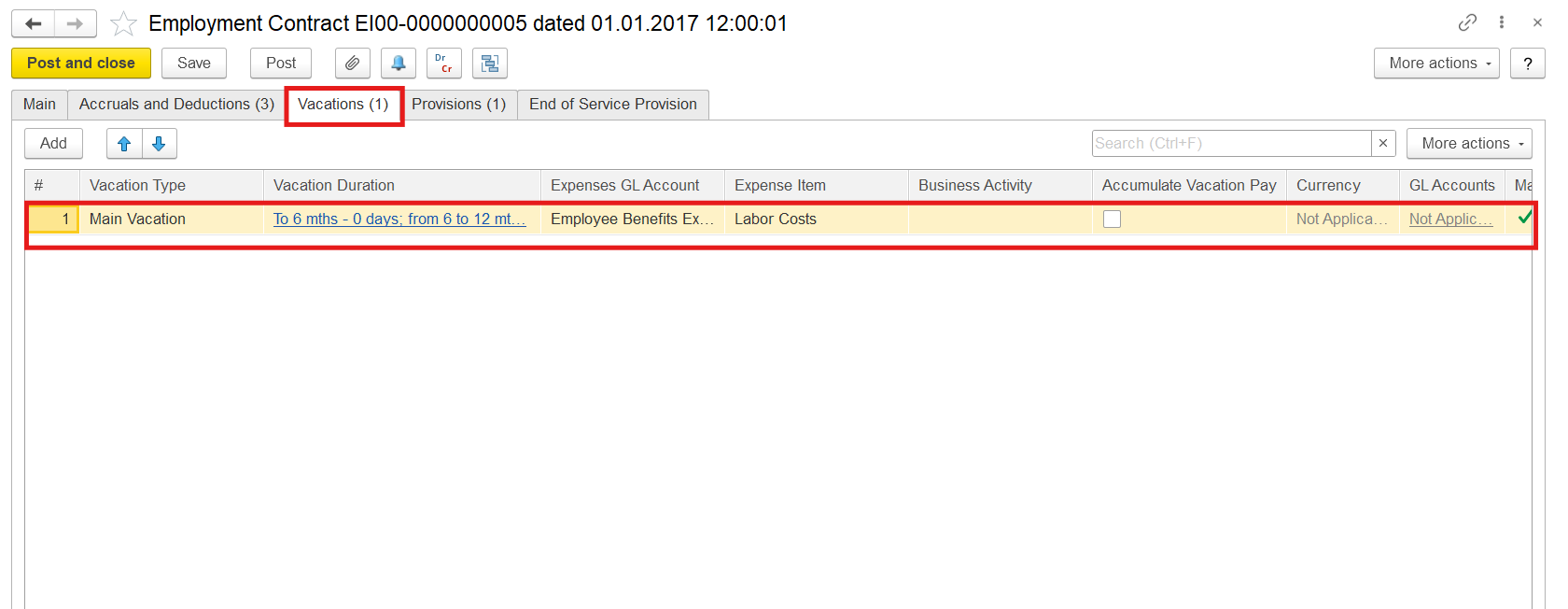
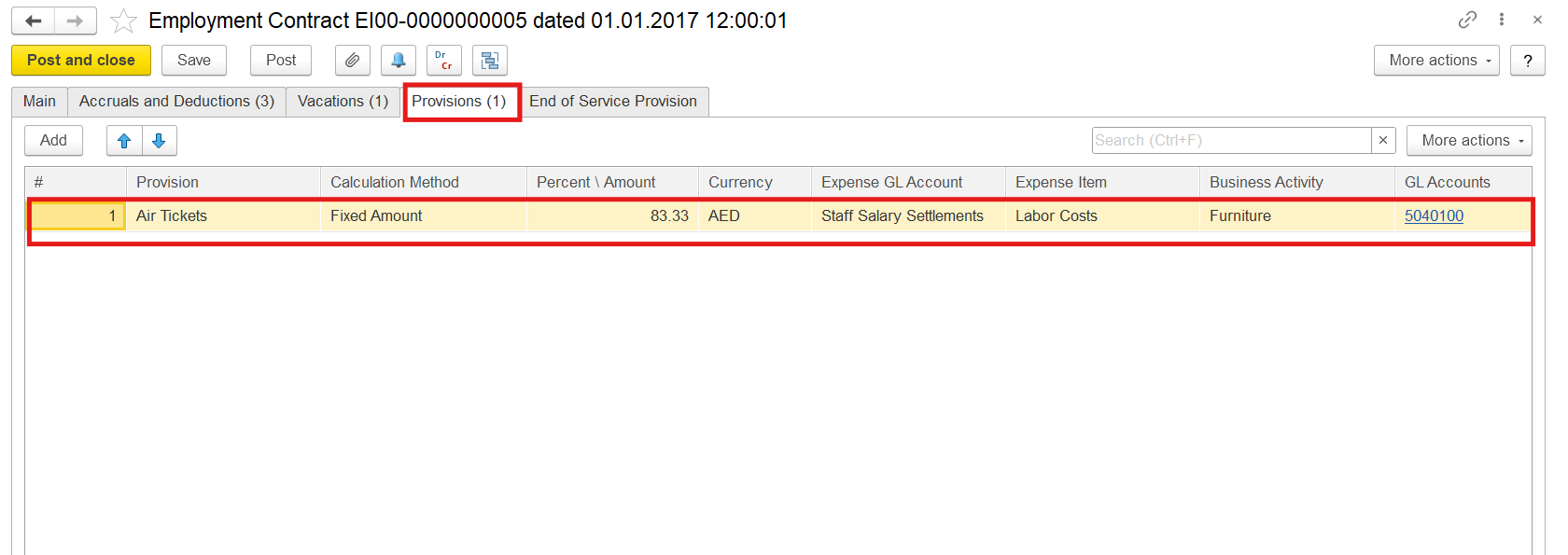
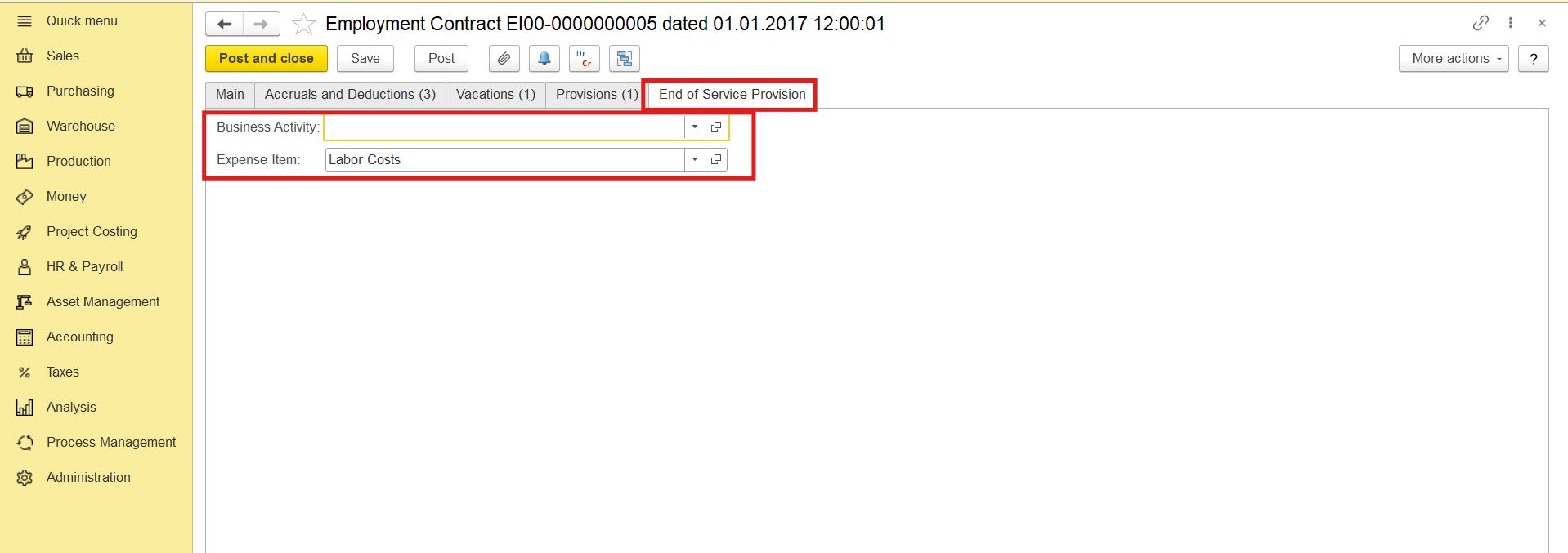
Create 10.2.2. Employment Contract Changes Create Employment Contract Change if required (video).
6.10.4.4. Time Sheets and Time Cards (if applicable) should be created, filled out and saved for exact Entity, Department and Period: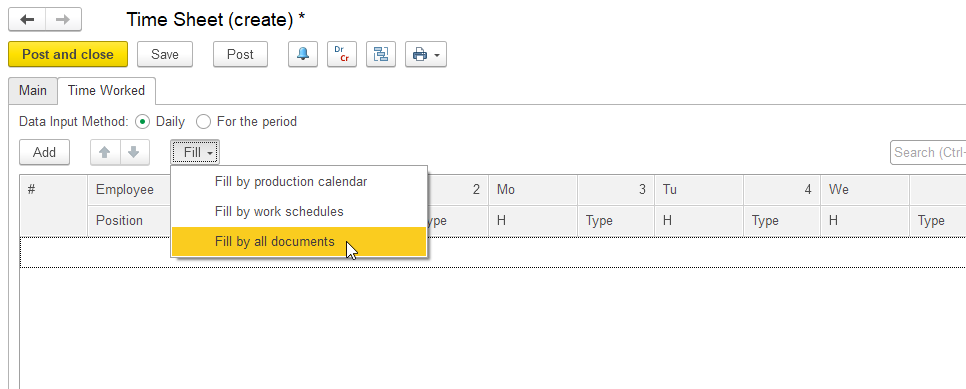
see more about Time Tracking Documents
(HR & Payroll > Time Tracking Documents > Time Sheets)
Click the Fill button (on the Time Worked tab) to fill the Time Sheet and then select one of the following sources:
Fill by production calendar:
Fill by Work Schedules:
Fill by all documents:
More information in the links below:
10.4.4.1. Creating a Time Sheet. The Main tab
10.4.4.2. Creating a Time Sheet. The Time Worked tab
7. After 7. As all points are checked, then Fill and Calculate 10.3.1. Payroll Calculations correctly (video):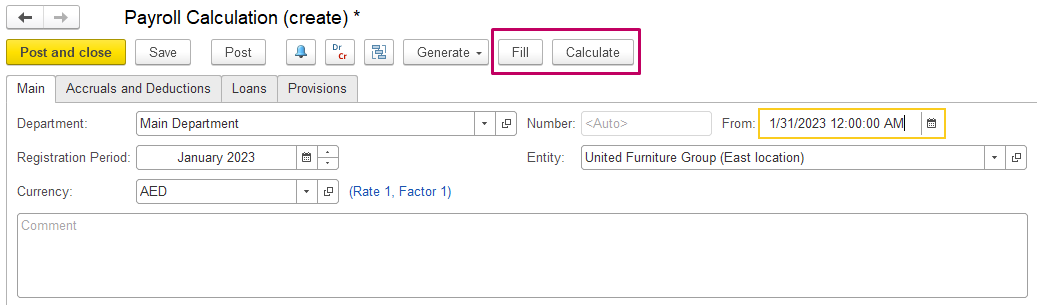 See more information in Human Resources and Payroll FistBIT User Guide
(HR & Payroll > Payroll Documents > Payroll Calculations)
Thank you for being FirstBIT customer!