To access the list of projects, select Project Costing (the left panel) > Master Data > Projects.
The project master data contains information about the company's external and internal projects.
Before starting project creation, it may be necessary to create master records of the following types: Project Roles and Project Types. However, all required master records of these and other types can also be created easily during the project creation process.
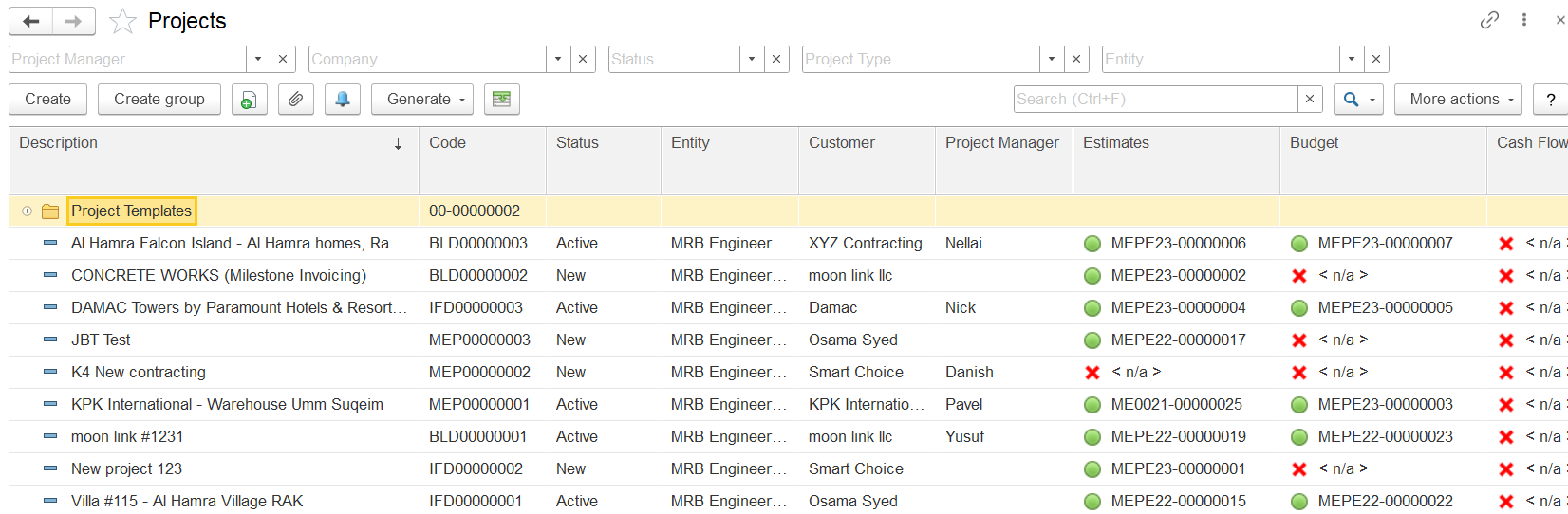
Project records can be organized in a folder (or group) structure. For example, projects can be grouped by customer, project type, or in any other logical way. No projects or folders are available by default in a newly implemented system.
The project list displays all projects in the system, organized in this hierarchical structure. If a specific project is not visible, try opening a different folder or using the Search field to locate the project by part of its description or the customer’s name.
The Toolbar Buttons
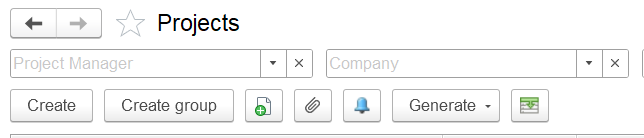
- To add a project, click the Create button on the toolbar. To edit an existing project, double-click the line containing its name. Alternatively, select the line, right-click it, and choose Edit, or use the toolbar option: More actions > Edit.
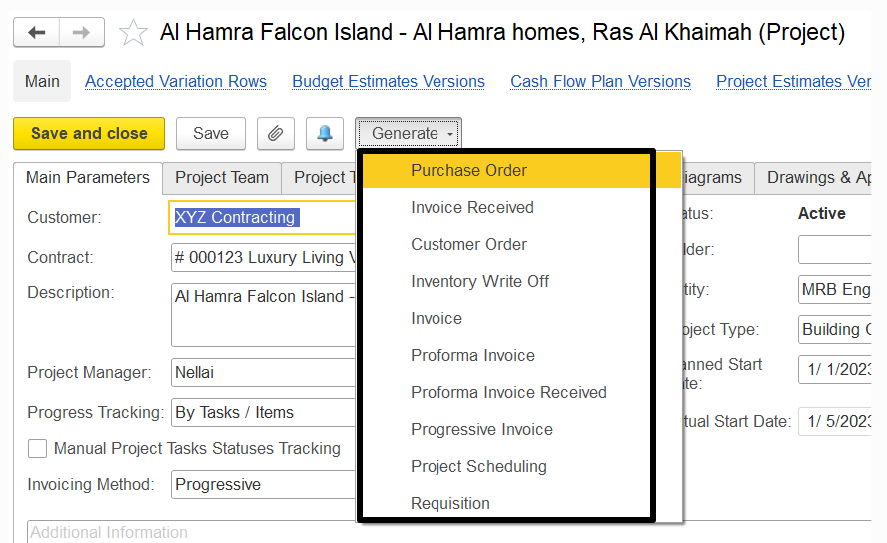
- For a selected project in the list, the Generate button enables the creation of the following document types:
Customer Order – Records the goods and services the customer requests for the project.
Invoice – Bills the customer (client) for goods and services provided within the project.
Purchase Order – Orders goods and services required for the project.
Invoice Received – Registers the purchase of goods and services for the project.
Inventory Write-Off – Records the issue of inventory items from a warehouse for project needs.
Requisition – Requests goods and services required for the project.
Proforma Invoice / Payment Application – Requests payment from the customer (client) for goods and services delivered.
Proforma Invoice Received – Records a supplier’s payment request for goods and services purchased for the project.
Progressive Invoice – Bills the customer (client) based on project progress.
Requisition (for Estimate) – Requests estimated prices of goods and services from the supplier.
3. Creating a folder
To add a group (folder), click the Create Group button on the form toolbar. This opens the Projects (Create folder) dialog box. In the Description field, enter the description of this group (folder).
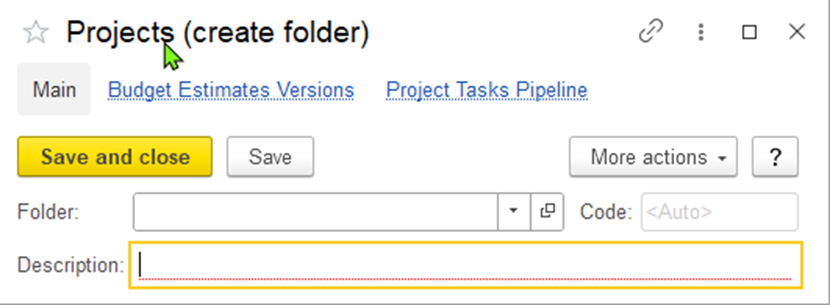
To create a group within another group (a parent group), specify the parent group in the Folder field (see the figure below). This action adds a new level to the hierarchy. There is no limit to the number of hierarchy levels that can be created. After setting the parent group, click Save and Close.
Projects can be moved between folders either by using the drag-and-drop method or by selecting a different folder in the project card while editing the project.
Adding a Project: The Main Parameters Tab
This tab contains the main information related to the project, including the entity, customer, project manager, and planned start and finish dates. As the project progresses through its life cycle, actual start and finish dates can also be entered.
The required fields are: Description, Entity, and Project Warehouse.
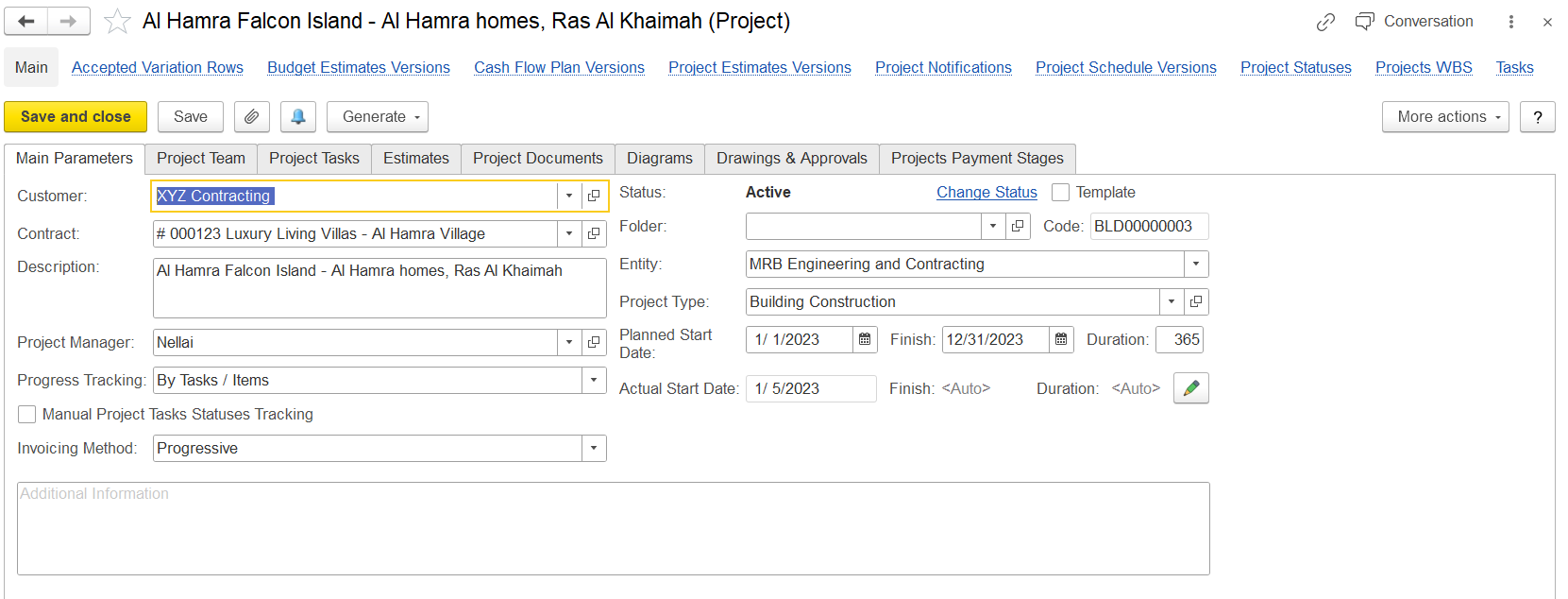
Main Parameters Tab – Field Details
This tab contains key project attributes that define the structure and initial setup of the project.
Customer: Specifies the client for whom the project is intended.
Contract: Optionally links a specific contract relevant to the project.
Description: A clear and concise description that serves to identify the project in various project lists.
Project Manager: Indicates the responsible employee overseeing the project.
Progress Tracking: Determines how the project's progress will be monitored. Two tracking types are available:
By Tasks / Items – Progress is measured based on both the completion of project tasks and the consumption of associated items.
By Tasks – Progress is tracked solely based on the status of project tasks.
Manual Project Tasks Statuses Tracking: When enabled, allows progress to be manually updated by modifying the status of individual project tasks.
Project Warehouse: Defines the warehouse to be used for issuing materials and items needed for the project.
Status: Represents the current stage of the project. The default is Proposed, and can be changed as the project advances through different life cycle stages. Available statuses: Proposed, Active, Completed, Cancelled.
Folder: Allows grouping the project under a specific folder. New folders can be created directly from the field if required.
Code: A unique identifier automatically assigned to the project.
Entity: Specifies the legal entity of the company managing the project.
Project Type: Indicates the project classification, selected from predefined types in the Project Types form.
Planned Start / Finish Date: Shows the scheduled dates for starting and completing the project. The Duration is automatically calculated in days.
Actual Start / Finish Date: These fields reflect the real dates of commencement and completion. When the project status changes from Proposed to Active, the Actual Start Date is filled in automatically (indicated by
<Auto>). Likewise, the Finish date is updated upon switching to Completed. If needed, the pencil icon (Edit) enables manual input of actual dates.Additional Information: A free-text field for entering any extra details relevant to the project.
The toolbar buttons
After filling out the tab, click the Save button to save the project. Click Save and close to save the project with all the changes and close the form.
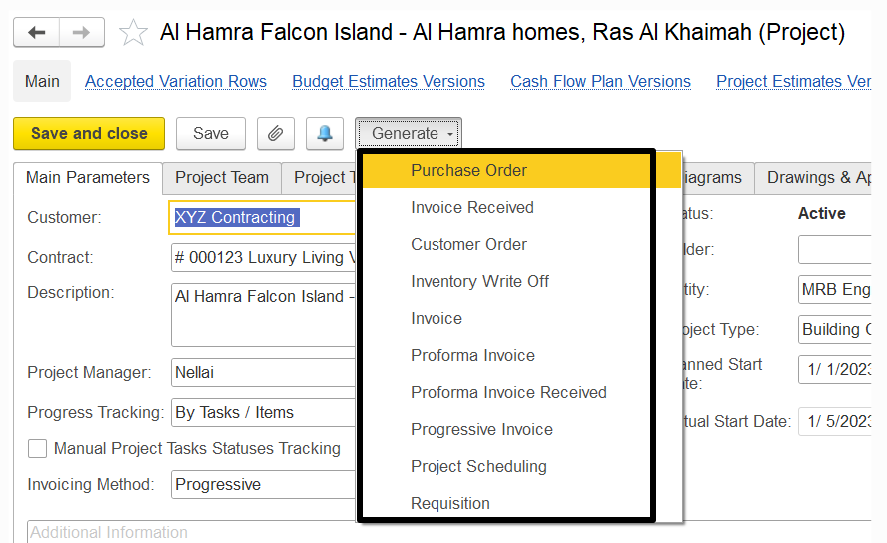
If you need to generate a new document for the project, click Generate on the toolbar and select the type of the document from the following ones:
- Quotation: To set the prices to be offered to the customer.
- Customer Order: To record the goods and services requested by the customer in this project.
- Invoice: To bill the customer (client) for the provided goods and rendered services.
- Purchase Order: To order the goods and services required for the project.
- Invoice Received: To register the purchase of goods and services required for the project.
- Inventory Write off: To write off inventory which has been consumed for the project.
- Requisition: To include the items needed for projects in requisition processing.
- Proforma Invoice Received: To record payment request sent by suppliers for the purchase of goods and services required for the project.
- Progressive Invoice: To bill the customer (client) based on the progress of the project.
- Requisition (for Estimate): To request prices of estimated goods and services from the supplier.
Project Status changes
You can change the project status by using the Change status link to the right of the current project status. The link appears once you save the project.
The Project Status Change (create) form appears when you click the Change status link.
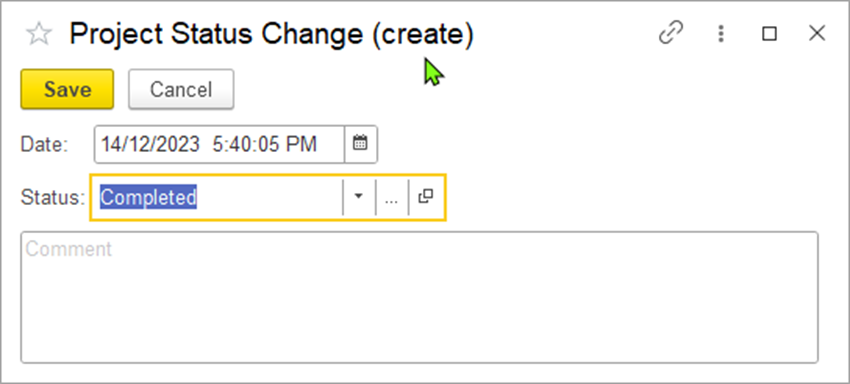
Figure 8: The "Project Status Change (create)" form.
Select a new status for the project in the Status field.
Optionally, you can edit the date of the status changing.
Then, click Save to assign the selected new status.
To view the history of project's status changes, click the Project Statuses link right under the project title.
Available links
The following links are available at the top of the form under the project title:
- Budget Estimates Versions: Click this link to view the history of budget estimates.
- Project Estimates Versions: Click this link to view the history of project estimates.
- Project Statuses: Click this link to view the history of status changes.
- Project Task Pipelines: Click this link to view the current statuses of project tasks.
Adding a Project. The Project Teams tab
On this tab, you can list the project team members.
The tab contains the following two panes:
- Our Team: Comprises the list of your company employees responsible for the project.
- Customer Team: Comprises the list of customer contacts who are responsible for the project.
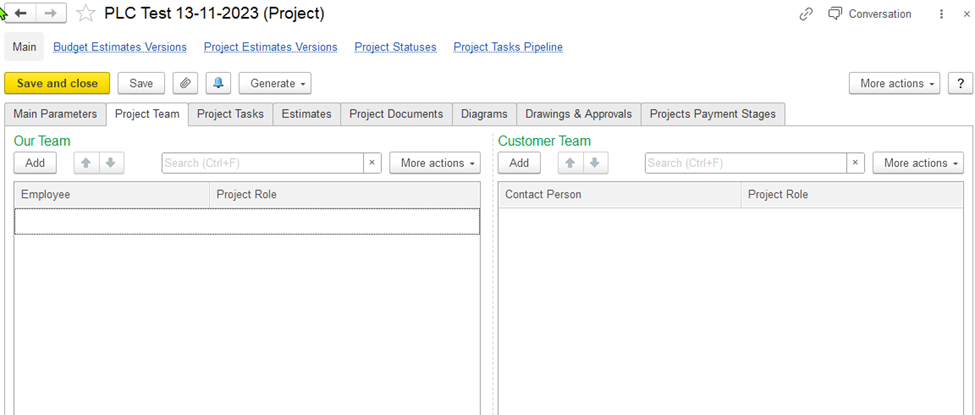
Figure 9: The "Projects (create)" form. The Team tab
To add a new member to Our Team, click Add on the left pane toolbar and select an employee from the Employees list.
In the Project Role column, you can select a role that this employee will play for the project as a team member. You can select the role from the list of Project Roles or add a new one on the fly.
To add a new member to Customer Team, click Add on the right pane toolbar and select a customer contact from the Company contacts list of the customer company contacts.
In the Project Role column, you can select a role that this contact will play for the project as a team member. You can select the role from the list of Project Roles or add a new one on the fly.
Adding a Project. The Project Tasks tab
On this tab, you can review existing project tasks or add new ones to the project.
The tab contains the following two nested tabs:
- Tasks: includes a list of project tasks with their start and end dates, statuses.
- Gantt: includes a graphical representation of tasks and their durations.
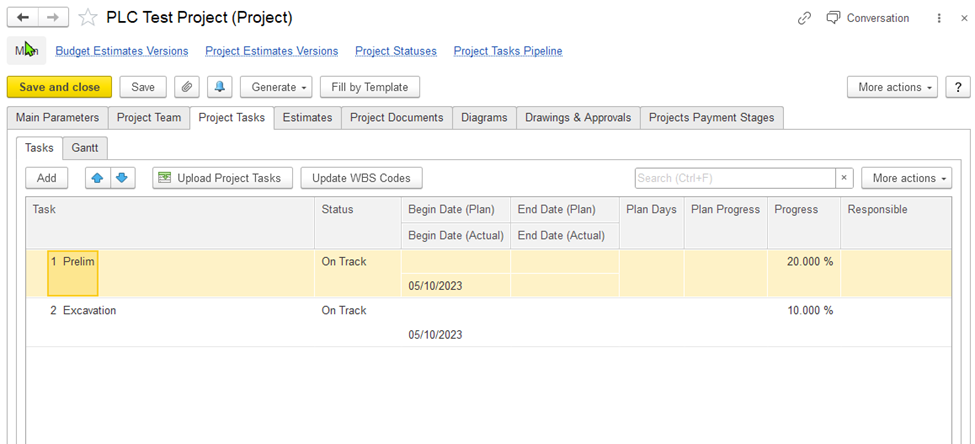
Figure 10: The "Projects (create)" form. The Project Tasks tab (the Tasks nested tab)
On the Tasks tab, you can view the list of tasks with their attributes. If needed, you can add new tasks to the project.
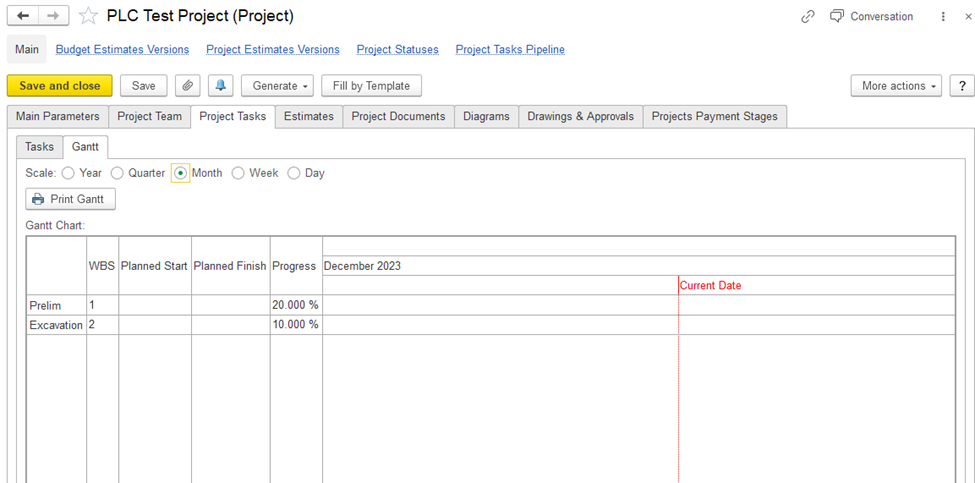
Figure 11:The "Projects (create)" form. The Project Tasks tab (the Gantt nested tab)
On the Gantt tab, you can view the task, planned start and end dates, their progress, and how the tasks are related.
Adding a Project. The Project Estimate tab
By using this tab, you can view the revenue and cost estimates for the project. Estimates for the project are created by using the Project Costing > Project Costing Documents > Project Estimates form.
If you need to edit the current estimates of the project, click the Edit Current Estimates button.
If you need to create a revision of the project estimates, click the Create Revision button.
If you need to create or edit project budget, click the Create/Edit Budget button.
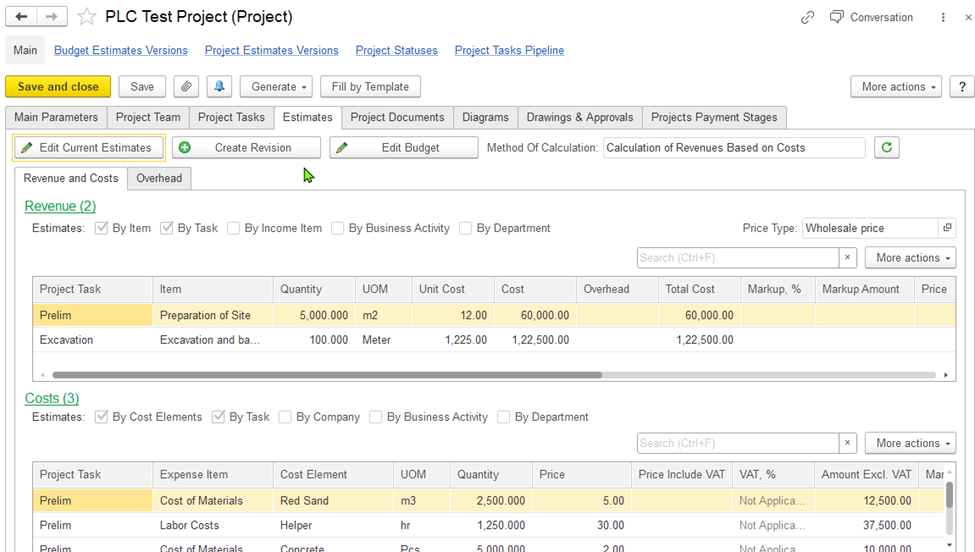
Figure 12: The "Projects (create)" form. The Estimates tab
How to create Project Estimate?
There are two ways to create project estimates:
- You can create project estimate directly form the project by click create/edit current estimate button or by clicking Generate > Project Estimate
- Go to the Project Estimates document list, open Project Costing > Project Costing Documents > Project Estimates and click
Creating a Project Estimates document. The Main tab
On this tab, you can enter general information about the project's estimate: the project, customer, project type, entity, and the employee who is responsible for the project. Also, you can specify whether you need to split estimates by planning period.
If for any method, the Estimates by Period check box is selected, one more tab, Estimates by Period, appears.
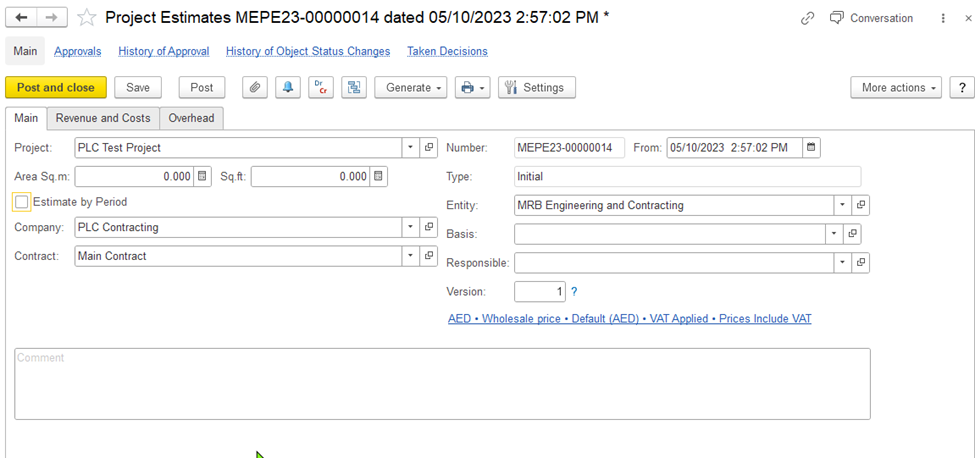
Figure 13: The "Project Estimates (create)" form. The Main tab
<Auto> in the Number field indicates that a number for this document is assigned automatically when you save the document. The From field is populated automatically with the current business date. You can select another date, if necessary.
In the Type field, its weather this estimate is a initial version or revision or variation, it will be populated automatically by the system.
In the Entity field, select the legal entity of your company for which this document is being prepared.
In the Project field, specify the project for which you want to create estimates.
In the Company field, specify the company for which this project is being planned.
The Contract field is auto-populated with the default contract of the company; select another contract if needed.
The Estimates by Period check box is available. If you need to create estimates for each planning period within the project duration, select the Estimates by Period check box. This brings up the Estimates by Period tab.
In the Responsible field, you can select the employee who is responsible for this project.
The Version field is auto-populated with the version of the project budget.
Notice the hyperlink below the Version field – VAT Applied* Prices include VAT on the screenshot above (can be different in your document).
By clicking the hyperlink, you can open the Prices and Currency dialog box and change the price-related and taxation-related settings to be used for the project estimates. For more details, refer to The Prices and Currency dialog box.
In the Comment text box, you can enter any information related to this project's budget.
Creating a Project Estimates document. The Revenue and Costs tab
This tab is used for building the project budget using the Calculation of Revenue Based on Costs calculation method. The tab contains the following two panes:
- Revenues (upper pane)
- Tick Use Different Currency checkbox, if your invoicing will be done in different currency.
- Costs (lower pane)
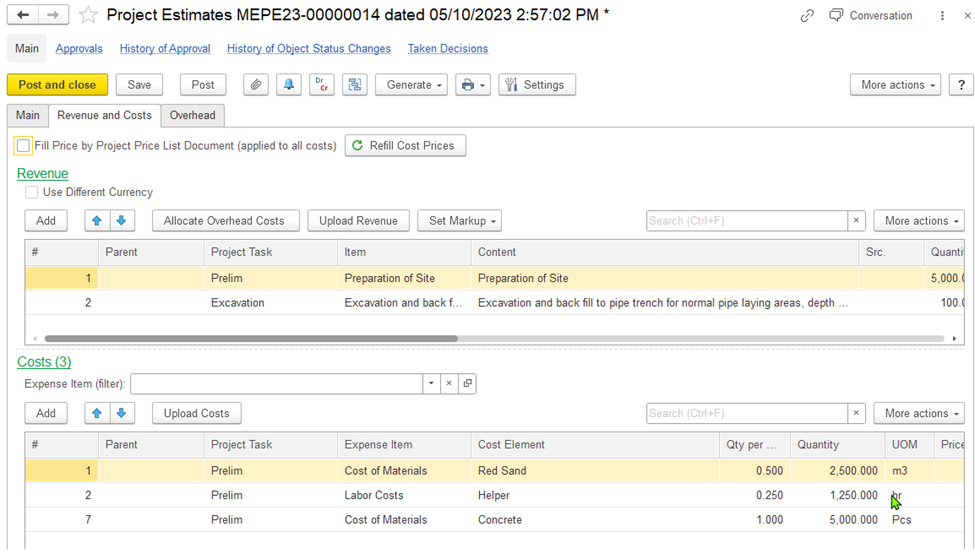
Figure 14: The "Project Estimates (create)" form. The Revenues and Costs tab
The Revenues pane
For each revenue listed in the upper pane, you can create a list of costs in lower pane.
In Project Task, select the project task for the revenue estimate.
In Item, select the item (revenue item/service) for the specific project task.
In Content, give detailed information for item (revenue item/service) it will populate by default when you select the item but it’s an editable field.
In Quantity, provide the quantity for the item (revenue item/service)
The UOM column (available if the Item is selected as the project revenue analytical parameter) is populated with the unit of measure used for the item.
If you don't need to specify estimates by item, you can type the revenue estimate amount in the Amount column.
In the Overhead column, enter the other costs and expenses related to the item. Generally, this column is auto-populated from the overhead amount allocated from the Overheads tab.
The Total Cost field shows the cost of the specified quantity of the item with the allocated overhead amount.
In the Markup, % column, you can specify the percentage of increase to be applied to costs to get the revenue estimation. Generally, the revenue amount can be calculated based on markups specified for related costs in the lower pane.
In the Markup Amount column, you can view the added amount for the specified percentage or you can enter the amount directly if no percentage is specified.
The Amount column shows the amount for the specified parameters.
The VAT,% column is auto-populated with the VAT rate applicable to the revenue.
The VAT Amount column shows the amount of VAT calculated for the revenue.
In the Price column, you can view the resulting revenue item price. If the Markup is specified, the price is calculated based on the cost and markup.
The Total Amount column shows the revenue amount.
The Cost Pane
For each revenue, you can specify multiple costs in the Costs pane.
Click Add to add a new cost for the revenue selected in the upper pane.
Project Task will come automatically based on the revenue line..
In Expense Item, select the type of expense you want to add (for ex: Cost of material, labor Cost etc).
In Cost Elements, select the Cost item to be able to view project costs detailed to cost elements which you can select from the Items, Employees, Positions, Fixed Assets lists.
In Qty per unit, select the quantity required for 1 revenue item, so whenever we change the quantity in revenue line, it will automatically change the quantity on cost side.
Quantity field will be populated automatically based on Qty per unit field, or you can enter manually also.
UOM Field will be populated based on item. We can change that also.
In Price, enter the cost price for the selected cost element.
In the Price column, you can enter the item price.
The Amount column shows the total amount for the specified expense or cost with the VAT amount added if applicable.
In the Markup, % column, you can enter the percent of increase to be applied to the cost to get the revenue estimate related to this cost or expense.
The Markup Amount column is auto-populated with the amount of markup. Alternatively, you can enter the amount and the markup percentage will be recalculated.
The Amount Incl. Markup column shows the cost with markup for this cost/expense.
Creating a Project Estimates document. The Overheads tab
This tab is used to enter the estimates of overhead costs for the project. This tab is available if the estimation method is Independent Calculation of Costs and Revenues.
To allocate the overhead costs, use the Allocate Overhead Costs button on the toolbar of the Revenues and Costs tab.
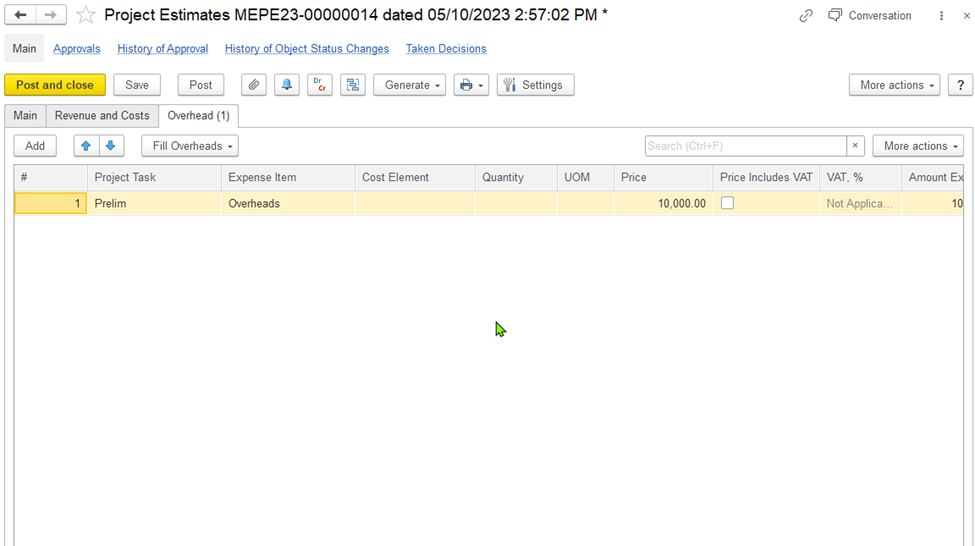
Figure 15: The "Project Estimates (create)" form. The Overheads tab
Click Add to add a new overhead cost associated with the project or you can fill overheads cost by project tasks.
Select Expense Item to categories the expense item (i.e. Overheads)
Select Cost Element, Quantity, UOM. They are optional fields.
Enter Price of the overhead cost.
The VAT,% column is populated with the percent of VAT applicable to the overhead cost. You can change the rate if needed.
The Amount Excl. VAT column shows the total amount of this overhead cost without VAT amount. This amount will be allocated to project estimates.