-
Created by
 Daria Tikhova on 17 Aug, 2026
2 minute read
Daria Tikhova on 17 Aug, 2026
2 minute read
You can save personal List Form settings and apply them later when needed.
This is useful when you have customized a List Form for your daily work and want to keep different configurations or return to the standard configuration.
Save List Form Settings
After configuring a List Form, you can save the current configuration for the current user.
- Open the required List Form.
- Select More actions.
- Select Save Settings.
- Enter a name for the settings, if required, and save them.
The current List Form configuration is saved as a personal setting for the current user.
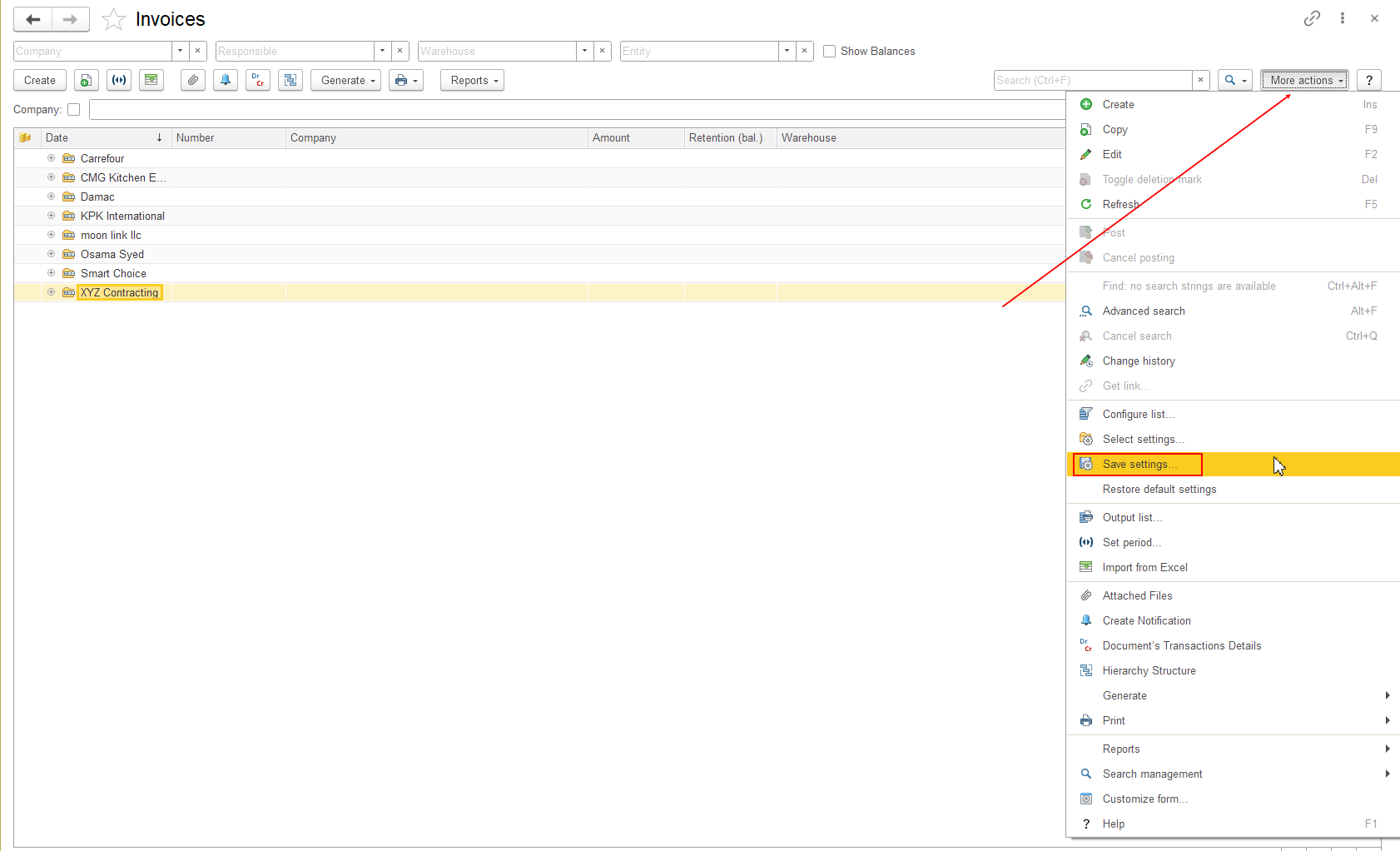
You can save a List Form after customizing its fields, field order, visibility, or other available form elements.
Apply a Saved List Form Setting
You can select a previously saved List Form configuration and apply it to the current List Form.
- Open the required List Form.
- Select More actions.
- Select Select Settings.
- Select the required saved setting.
The selected configuration is applied to the current List Form.
Screenshot: Show More actions → Select Settings with the list of previously saved settings.
Note: Saved settings are personal to the current user.
Restore Default List Form Settings
If you want to return the List Form to its standard configuration:
- Open the required List Form.
- Select More actions.
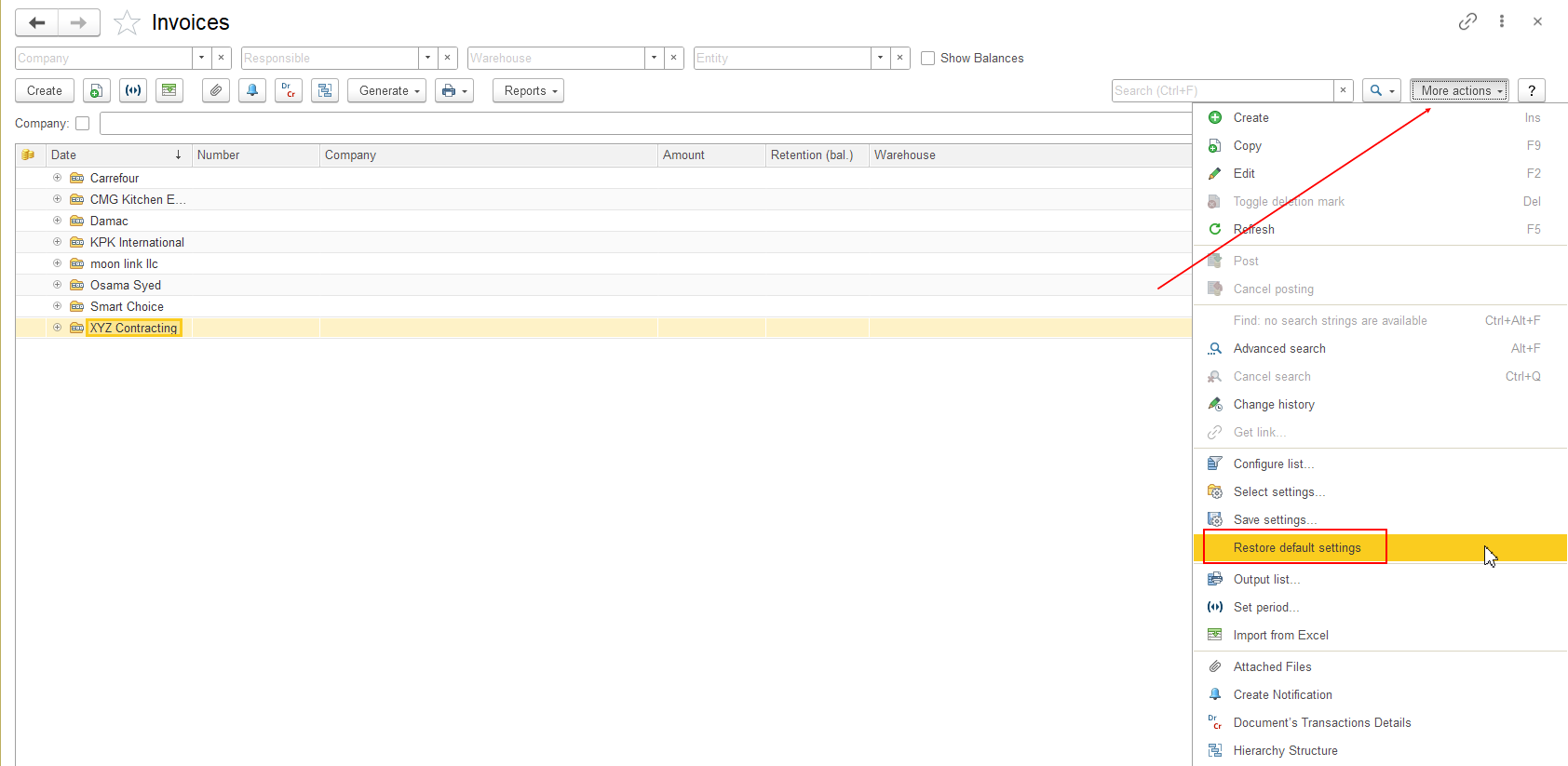
- Select Restore Default Settings.
The List Form returns to its default configuration.
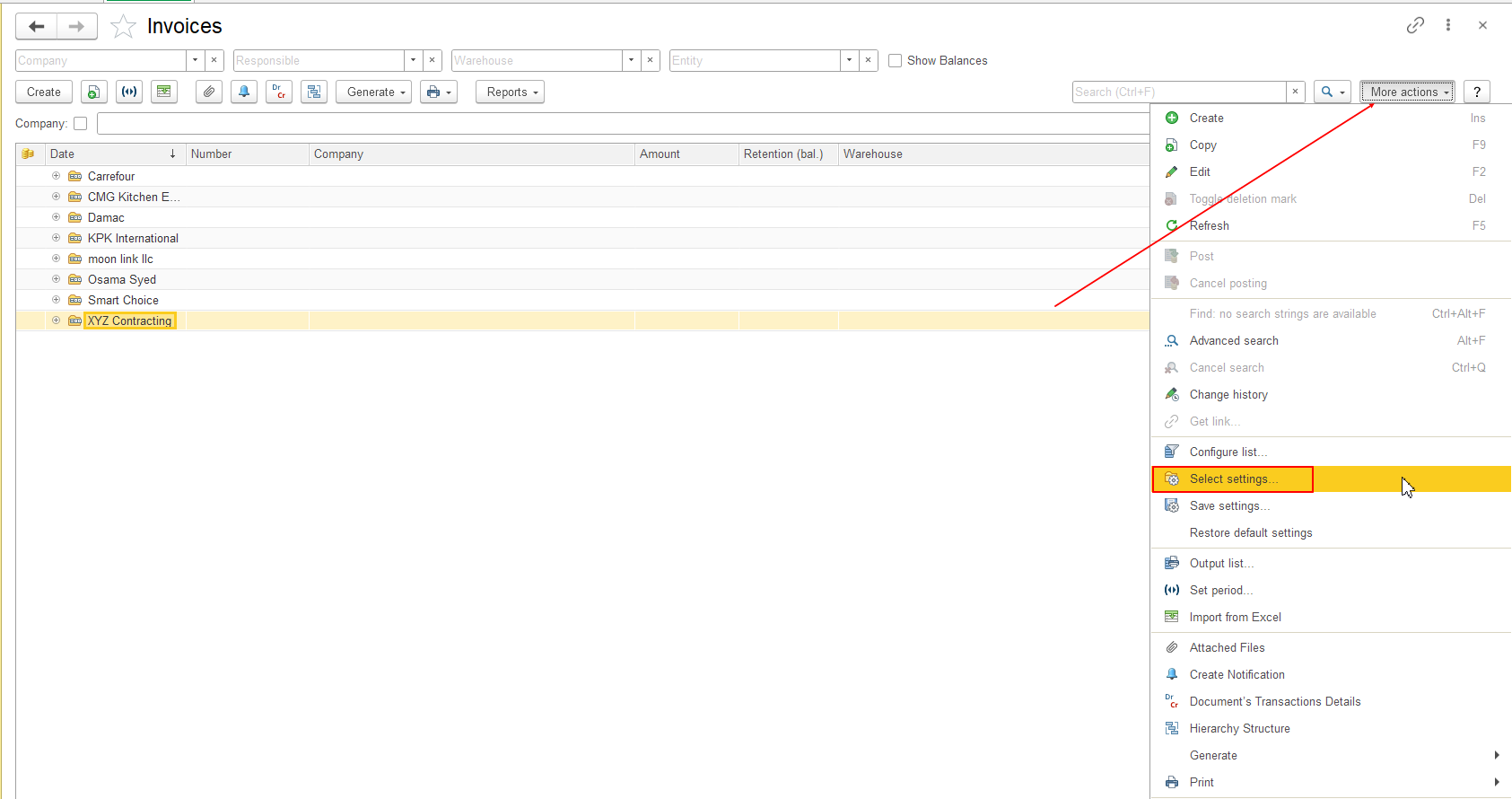
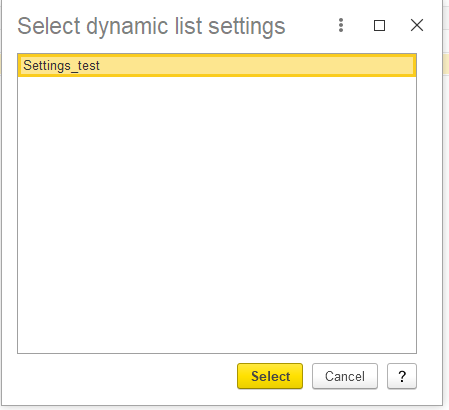
Use Select Settings when you want to apply one of your previously saved configurations.
Use Restore Default Settings when you want to return to the standard List Form configuration.
Important: Saving, selecting, or restoring List Form settings changes only the configuration of the List Form for the current user. It does not delete or modify business data, documents, or other system data.
Related Articles
- Configure List — configure how data is filtered, sorted, grouped, and displayed in a list.
- Customize Form — customize the structure and appearance of a List Form.
Thank you for being FirstBIT Customer!