-
Created by
 Implementation Department, last updated by Daria Tikhova on 10 Apr, 2026
5 minute read
Implementation Department, last updated by Daria Tikhova on 10 Apr, 2026
5 minute read
Overview
In FirstBIT Software, prices in sales and purchasing documents (such as Customer Order, Invoice, Purchase Order, and Invoice Received) can be configured to:
- include VAT
- exclude VAT
The VAT behavior of prices is controlled by several system settings:
- Entity taxation settings;
- Item Price Types (Sales);
- Supplier Price Types (Purchasing);
- Contract settings with customers;
- Manual adjustment inside documents.
These settings allow the system to automatically determine whether prices include VAT when creating transactional documents.
Method 1. Configure VAT Inclusion via Entity Settings (Sales Documents)
Use this method if your company sells goods with VAT included in prices by default.
Steps
Navigate to:
Accounting - Master Data - Entities
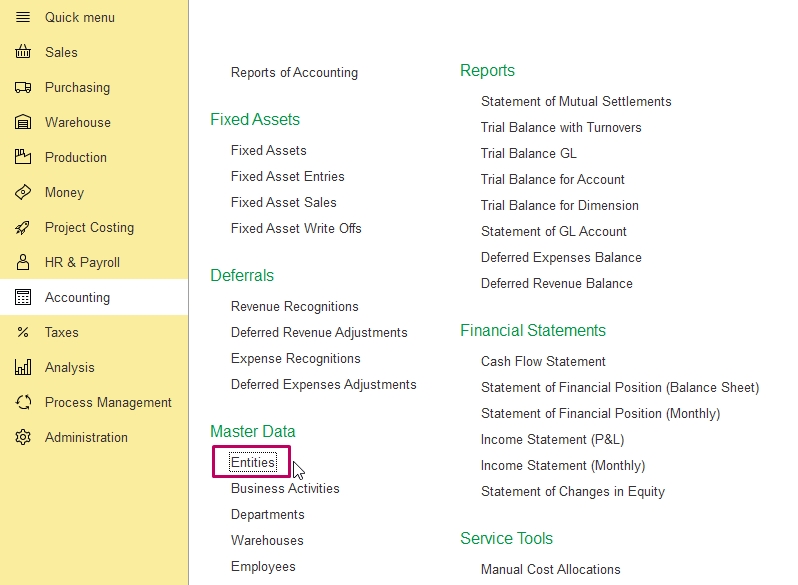
Open the required Entity.
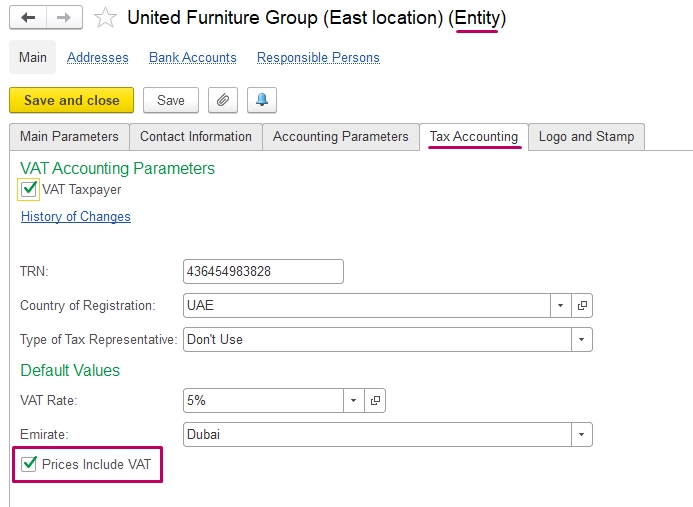
Go to:
Taxation Accounting tab
Enable or disable the checkbox:
Price Include VAT
- Enabled → prices in sales documents include VAT
- Disabled → prices in sales documents exclude VAT
After configuration:
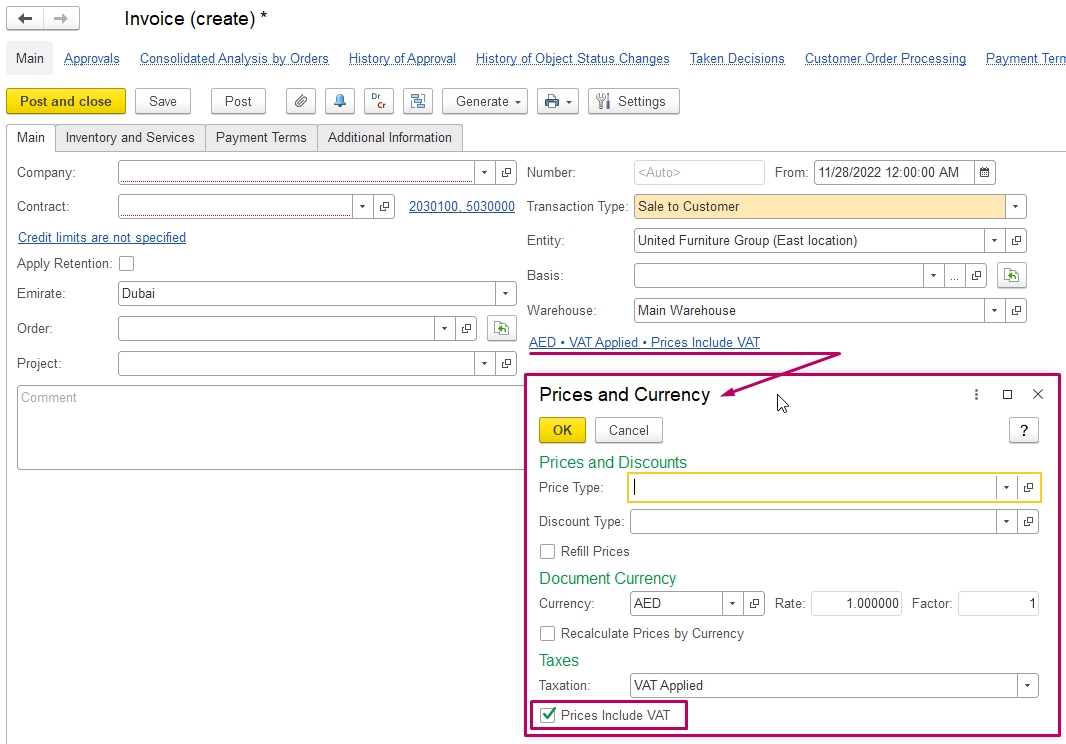
When creating:
- Customer Order
- Invoice
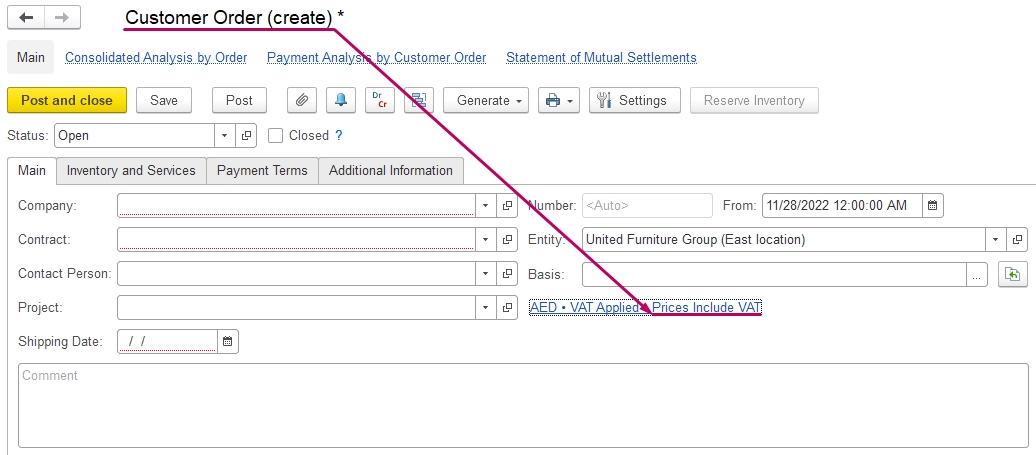
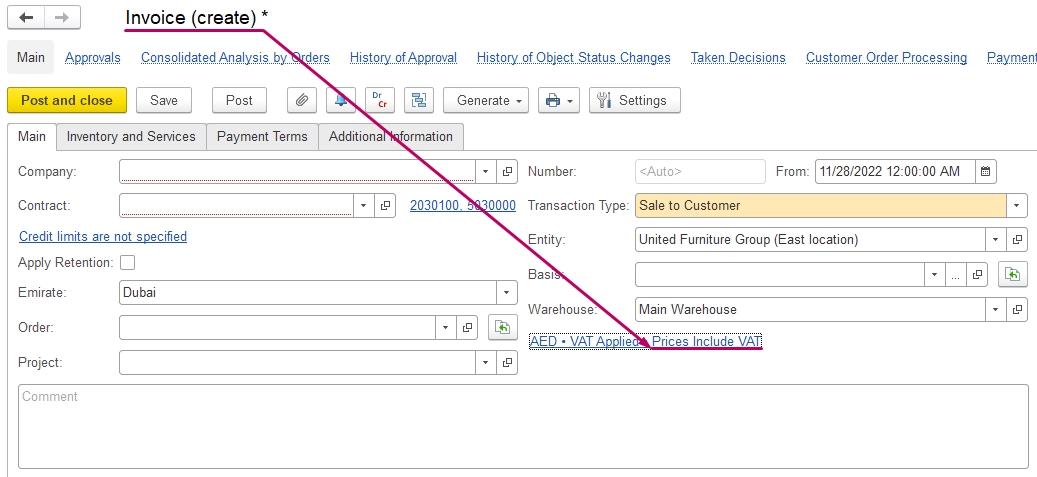
the system automatically applies this VAT behavior.
If required, the setting can be changed manually inside the document.
Method 2. Configure VAT Inclusion via Item Price Types (Sales Price Lists)
This is the recommended method when working with price lists or contract-based pricing policies.
Steps
Navigate to:
Sales - Master Data - Item Price Types
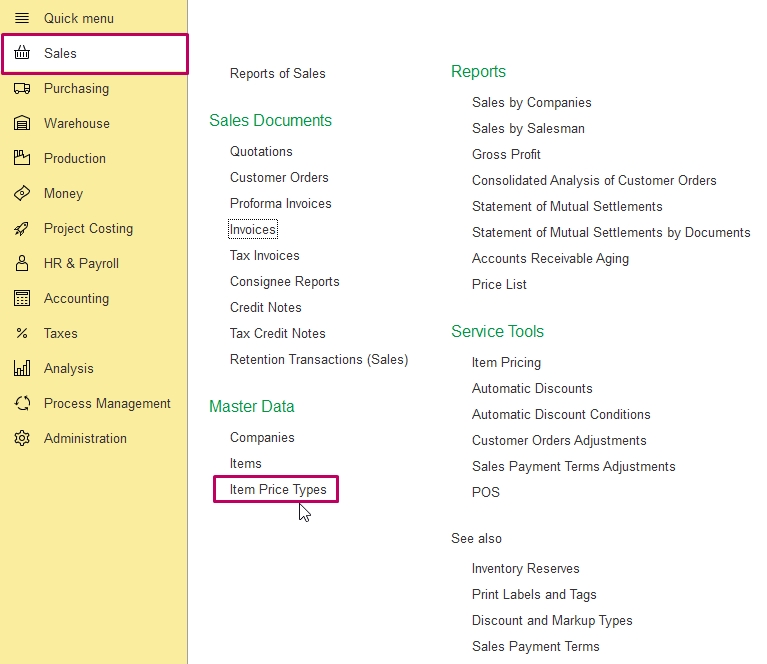
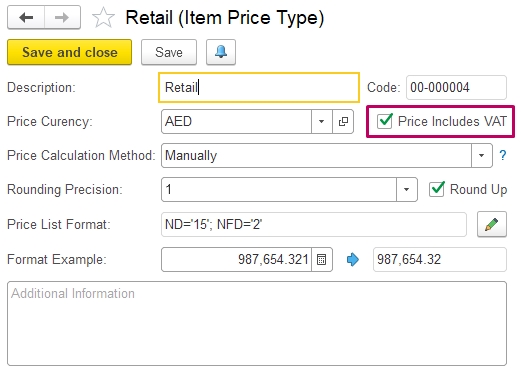
Open the required price type.
Locate checkbox:
Price Includes VAT
Configure as needed:
- Enabled → prices include VAT
- Disabled → prices exclude VAT
Save changes.
After configuration:
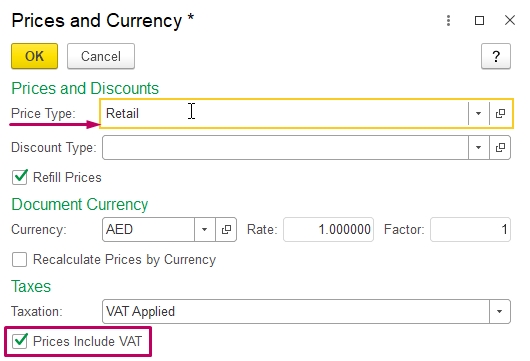
NOTE
In case, if Entity has setting 'Prices do not include VAT', but Price Type has setting 'Prices include VAT', then document picks setting from Price Type.
When this Item Price Type is used in:
- Contract
- Price List
- Customer Order
- Invoice
the system automatically applies the VAT calculation logic from the selected price type.
Applying Item Price Type via Contract
Item Price Type can be assigned inside the customer contract and automatically applied to documents.
Steps
Navigate to:
Sales - Master Data - Companies
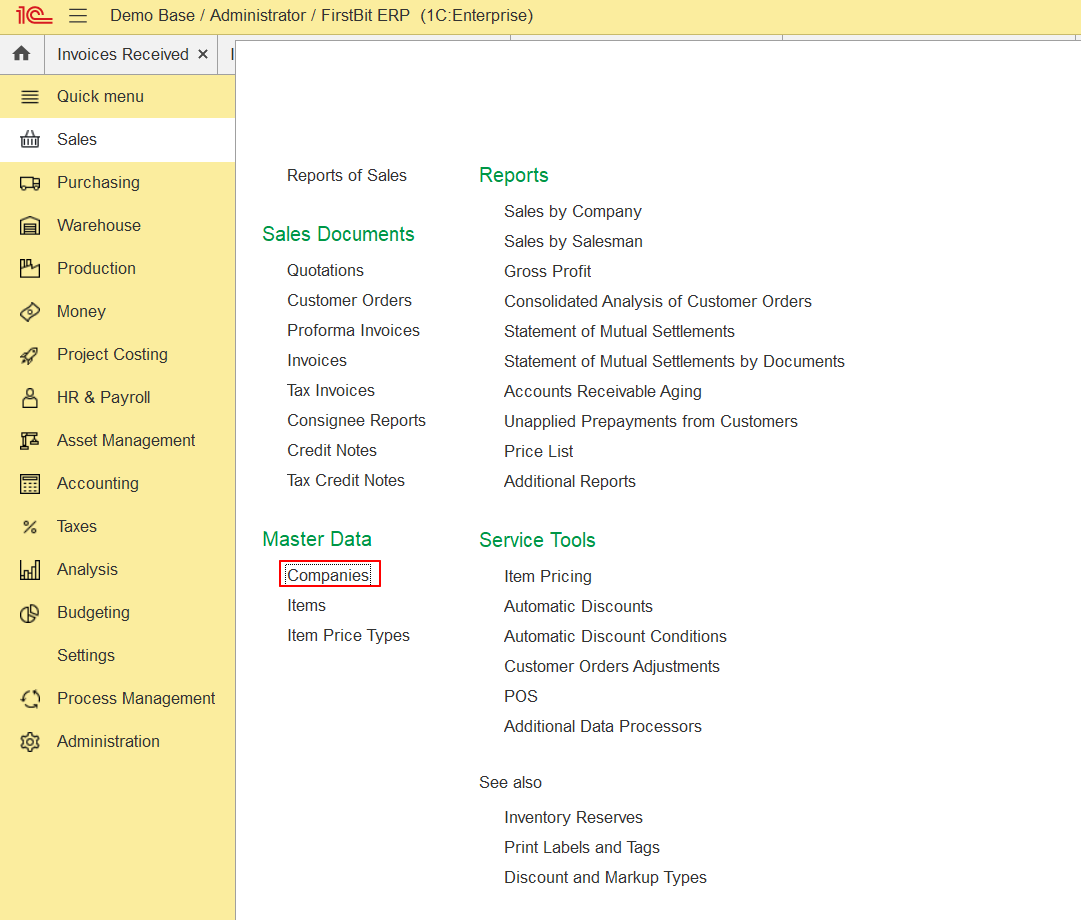
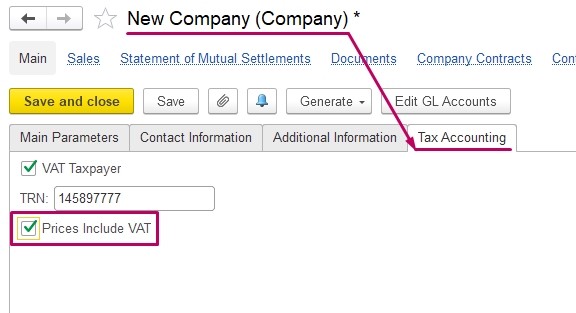
Open customer card. On Tax Accounting tab it is possible set checkbox (if Company is VAT Taxpayer):
- Enabled → prices include VAT
- Disabled → prices exclude VAT
Open:
Company Contract tab and open contract:


Go to:
Terms tab
Select:
Item Price Type
After selecting:
When the Company and Contract are chosen inside:
- Customer Order
- Invoice

the system automatically applies:
- Item Price Type
- VAT inclusion behavior from the selected price type
Method 3. Configure VAT Inclusion via Supplier Settings (Purchasing Documents)
Use this method if suppliers provide prices including VAT by default.
Steps
Navigate to:
Purchasing - Master Data - Companies
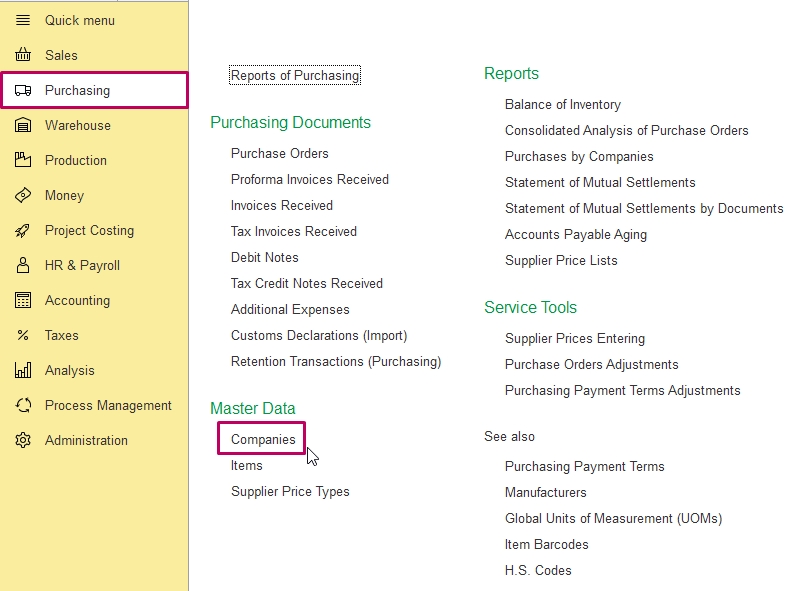
Open supplier card.
Go to:
Taxation Accounting tab (same as in Method 1)
Enable or disable:
Price Include VAT
Result:
When creating:
- Purchase Order
- Invoice Received
VAT inclusion behavior will be applied automatically.
This parameter can still be adjusted manually inside documents if necessary.
Method 4. Configure VAT Inclusion via Supplier Price Types
Supplier Price Types allow automatic VAT behavior control when working with supplier price lists.
Steps
Navigate to:
Purchasing - Master Data - Supplier Price Types
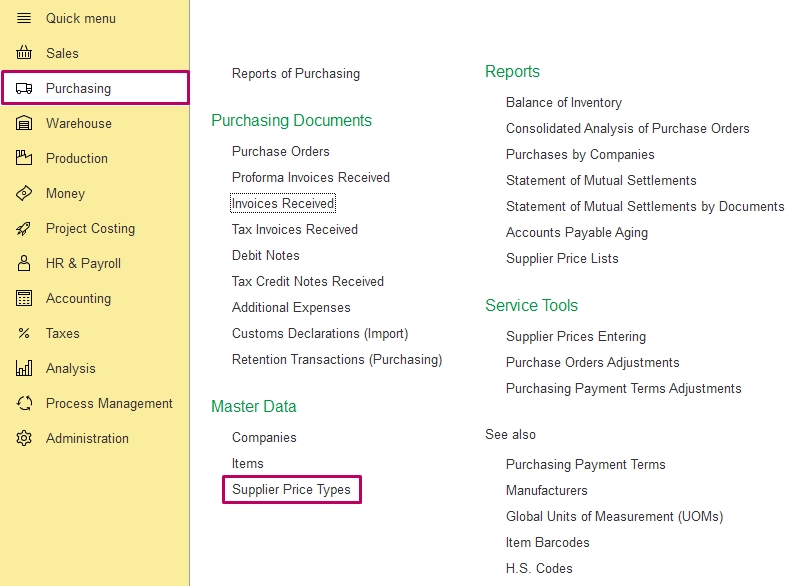
Open required price type.
Enable or disable:
Price Include VAT
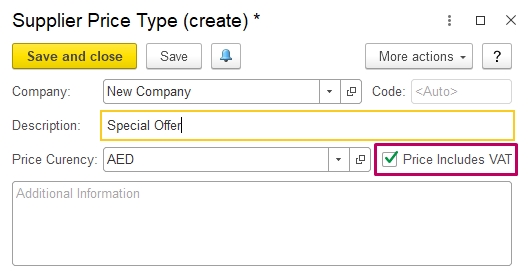
After saving:
When this Supplier Price Type is selected in:
- Purchase Order
- Invoice Received
VAT inclusion behavior is applied automatically.
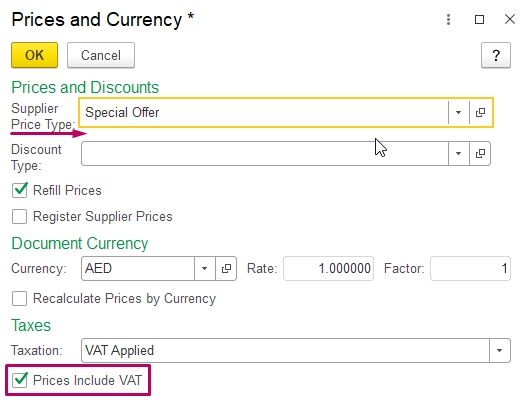
Manual adjustment inside documents remains available if required.
Priority Logic of VAT Settings in Documents
When multiple VAT configuration sources exist, FirstBIT applies the following logic:
Priority order:
- Price Type (Item Price Type / Supplier Price Type)
- Entity taxation settings
- Manual adjustment inside document
Example:
If:
- Entity = Prices exclude VAT
- Item Price Type = Prices include VAT
Result:
Document will use: Prices including VAT (from Price Type)
Manual Adjustment Inside Documents
Even if VAT behavior is predefined via:
- Entity settings
- Item Price Type
- Supplier Price Type
- Contract settings
Users can manually change:
Price Include VAT
inside documents:
- Customer Order
- Invoice
- Purchase Order
- Invoice Received
This allows flexible correction for exceptional cases.
Result
After proper configuration:
FirstBIT Software automatically determines whether prices:
- include VAT
- exclude VAT
based on:
- Entity settings
- Item Price Types
- Supplier Price Types
- Contract Terms tab settings
This ensures consistent VAT calculation logic across all sales and purchasing documents.
Thank you for being FirstBIT customer!