-
Created by
 Implementation Department, last updated by Olga Kaya on 17 Sept, 2026
4 minute read
Implementation Department, last updated by Olga Kaya on 17 Sept, 2026
4 minute read
Use Sets of Items when you need to sell several inventory items together as a single product while maintaining separate inventory records for each component.
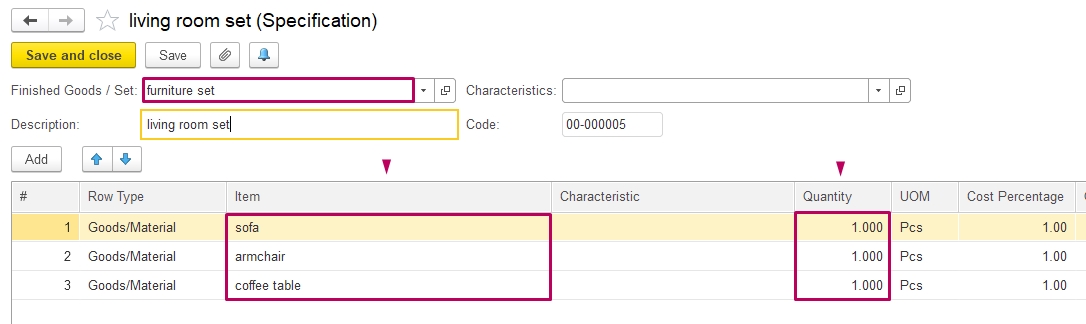
For example, a furniture set may include a sofa, an armchair, and a coffee table. The customer purchases the furniture set as one item, while the system writes off its individual components from the warehouse according to the selected specification.
Create and sell a Set of Items
A Set is an item that consists of several components. When a Set is sold, the system writes off its components from the warehouse according to the selected specification.
1. Enable Set sales
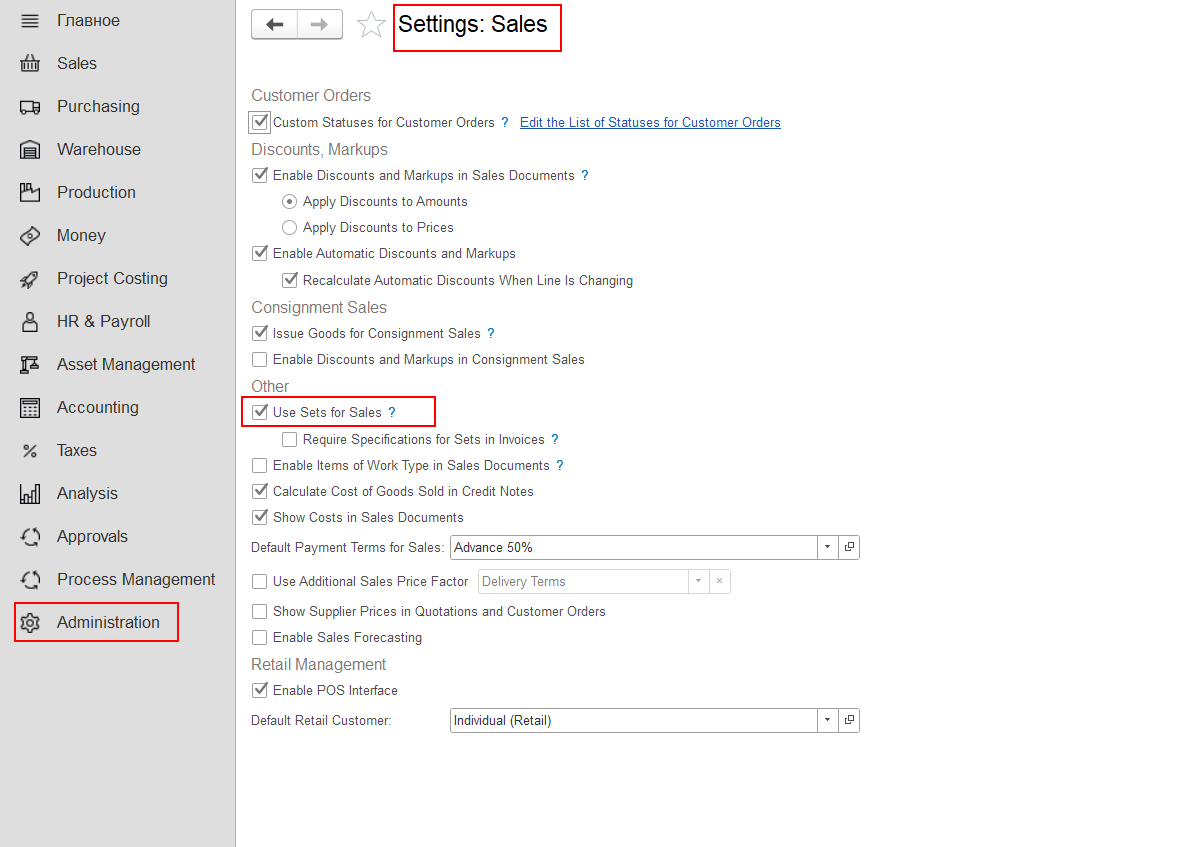
Go to Administration > Settings > Sales.
In the Other section, enable Use Sets for Sales.
This option allows you to use Set items in sales documents. When a Set is selected in a sales document, the system uses the selected specification to determine which components are written off from the warehouse.
If you want the system to require a specification for every Set included in an Invoice, also enable Require Specifications for Sets in Invoices.
When this option is enabled, the system checks that a specification is assigned to each Set item in an Invoice.
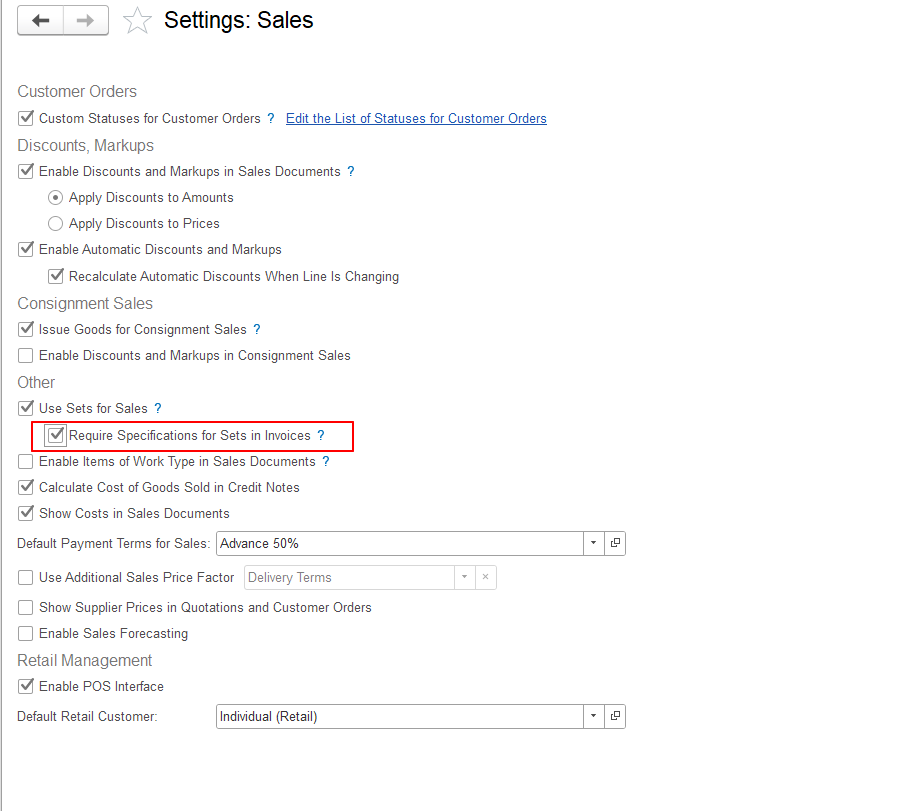
Note: Require Specifications for Sets in Invoices is an optional setting. It applies to Invoices and ensures that a specification is assigned to each Set item.
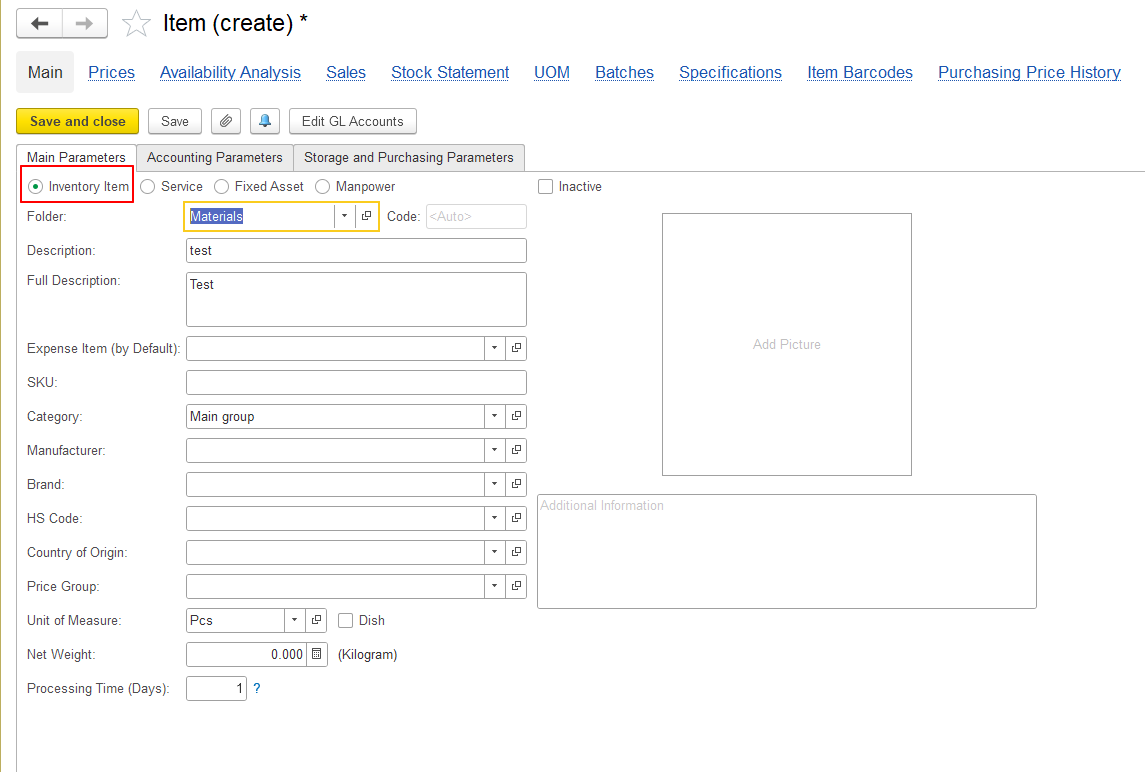
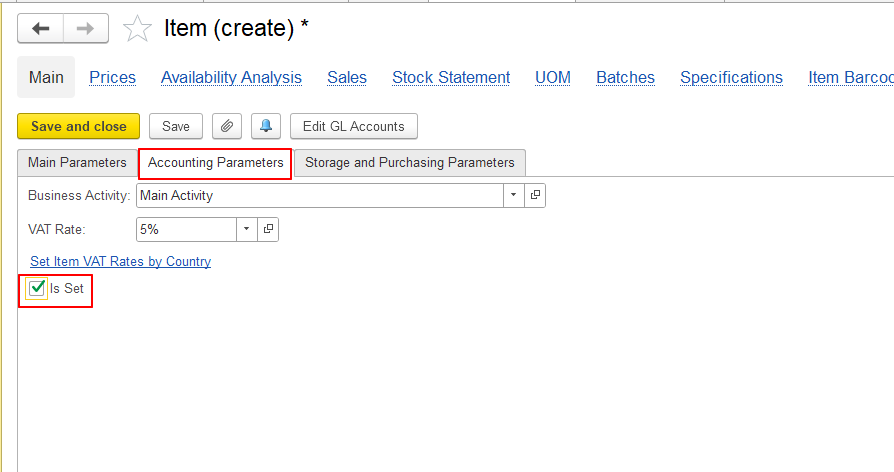
FirstBIT Contracting: The Set functionality is configured differently in this configuration. When creating a Set item, select Inventory Item as the Resource Type and enable the Is Set checkbox on the Accounting Parameters tab.
2. Create a Set item
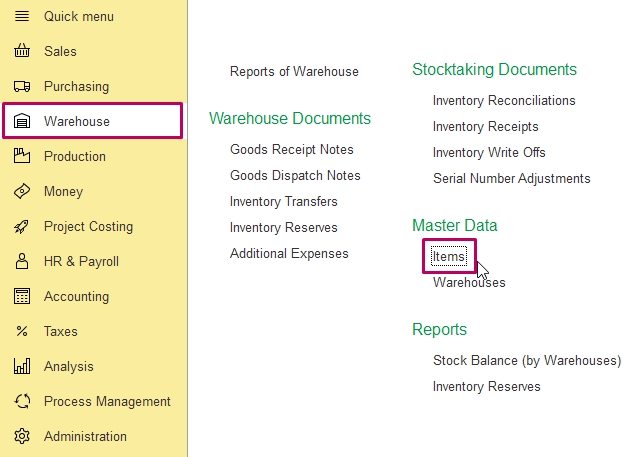
Go to Warehouse (or Sales or Purchases) > Master Data > Items and create a new item.
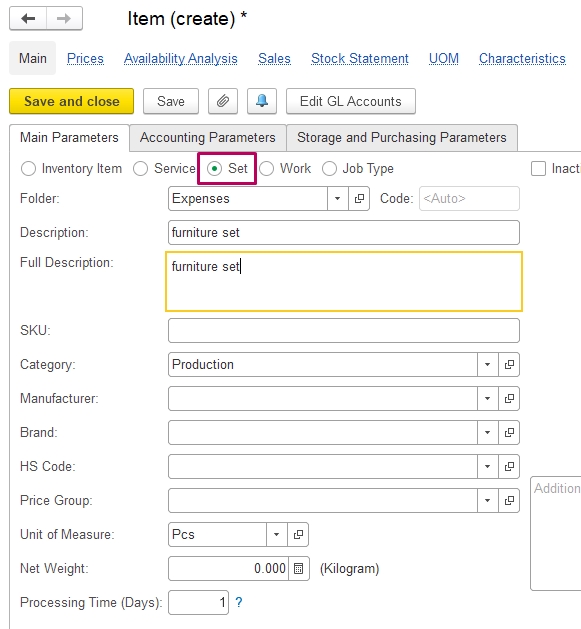
In the Main Parameters tab, select Set as the item type and save the item.
Note: The item setup for FirstBIT Contracting differs from other configurations. Follow the Contracting-specific instructions above.
3. Create a specification for the Set
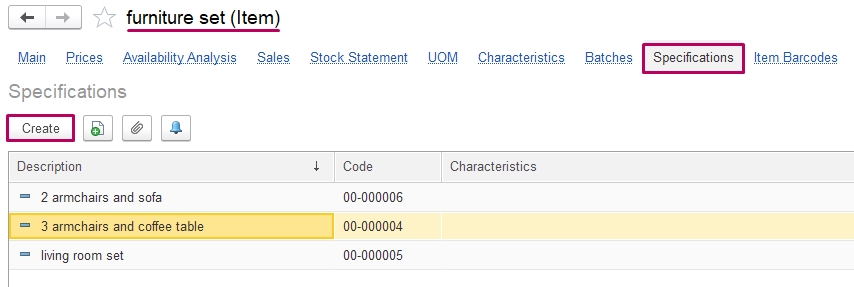
Different specifications allow you to sell the same Set with different combinations and quantities of components by selecting the required configuration when processing a sale.
After saving the Set item, click Specifications and add a new specification.
A specification defines the components included in the Set.
4. Use the Set in sales documents
Create a Customer Order or Invoice as usual and add the Set item.
Select the required specification in the corresponding column.
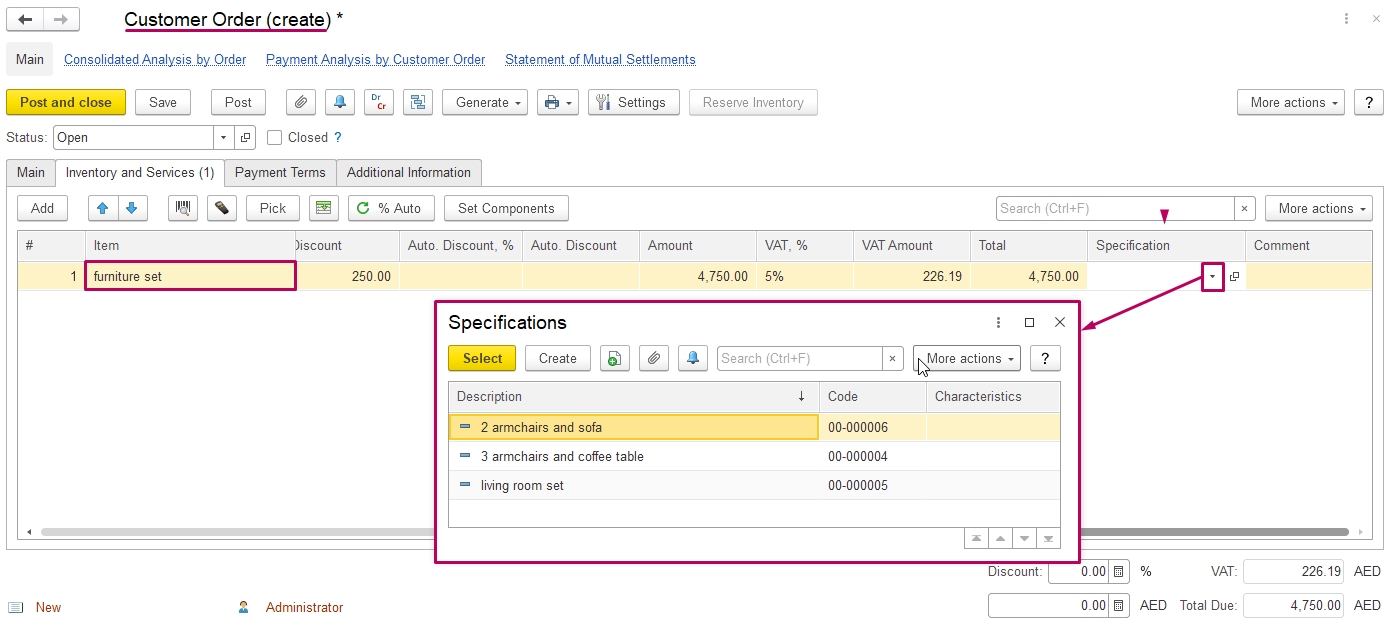
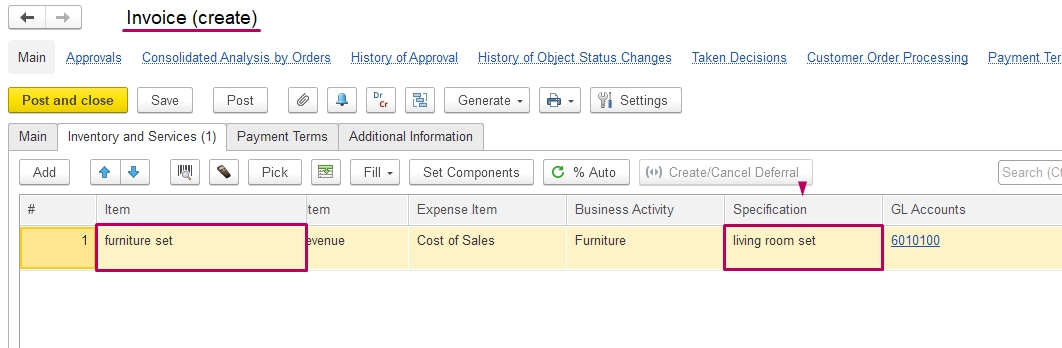
If Require Specifications for Sets in Invoices is enabled, make sure that a specification is assigned to every Set item in the Invoice.
5. Write off Set components
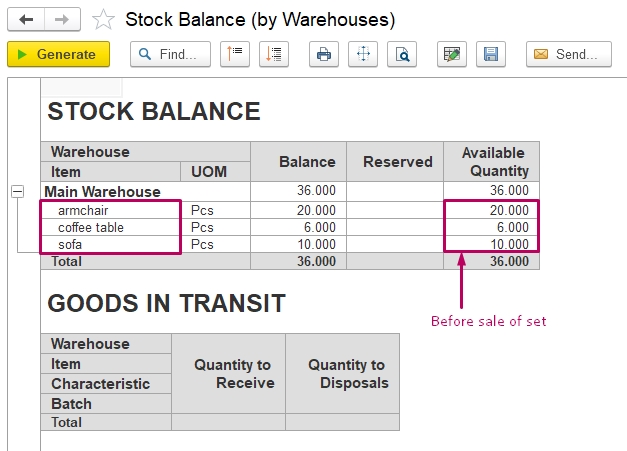
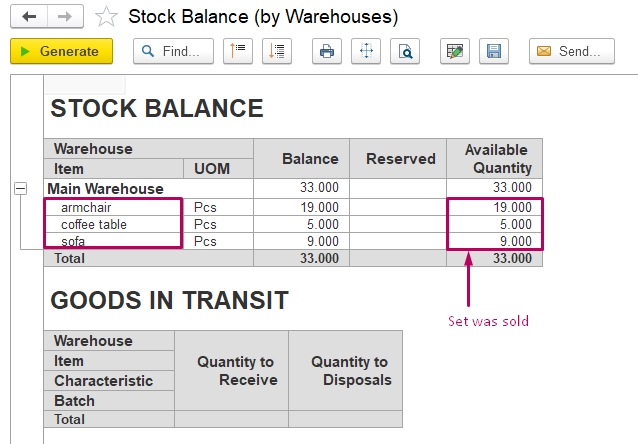
When the sales document is posted, the system writes off the Set components from the warehouse according to the selected specification.
Thank you for being a FirstBIT customer!
#setsofItems #Sets #SetItems #SetSpecification #Specifications #SetSales