- Standard doc topics (how to find, how to create, main tab, project structure
- Allocate overheads buttons for Amount (Overheads) distribution.
- Fill current recognition buttons: by Invoiced, by Progress, by Expenses.
- if Project is not marked as Advanced Project Planning, then old Phased revenue recognition mode will be applied (with no project structure and recognition by expenses).
Phased revenue recognition, in line with IFRS 15, is widely applied in contracting for long-term projects such as construction works that extend over several months. Under this method, revenue and costs are recognized progressively, based on the stage of contract completion, rather than solely at the time of invoicing. Any revenue recognized before invoicing is recorded as a contract asset and not as receivables until the related contractual obligations are satisfied and an invoice is issued. This ensures that project revenues are aligned with the actual progress of work performed.
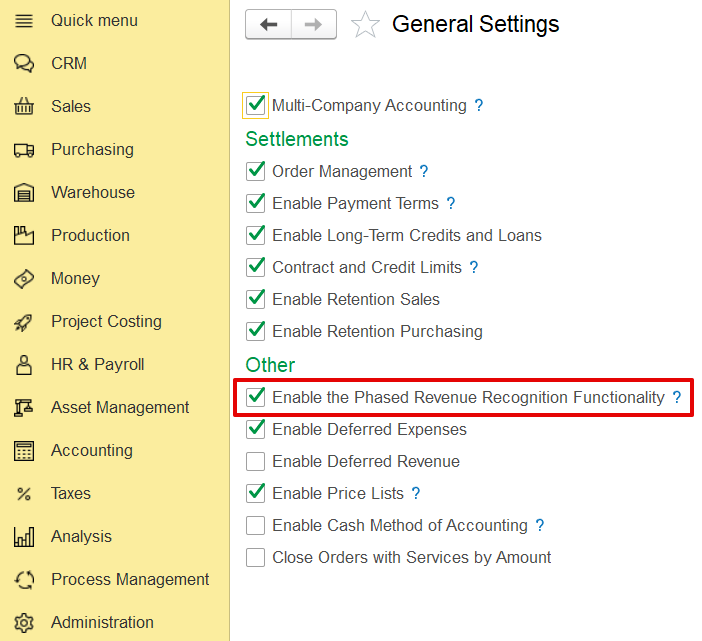
Administration → General Settings → Phased Revenue Recognition.
In addition to the main settings, phased revenue recognition must also be activated within the contract itself. To do this, open the specific contract, go to the Terms tab, and enable the Phased Revenue Recognition option.
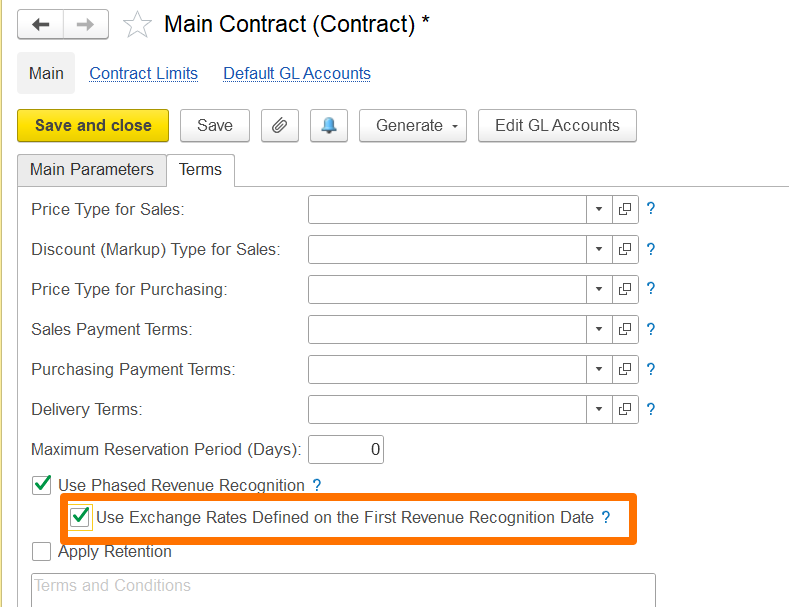
Additionally, if the contract involves a foreign currency, you can use the exchange rate defined on the first revenue recognition date to account for exchange rate fluctuations.
If enabled, the exchange rate set on the date of the first revenue recognition will apply to all subsequent phased revenue recognition documents, with gains or losses calculated only when the invoice is issued.
If disabled, gain/loss calculations will occur during month-end closing using the exchange rates applicable on each document's date.
How to create
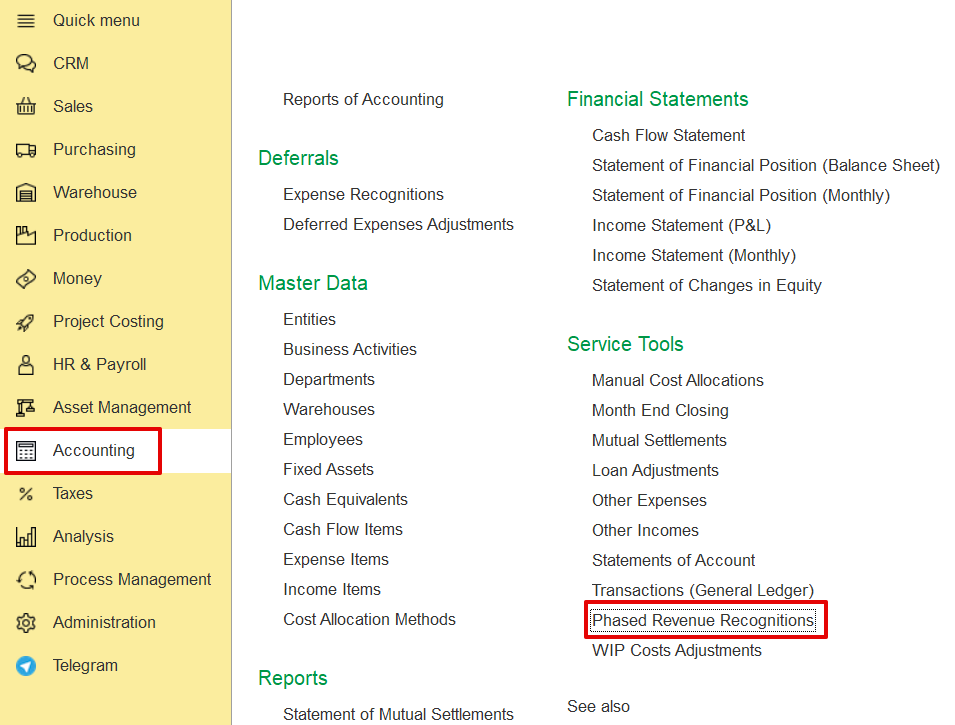
Accounting → Service tools → Phased revenue recognitions→ Create
Main tab
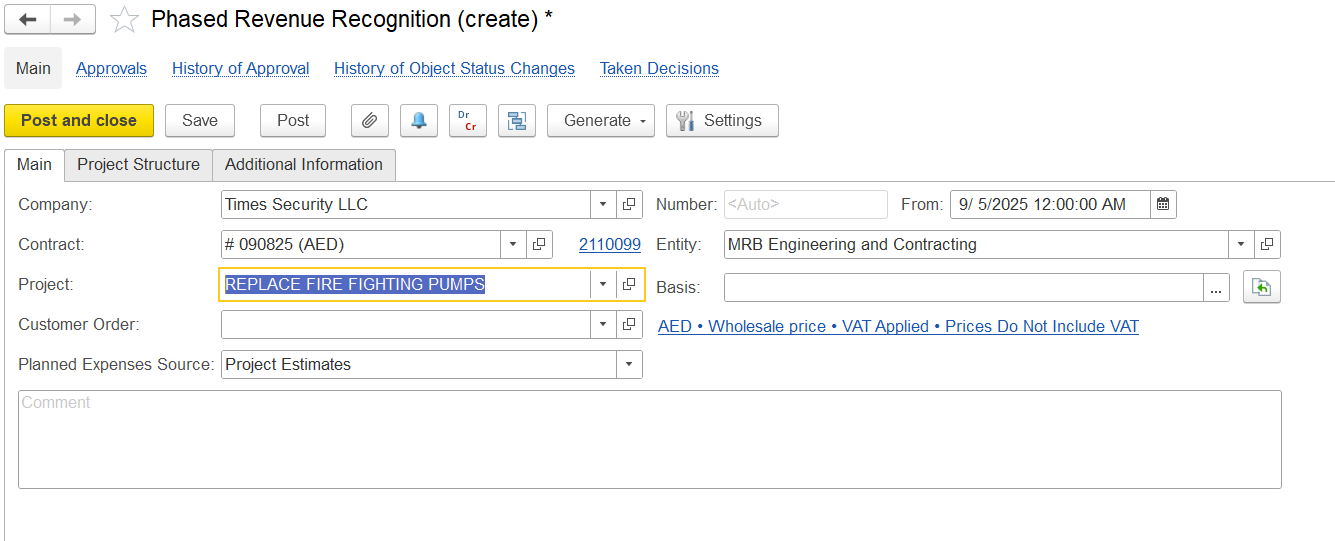
The Main Tab contains key information related to Phased Revenue Recognition.
When creating a Phased Revenue Recognition document, the following fields are available. All details are filled automatically once a Project is selected:
Company Name-The company for whom the recognition is being created.
Entity Name-The entity issuing the recognition.
Contract-Customer contract linked to revenue recognition.
Project-Project for which phased revenue recognition is applied.
Customer Order-Related sales or customer order, if applicable.
Planned Expenses Source-Basis for expected costs used in calculations.
Basis-Source document from which the recognition is created (e.g., project estimate, customer order).
Comment-Field for additional notes.
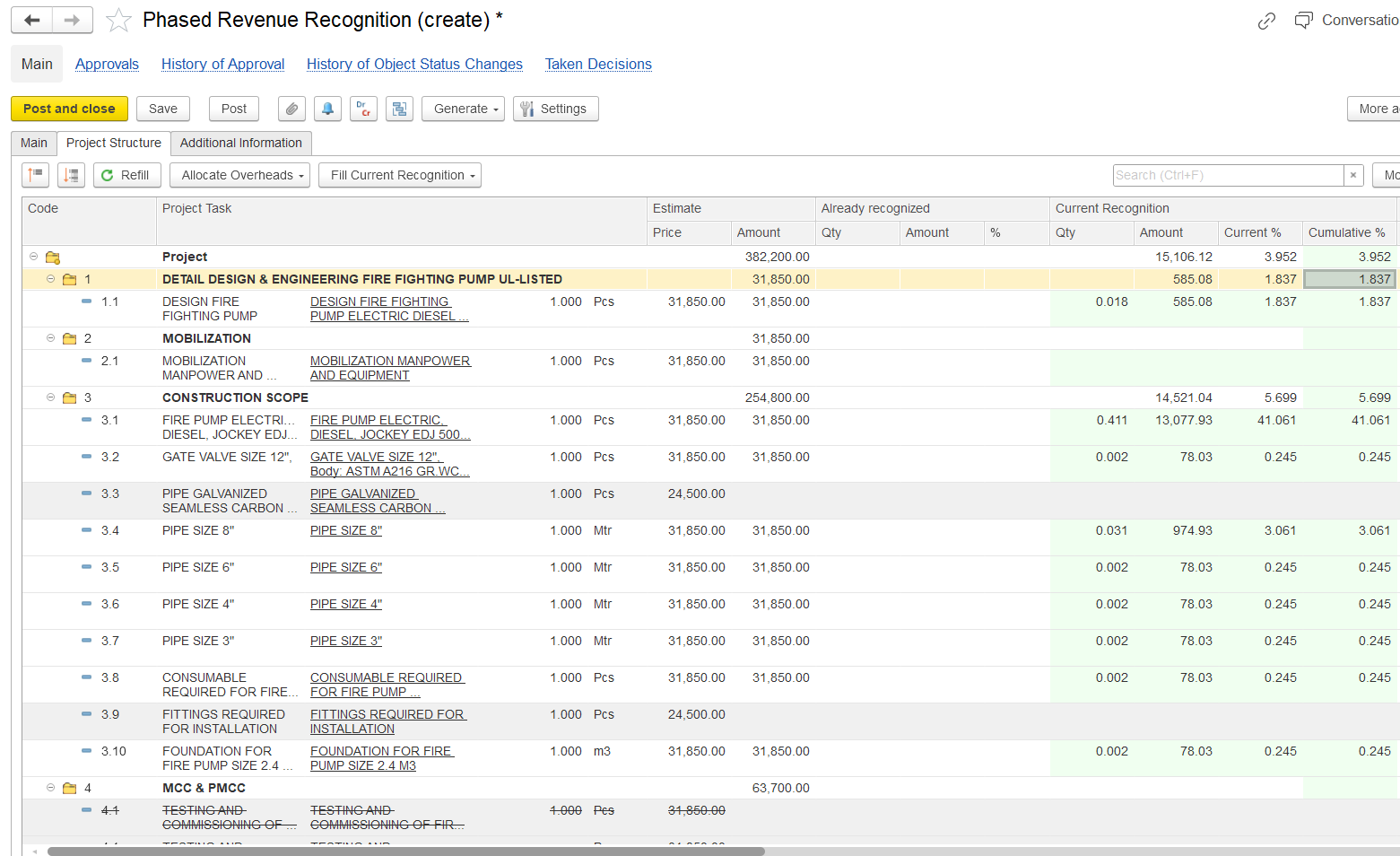
Project Structure
This tab is used to manage project tasks, expenses, and the method of recognizing revenue for each part of the project.
Refill – Refills all data (tasks, estimates, expenses) automatically pulled when the project was selected.
Allocate Overheads – Allocates expenses that were not yet distributed. Allocation can be done by:
Planned expenses
Actual expenses
Reset allocation to remove previous distribution
Non-allocated expenses appear in yellow.
Fill Current Recognition – Defines how revenue for the current period should be recognized. Options include:
By Invoices – Based on invoice documents created.
By Progress – Based on progress reports prepared.
By Expenses – Based on incurred expenses.
Code – Task or work package reference number.
Project Task – Description of the task or activity.
Estimate – Planned values from project estimates:
Price – Planned unit price.
Amount – Planned total amount.
Already Recognized – Values already recognized in past periods:
Qty – Quantity already recognized.
Amount – Value recognized.
% – Percentage of task completed/recognized.
Current Recognition – Values recognized in the current period:
Qty – Quantity to be recognized now.
Amount – Value recognized for this period.
Current % – Percentage recognized in the current period.
Cumulative % – Total percentage recognized up to now.
Expenses – Planned, actual, and overhead expenses:
Amount (Planned) – Estimated cost of the task.
Amount (Actual) – Actual expenses recorded.
Amount (Overheads) – Overhead allocation (highlighted in yellow if pending).
Invoiced Before – Values already invoiced to the customer.
Progress – Physical or financial progress of the task.
Business Activity – Activity type (e.g., Main Activity).
Income Item – Revenue classification (e.g., Sales Revenue).
GL Accounts – Accounts used for posting recognized revenue.
Transaction Content – Additional reference for posting.
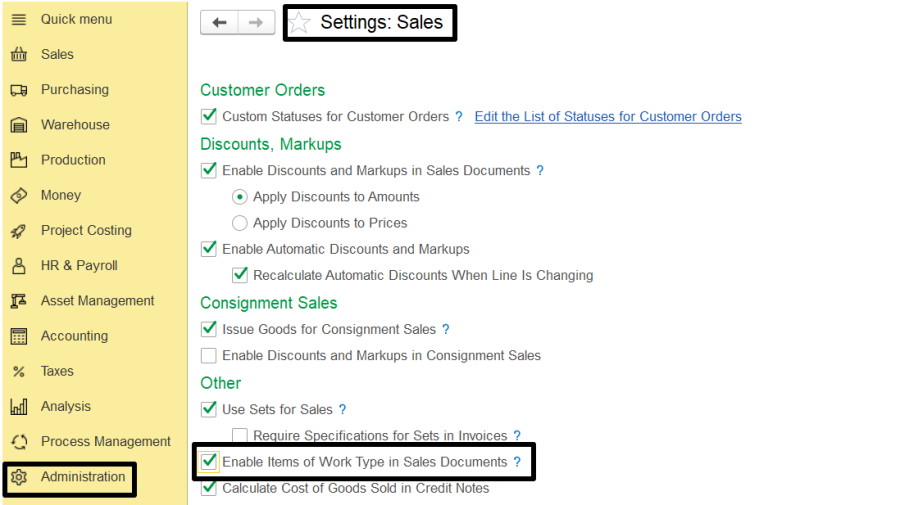
- To create and use Work type items with associated costs, enable Use Work Type Items in Sales Documents on the Administration > Settings > Sales form. Work-type items can be used in documents such as Quotations, Customer Orders, Adjustments, Credit Notes, Tax Credit Notes, Tax Invoices, and Project Estimates.
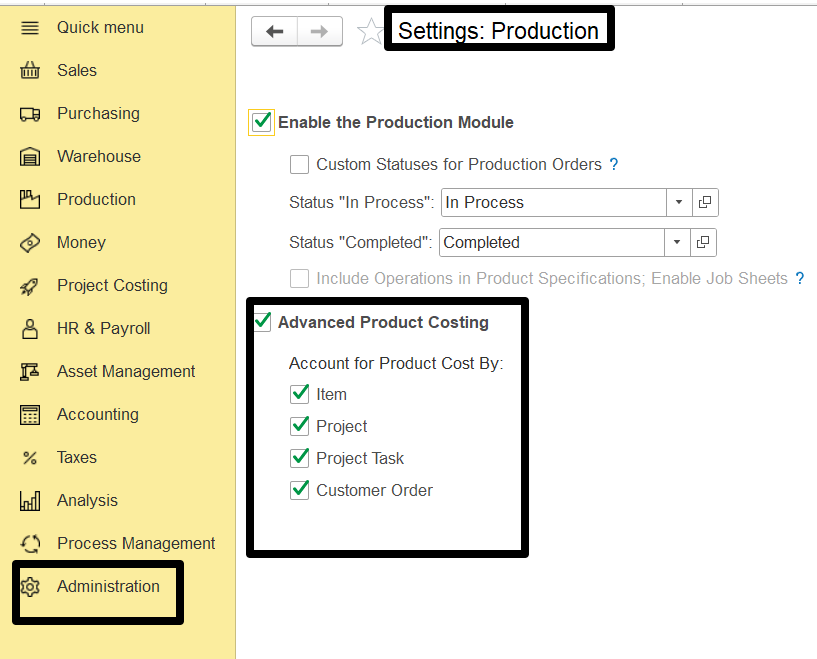
To allocate costs to specific cost objects, enable Advanced Product Costing in Administration → Settings → Production. Then define which objects can serve as cost objects: Customer Order, Project, Project Task, or Item.
If a Project is not flagged as Advanced Project Planning, the system will apply the old Phased Revenue Recognition mode, which does not support project structure and recognizes revenue based solely on expenses.
To create a Phased Revenue Recognition document-
go to Project Costing> Phased Revenue Recognition.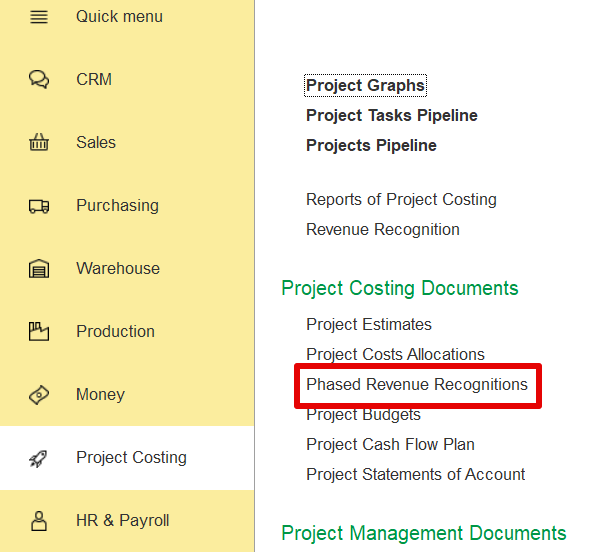
Create a new document, and fill in the required tabs as explained.
On the Main tab, you can enter general information such as the customer, contract, project, and other relevant data. Key fields include: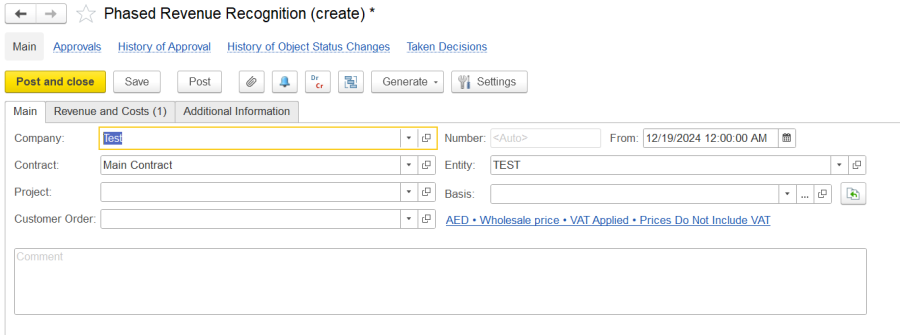
The Revenue and Costs tab allows users to list and manage items for revenue recognition in phased contracts. It includes two panes:
- Services Pane: Lists work and service items for revenue recognition. Users can specify item details, quantities, discounts, and recognition percentages.
- Work Costs Pane: Displays associated costs for listed services, with options to view costs from previous recognition phases.
This tab helps track recognized revenue and costs based on contract progress, ensuring accurate financial reporting.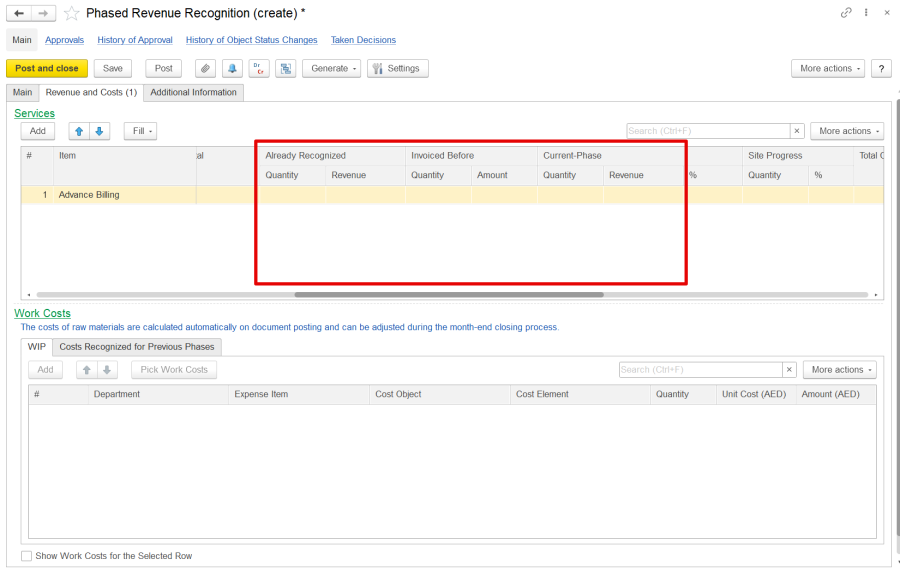
The Services Pane allows adding and managing Work/Service items with details like quantity, price, discounts, VAT, and optional characteristics. Additionally, some more fields need to be filled i.e.
- Already Recognized: The Already Recognized Quantity and Already Recognized Revenue columns show the revenue and costs recognized in previous phases. You can access more details in the Costs Recognized for Previous Phases tab if necessary.
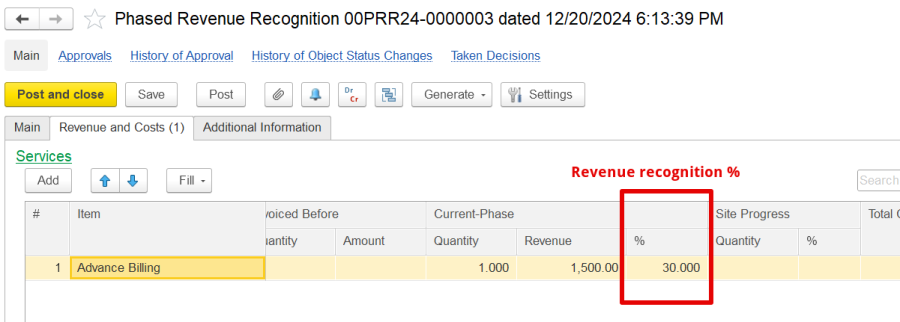
- Revenue Recognition Percent/ Current-Phase %: Specifies the percentage of total revenue to be recognized in the current phase.

- Cost Details: The Total Cost and Already Recognized Costs columns show the costs associated with the work, including previous recognitions.
The Pick Work Costs dialog box in the Phased Revenue Recognition process allows you to select costs associated with a work item for recognition manually.
Finally, issue a final invoice once all contract phases are complete to claim the total revenue recognized throughout the contract's duration.
Phased revenue recognition allows revenue to be recognized at different stages of a project, based on accounting policies and contract terms. The two main approaches are:
- Percentage-of-Completion: Revenue is recognized gradually as work progresses, often based on costs incurred or work completed.
- Milestone-Based: Revenue is recognized when specific milestones or deliverables are met.
Both approaches allow for periodic reviews of recognized revenue, such as quarterly, to track progress and profit/loss. The choice of approach depends on business needs and contract terms.
For ongoing projects, enter beginning balances for work-in-progress and contract assets—track costs with appropriate documents and reports. When recognizing revenue for a completed phase, use Phased Revenue Recognition documents to account for costs and revenues.
Thanks for being Firstbit Customer! #Contracting #revenue recognition #workinprogress