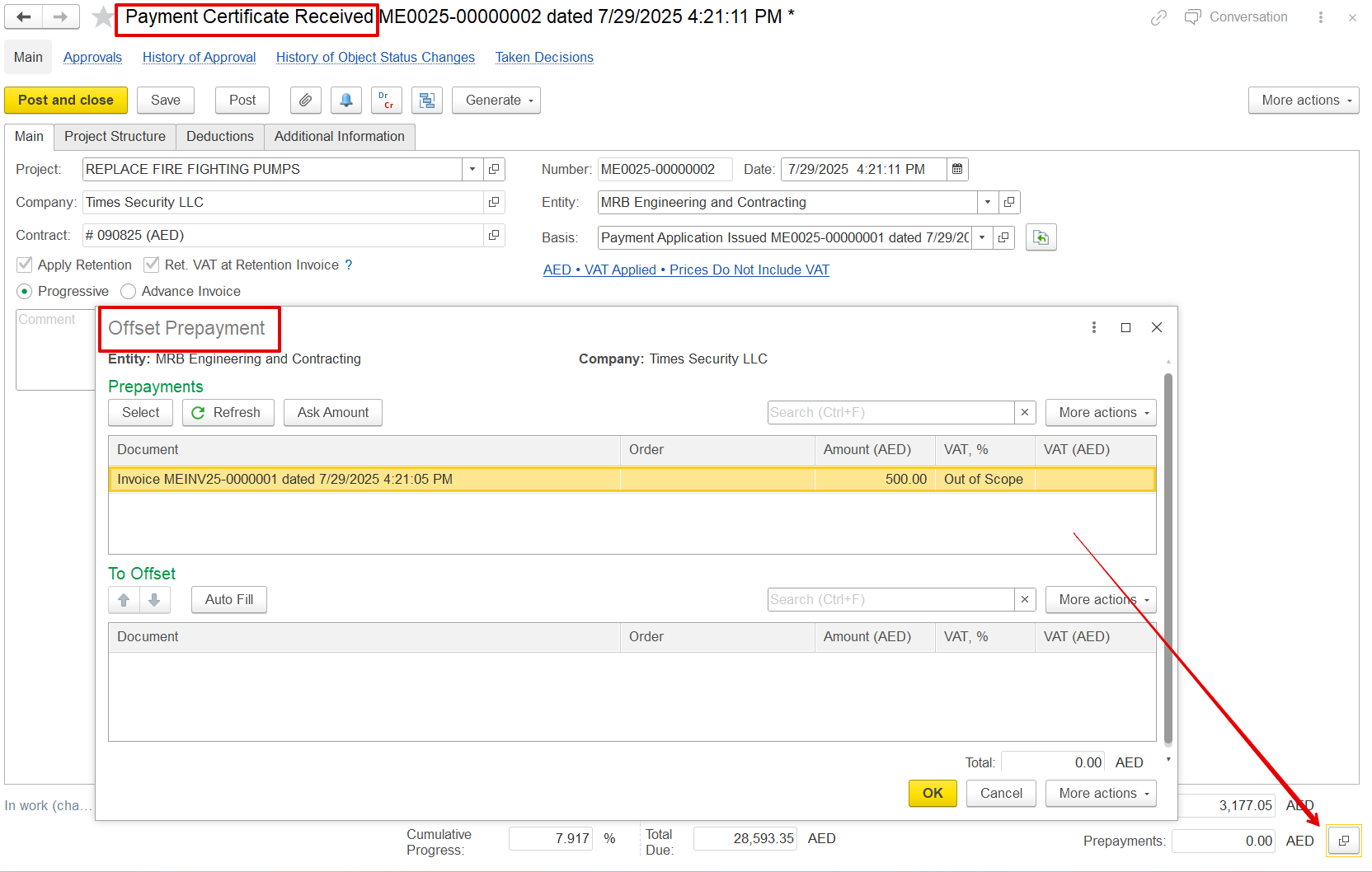
The Payment Certificate Received document is used to record and confirm the certified value of work completed on a project, as assessed and issued by the client or consultant.
It serves as an official acknowledgment of-
Work progress approved by the client
Amounts certified for invoicing
Retention, VAT, and deductions as per contract
Once recorded, it can be used to generate a Progressive Invoice, Offset prepayments, and Track certified progress, comparing it with the applied progress.
Project Costing→ Project Progress→ Payment Certificates Received.
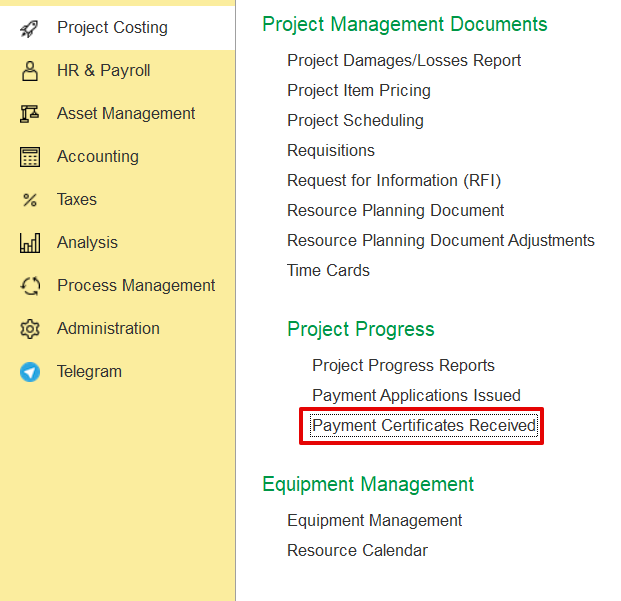
Alternatively, it can be generated using the "Generate" option in the Payment Application Issued document.
How to create
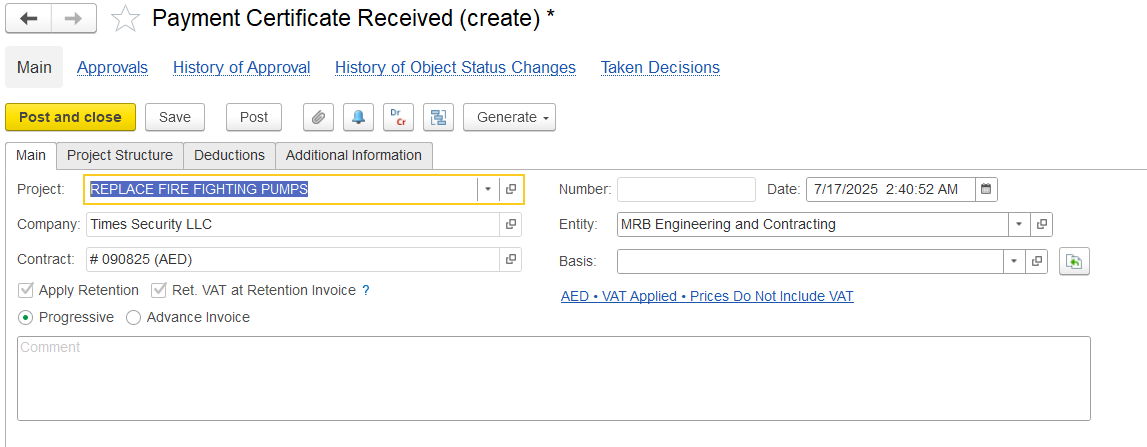
Click Create, then select the Project. The certificate details will be automatically filled based on the chosen project.
Main Tab
The Main Tab contains key information that sets up the Payment Certificate.
- Project- Linked project used to auto-fill WBS, service lines, and cost tracking information in the certificate.
Company - The company for whom the payment certificate is created
- Contract- Sets the rules for billing and certification based on the chosen contract type.
It includes project details, involved parties, currency, and rules for VAT, retention, advances, and pricing.
Also, it automatically pulls in BOQ/Estimation items and fills in Terms & Conditions.
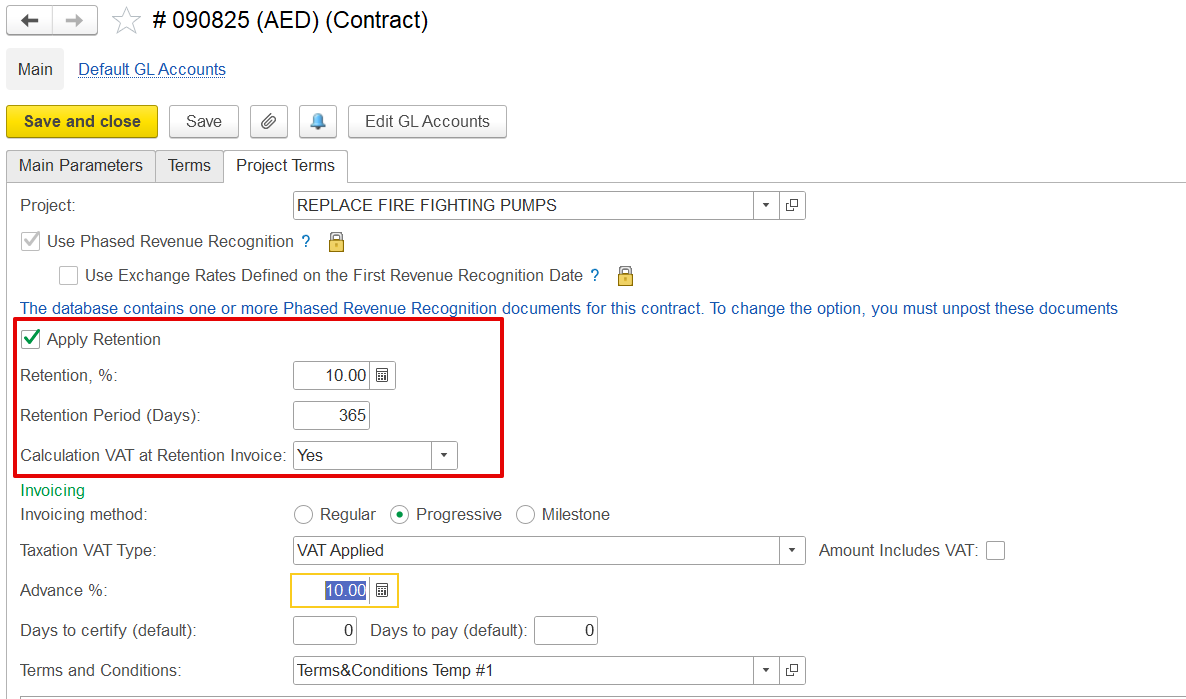
- Apply Retention withholds a portion of the payment as specified by the contract, and Ret. VAT at Retention Invoice applies VAT to the retention amount when the retention invoice is issued. Both options are set based on the selected contract and are non-editable from the document.
- Entity - The legal party that issues the payment certificate
- Basis - Indicates whether the certificate was generated from a Payment Application or created manually for progress.
- The Progress / Advance selector allows the user to define the purpose of the certificate.
a) Progress- For certifications tied to actual work completed.
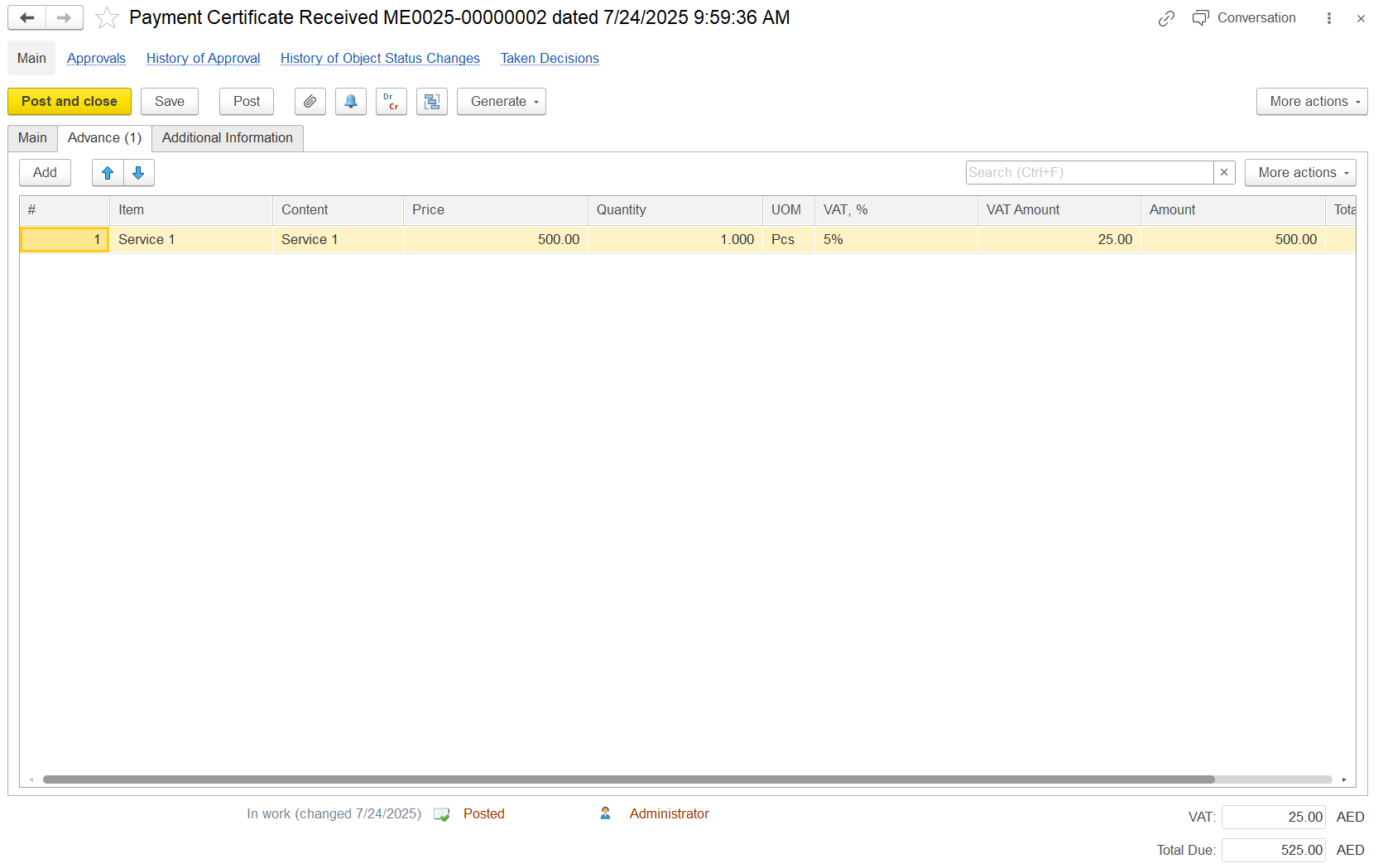
b) Advance- Used to acknowledge advance payments or prepayments under the contract. Selecting this option displays an Advanced tab for requesting or recording such payments instead of actual work completed. It does not create
- Comment- Field for entering additional notes, remarks, or instructions.
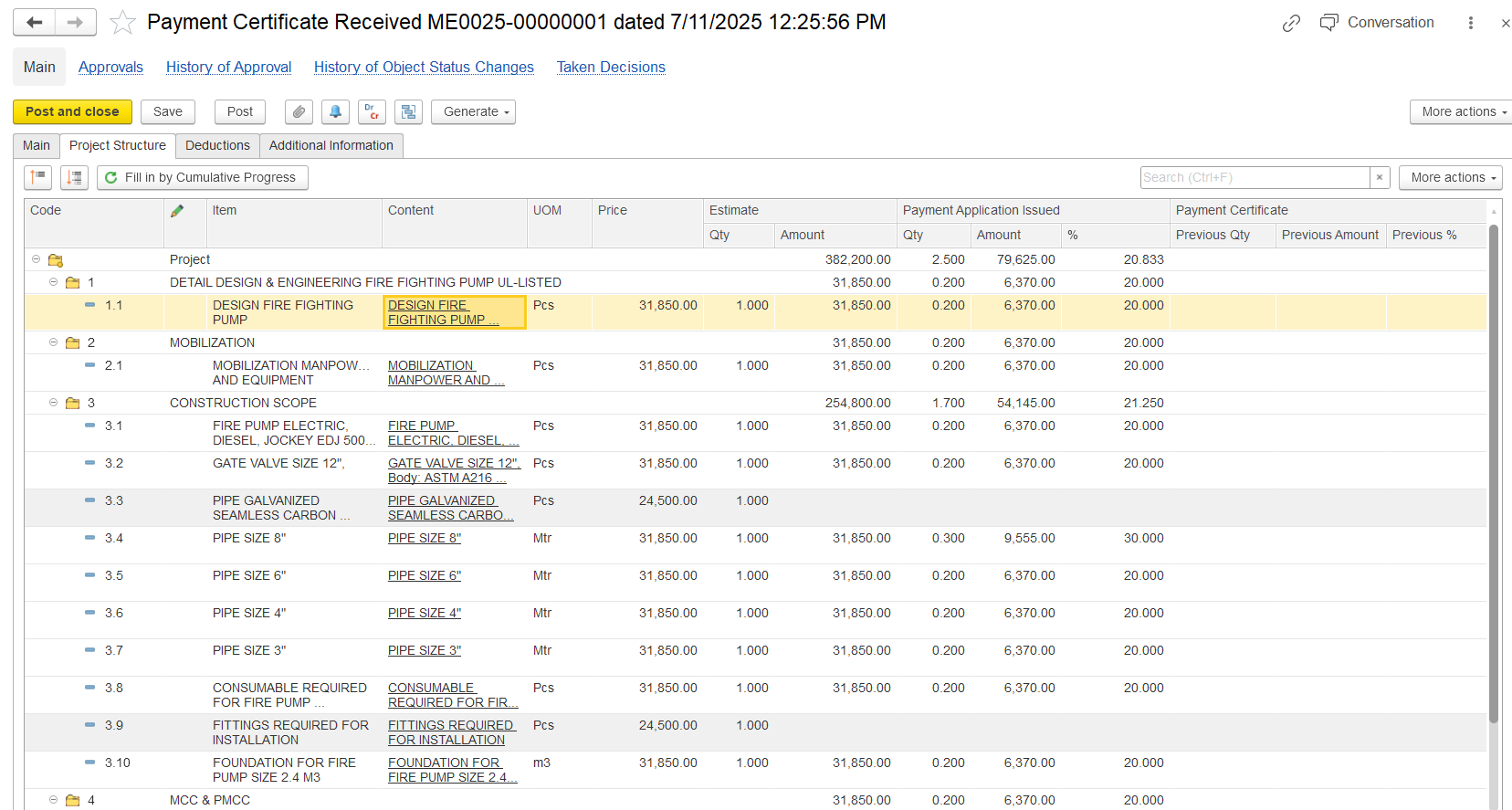
Project structure
- Code- BOQ or WBS code identifying each work item in the project structure.
- Item / Content- Description of the service or work item selected for certification.
- UOM (Unit of Measure)- Unit in which the work is measured (e.g., Pcs, Mtr, m³).
- Price- Unit rate as per the contract or BOQ.
- Estimate Qty / Amount- Planned quantity and total planned amount for the item (Quantity × Price).
- Payment Application Issued - Qty / Amount / %- Shows the quantity, value, and progress percentage already applied for in submitted payment applications.
- Payment Certificate - Previous Qty / Amount / %- Displays the quantity, value, and percentage that were certified in earlier Payment Certificates.
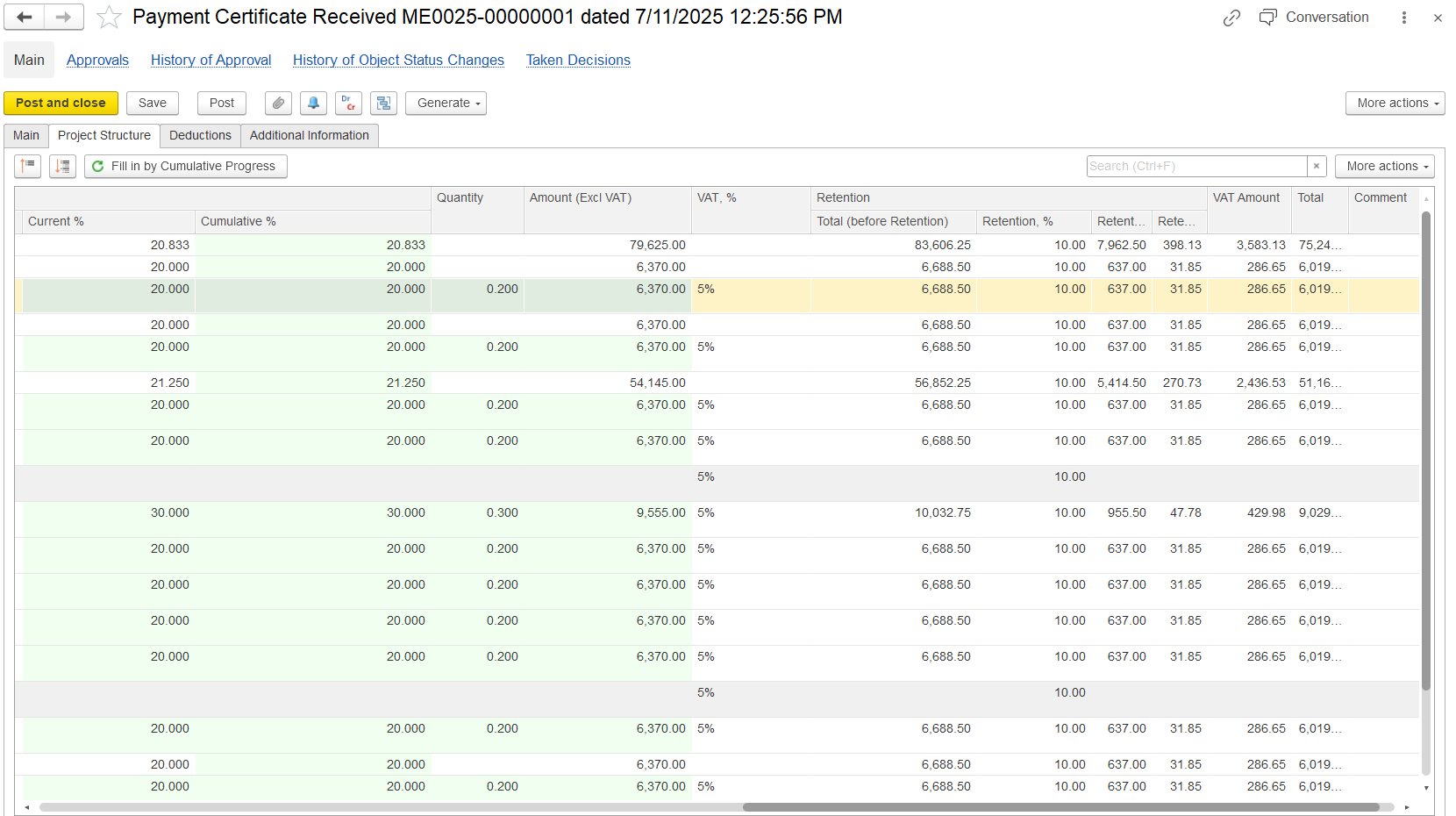
- Current%- Progress is certified in this document.
- Cumulative%- Total progress certified to date.
- Quantity- Quantity of work certified in this certificate.
- Amount (Excl. VAT)- Certified amount excluding VAT.
- VAT%- VAT rate applied (e.g., 5%).
- Retention Total (before retention)- Total amount before applying retention.
- Retention% / Amount- Retention percentage and corresponding deduction.
- VAT Amount- VAT value calculated on the amount.
- Total- Final amount payable (including VAT, after retention).
- Comment- Optional notes for clarification or remarks.
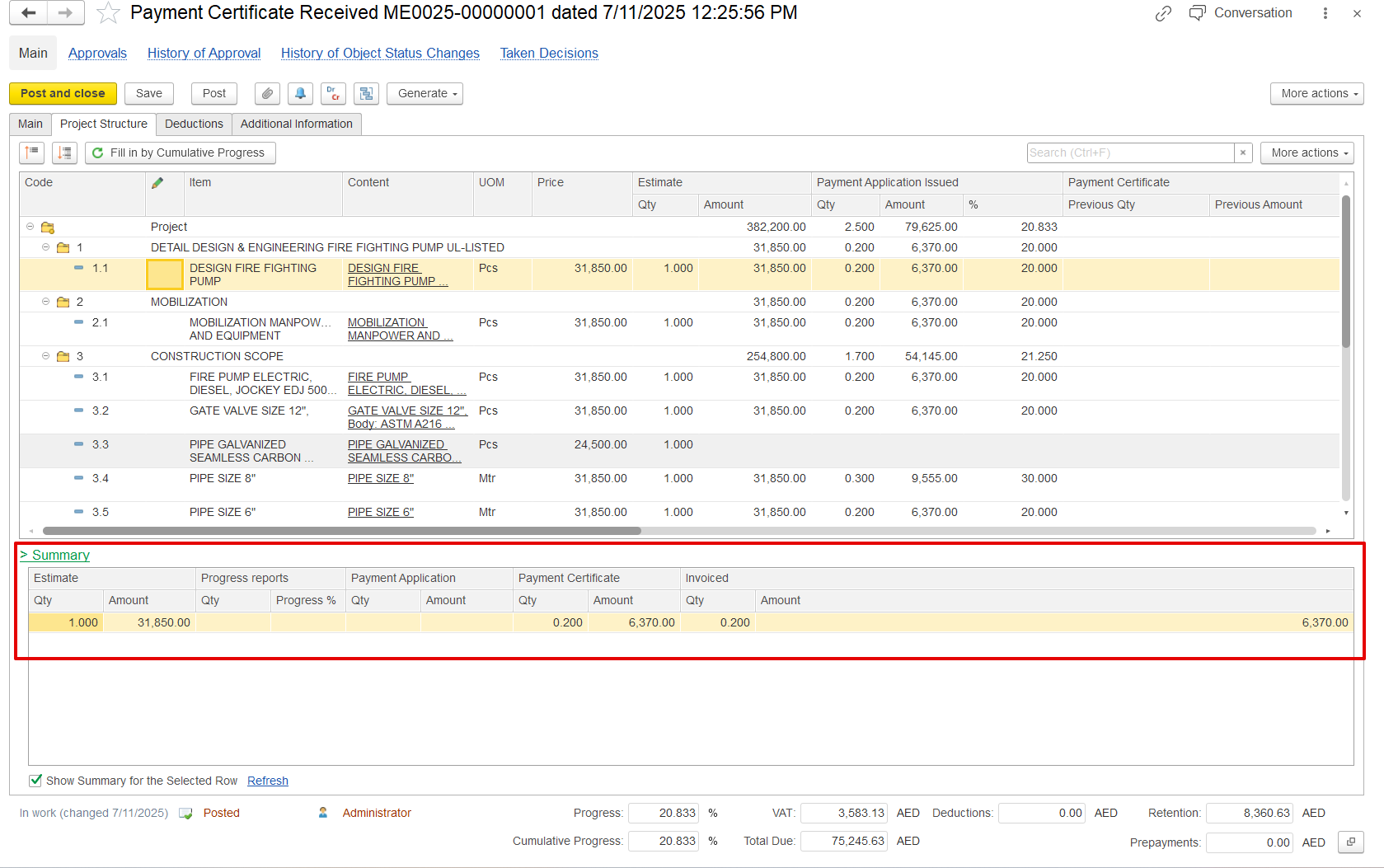
Summary Tab
At the bottom of the Project Structure tab, a financial summary shows key certified values for the certificate. This table is linked to the selected parent line, so it only shows related details.
- Project Details- Displays the associated project, WBS, and task from the related service lines.
- Item and UOM Info- Shows the service item, content/description, and unit of measure.
- BOQ Values- Displays the baseline BOQ estimated amount and quantity for reference.
- Progress Snapshot- Compares progress in percentage and quantity across different periods.
- Application vs Certified- Highlights how much has been applied (from PA) vs how much has been certified (in this document).
- Cumulative Recalculation- Automatically adjusts certified values if the linked Payment Application changes.
- Purpose- Allows users to see the cumulative and current period metrics in one place, enabling audit, control, and reconciliation across documents.
Deduction tab
Used to list amounts deducted from the total payable value of a payment certificate or invoice.
- Item- What the deducted service or item is.
- Qty & Price- How many units and the price per unit.
- VAT- The tax status, like whether VAT applies or not.
- Amount- The total deduction amount before tax.
- GL Account- The expense account where this cost is recorded.
- Project WBS- The specific part of the project this relates to.
- Department- The department responsible for or related to this item.

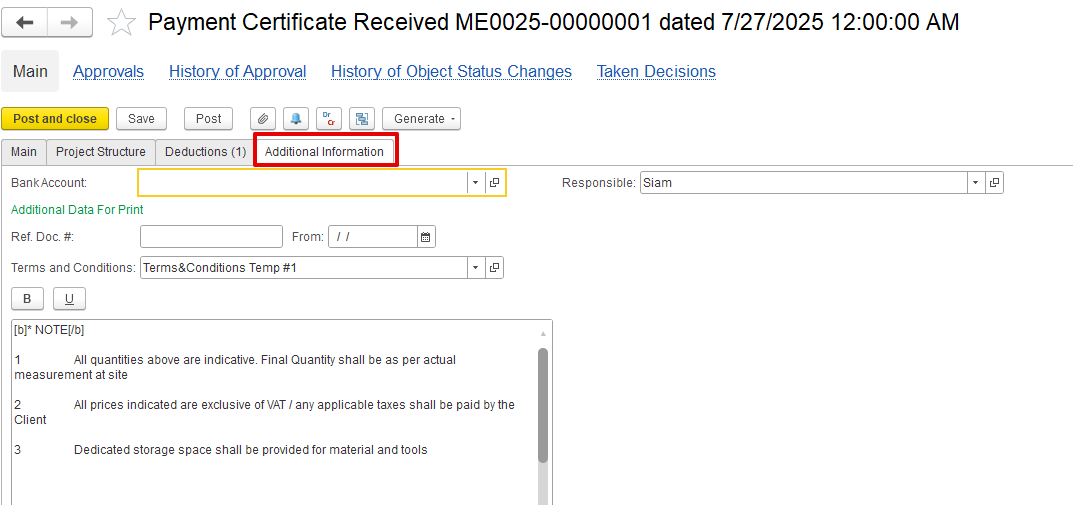
Additional information tab
- Bank Account- Specifies where the payment should be transferred.
- Additional Data For Print- Displays custom or extra info on printed forms.
- Ref. Doc. #- Links to related supporting documents.
- Terms and Conditions- States any special agreement clauses.
- Responsible - Person accountable for the document or process.
Advance invoice type
When the Advance option is selected, an Advance tab appears. This means the certificate is used to confirm the conditions for issuing an advance invoice and to register the advance payment, rather than to record actual work progress.
The Prepayment tab will not appear because this document itself is the advance.
Later, the advance can be used to offset future progress certificates and also serve as the basis for creating an invoice with the advance option.
The service lines can be left blank or include a single lump sum line for the total advance amount.
Offset prepayment
The offset can be entered manually or carried forward from the Payment Application document. It is not used for actual offsetting, but it helps in creating the progressive invoice with the offset value already populated, avoiding the need to select it again.