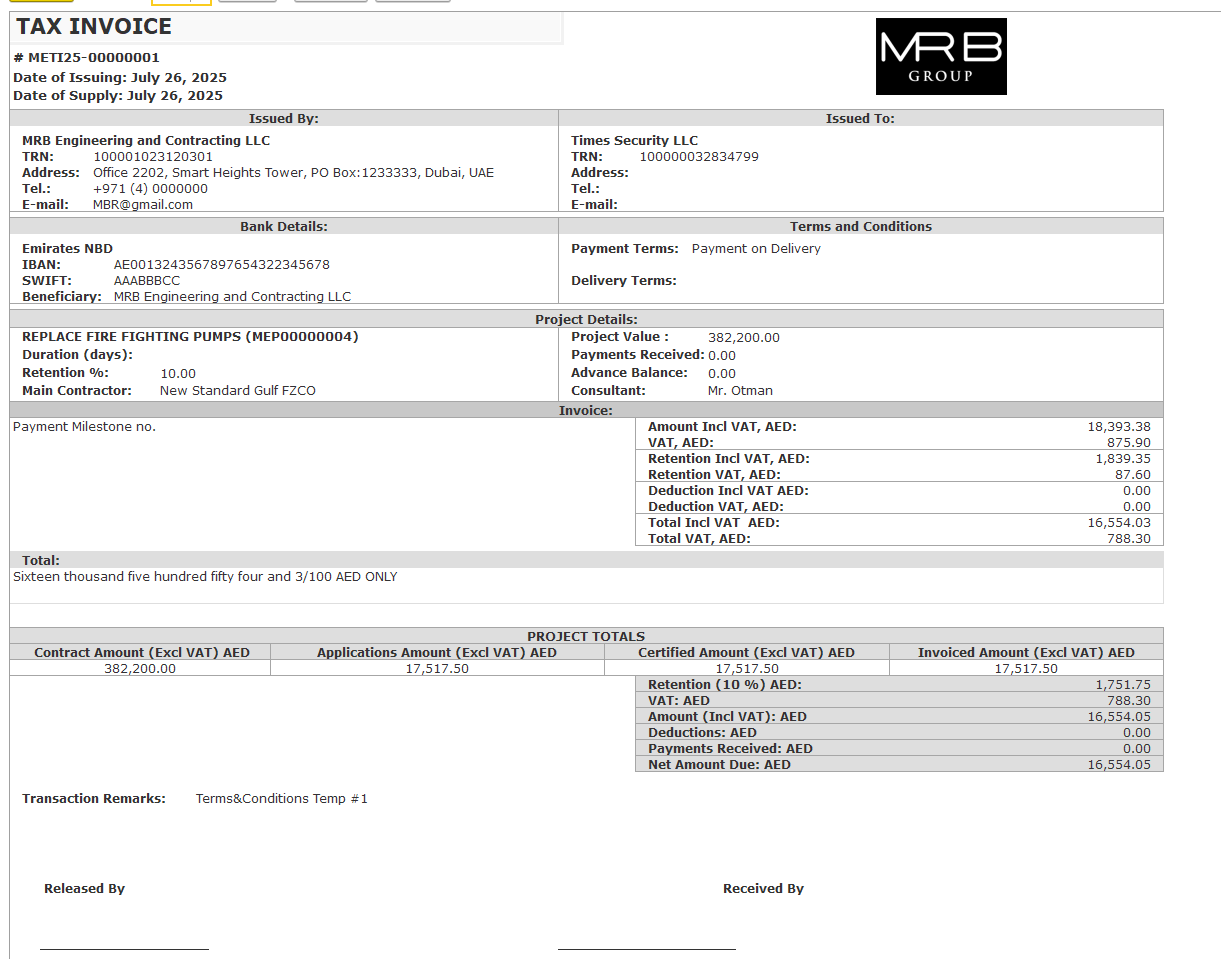
A Progressive Invoice is used to bill customers based on actual project progress, such as completed milestones, percentage of work done, or certified quantities. Its purpose is to align billing with the value of work completed, ensuring accurate, stage-wise invoicing in long-term or contract-based projects. It also accounts for advances, deductions, and retention as per contract terms.
How to create
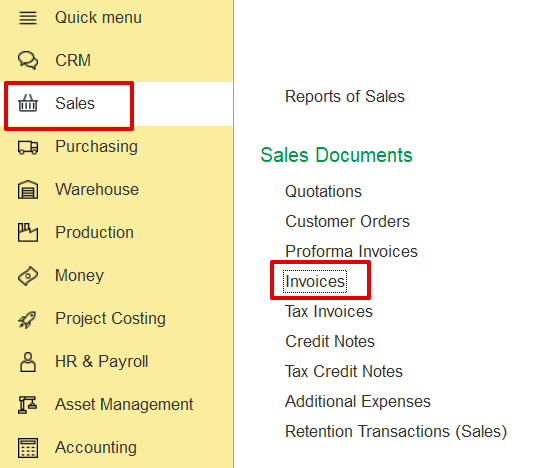
Sales → Sales Documents → Invoices → Create
Then, choose the Progressive Invoice type from the available invoice types.
If generated from a document such as a Payment Certificate, the invoice form will have the progressive settings already applied by default and also automatically populate key fields such as the project, contract, and period, and retrieve related data.
In the main tab
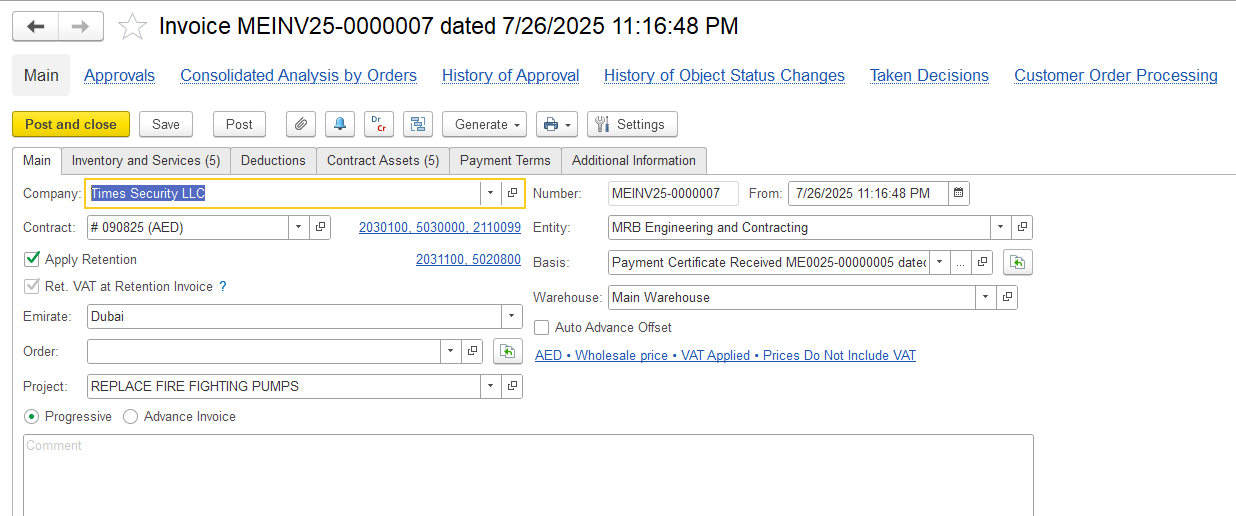
Company – The entity issuing the invoice.
Contract Number – Links the invoice to contractual terms.
Entity – The customer or contractor being invoiced.
Basis Document – Indicates the document on which the invoice is based.
Project – The specific project or assignment tied to the invoice.
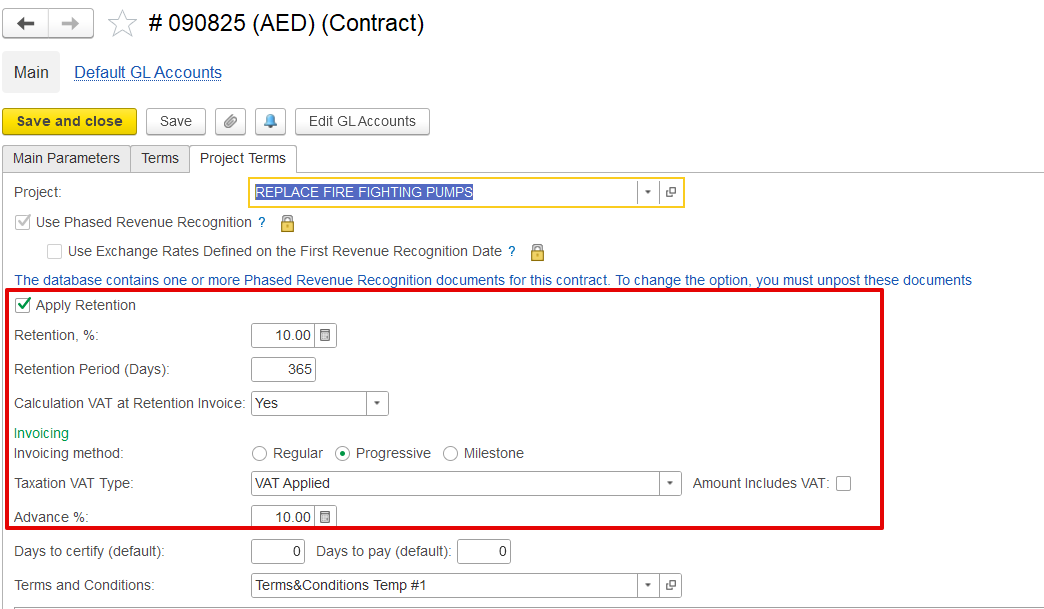
Invoice Type – Defines whether the invoice is Progressive, Milestone-based, Standard, or Advance, and is automatically determined based on the contract settings.
This setup ensures that invoicing aligns with the contract’s agreed terms, including how retention, VAT on retention, and advance payments are handled. If the contract allows for advance billing, an Advance Invoice can be issued to request payment before any work begins. The system then enables the creation of related payment documents such as bank receipts, cash receipts, or cheque entries to record the received advance. These payments are linked to the contract and properly reflected in financial records, allowing for accurate offsetting in future invoices.
Auto Advance Offset – If enabled, any received advance payments will be automatically applied and deducted from the invoice total, eliminating the need for manual adjustment.
Inventory and services tab
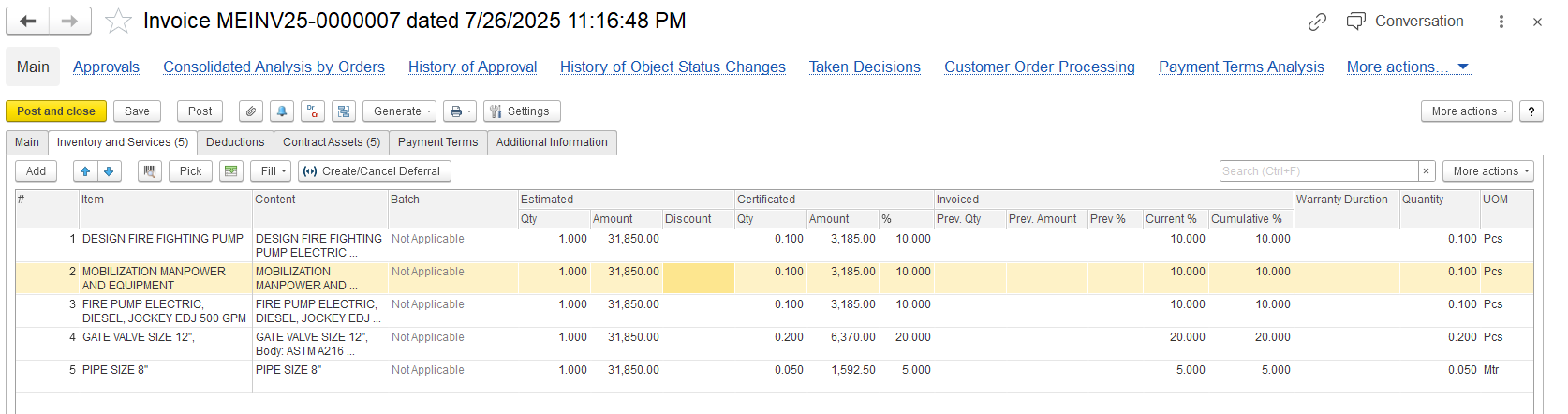
Item/content: Describes the specific item being billed, such as a fire pump, gate valve, or pipe
Estimated Quantity, Amount, and Discount: Displays the planned quantity and agreed unit price as per the contract. Also includes any item-level discount applied before calculating VAT and retention.
Certified Quantity, Amount, and Percentage: Indicates the quantity that has been reviewed and approved for invoicing by the consultant or client, based on the issued Payment Certificate. Also shows the certified value expressed as a percentage of the estimated amount.
Invoiced (Previous): Shows the amount that has been billed in earlier invoicing periods.
Current Percentage: Represents the percentage of work certified for the current billing cycle.
Cumulative Percentage: Indicates the overall completed progress, including both current and previously invoiced values.
Warranty Duration: Specifies the post-installation warranty period, if applicable, in months or years.
Unit of Measure (UOM): Defines the unit used for measurement, such as meters or pieces, depending on the item.
Summary linked table.
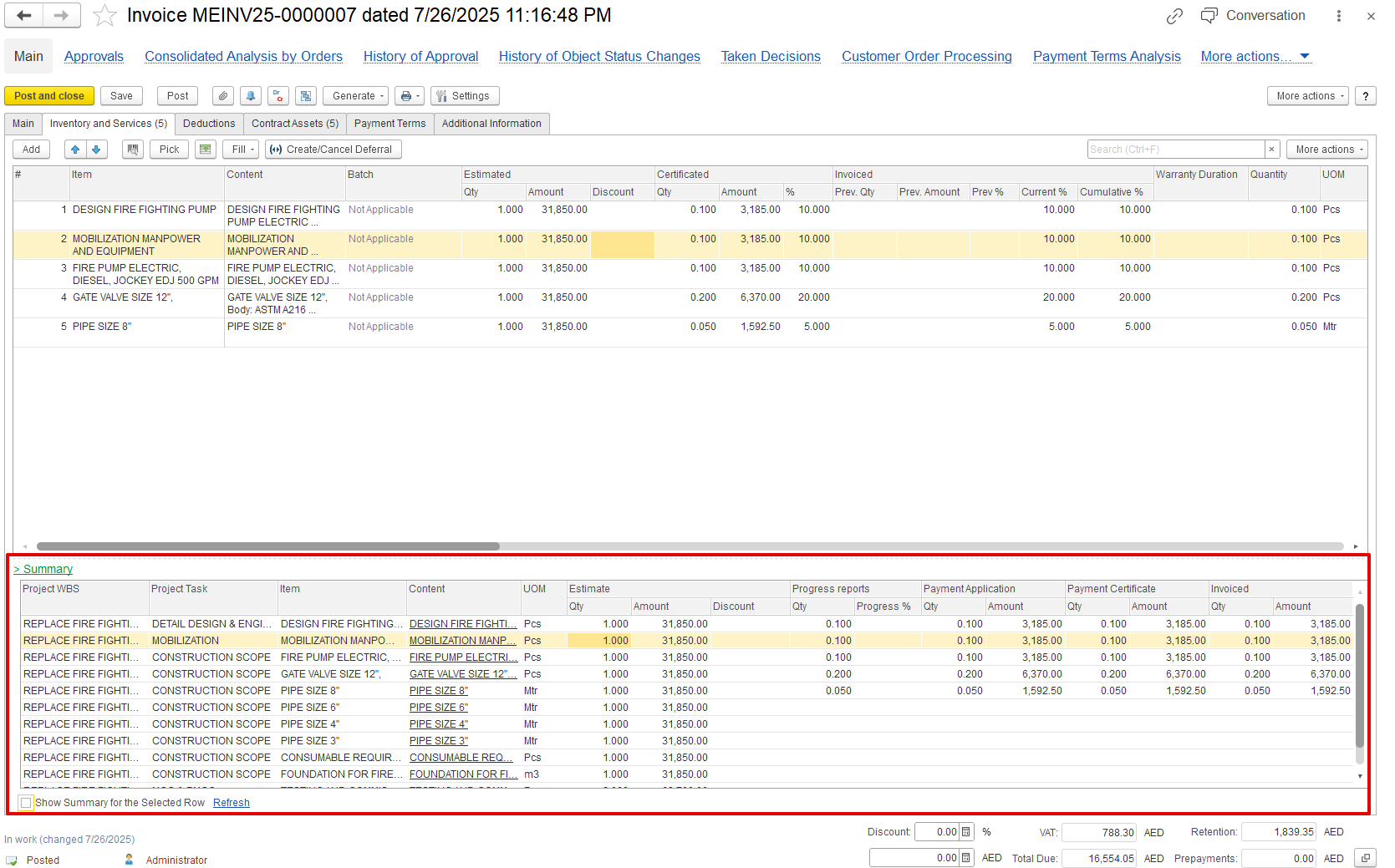
This section gives an overview using several checks and approvals:
Project WBS / Task: Refers to a specific part of the project, like a task or milestone.
Estimated Quantity and Amount: Displays the planned quantity and associated cost as per the contract.
Discount: Any discount given for this item, as agreed.
Progress Report: Shows the actual work done, reported by the site engineer or supervisor.
Payment Application: The amount the contractor wants to bill, based on the completed work.
Payment Certificate: The amount approved by the client or consultant after reviewing the progress.
Invoiced Quantity and Amount: The final approved quantity and value that will appear in the invoice.
Advance offset
Print forms
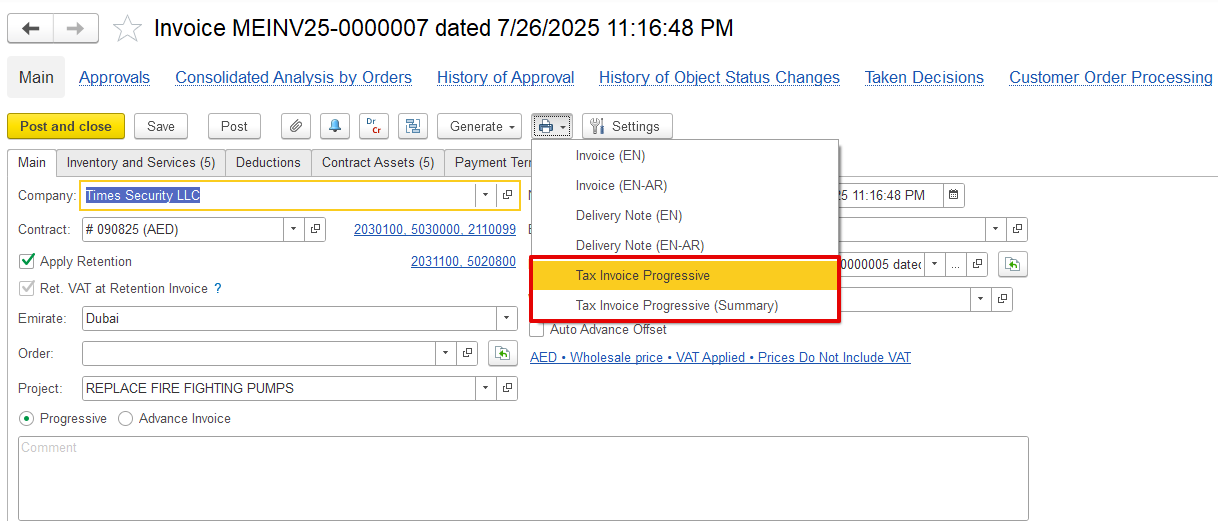
- Tax Invoice Progressive provides a detailed view of the invoice, displaying each item or service, its quantity, price, and applicable tax. It's useful when a full breakdown is needed.
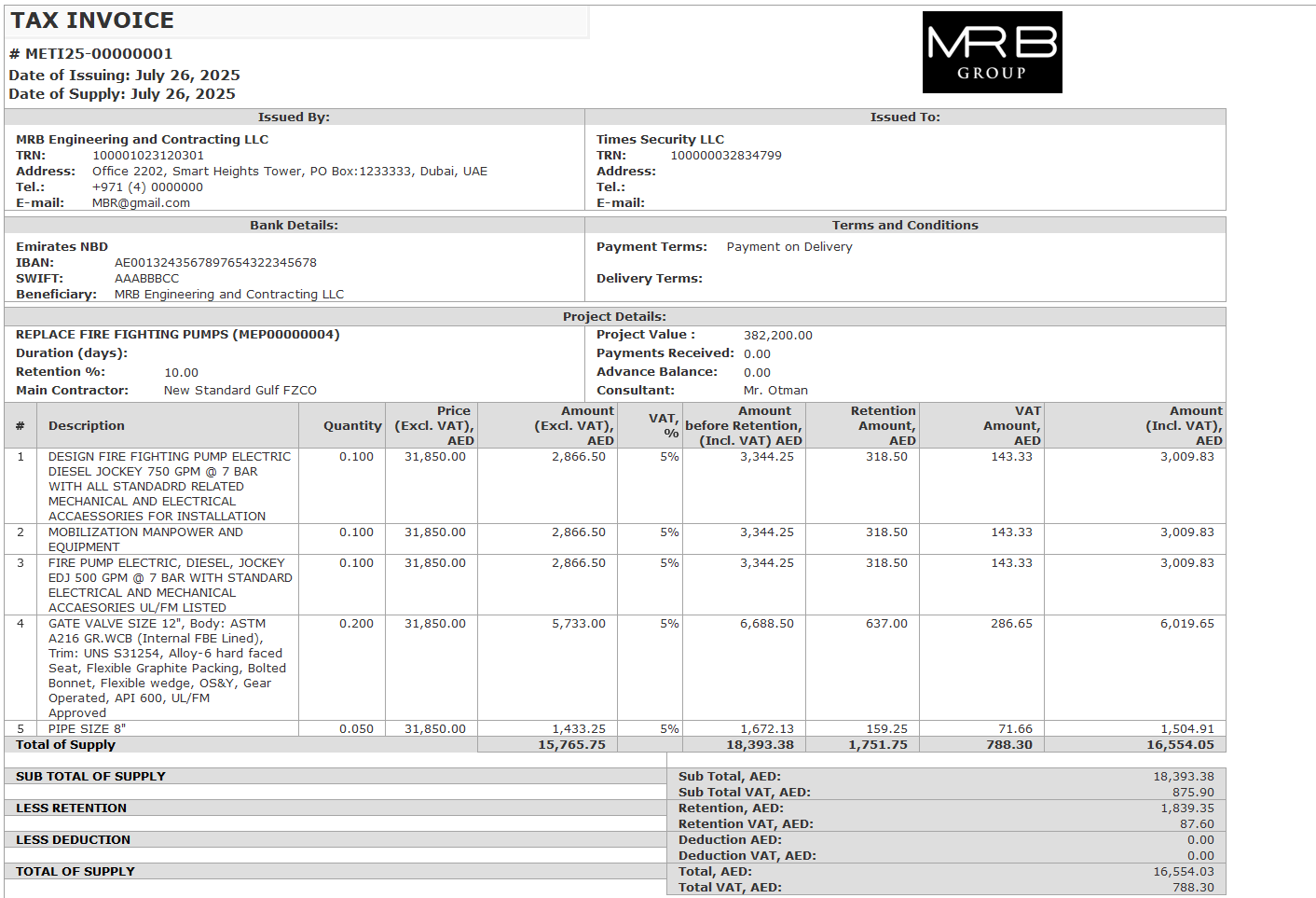
- The Tax Invoice Progressive (Summary) displays only the totals, without line-by-line details. It's helpful when a quick summary is required.