- Page should contain 3 main paragraphs: Description (what is this report used for, which documents reflect report values(Project item pricing)), Structure, screenshot with data (what data it contains by lines and columns), Filters and parameters, screenshot with quick settings panel (what default settings are available under quick setting panel).
- While describing structure we need to describe each element in the report header.
Description
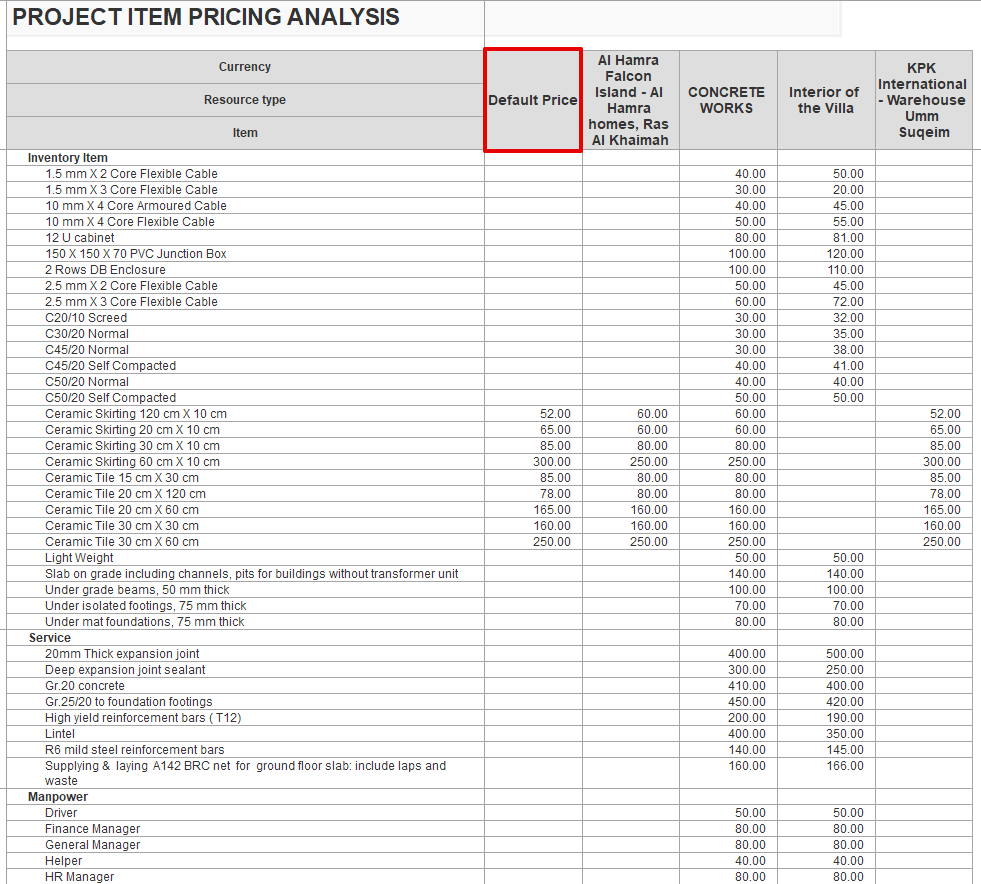
This report shows the applied prices for different expense types, such as inventory, services, manpower, and fixed assets, grouped by project. It displays the prices side by side for each project, making it easier to compare costs.
If a project is not listed in the Project Item Pricing document, the report will show a "Common" column as the first column. These are default prices, and they will be used for any projects that don’t have their own specific pricing set.
Structure
Report header
Inventory Item: This section lists all materials, services, and manpower related to the projects. Items are grouped by resource type, with each item displayed under its category.
Project Columns: Each project appears as a separate column, showing the unit price or cost for each inventory item as it applies to that specific project.
Filters and Parameters
What data means
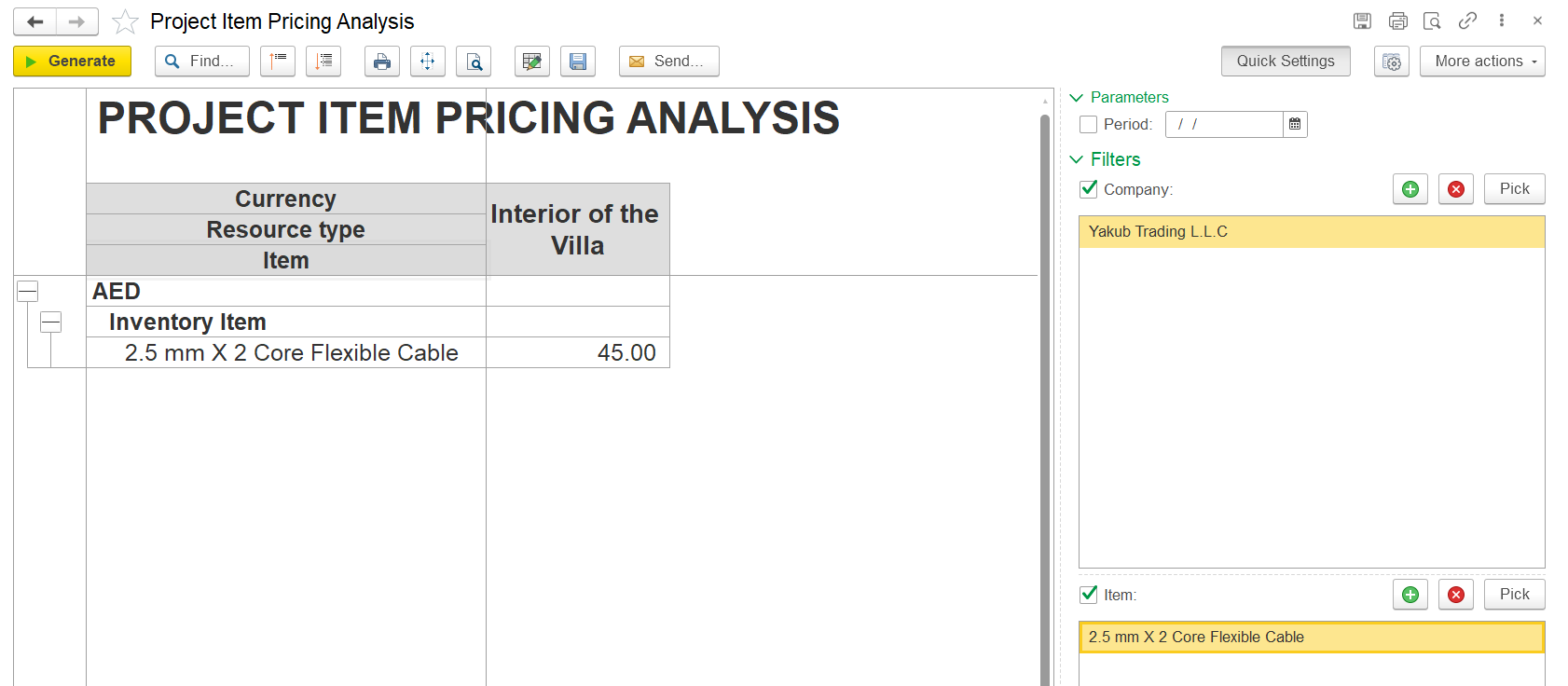
Allows you to filter the report by:
- Period – select a specific date range
- Company – choose one or more companies
- Specific Items – filter by particular inventory, service, or manpower items.
These filters help narrow down the data displayed in the main table for a more focused view.