Creating a lead
Users can create a lead by 2 methods:- By using leads documents screen
CRM → CRM Documents → Leads → Create
- By using the leads pipeline screen
CRM → Tools → Leads Pipeline → Create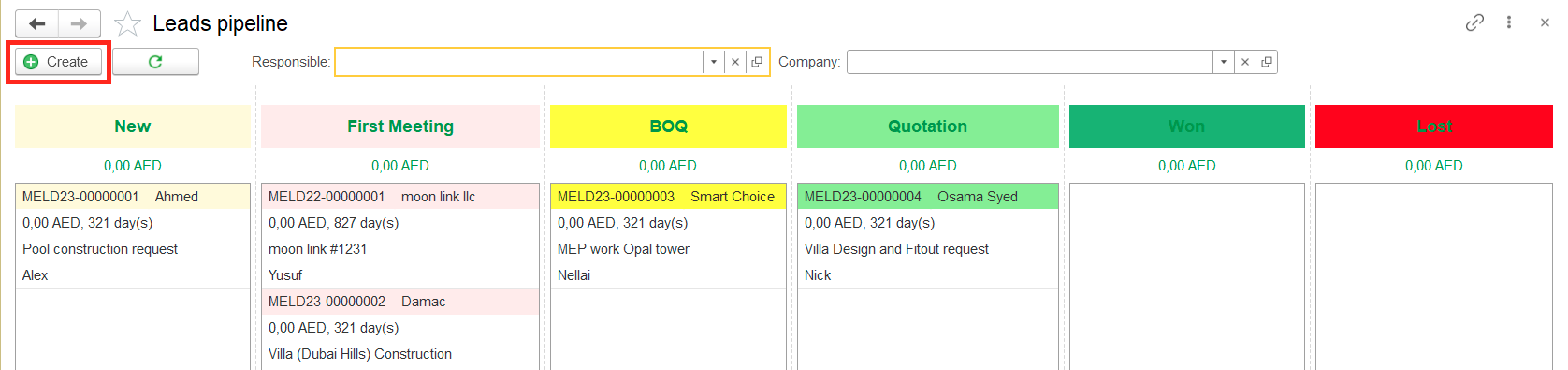
- By using leads documents screen
Filling required information about the lead (bid)
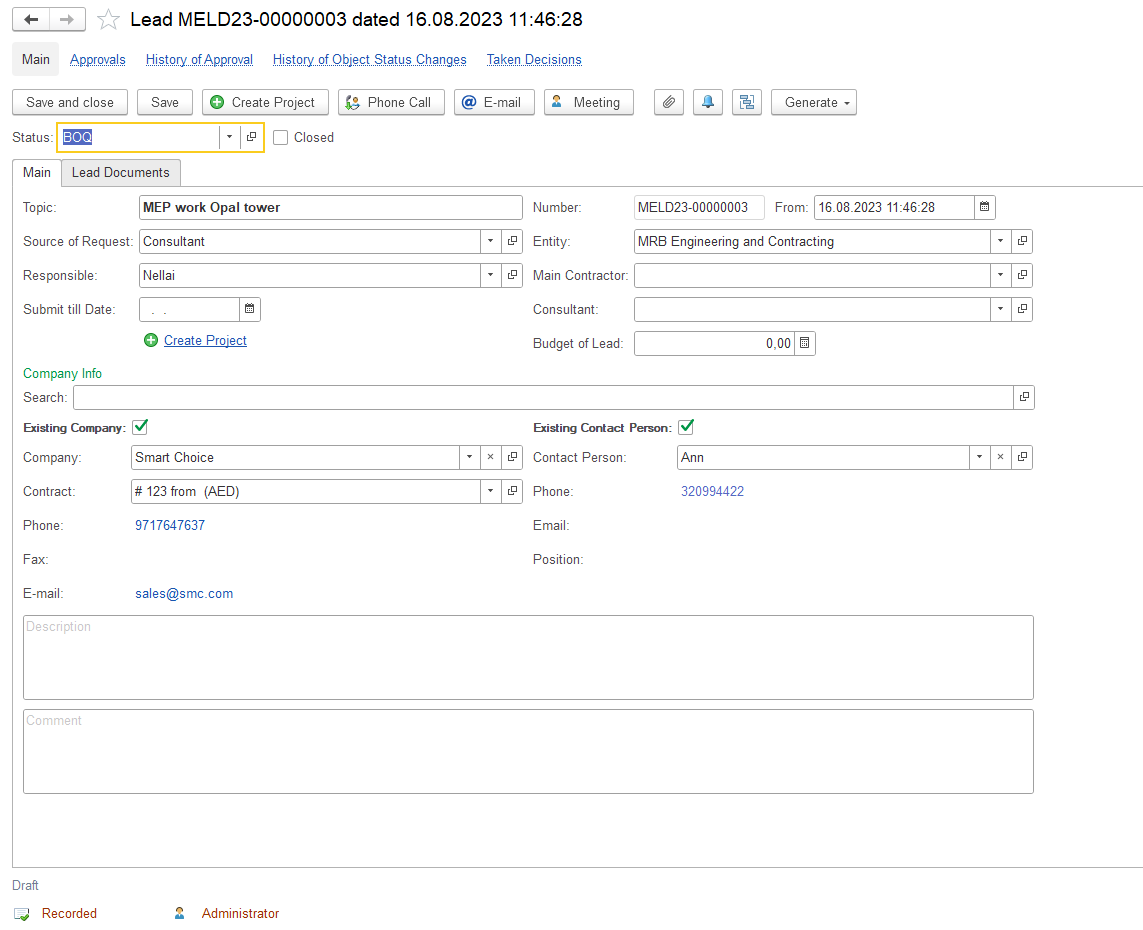
- Status - for new leads, the system fills status "New" by default. Lead status settings can be changed by admin user.
- Standard attributes - Date (date of lead registration, the system will set a current date by default), Number (system-generated sequence number of lead. Will be set automatically at the time of saving), Entity (our company which received this enquiry)
- Topic - Short description of request.
- Source of request - a channel where enquiry came from.
- Responsible - employee to whom this lead is assigned (usually a salesman).
- Submit till date - End date of submission
- Project - a reference to a project master. A new project will be created automatically by using the "Create Project" button.
- Budget - users can mention the preliminary budget (potential value of this deal).
- Company info area. Here you can search for an existing client or create a new one.
- Search - field allows to search company by part of the phone number, email, or company description. If the entered text matches with any company in companies catalog, the company will be displayed in the search results screen for future selection as an existing company.
- New Company - button will create and save the new company in the companies catalog by using filled details (Name, Phone, Fax, Email).
- New Contact person - button will create and save a new contact person for the company filled in the company field.
- Description - text field is intended for details about enquiry.
- Comment - text field is intended for internal notes about enquiry.
- Lead documents
Will show all documents related to lead

4. Saving information
Use Save or Save and close buttons to record this enquiry in your database.
After saving lead will appear in the Lead documents list as well as in the Leads Pipeline under the mentioned status.