-
Created by
 Lyudmila Selivanova, last updated on 04 Aug, 2026
3 minute read
Lyudmila Selivanova, last updated on 04 Aug, 2026
3 minute read
There are different types of search in FirstBit Software:
- Global Search allows you to search for objects, catalogs, and documents across the entire system.
- Search in the current directory (List Search) is limited to searching within the currently opened list or directory.
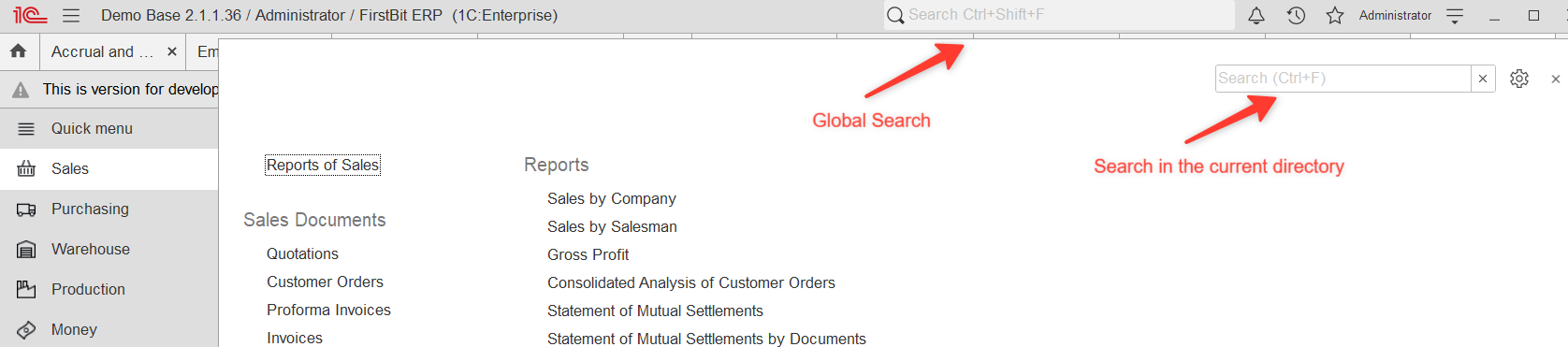
Global Search
The Global Search in FirstBit Software allows you to quickly find and open various system objects. However, an object will appear in the search results only if all of the following conditions are met:
- You have permission to access the object.
- The object type is supported by the Global Search.
- If Full-Text Search is enabled, the object has been indexed.
What Can Be Found
The Global Search can be used to find:
- Catalogs (Companies, Customers, Suppliers, Items, etc.)
- Documents (Invoices, Purchase Orders, Bank Payments, Cash Receipts, etc.)
- Reports (standard and custom, provided you have access)
- Master data (Projects, Contracts, Employees, Cost Objects, etc.)
- Settings forms (if you have the required permissions)
With Full-Text Search, you can search for documents using several criteria:
- Document number
- Part of a document number
- Document type (for example, Invoice or Receipt)
- Document attributes — you may be able to search by indexed document attributes such as date, number, company, customer, or other document header fields.
Note: In most cases, only document header fields are indexed. The document's tabular section (for example, items, quantities, or amounts) is not included in the search index and therefore cannot be searched using the Global Search.
What Cannot Be Found
The following objects will not appear in the search results:
- Objects you do not have permission to access.
- System or hidden objects that are not intended for end users.
- Interface elements such as buttons, menus, or commands.
- External files that are not registered in FirstBit Software.
- The contents of print forms.
- Arbitrary text inside documents (such as comments), unless it is included in the Full-Text Search index.
- Register movements.
- Information register records (unless search has been specifically implemented for them).
- Any other data that is not indexed for search.
Full-Text Search
Full-Text Search allows you to search not only by object names but also by the indexed content of documents, descriptions, and other searchable fields.
If an object cannot be found, the Full-Text Search index may be outdated or incomplete.
To rebuild the Full-Text Search index:
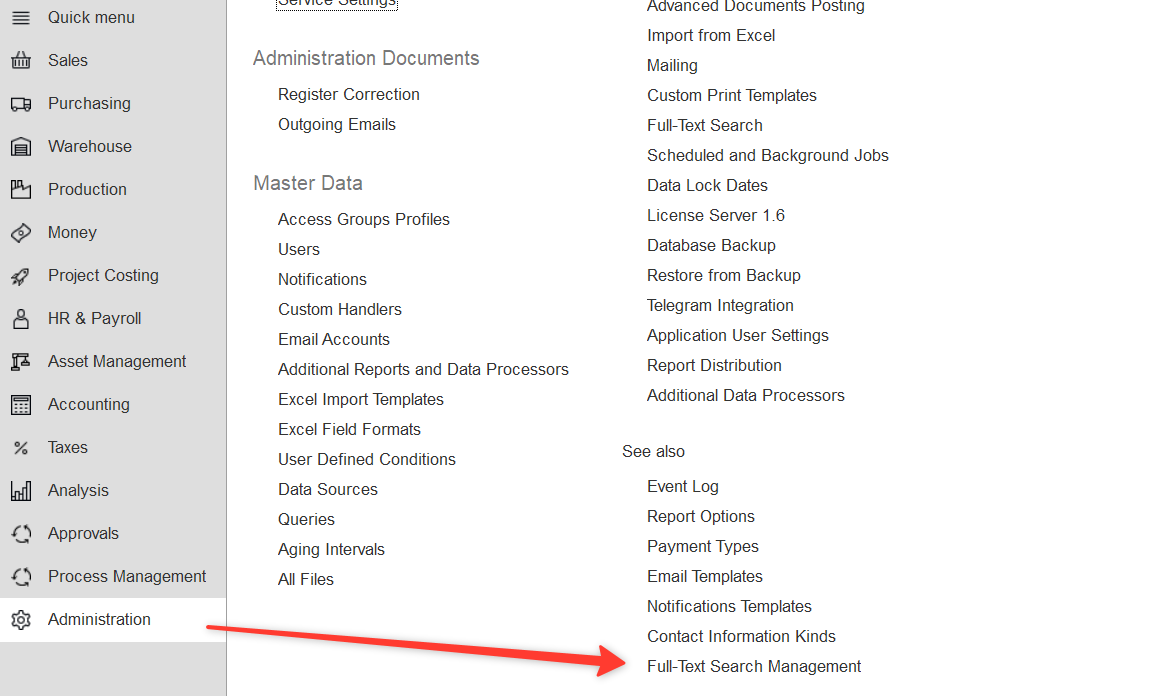
- Go to Administration → Full-Text Search Management.
- Click Clear Index.
- Click Update Index.
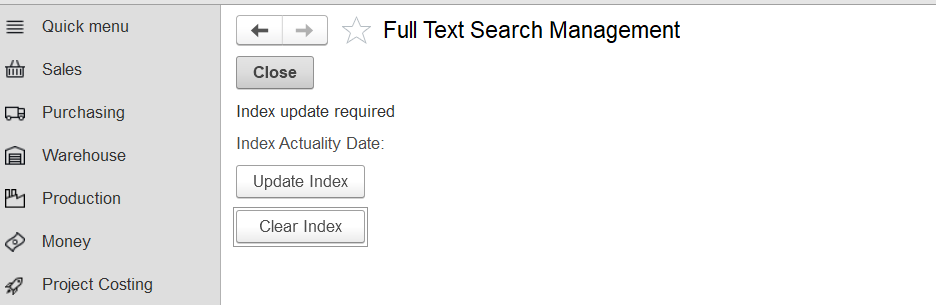
3. Wait until the indexing process is complete.
4. Check the Index Actuality Date and Time to verify when the index was last updated.
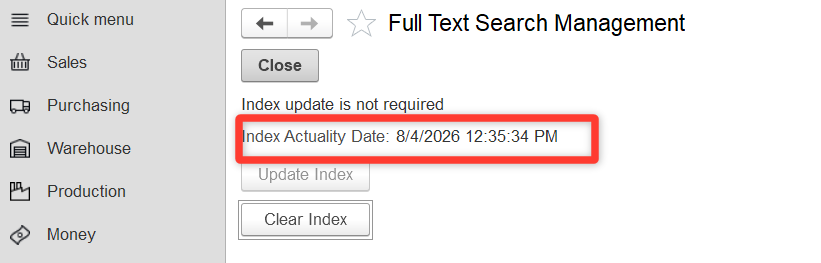
For more information, refer to Full-Text Search Update.
Example
A user has access to the Companies catalog but does not have access to the Sales or Purchasing sections.
- The user can find Companies using the Global Search.
- The user cannot find Sales documents because they do not have permission to access them.
- Even if the user has the required permissions, an object will not appear in the search results if it has not been indexed or if its type is not supported by the Global Search.
Thanks for being a Firstbit Customer! #GlobalSearch #FullTextSearch #SearchIndex #AccessRights #Navigation