...
To create a list of characteristics for an item, on the Sales > Master Data > Items form, click to open the item's master record, then click the Characteristics link on the top of the form. The Items Characteristics form opens. Initially, the list of characteristics is blank.
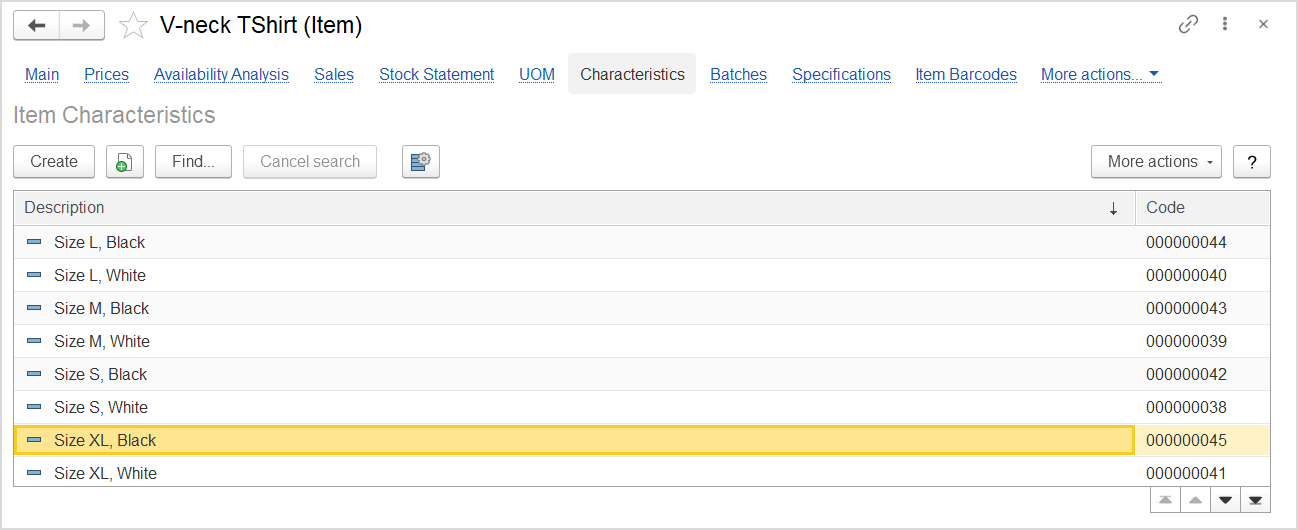
The Item Characteristics
To add a characteristic, click Create on the toolbar. The Item Characteristic (create) dialog box opens. On the screenshot above, characteristics are defined as combinations of size+color. The list will include all combinations of sizes and colors that are available for the merchandize.
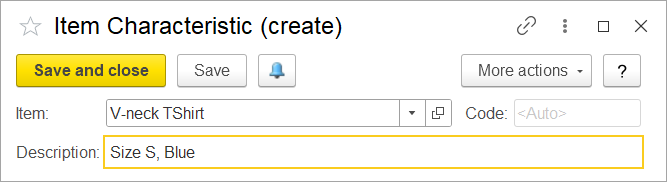
The Item Characteristic (create) form
In the Description field, type a characteristic. The list of characteristics is not final; when purchasing these items or manufacturing them, you can add new characteristics as needed.
...
This opens the following dialog box (the same for all types of documents).
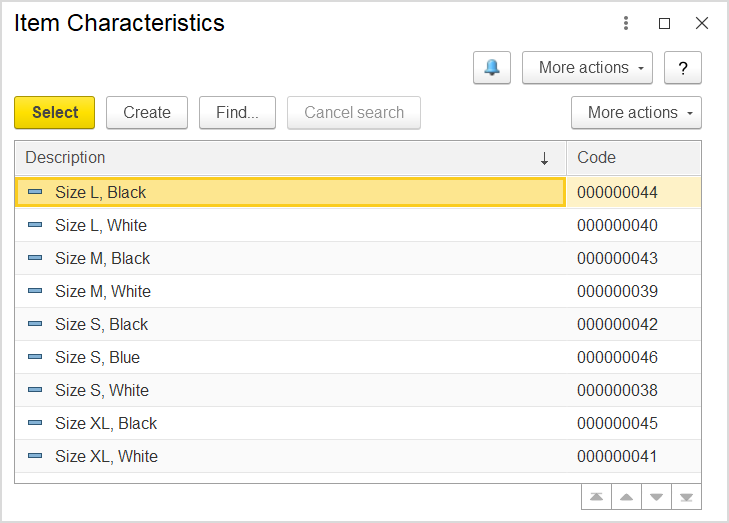
The Item Characteristics (selection) dialog box
In this dialog box you can view the characteristics assigned to the specified item (or variations of the item) and select which one you want to choose for the document.
...
The Stock Balance by Item report lists among other available items the items with variations available in warehouses.
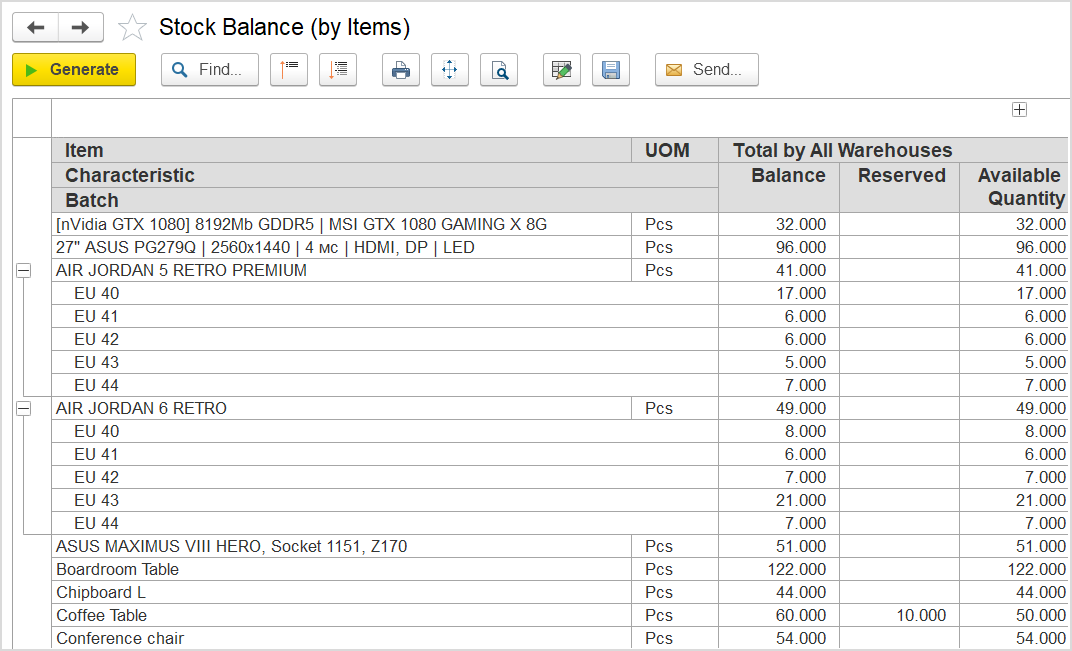
The changes in available item quantities with variation quantities in all warehouses
The Stock Statement (by Item) report shows the changes in item quantities during the specified period. For items with variations, the changes in all available variations are shown.
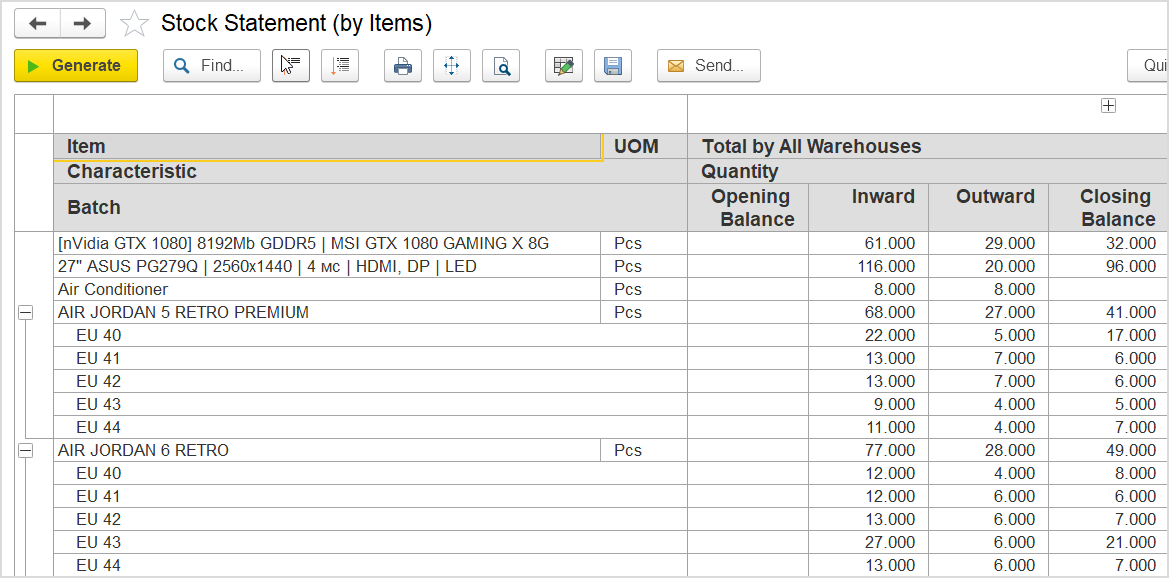
The list of items with variations available in warehouses
If you need to know where the units with particular characteristics are stocked, you can use the Stock Balance (with Locations) report which shows the item quantities in each warehouse, each location (if this functionality is enabled) on the specified date. For items with variations, the quantities are split between variations (characteristics).
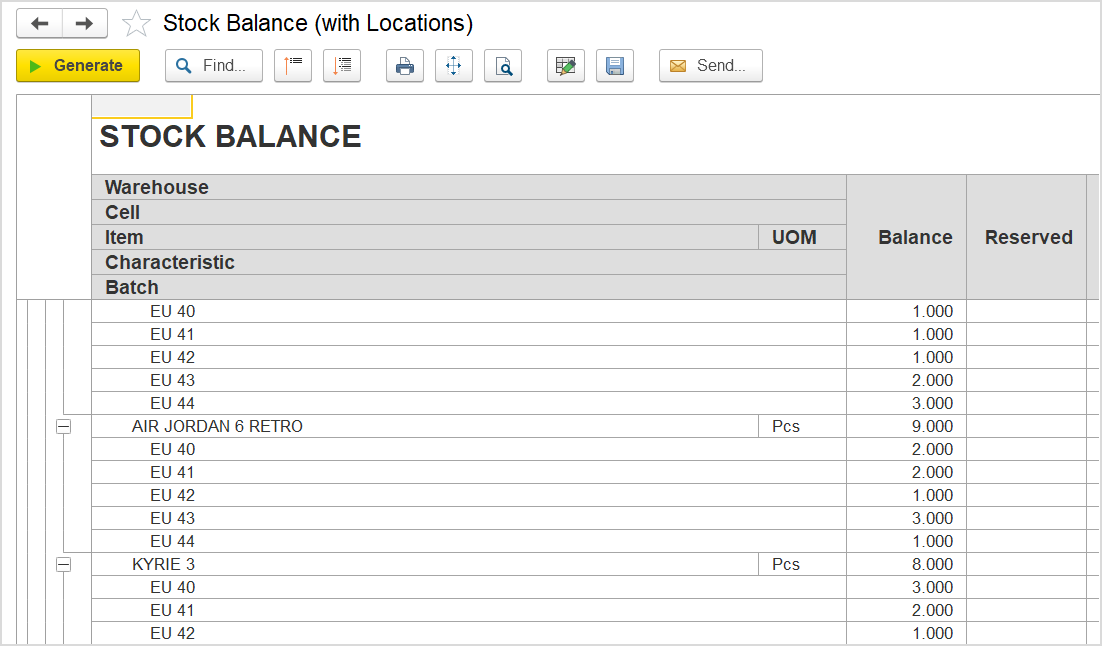
The list of locations with items having variations