...
- Open the Employee card.
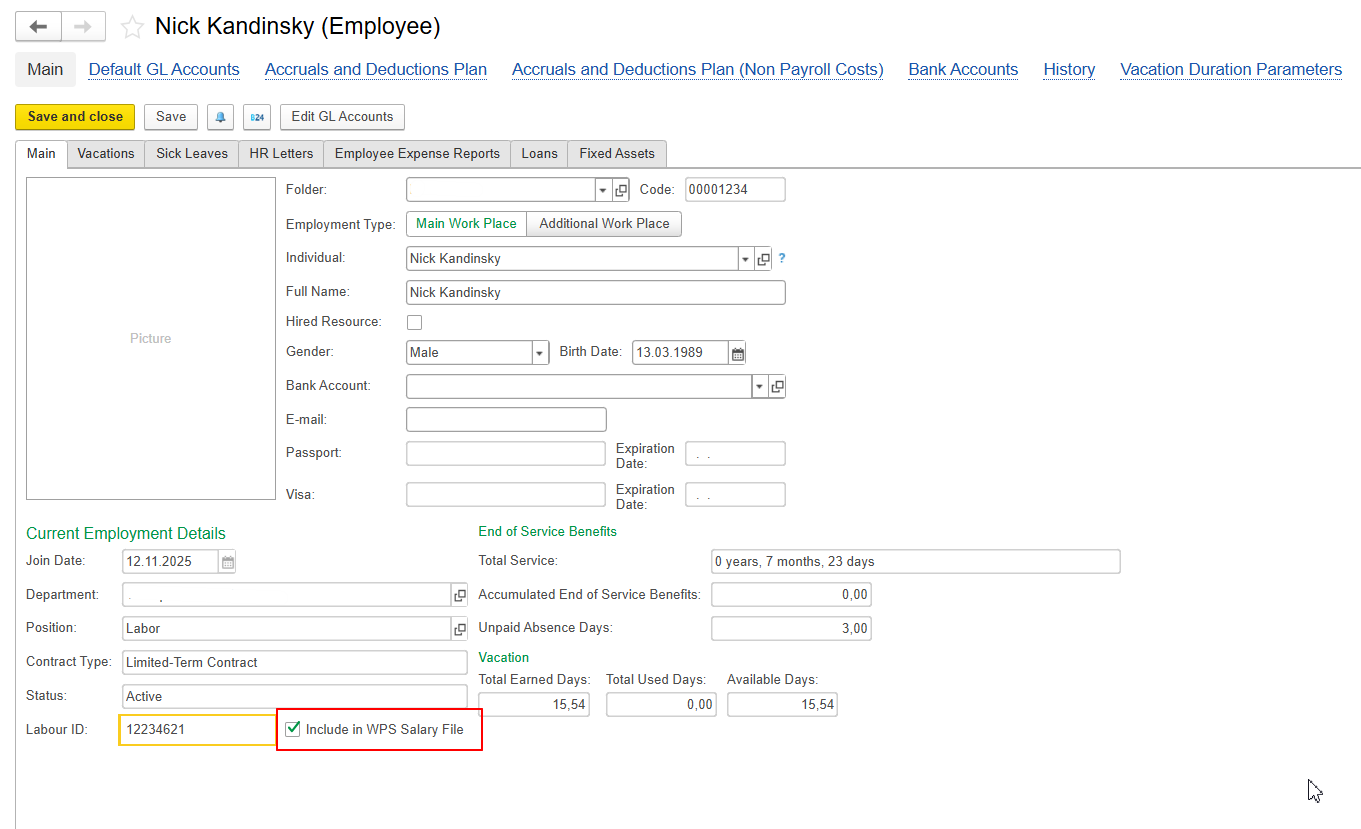
- Make sure the Include in WPS Salary File checkbox is selected.
- Save the employee card.
- Return to the WPS Salary File and click Fill Employees again.
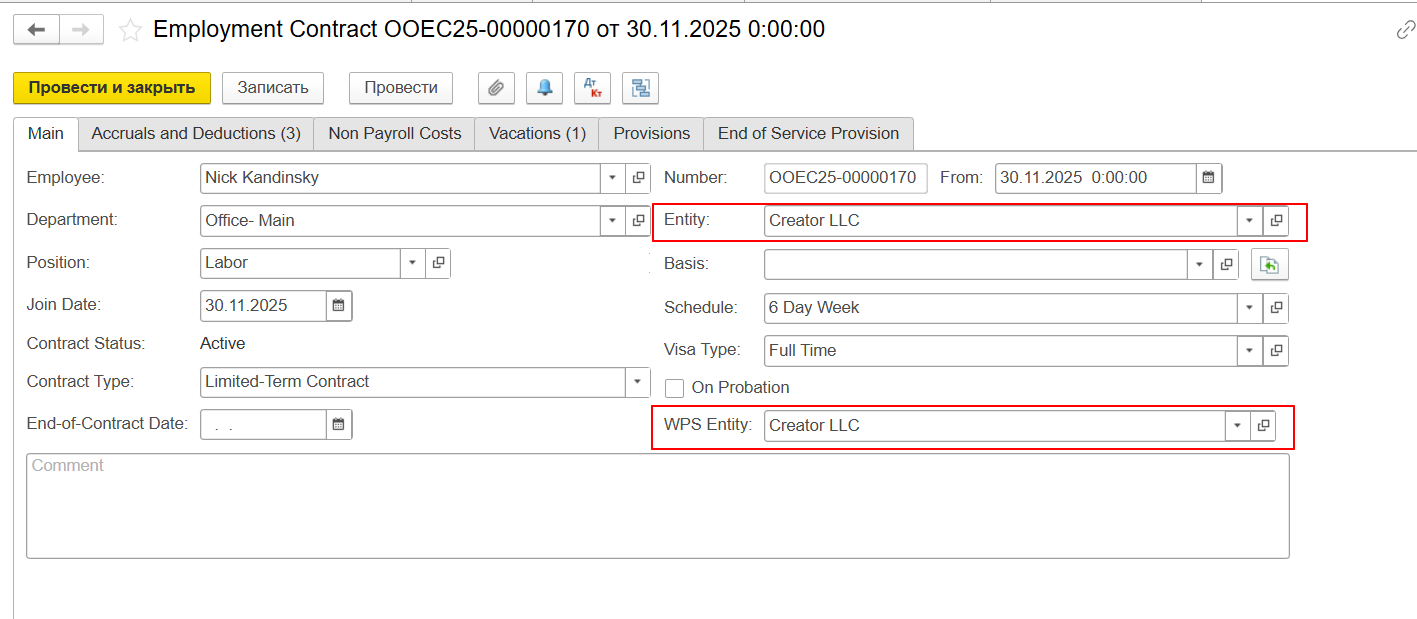
And it is also important control WPS Entity should be same with Entity for salary amounts calculations - if it is not same, system will not auto populate amounts in WPS file:
Employees with this option options enabled will now be included in the WPS file.
...
This enhancement was introduced in FirstBIT Contracting v2.1.1.32 and later to provide more granular control over WPS file generation. The new functionality introduces a two-level control for WPS file generation. It allows users to explicitly decide which employees should be included, rather than relying solely on payroll accrual settings.An employee must first be explicitly included in the WPS file by enabling the Include in WPS Salary File option in the employee card. Once enabled, the Use for WPS setting on individual payroll accrual types determines which of the employee's accruals are included in the WPS file.
Thank you for being FirstBIT Customer!