...
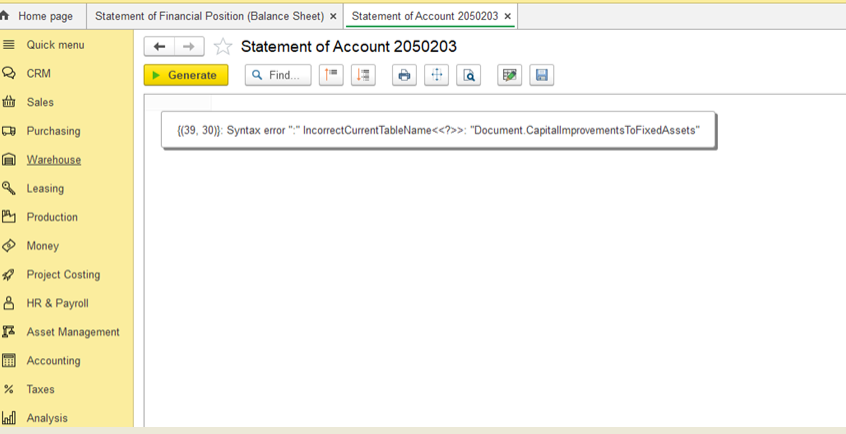
Error
...
:Incorrect Current Table Name
...
while working with the document Capital Improvements to Fixed Assets.
Solution:
Why this happens
After updating FirtsBit Software, new access roles were added.
Some users have custom (1) Check whether user has standard or non-standard) access profiles:
- Go to Administration > Master Data > Users.
- Select the user and click the Access Rights button.
- In the Access Rights form, you will see a list of assigned user profiles. These profiles are predefined and determine the user's access to specific functionalities and records in the system. If the user has only standard, predefined profiles assigned (such as Accountant, HR Manager, etc.), then the user has a standard access profile. If you see custom or individually created profiles (for example, a profile created specifically for access to certain objects or with unique combinations of roles), this indicates a non-standard access profile.
2) If the profile is standard, we recommendcontactingHotlineconsultants:hotline@firstbit.ae3) profiles created earlier. In these profiles, new roles do not appear automatically, so the system lacks the necessary rights to generate the report.
What is a standard access profile
A standard access profile is a pre-configured profile that comes with the software.
Think of it as a ready-made template of permissions that automatically updates with the system.
If a profile was modified or created manually, it is non-standard and does not get new roles automatically.
Step 1. Check the user's profile type
Go to Administration → Master Data → Users
Select the user
Click Access Rights
If only standard profiles are listed (e.g., Accountant, HR Manager) → this is a standard profile
If there are manually created or modified profiles → this is a non-standard profile
Step 2. If the profile is standard
Contact support:
📧 hotline@firstbit.ae
...
Step 3. If the profile is non-standard
The , user should be assigned with the following roles need to be added:
Document Capital Improvements to Fixed Assets — Read
Document Capital Improvements to Fixed Assets
...
— View
Document WIP Costs Adjustment
...
— View
Document WIP Costs Adjustment
...
— Read
Document WIP Costs Adjustment
...
— Edit
How to add roles
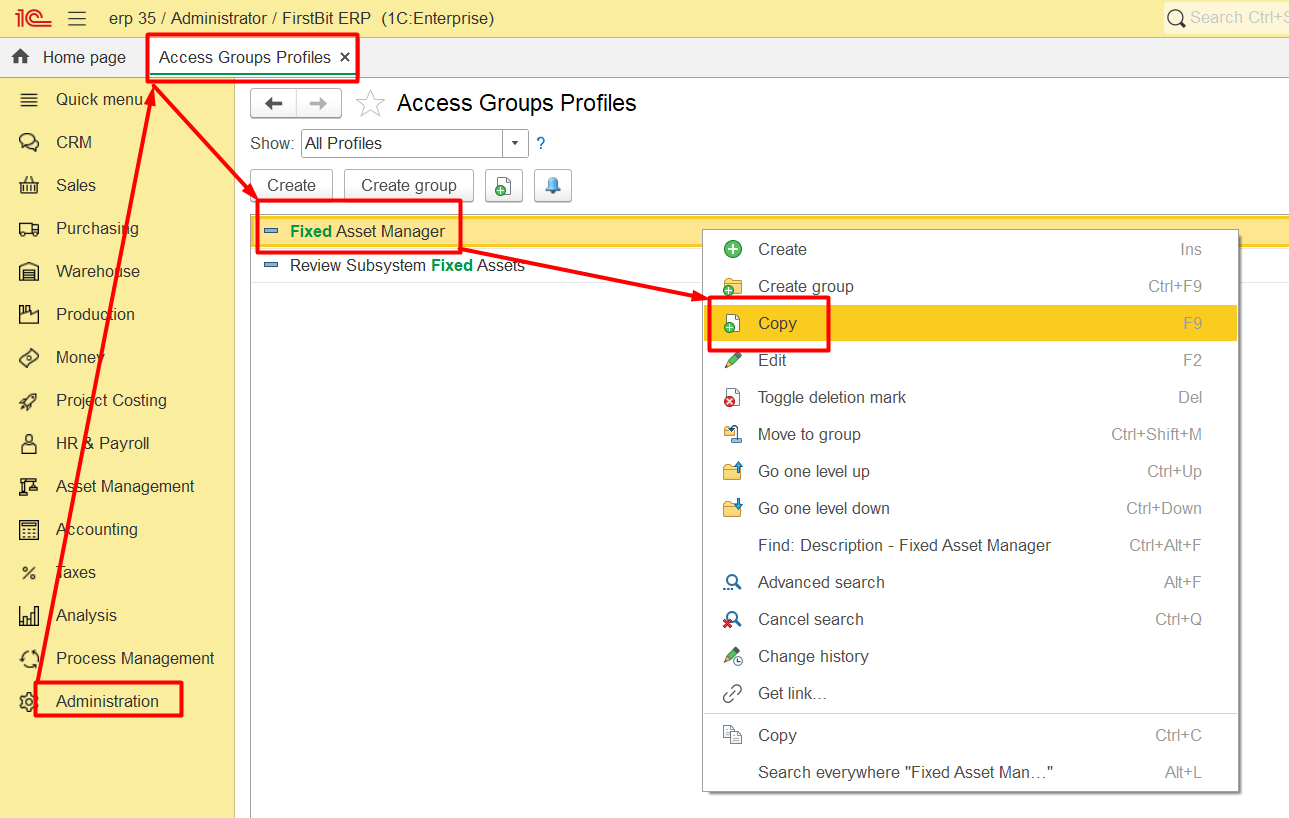
Go to Administration → Access Group Profiles (Administrator rights required)
Copy an existing profile, e.g., Fixed Assets Manager
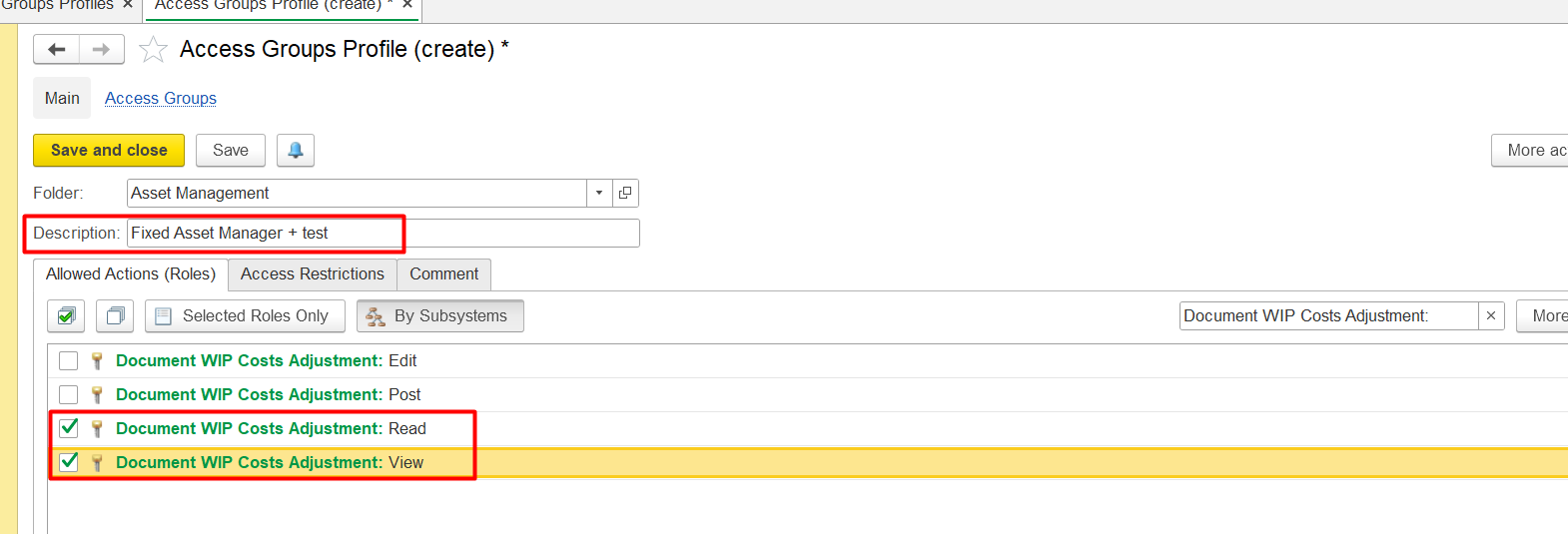
Rename it, for example: Fixed Assets Manager +
Add the roles listed above
Assign this new profile to the user
Step 4
The user must log out and log
To add these roles, it is needed to create a new access profile from a user with Administrator rights in the Administration - Access Group Profiles section.
For example, copy an existing Fixed Assets Manager: Change the name to, for example, Fixed Assets Manager+ test (or whatever is more convenient and understandable to you). When copying, all the roles that were in the Fixed Assets Manager profile will appear in this profile :
And it is needeed to add the above roles to it one by one as in the example:
4) User should log-out and log- in again.
Thank you for being a FirstBIT customer!