Customize Form
The Customize Form feature allows you to change personalize the structure and appearance of a list form List Form according to your working needs.
You can use it to:
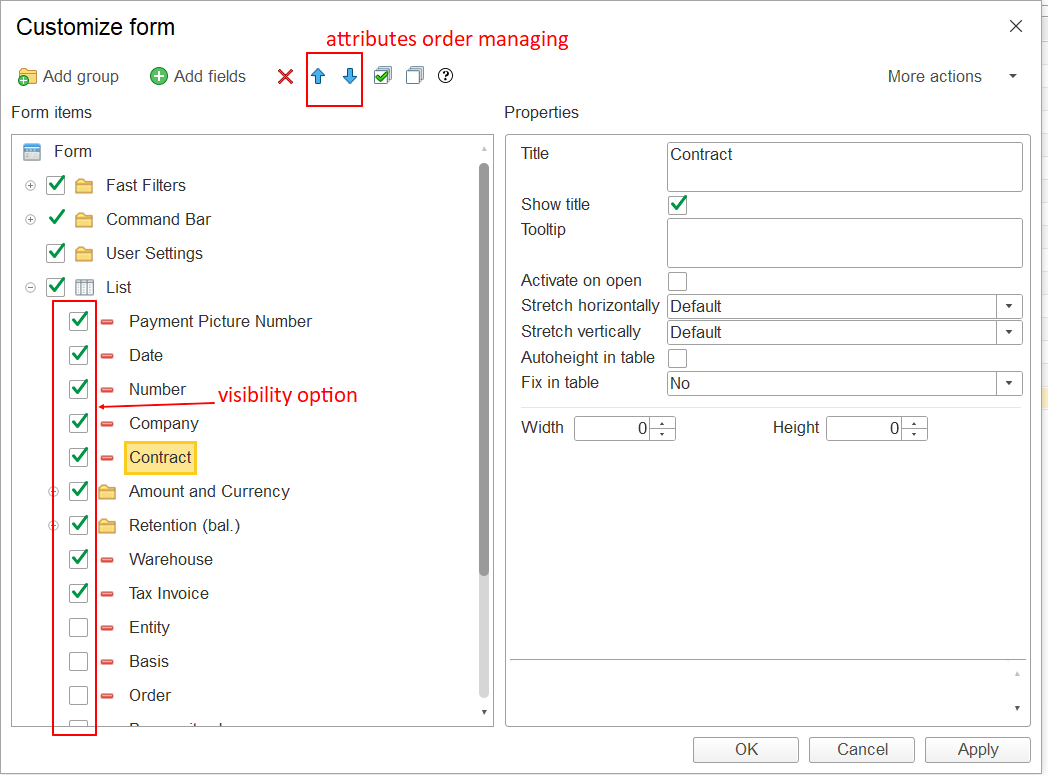
- show or hide fields
...
- ;
- change
...
- the order of fields;
- add fields available for the List Form;
- add data from related objects using reference fields;
- organize fields and other form elements into groups;
- configure the visibility and position of available form elements, such as Quick
...
- Filters and the Command Bar.
Note:The available customization options depend on the particular form and its elementscustomization is personal: it applies to the current user and does not change the List Form for other users.
How to Open Customize Form
- Open the required
...
- List Form.
- Select More actions.
- Select Customize Form.
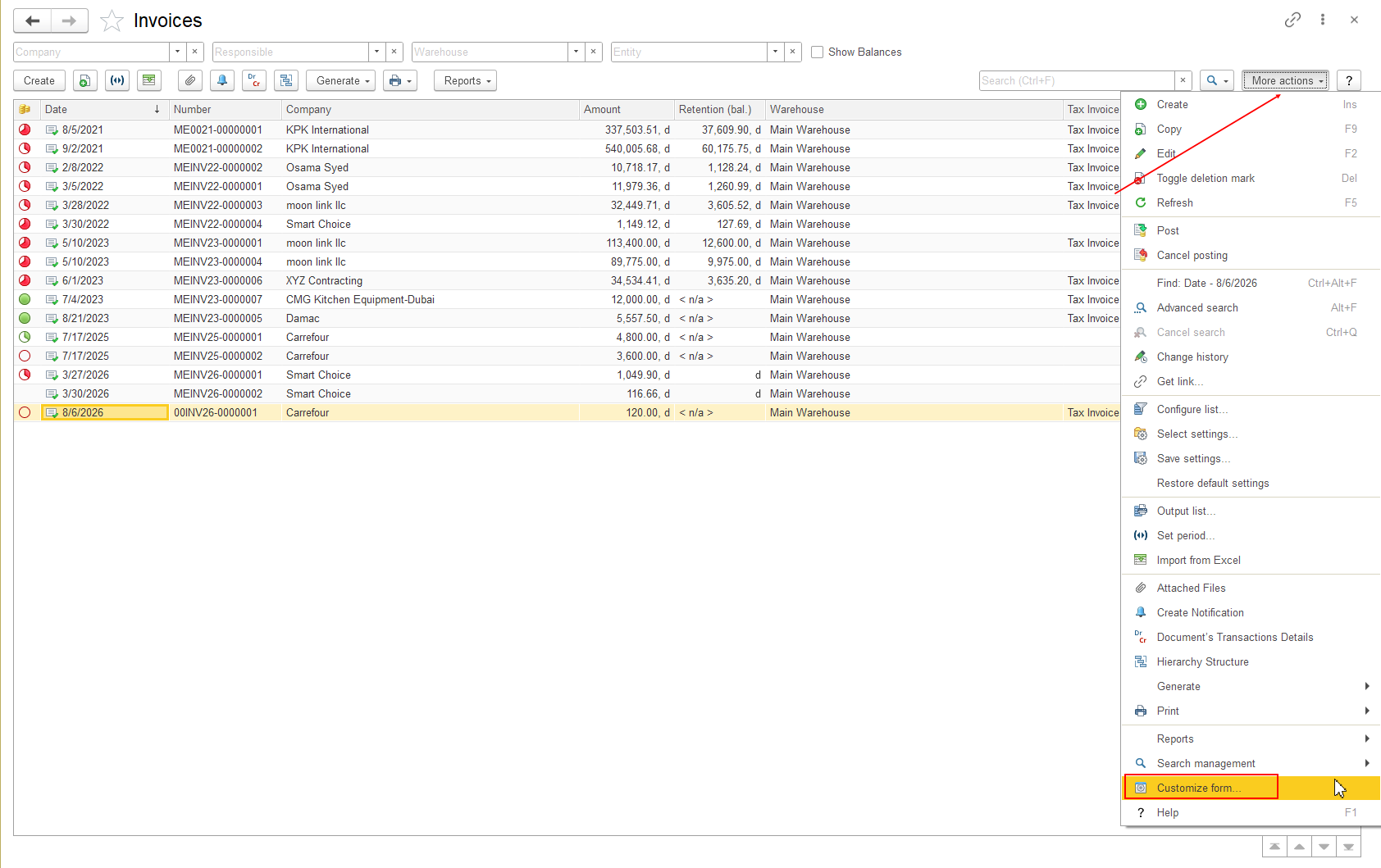
The Customize Form window opens and displays the structure of the current form.
Customize the Form Structure
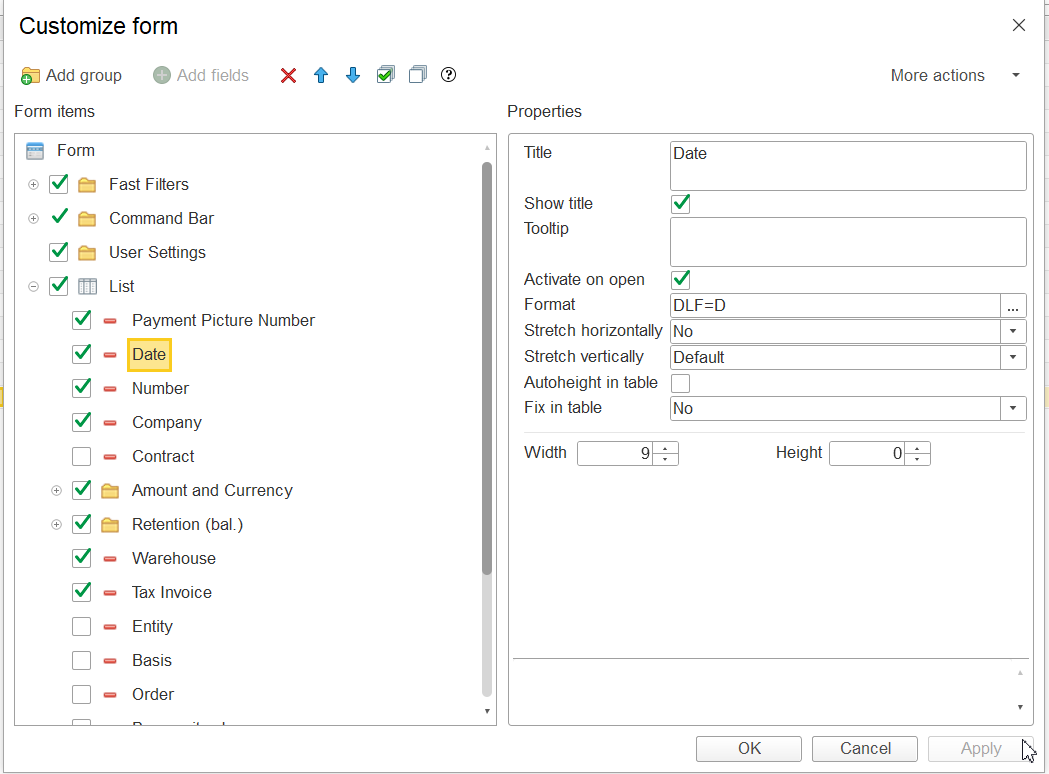
List Form under Form items.
The The form is organized into groups and elements. The exact structure depends on the form.
Select an element in the structure to see the available options.
Depending on the selected element, you can:
...
particular List Form. It may include elements such as:
- Command Bar;
- User Settings;
- List;
- Quick Filters;
- groups containing fields and other form elements.
Screenshot: Show the Customize Form window with the Form items structure visible.
Customize the List
The List element contains the fields displayed in the List Form
...
.
Show or Hide Fields
To change which fields are displayed in a listshow or hide a field:
...
- Expand
...
- List in the Form items area.
- Select or clear the checkbox next to the required
...
- field.
...
This allows you to keep only the information that is relevant to your workClearing the checkbox hides the field from the List Form. Selecting it makes the field visible.
Change the Order of Fields
You can change the position of fields within the formorder in which fields are displayed in the list.
- Select the required field
...
- under List.
- Use the available move commands to place the field in the desired position.
- Apply the changes.
The field is displayed in the new position in the List Form.
Add Fields to the List
...
The new order is applied to the form after you save the customization.
...
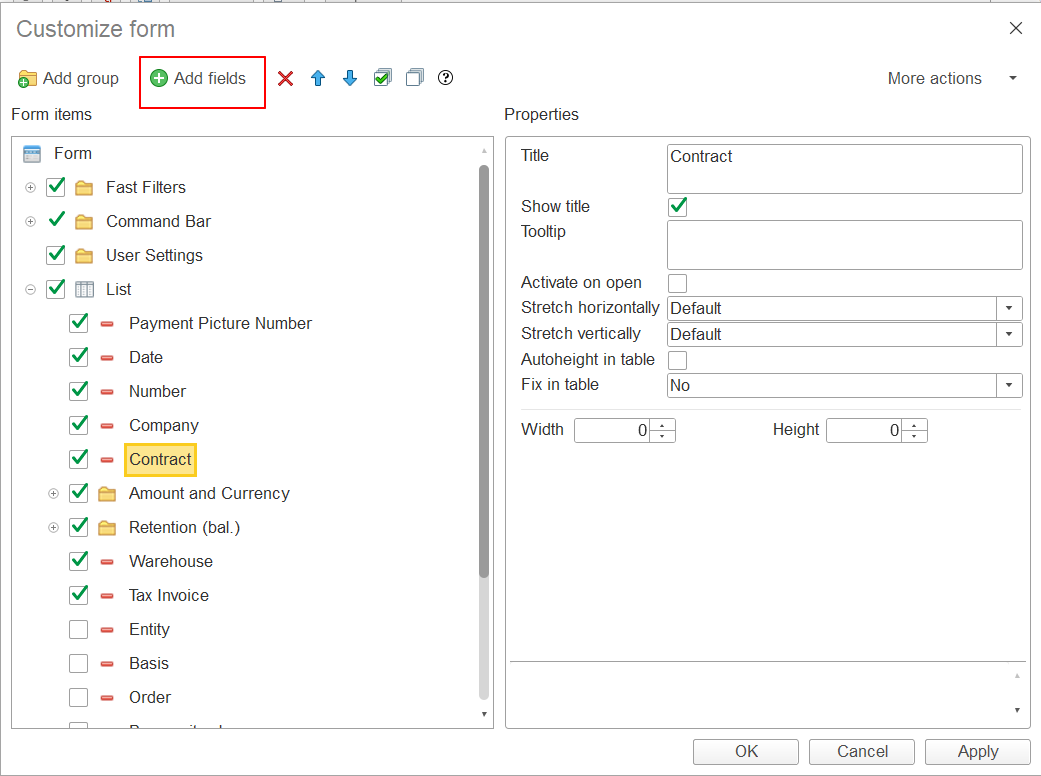
If the required field is not shown currently included in the List group, it may still be available for adding to the form.
To add a field:
structure, use Add fields to check whether the field is available for the List Form.
- Select List or the required location in the form structure
...
- .
- Select Add fields.
...
- Select the required field from the available list.
- Apply the changes.
The added field appears in the form structure selected field is added to the List Form and can then be positioned or configured as required.
Note: Only fields available for the particular form List Form can be added.
Customize Other Form Elements
Customize Form can also be used to configure other elements available in the form.
Groups
Add Data from Related Objects
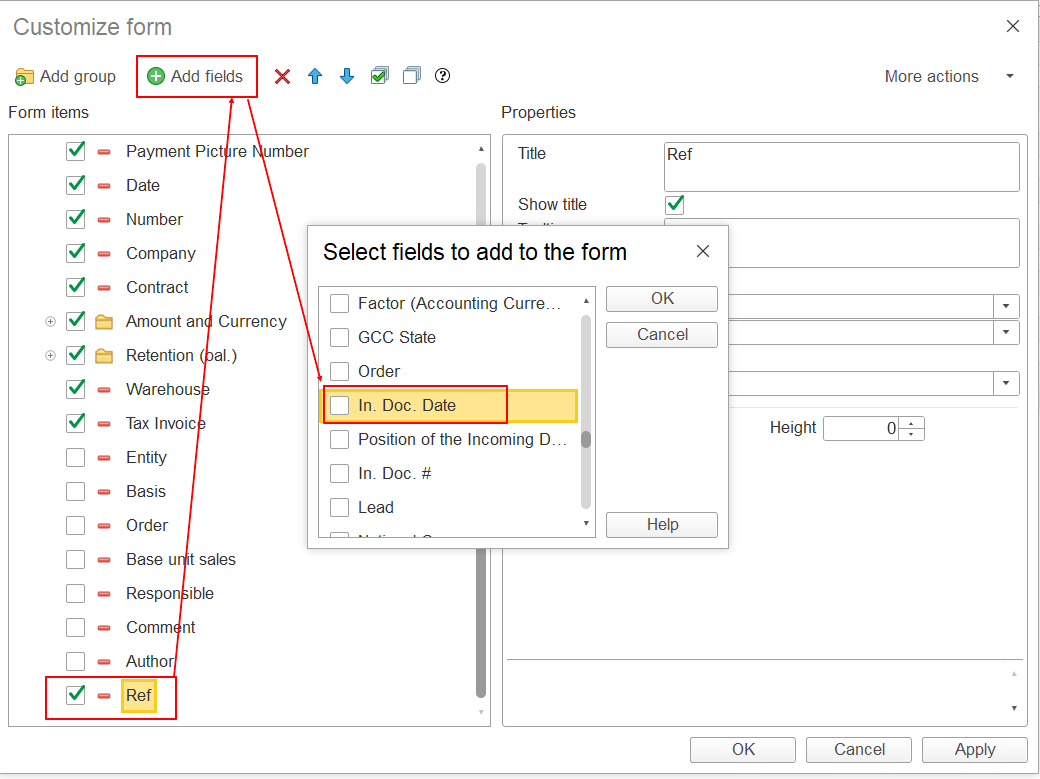
You can use a Ref (reference) field to display additional data from a related object in the List Form.
For example, a list may contain a reference field such as In. Doc. Date (Ref). This field allows the List Form to display the date from the related incoming document.
Reference fields are useful when the information you need is not a direct field of the current object but is available through a related object.
To add a reference field:
- Open Customize Form.
- Select List or the required location in the form structure.
- Select Add fields.
- Select the required reference field, if it is available.
- Apply the changes.
The available reference fields depend on the particular List Form and the relationships defined for its data.
Note: Reference fields available for one List Form may not be available for another.
Organize Form Elements into Groups
Groups allow you to Groups help organize related fields and other form elements together.
You can arrange elements into use groups to make the form easier to navigate and keep related information together.
Fast Filters
:
- keep related fields together;
- structure a complex List Form;
- make frequently used information easier to find.
The exact group options depend on the particular List Form.
Customize Quick Filters
Quick Fast Filters provide quick access to frequently used filtering options directly from the List Form.
If Fast Quick Filters are available on in the formList Form, you can configure their position and visibility using the form customization optionsthrough Customize Form.
This allows you to keep frequently used filters easily accessible without changing the filtering conditions themselves.
For information about configuring and using filters and configuring filtering conditions, see Filtering Data.
Customize the Command Bar
The Command Bar contains commands and actions available on the formList Form.
Where supported, you can customize the available commands and their position to make frequently used actions easier to access.form element properties, including its visibility and position.
This can help you organize frequently used commands so they are easier to access.
The exact customization options depend on the particular List Form.
Customize Other Form Elements
The Customize Form window may contain other elements in addition to the List and Command Bar.
For example, the form may contain User Settings or other groups and elements specific to the particular List Form.
The available elements and customization options depend on the List Form.
You do not need to configure every available element. In most cases, you can customize only the parts of the List Form that are relevant to your work.
Customize Element Properties
When you select an element in Form items, its available properties are displayed in the Properties area.
The available properties depend on the selected element and the particular List Form.
For example, an element may have properties related to its:
- title;
- visibility;
- size;
- position.
Use the properties that are relevant to the customization you want to make. You do not need to configure every available property.
Screenshot: Show an element selected in Form items with its available properties displayed in the Properties area.
Apply or Cancel Changes
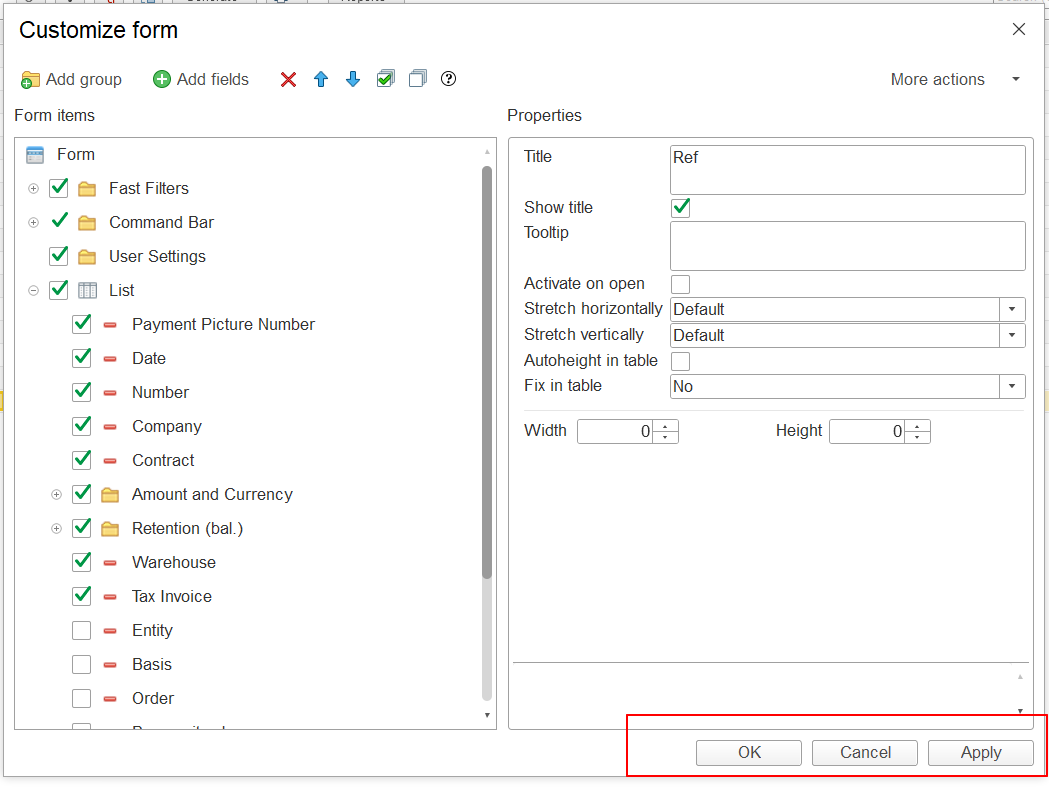
After making the required changes, use the buttons at the bottom of the Customize Form window:
- Apply —
...
- applies the changes and keeps the Customize Form window open.
- OK —
...
- applies the changes and closes the
...
- window.
- Cancel — closes the window without
...
- applying the changes made during the current session.
Use Apply if you want to check the result and continue customizing the form.
Use OK when you have finished making changes.
How Customize Form Works
The general customization process is:
Select an element → change its settings → apply the changes → check the result.
If the required field is already available in the form structure, configure it directly.
If the field is not displayed, use Add fields to check whether it can be added.
The available elements and properties depend on the particular form. Therefore, different forms may provide different customization options.
...
A convenient way to work with the form is:
Select an element → make the required changes → Apply → check the result → continue customizing if necessary.
Save and Restore Your List Form Settings
After customizing a List Form, you can save your personal configuration and apply it later when needed.
Use More actions → Save Settings to save the current List Form configuration.
You can later use More actions → Select Settings to apply one of your previously saved configurations.
If you want to return to the standard List Form configuration, use More actions → Restore Default Settings.
For detailed instructions, see Save and Restore List Form Settings.
Important: Saving, selecting, or restoring List Form settings changes only the configuration of the List Form for the current user. It does not delete or modify business data, documents, or other system data.
Important Notes
- Customize Form changes the structure and appearance of the List Form, not the underlying data.
- The customization is personal and does not affect other users.
- The exact form elements, fields, reference fields, and available properties depend on the particular List Form.
- If a field or form element is not available in Customize Form, it cannot be added through this functionality.
- You can customize only the elements and properties provided for the particular List Form.
Related Articles
- Understanding List Form Interface — learn about the main elements of a List Form.
- Filtering Data (moved to KB) — learn how to filter data displayed in a list.
- Configure List — configure filtering, sorting, grouping, and other list settings.
- Save and Restore List Form Settings — save your personal List Form configuration, apply a previously saved configuration, or restore the default settings.
Thank you for being FirstBIT Customer!