...
Generally, you can define (create) batches for items on receiving these items to warehouses, that is in Invoices Received, Goods Receipt Notes, Productions; also, when entering their beginning balances.
To add a batch, click in the Batch column on the Inventory tab of the document form, then click the Add (  ) button to the right in the drop-down list of batches. The Item Batch (create) dialog box opens.
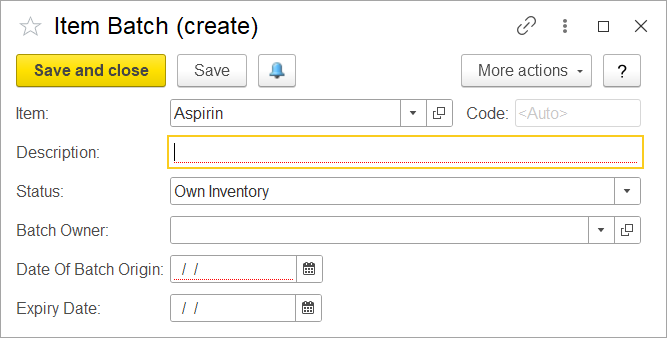
The Item Batch (create) dialog box
In the Description field, type a batch name.
...
This opens the following dialog box (the same for all types of documents).
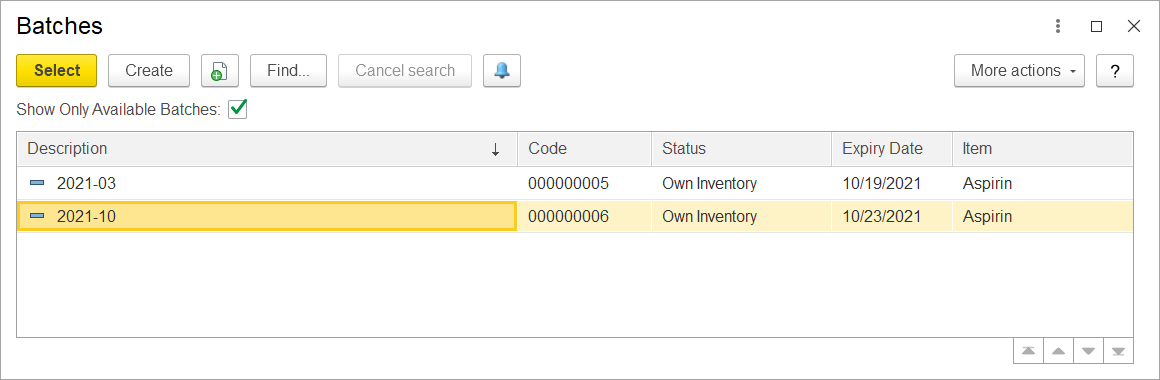
The Item Batches (selection) dialog box
In this dialog box, you can view all the batch numbers that were assigned to the item or the available batches if the Show Only Available Batches option is selected.
...
You can select any options to view the corresponding information in the report.
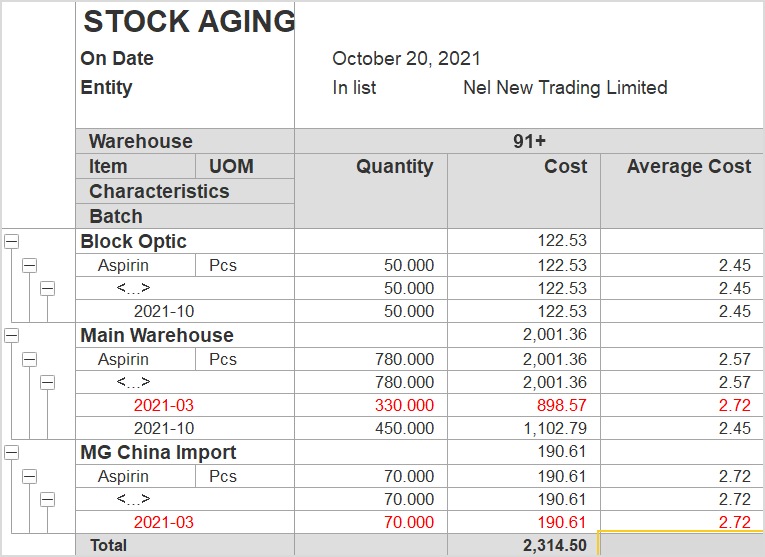
The Stock Aging report (default variant)
The Stock Balance (by Item) report shows the item available quantities on the specified date. The quantities of items with batch tracking are listed by batch.
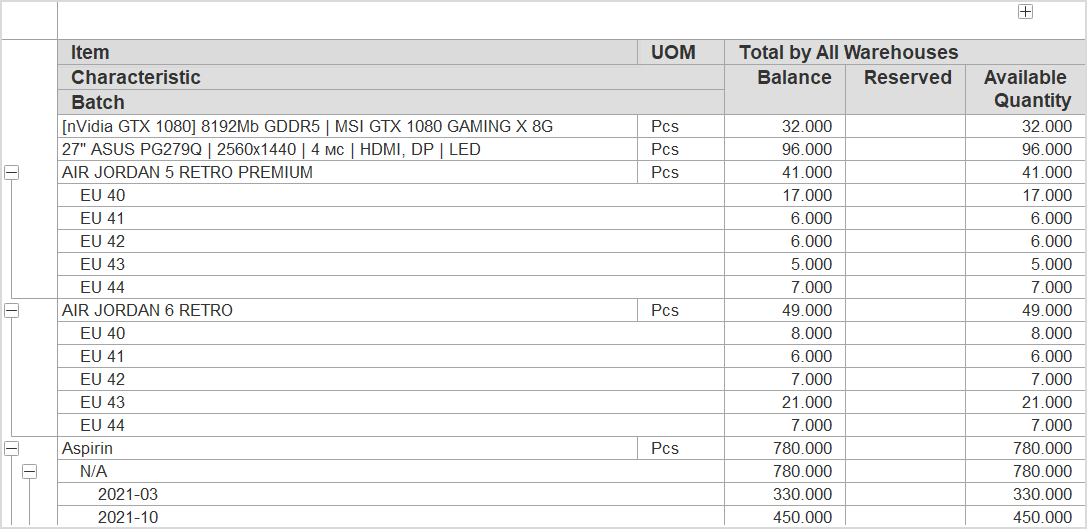
The list of items including items with batches available in warehouses
Similarly, the Stock Statement (by Item) report shows the changes in item quantities during the specified period. The changes in quantities of items with batch tracking are shown by batch.
...