...
Depending on the selected field, the following comparison types can be available:
| Comparison type | Purpose |
|---|---|
| Equal to | The field value equals the specified value. |
| Not equal to | The field value does not equal the specified value. |
| In list | The field value matches one of the specified values. |
| Not in list | The field value does not match any of the specified values. |
| Filled | The field contains a value. |
| Empty | The field does not contain a value. |
| In group | The field value belongs to the specified group. |
| Not in group | The field value does not belong to the specified group. |
For example, to display documents for several companies, use:
...
Configure List and Customize Form are used for different purposes.
| Functionality | Configure List | Customize Form |
|---|---|---|
| Configure data filtering conditions | ✓ | ✓* |
| Sort data | ✓ | — |
| Group data | ✓ | — |
| Configure conditional appearance | ✓ | — |
| Configure list form elements | — | ✓ |
| Configure Fast Filters | — | ✓ |
| Configure Command Bar | — | ✓ |
| Change the structure and arrangement of list elements | — | ✓ |
* Customize Form allows users to configure which filters are available directly in the list form.
...
Thank you for being FirstBIT Customer!
Overview
The Configure List functionality allows users to customize the appearance and data selection in system lists according to their needs.
Using Configure List, users can:
- add required columns to the list;
- hide unnecessary columns;
- change the order of displayed columns;
- filter records using different conditions;
- organize data using grouping and sorting options.
The configured list helps users quickly find and analyze required information without opening individual documents.
Scope: Applies to system list forms where the Configure List functionality is available.
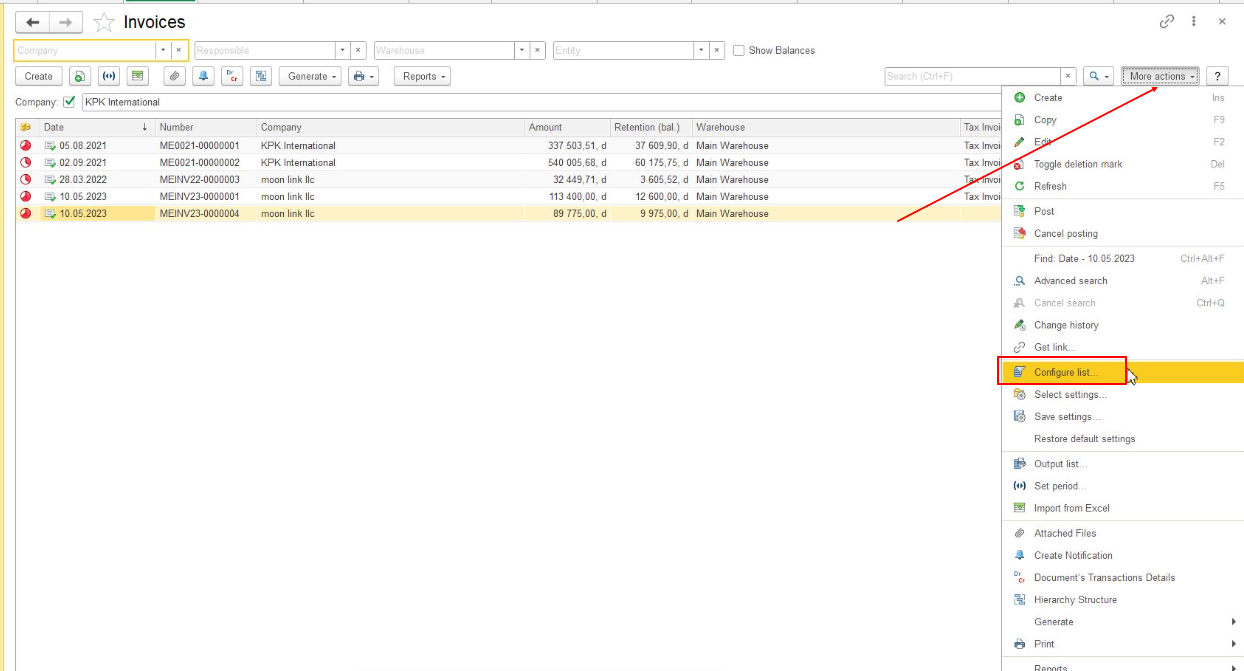
Opening Configure List
To configure a list:
- Open the required list form.
- Click Configure List.
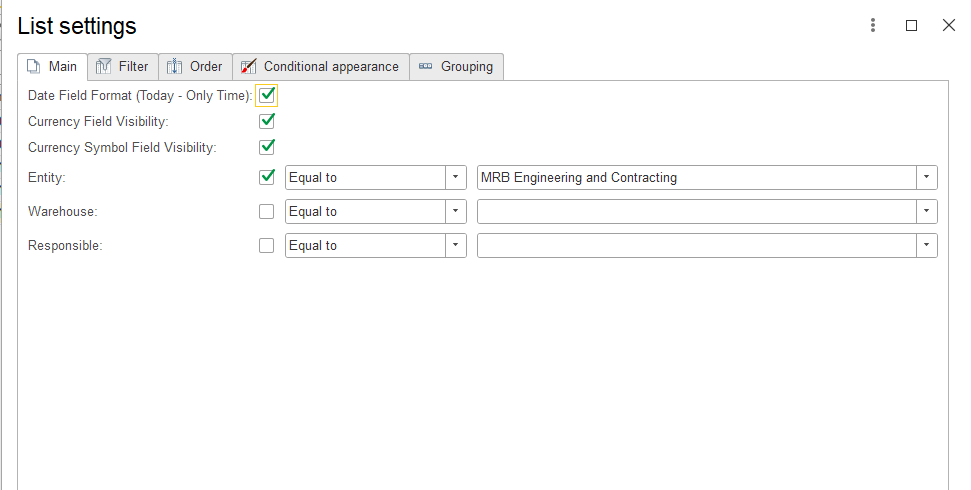
- The configuration window opens.
The configuration window contains settings for:
- columns displayed in the list;
- available attributes;
- filtering conditions;
- grouping and sorting options.
Adding and Removing Columns
Adding a Column
Users can add additional attributes to display required information directly in the list.
To add a column:
- Open the list of available attributes.
- Select the required attribute.
- Add the attribute to the displayed columns.
- Apply the changes.
Example:
A user can add the Customer, Project, or Status columns to analyze documents without opening each document separately.
[SCREENSHOT: Available attributes and selected columns]
Removing a Column
To remove an unnecessary column:
- Select the column in the list of displayed columns.
- Remove it from the list.
- Apply the changes.
The column will no longer be displayed in the list.
[SCREENSHOT: Removing a column]
Changing Column Order
Users can change the order of columns according to their preferences.
To change the order:
- Select the required column.
- Move it to the required position.
- Apply the changes.
[SCREENSHOT: Changing column order]
Filtering Data
Filters allow users to display only records that match specified conditions.
A filter consists of:
- Attribute — the field used for filtering.
- Operator — the condition used for comparison.
- Value — the value used for selection.
Example:
To display invoices for a specific customer:
- Attribute: Customer
- Operator: Equal
- Value: Customer name
Result:
The list displays only invoices related to the selected customer.
[SCREENSHOT: Filter setup example]
Filter Operators
The available operators define how the system compares the selected attribute with the specified value.
Common operators include:
| Operator | Description |
|---|---|
| Equal | Displays records where the attribute matches the specified value |
| Not equal | Displays records where the attribute does not match the specified value |
| In list | Displays records where the attribute value is included in the selected list |
| Not in list | Displays records where the attribute value is not included in the selected list |
| Filled | Displays records where the attribute contains a value |
| Empty | Displays records where the attribute has no value |
The available operators may differ depending on the selected attribute.
[SCREENSHOT: Operator selection list]
Using Filter Groups
Filter groups allow users to combine several conditions when filtering data.
AND GROUP
AND GROUP is used when all conditions inside the group must be fulfilled simultaneously.
Example:
To display paid invoices for a specific customer:
- Customer = ABC
- Status = Paid
Only records matching both conditions are displayed.
[SCREENSHOT: AND GROUP example]
OR GROUP
OR GROUP is used when any condition inside the group can be fulfilled.
Example:
To display invoices for several customers:
- Customer = ABC
- Customer = XYZ
The system displays invoices related to either of the selected customers.
[SCREENSHOT: OR GROUP example]
Applying Configuration
After configuring the list:
- Apply the changes.
- Review the updated data.
- Save the configuration if required.
The configured list can be reused for further work with the same data.
[SCREENSHOT: Result after applying configuration]