...
This functionality applies to FirstBIT Contracting configuration starting from release 2.1.1.35.
Overview
Beginning with Starting from release 2.1.1.35, a new checkbox, the Stock GL Transaction, has been added to checkbox is available in purchasing documents within the procurement chain, starting from the Purchase Order document.
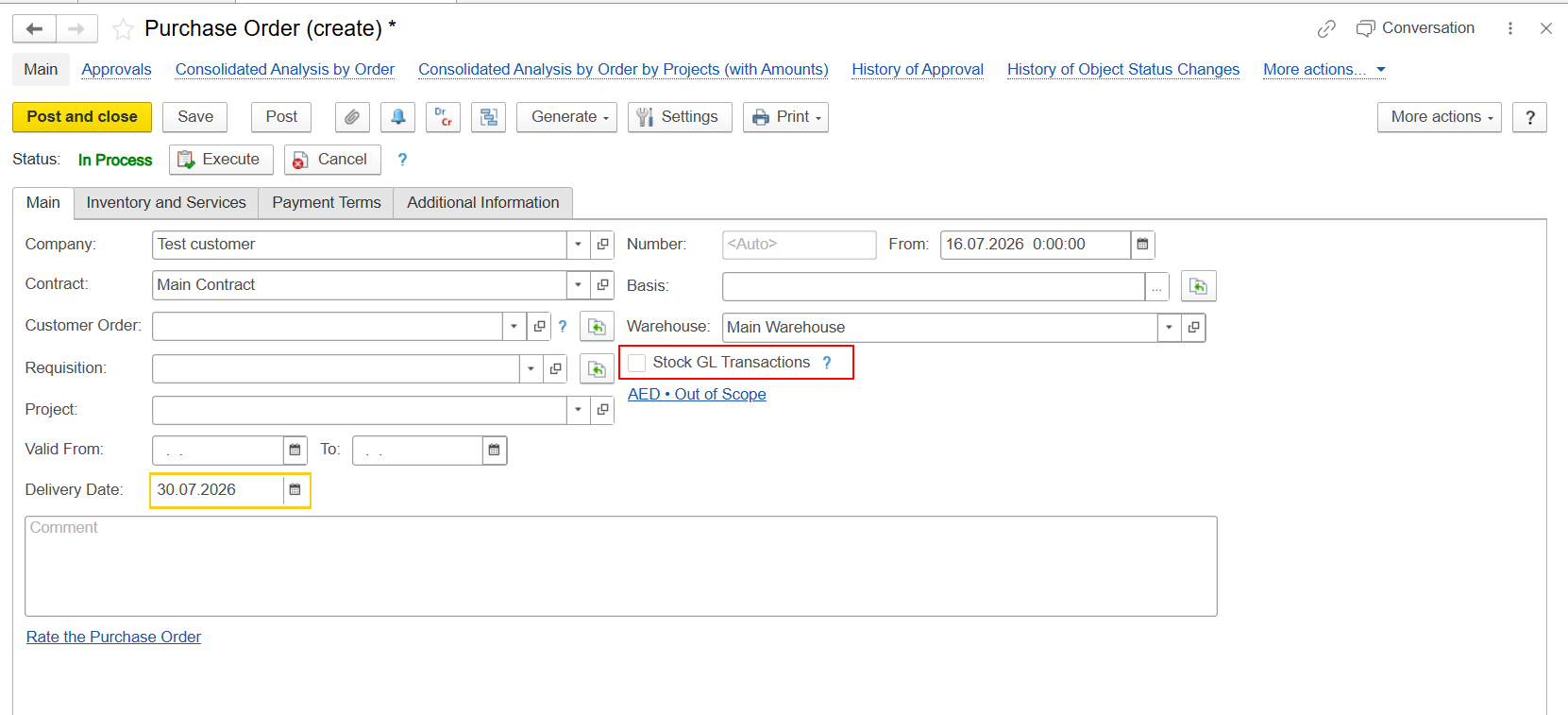
The checkbox controls determines whether inventory transactions should be are generated automatically during the procurement purchasing process.
When the checkbox is enabled, the system automatically creates entries in the Inventory and Expenses register and performs inventory receipt automatically during posting of generates the required inventory movements when the related Invoice Received document created from the original Purchase Order.
Automatic Determination of the Checkbox
is posted. This eliminates the need to create a separate document for the financial inventory transaction.
The The value of the Stock GL Transaction checkbox is determined automatically based on the settings of the selected Warehouse.
Automatic Determination of the Stock GL Transaction Checkbox
If If the Warehouse has the Separate Inventory and Financial Documents option is enabled for the selected Warehouse, the system automatically enables the Stock GL Transaction checkbox in purchasing documents.
Warehouse setting:
Separate Inventory and Financial Documents = Enabled
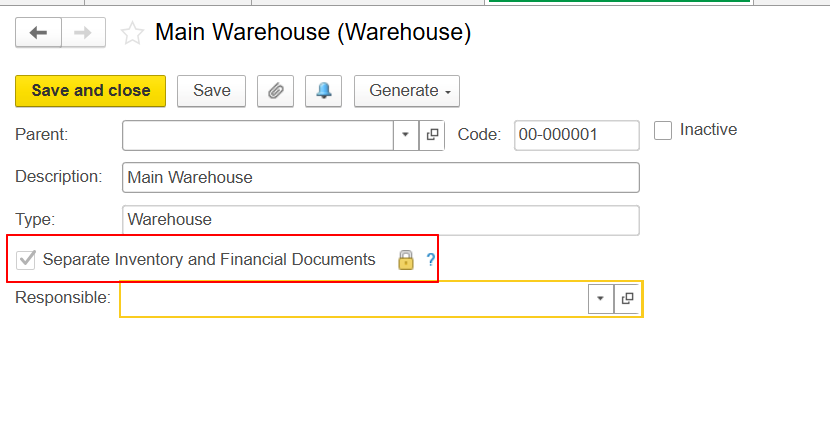
Document setting:
Stock GL Transaction = Enabled
...
This behavior applies to all documents within the purchasing chain starting from the Purchase Order.
When a new purchasing document is created, the system checks the Warehouse settings, including when the Warehouse is automatically populated from Personal Settings.
Warehouse Configuration
To enable automatic determination of the Stock GL Transaction checkbox, the Warehouse should have the following option must be enabled in the Warehouse settings:
Separate Inventory and Financial Documents
When this option is enabled, financial and inventory and financial transactions can be are processed simultaneously separately during the purchasing process.
Important Limitation When Using Default Warehouse
Users can define a default Warehouse in their Personal Settings.
When a new purchasing document is created, the system automatically populates the Main Warehouse field using this default value.
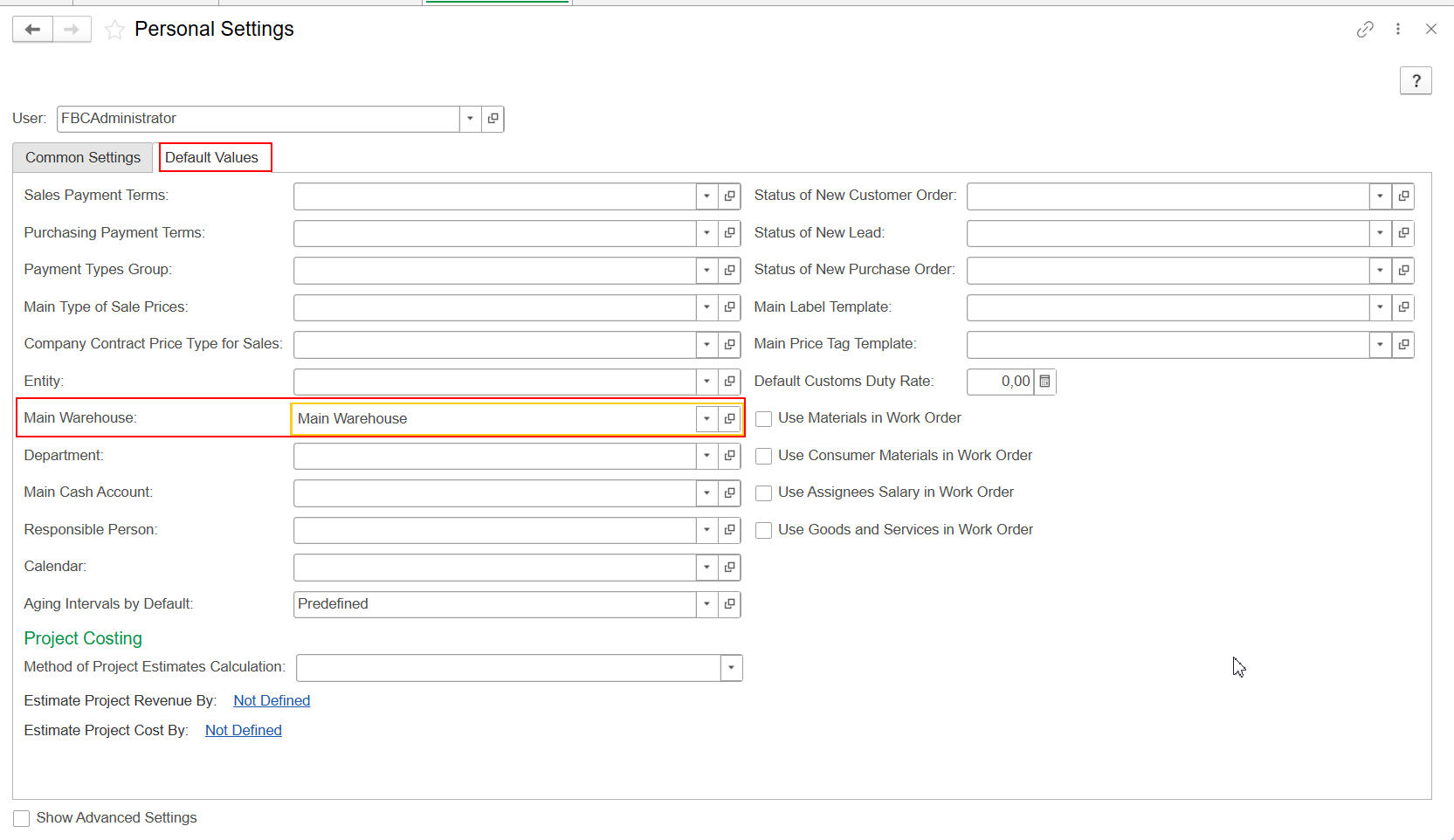
In this scenario, the Warehouse value is inserted into the document without validating the Warehouse settings.
As a result, the system does not check whether the selected Warehouse has the Separate Inventory and Financial Documents option enabled.
Therefore:
- the Warehouse is populated automatically;
- the Stock GL Transaction checkbox is not activated automatically, even if the Warehouse is configured for separate inventory and financial documents.
This behavior is expected.
How to Enable Stock GL Transaction
If the Stock GL Transaction option is required, the user should manually reselect the Warehouse in the document.
After the Warehouse is selected manually, the system validates the Warehouse configuration and automatically updates the value of the Stock GL Transaction checkbox according to the Warehouse settings.
Result of Enabling Stock GL Transaction
When the Stock GL Transaction checkbox is enabled:
- corresponding entries are created generated in the Inventory and Expenses register;
- inventory receipt is generated automatically during posting of when the Invoice Received document created from the Purchase Order.
This eliminates the need to create separate inventory documents for the receipt process.
Inventory Movements Generated by Stock GL Transaction
- is posted, the required inventory movement is generated automatically;
- the corresponding Material Receipt Note (MRN) must be posted to reflect the actual receipt of the goods.
Therefore, the financial recognition of the purchase and the actual receipt of goods can be processed using separate documents.
Inventory Movements in Inventory on Hand
When Stock GL Transaction is enabled, additional movements are generated in the Inventory on Hand accumulation register when the documents are postedWhen the Stock GL Transaction checkbox is enabled, additional inventory movements are generated during document posting.
Invoice Received
When the Invoice Received document created from the Purchase Order is posted, the system creates generates an additional entry consumption movement in the Inventory on Handaccumulationregister representing inventory consumption. register.
At this stage, the goods have not yet been recorded as physically received into the Warehouse.
If the corresponding Material Receipt Note has not yet been posted, the reporting may show the goods as invoiced but not received.
[Screenshot 3 — Report/form showing the invoiced but not received status after Invoice Received is posted and before MRN is posted]
Material Receipt Note
When the Material Receipt Note document is posted, the system creates generates the corresponding receipt entry movement in the Inventory on Hand register.
[Screenshot 4 — Inventory on Hand movements after Material Receipt Note is posted]
After As a result, after both documents are posted, the balance :
- Invoice Received;
- Material Receipt Note;
the movements generated in the Inventory on Hand register offset each other, and the resulting balance becomes zero.
This behavior is expected and is designed to support standard and supports scenarios where the financial and physical inventory transactions are processed separately.recognition of the purchase and the actual receipt of goods are processed separately.
Reporting with Stock GL Transaction
When using Stock GL Transaction, consider the sequence in which the purchasing documents are posted.
Invoice Received Posted, Material Receipt Note Not Yet Posted
If the Invoice Received has already been posted but the corresponding MRN has not yet been posted, the financial part of the purchase has already been recognized, while the actual receipt of the goods has not yet been recorded.
In this situation, the purchasing analysis may show the goods as invoiced but not received.
This is an intermediate state. After the corresponding Material Receipt Note is posted, the actual receipt of the goods is recorded in the system.
Invoice Received and Material Receipt Note Posted
After the Material Receipt Note is posted, the actual receipt of the goods is recorded in the system.
As a result, the movements generated by Invoice Received and Material Receipt Note offset each other in the Inventory on Hand register, and the resulting balance becomes zero.
How to Identify Purchases Requiring a Material Receipt Note
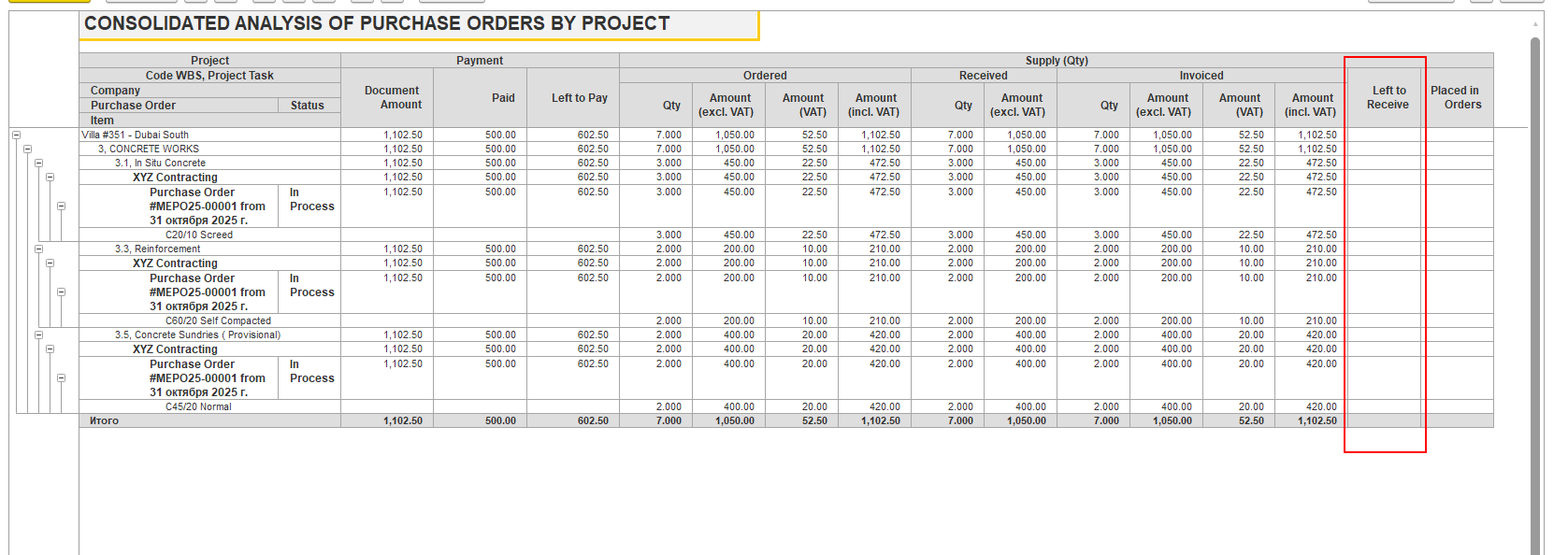
To identify purchases where the goods have already been recorded in Invoice Received but the actual receipt has not yet been recorded, use the Consolidated Analysis by Purchase Orders report.
In the report, pay attention to situations where the goods are shown as invoiced but not received.
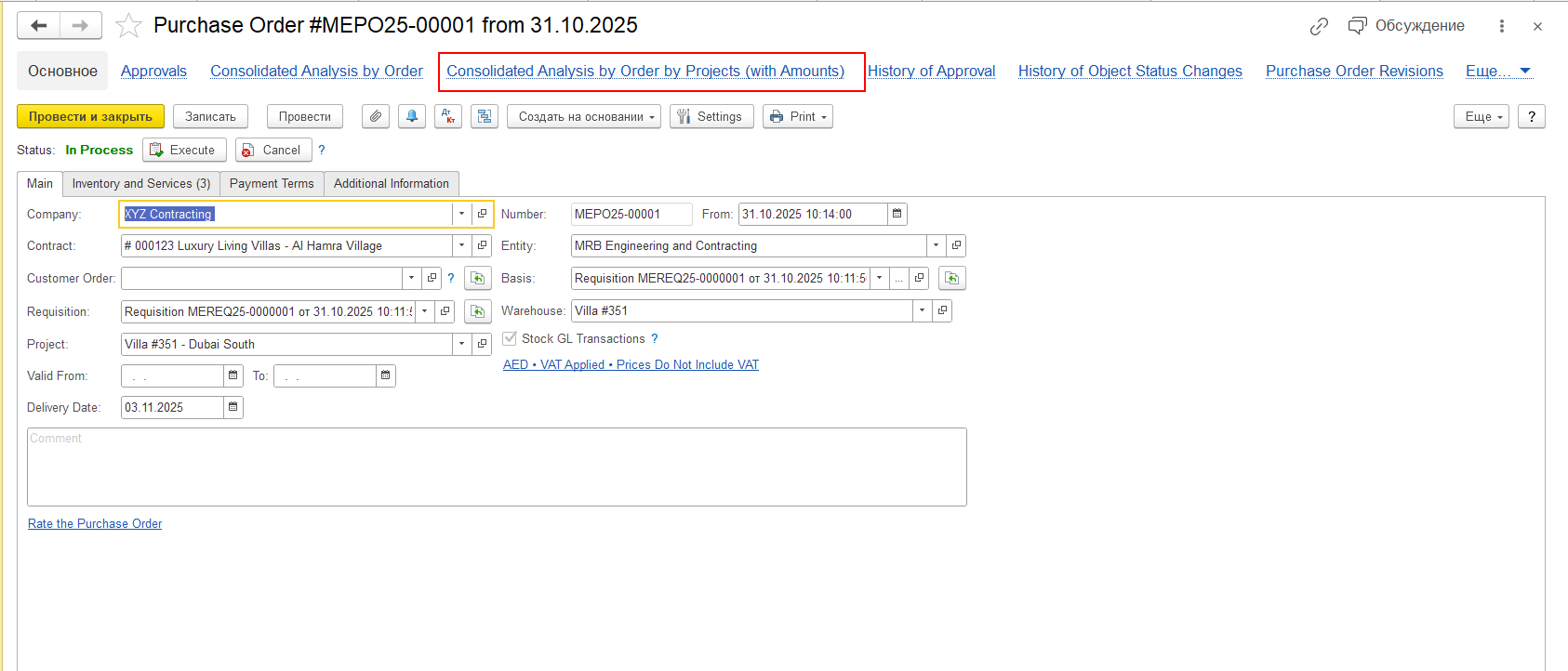
The report can be opened directly from a selected Purchase Order. In this case, the analysis is generated for that particular Purchase Order.
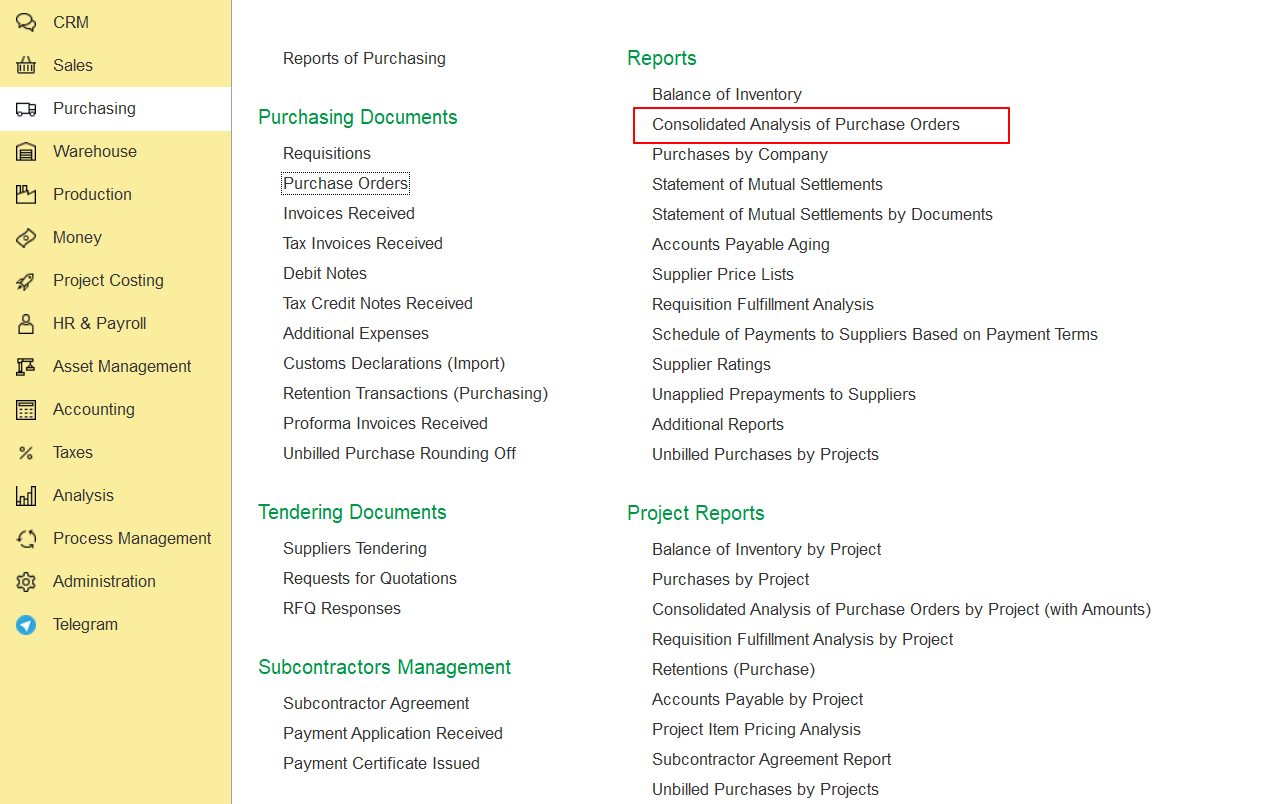
The report is also available via:
Purchasing → Reports → Consolidated Analysis by Purchase Orders
This option allows you to review the information for multiple Purchase Orders.
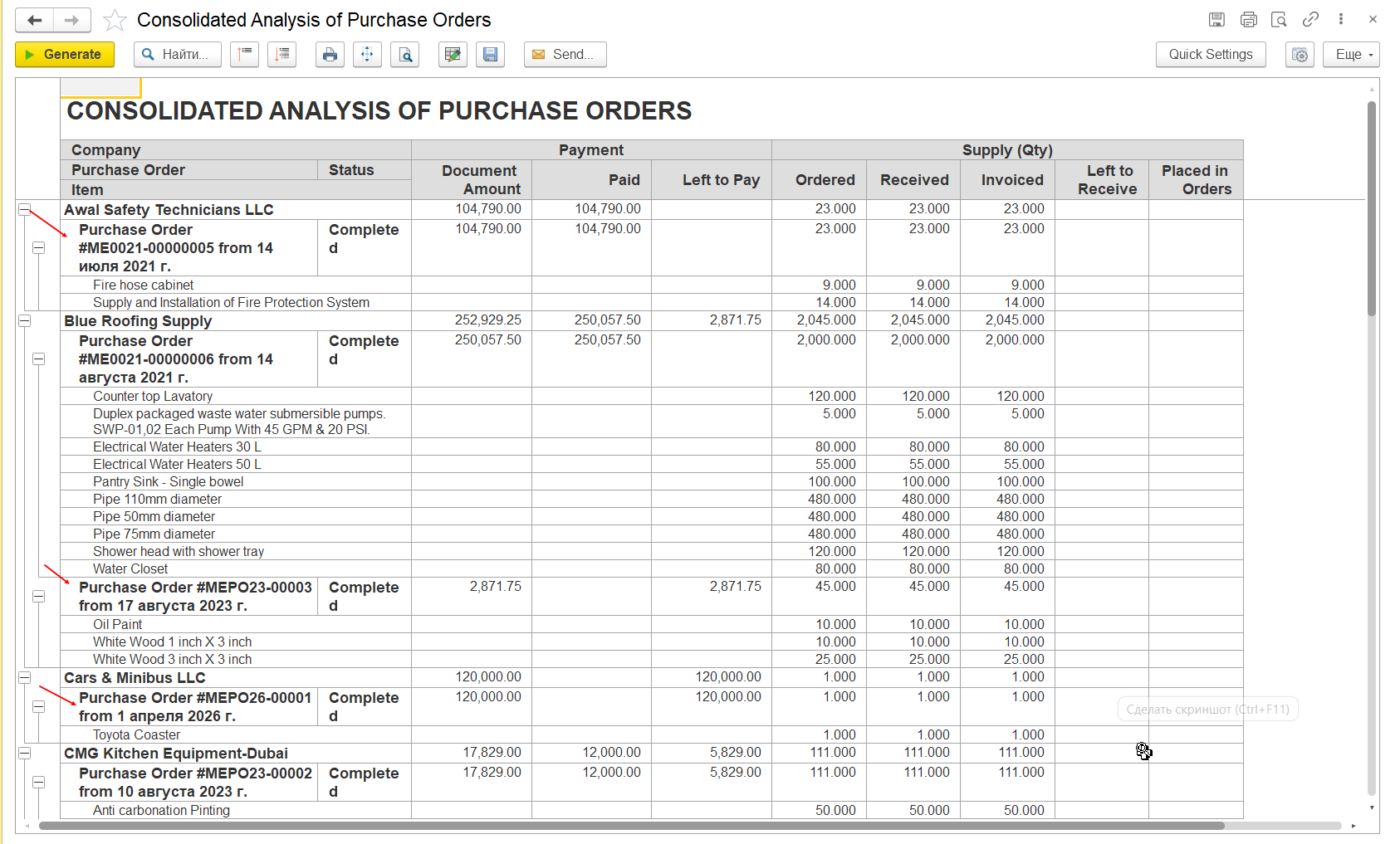
If the report shows an invoiced but not received situation, check the corresponding Material Receipt Note and post it, if required, to record the actual receipt of the goods.
Summary
Starting from release 2.1.1.35:
- the Stock GL Transaction checkbox has been added to is available in purchasing documents starting from Purchase Order;
- the checkbox is automatically enabled when the selected Warehouse has the Separate Inventory and Financial Documents option is enabled for the selected Warehouse;
- when a the Warehouse settings are checked automatically, including when the Warehouse is populated from Personal Settings, Warehouse validation is not triggered automatically;
- in such cases, the Warehouse should be manually reselected if the Stock GL Transaction option is required;
- posting of the Invoice Received document creates generates an additional consumption entry movement in the Inventory on Hand register;
- if the Material Receipt Note has not yet been posted, the purchase may appear as invoiced but not received;
- posting of the Material Receipt Note document creates generates the corresponding receipt entry movement;
- after both documents are posted, the resulting balance in the Inventory on Hand register becomes zero;
- the Consolidated Analysis by Purchase Orders report can be used to identify purchases where the goods are invoiced but not yet received.
This behavior is standard for FirstBIT Contracting starting from release 2.1.1.35.
Thank you for being FirstBIT Customer!