Documents Included in the Package
All incoming and outgoing B2B documents:
Tax Invoice/Tax invoice received
Commercial Invoice/Invoice received*
Tax Credit Note
Commercial Credit Note*
Tax Credit Note Received (Invoice Received)Received
Debit Note*
Commercial documents are issued for transactions where a Tax Invoice is not required under the UAE VAT legislation.
...
Tax
...
Open Quick Menu.
...
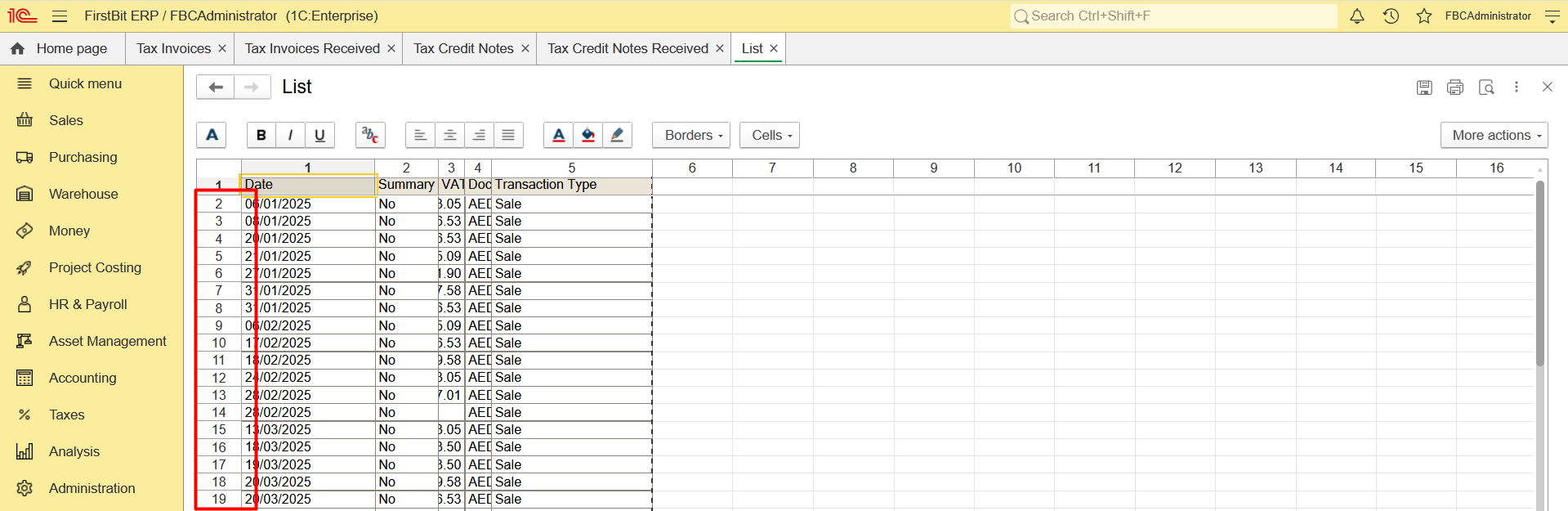
Invoice/Tax invoice received/Tax Credit Note/Tax Credit Note Received counting
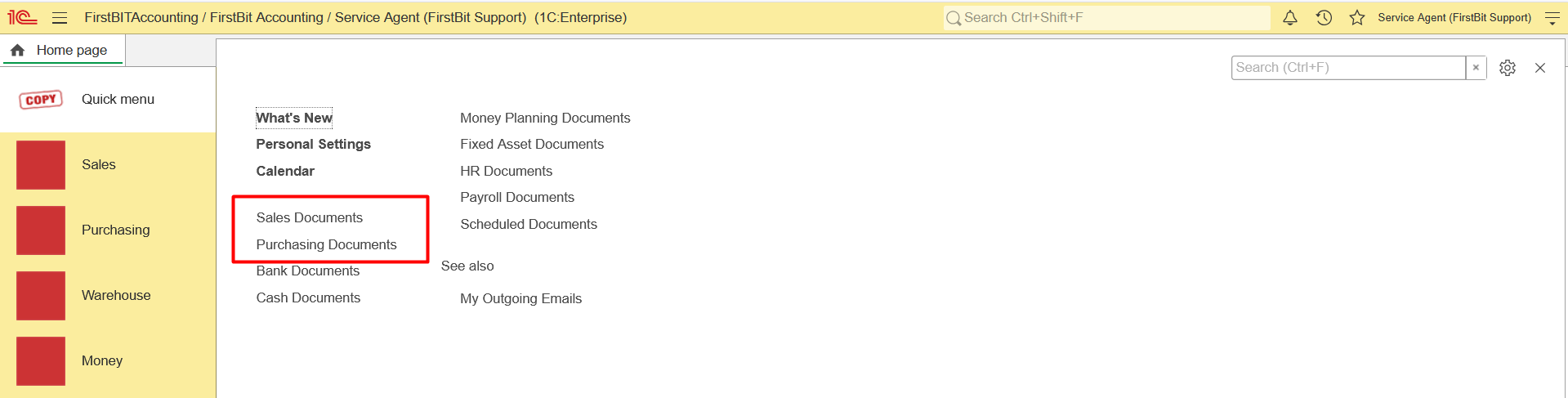
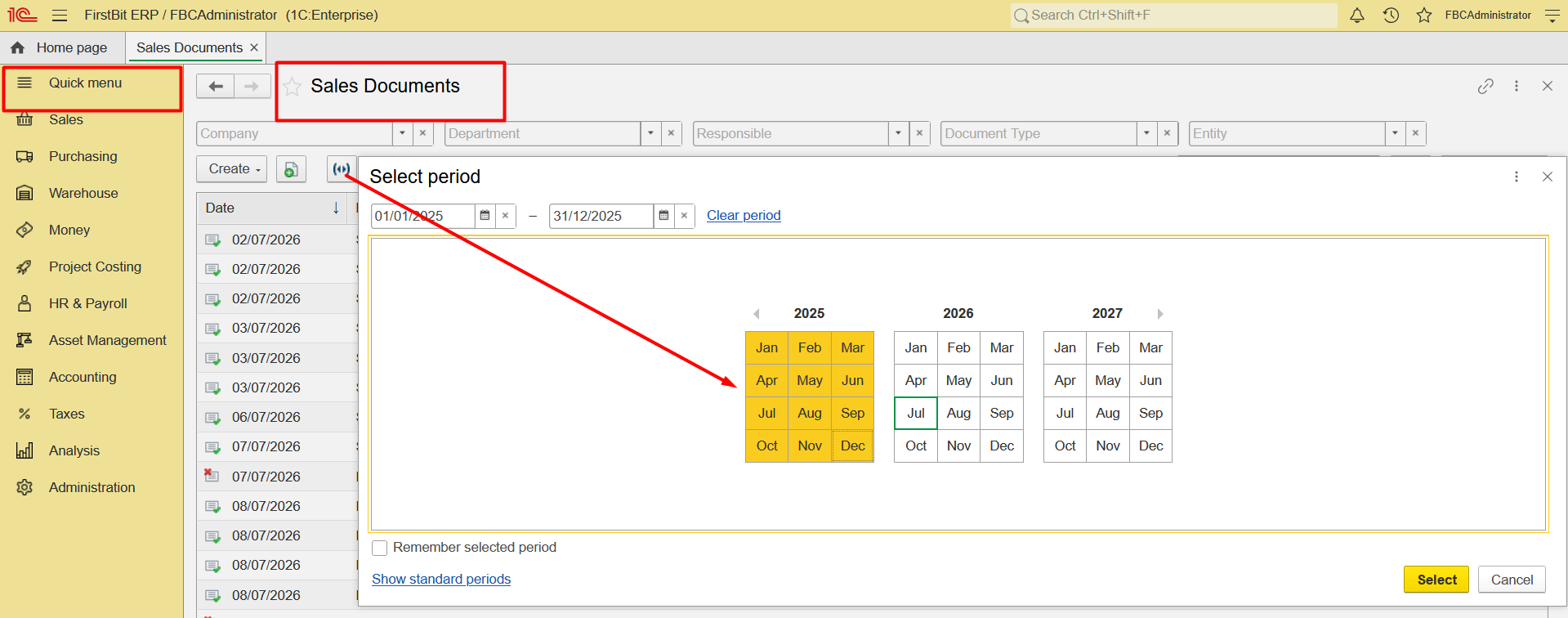
21. Navigate to Sales Documents.documents list

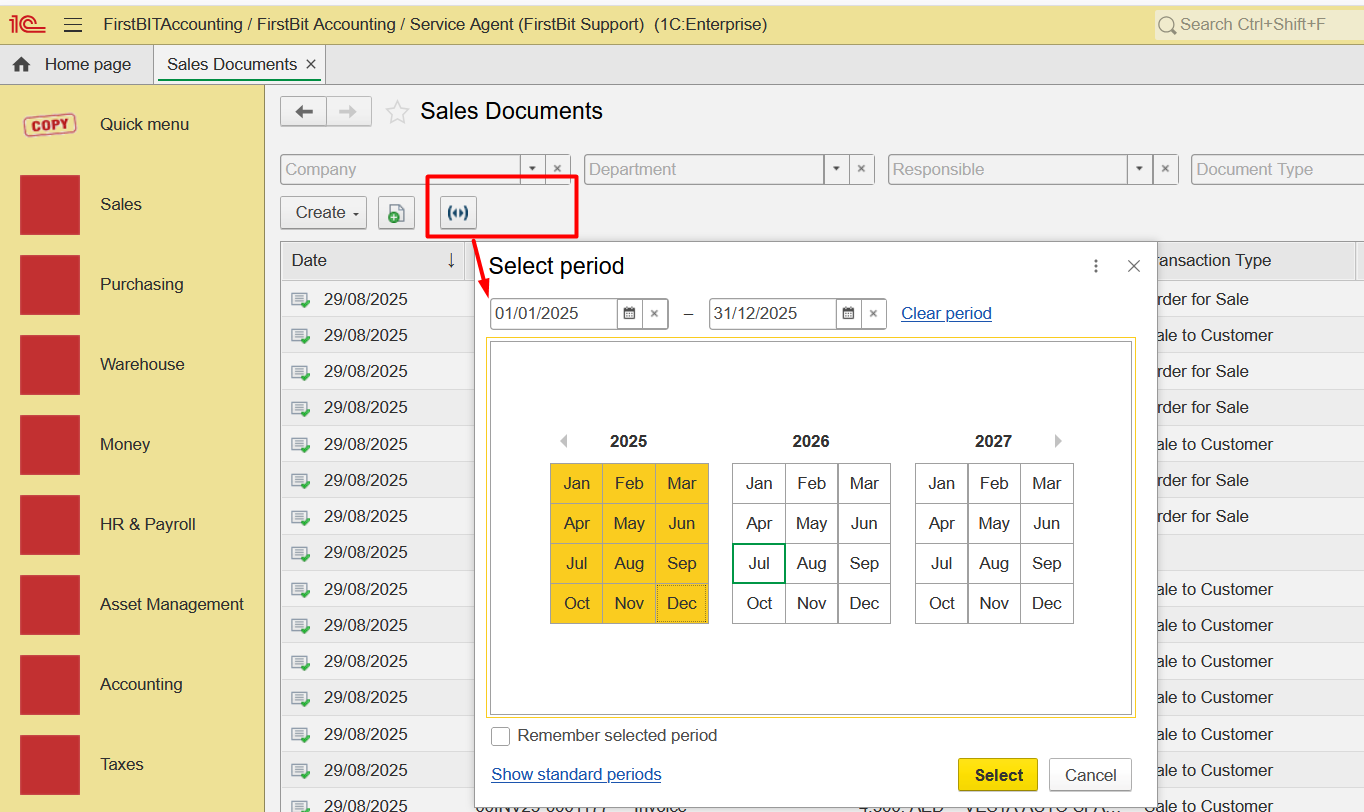
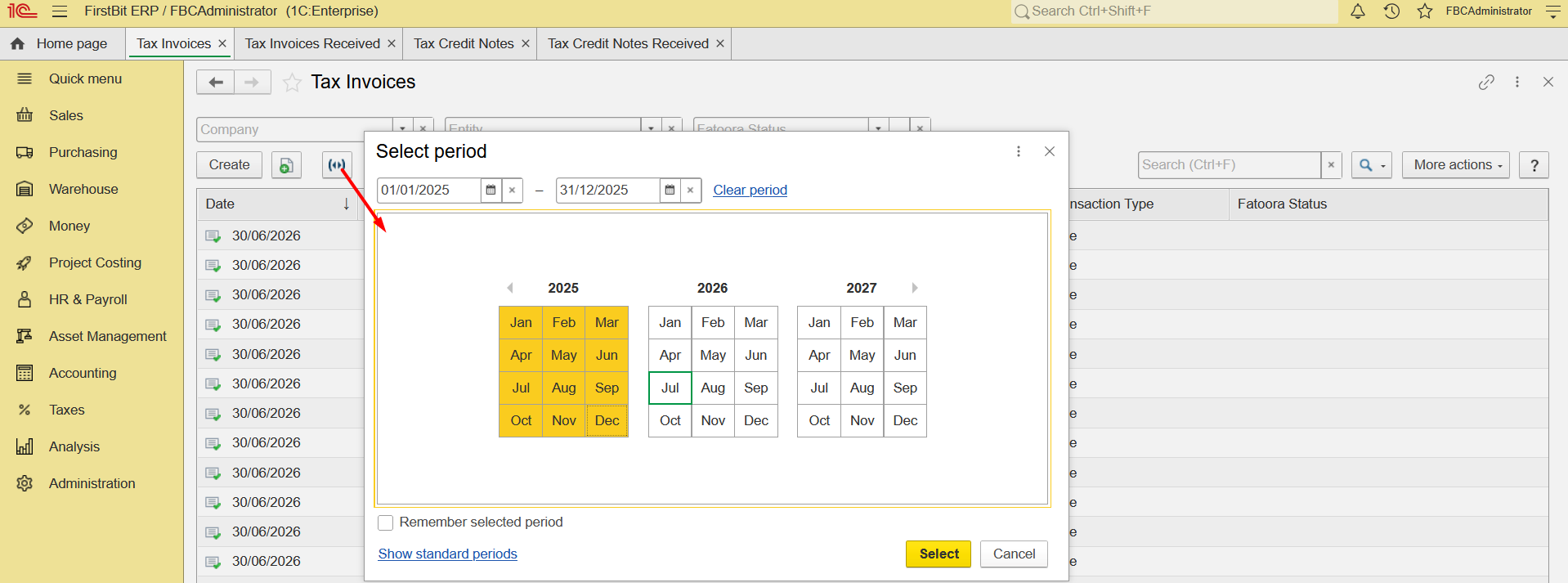
32. Set the Period filter (for example, from 01/01/2025 to 31/12/2025).
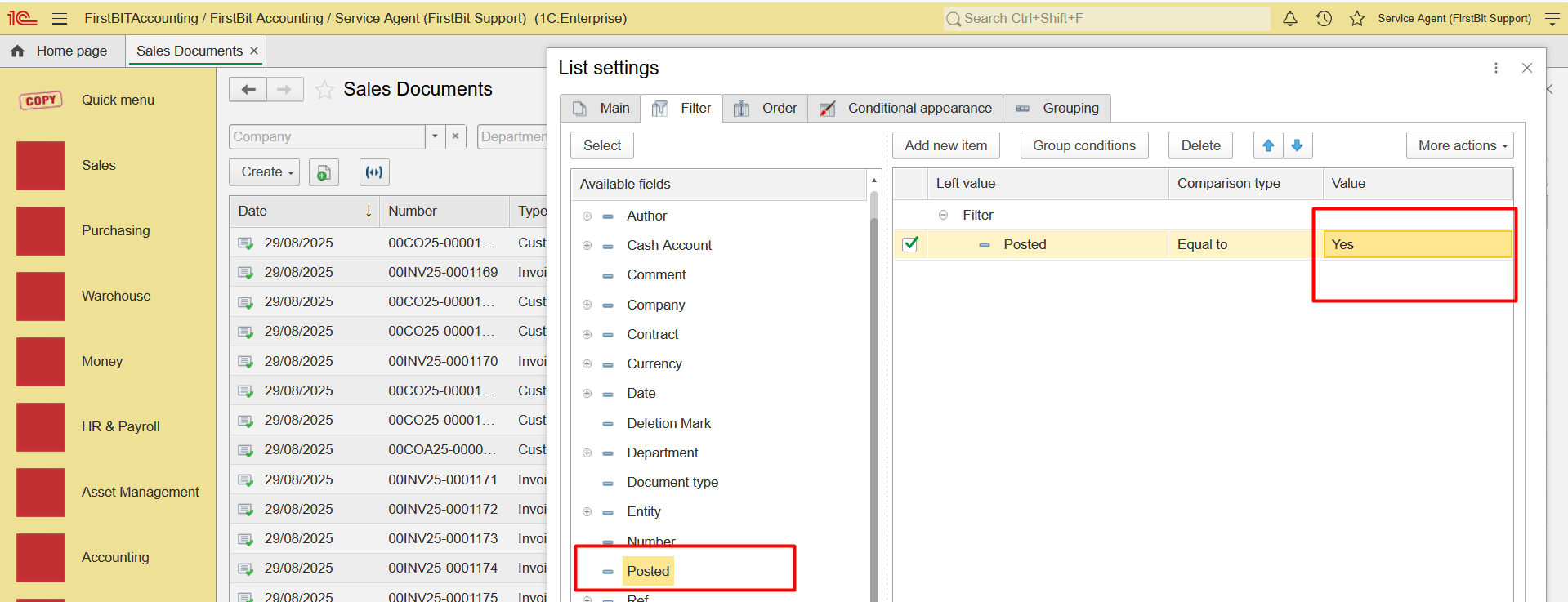
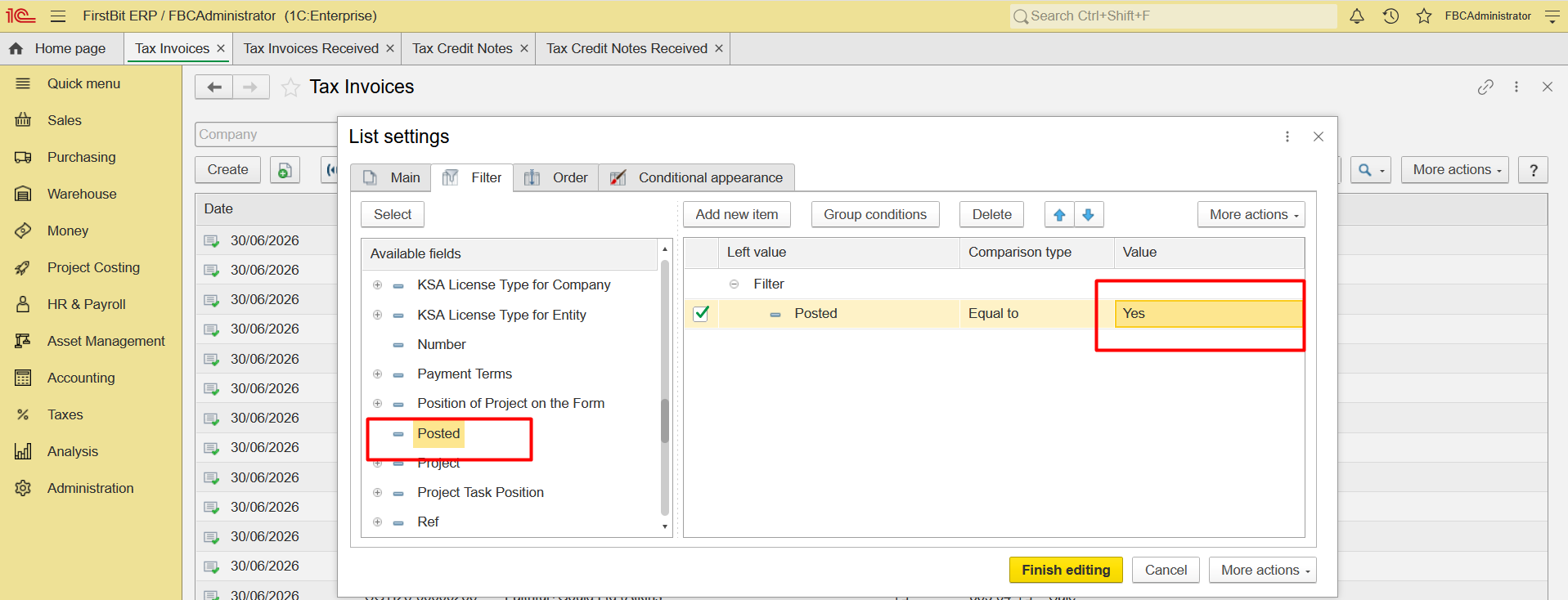
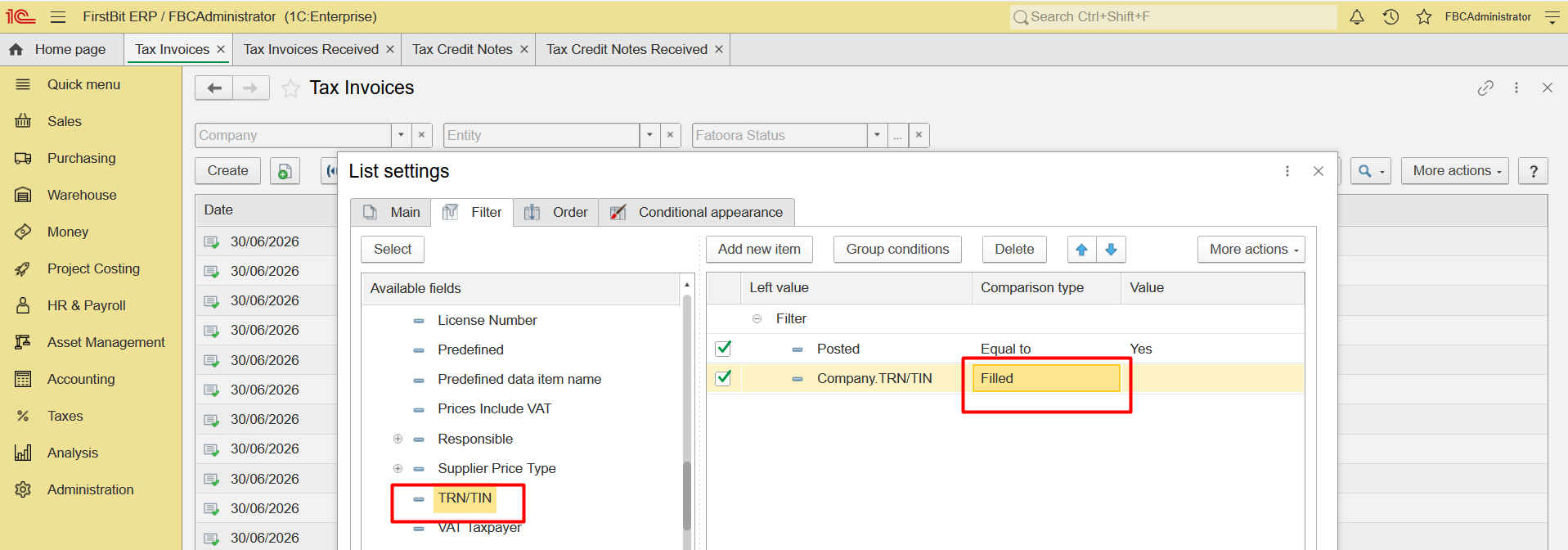
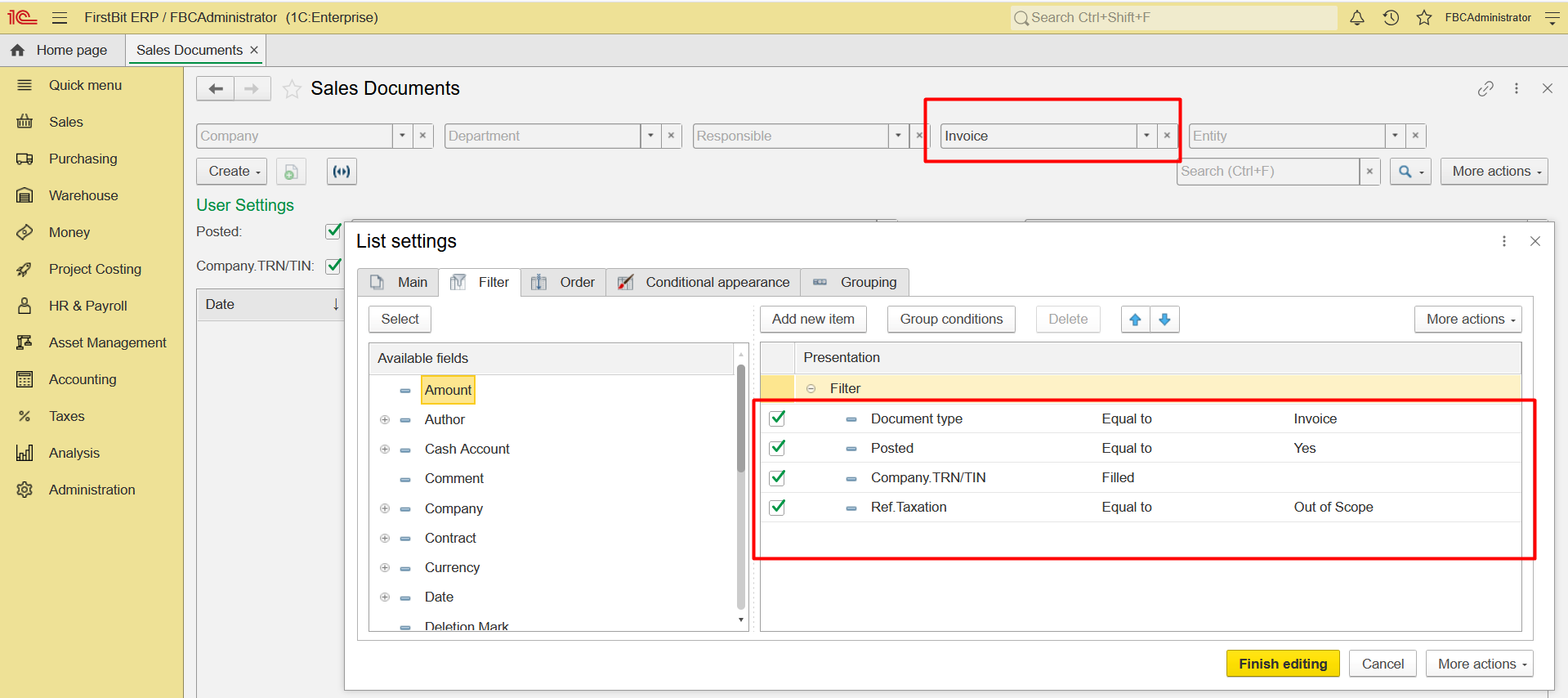
43. Configure list, set the Posted filter to display only posted documents .
5. Set the Document Type filter to display
Invoice
Credit Note

6and TRN/TIN filter to identify B2B customers only

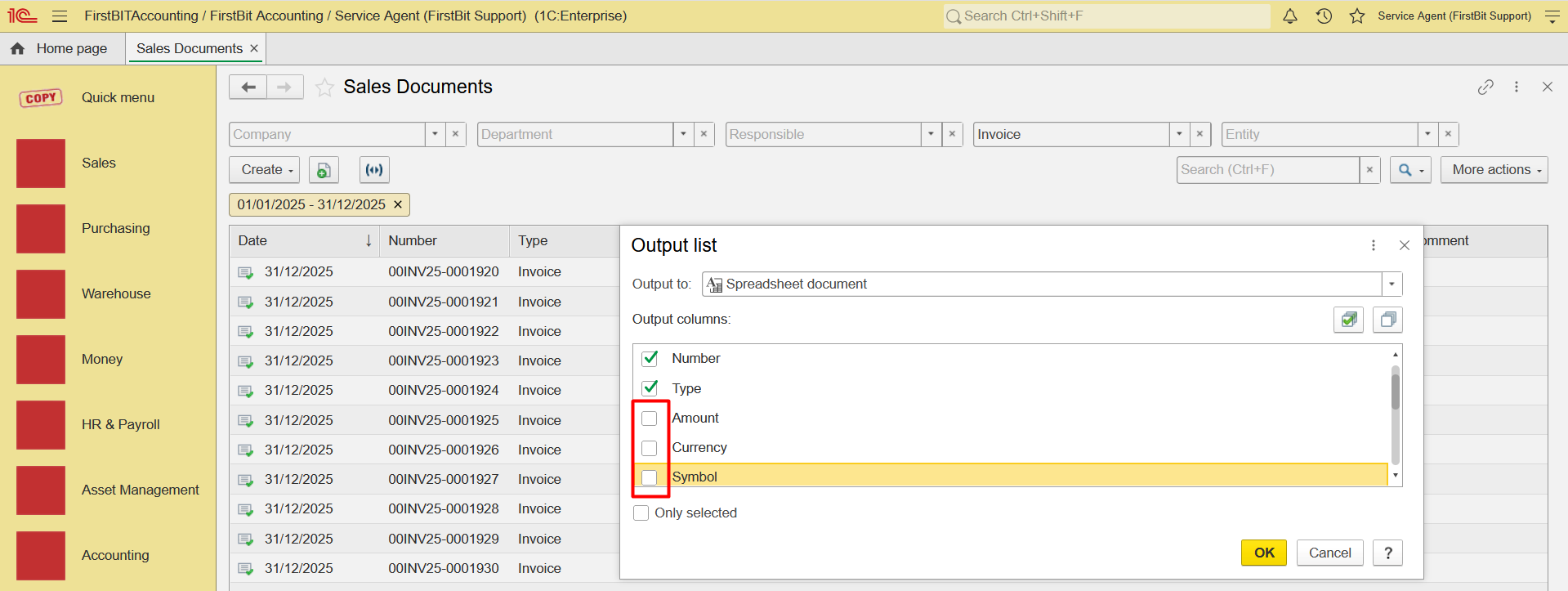
4. Click Output List and export the list to Excel. To simplify the exported list, uncheck the fields that are not required.
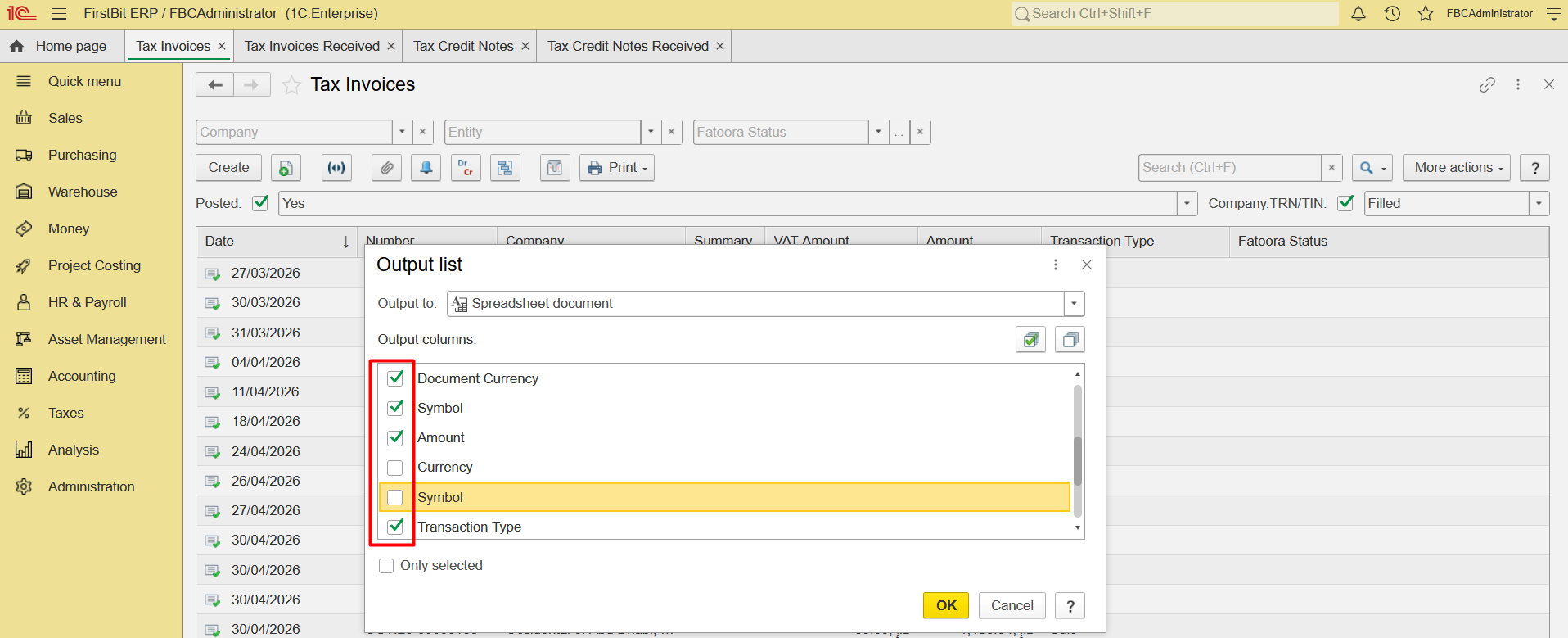
75. In Excel, determine the total number of documents (excluding the header row).
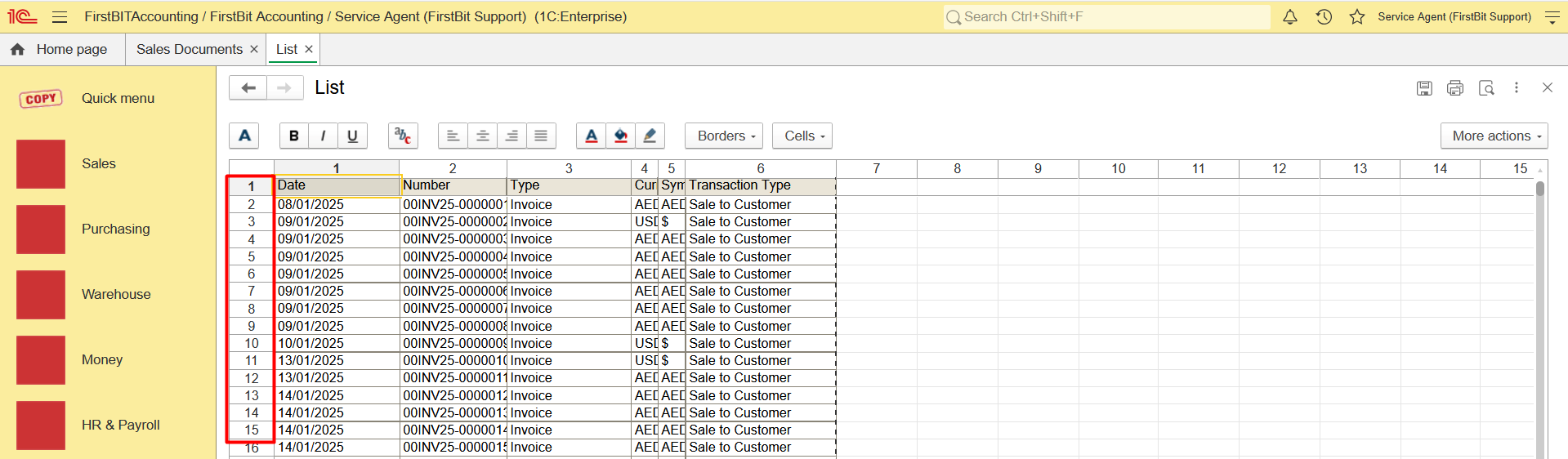
Repeat the same steps for Purchase Documents:
...
Open Purchase Documents.
...
Set the same reporting period.
...
Count the following document types one by one:
Invoice Received
Debit Note
...
Apply the Posted filter.
...
Export the list using Output List.
...
Commercial Invoice/Invoice received/Credit Note/Debit Note counting
- Navigate to Quick menu > Sales and Purchase documents list and set the Period filter
2. Configure list, set the Posted filter to display only posted documents, TRN/TIN filter to identify B2B customers only, Taxation filter to identify Non-tax documents,
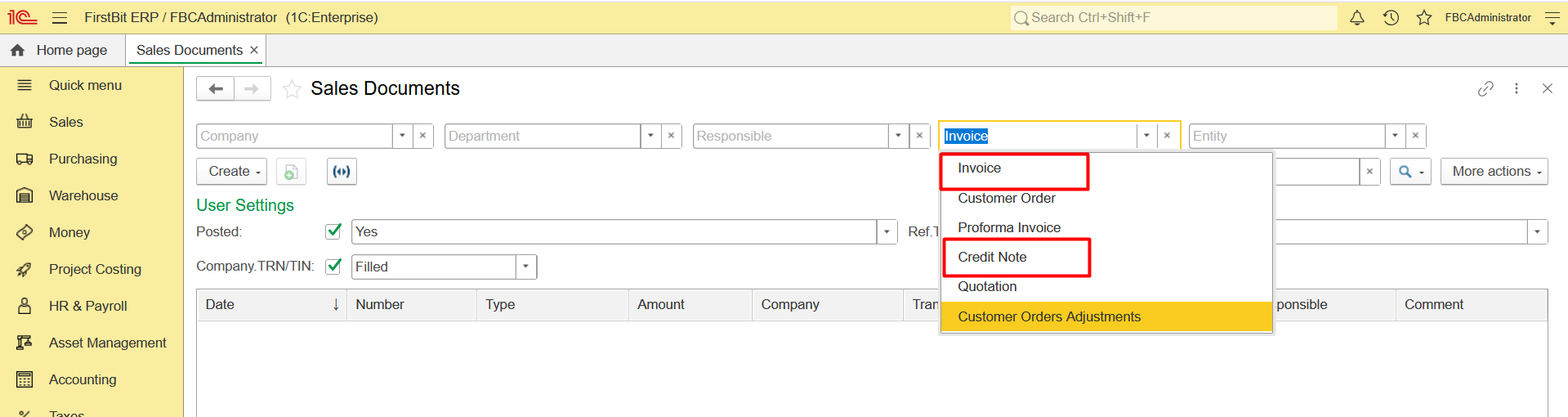
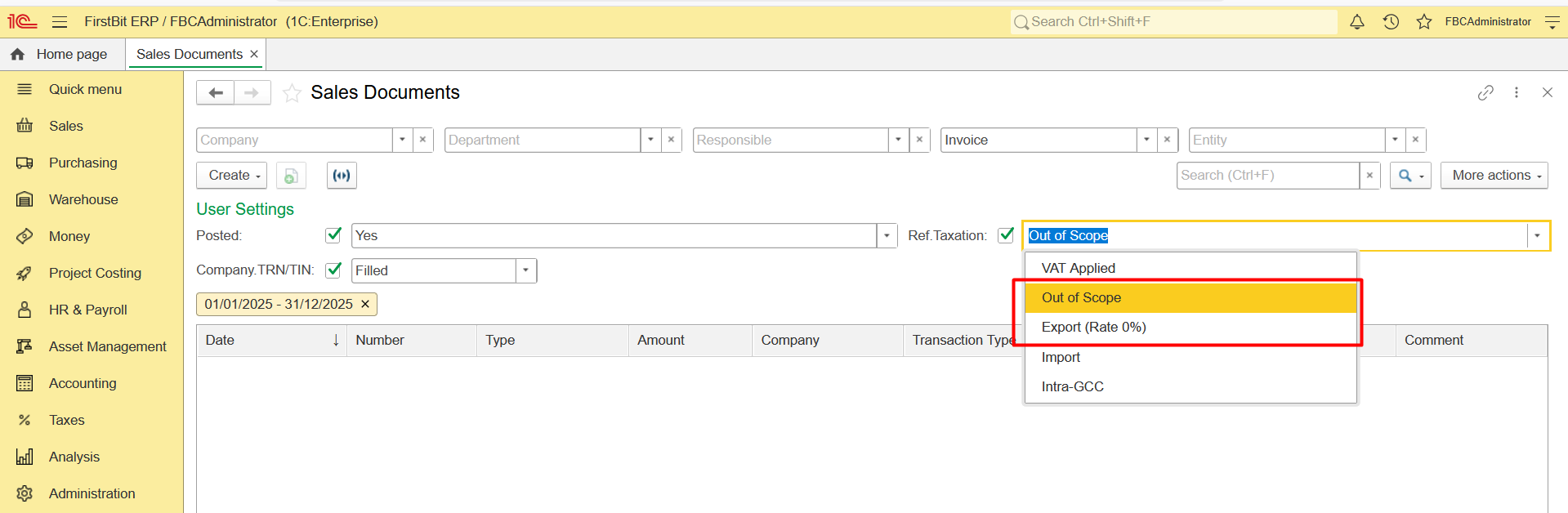
3. Click Output List and export the list to Excel. To simplify the exported list, uncheck the fields that are not required. In Excel, determine the total number of documents (excluding the header row).
Final Result
Add together the number of documents for the following document types:
Invoice
Credit Note
Invoice Received
Debit Note
. The resulting total represents the annual document volume and can be used to estimate the expected E-Invoicing service costs.
The calculated document count is intended for estimation purposes only and does not guarantee 100% accuracy. The actual number of documents depends on the specific data and document setup in each database.
Thank you for being a FirstBIT customer!