...
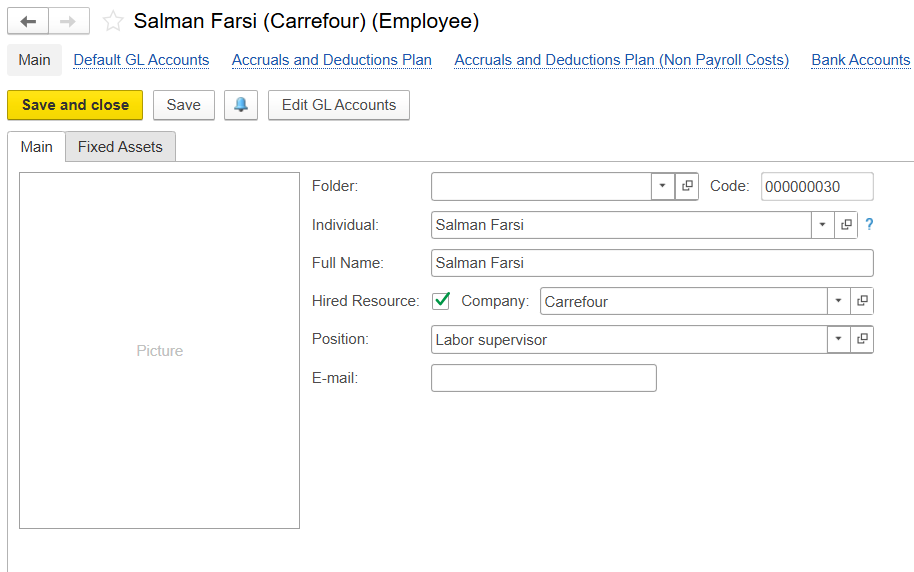
Go to Company Master Data and check the hyperlinks under the company name-Hired Employees and Hired Fixed Assets. Click the appropriate hyperlink.

Hired employees
Folder - Groups employees by department or category
...
E-mail - Employee contact detail (email)
Hired Fixed asset
Folder - Folder to group the asset.
...
Entity - Choose the name of the entity.
Department - Select the department requesting the resources.
Project - Associate the relevant project.
Requisition - Link to the corresponding requisition document.
Transaction Type - Specify the type of transaction, such as period planning or long-term planning.
Resource Type - Determine the resource's category of the resource, for example, a fixed asset or an employee.
Hired Resource - enable the option if the resource is externally contracted.
Comment - Add any optional notes or internal remarks.
...
Entity - The entity managing the resources
Project - The project for which the resources are needed
Project Task - Specific task to be executed
Position - Role of the resources being scheduled
Shift - Working hours type
No. of Resources - Number of individuals required
Shifts Quantity - Total number of planned shifts
Start/End Dates - Scheduling period
Schedule/Release
- On Date - Assigns a resource Assigns the selected employee to a single, specific day onlydate, ideal when the employee is needed for one-off tasksonly one particular day, avoiding scheduling conflicts.
For Period - Assigns a resource across a defined date range, useful for continuous assignmentsSchedules the employee for the maximum possible days within a given period, covering as many consecutive or available days as possible during the requested timeframe.
All Available - Automatically assigns a resource to all shifts where they are freeselects the first available resources based on the number of resources and days requested, prioritizing resources that can be scheduled continuously for the entire requested period to ensure efficient allocation.
Once a scheduling option is selected, employees are assigned according to that choice. Scheduled shifts are shown in green, and in the next resource scheduling document, they turn red to indicate the employees are already assigned.
...