A Resource Planning Document is an internal document that lists all materials, equipment, and other resources needed for a project stage, along with their quantities, prices, and suppliers. Its purpose is to plan these needs so that resources are properly scheduled, and the project runs without delays.
a) Requisition
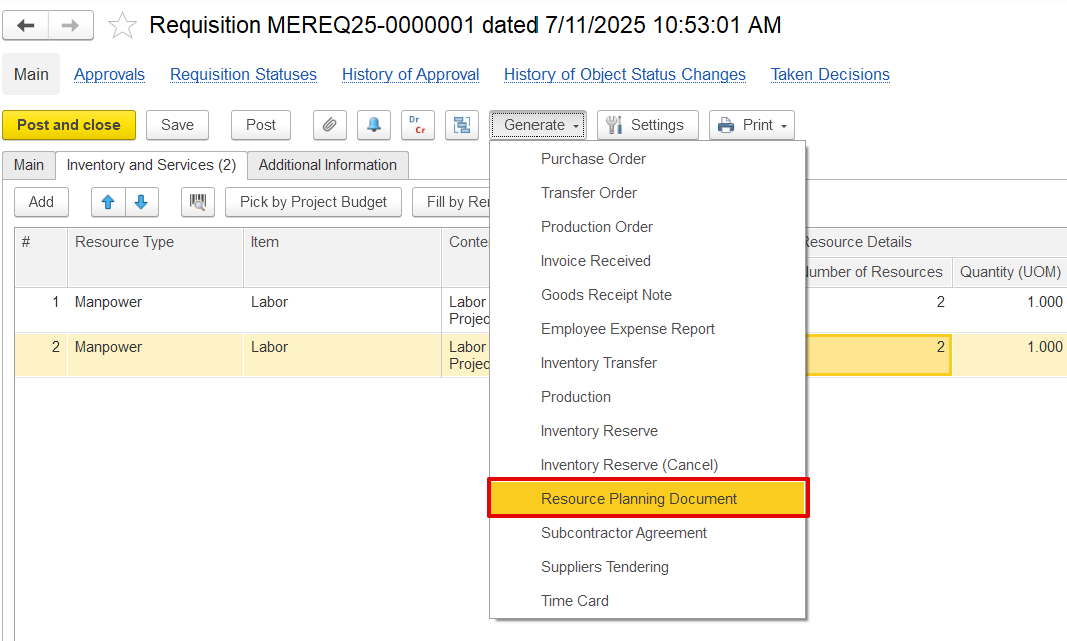
The resource planning document can be generated from the requisition document using the Generate Option.
b) Purchase order (Hired Resources)
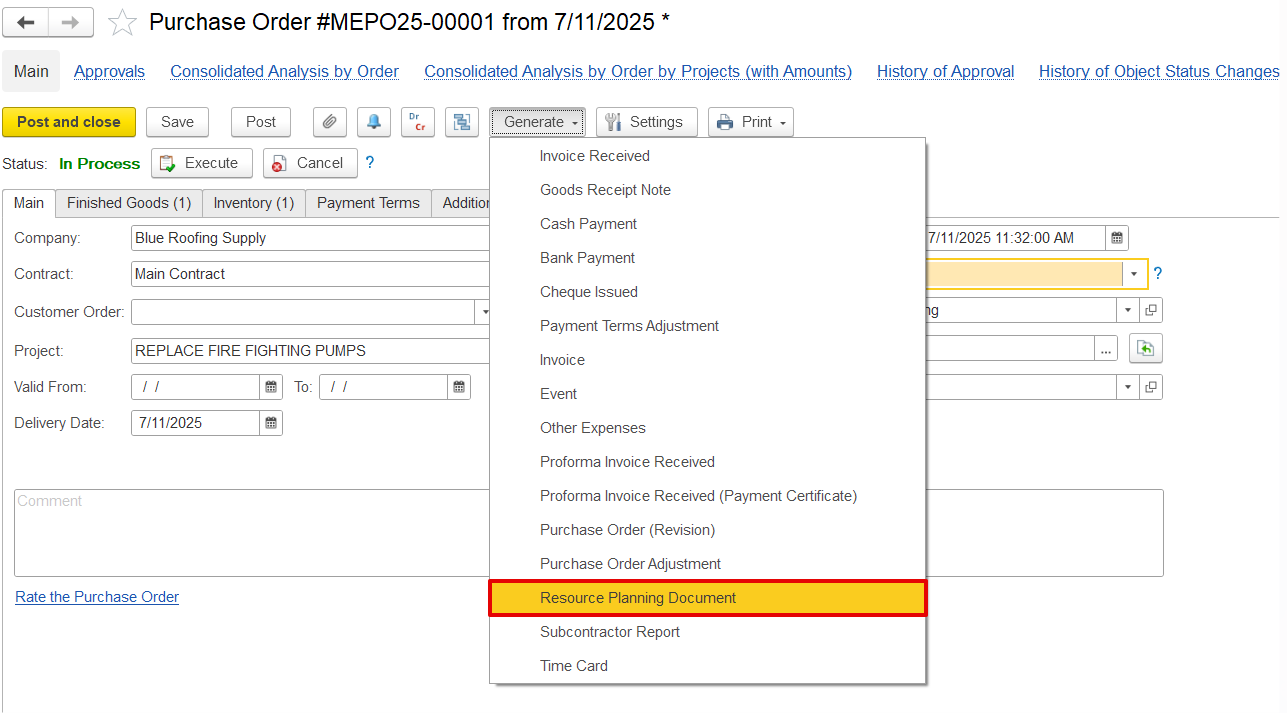
It can also be created using the Generate option in the purchase order document for hired resources.
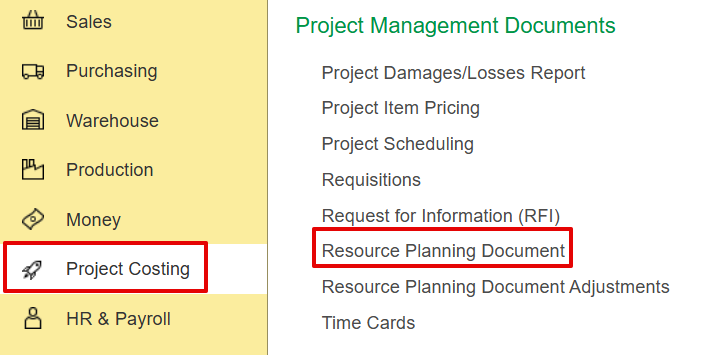
c) Project Costing → Project Management documents → Resource Planning document.
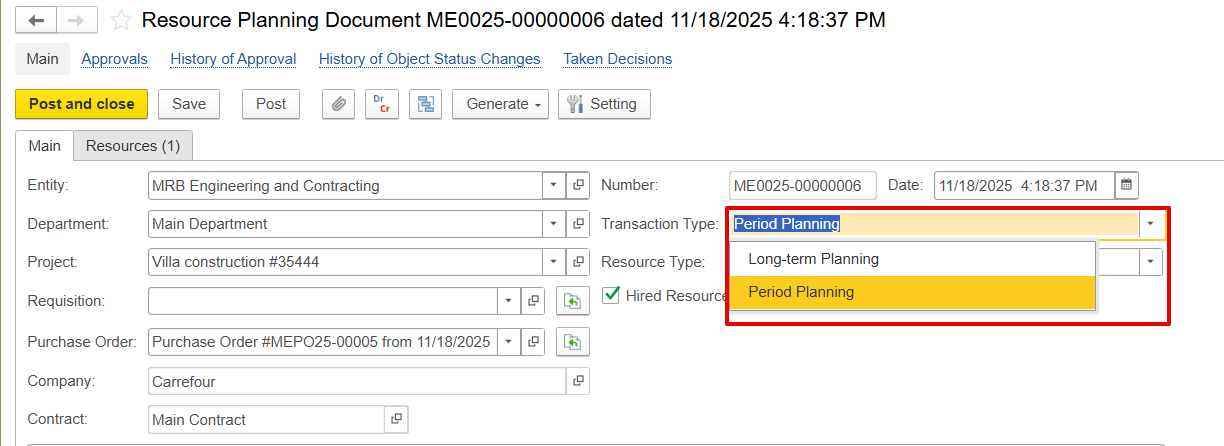
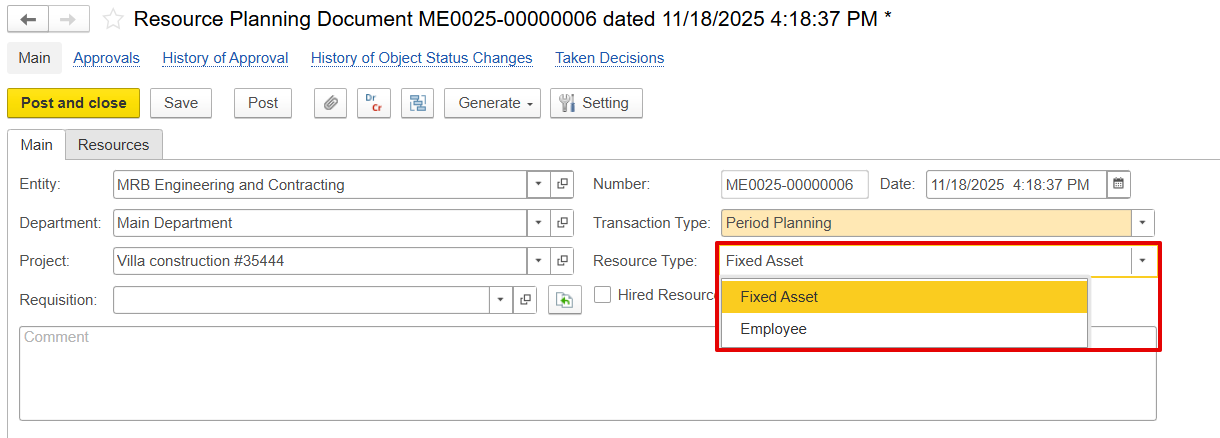
The Transaction Type field determines how the Resource Planning Document is intended to be used in terms of planning duration and detail.
The two available options are Long-term Planning and Period Planning
Long-term planning is used when resources are needed over an extended period, such as several months or the full length of a project. It provides a high-level view of future resource needs. This type of planning focuses on estimating and organizing resources in advance rather than detailing period-by-period usage.
Period Planning focuses on organizing and allocating resources for a limited, specific period, such as daily, weekly, or monthly intervals. It addresses immediate operational needs, ensures the right resources are available at the right time, and supports detailed scheduling and day-to-day execution of tasks.
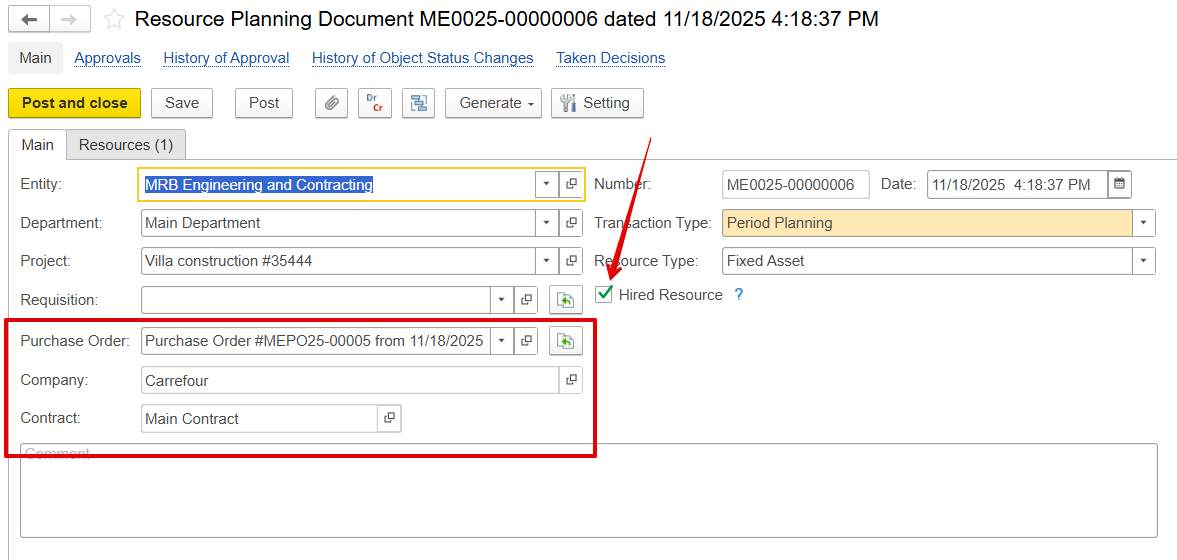
A hired resource refers to employees or equipment obtained from an external source. When the hired resources feature is activated, extra fields become available, including purchase orders, company, and contracts. These fields are used to provide the following information:
Purchase Order (PO) - This is used to identify the purchase order under which the resources to be procured or hired are requested.
Company - It is used to specify the external company providing the resource.
Contract - Details the agreement that outlines the resource’s work and duration.
How to create Hired Employee/Fixed assets
Go to Company Master Data and check the hyperlinks under the company name-Hired Employees and Hired Fixed Assets. Click the appropriate hyperlink.

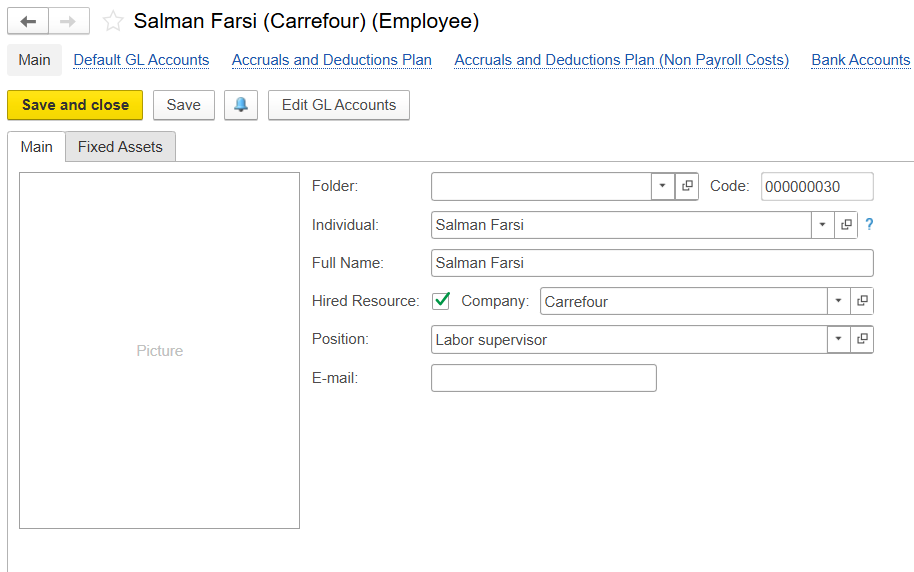
Folder - Groups employees by department or category
Code - Unique system-generated ID
Individual - Short name of the employee.
Full Name - Legal name used in documents and reports
Hired Resource - Marks active employees for hiring. If unchecked, it redirects to the company employee creation page
Company - Legal entity or branch the employee belongs to
Position - Job title or role
E-mail - Employee contact detail (email)
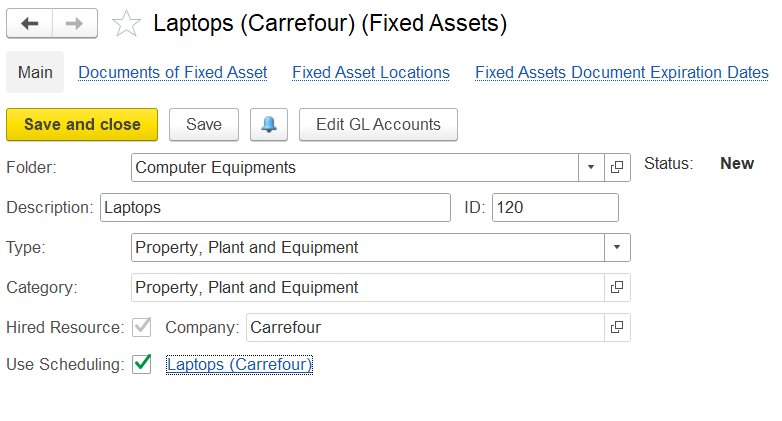
Folder - Folder to group the asset.
Status - Indicates the asset’s stage, e.g., New, Construction in Progress, or Construction is complete.
Description - Short label or name of the asset.
ID - Unique system-generated identifier.
Type - Accounting classification.
Category - Sub-classification under the asset type.
Hired Resource-Company - Shows which entity owns the asset.
Use Scheduling - Indicates that a fixed asset is linked to usage planning. When enabled, the asset becomes a schedulable resource with a calendar, allowing users to reserve and manage its availability.
Entity - Choose the name of the entity.
Department - Select the department requesting the resources.
Project - Associate the relevant project.
Requisition - Link to the corresponding requisition document.
Transaction Type - Specify the type of transaction, such as period planning or long-term planning.
Resource Type - Determine the resource's category, for example, a fixed asset or an employee.
Hired Resource - enable the option if the resource is externally contracted.
Comment - Add any optional notes or internal remarks.
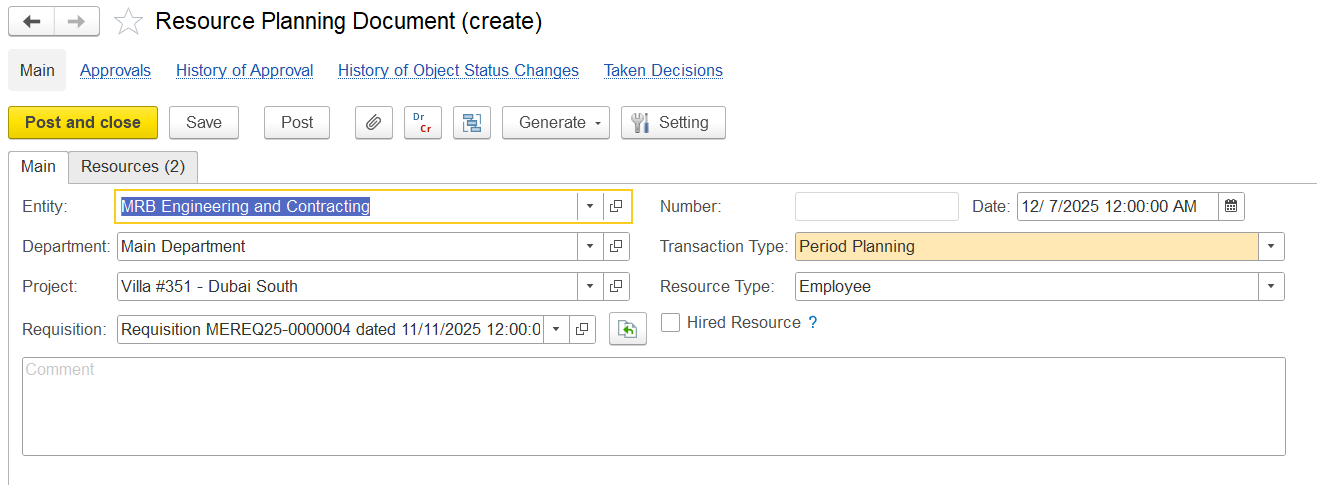
Project Task - Name of the task assigned to the resource.
Project WBS - Work Breakdown Structure of the project
Position - Role or job title of the resource.
Item - Type of resource.
UOM - Unit of Measure
Requested - Number of resources required per shift.
Shifts - Total number of planned shifts.
Start Date - Scheduled start date for resource deployment.
End Date - Scheduled end date for resource deployment.
Quantity - Total number of resources, calculated as Number of Resources × Shifts.
Quantity (default UOM) - Total quantity converted into the system’s default unit of measure. For example, if one shift equals 8 hours, the calculation would be-Number of Resources × Number of Shifts × 8 hours per shift.
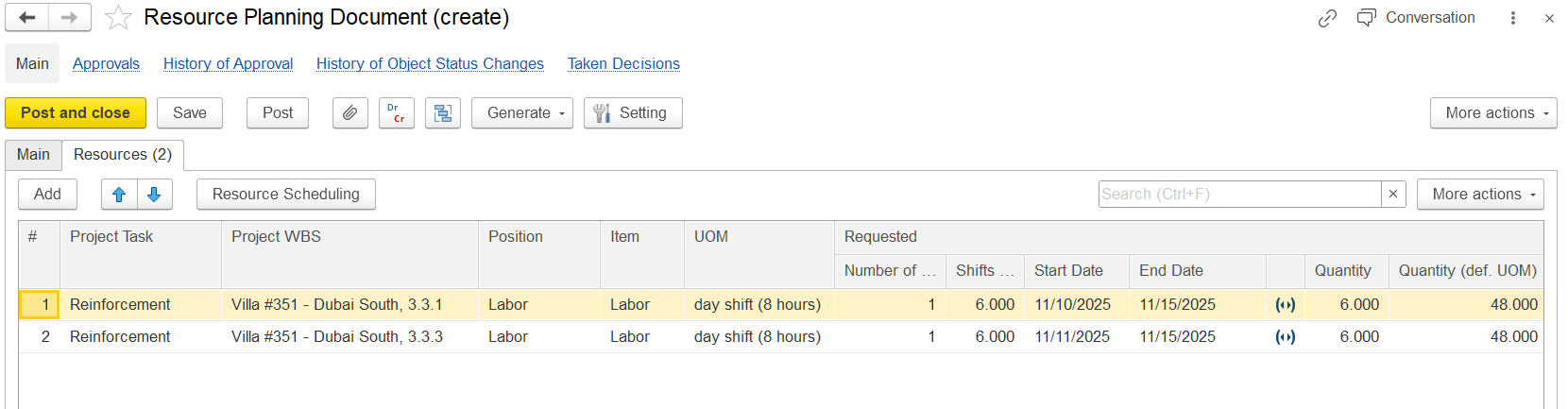
Quantity - The number of resource units scheduled for that specific shift or date. This value is populated according to the resource scheduling.
Quantity (default UOM) - Converts the scheduled quantity into the system’s default unit of measure
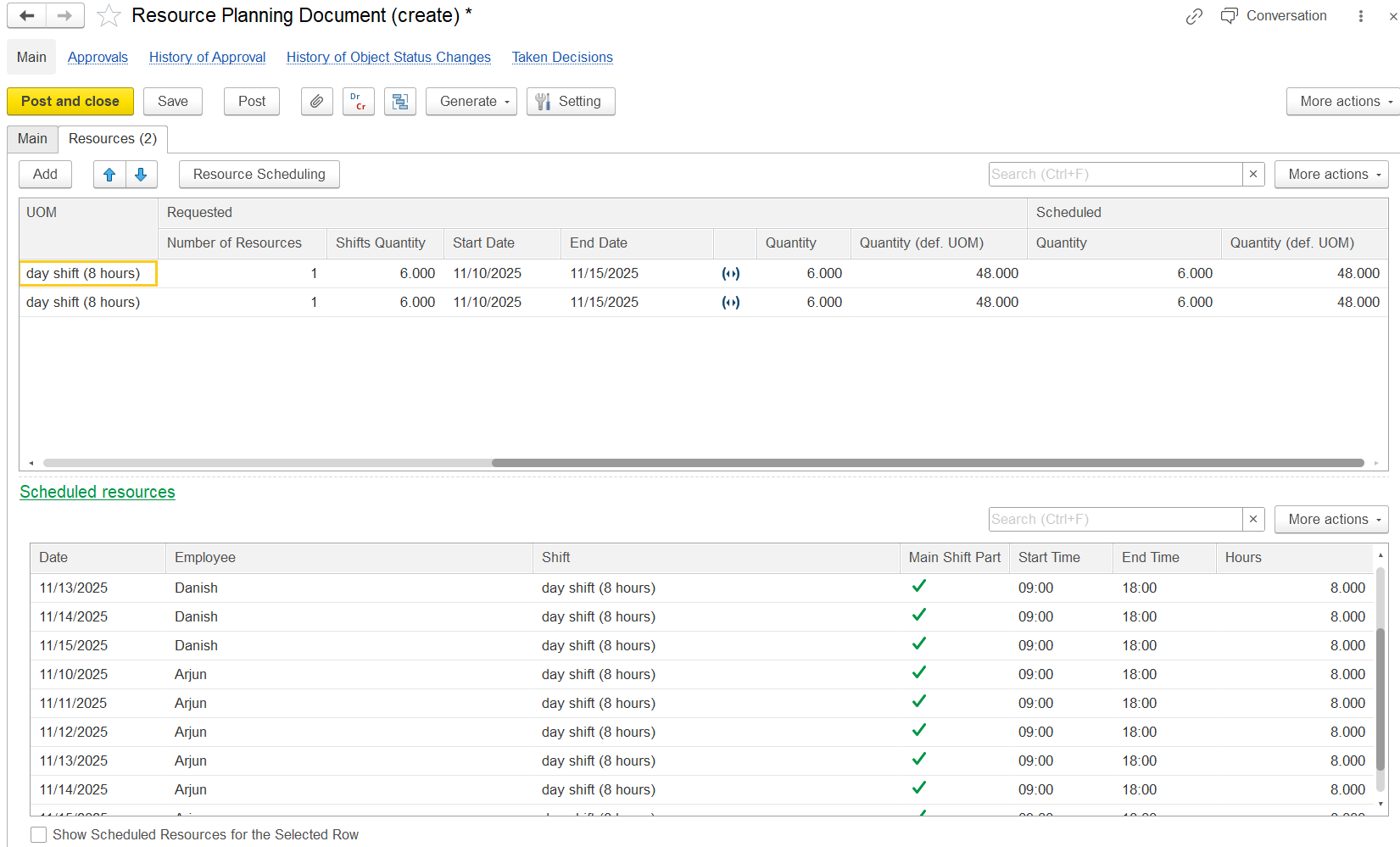
This option is used to allocate specific resources (e.g., labor) to project tasks across defined dates and shifts.
Entity - The entity managing the resources
Project - The project for which the resources are needed
Project Task - Specific task to be executed
Position - Role of the resources being scheduled
Shift - Working hours type
No. of Resources - Number of individuals required
Shifts Quantity - Total number of planned shifts
Start/End Dates - Scheduling period
For Period - Schedules the employee for the maximum possible days within a given period, covering as many consecutive or available days as possible during the requested timeframe.
All Available - Automatically selects the first available resources based on the number of resources and days requested, prioritizing resources that can be scheduled continuously for the entire requested period to ensure efficient allocation.
Once a scheduling option is selected, employees are assigned according to that choice. Scheduled shifts are shown in green, and in the next resource scheduling document, they turn red to indicate the employees are already assigned.
Employee - Name of the worker assigned to shifts
Code - Unique code of the employee
Date - The specific workday being scheduled
Day - Day of the week corresponding to the date
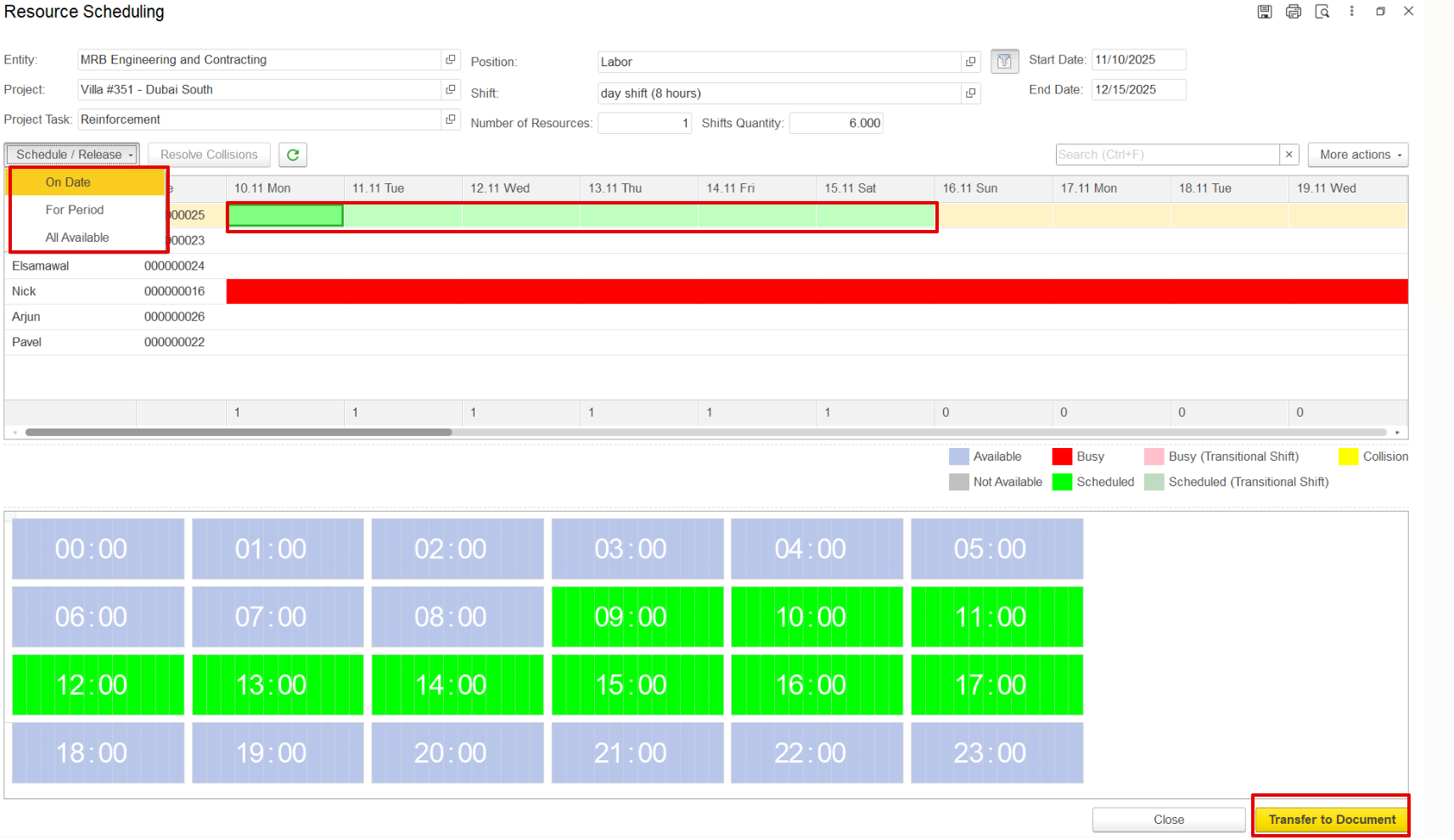
Once scheduled, the data can be sent to the document using the option Transfer to document to finalize the schedule.