If it is necessary to conduct In cases where site visits or obtain clarifications from the project owner to fully understand are required to gain a comprehensive understanding of the project scope and requirements, users can schedule and monitor various events (activities) within the system.the system facilitates the structured scheduling and tracking of the relevant activities.
a) Registering an Event.
Users can schedule events in two ways:
- From the Lead document – By clicking the corresponding button (Phone Call, Email, Meeting), a new event is created with the basic information and customer details automatically filled from the Lead

- From the Events list screen – By using the Create button, users can manually enter all the required information for the new event.

b) Filling in Event details.
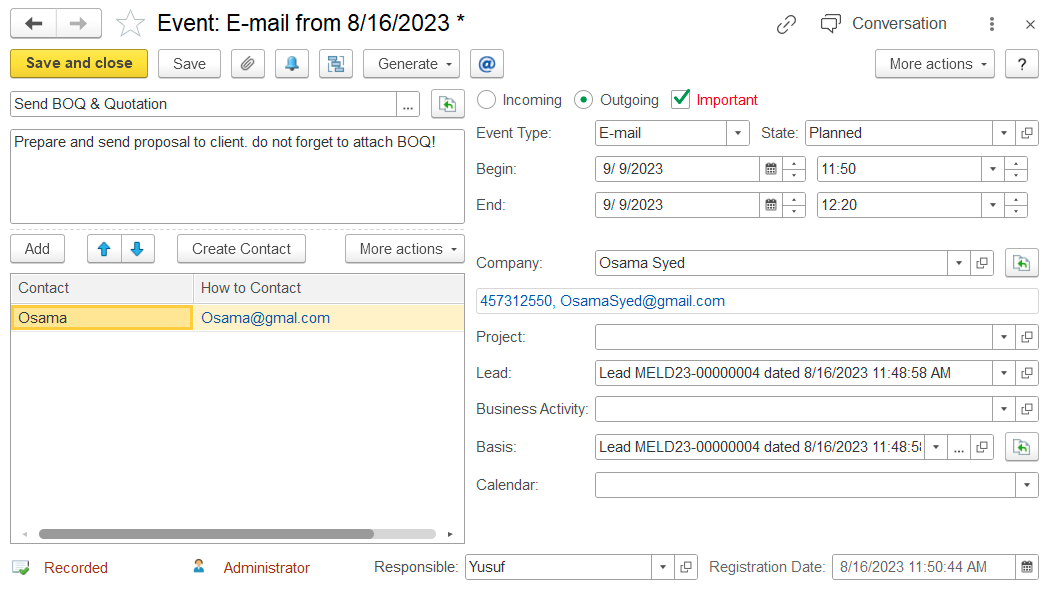
...
Incoming / Outgoing – Choose if the event is incoming (received) or outgoing (sent).
Important – Tick this box if the event is important. It will be marked in red.
Event Type – Choose the type of activity (E-
...
mail, Private Meeting, or Phone Call).
...
State – Select the status: Planned, Completed, or Canceled
...
Begin - planned start date and time of event.
...
.
...
Begin / End – Set the start and end date and time of the event.
Company
...
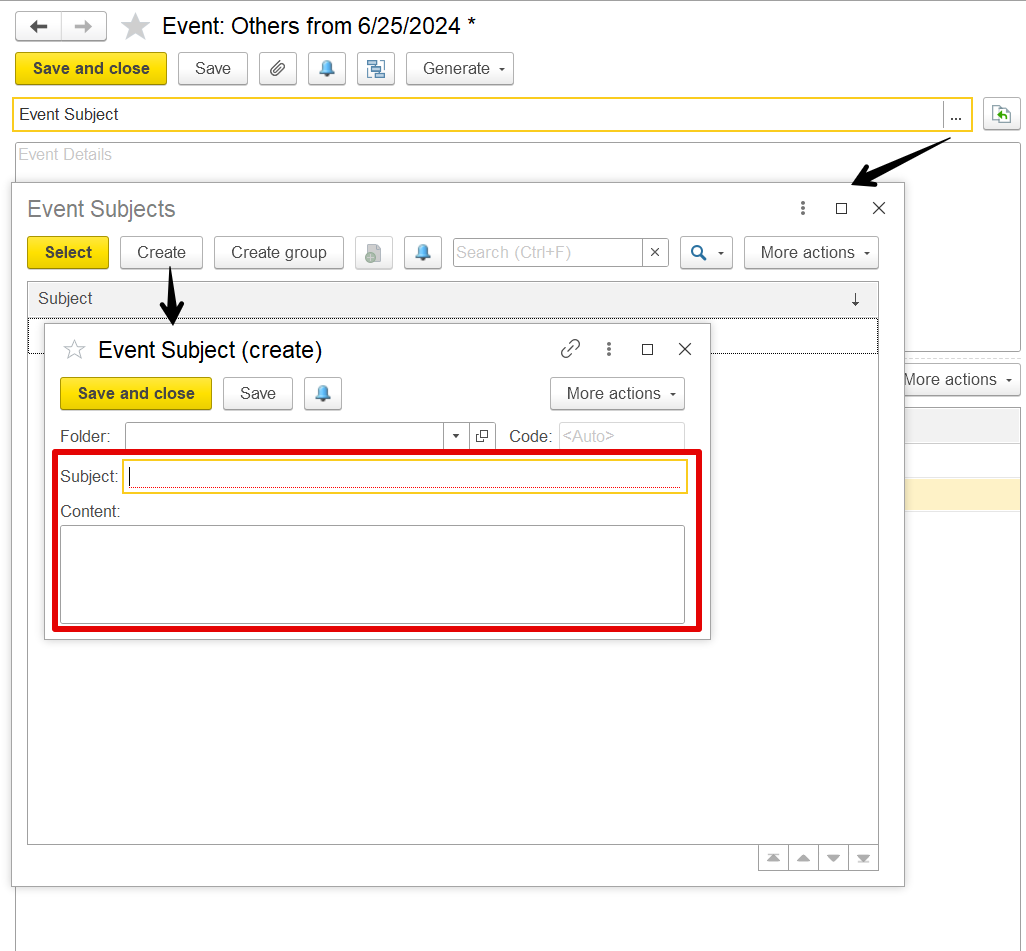
Subject - brief description of the event. The attribute is optional.
...
Content - detailed description of the event. The attribute is optional.
...
Lead - should be filled if this event is related to any Lead document. The attribute is optional. It is filled automatically if the event is created from the Lead screen.
...
– The name of the company this event is about.
Contact Info – Shows phone number and email of the contact.
Project – Optional. Link to a related project.
Lead – If the event is connected to a lead, it will appear here.
Business Activity – Optional. Add notes about the related business task.
Basis – Shows the document the event is based on. Filled automatically if linked to something like a Lead.
Calendar – Choose users who should see this event on their calendar (CRM → Service Tools → Calendar).
...
Responsible - information about the employee who enters the current document. It is filled from the Employees list. A responsible person can be changed, in case need to reassign this activity. The attribute is optional.
...
Subject – A short title for the event (e.g., “Send BOQ & Quotation”).
Content – Detailed instructions or notes (e.g., “Prepare and send proposal to client. Don’t forget to attach BOQ!”).
- Contact Persons - the table contains a list of people taking part in the event. Table
...
- field:

- How to Contact - contact information of the participants.
Contact Person - a reference to the contact person.
Responsible _ Person handling the event. Can be changed.
Registration Date – Date and time when the event was created.

c) Track Events.
To access all events and check their statuses, navigate through CRM → CRM Documents → Events. 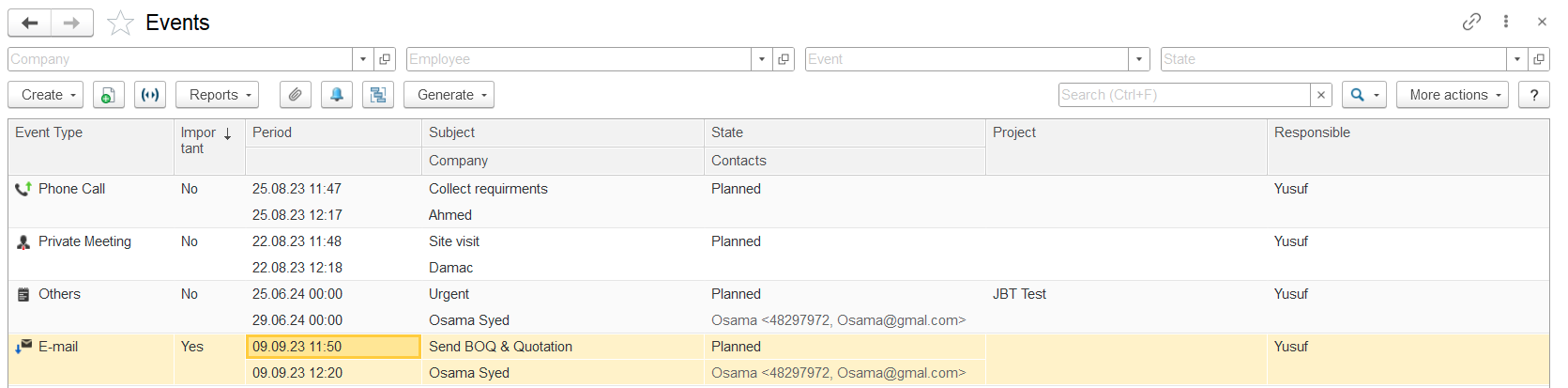
The Events list displays all registered events. To simplify the search, users can apply filters available on the top panel, such as Company, Employee, Event Type, or Status.
Additionally, the Text Search field allows users to find events by entering a keyword or phrase that matches any column data.