What can you use the Price List for?
Provide customers with up-to-date price lists
Generate printable or exportable price lists that can be shared with customers or used internally.
Review current prices
Check prices assigned to different price types, such as Retail, Wholesale, Basic, or Dealer prices.
Create different price lists for different customers
Create separate price lists based on the selected Price Type, such as Retail, Wholesale, or Dealer prices. Since customers can be assigned different price types, each customer group can receive its own price list.
Display only the required items
Use filters to include only specific items, price groups, companies, or products with (or without) assigned prices.
Verify prices before sales
Quickly check whether the correct prices are assigned before creating sales documents or after performing a mass price update.
Tools available in Price List
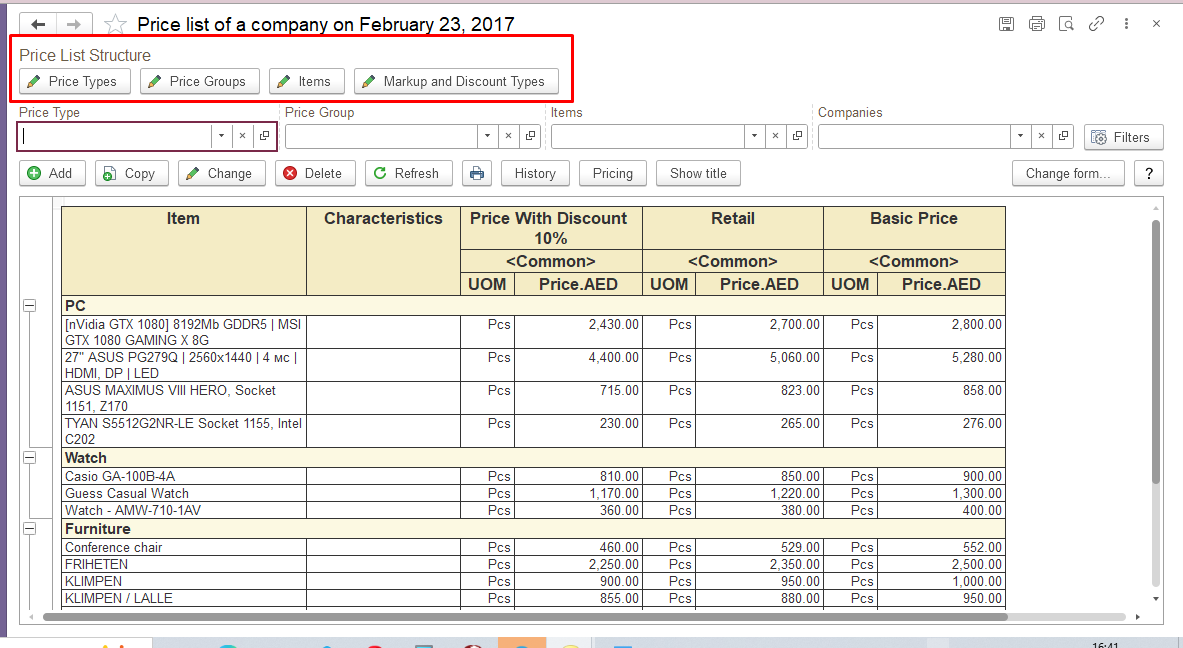
To open the Price List form, go to Sales module→ Reports → Price List.
The Price List Structure section defines the main components used to create and manage the company's price list.: Price Types, Price Groups, Items, Markup and Discount Types
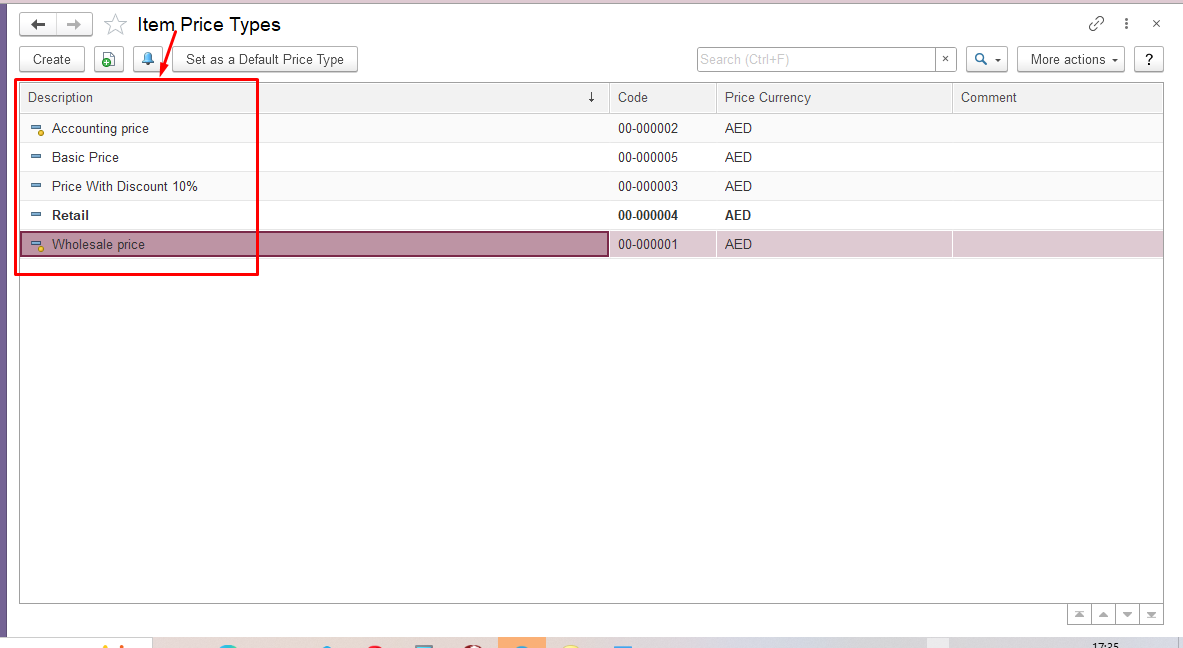
The Price Types section is used to define different price types that can be assigned to items.
Users can open the Price Types list to view existing price types and create new ones if required.
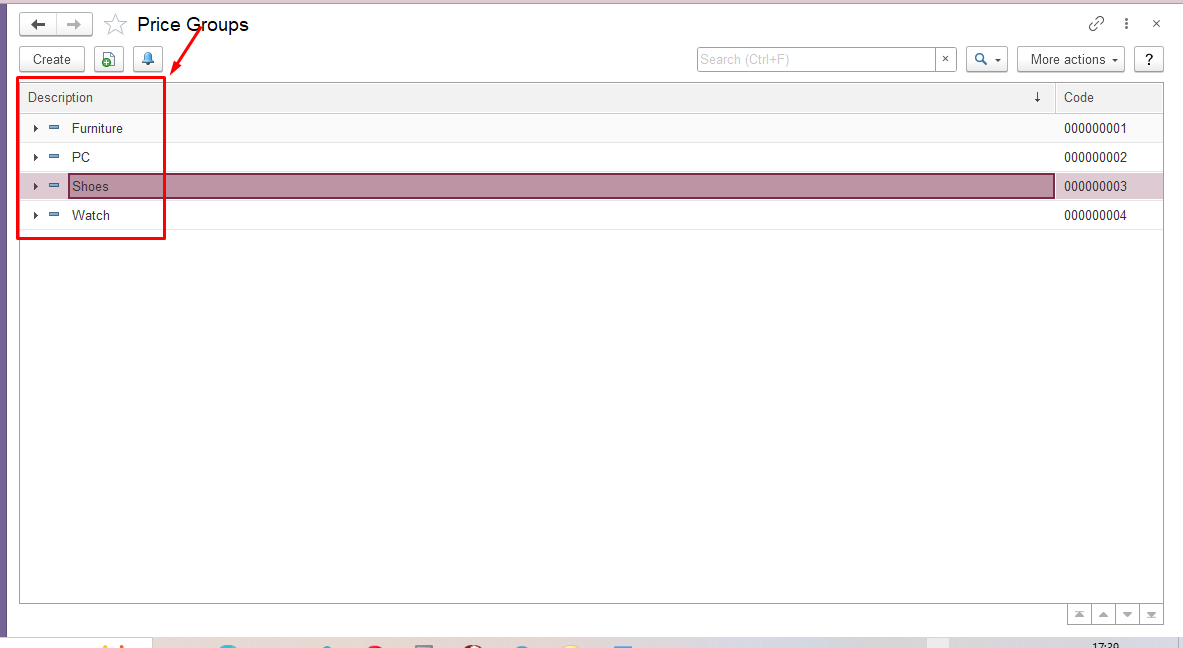
Price Groups
The Price Groups section is used to organize prices into groups according to the company's pricing structure.
Users can open the Price Groups list to review existing price groups and create new groups if necessary.
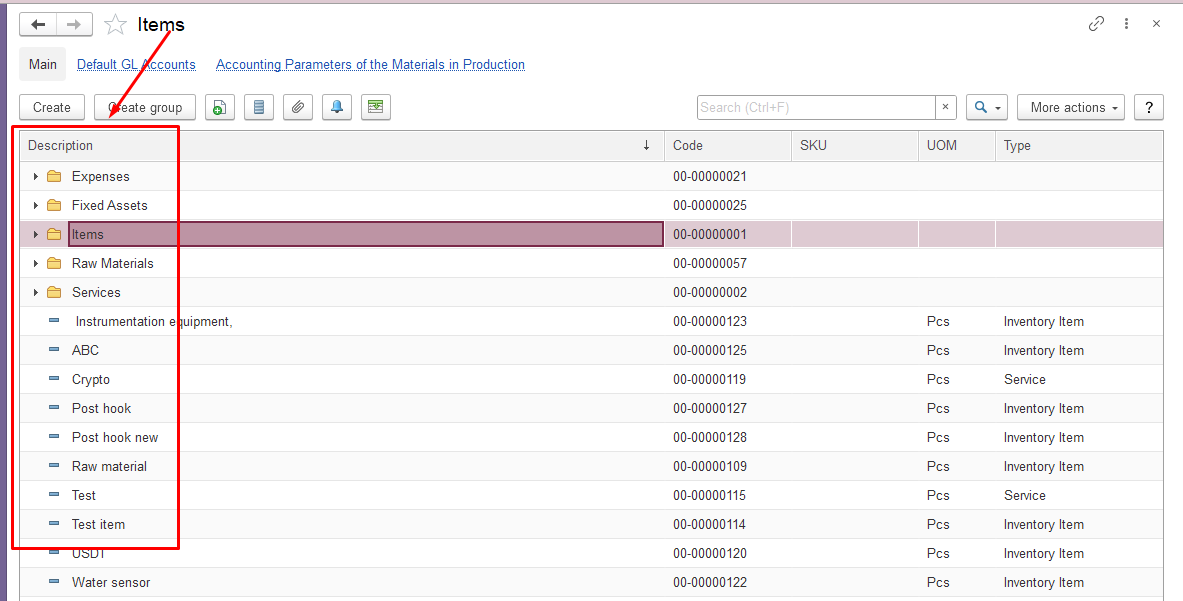
The Items section contains the list of products that can be included in the price list.
Users can open the Items list to view available products and create new items if required.
Each item can have different prices depending on the selected price type, price group, and pricing rules.
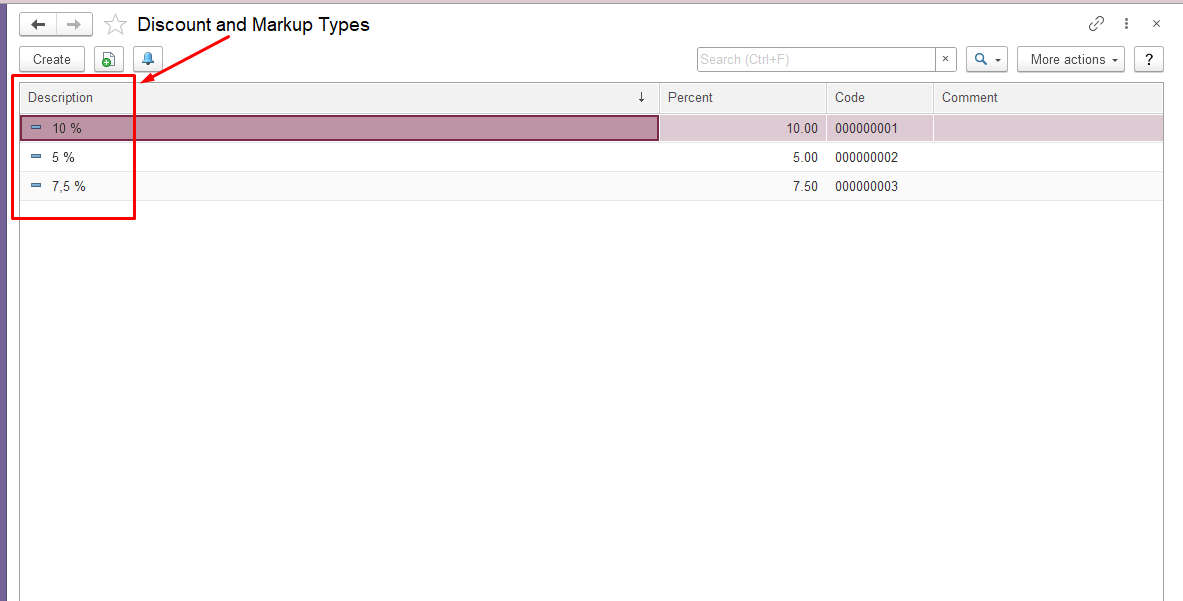
The Markup and Discount Types section is used to configure different types of markups and discounts that can be applied to item prices.
Users can open the list of markup and discount types to review existing options and create new types when required.
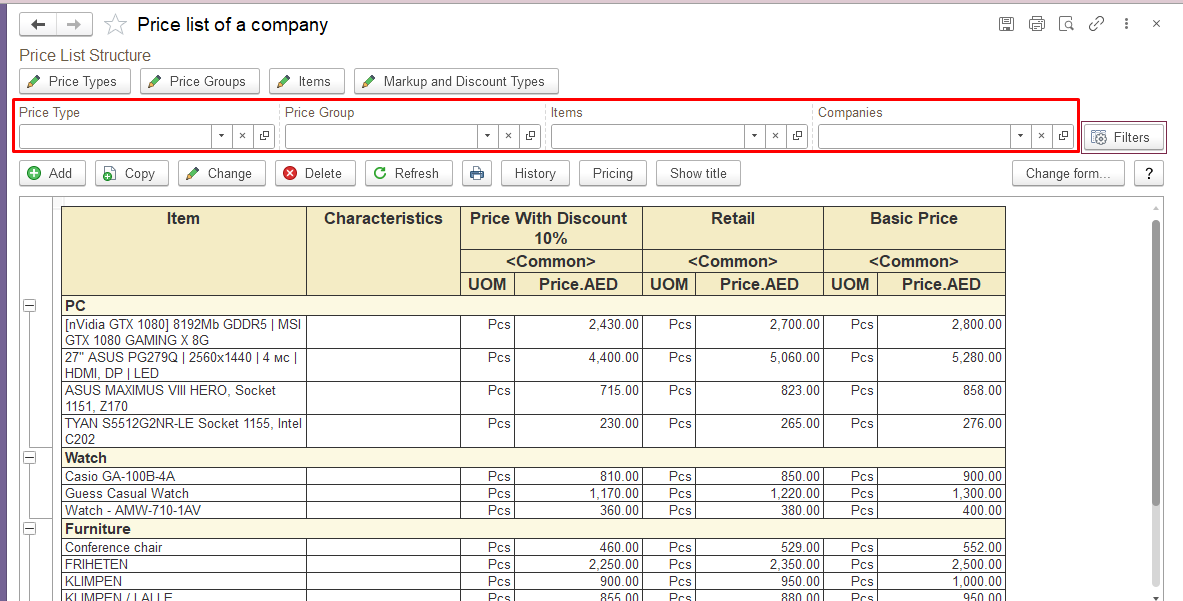
Fast Filters
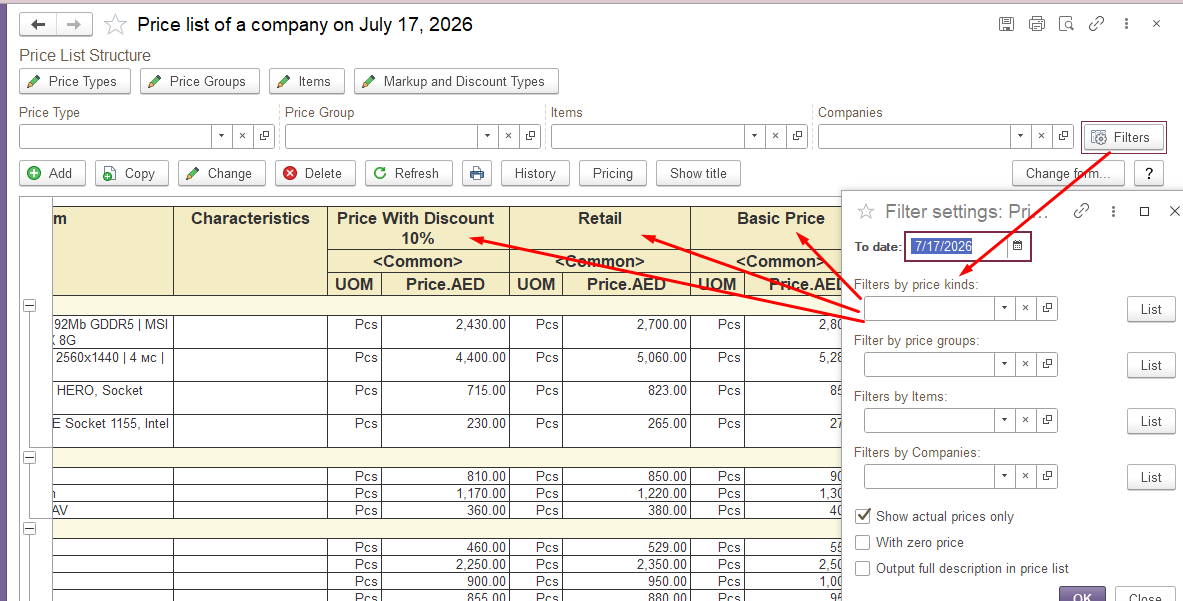
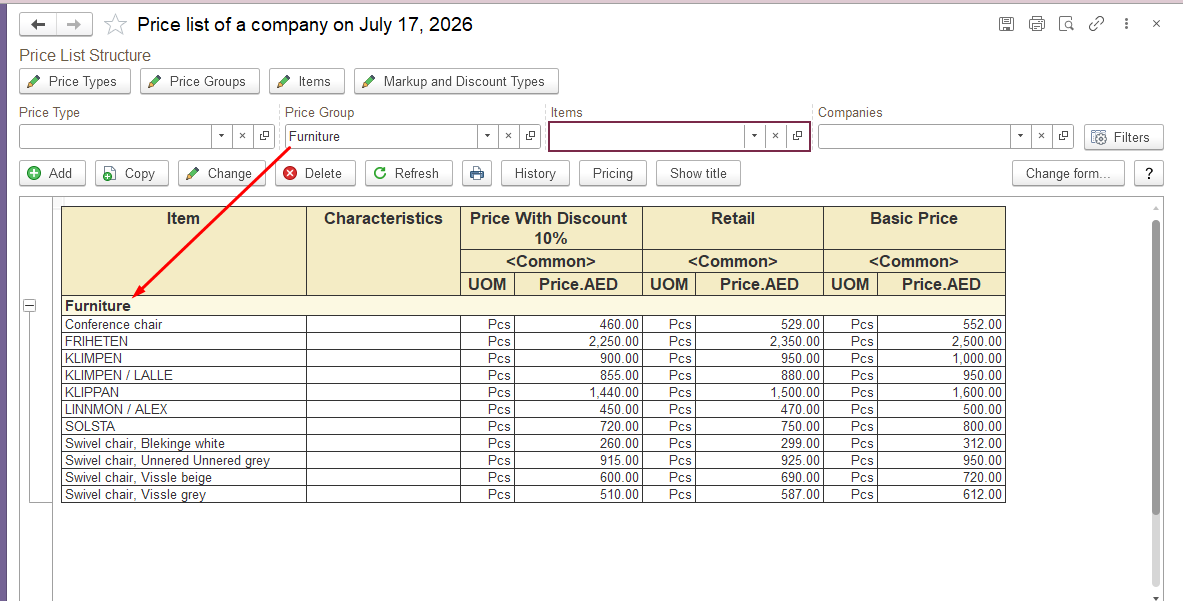
The Fast Filters allow users to filter the price list by Price Type, Price Group, Item, and Company.
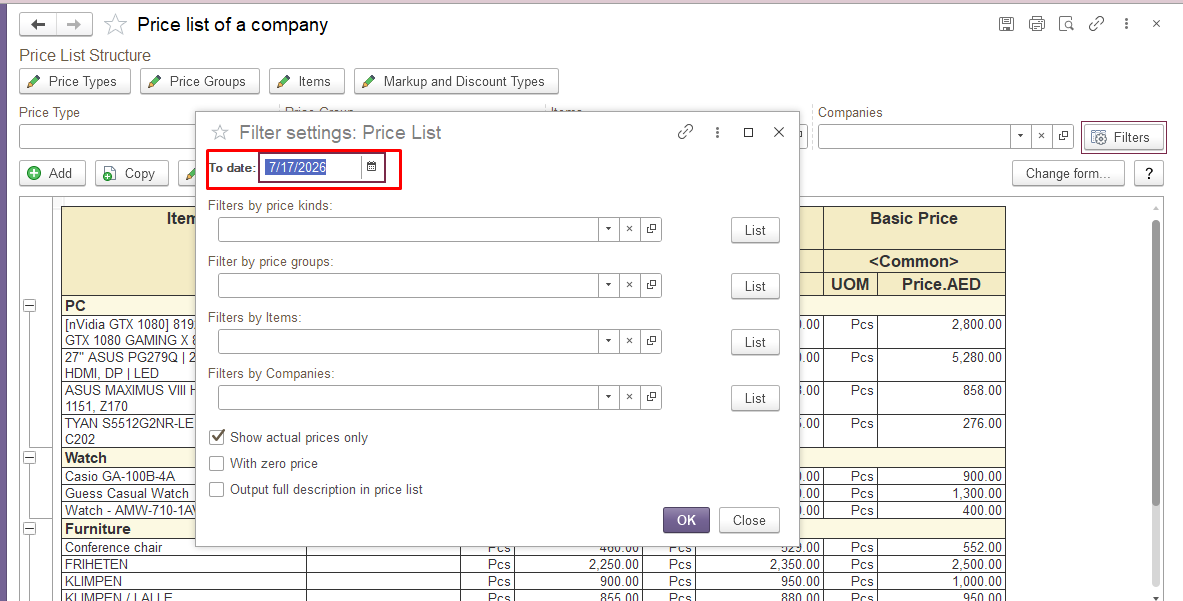
The same filtering options are also available through the Filters button, which opens the Filter Settings dialog and displays all filters in a single window.
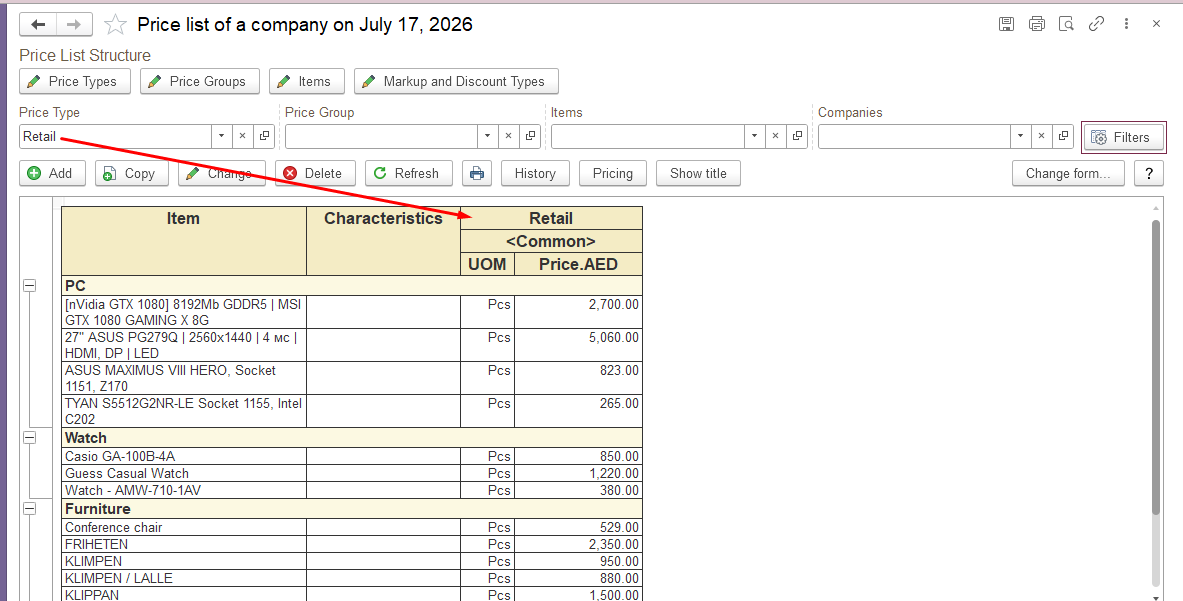
For example, a company can maintain different price types, such as Retail, Basic, or Discounted prices.
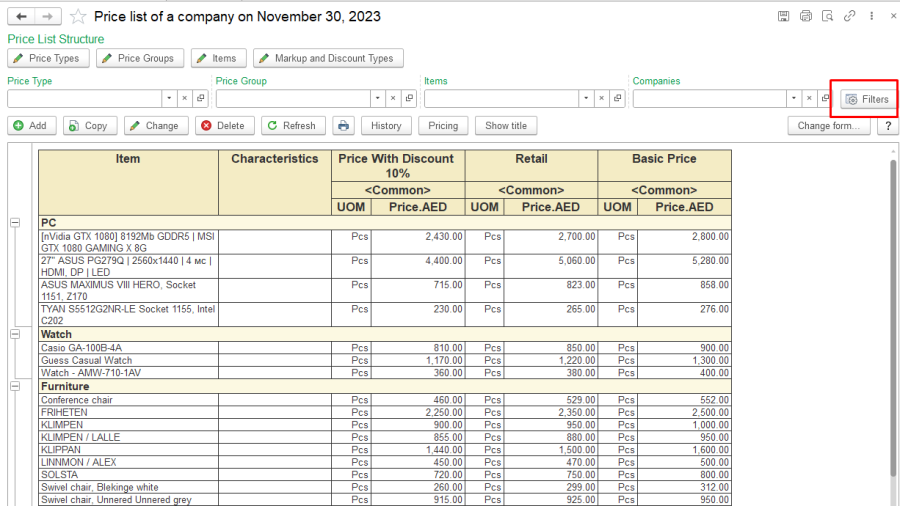
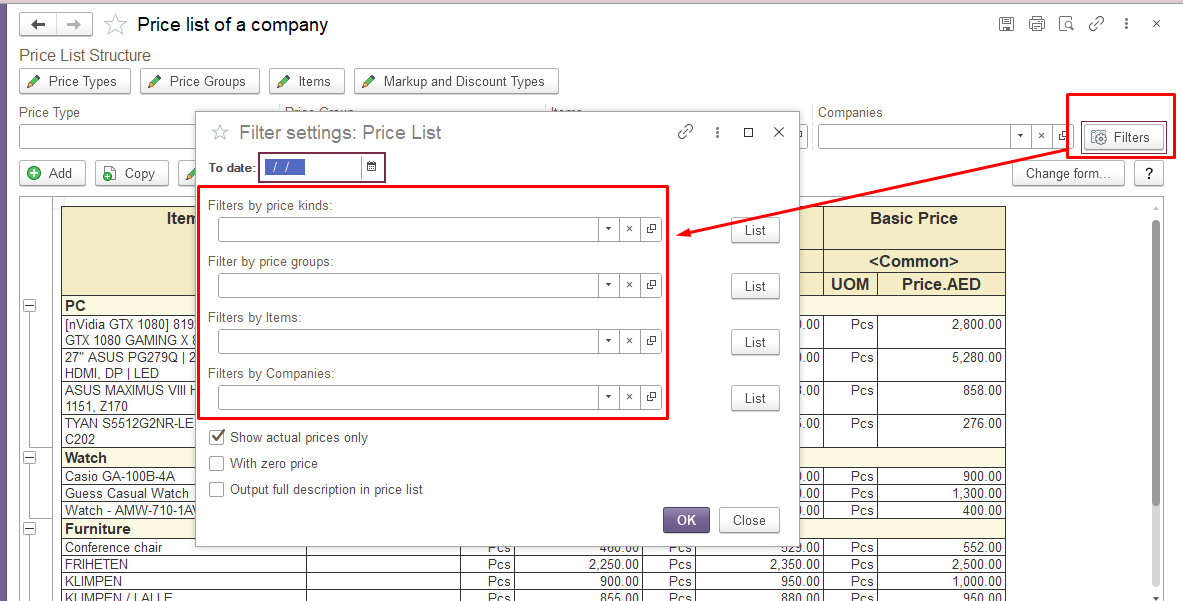
The date filter allows users to view prices that were effective on a specific date. This is useful when checking historical prices or verifying which prices were valid at the time of a sales transaction.
1) Price Type (kinds) - filters the price list by the selected price type (for example, Retail, Wholesale).
b) Price groups - displays prices belonging to the selected price group.
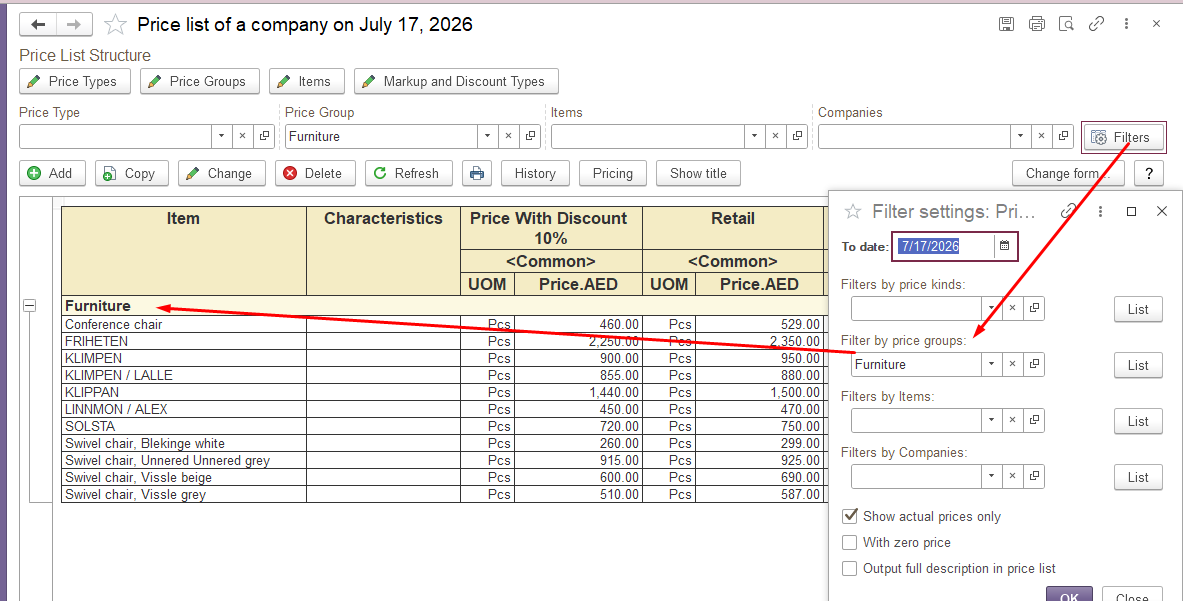
c) Items and Companies - displays prices for the selected items or companies.
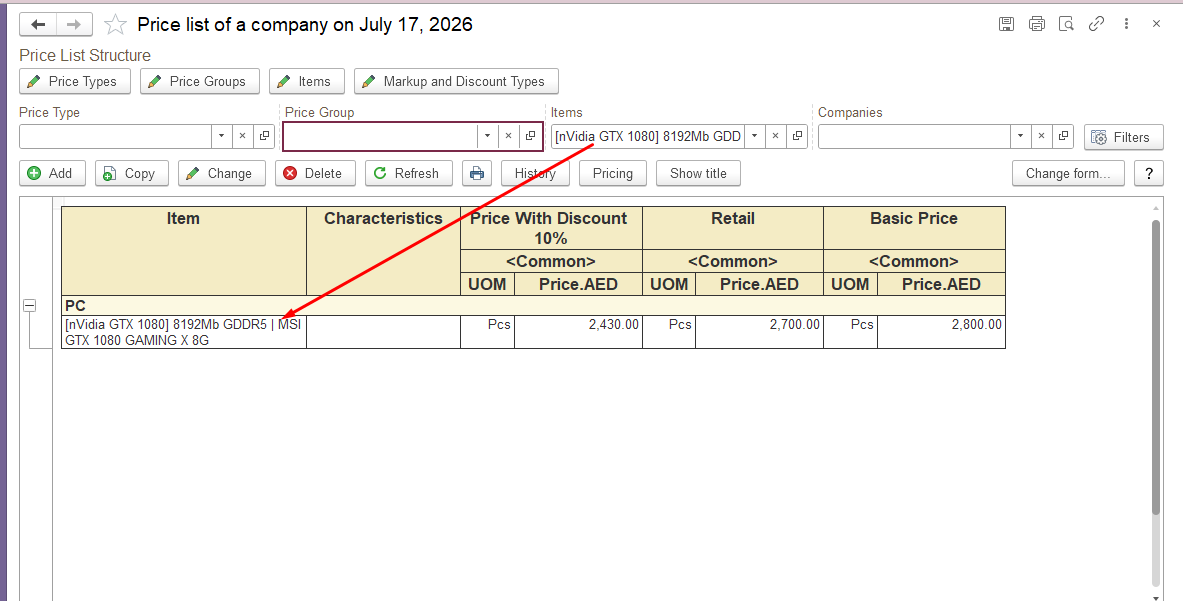
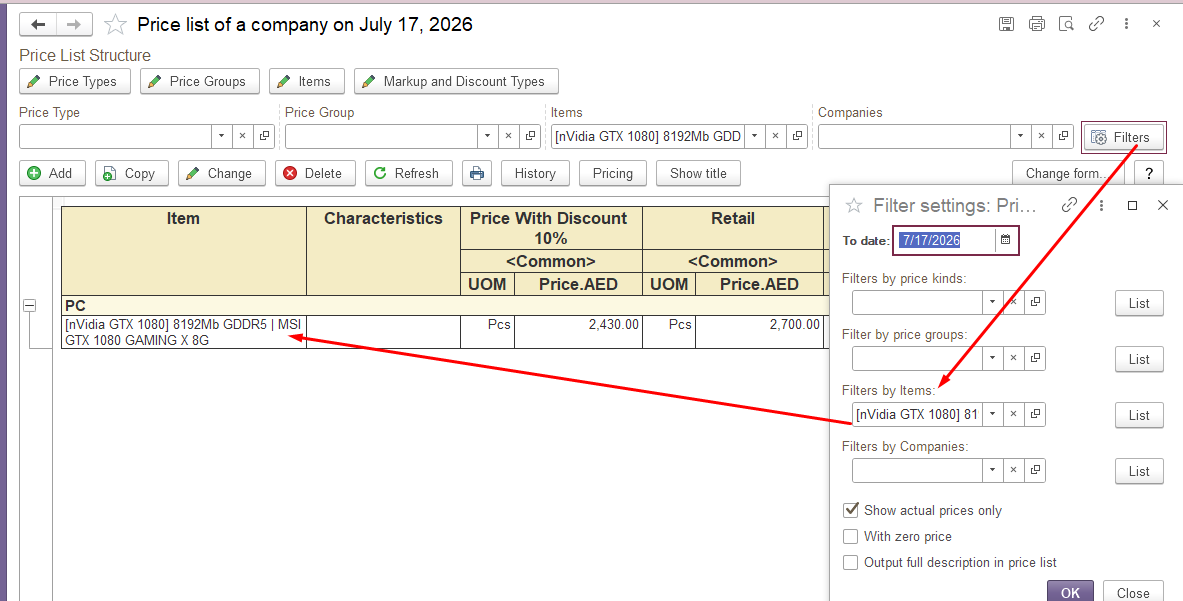
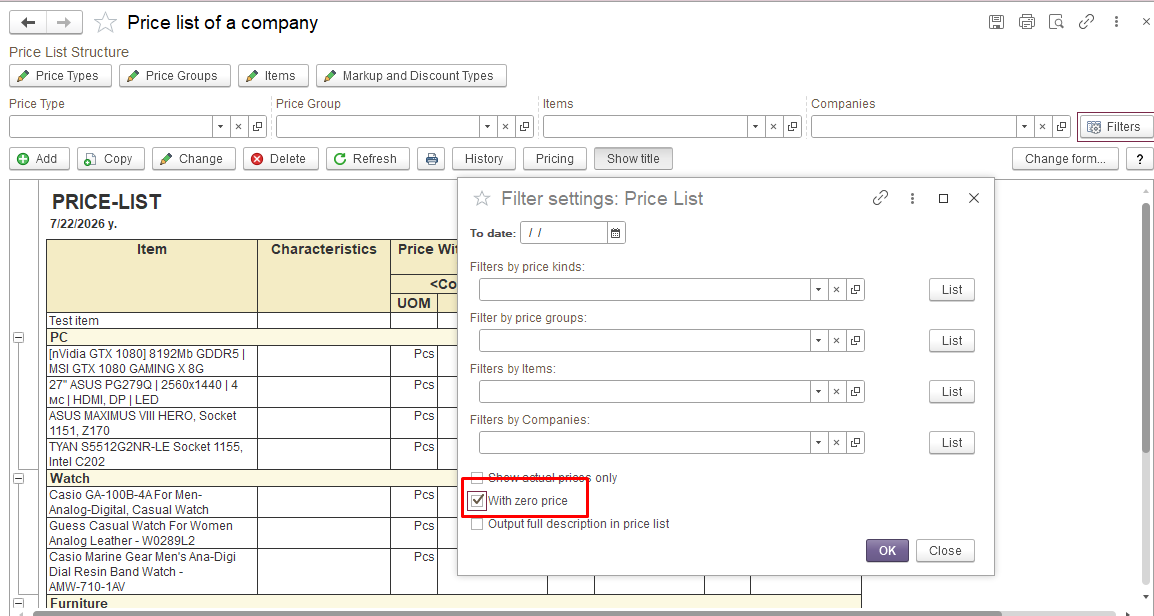
d) Enable the "With Zero Price" option to display all items, including those without assigned prices.
Command Bar
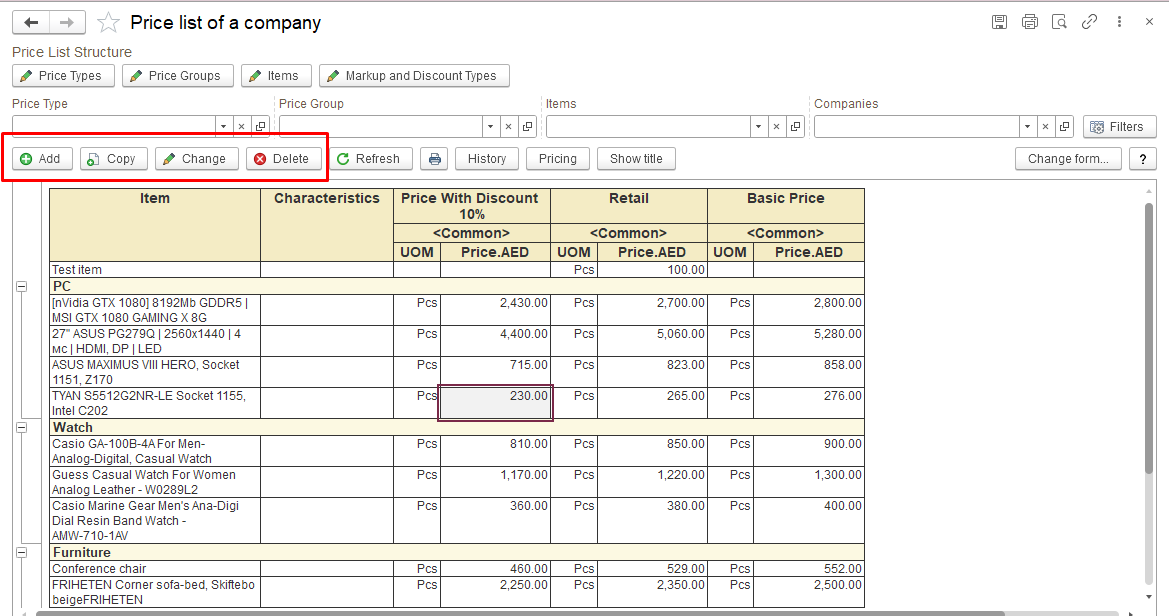
The Command Bar provides options for manually managing the price list. Users can add new items, copy existing entries, modify prices, or delete records.
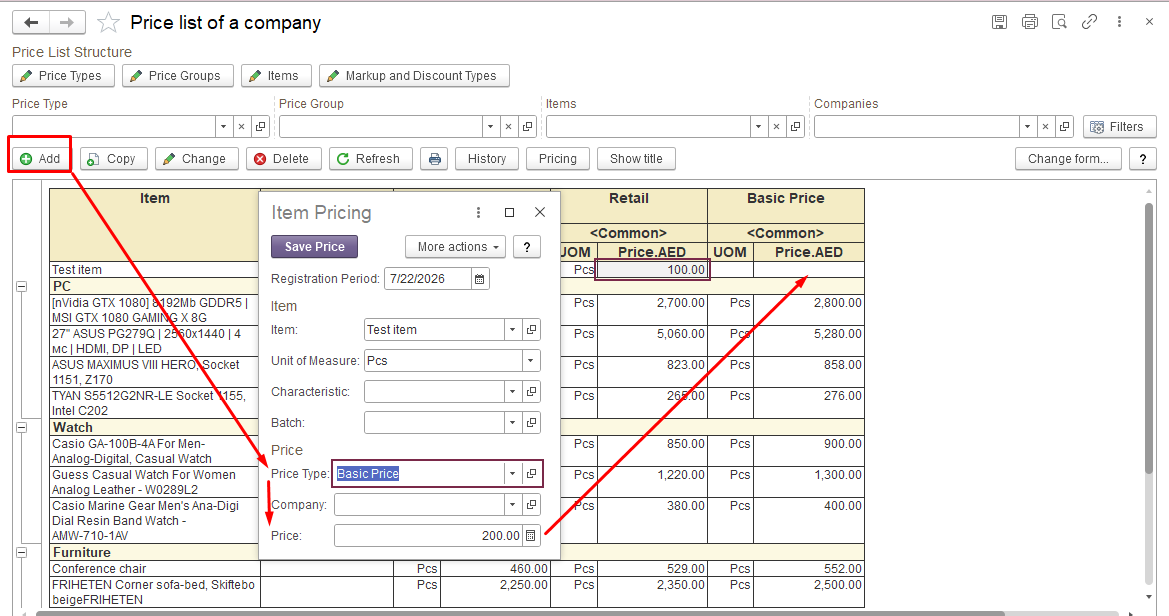
Add - allows users to add an additional price record for a selected item. For example, if an item already has a Retail price, users can add an additional price type, such as Basic Price.
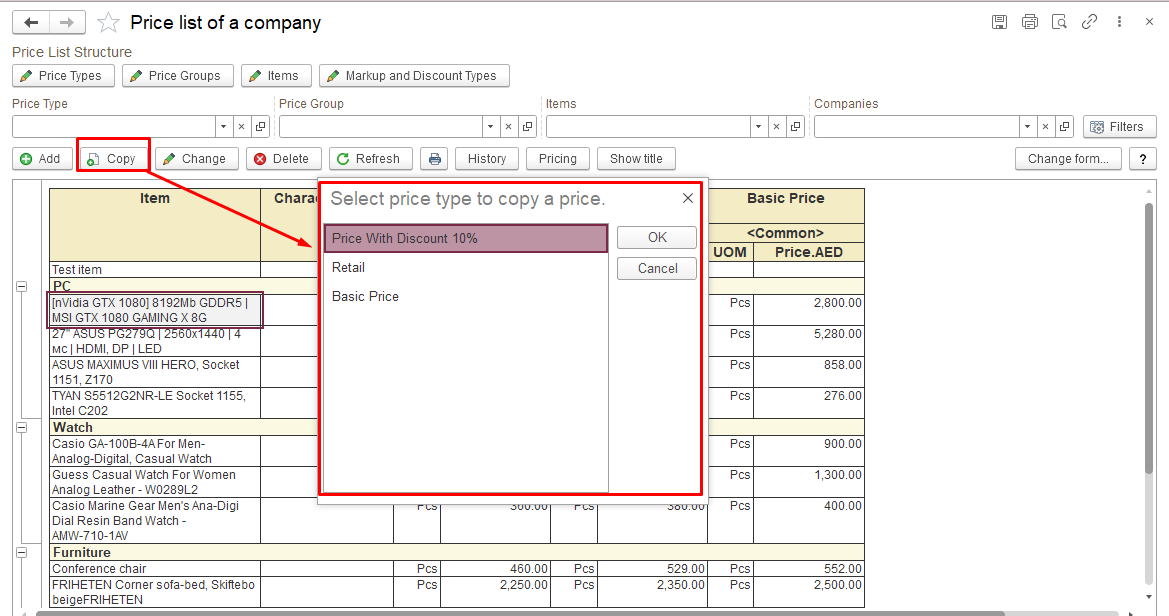
Copy - creates a copy of an existing price record.
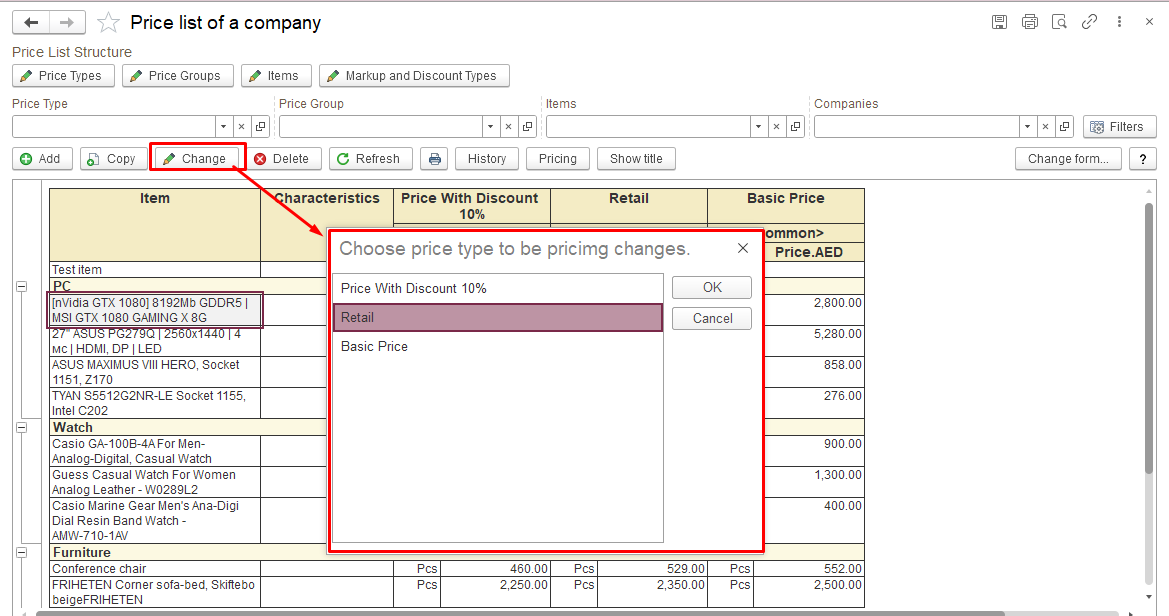
Change — modifies an existing price record.
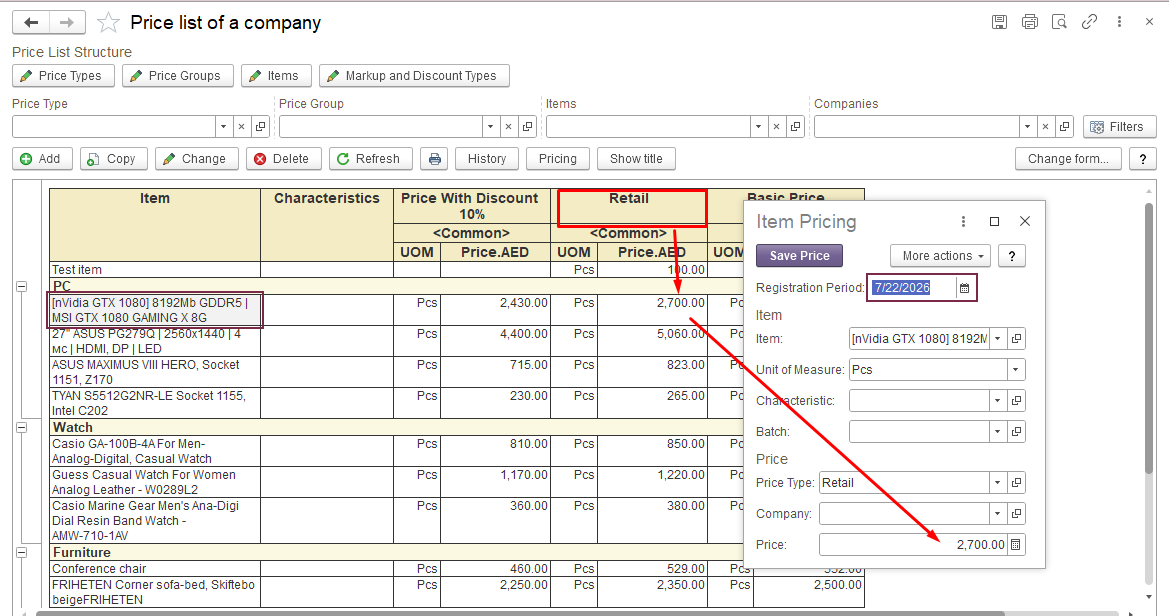
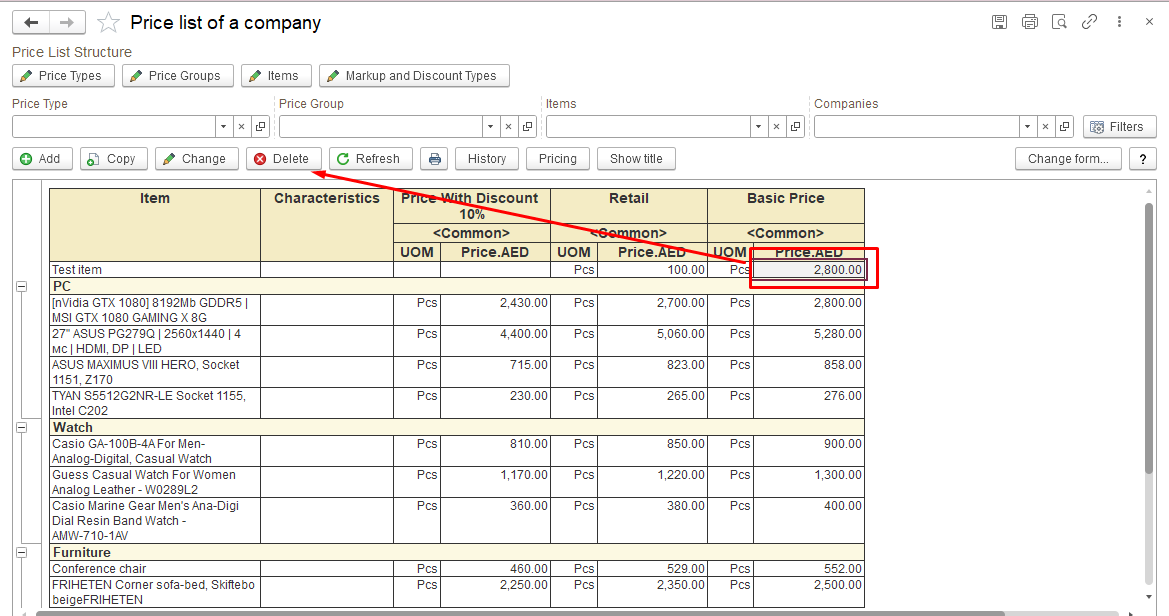
Delete — removes the selected price record.
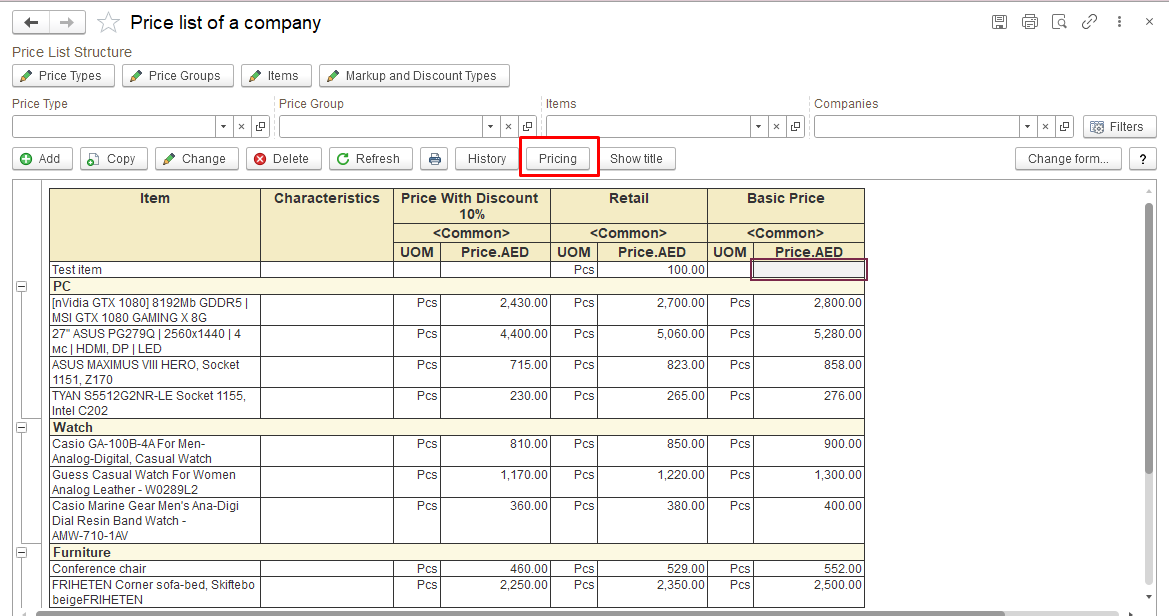
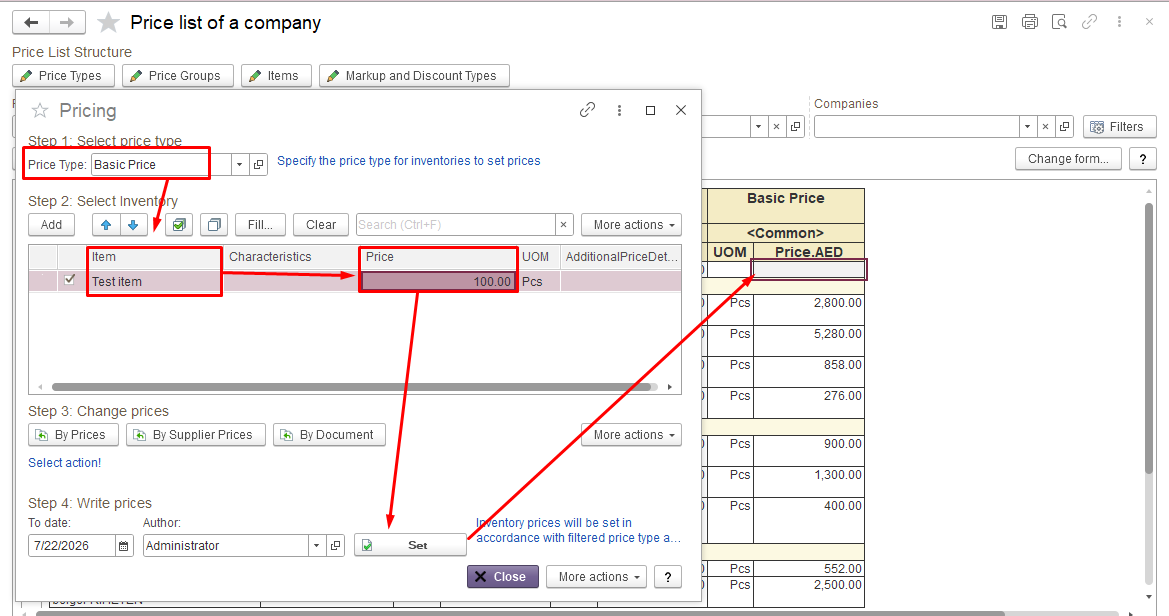
The Pricing button is used for mass calculation, modification, and deletion of item prices.
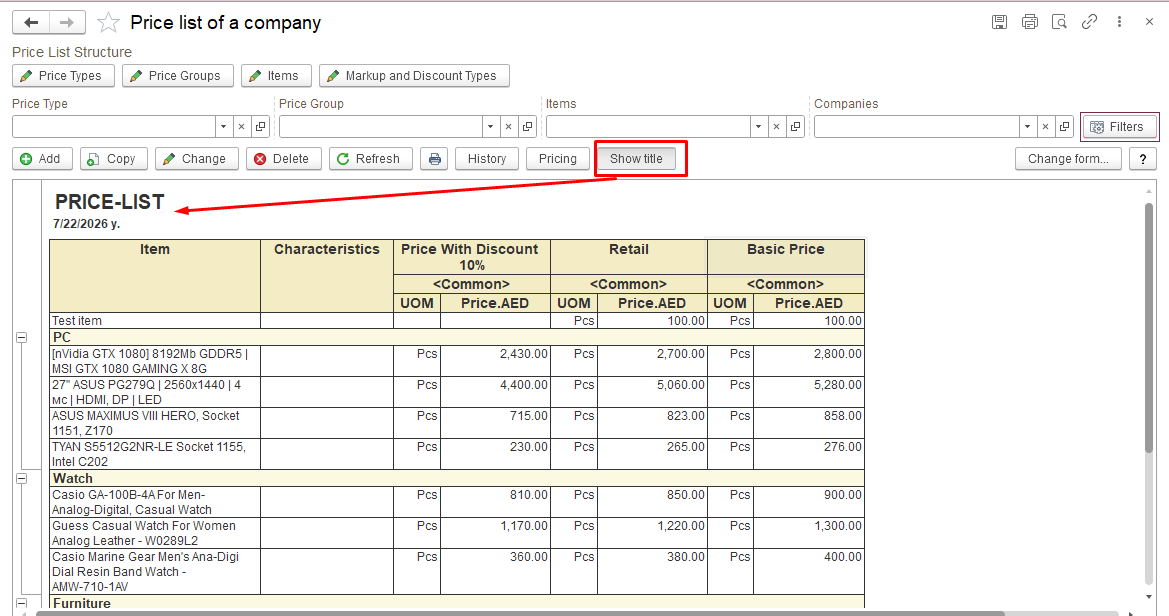
The Show Title button is used to show or hide the document title and the current date displayed above the price list table.
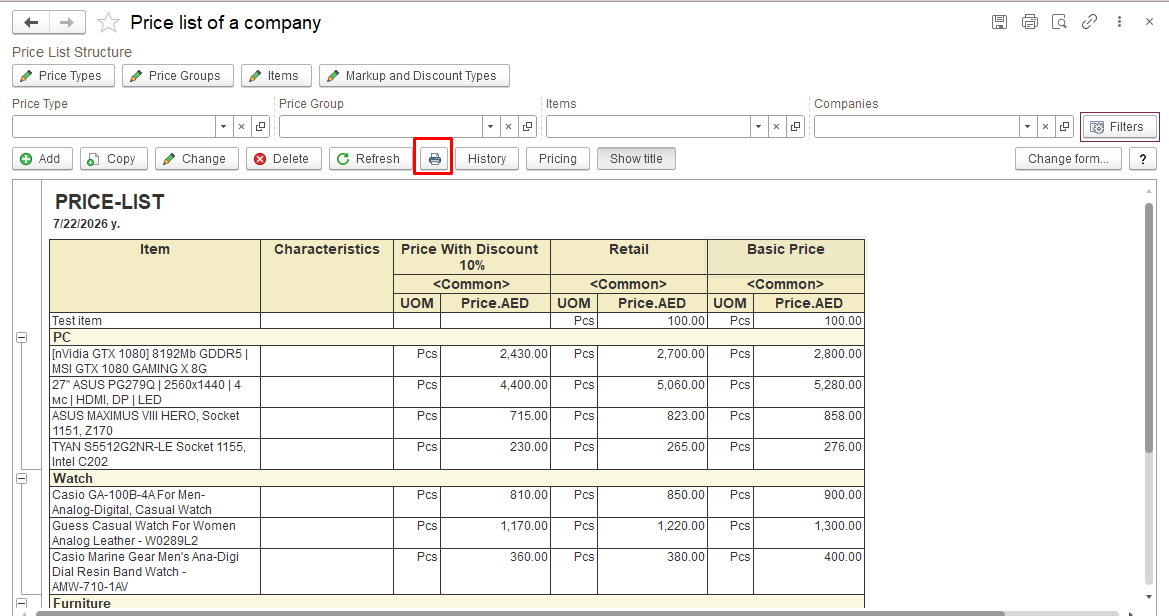
The Print button allows users to generate and print the price list.
Difference Between Price List and Item Pricing
Item Pricing is used to create and maintain prices in the system. It is responsible for:
- creating and maintaining price types;
- calculating prices based on pricing rules or formulas;
- applying markups and discounts;
- performing mass price updates;
- registering new prices in the system.
Price List is used after prices have been registered and is intended for:
- viewing current item prices;
- filtering and analyzing price information;
- preparing price lists for customers;
- printing or exporting price lists;
- verifying the results of price updates.
Thank you for being a FirstBIT customer!