-
Created by
 Unknown User (uaterehova), last updated by Lyudmila Selivanova on 30 Apr, 2026
3 minute read
Unknown User (uaterehova), last updated by Lyudmila Selivanova on 30 Apr, 2026
3 minute read
Problem: How to create Deferred expenses without Enable Deferred Expenses option?
Solution: This manual will show in detail how to record the deferred expense transaction without this addon.
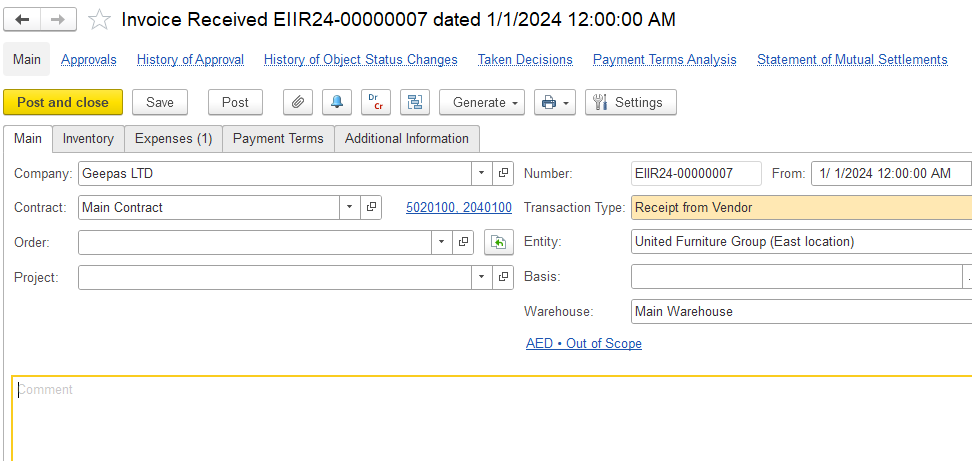
1. Create a new purchase document. Fill in the details in all the required fields
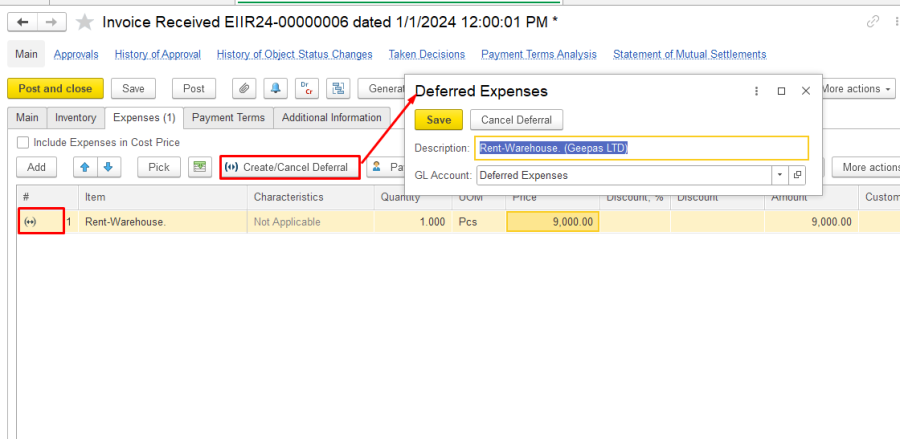
In the expense tab, add the expense item and click on the Create Deferral button.
It will create a dialog box, fill in the description and the GL account required for the entry.
The  icon in the first column of the list indicates that for this item a deferral is created.
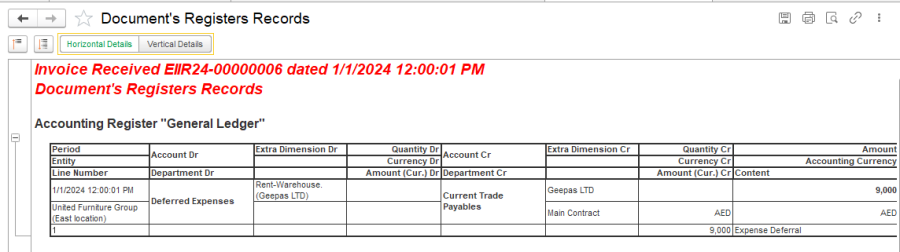
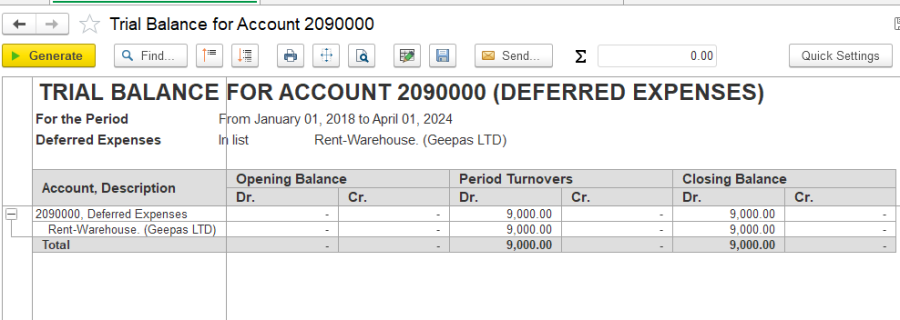
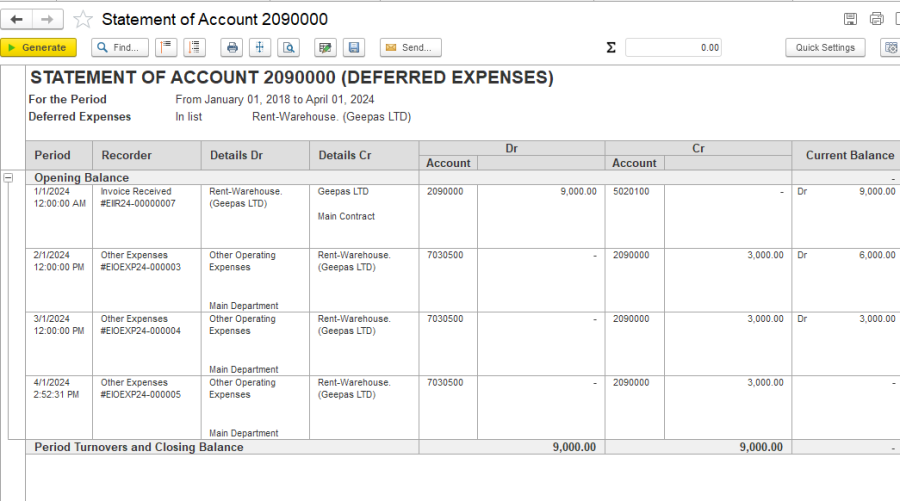
Check your actions by generating a report.
2. If the Enable Deferred Expenses functionality is enabled in FirstBit Software (Administration → Settings → General Settings), deferred expenses are recognized automatically during the month-end closing process. For more details, see the article: Deferred Expense-With add ons
If the Enable Deferred Expenses functionality is not enabled, deferred expenses must be recognized manually using the Other Expenses document. In this case, you need to create Other Expenses documents each month to recognize the relevant portion as current expenses. This process must be performed manually each month, or you can use the copy option to simplify the process.
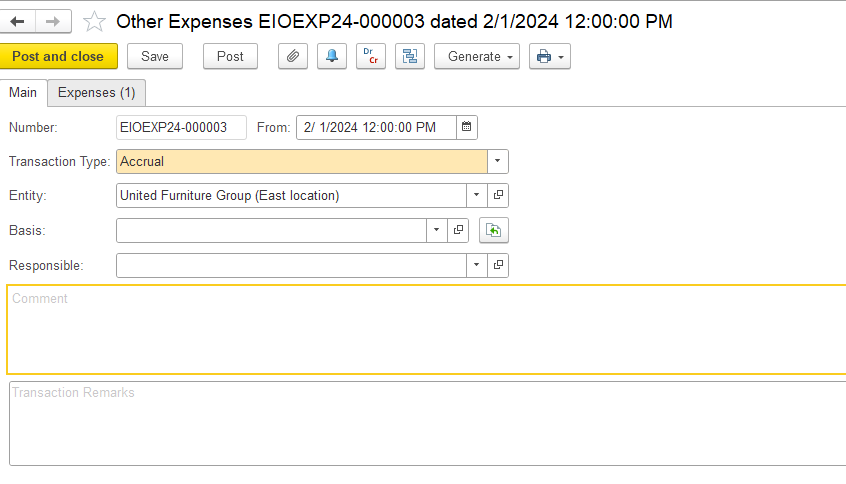
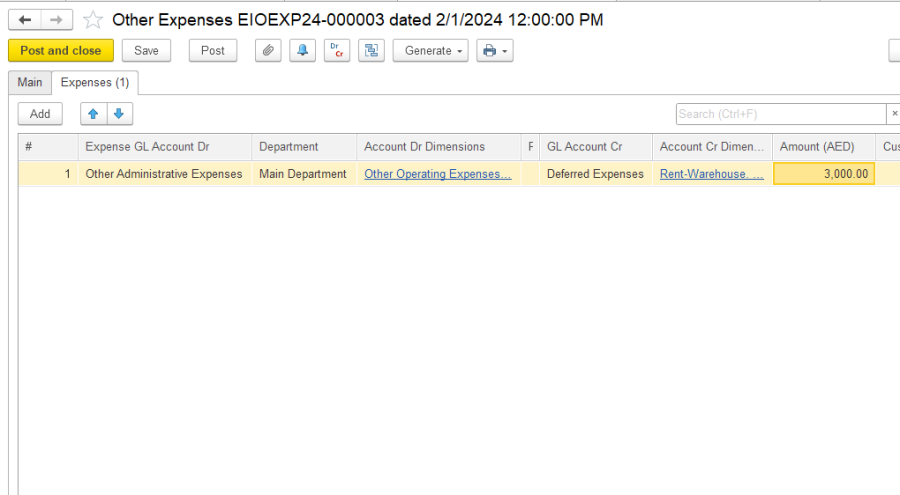
Specify the expense account (the expense account used to account for expenses recognized in this process), the expense item, deferred account and the amount.
The below entry is created using Other expense document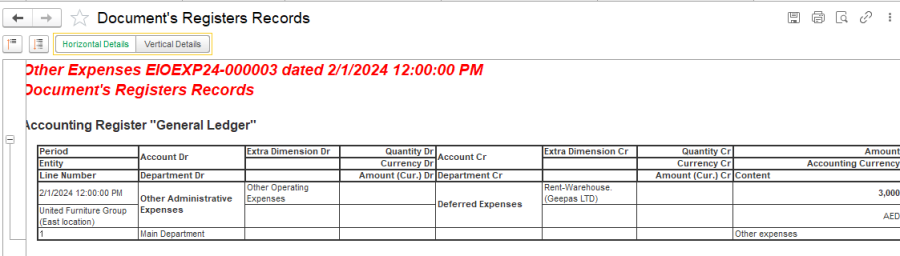
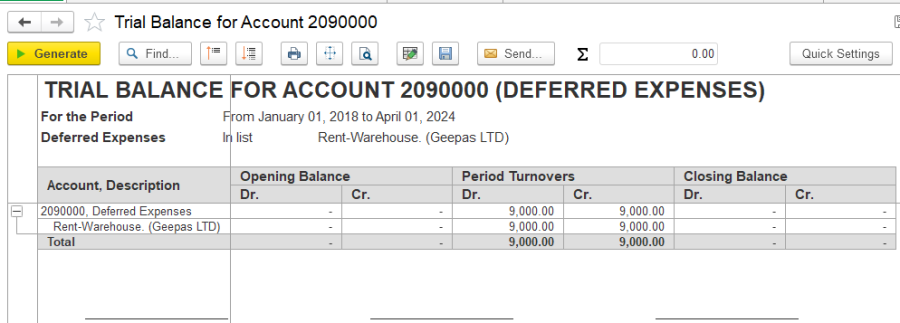
3, Check your actions by generating a report.
Thank you for a being a FirstBIT customer! #Deferred expense without functionality