Problem: How to decrease the output VAT previously recognized on an advance payment?
Solution: Create an Output VAT Transaction to decrease the output VAT previously recognized on an advance payment.
Assume you have received an advance payment of AED 1,000 (VAT inclusive at 5%), and you need to reduce the output VAT previously recognized for this advance.
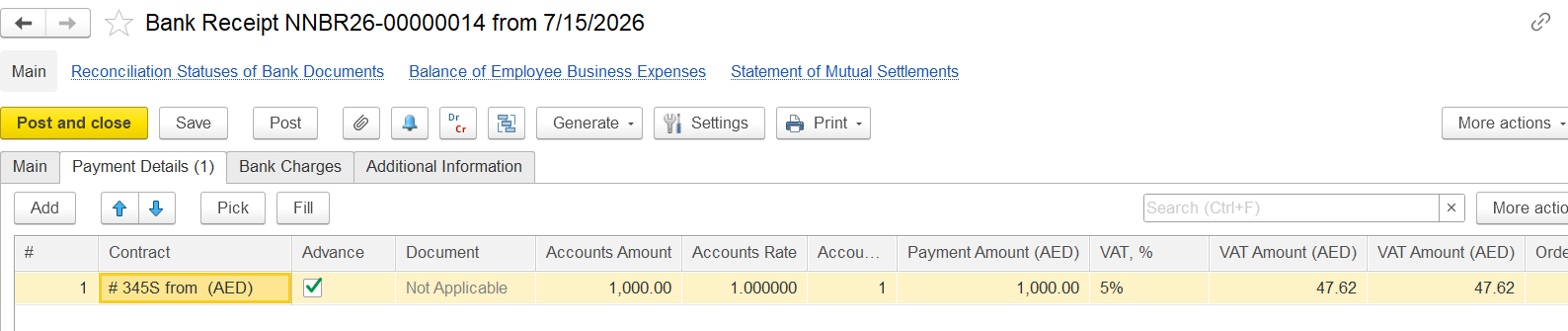
The accounting entries are as follows:
Dr Bank Accounts — Cr Prepayments from Customers — AED 1,000
Dr VAT Accrued on Prepayments Received — Cr Current VAT Payable — AED 47.62
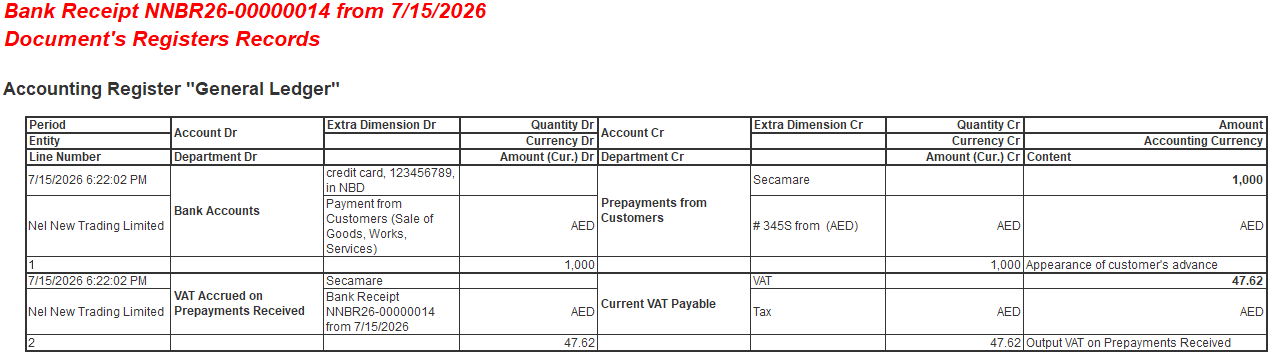
Steps to Decrease the Output VAT
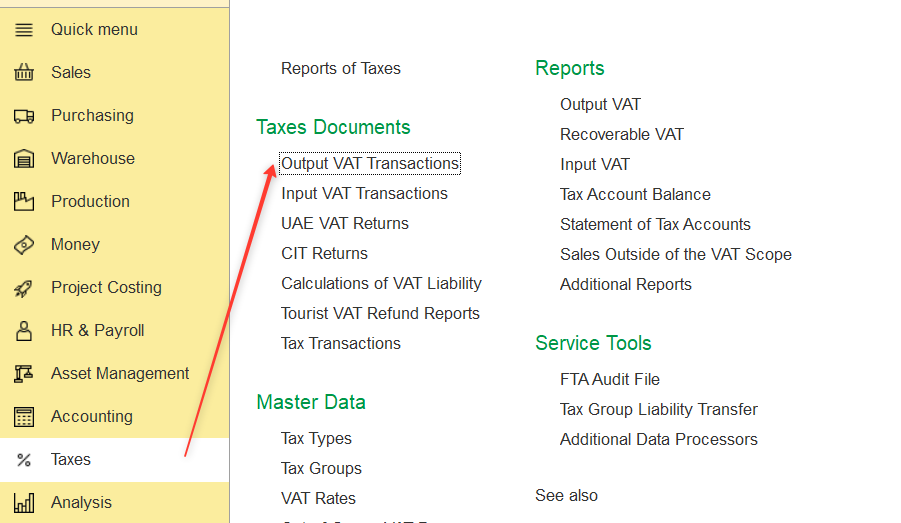
- Go to Taxes → Tax Documents → Output VAT Transactions.
2. Create a new document.
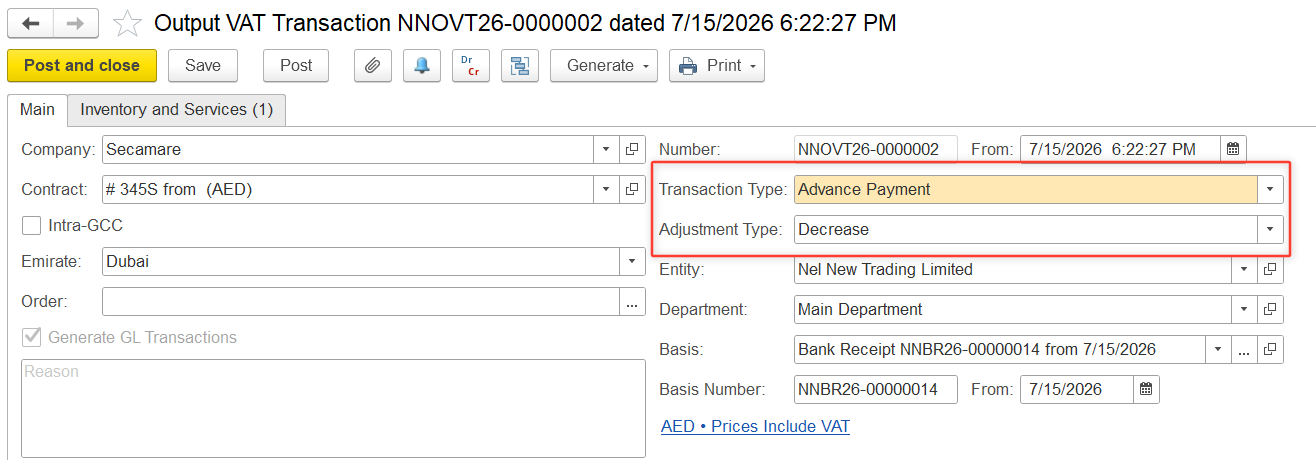
3. Specify:
- Company
- Contract
- Transaction Type: Advance Payment
- Adjustment Type: Decrease
- Basis: Select the related advance payment document.
4. On the Inventory and Services tab, click Add and enter the transaction details:
- Amount: AED 1,000 (VAT inclusive)
- VAT Rate: 5%
- Income Account: Select the same account that was used in the original transaction.
- Complete any other required analytics.

5. Click Post to save and post the document.
The system will reverse the VAT previously recognized on the advance payment.
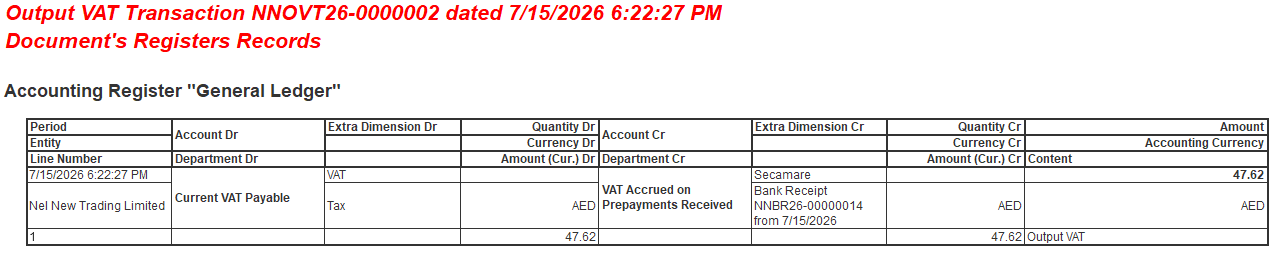
The following journal entry will be generated:
Dr Current VAT Payable — Cr VAT Accrued on Prepayments Received — AED 47.62
Later, when the advance payment is allocated to the Invoice Issued, the system will recognize that the VAT on the advance payment has already been reversed.
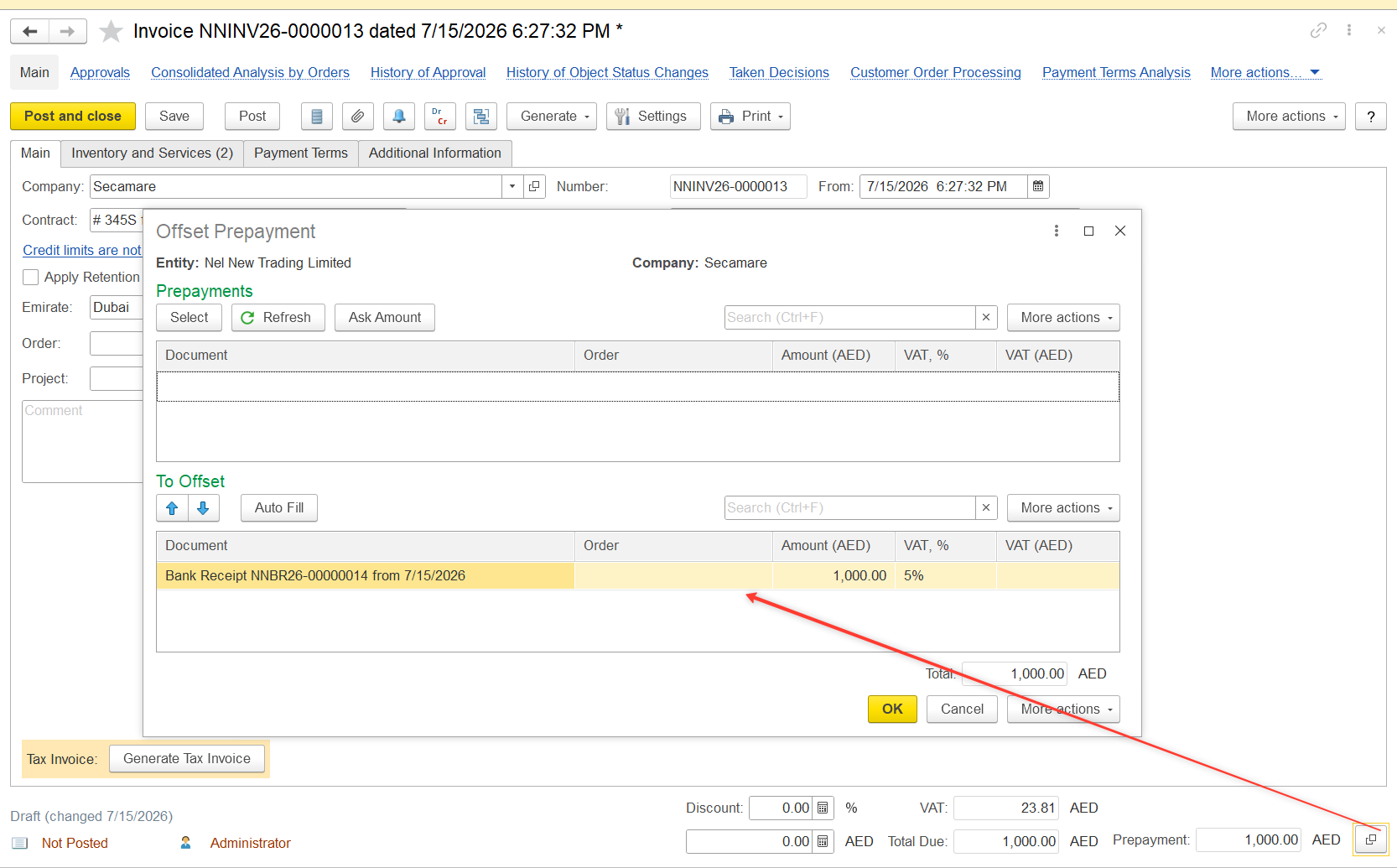
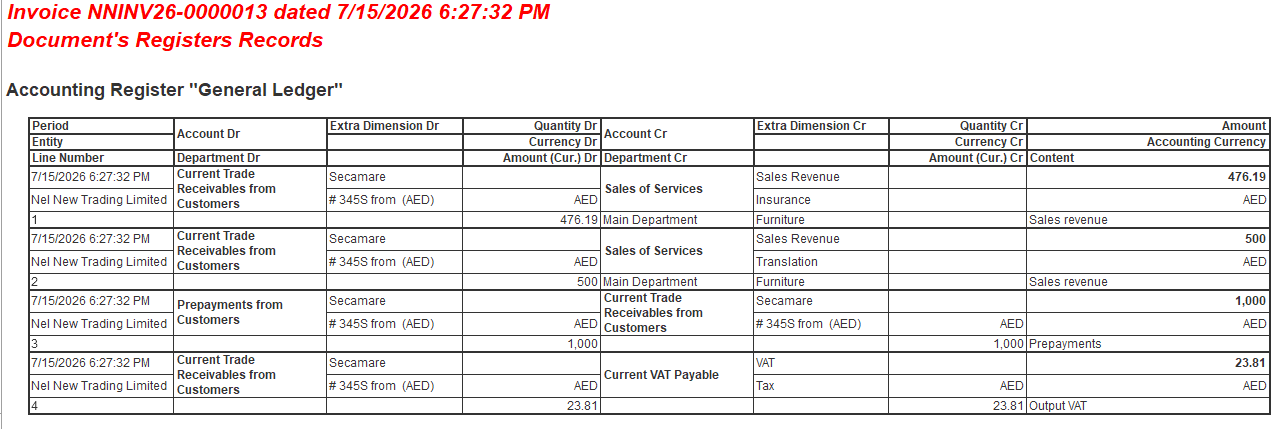
As a result, no additional posting to the VAT Accrued on Prepayments Received account will be generated during the allocation of the advance payment.
Thanks for being a Firstbit Customer!
#VATAdjustment #OutputVAT #AdvancePayment #Prepayment #OutputVATTransaction #VATDecrease #CurrentVATPayable #VATAccruedOnPrepaymentsReceived #TaxDocuments