-
Created by
 Olga Kaya on 19 Aug, 2026
2 minute read
Olga Kaya on 19 Aug, 2026
2 minute read
Problem
How to record an item or service provided to a customer free of charge?
Solution
For a free-of-charge sale, do not set the Price to 0.
Instead, enter the normal price of the item or service and apply a 100% discount. As a result, the final amount of the Invoice will be 0, and no receivable balance will be created.
Step 1. Enable discounts in Sales documents
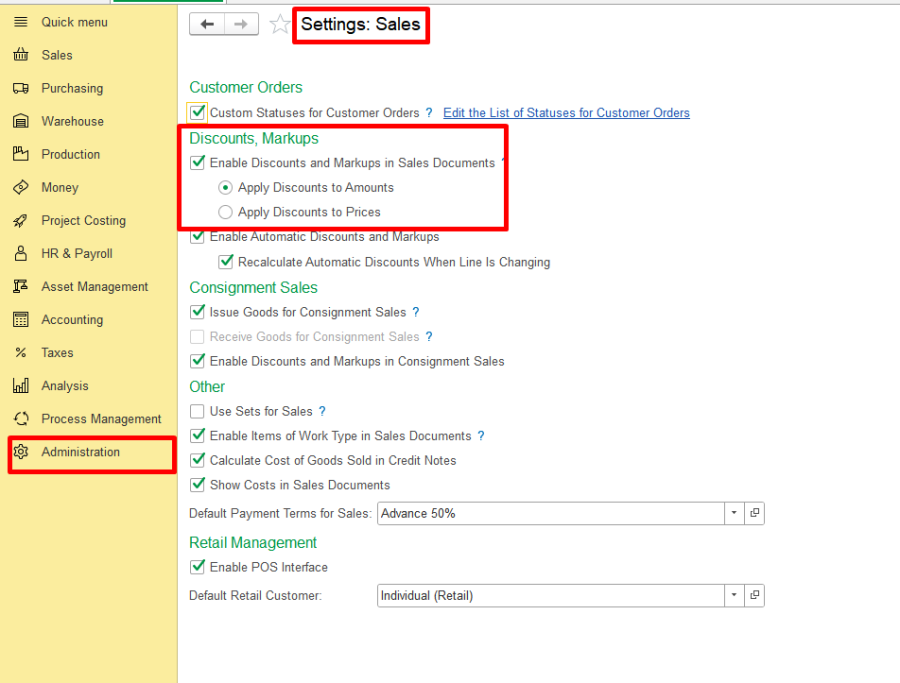
Go to Settings: Sales and enable:
Enable Discounts and Markups in Sales Documents
This setting enables the discount fields in sales documents, including Discount, % and Discount.
Step 2. Create the Invoice
Create an Invoice and fill in the required fields.
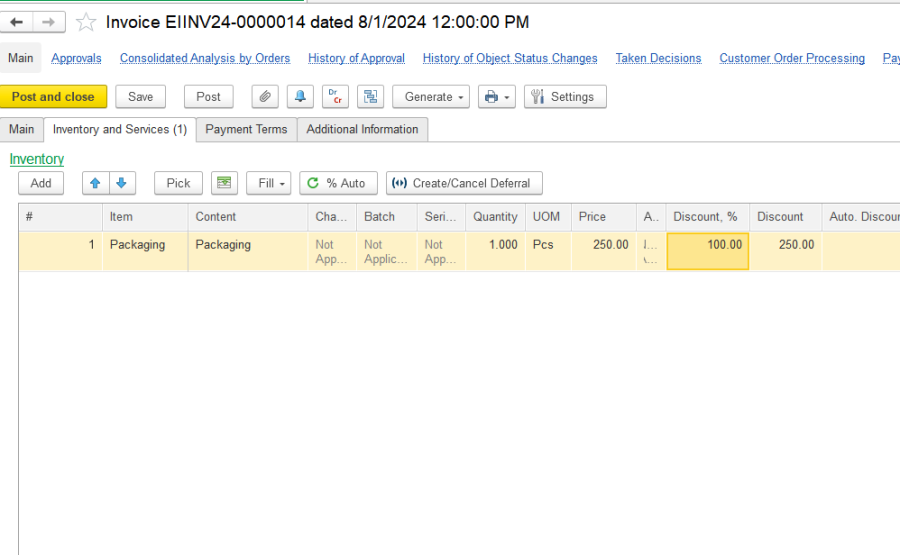
Enter the item or service with its normal Price.
If the item or service is provided free of charge, specify:
Discount, % = 100%
Result
After applying a 100% discount:
the original Price remains specified in the Invoice;
the discount covers the full price;
the final Invoice amount becomes 0;
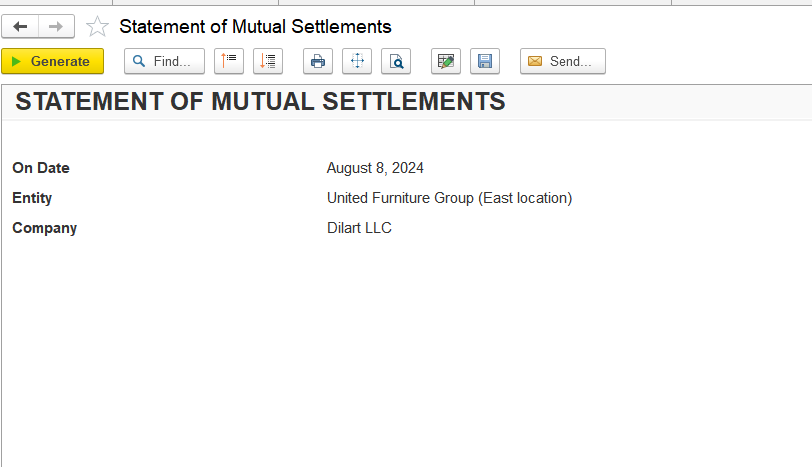
no receivable balance is created for the customer.
For example:
Price: 250 AED
Discount: 100%
Discount amount: 250 AED
Final amount: 0 AED
This method should be used for free items, gifts, free-of-charge services, promotional items, and other zero-amount sales.
Related user questions
This instruction also applies when users ask:
How can I sell an item for free?
How can I make the Invoice amount zero?
How to enter a free-of-charge item?
I cannot enter 0 in the Price field.
The system allows 0.01 but does not allow 0.
The price should be zero because the item is free.
How to record a gift to a customer?
How to create a zero-value / zero-amount sale?
Thank you for being a FirstBIT customer!