The accounting treatment of a deposit depends on how the funds are received and used:
1. Deposit as Storage of Own Funds
If the deposit is used to store company funds for later withdrawal:
- Record a transfer from the current account to the deposit account using Money Transfer
- The funds remain an asset but change form
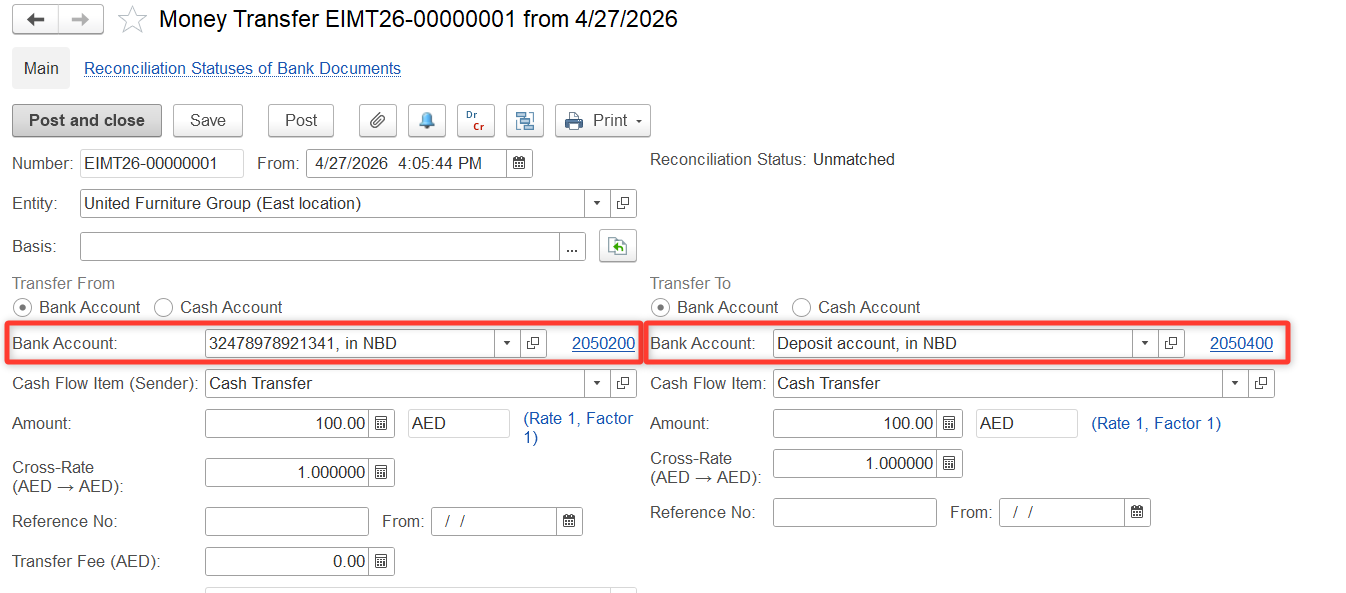
Entry:
- Dr Deposit Account
- Cr Current Bank Account
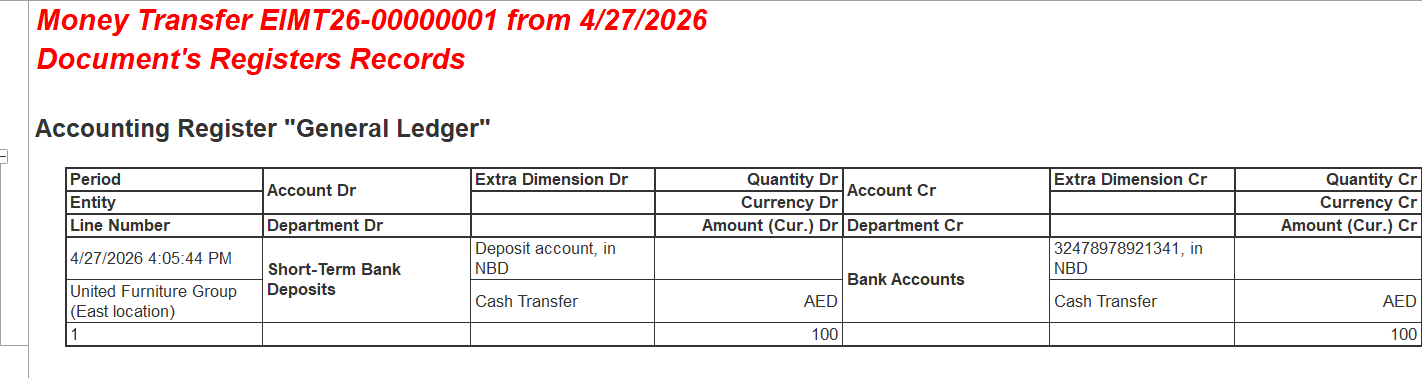
See more on Money Transfers
2. Deposit to Supplier
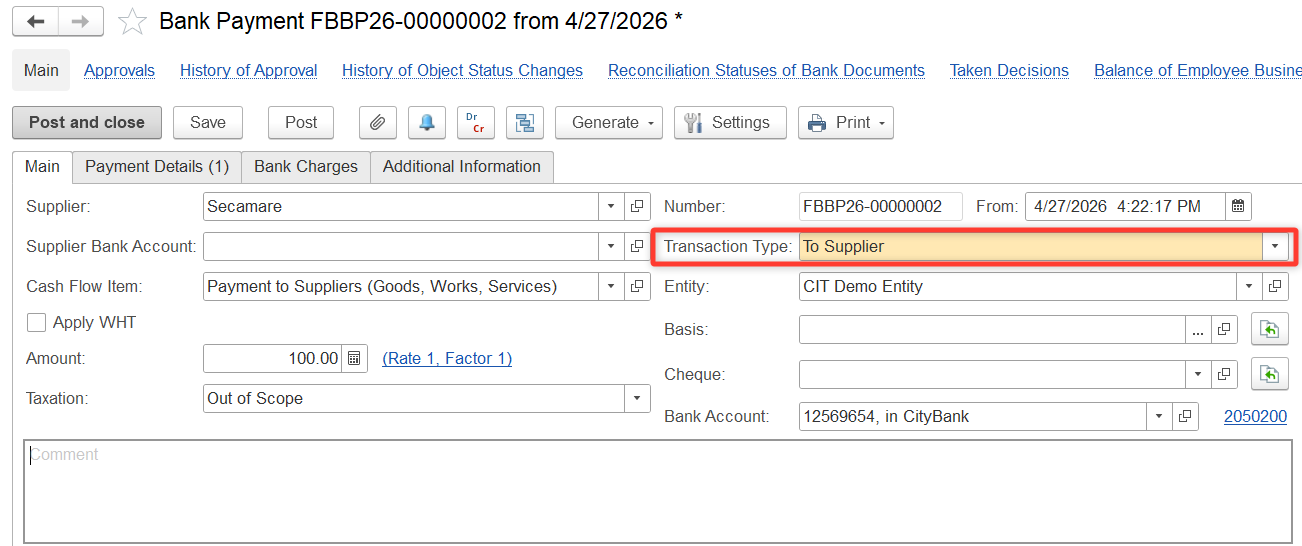
If money is transferred to a supplier as a deposit, it is not an expense, but an asset (prepayment/deposit):
- Create a Bank Payment (or Cash Payment) with Transaction Type: To Supplier
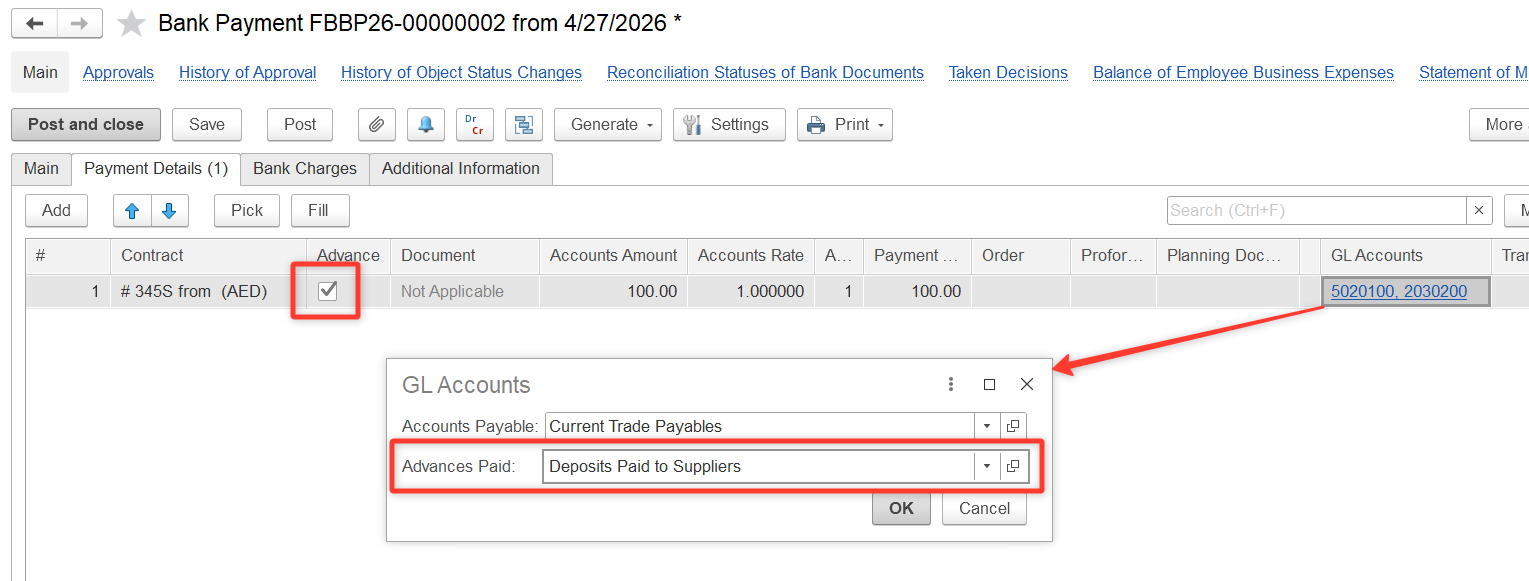
On the Payment Details tab:
- Select the supplier
- Check the Advance box
- Choose GL Account: Deposits Paid to Suppliers
Entry:
- Dr Deposits Paid to Suppliers
- Cr Cash / Bank
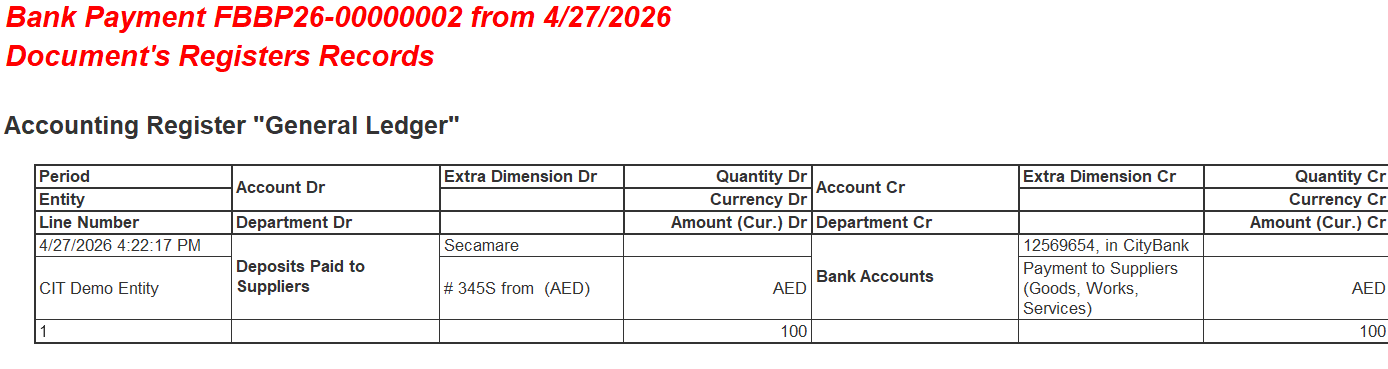
See more on Cash/Bank Deposit (to Supplier)
3. Deposit Issued as a Loan
If the deposit represents a loan issued to another party (with interest):
Step 1. Create a Loan Agreement
Path: Money > Loan Documents > Loan Agreements
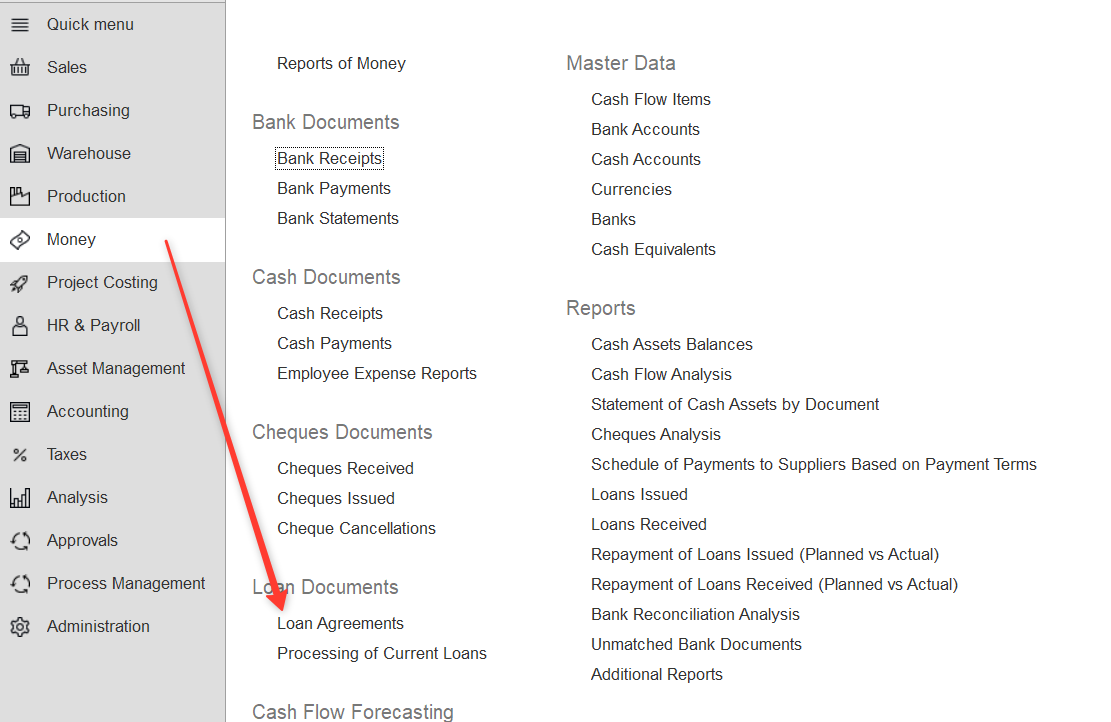
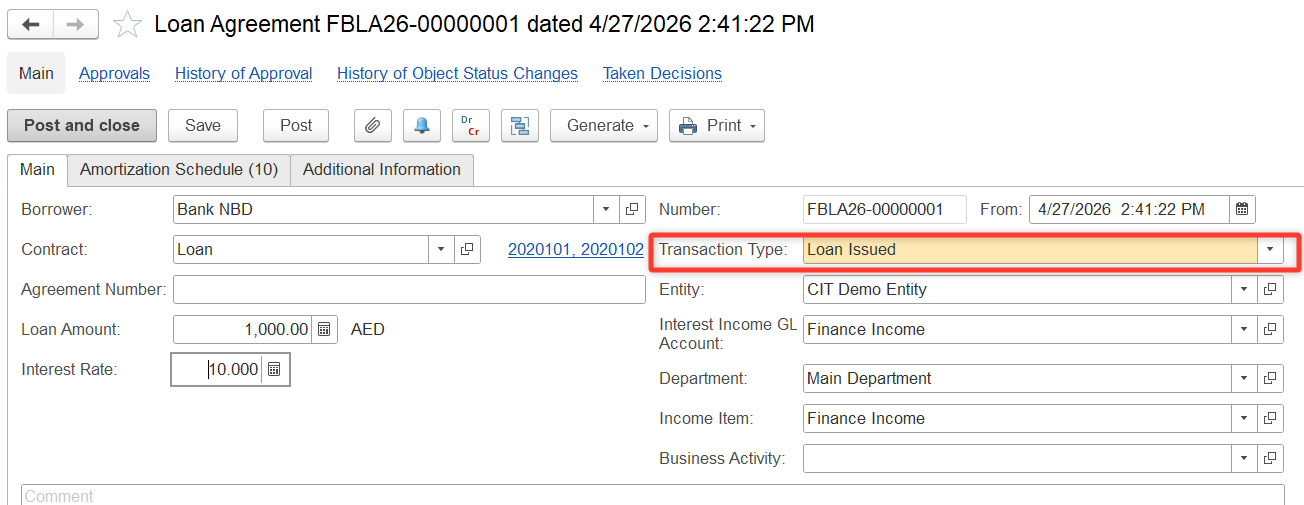
- Select Transaction Type: Loan Issued
- Fill in:
- Borrower
- Contract / Agreement number
- Loan amount
- Interest rate
- GL accounts and other dimensions
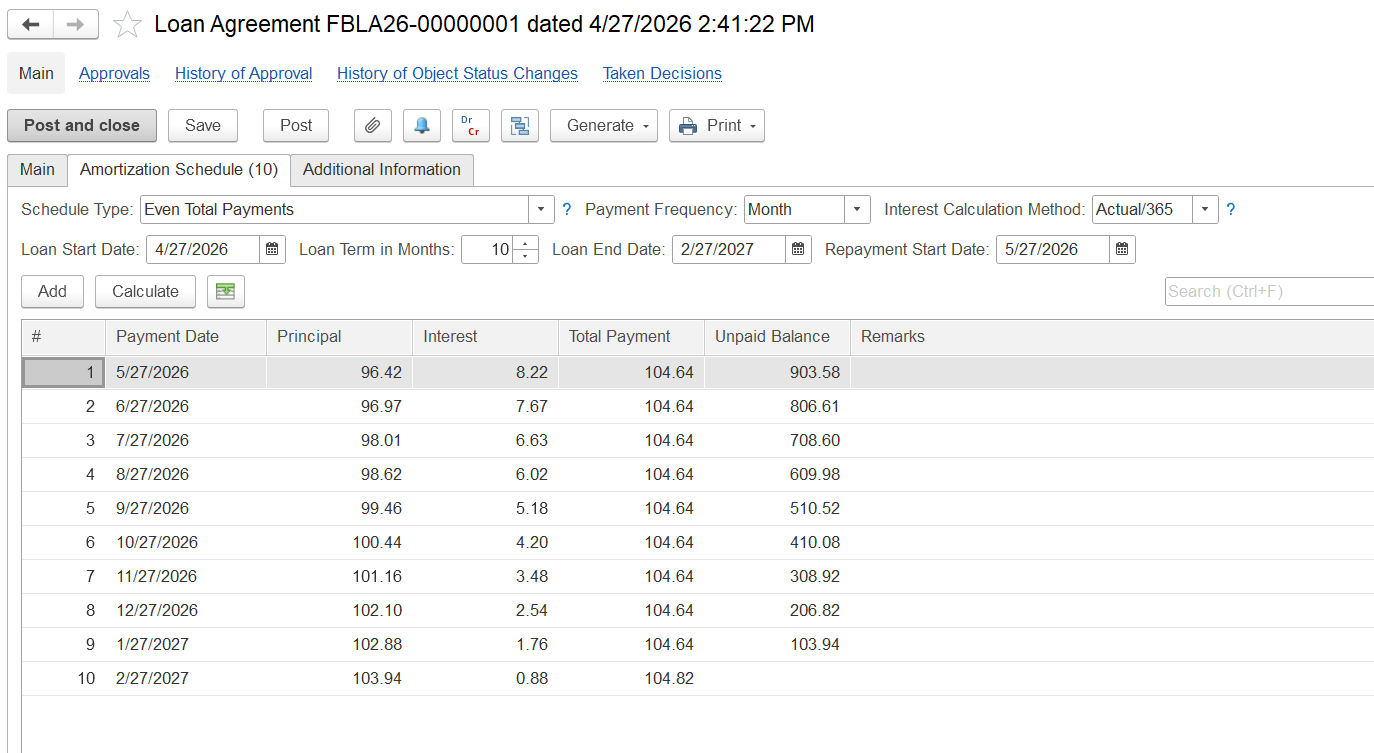
On the Amortization Schedule tab:
- Set schedule type and payment frequency
- Enter loan start date, term, and repayment start date
- Click Calculate, then review and post
See more on Loan Agreements
Step 2. Record the Loan Disbursement
- Create a Bank Payment with Transaction Type: Loan Issued
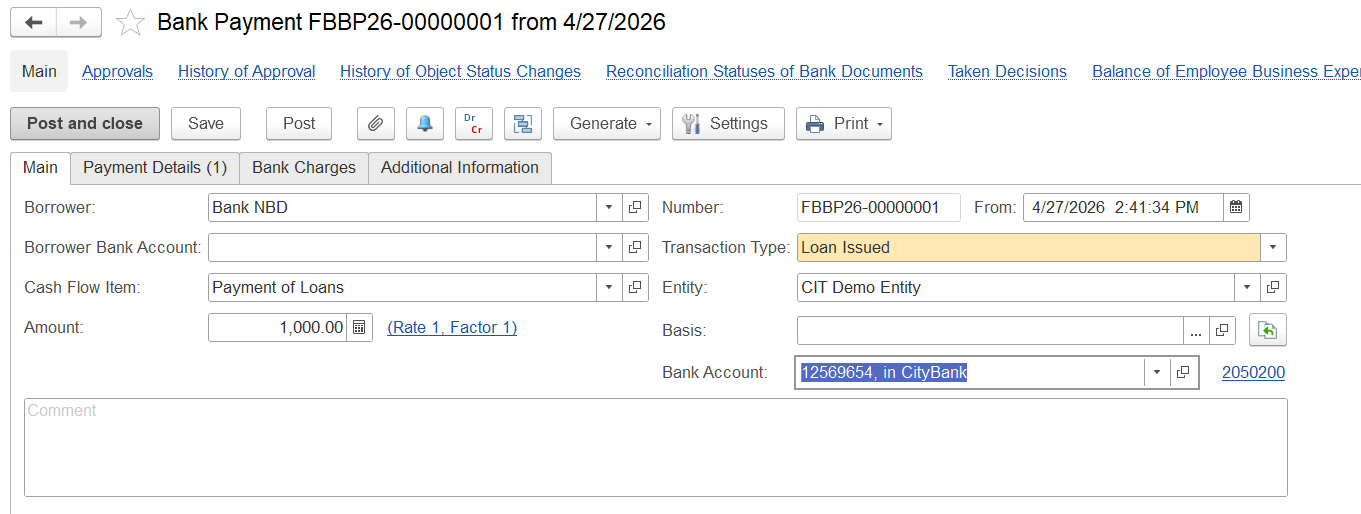
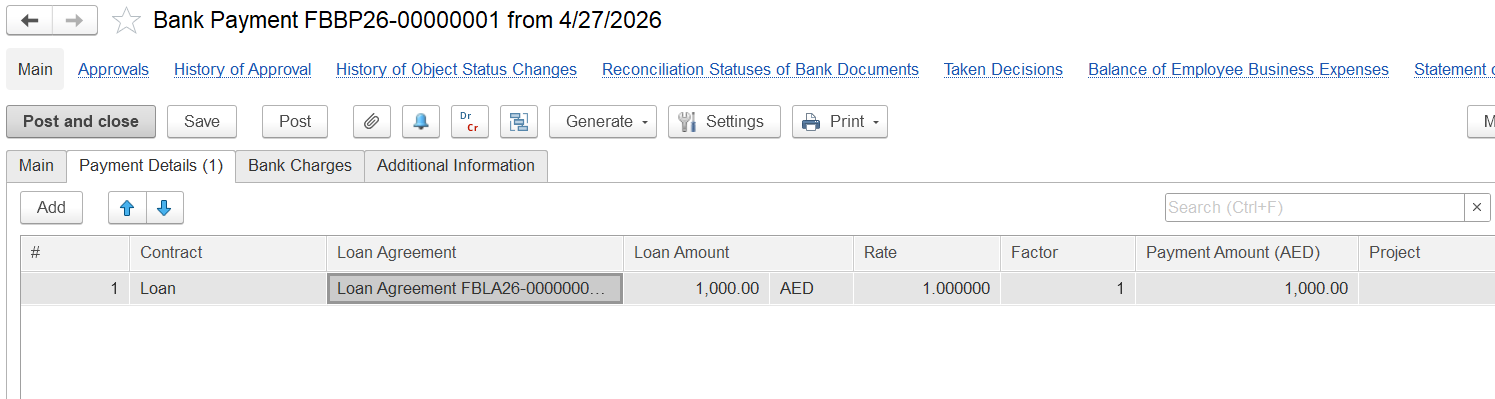
On Payment Details tab, select:
- Contract
- Loan Agreement
- GL Account (Loan Receivable)
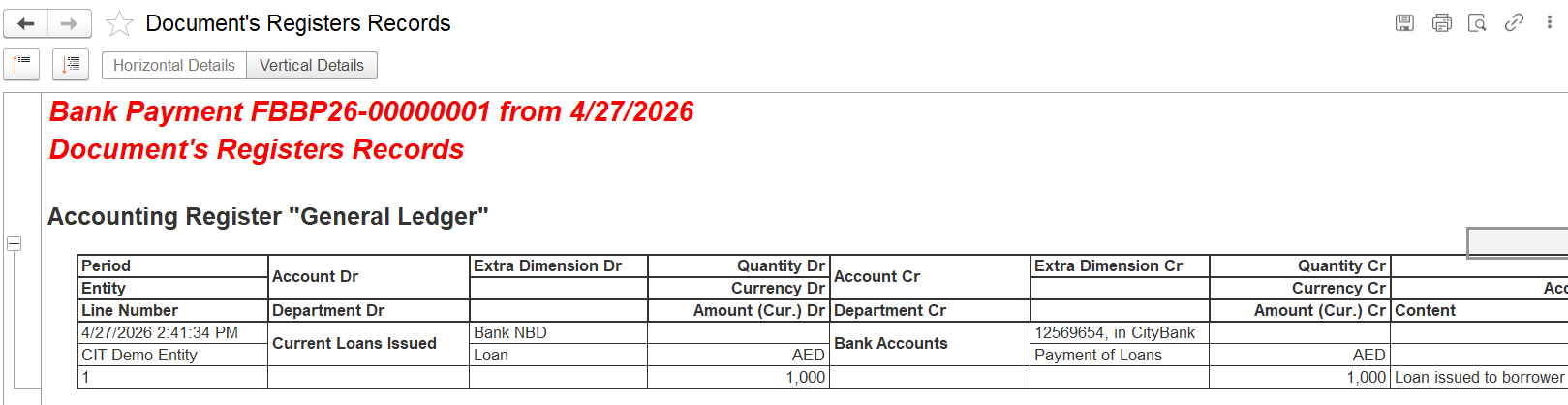
Entry:
- Dr Loan Issued
- Cr Cash / Bank
See more: Deposit in Bank (as Loan)
Thanks for being a Firstbit Customer! #BankDeposit #SupplierDeposit #Deposits #DepositAccounting #DepositToSupplier #DepositsPaidToSuppliers