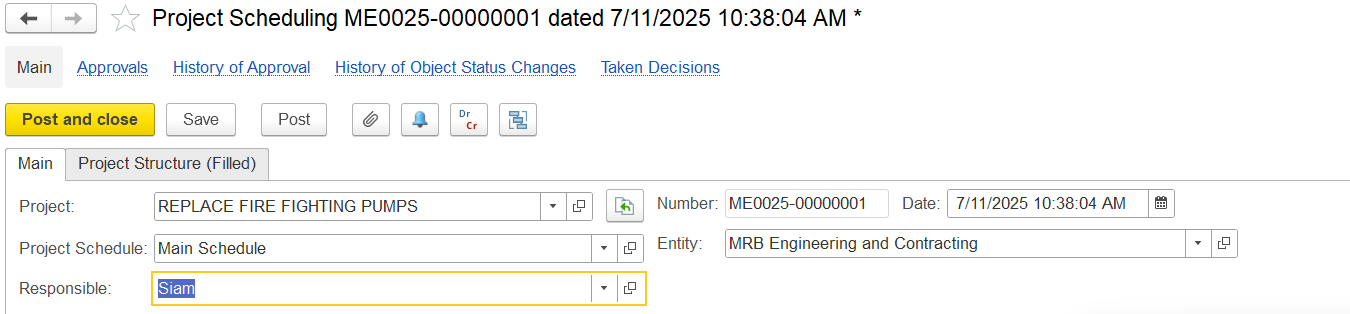
- main tab attributes.
- Important that project structure will be taken from the latest estimation document, if changed → need to update scheduling. (suggestions are there).
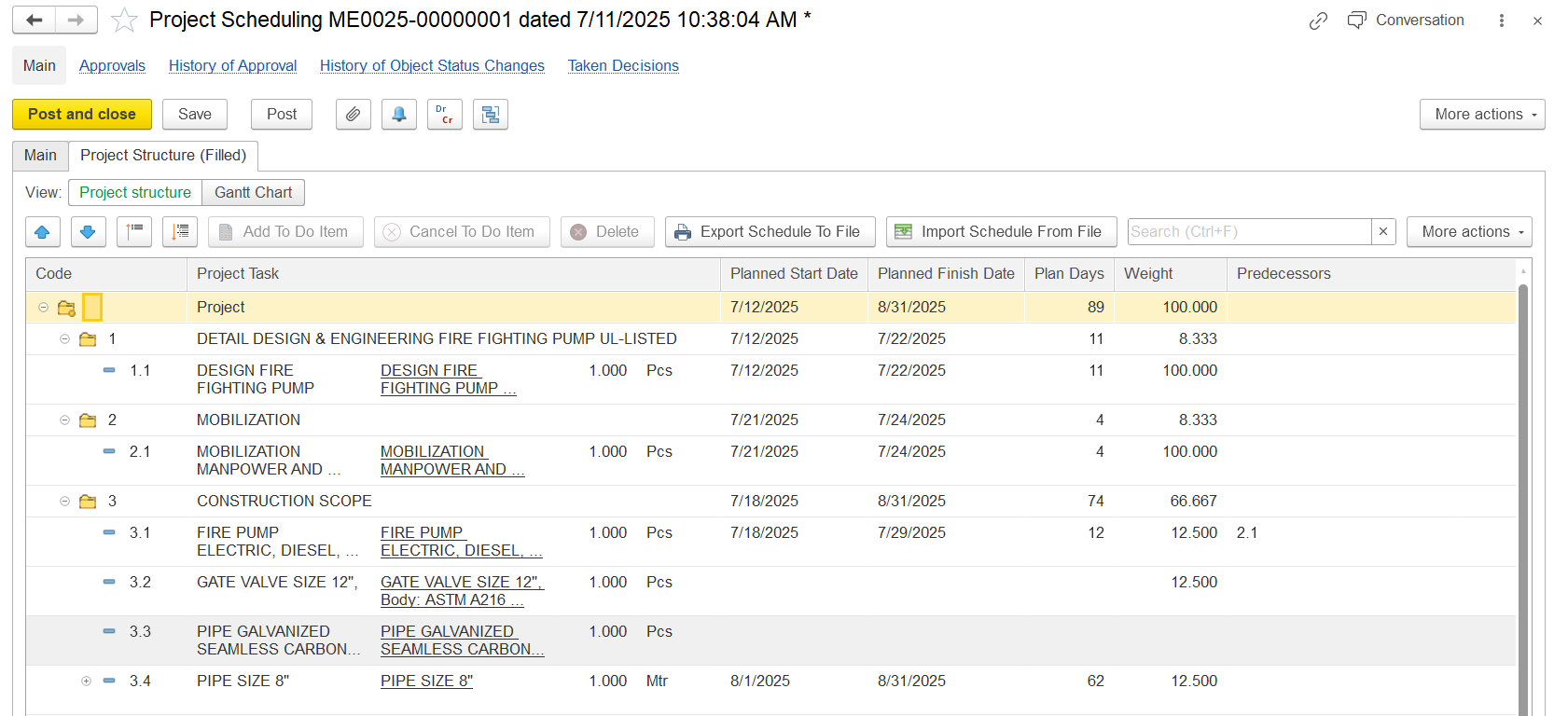
- Table: how to fill, columns description.
- Separate topic about gantt chart.
- separate topic about ToDo item.
- separate topic about import-export buttons.
1. Purpose of the Document
The Project Scheduling document is used to define the planned start and finish dates of project tasks. It helps structure the timeline and is essential for:
Tracking the sequence and duration of tasks.
Providing visibility into the planned timeline of the entire project.
Supporting communication between the project estimation and execution phases.
This document links with the latest estimation and provides the basis for generating progress reports and Gantt charts.
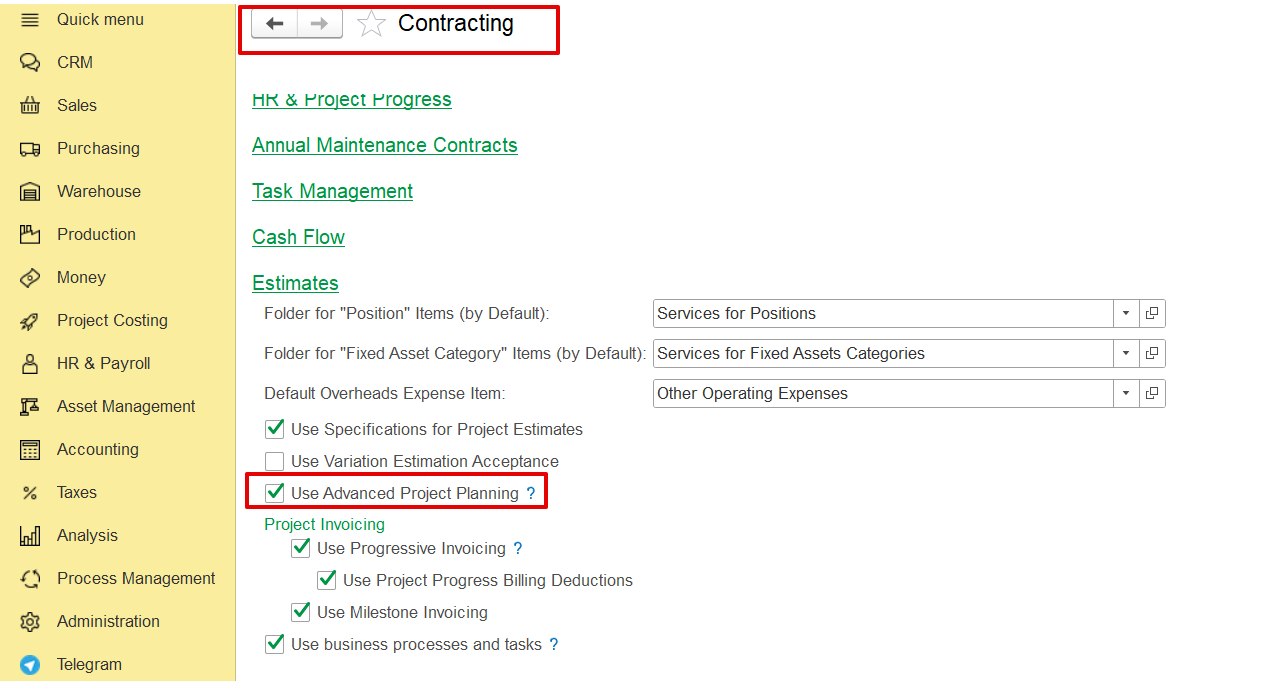
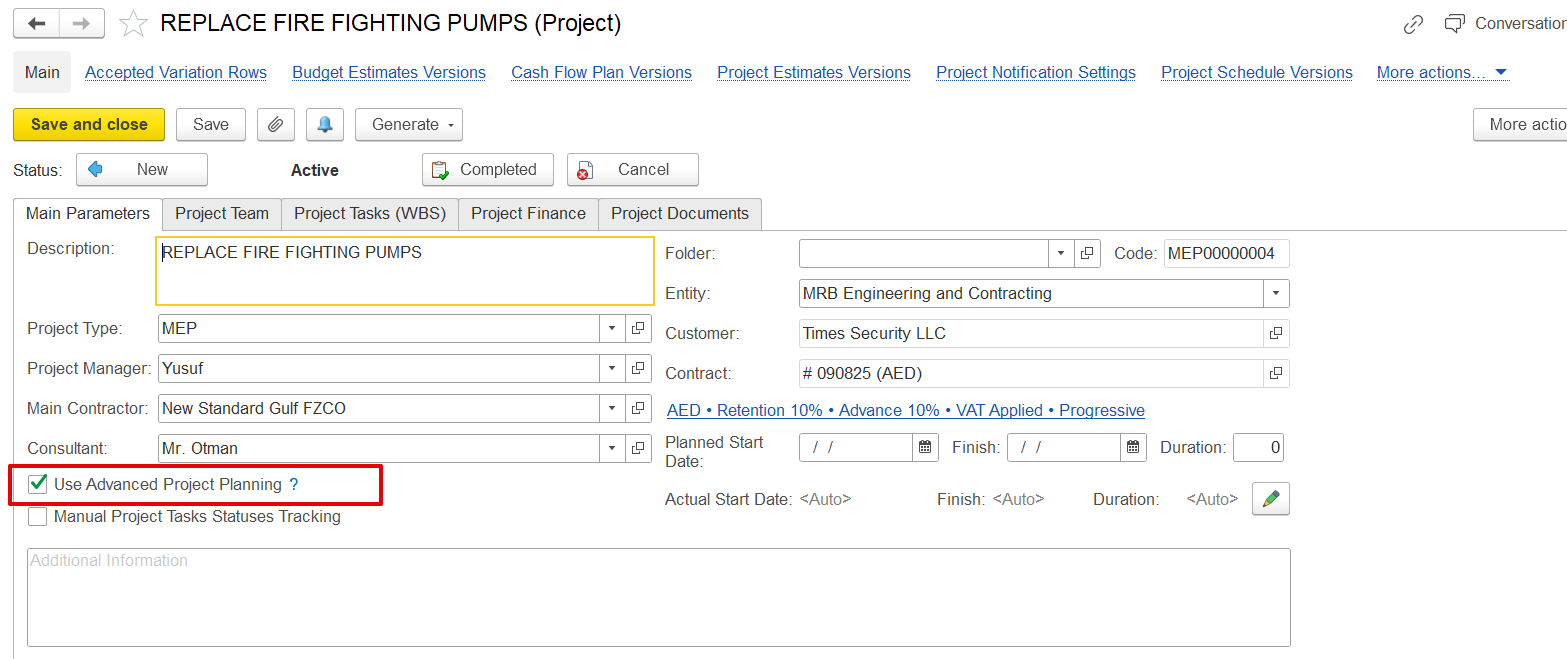
Note: This option becomes available only when "Use Advanced Project Planning" is enabled in both the Contracting Settings and the Project’s Main Parameters page.
2. How to Create the Project Schedule
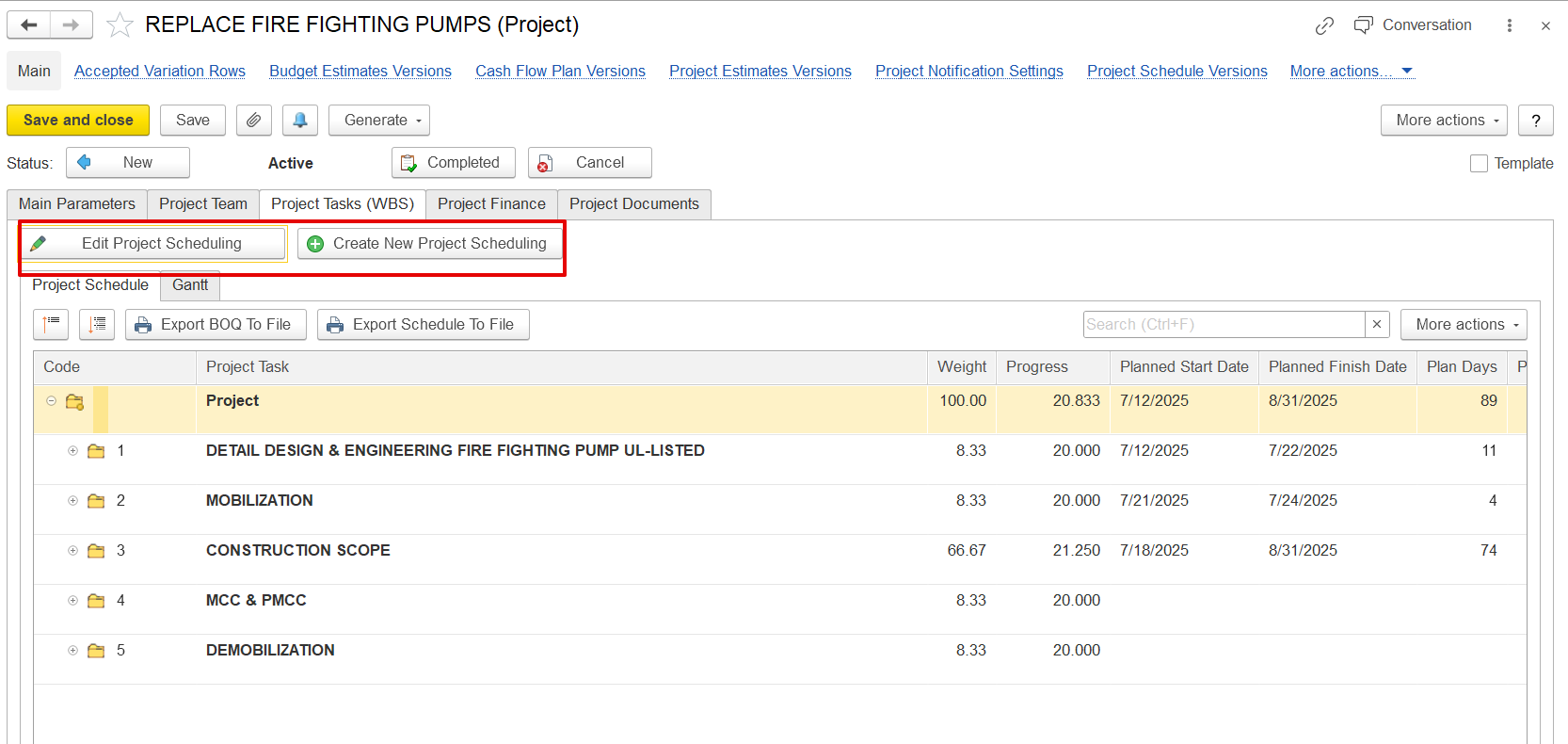
This document can be from two areas:
From the Project screen directly.
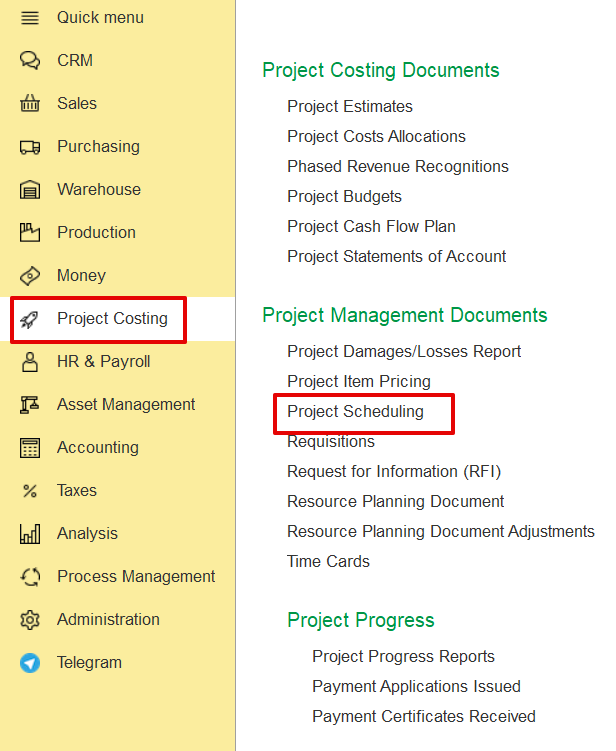
- From the Costing Module:
Go to Project Costing → Project Management Documents → Project Scheduling
3. Main Tab Attributes
Project: Select from available projects.
Planned Start Date and Planned Finish Date: Indicates project duration.
Duration: Auto-calculated from the dates.
Estimation Version: Linked to the latest approved estimation document.
Status Flags: The system will highlight if the estimation has changed and scheduling needs to be updated.
4. Link to Estimation Document & Update Requirement
The schedule is linked to the latest Estimation Document. If changes occur in the estimation (e.g., variation orders, task deletions), the system flags the schedule as outdated.
What happens:
System shows a notification: “Project structure is outdated.”
You are prompted to regenerate or update the scheduling document.
This ensures alignment between project planning and budgeting.
5. Table Section: How to Fill & Columns Explained
The tabular part displays the Work Breakdown Structure from the Estimation. You can:
Add or adjust rows for tasks and subtasks.
Enter or edit:
Task Name
Assigned Person
Start Date
Finish Date
Predecessors (optional)
Status (e.g., Cancelled if removed via variation)
Note: Tasks marked as “Cancelled” reflect changes made in estimation or variation orders.
6. Gantt Chart View (Separate Topic)
The Gantt chart gives a visual timeline of the project.
Allows drag-and-drop of tasks to set dependencies.
Supports predecessor linking (Finish-to-Start, Start-to-Start, etc.).
Scale, Refresh, and Print tools are available.
Visual indicators help you identify cancelled or modified tasks.
7. To-Do Items (Separate Topic)
To-Do Items are generated from the Project Schedule. They represent planned work and are required for:
Generating Progress Reports
Assigning tasks to users
Managing day-to-day task execution
Note: You cannot create To-Do items unless a Project Schedule exists.
8. Import & Export (Separate Topic)
The system allows data import/export from the scheduling screen:
Export to Excel: Helps in reporting or integration with external PM tools.
Import options allow bulk upload of task data (if supported).
Gantt Chart can also be printed with custom layout and selected columns.