-
Created by
 Implementation Department, last updated by Elena Kislitsina on 28 Nov, 2025
5 minute read
Implementation Department, last updated by Elena Kislitsina on 28 Nov, 2025
5 minute read
The report lists the balances for all GL accounts with calculated turnovers for the selected period.
The debits and credits include all business transactions for a company over a certain period.
Trial Balance with Turnover Report is a Table mode representation of General Ledger of the company (Accounting > Reports >Trial Balance with Turnovers).
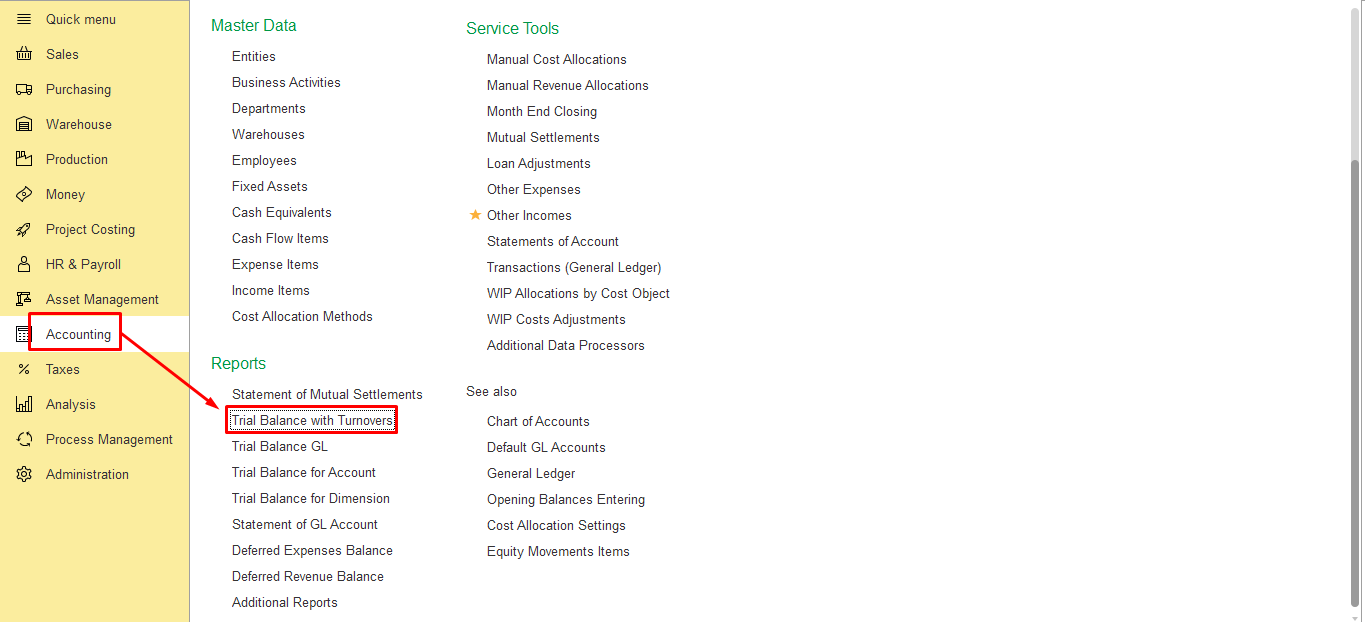
The balances of all GL accounts from the Chart of Account that were involved in the selected period will be shown in this report. The accounts that don’t have any transaction during the selected period will not be shown there.
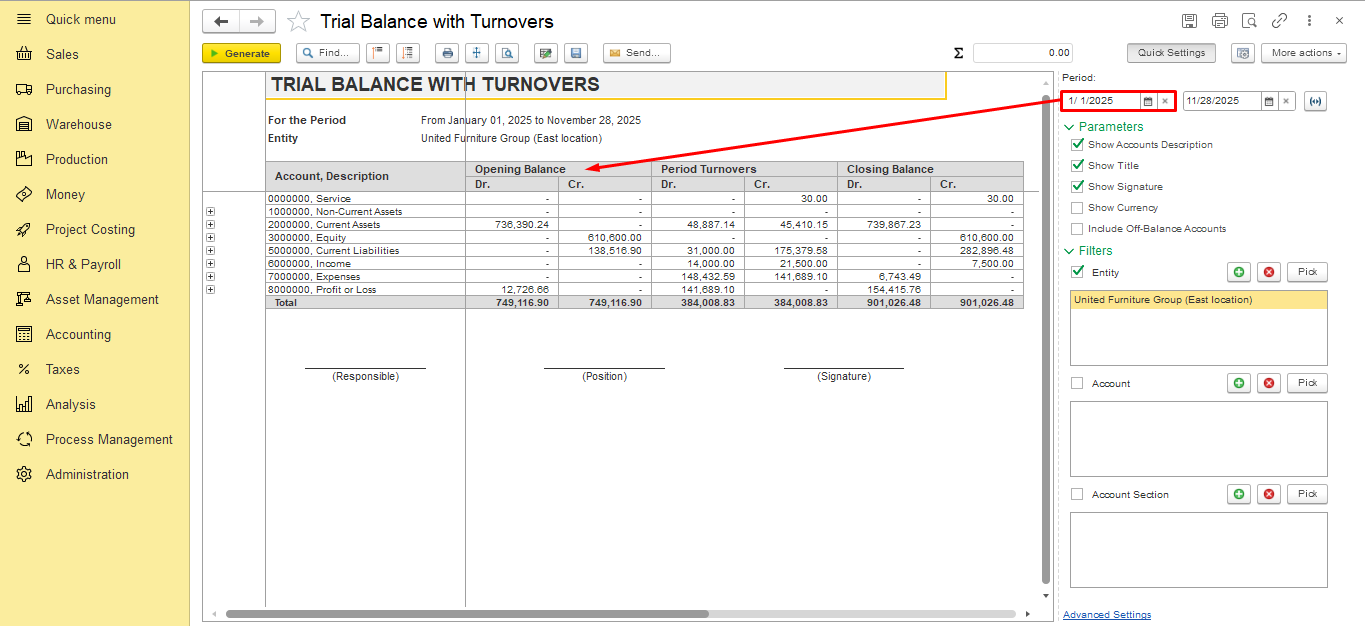
Opening balance column shows the balance of each ledger account on the starting date as the sum of all debits and credits that have been entered to that account based on all related business transactions.
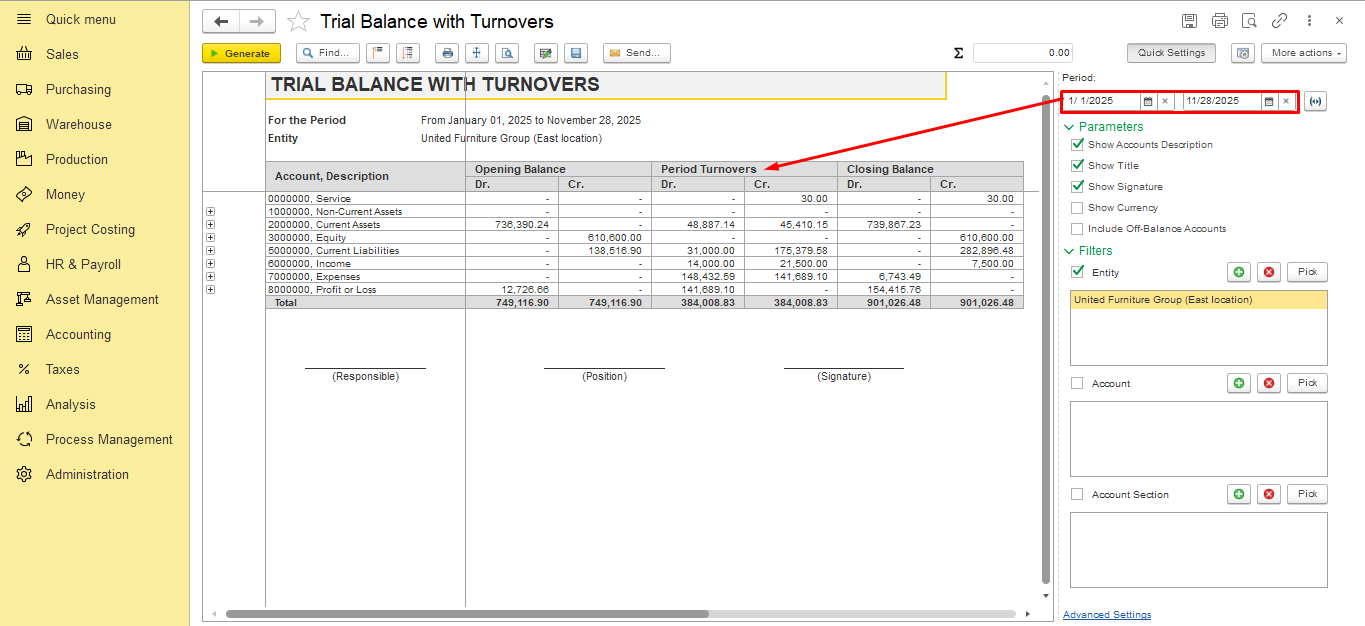
Period Turnovers column shows the sum of all debits and credits that have been entered to that account based on all related business transactions during the selected period.
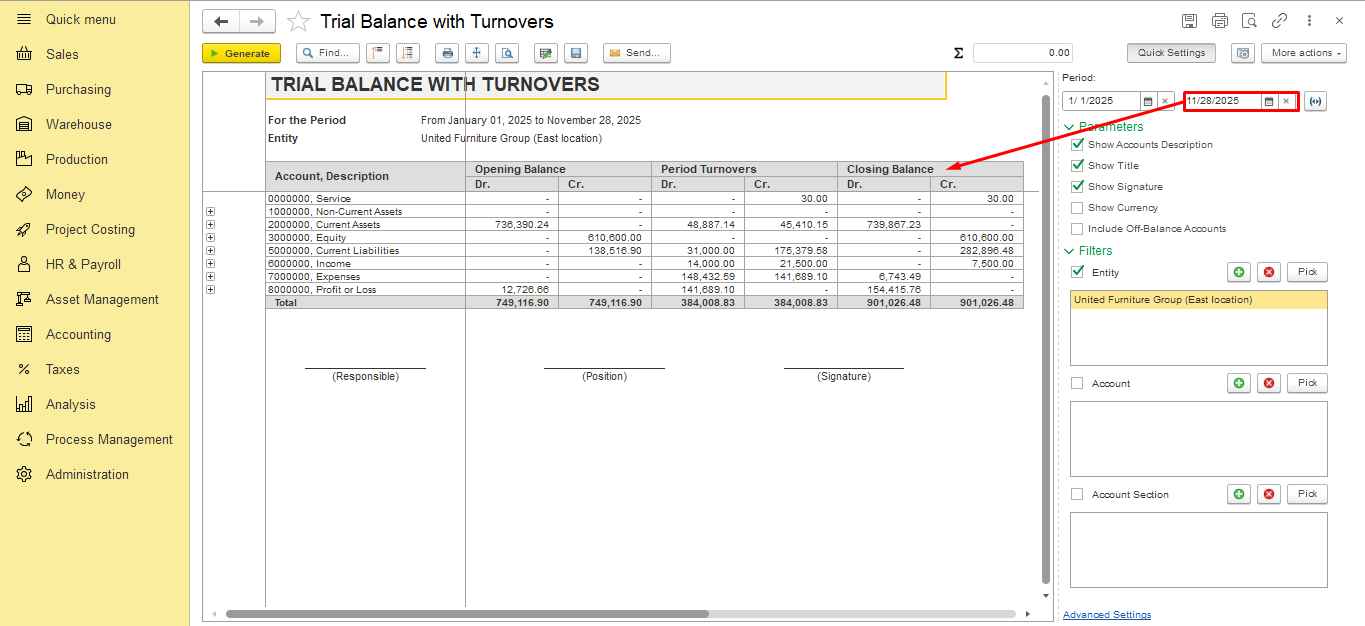
Closing balance column shows the ending balance of each ledger account on the closing date as the sum of all debits and credits that have been entered to that account based on all related business transactions (including the values in Opening balance column).
In FirstBIT ERP records in book are created automatically once you enter the main documents. In order to check which transactions in General Ledger have been created you need to press DR-CR sign (Document’s Register Records) on the header of any document.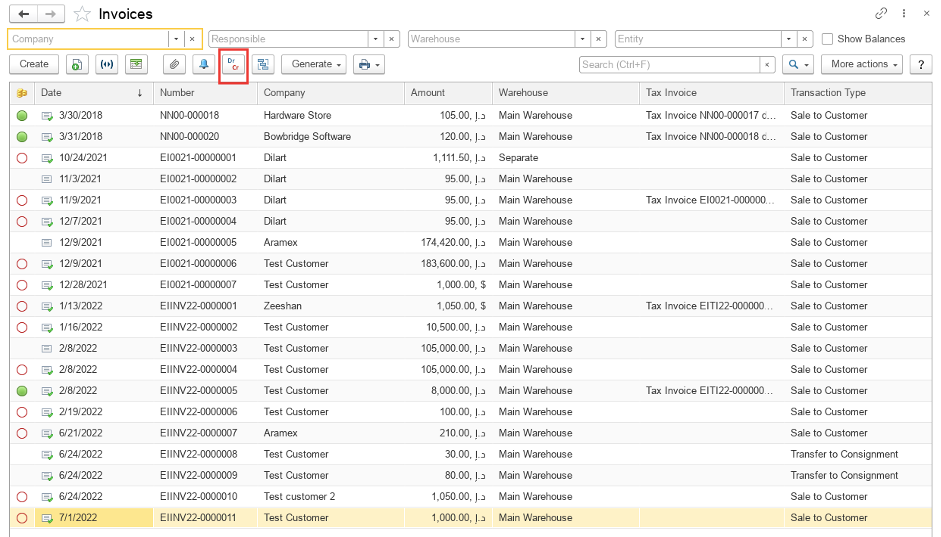
If the document has the reflection in Trial Balance (General Ledger) in Document’s Register Records it should have the Accounting Register ‘General Ledger’ part filled.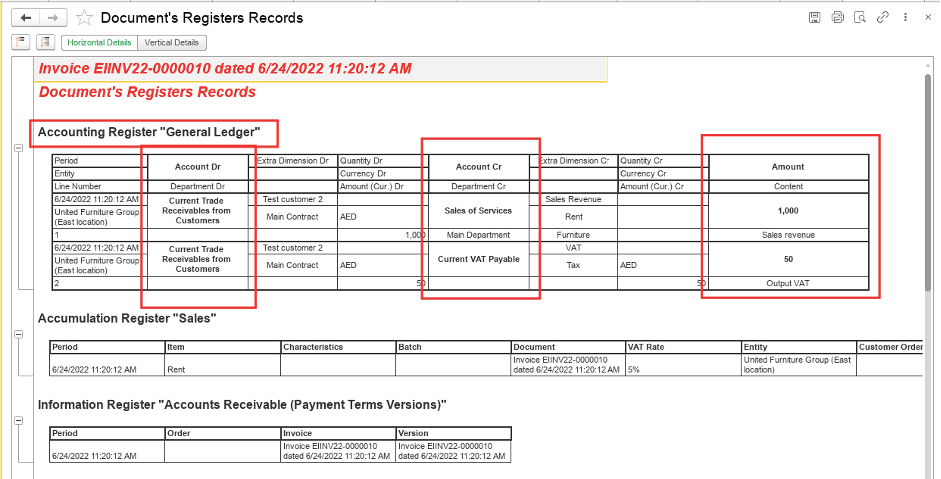
In Trial Balance with Turnovers if you double-click on any value (except Total Values) it will give you the detailed information about this account in two forms: Account’s Trial Balance and Statement of Account where you can see all transactions that are included in the value.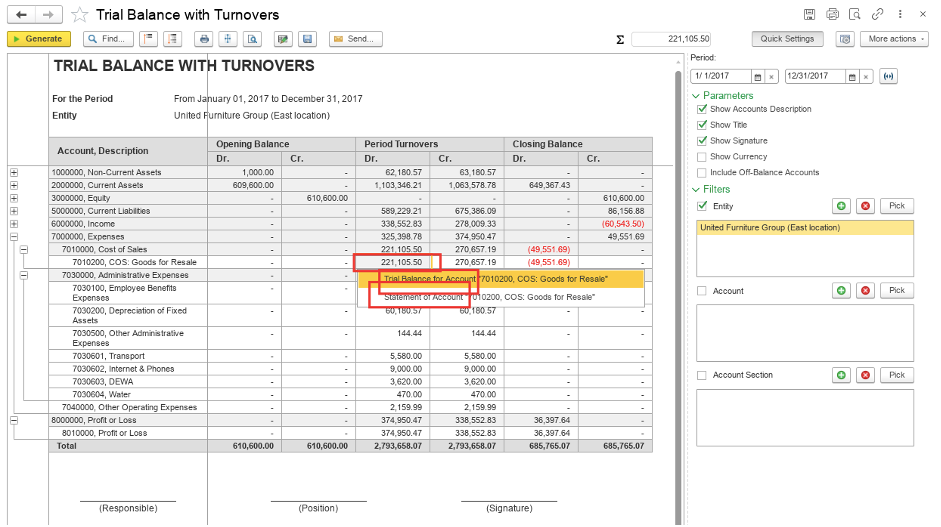
Settings and grouping Trial Balance with Turnovers:
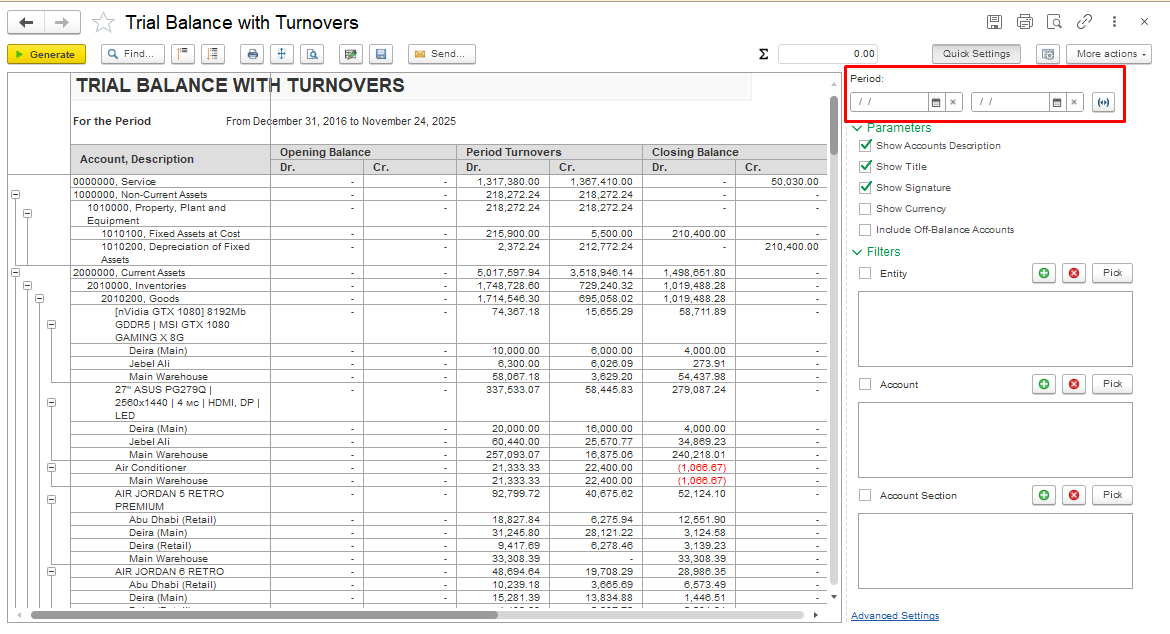
Period - Set the required reporting period (for example: month, quarter, year).
Parameters
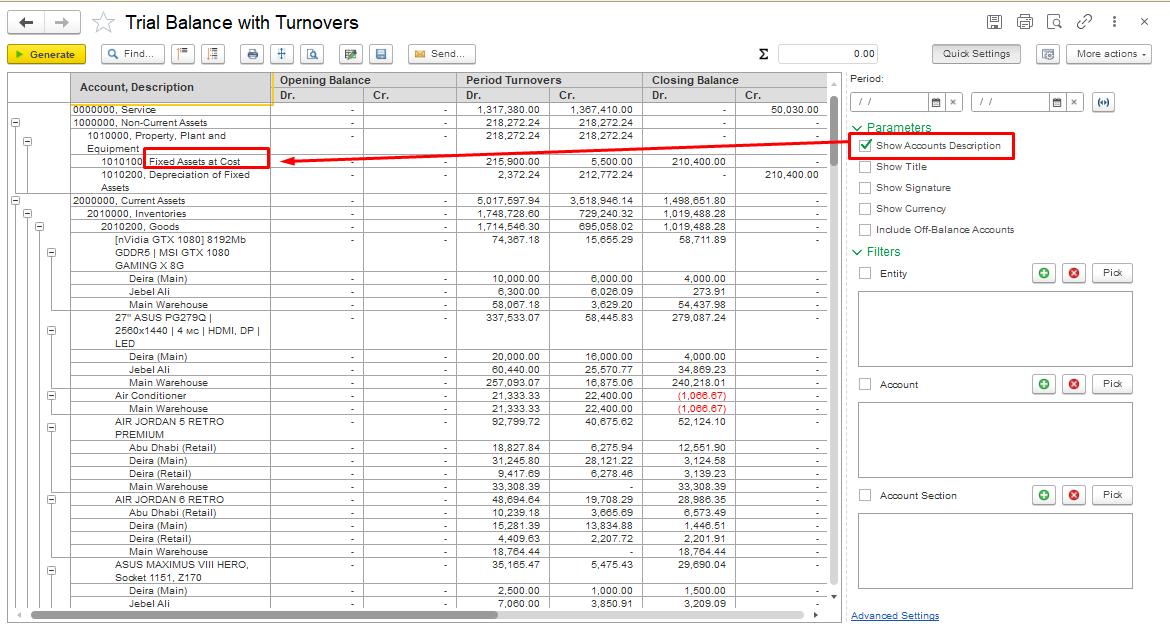
- Show Accounts Description — enabled by default. Displays the account name next to the account number.
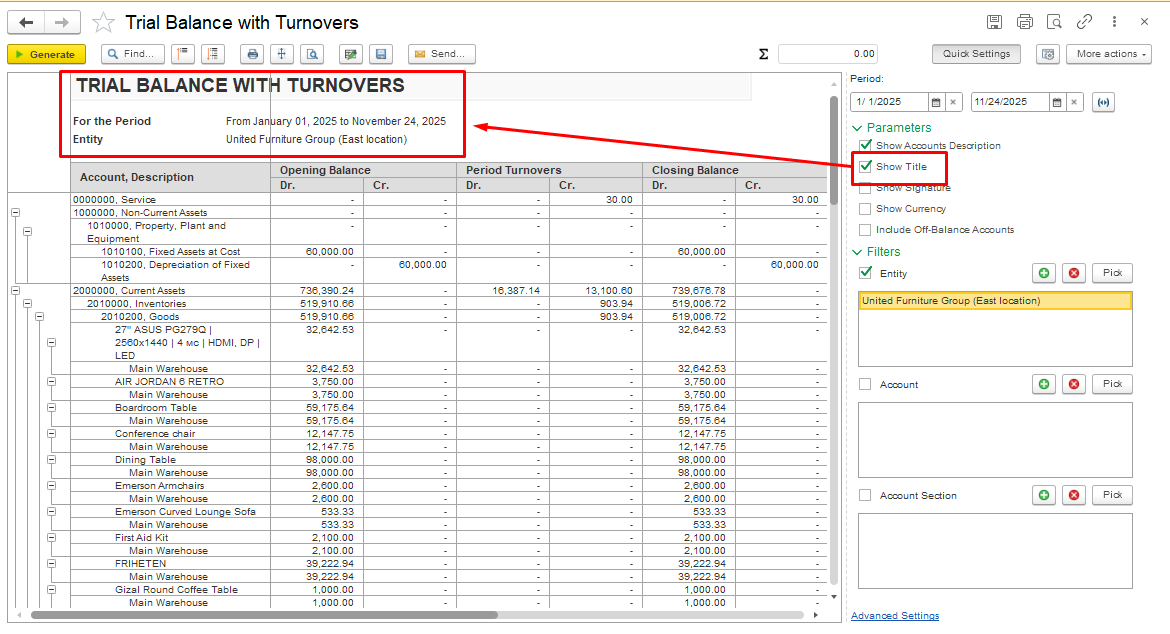
- Show Title — enabled by default. Displays the report title and selected parameters (period, entity) at the top of the report.
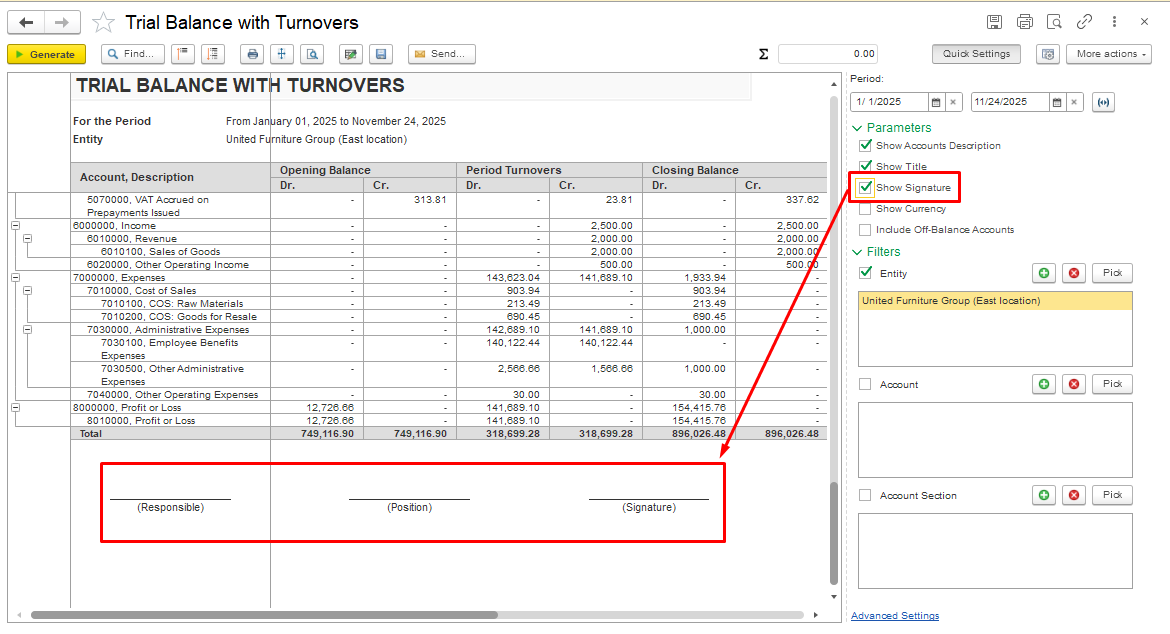
- Show Signature — enabled by default. Adds the signature section at the bottom of the report.
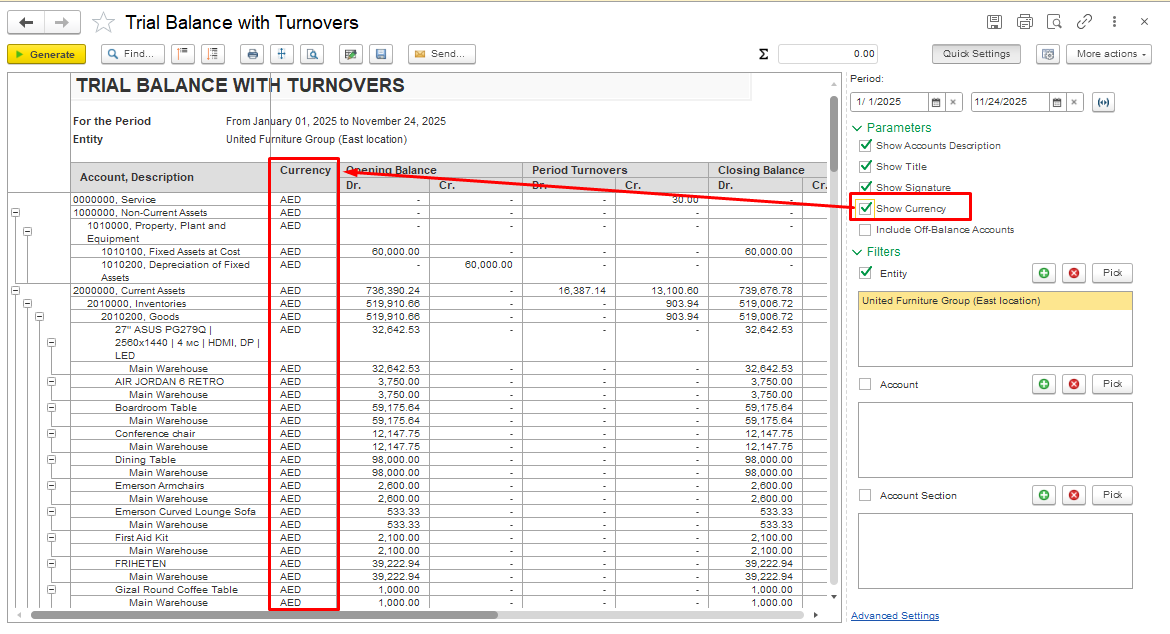
- Show Currency Indicator — enables the display of currency amounts.
- Include Off-Balance Accounts — if this setting is enabled, off-balance accounts are included in the report.
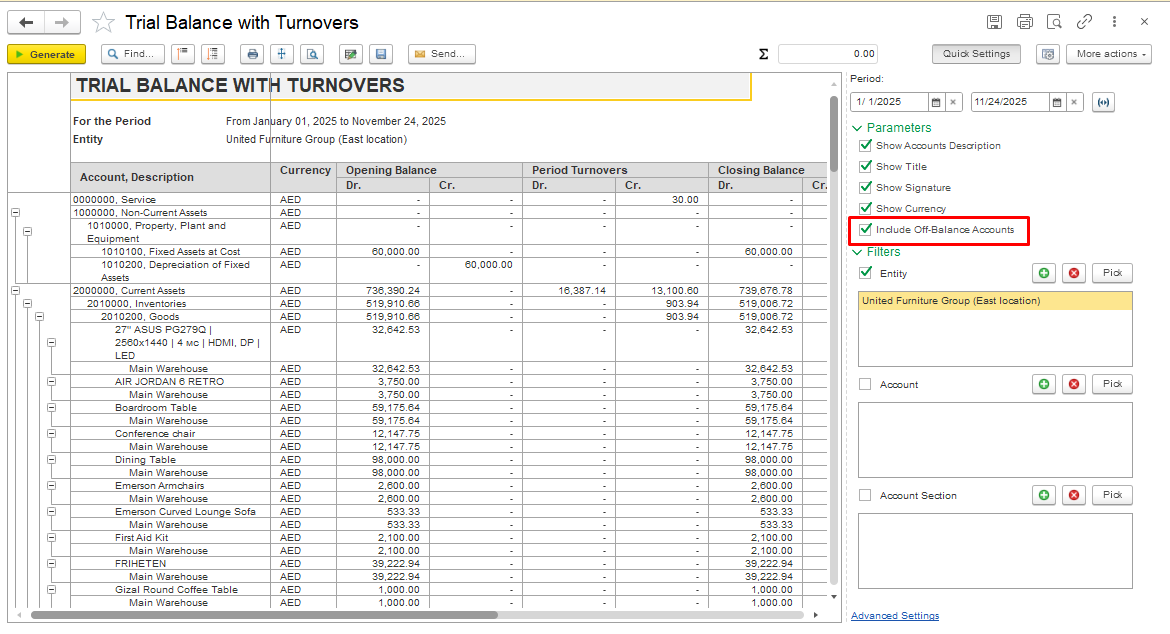
Filters
Entity — filter by organization. To choose an organization, click the green Plus button or the Pick button, then select the required entity in the dialog window and confirm by clicking Select.

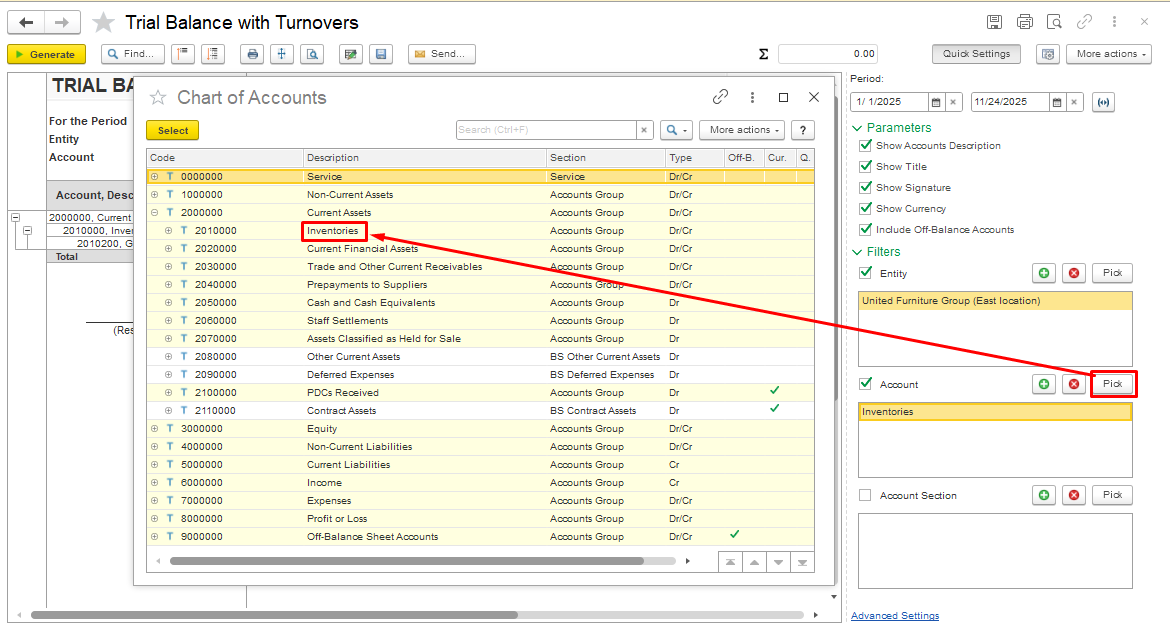
Report Grouping by Accounts
To generate the report for specific accounts or account groups, click the Plus button or the Pick button, then choose the required account in the dialog window and confirm your selection.
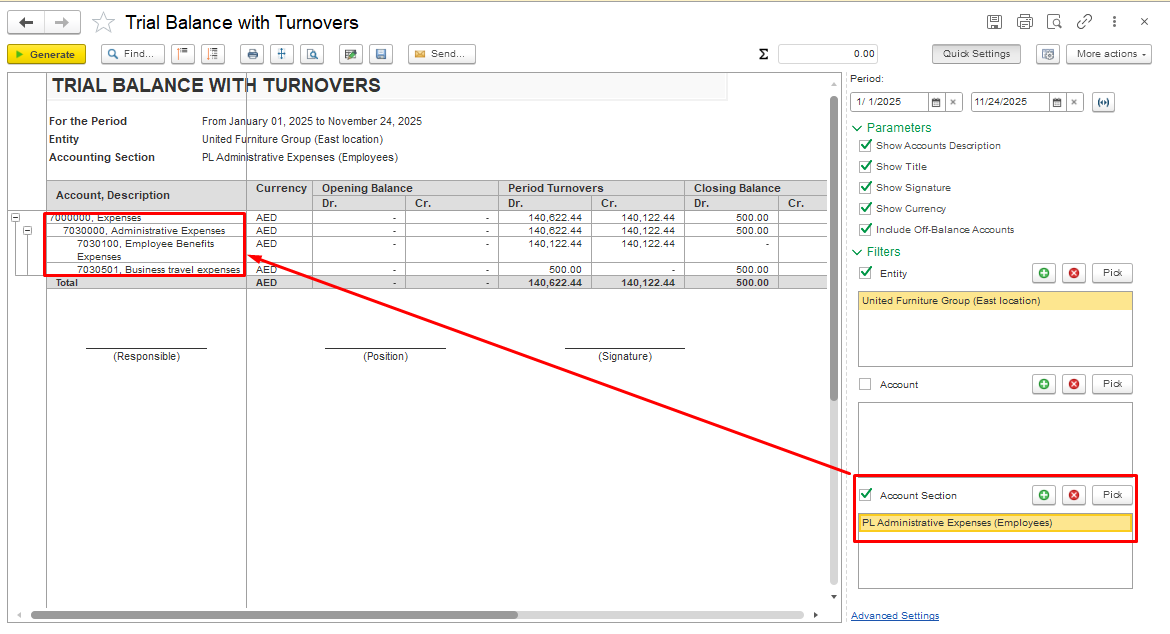
Grouping by Account Section is used for convenience, structured analysis, and clear navigation when the report is generated not for a single account but for multiple accounts or an entire section.
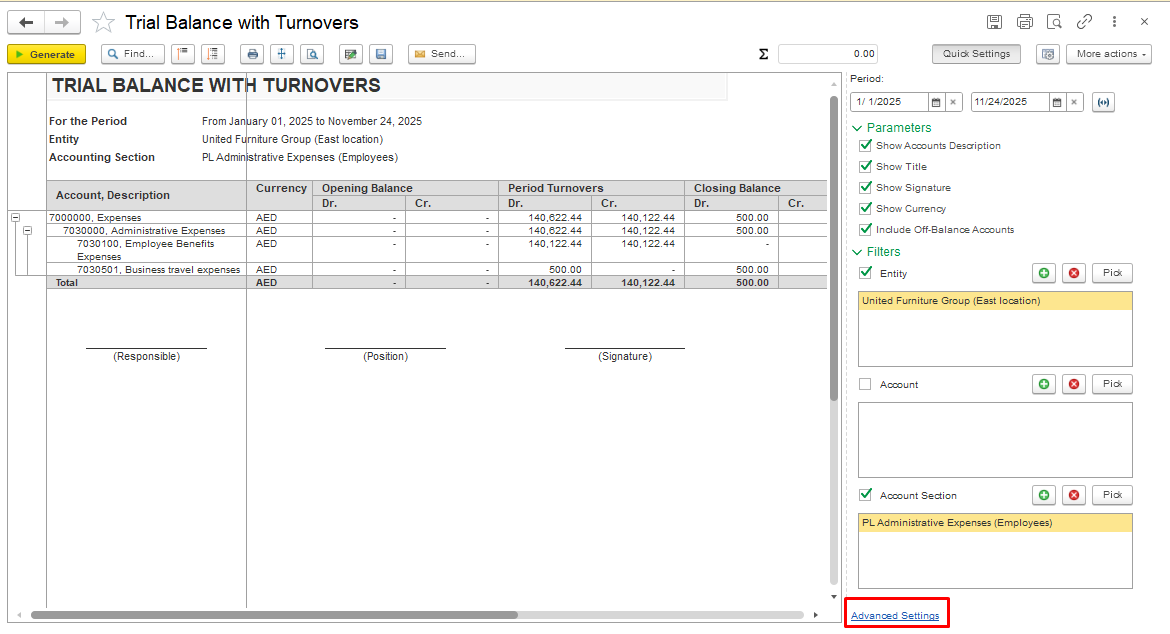
Advanced Settings:
Advanced Settings – opens a form with extended configuration options.
In the Trial Balance with Turnovers report, this form allows you to enable detailed display by dimension for specific types of accounts.
In the Advanced Settings dialog box, add the required account and dimension. To do this, you can use the Add button and select the account from the pop-up list,
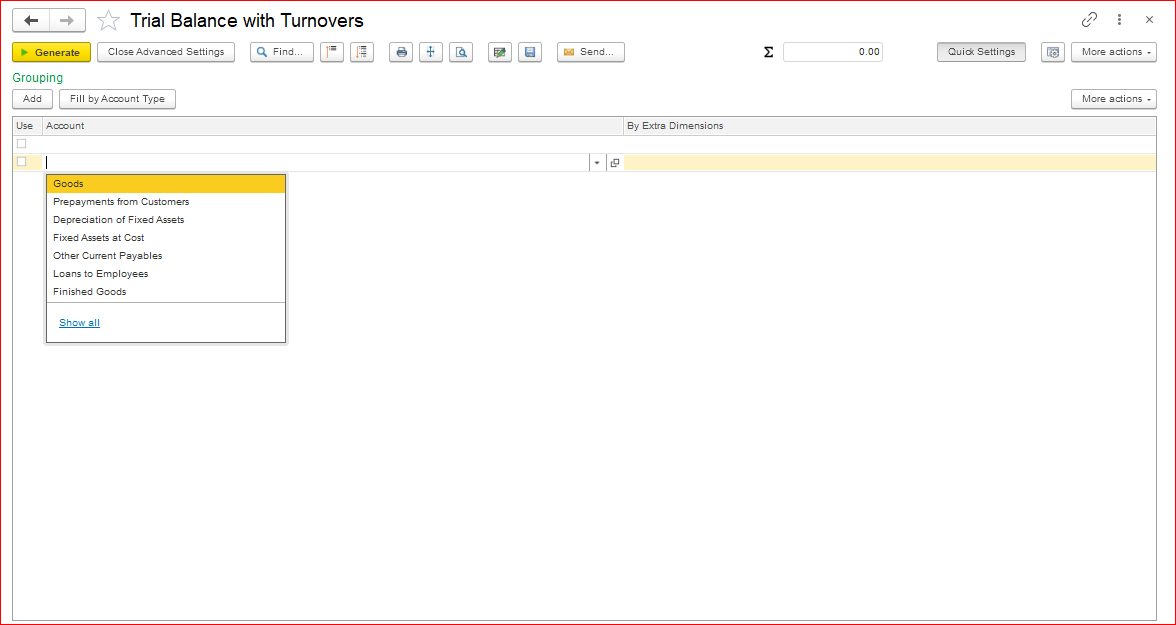
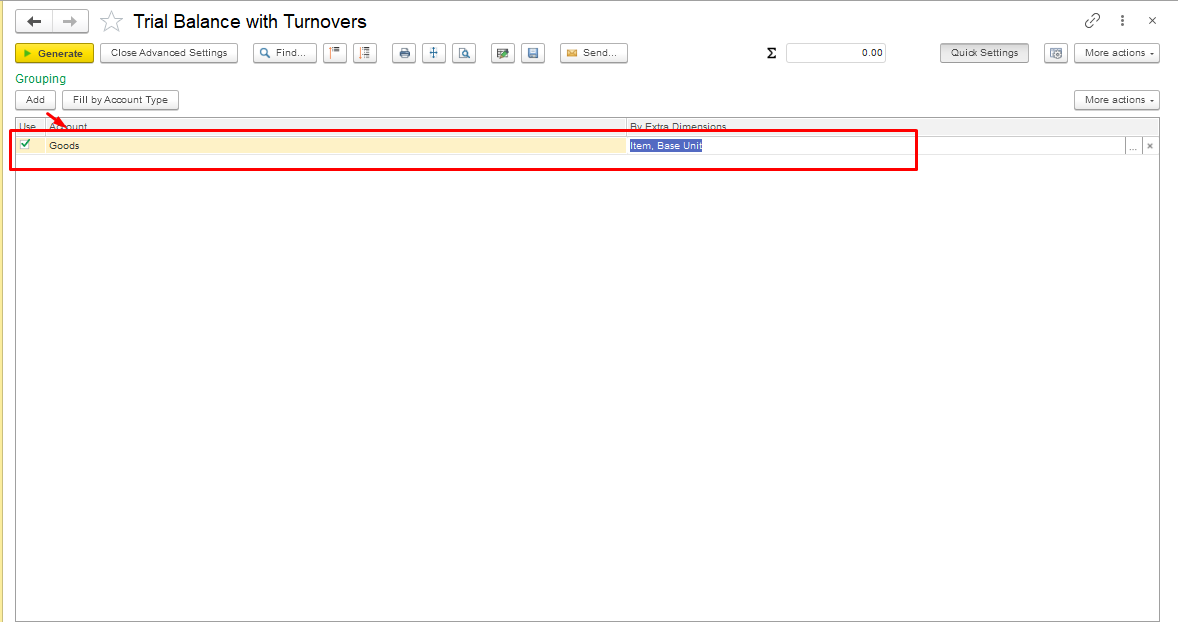
or click Fill by Account Type and choose the Account Section in the new dialog window and confirm your selection.
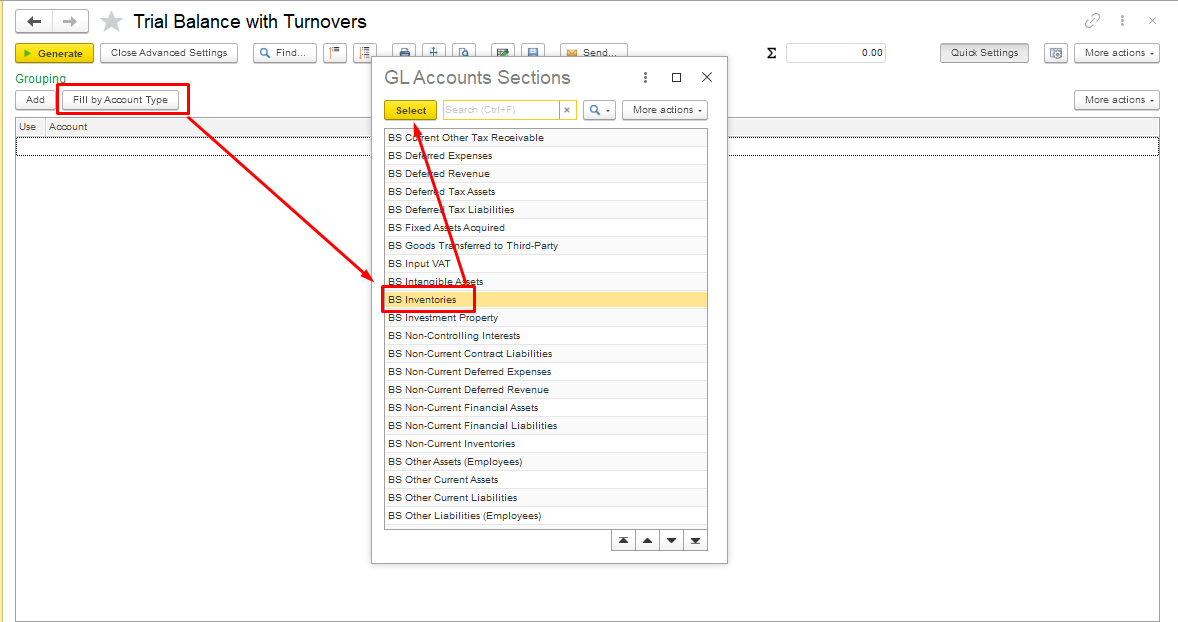
The system will populate all accounts that belong to the selected Account Section. When an account is selected, the list of dimensions is filled in automatically.
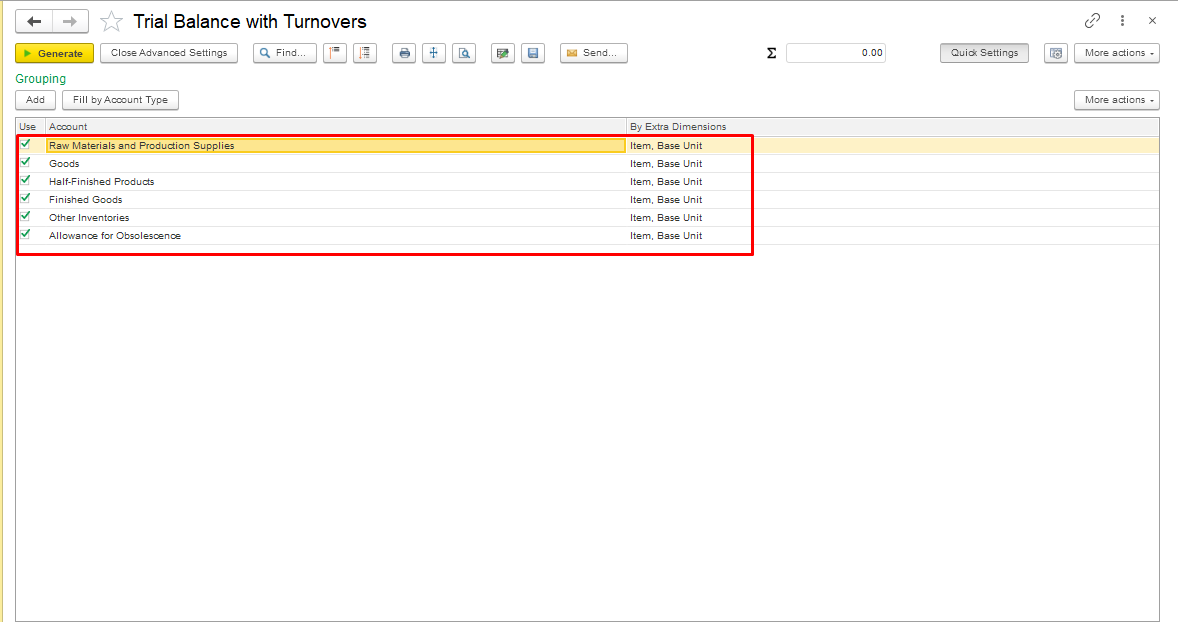
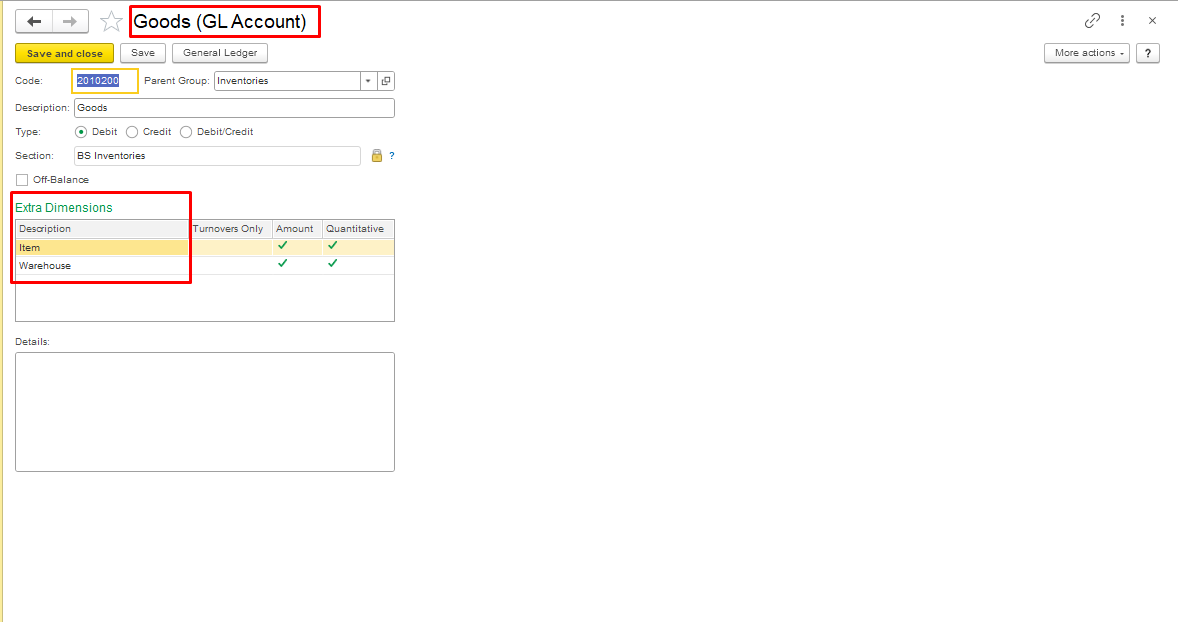
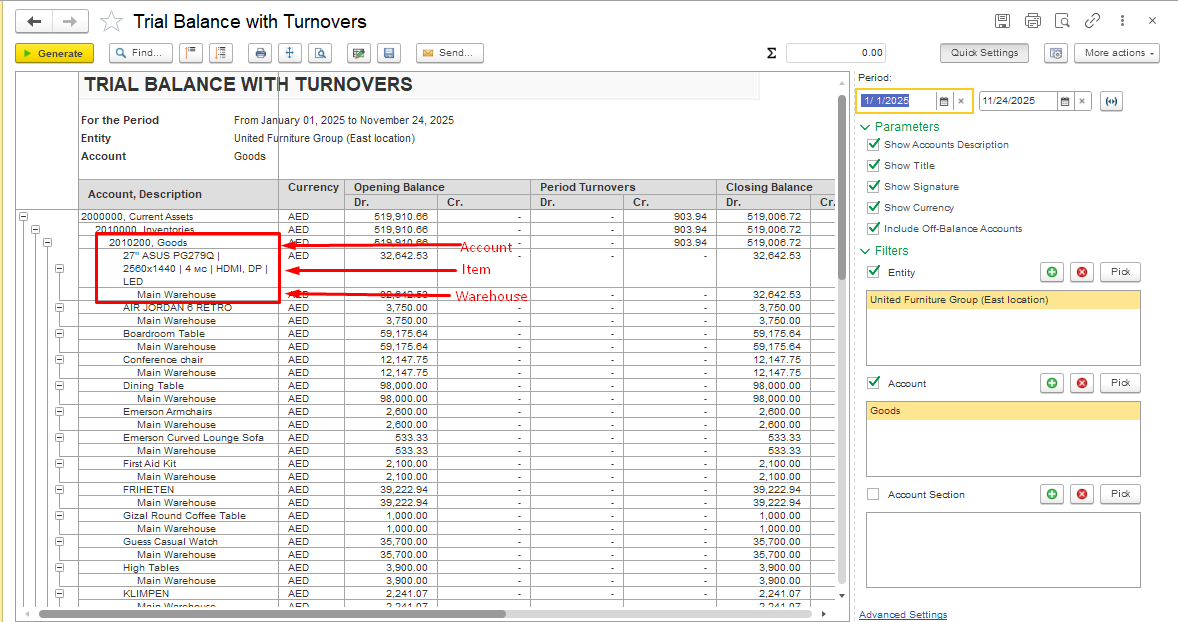
For example, for the Goods account, the system has Item and Warehouse dimensions set by default.
This way, the Trial Balance will now display not only the account but also the Item and Warehouse.
Thank you for being a FirstBit customer!
#trialbalance #trialbalancewithturnovers #settingsoftrialbalance#groupinginthetrialbalance