Source
- will show registered expenses from selected period by list of expense items.
Allocation
- Allocation source
- Allocation results
- Fill and Allocate button.
- Allocate by time cards.
Direct costs are expenses associated with employee or fixed asset resources (for example, an insurance or maintenance invoice received) that can be charged to projects. These costs must be recorded using the appropriate GL account and section. Although they are tied to a resource, if they haven’t been assigned to a specific project yet, they can be allocated across projects using this document, potentially based on time card data.
How to create
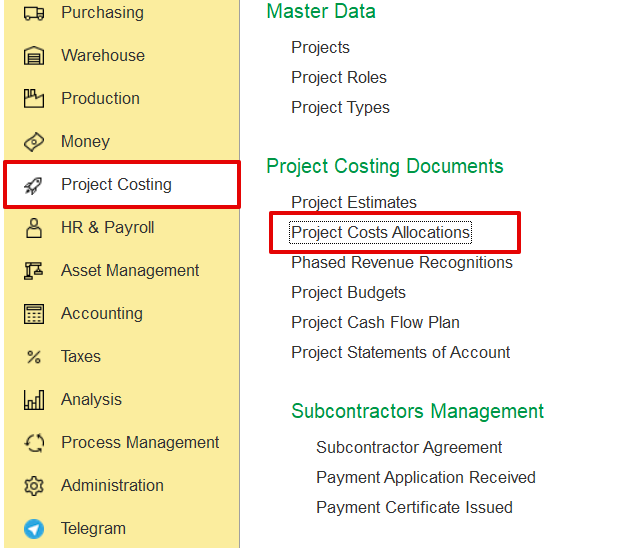
To access Project Costs Allocation, go to Project costing → Project Costing documents → Project costs Allocations
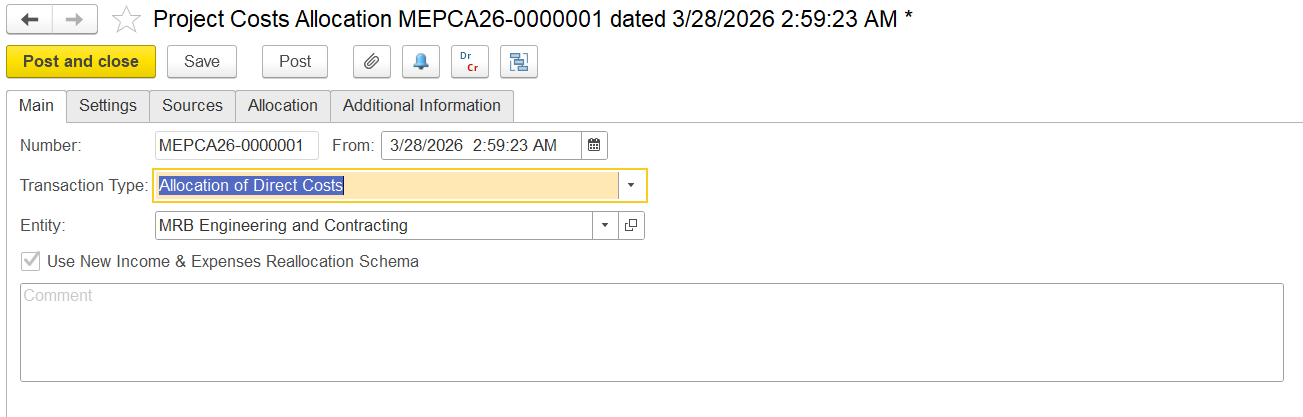
Main tab
On this tab, users can specify the general information for the project cost allocation document, i.e., the date, entity, and transaction type.
Settings Tab
This tab defines how direct costs are allocated to projects.
- Analyze data from- Select the time period when the expense occurred.
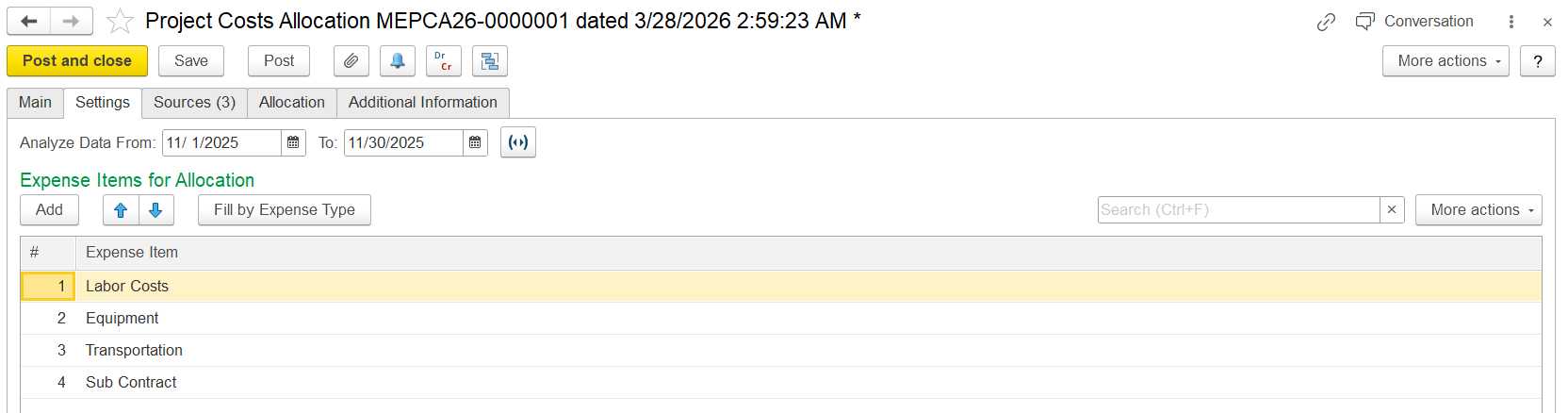
- Expense Item for allocation - Specify the expense type for allocation.
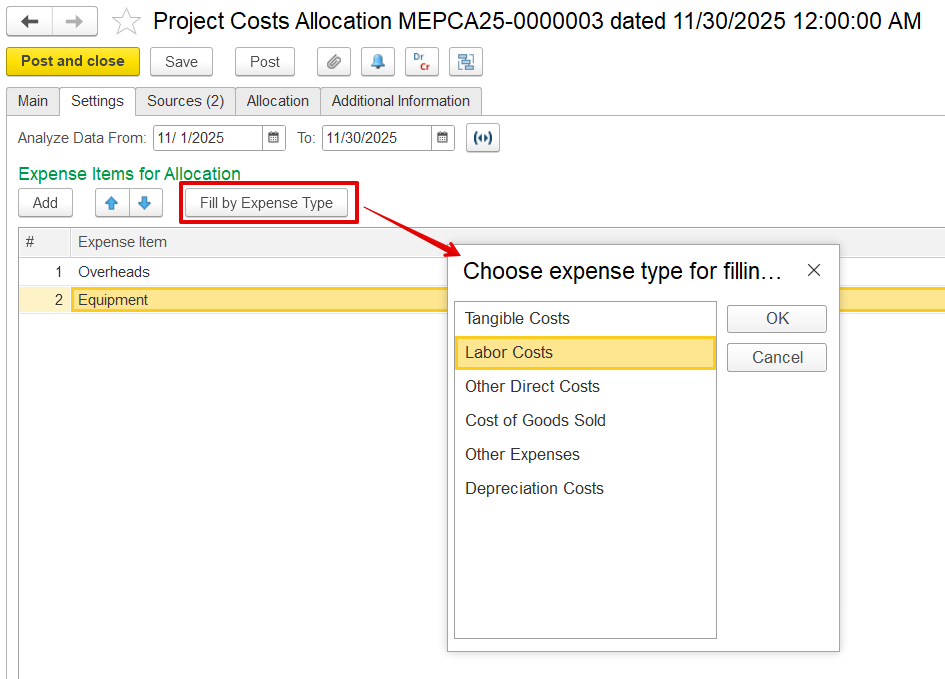
- Add - It is used to add the expense item manually.
- Fill by Expense Type - This option lets users select an expense type and automatically populate the list of relevant expenses for allocation based on the chosen category.
Source Tab
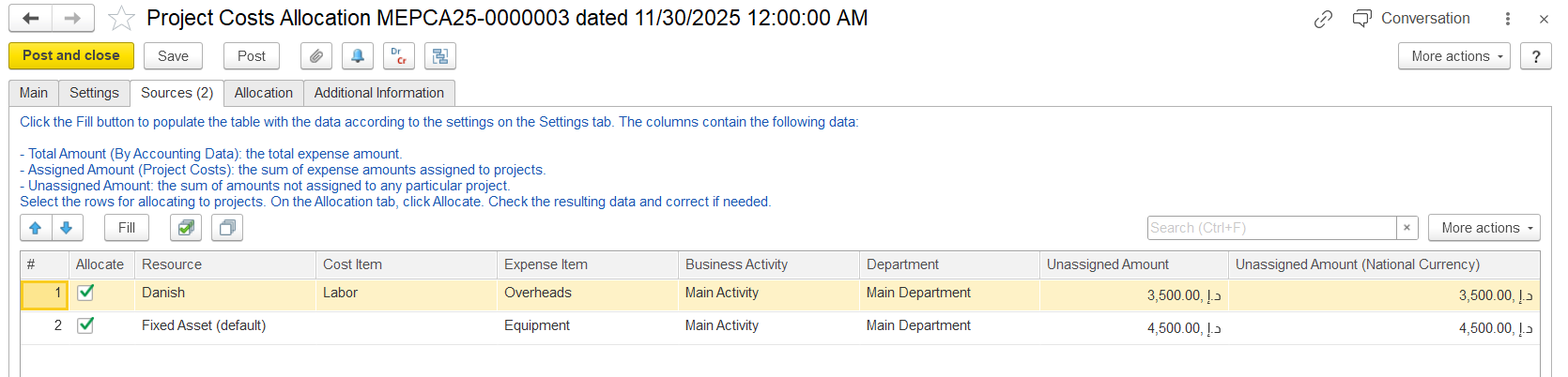
This tab lists all available expenses for allocation, based on the settings defined in the Settings tab.
- Allocate - Checkbox to include this row in allocation. Only checked rows will be distributed to projects.
- Resource - The type of resources, such as Employee or Fixed asset.
- Cost Item - The type of cost recorded
- Expense Item - Expense type
- Business Activity / Department - Context for cost allocation.
- Unassigned Amount - The portion of the expense that has not yet been allocated to any project.
- Unassigned Amount (National Currency) - Same as above, shown in the local currency.
Allocation Tab
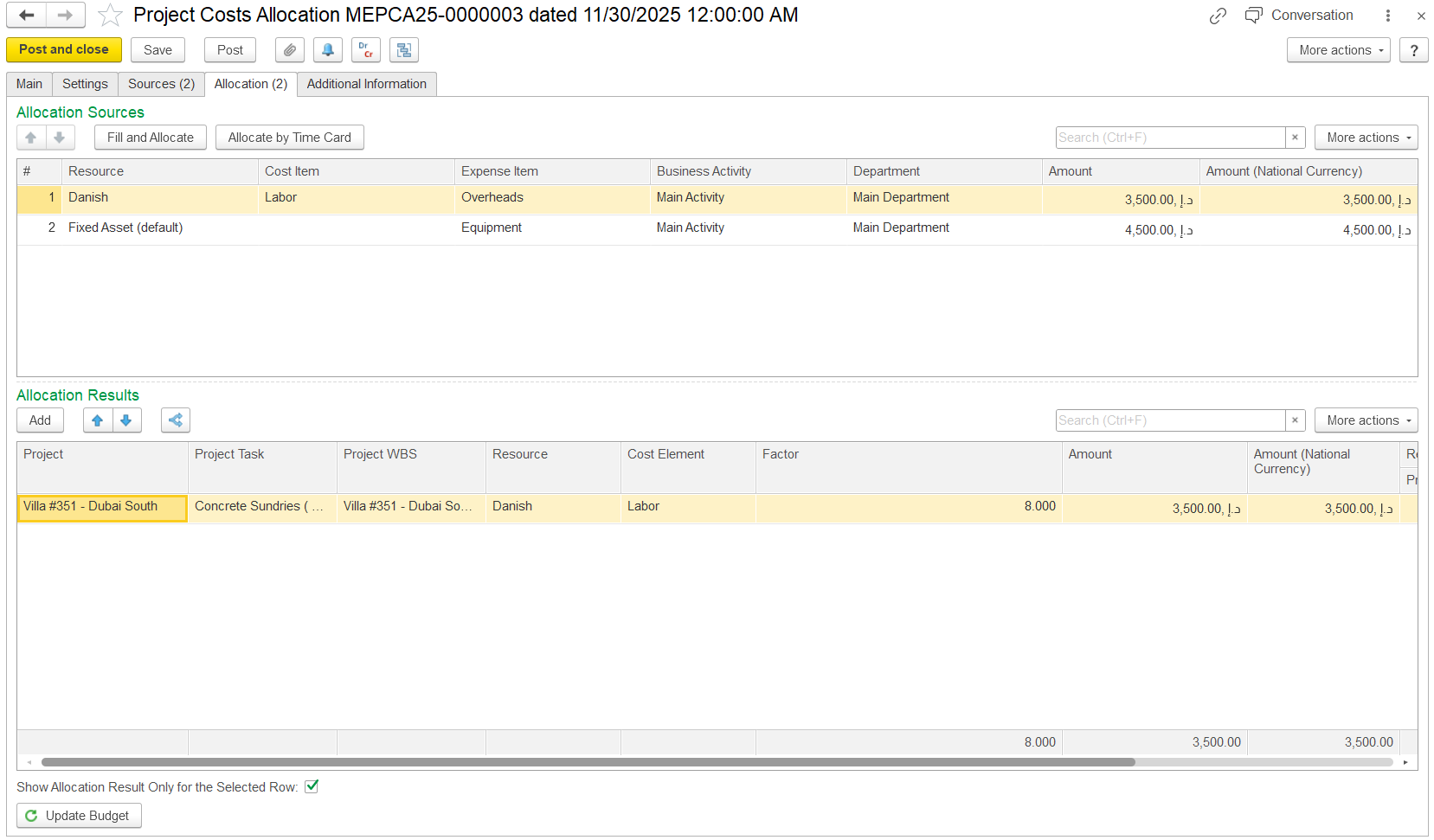
The Allocation tab displays selected allocation sources in the upper pane and the allocation results in the lower pane.
Click Fill and Allocate to copy the selected sources and distribute the costs based on the Settings tab. You can edit the sources or adjust the amounts in the upper table if needed.
Allocate by Time Card- This method uses actual employee time sheets. The system automatically distributes the cost based on the number of hours worked on each project or task.
If the Show Allocation Results only for the Selected Row checkbox is not selected, the lower pane shows results for all costs. If it is selected, only the results for the chosen cost in the upper pane are displayed.
For better accuracy, it is recommended to review and adjust allocations one cost at a time by selecting the checkbox and analyzing the selected cost in the lower pane.
- Fill and Allocate - This method uses manual rules, such as factors or percentages. You decide how the total cost is divided across projects or tasks. It is mainly used for planned or overhead allocations.
- Allocate by Time Card- This method uses actual employee time sheets. The system automatically distributes the cost based on the number of hours worked on each project or task.