-
Created by
 Elena Kislitsina, last updated on 29 Apr, 2026
3 minute read
Elena Kislitsina, last updated on 29 Apr, 2026
3 minute read
Problem: During inventory write-off, items are added to the document lines even though there is no available stock on hand.
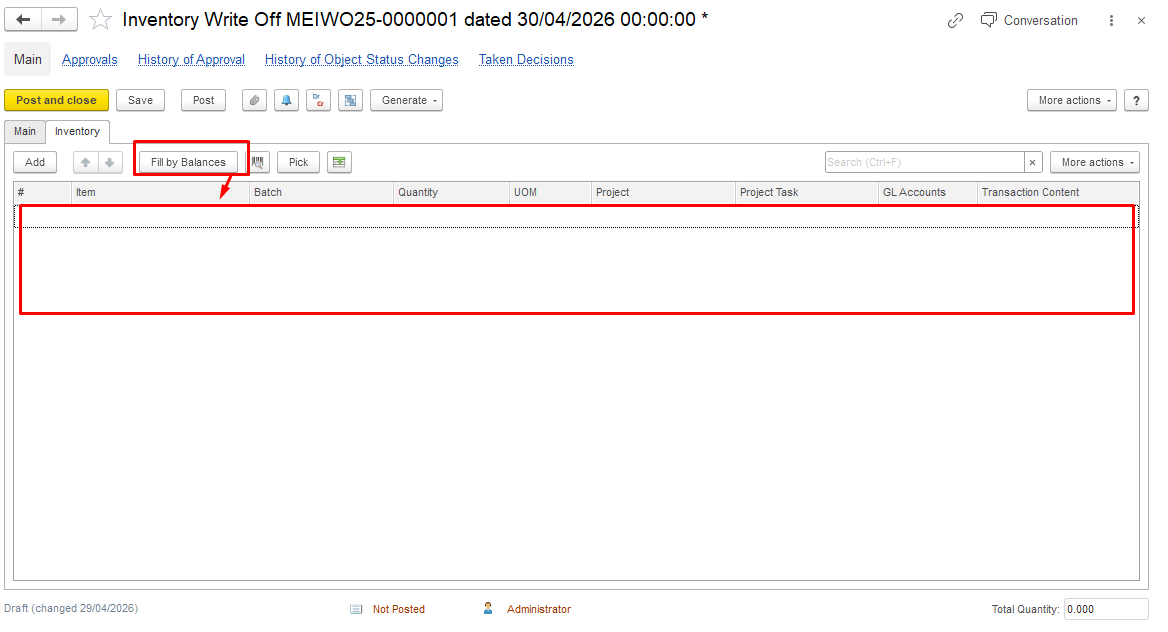
When creating an Inventory Write-Off and using the Fill by balance option, items may appear in the document even though they are not physically available in stock.
For example, a company purchased 5 units of an item, and later all 5 units were fully sold. As a result, the actual stock balance of this item is zero.
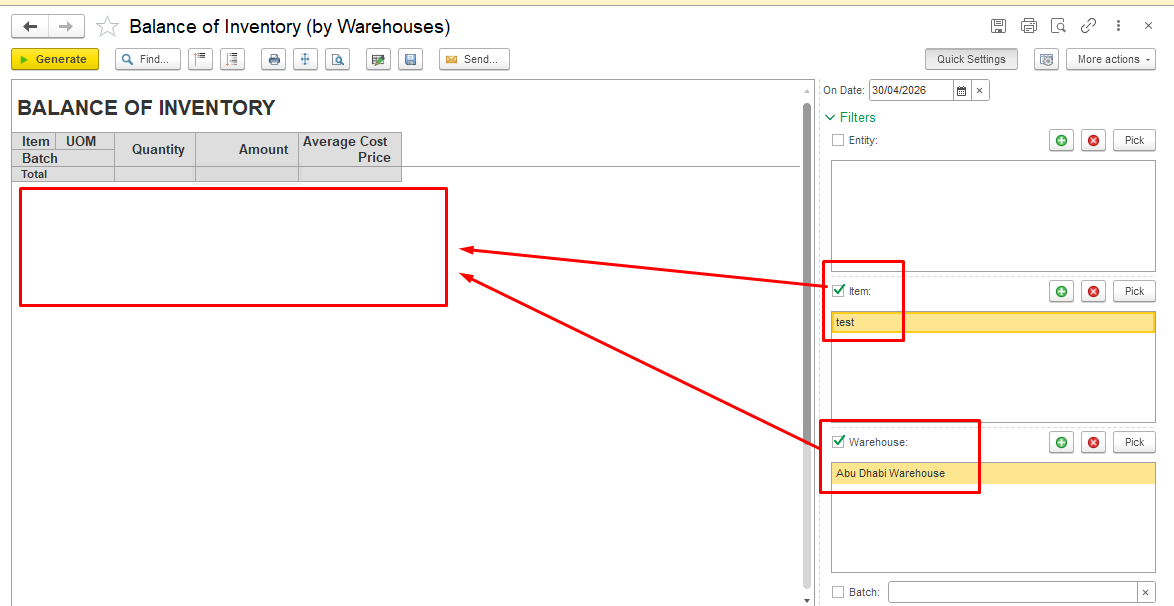
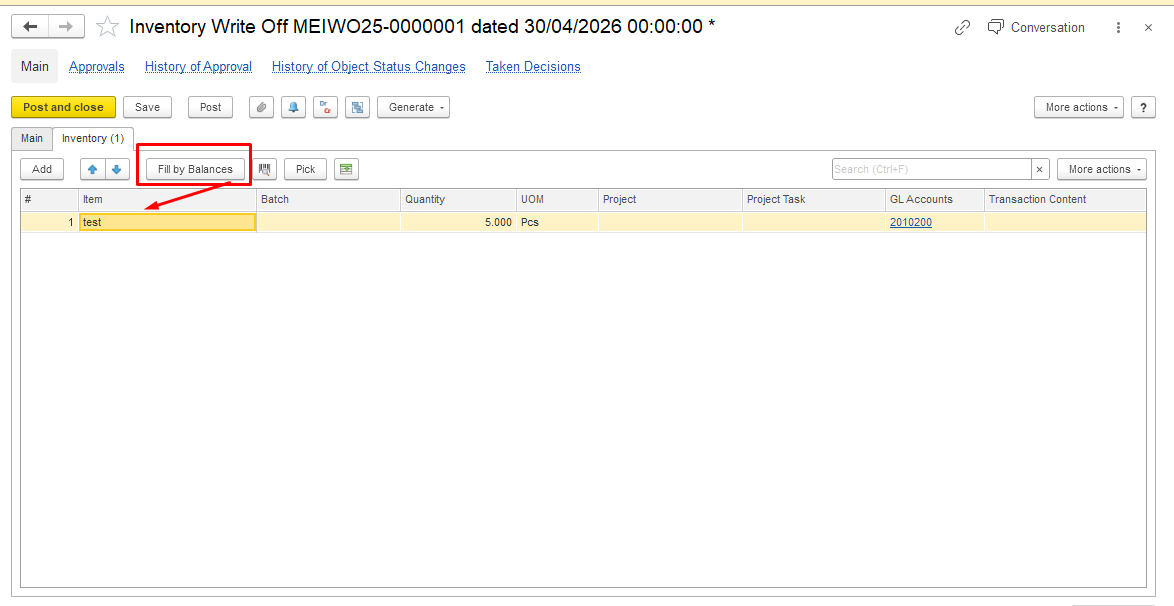
However, when creating an Inventory Write-Off document to write off other materials, this item is still automatically pulled into the document lines when using the Fill by balance option, even though there is no physical stock available.
This behavior is related to warehouse settings. Please check if the Separate Inventory and Financial Documents option is enabled.
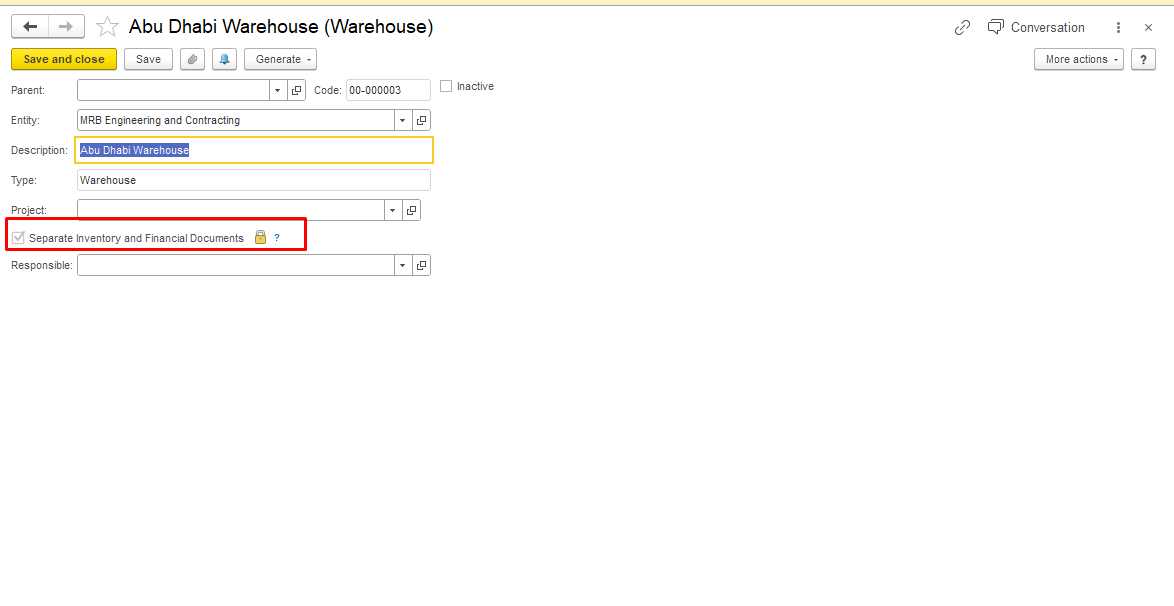
When the Separate Inventory and Financial Documents option is enabled, the system does not write off items from the warehouse (stock) registers.
To ensure that the item is properly written off from inventory registers and does not appear in the Inventory Write-Off document, an additional Material Dispatch Note must be created.
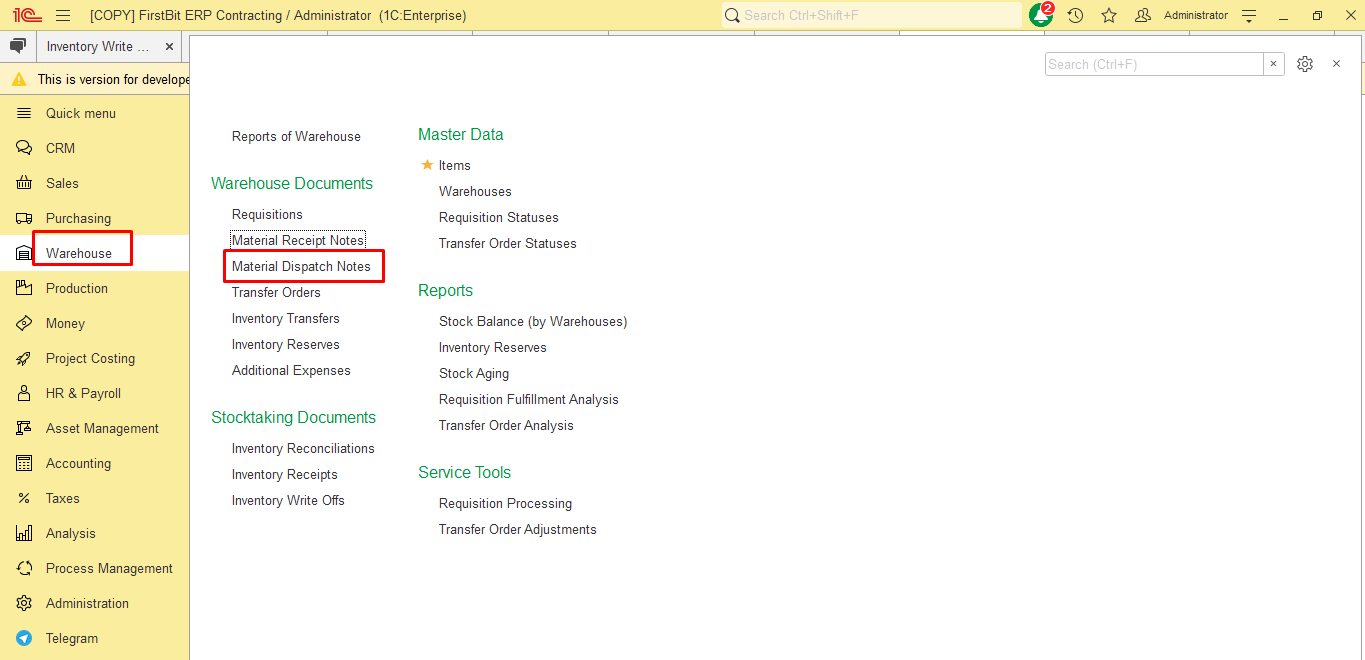
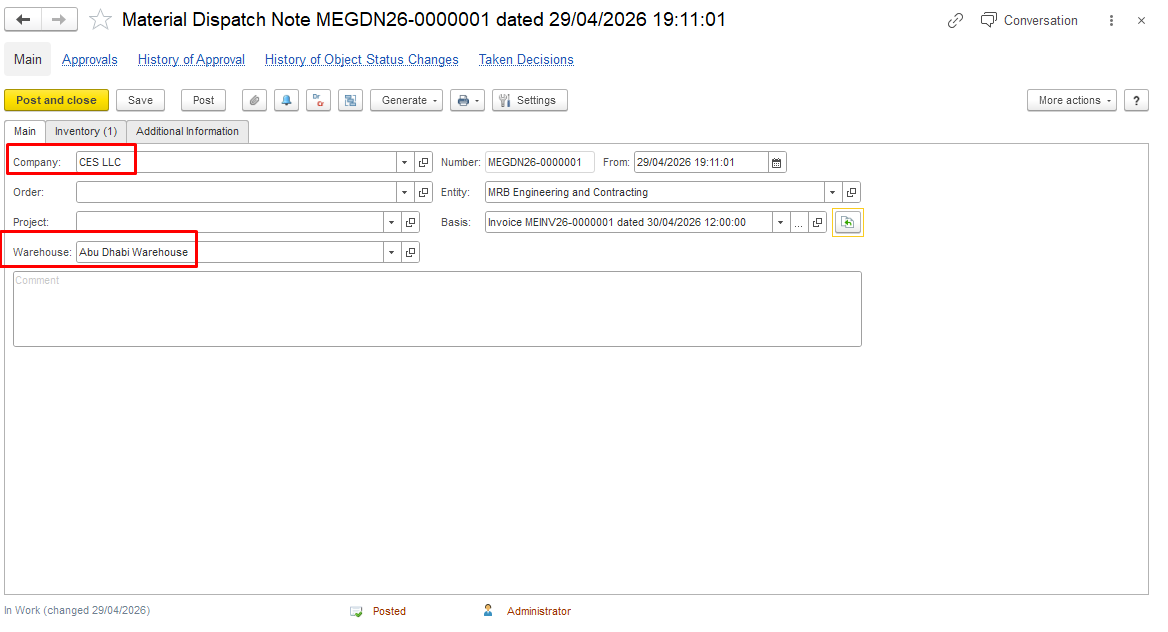
Go to Warehouse module - Warehouse Documents - Material Dispatch Note, and create a new document.
Fill in the Company field and select the required Warehouse on the main tab.
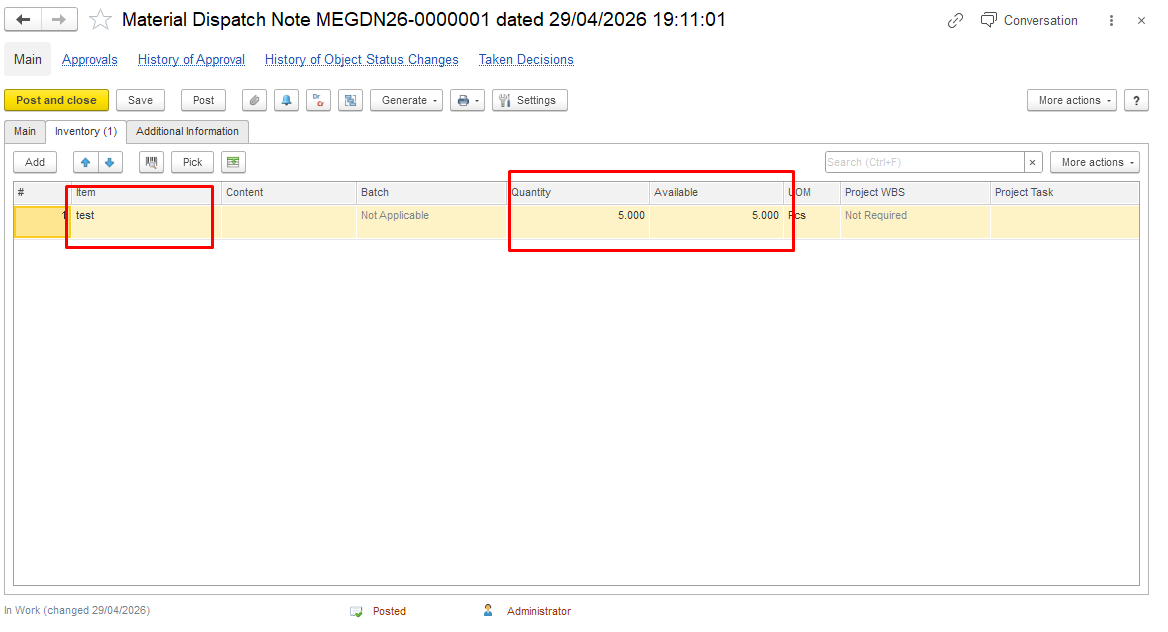
On the Inventory tab, specify the item and the quantity of goods sold. Save and post the document.
Then proceed with the Inventory Write-Off. The sold items will no longer appear in the Inventory Write-Off document.
Thanks for being a Firstbit Customer!
#inventorywriteoff #meterialdispatchnote