-
Created by
 Daria Tikhova, last updated by Olga Kaya on 27 Aug, 2026
3 minute read
Daria Tikhova, last updated by Olga Kaya on 27 Aug, 2026
3 minute read
Case: A user does not have access to a specific section but needs permission to read and edit a particular object that belongs to that section.
Example:
A user does not have access to the Sales and Purchasing sections but needs permission to read and edit the Companies master data.
For instance, User Carl has an HR Manager access profile only.
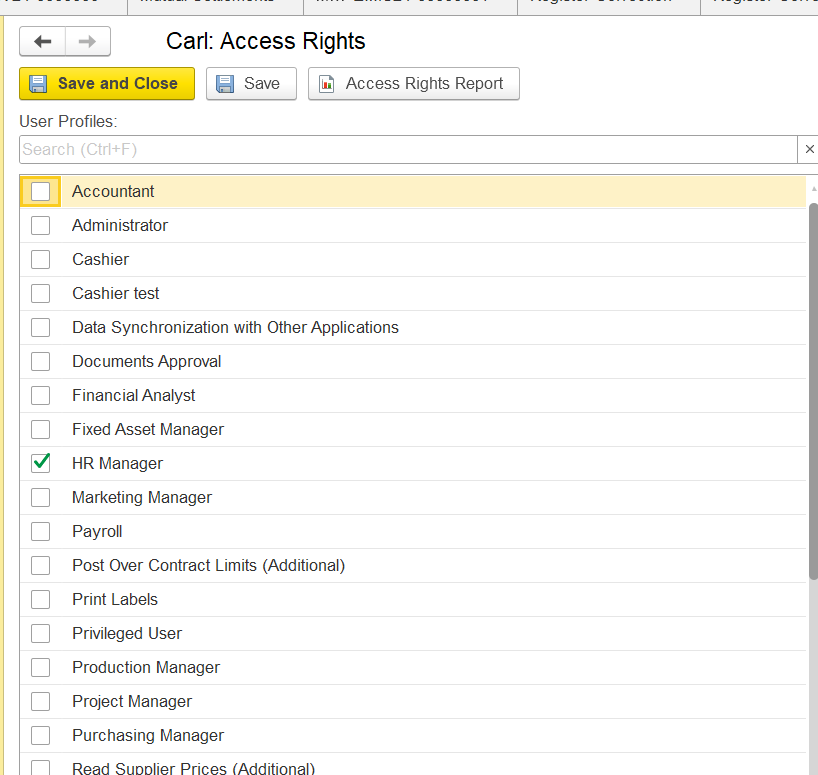
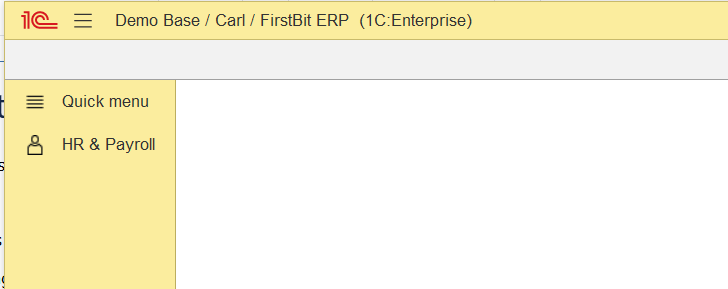
Configure the Required Access Rights
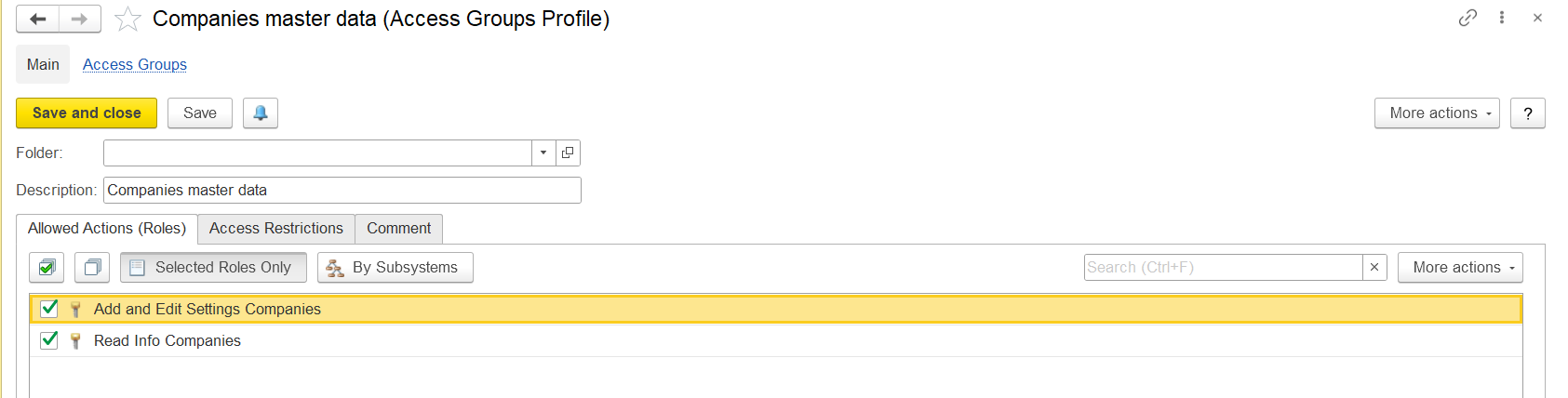
In Administration → Master Data → Access Groups Profiles, add a new profile and assign roles for the required object.
For the Companies master data, the following roles should be included:
- Add and Edit Settings Companies
- Read Companies Information
In Administration → Master Data → Users, open the user's Access Rights tab and assign the newly created access profile.
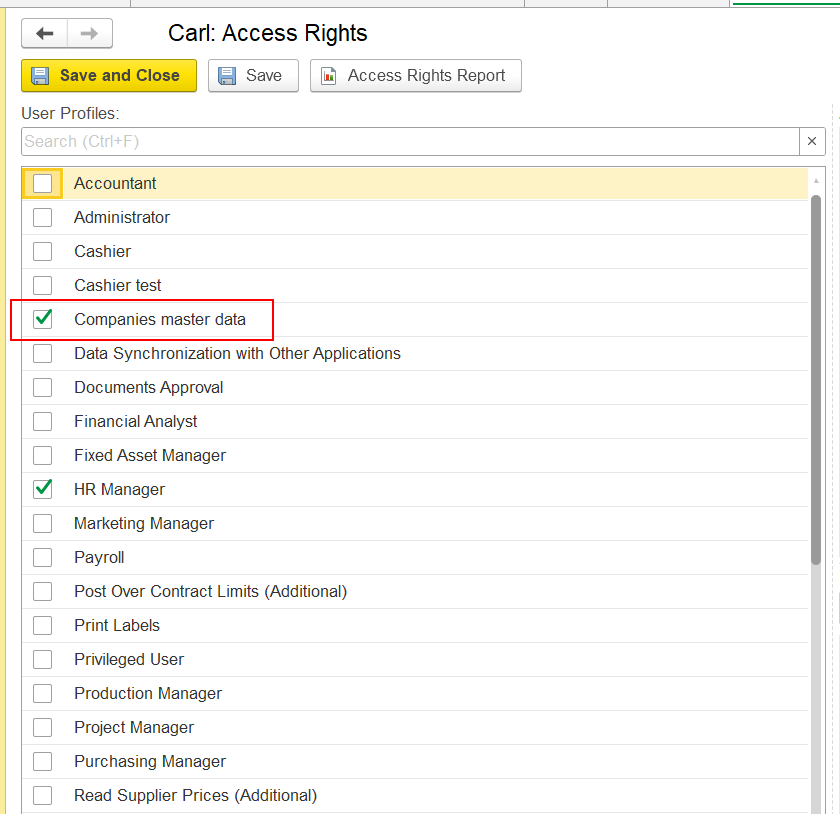
After applying the specified settings, user Carl will gain the rights to read and edit the Companies catalog, but will not see it in his user interface (as Companies master data is part of the Sales and Purchasing sections, which Carl does not have access to).
How to find an object that is not available in the standard section navigation using Global Search, but you have access rights to this object
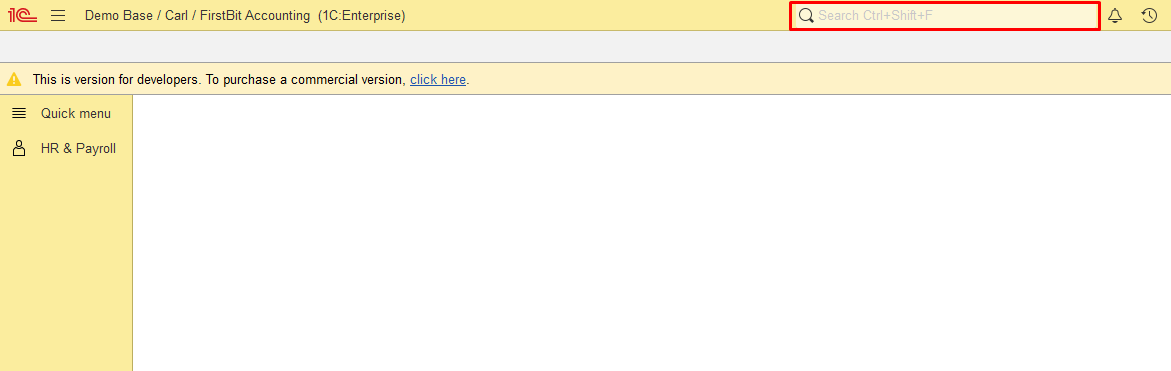
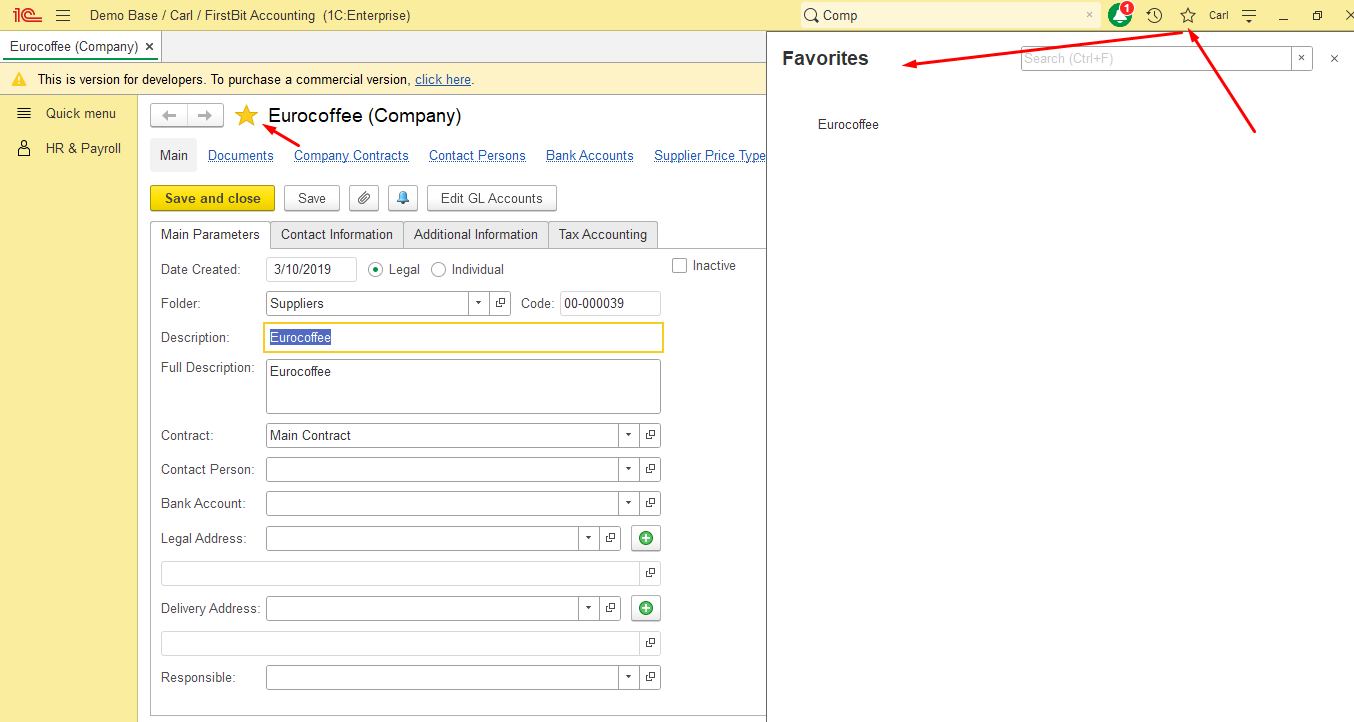
Use the Global Search field at the top of the FirstBit ERP interface.
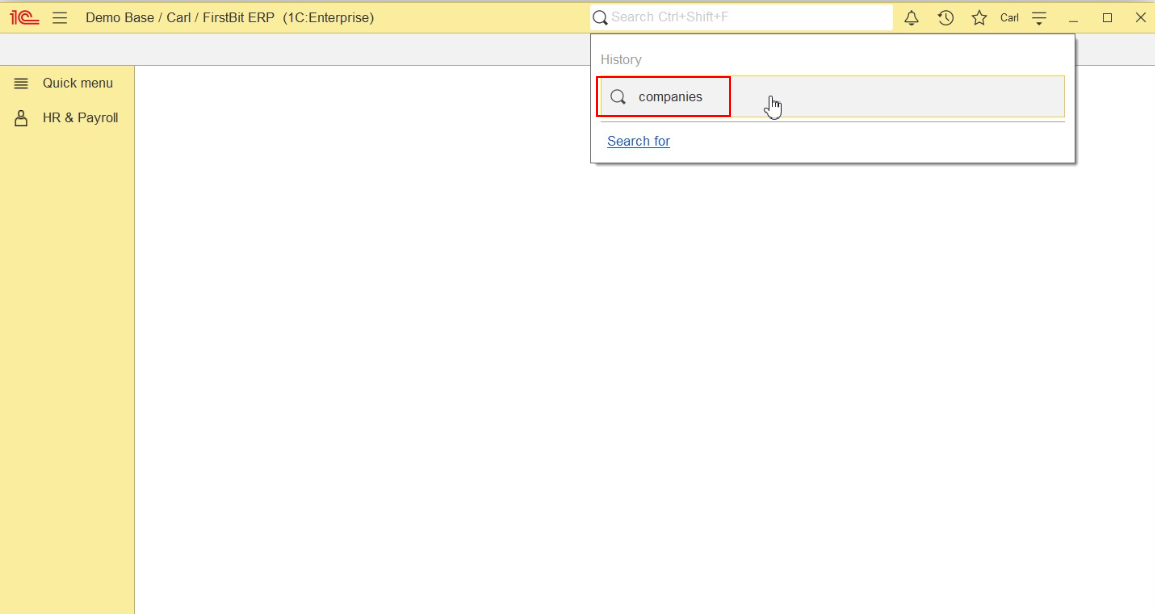
Enter the name of the required object, for example, Companies.
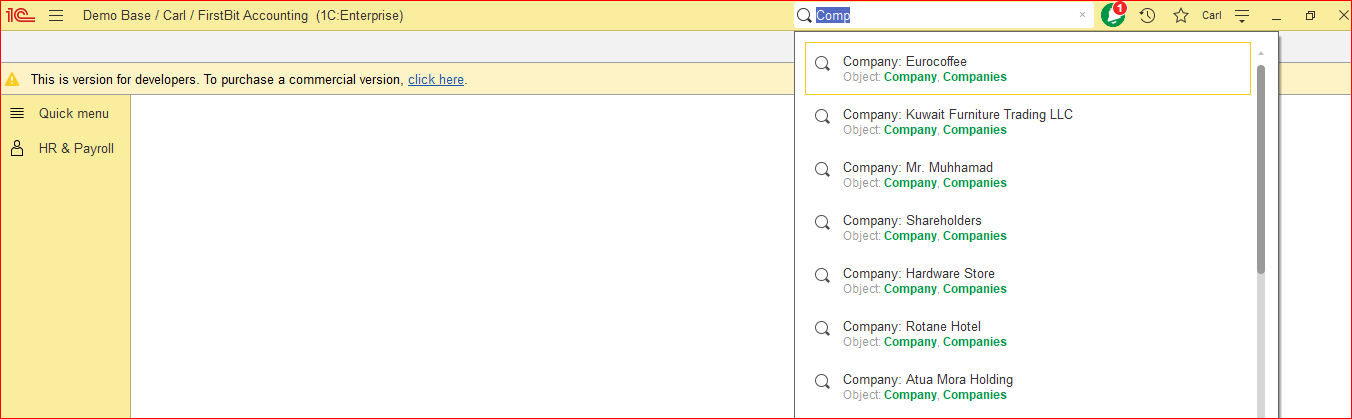
Select the required object from the search results.
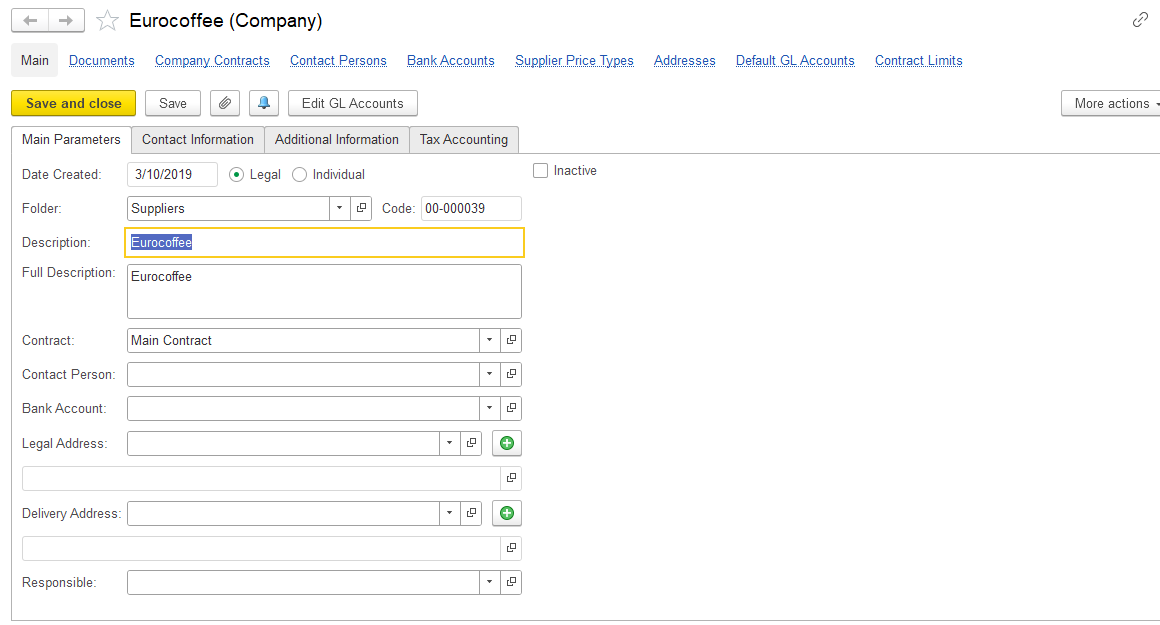
The object can be opened only if the user has the appropriate access rights.
For easier access in the future, the user can add the object to Favorites by clicking the star icon next to the object name.
Thank you for being FirstBit customer!
#Object Not Visible #Object Not in Menu #Access Without Section #Global Search #Object Access Rights