Case: A user does not have access to a specific section but needs permission to read and edit a particular object that belongs to that section.
Example:
A user does not have access to the Sales and Purchasing sections but needs permission to read and edit the Companies master data.
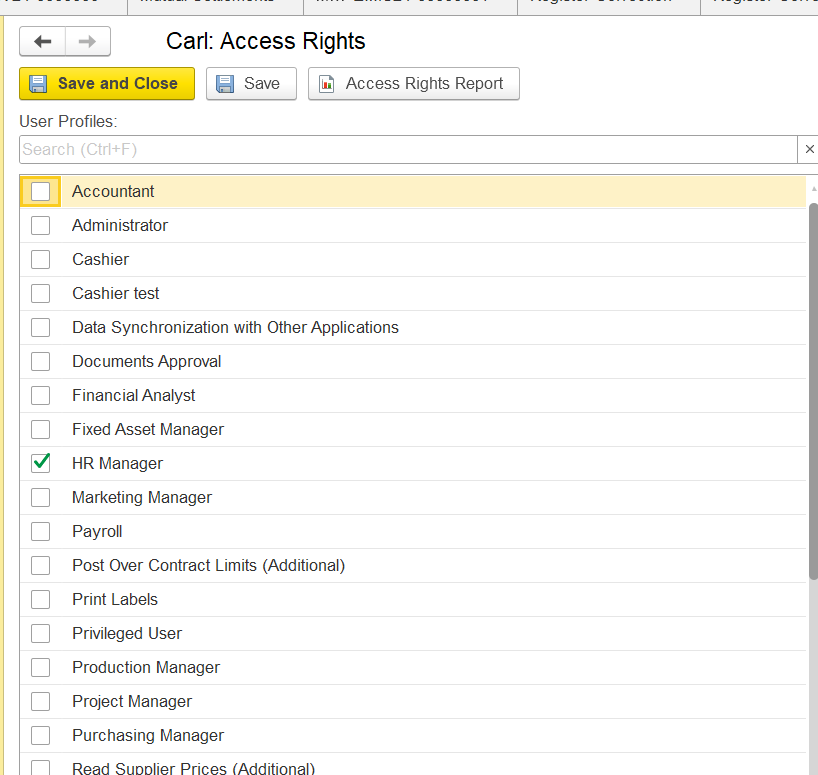
For instance, User Carl has an HR Manager access profile only.
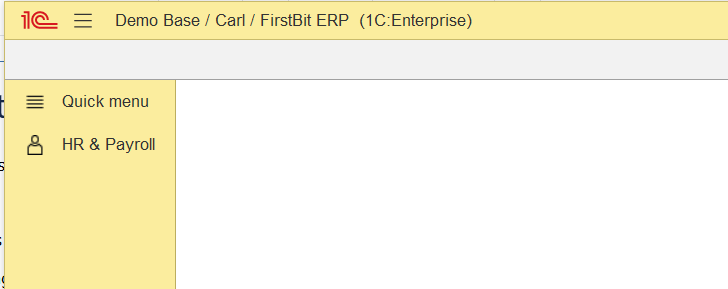
if we need to grant him access to read/edit Companies master data:
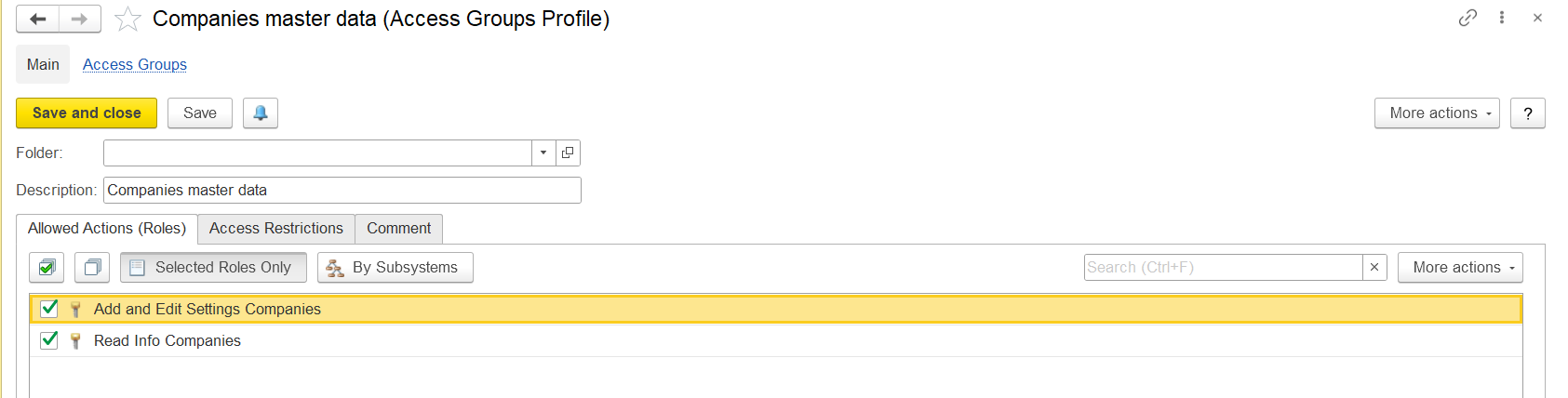
1.Create a new access profile with specific roles for Companies: In Administration - Master Data - Access Groups Profiles, add a new profile and assign roles for the required object:
For the Company's master data, the following roles should be included:
2. Give new Companies master data profile to user's access rights (in Administration - Master Data - Users, Access Rights tab):
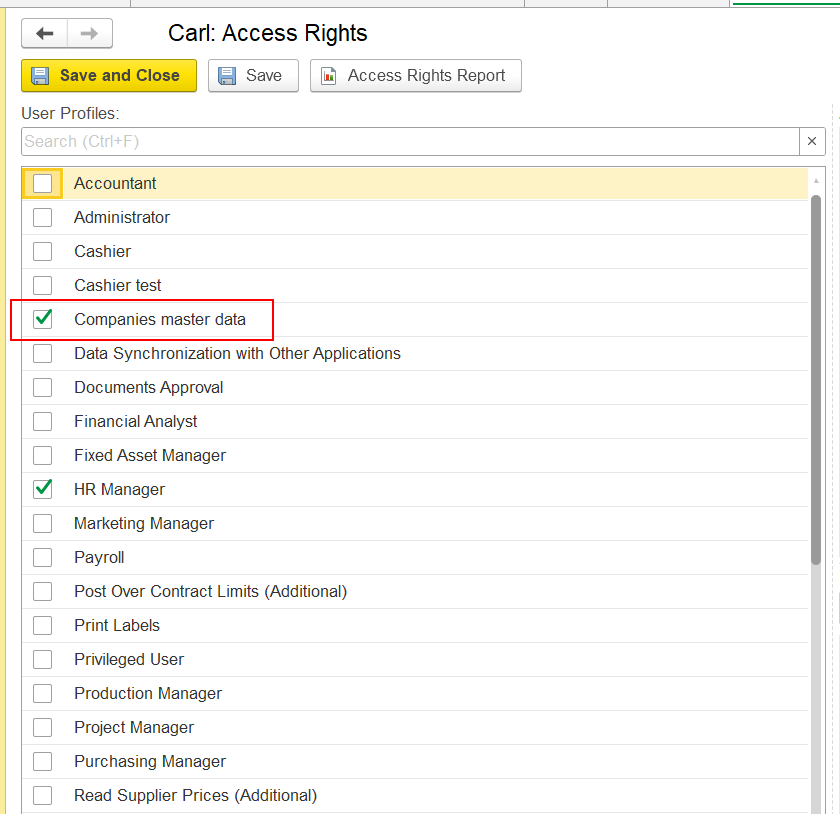
After applying the specified settings, user Carl will gain the rights to read and edit the Companies catalog, but will not see it in his user interface (as Companies master data is part of the Sales and Purchasing sections, which Carl does not have access to).
Solution:
User Carl can locate the company's catalog by name using the full-text search function at the top of the ERP system interface.
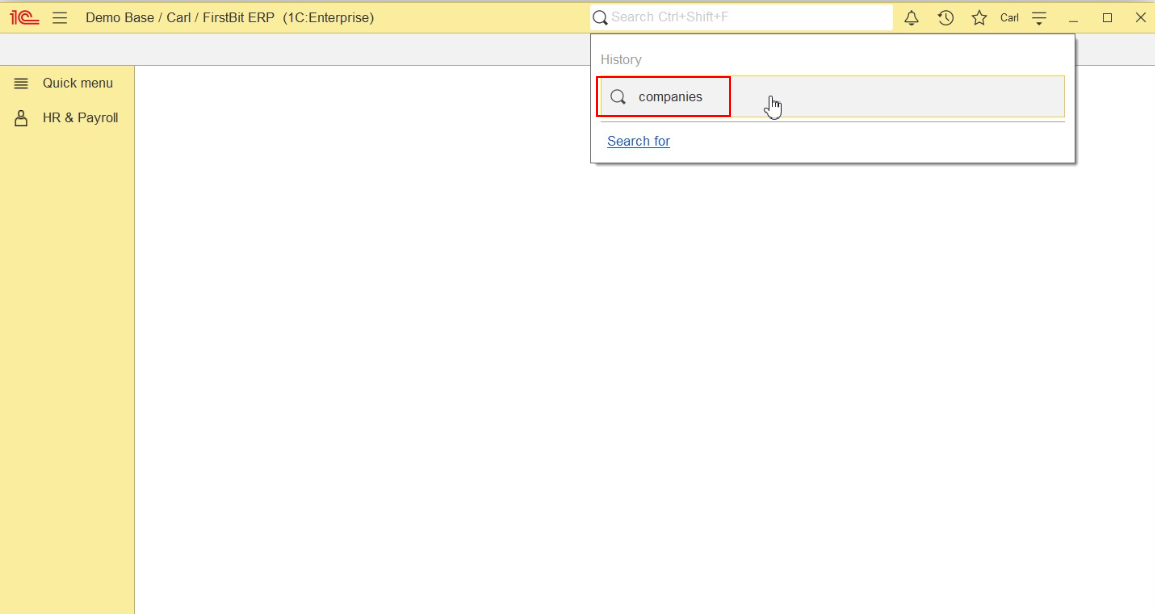
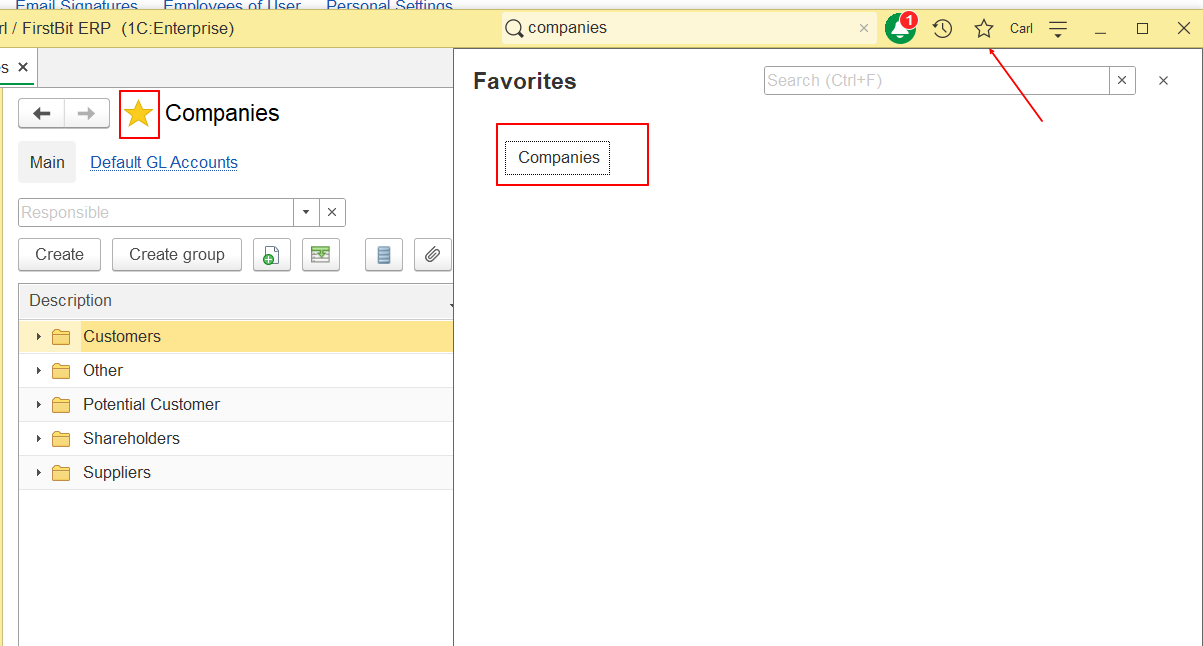
Additionally, if needed, user can find this directory using the global search function, or, for more convenience, user can add it to the favorites panel by clicking the star icon next to the Company name.
Второй вариант
How to Grant Access to a Specific Object Within a Restricted Section
Case: How to grant access rights for a specific object within a section that a user normally has restricted access to
Example
A user lacks access to view the Sales and Purchasing sections but needs permission to read and edit the Companies master data.
For instance, User Carl has an HR Manager access profile only.
How to grant access to Companies master data
Create a new access profile with specific roles for Companies
In Administration → Master Data → Access Groups Profiles, add a new profile and assign roles for the required object.
For the Companies master data, the following roles should be included:
Add and Edit Companies Settings
Read Companies Information
Assign the new Companies master data profile to the user
In Administration → Master Data → Users, open the user's Access Rights tab and assign the newly created access profile.
Apply the specified settings
After the settings are applied, User Carl will have the rights to read and edit the Companies master data. However, the Companies master data will not be displayed through the standard section navigation because it belongs to the Sales and Purchasing sections, which Carl does not have access to.
Solution
After the required access rights have been granted, the user may have access to a specific object even if the section where this object is normally located is not available in the user's interface.
For example, User Carl has been granted access rights to the Companies master data but does not have access to the Sales and Purchasing sections. Therefore, the Companies master data will not be available through the standard section navigation.
How to find the object using Global Search
Use the Global Search field at the top of the FirstBit ERP interface.
Enter the name of the required object, for example, Companies.
Sel ect the required object fr om the search results.
The object can be opened only if the user has the appropriate access rights.
Important: Global Search does not grant access to restricted objects and does not bypass user access rights. It can be used to locate an object that is not displayed in the user's available sections only when the required access rights to that object have already been granted.
For easier access in the future, the user can add the object to Favorites by clicking the star icon next to the object name.
Thank you for being FirstBit customer! #New access right #Objects within the section