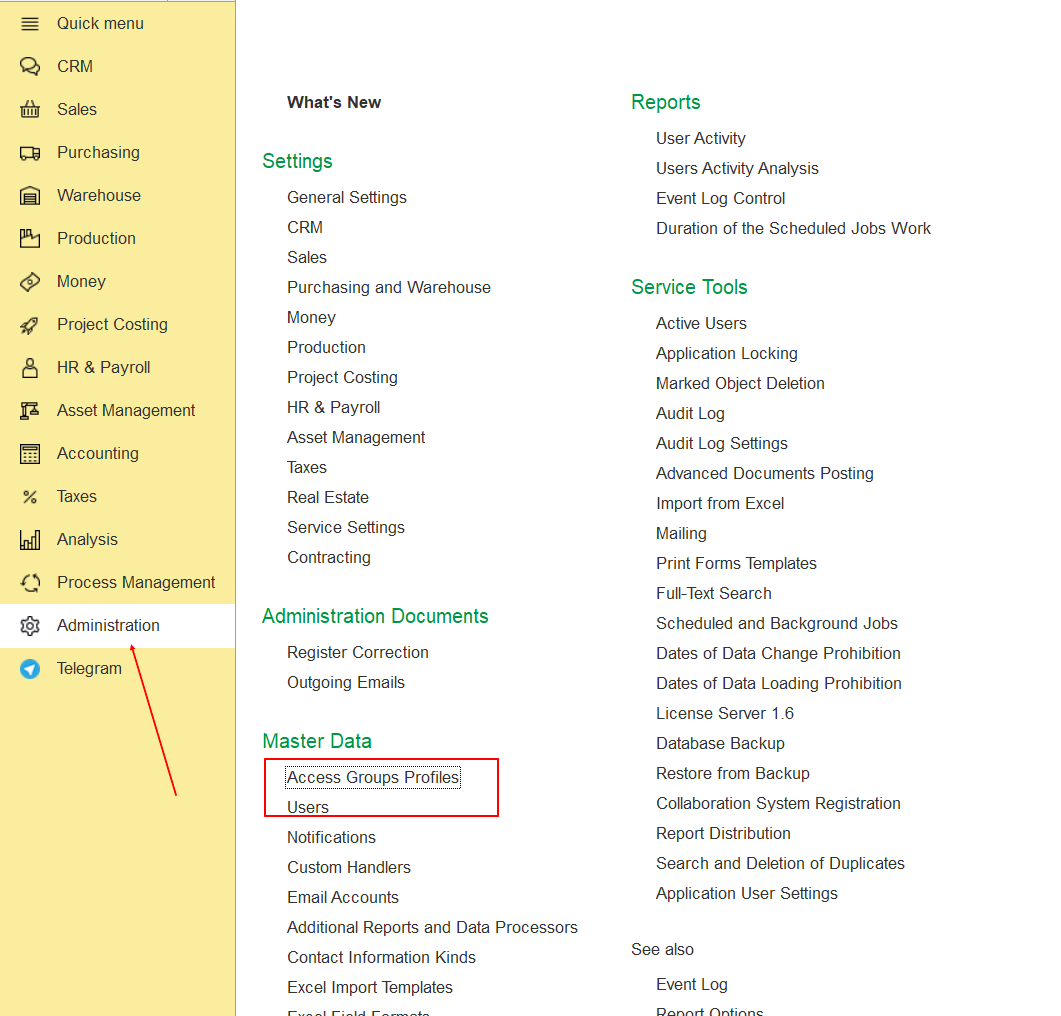
Only a user with administrator rights can create Access Group Profiles, add roles to profiles, or assign Access Group Profiles to users.
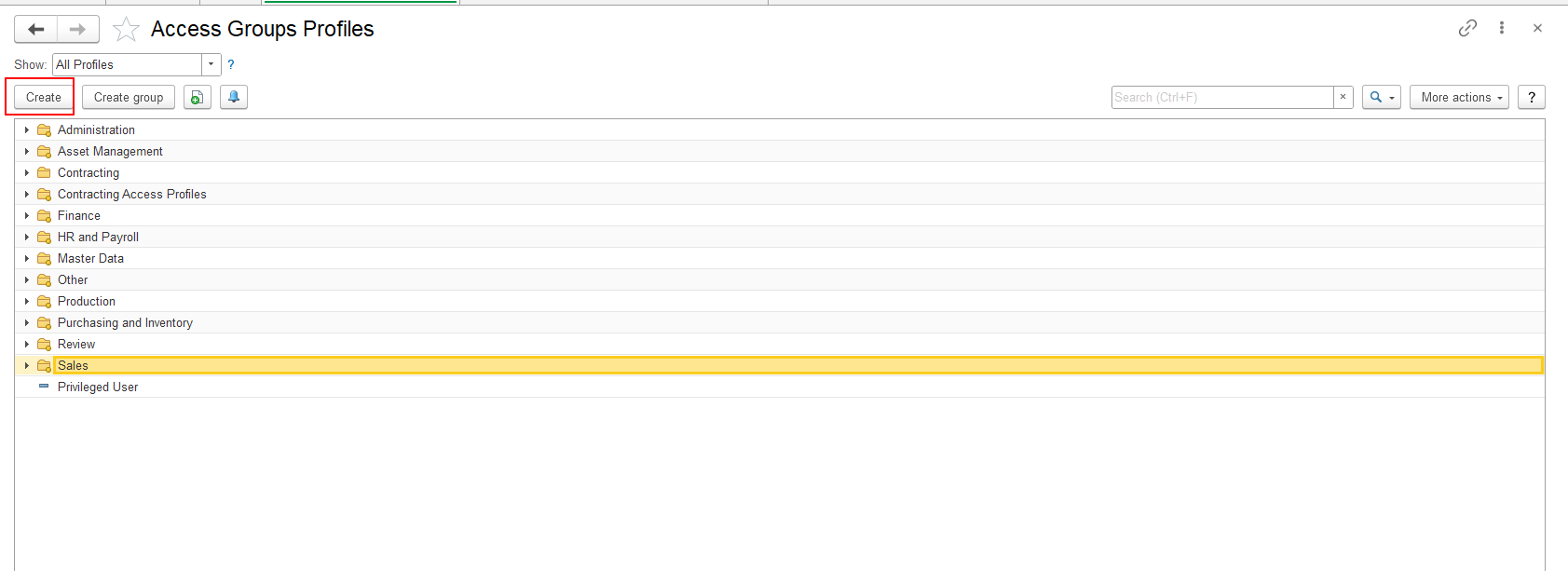
Access Group Profiles are managed in Administration → Master Data → Access Group Profiles. Profiles are assigned to users through Administration → Master Data → Users → Access rights.
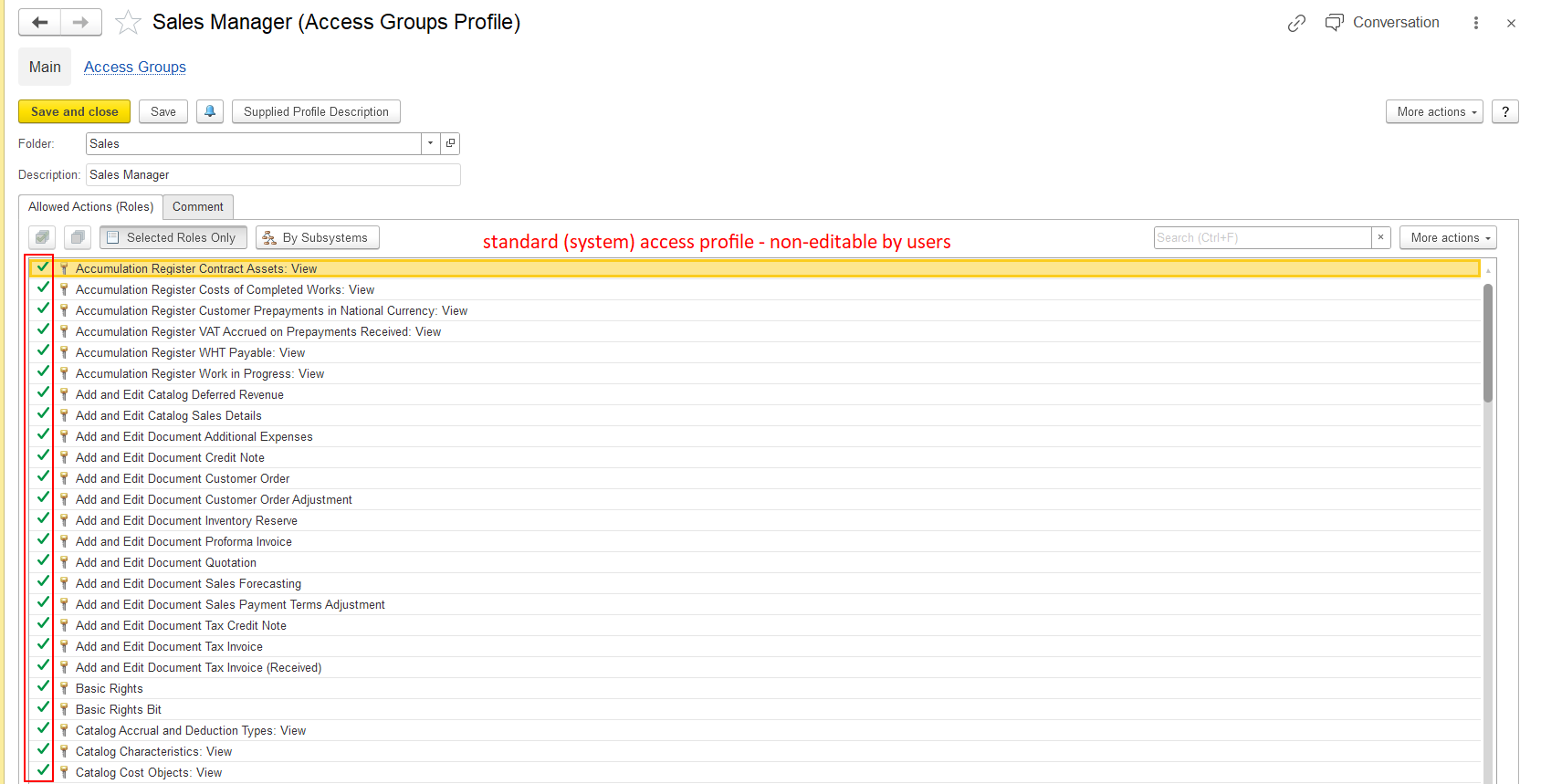
Warning: Standard system Access Group Profiles are predefined and cannot be edited. Roles cannot be added to or removed from standard system profiles. If a user needs additional roles, an administrator must create or use a custom Access Group Profile and assign it to the user.
An administrator can add roles to an existing custom Access Group Profile or create a new custom profile with the required roles.
Important: user cannot add a role directly to a user's Access rights. To give a user an additional role, add the role to an Access Group Profile and assign that profile to the user.
This option is available only for an editable custom Access Group Profile. Standard system profiles cannot be edited.
If the required role needs to be added to an existing custom Access Group Profile, an administrator can edit the profile and select the required role.
The Selected Roles Only option controls which roles are displayed in the list.
When Selected Roles Only is enabled, the system displays only the roles that are already selected in the current profile. It does not display all roles available in the system.
If you want to add a new role:
After clearing Selected Roles Only, the list displays the roles available in the system, including roles that are not yet selected in the profile.
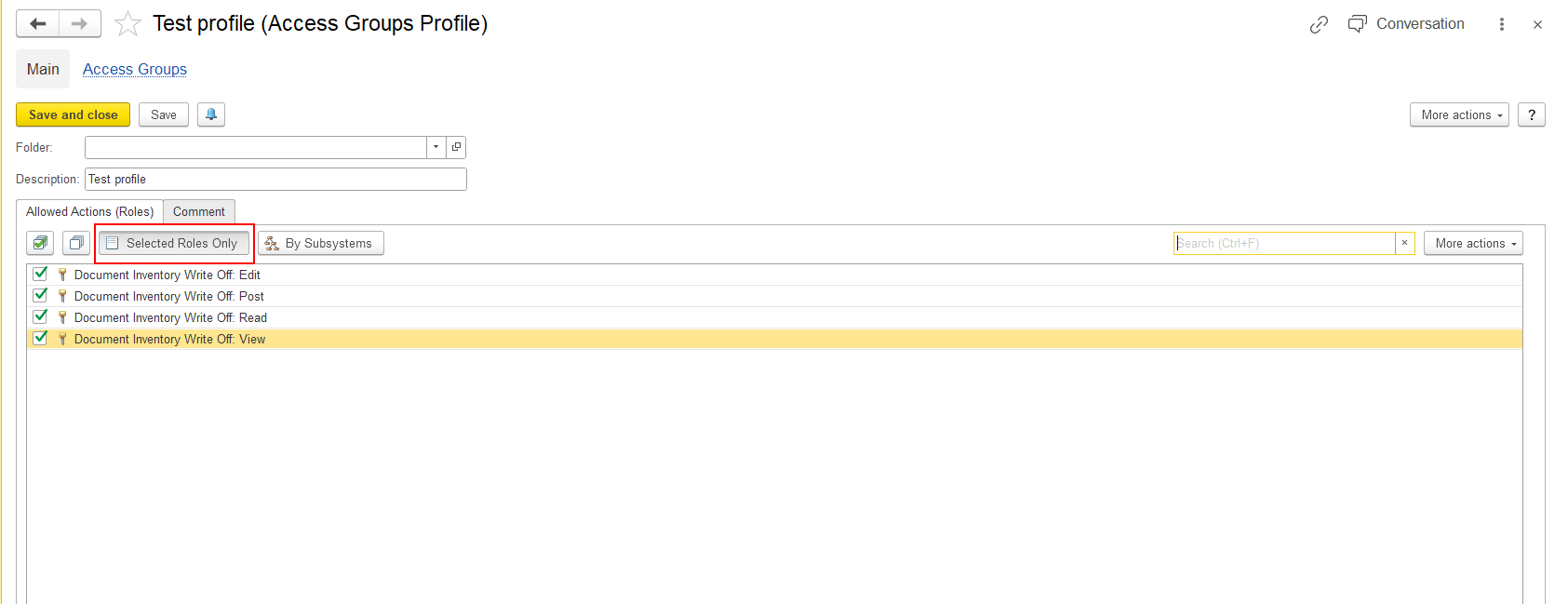
Important: If Selected Roles Only is enabled, a role that is not yet included in the profile will not appear in the list. Clear Selected Roles Only before searching for a role that you want to add.
The selected role is now included in the existing custom Access Group Profile.
Note: If the profile is already assigned to users, adding a role to that profile adds the role to the permissions provided by the profile. The affected users must log out and log in again before checking the updated access rights.
If user do not want to modify an existing custom profile, an administrator can create a new Access Group Profile containing the required roles.
The new Access Group Profile now contains the selected roles.
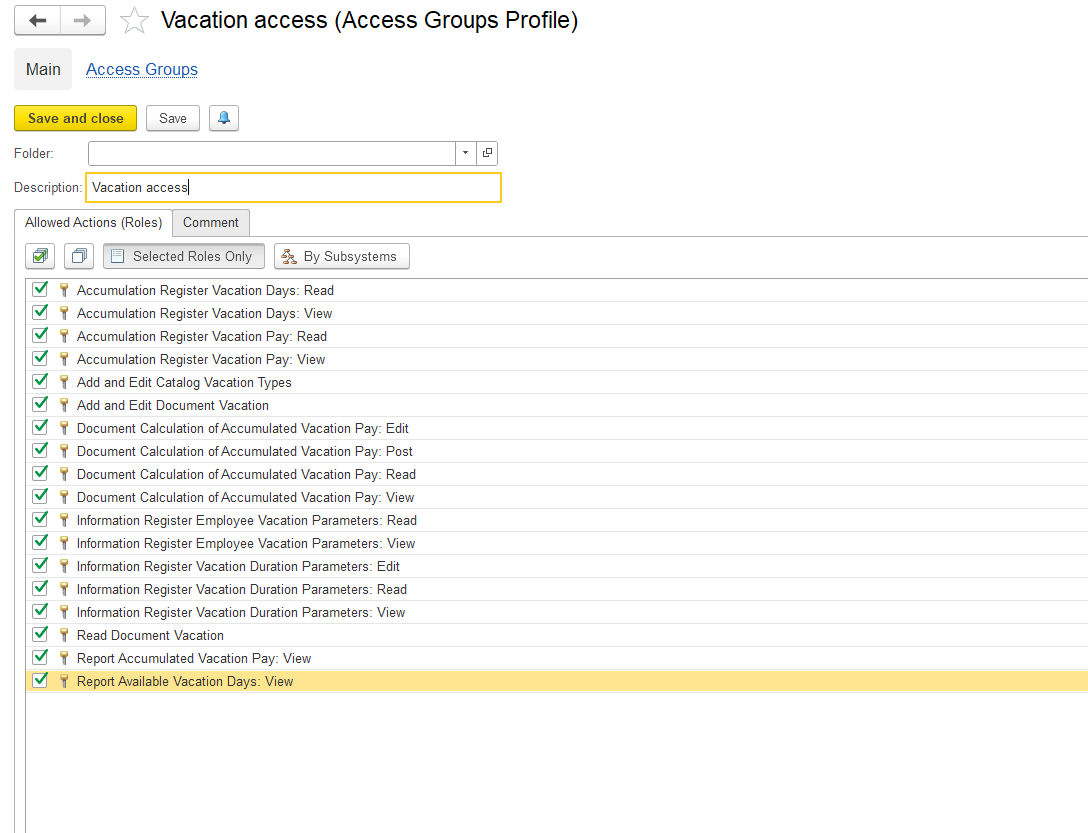
Important: Creating a new Access Group Profile does not automatically assign it to any user.
After creating a new Access Group Profile, an administrator must assign it to the user who needs the roles included in the profile.
The user now receives the roles included in the assigned Access Group Profile.
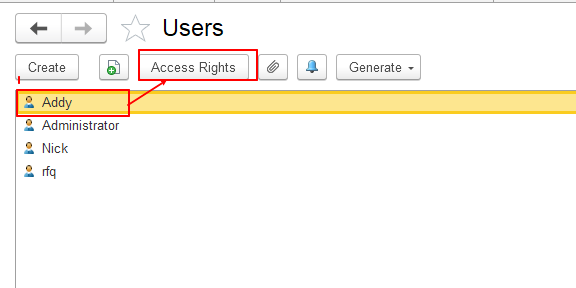
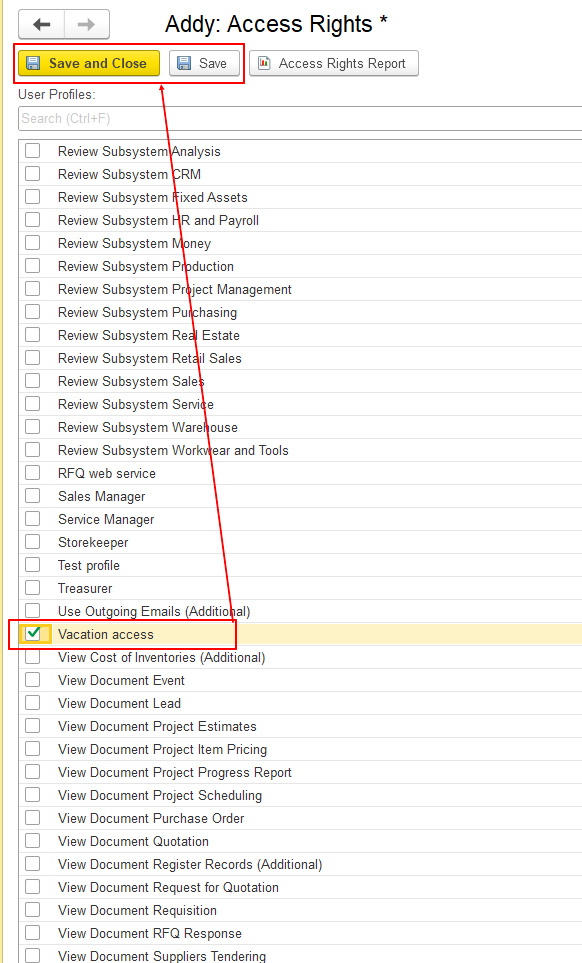
Note: You do not need to assign the profile again when you add a role to an existing profile that is already assigned to the user. The updated role is included in the permissions provided by that profile.
After adding a role to a profile or assigning a new profile to a user, the affected user must log out and log in again.
Always perform a new login before checking whether the updated access rights are available.
Important: Do not check the updated permissions in the user's existing session. Log out and log in again first.
Standard system Access Group Profiles are predefined and cannot be modified. You cannot add or remove roles in these profiles.
If the required role cannot be added because the profile is a standard system profile, an administrator must create a new custom Access Group Profile containing the required roles and assign it to the user.
Thank you for being FirstBIT Customer!
Alternative User Questions:
How can I add additional access rights to a user?
How can I remove unnecessary roles from a user's access rights?
How do I add or remove roles in an Access Group Profile?
Why can't I edit a standard Access Group Profile?
How can I change access rights without modifying a standard profile?
How do I create a custom Access Group Profile?
How do I assign a new Access Group Profile to a user?
Why can't I find the required role in the list?
Why are only selected roles displayed?
How do I view all available roles in an Access Group Profile?
Why are the updated access rights not applied immediately?
Do I need to reassign a profile after changing its roles?
Keywords:
#AccessRights #UserPermissions #AccessGroupProfiles #AddRoles #RemoveRoles #CustomProfile #StandardProfile #SelectedRolesOnly #AssignProfile #RoleManagement #AccessRightsUpdate