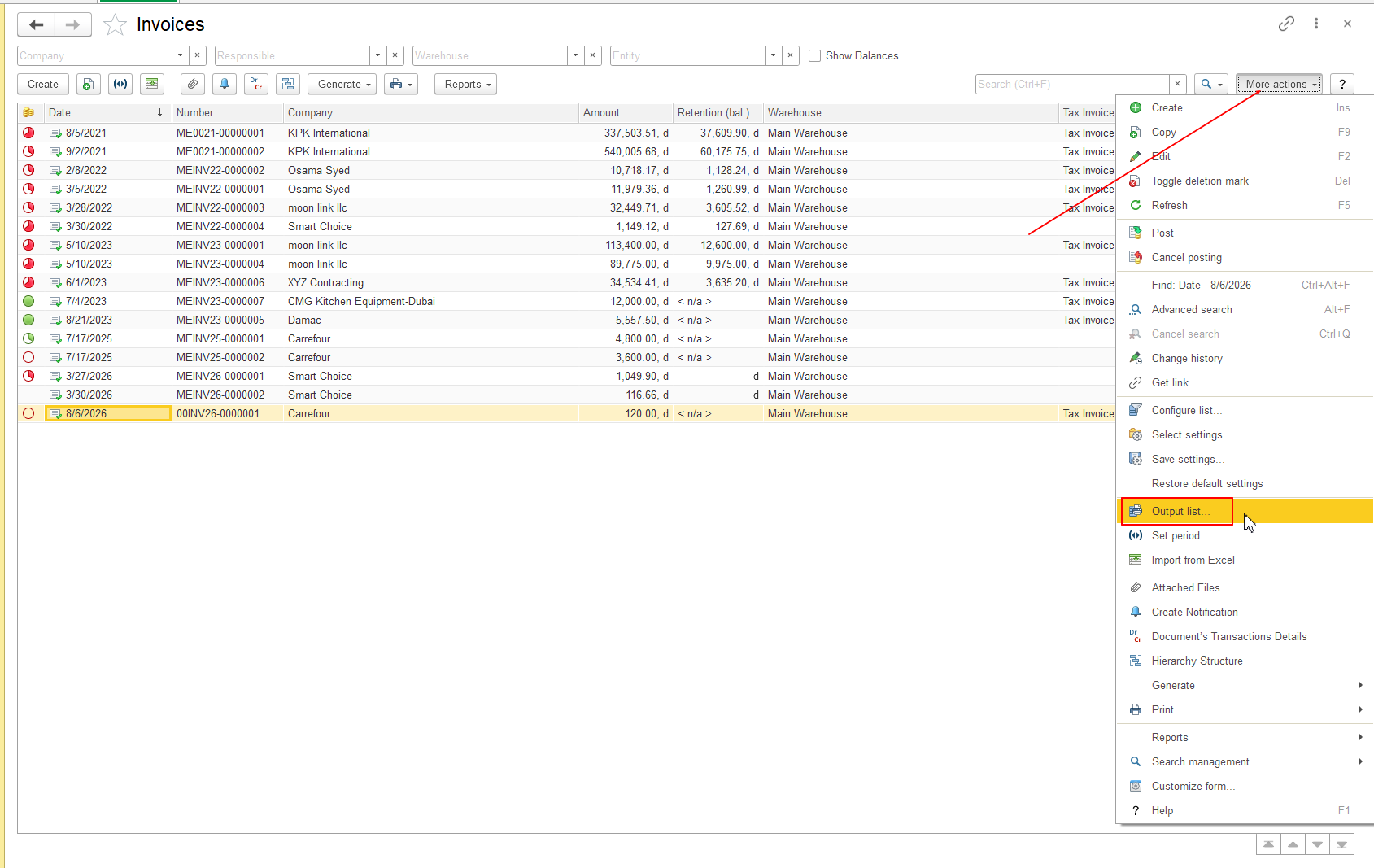
Output List allows you to customize the data included when you output the current List Form.
Use Output List when you want to control which fields from the List Form are included in the output and how they are arranged.
You can use it to:
The available fields and options depend on the particular List Form.
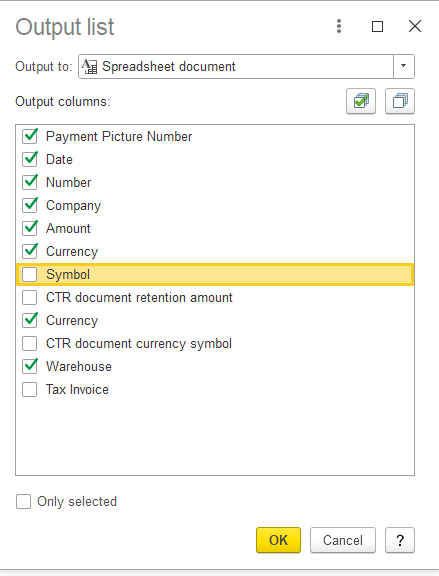
The Output List window opens and displays the fields and options available for configuring the output of the current List Form.
You can select which fields from the current List Form should be included in the output.
Fields that are not selected are not included in the resulting List Form output.
Note: Only fields available for the particular List Form can be included in its output.
Screenshot: Show the Output List window with available fields and several fields selected for the output.
You can change the order in which selected fields appear in the List Form output.
The output uses the configured order of the selected fields.
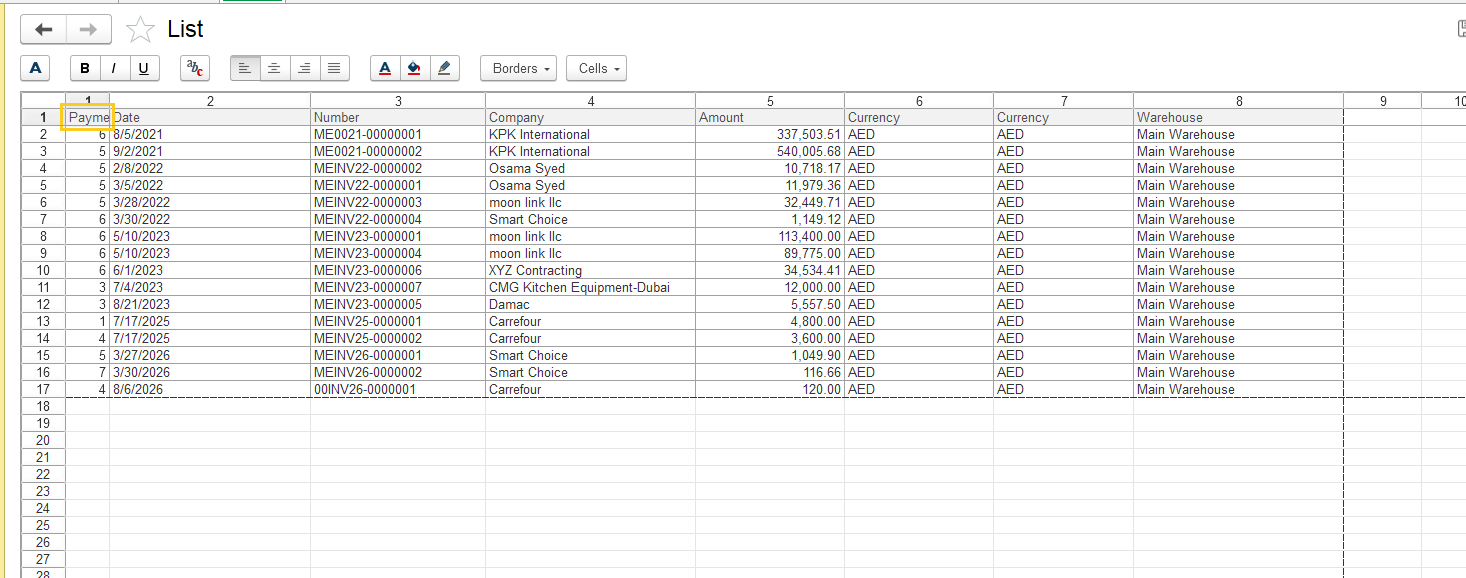
Important: Customizing the List Form output does not change the underlying documents or business data.
After selecting the required fields and configuring their order and available options, generate the output using the available command.
Check the resulting output to make sure that it contains the required information and that the fields are arranged as expected.
Output List and Customize Form affect different aspects of a List Form:
If you want to change the List Form itself, see Customize Form.
If you want to configure filtering, sorting, or grouping of the data displayed in the List Form, see Configure List.
If the Output List configuration is included in the personal List Form settings, you can save the configuration using More actions → Save Settings.
You can later apply a previously saved List Form configuration using More actions → Select Settings.
For more information, see Save and Restore List Form Settings.
Thank you for being FirstBIT Customer!