This instruction explains how to correctly reflect the transfer of a Fixed Asset to the shareholder in the accounting system, ensuring that the transaction does not create taxable income for the company.
Direct transfer to the shareholder is not supported in the software, but it can be handled in two steps.
Step 1: Write Off the Fixed Asset
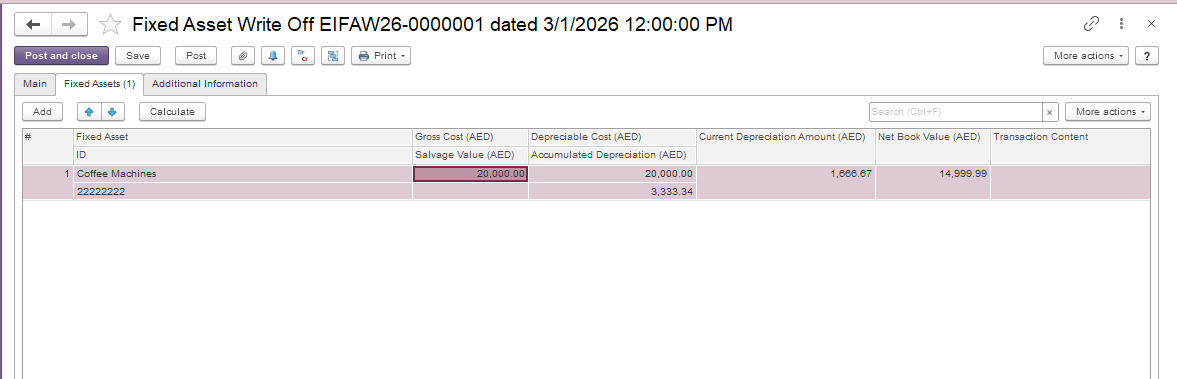
Open the Fixed Asset Write Offs document. Go to Asset Managment → Fixed Asset Documents → Fixed Asset Write Offs. Create a new document and select the fixed asset to be transferred on the Fixed Assets tab.
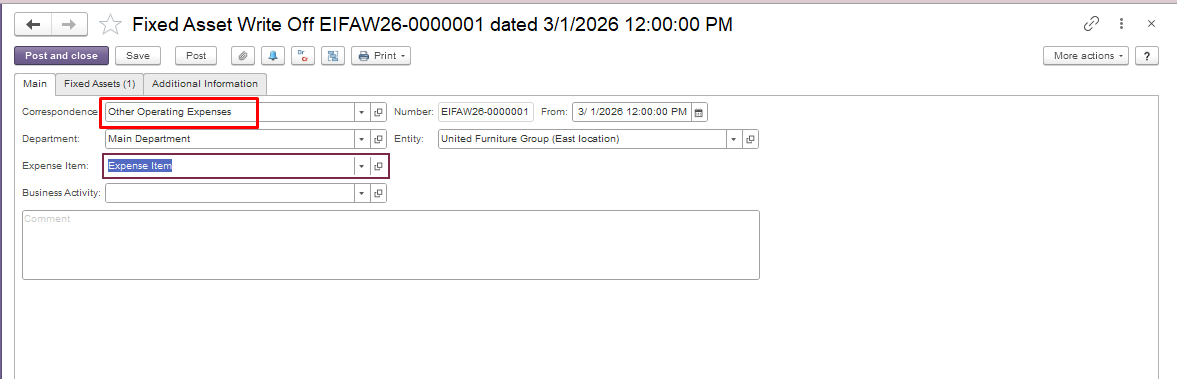
On the Main tab, select the expense account to which the fixed asset will be written off. Save and post the document.
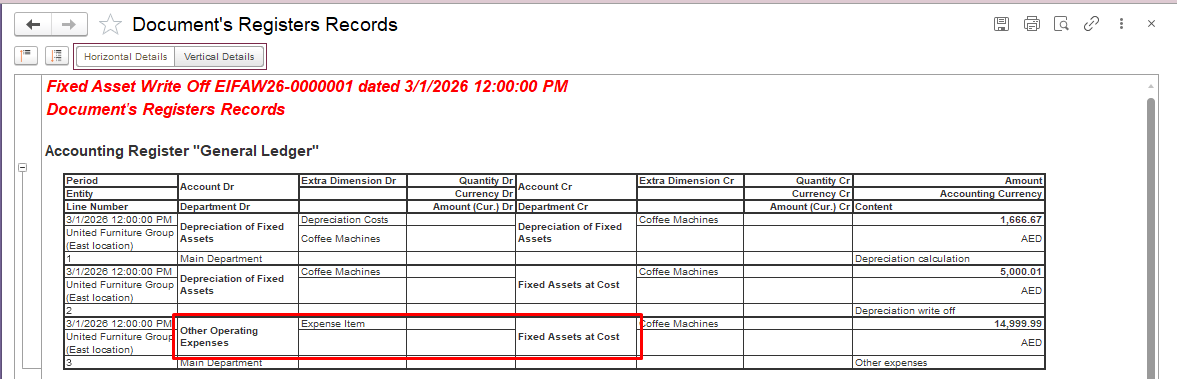
Use the Statement of Depreciation report to verify that the asset balance is zero and depreciation has been fully recognized.
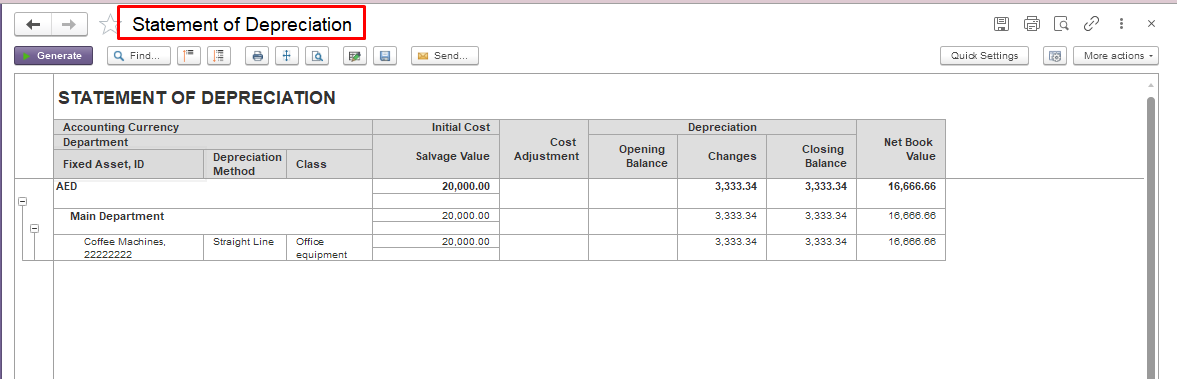
Purpose: To write off the fixed asset to an expense account in preparation for its transfer to the shareholder.
Step 2: Transfer Expenses to Shareholder Account.
Open the Other Expenses document. Go to Accounting module → Service Tools → Other Expenses. Create a new document and select Transaction Type – Reversal on the Main tab.
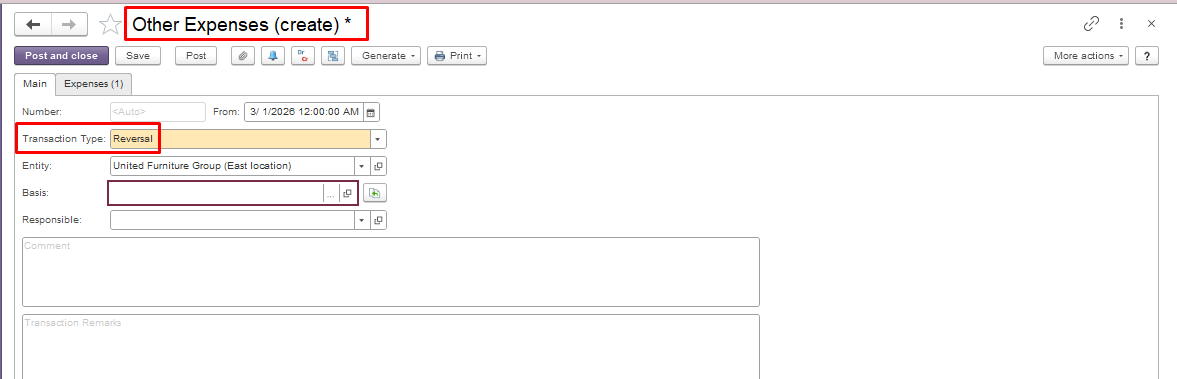
Transfer the amount from the Expense Account to the Shareholder Account (account for settlements with the owner), or to another account in accordance with your accounting policy. Save and post the document.
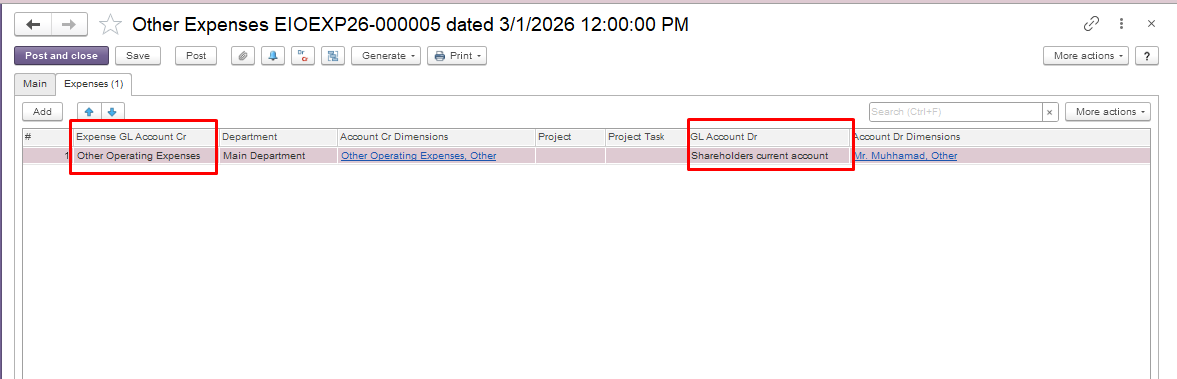
This operation does not affect the company’s income and will not be reflected in the Profit and Loss (P&L) report.
When the amount is reclassified from the expense account to the appropriate balance sheet account, the transaction does not remain reflected in P&L.
Дополнение, которое еще в работе
Examples include, but are not limited to:
Thank you for being a FirstBIT customer!
# FixedAssetswriteoff#fixedassettransfertoshareholder