Starting from FirstBIT Contracting 2.1.1.35 release, the system supports automatic population of Project Cash Flow Plan documents with the appropriate Inflow and Outflow Cash Flow Items (based on Project Estimates document).
To enable this functionality, a one-time setup is required in the Project Cash Flow Items Mapping informational register.
The register stores mappings between Income / Expense Items and Cash Flow Items. Once these mappings are configured, the system automatically determines and fills the correct Cash Flow Item when users create or update Project Cash Flow Plan documents.
Important: This setup is required only once after implementation or update to 2.1.1.35 release. Additional records should be created only when new Income or Expense Items are introduced (to provide a link between an income or expensing item and a cash flow item).
The setup can be performed only by users with Full Access Rights, such as users assigned to the Administrator role because Project Cash Flow Items Mapping Informational Register is not visible in user's interface.
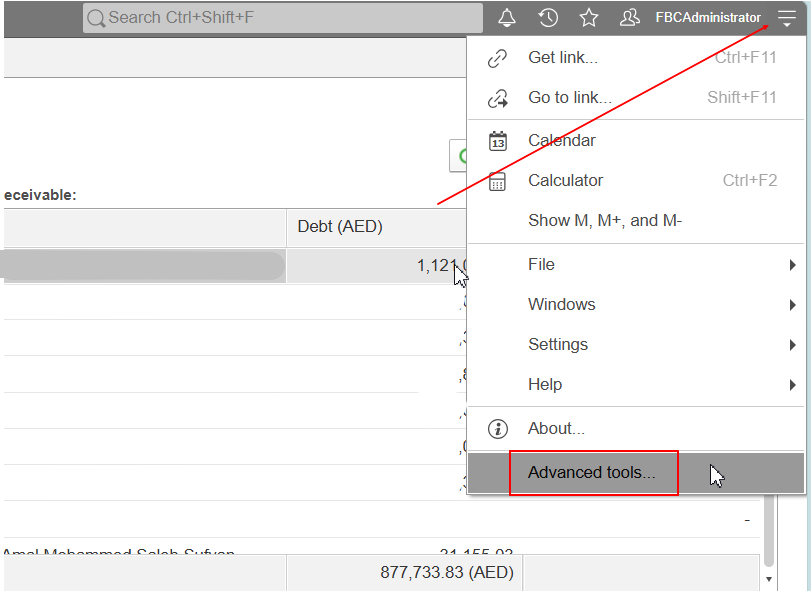
There are two ways to access the register.
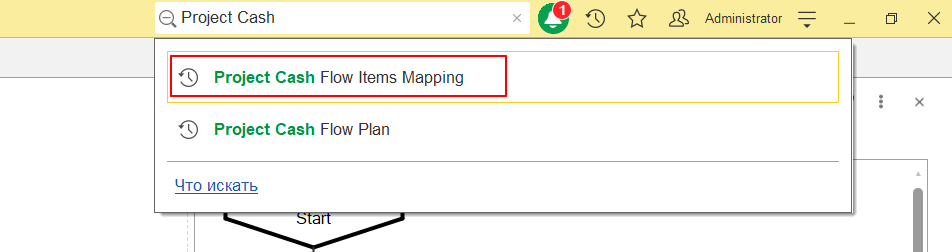
3. In the list of available objects, locate Project Cash Flow Items Mapping informational register.
4. Open the register.
After opening the register, create records that define the correspondence between Income/Expense Items and Cash Flow Items.
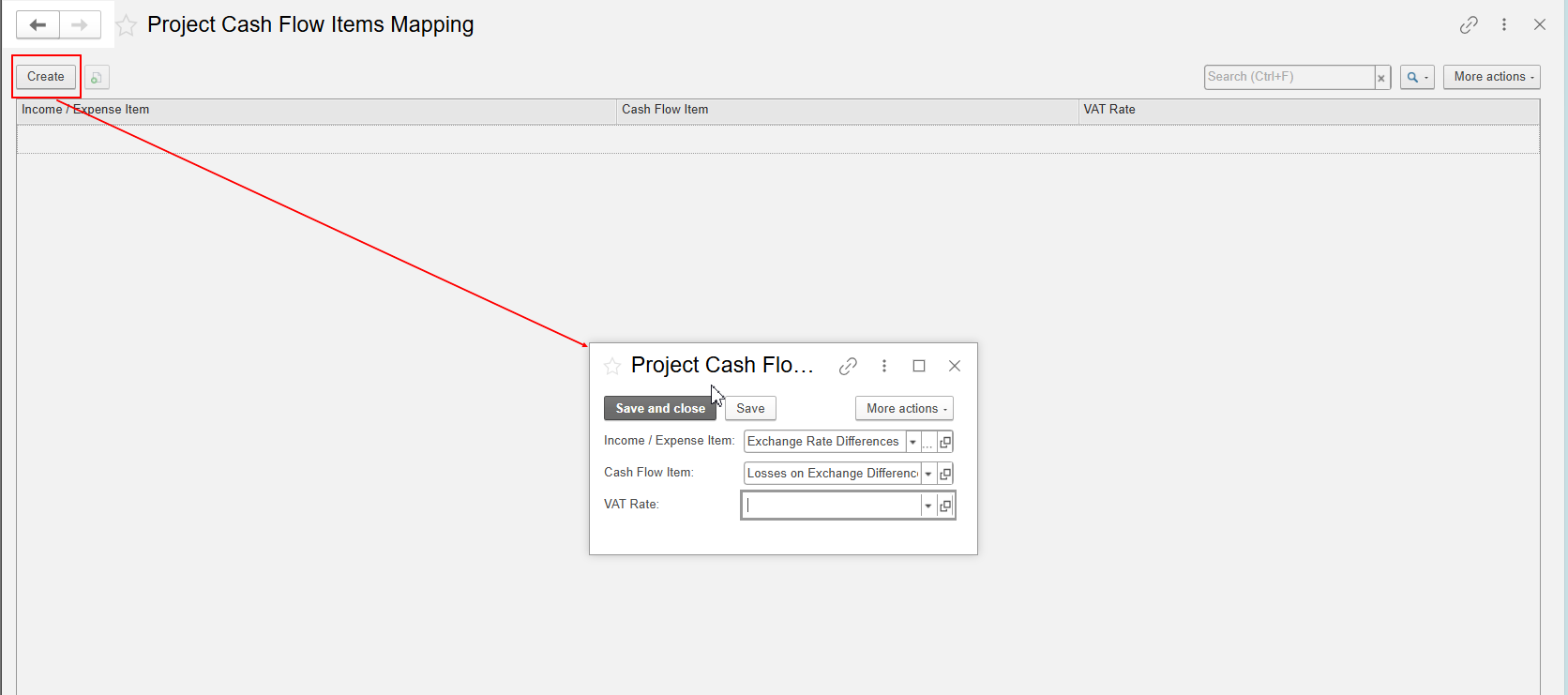
| Field | Description |
|---|---|
| Income / Expense Item | Select the Income or Expense Item that should be recognized by the system. |
| Cash Flow Item | Select the corresponding Cash Flow Item that should be automatically assigned in the Project Cash Flow Plan document. |
| VAT Rate | Select the VAT rate applicable to the mapping. |
When a user creates or updates a Project Cash Flow Plan document, the system checks the configured mappings and automatically determines the appropriate Cash Flow Item.
Based on the configured correspondence:
This eliminates the need for manual selection of Cash Flow Items and helps ensure consistent project cash flow planning.
If no mapping records are configured in the Project Cash Flow Items Mapping register, the system will still generate the Project Cash Flow Plan document.
However, in this case, the system will not be able to determine the appropriate Cash Flow Items for individual Income and Expense Items.
As a result:
To generate a detailed Project Cash Flow Plan with separate lines for each Cash Flow Item, the corresponding mappings between Income / Expense Items and Cash Flow Items must be configured in the Project Cash Flow Items Mapping register.
After the mapping records have been configured:
Thank you for being FirstBIT customer!