Problem: How to identify and allocate unallocated costs
Solution: Use the Income and Expenses report to identify unallocated costs and allocate them either in source documents or via allocation tools.
1. Identify Unallocated Costs
Enable Records (Documents) in the Report
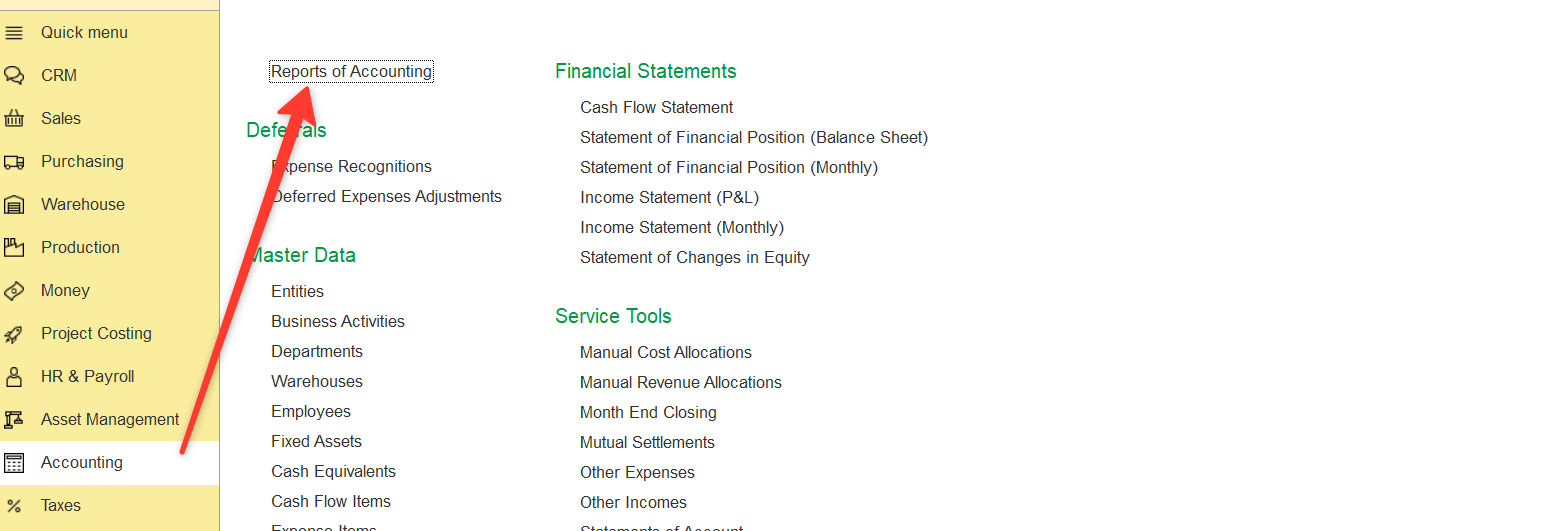
- Open the Income and Expenses report.
Path: Accounting > Reports of Accounting> Income and Expenses
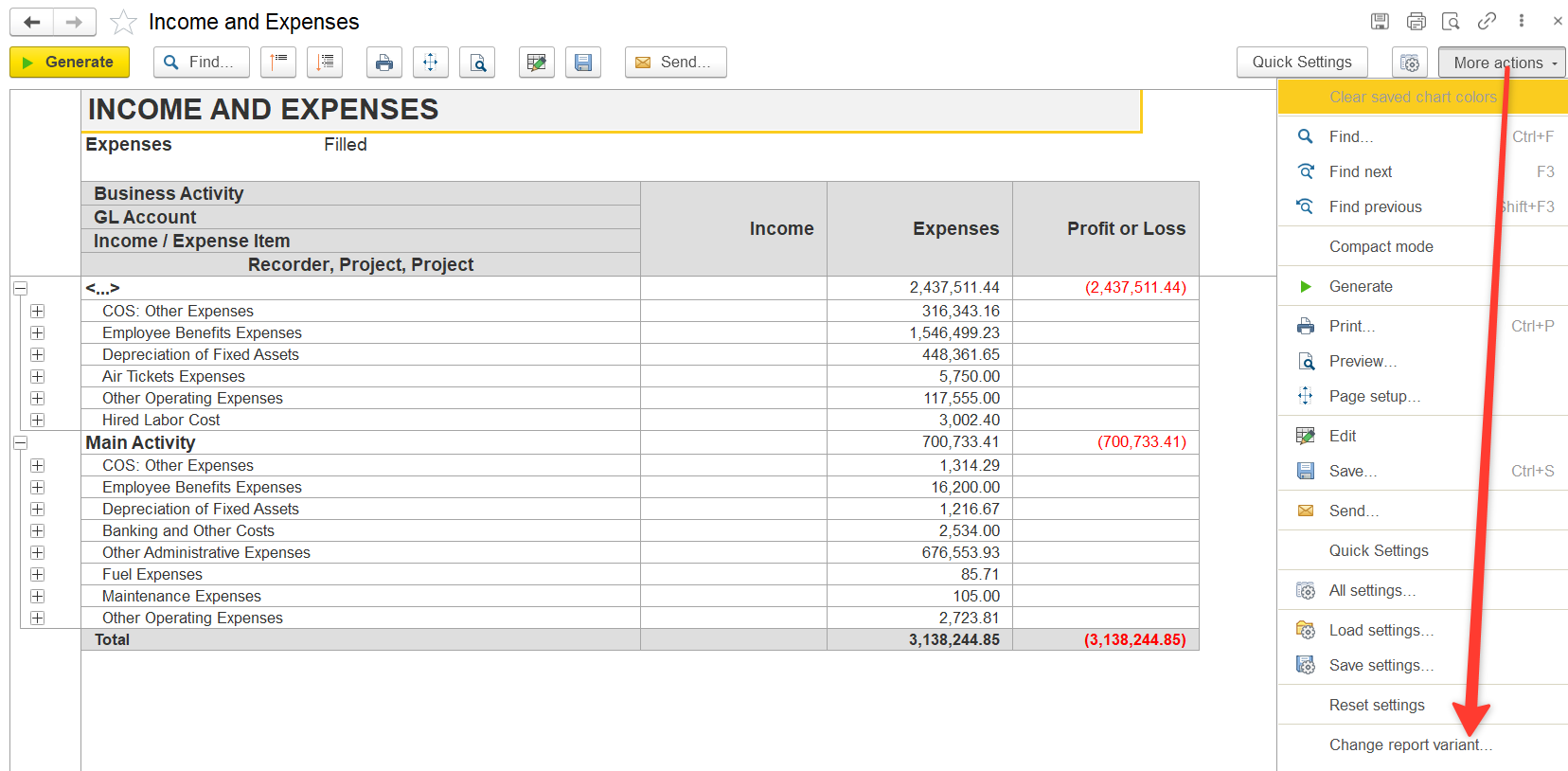
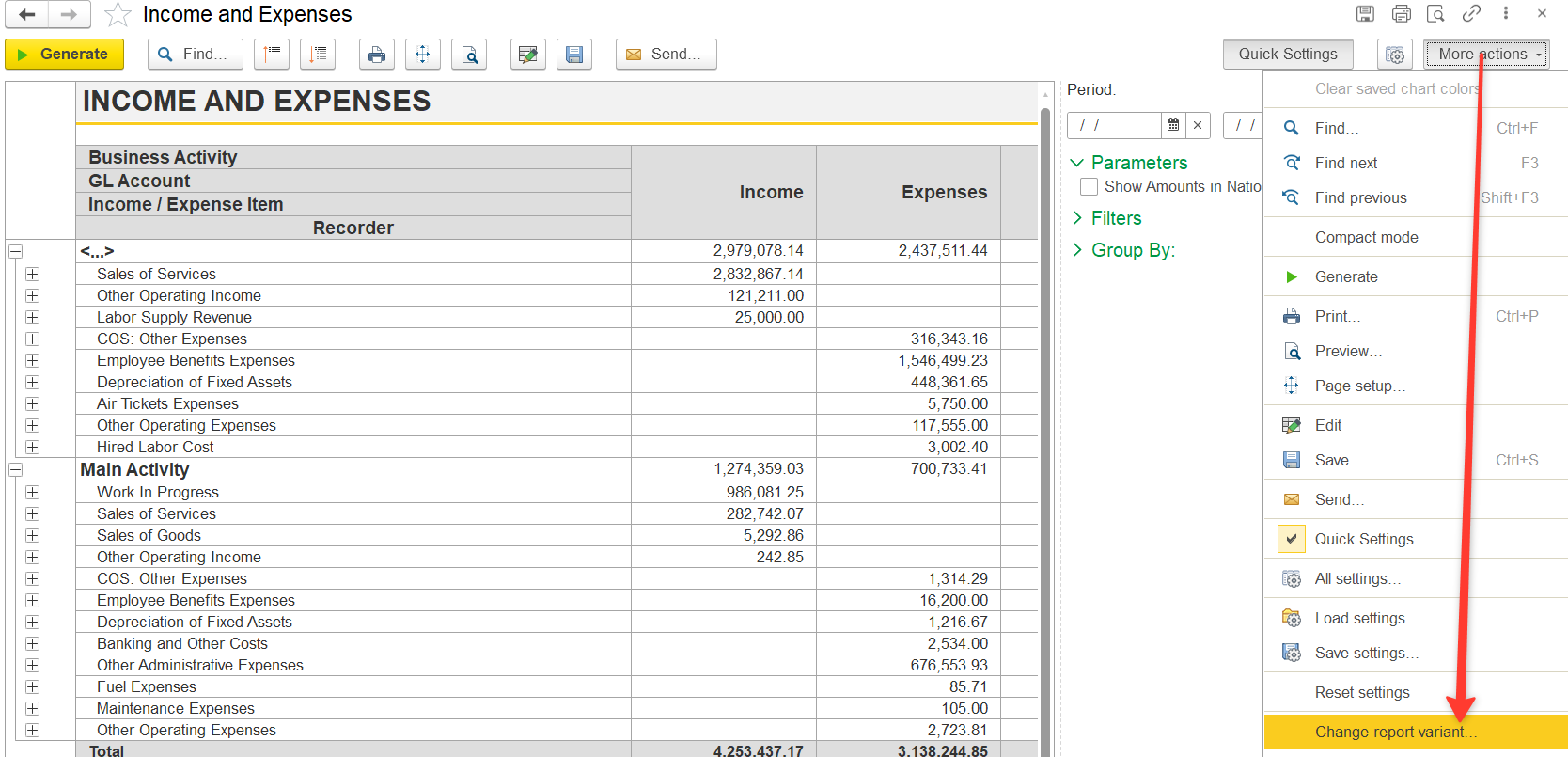
2. Click More actions → Change Report Variant (further - Change report variant)
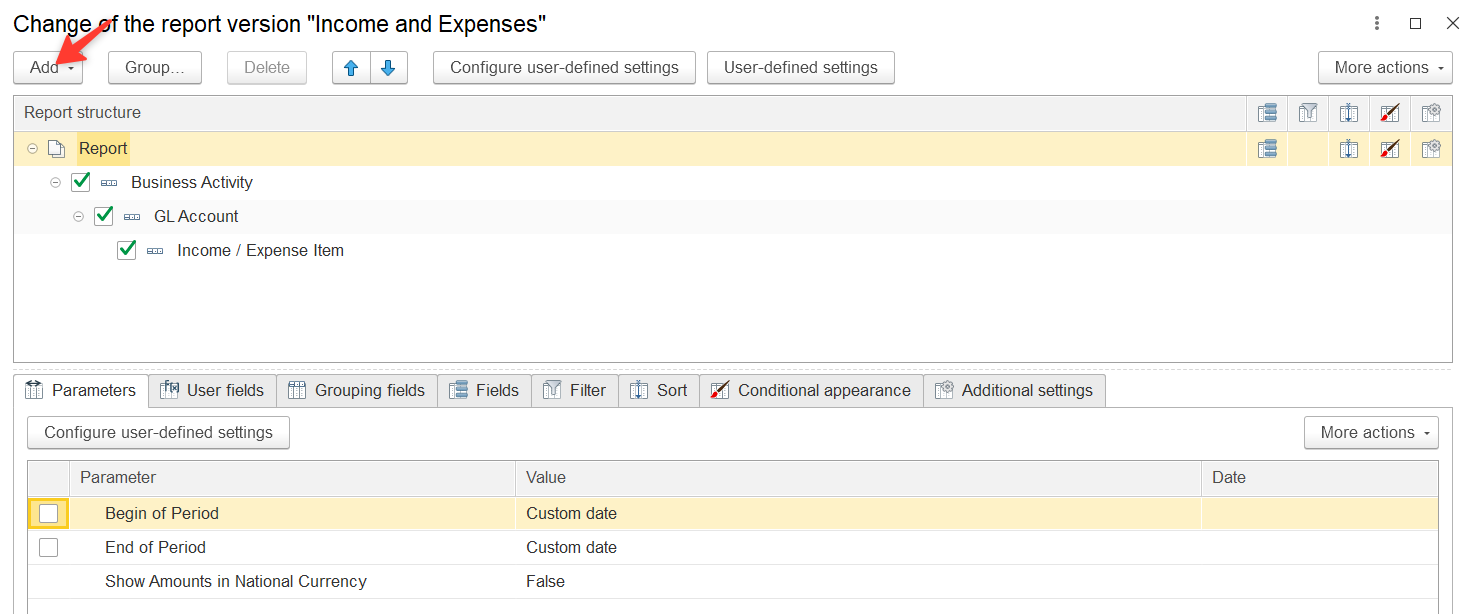
3. Modify the report:
3.1 Add Documents (Recorders)
This allows you to see which documents contain allocated and unallocated costs.
- In the Report Structure area, hover over a relevant row (e.g., Income/Expense Item)
- Click Add → New Grouping
- In the dialog box, select Recorder and click OK
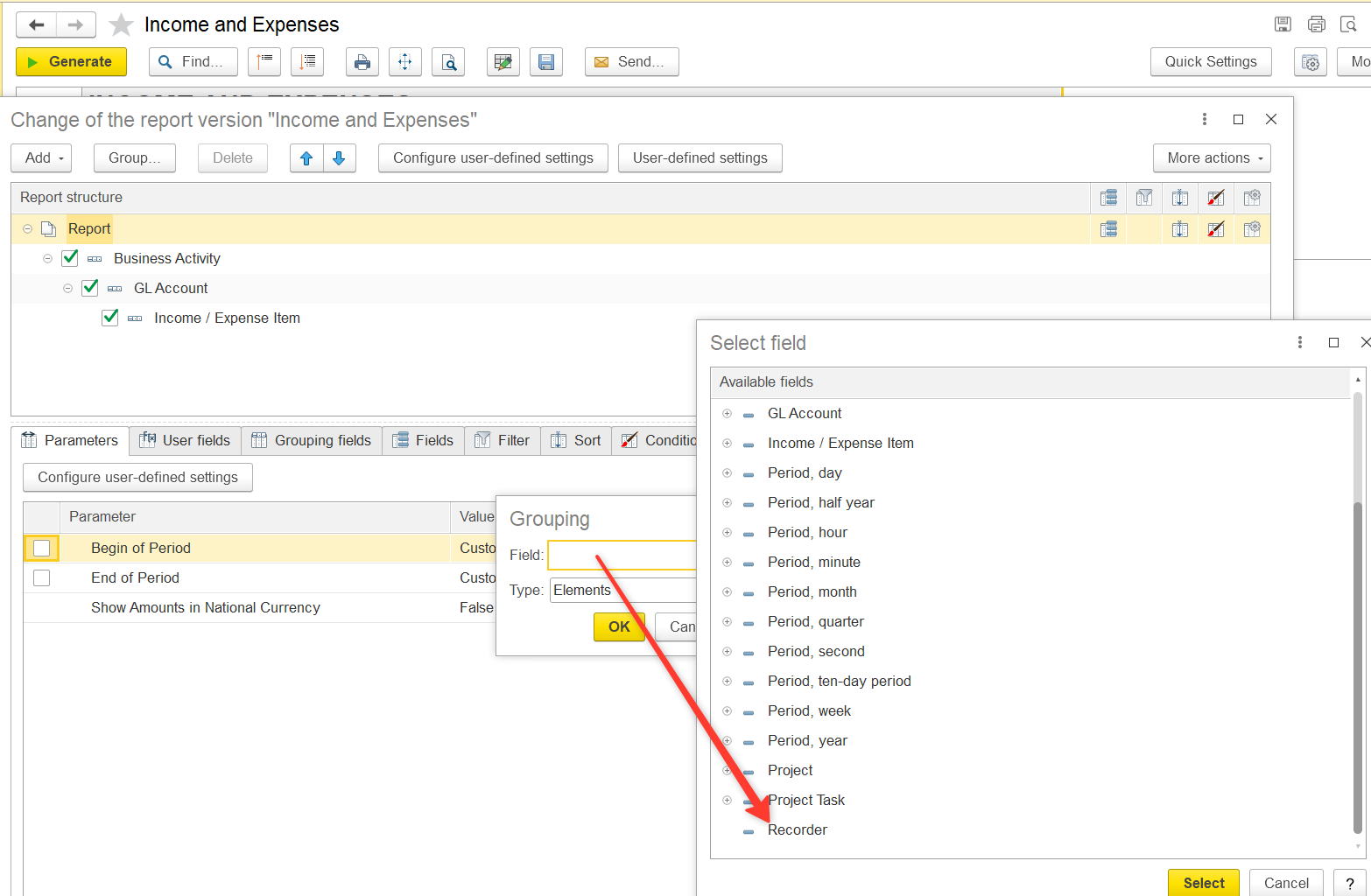
- A new row Recorder will appear → click Complete
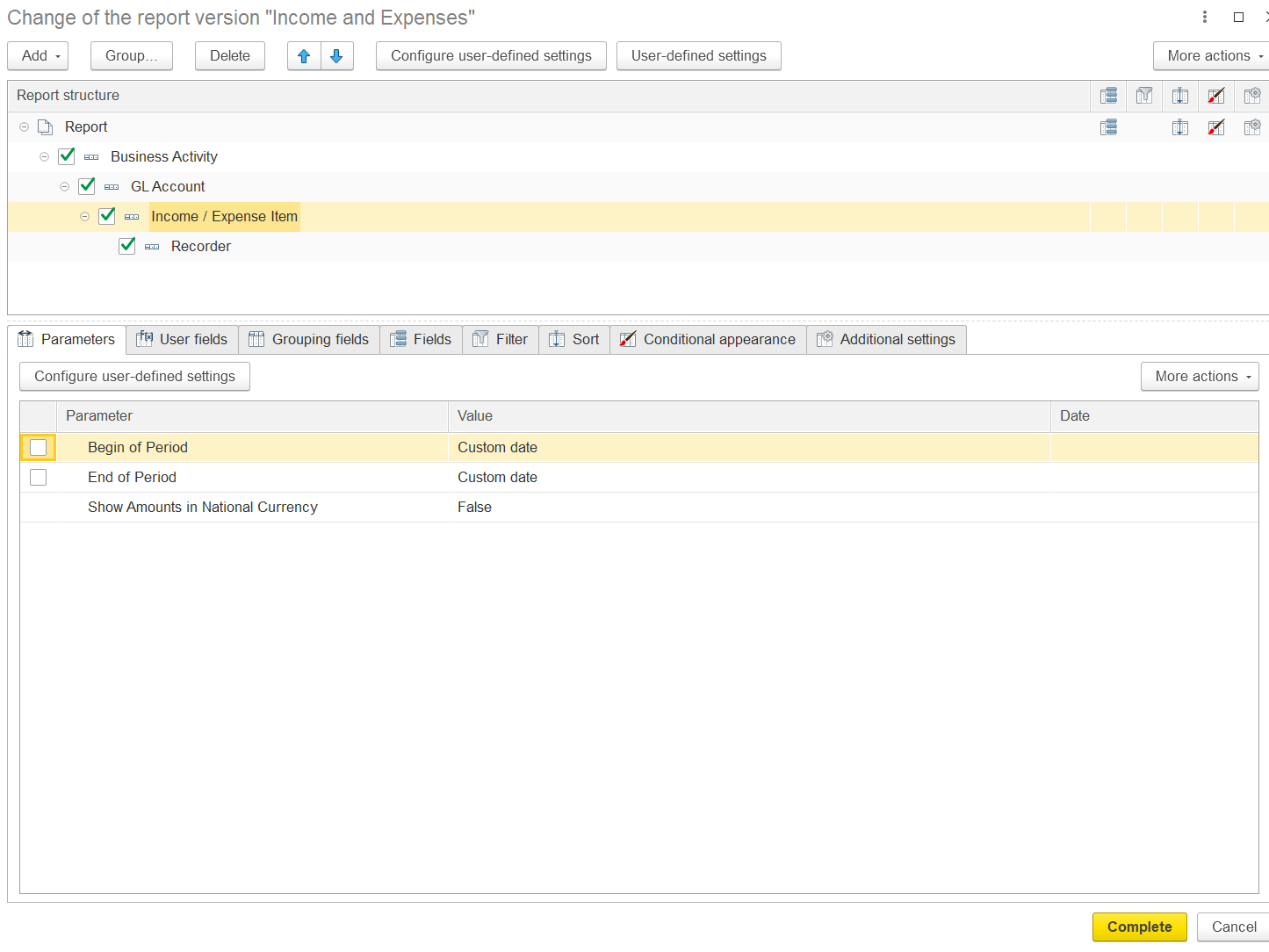
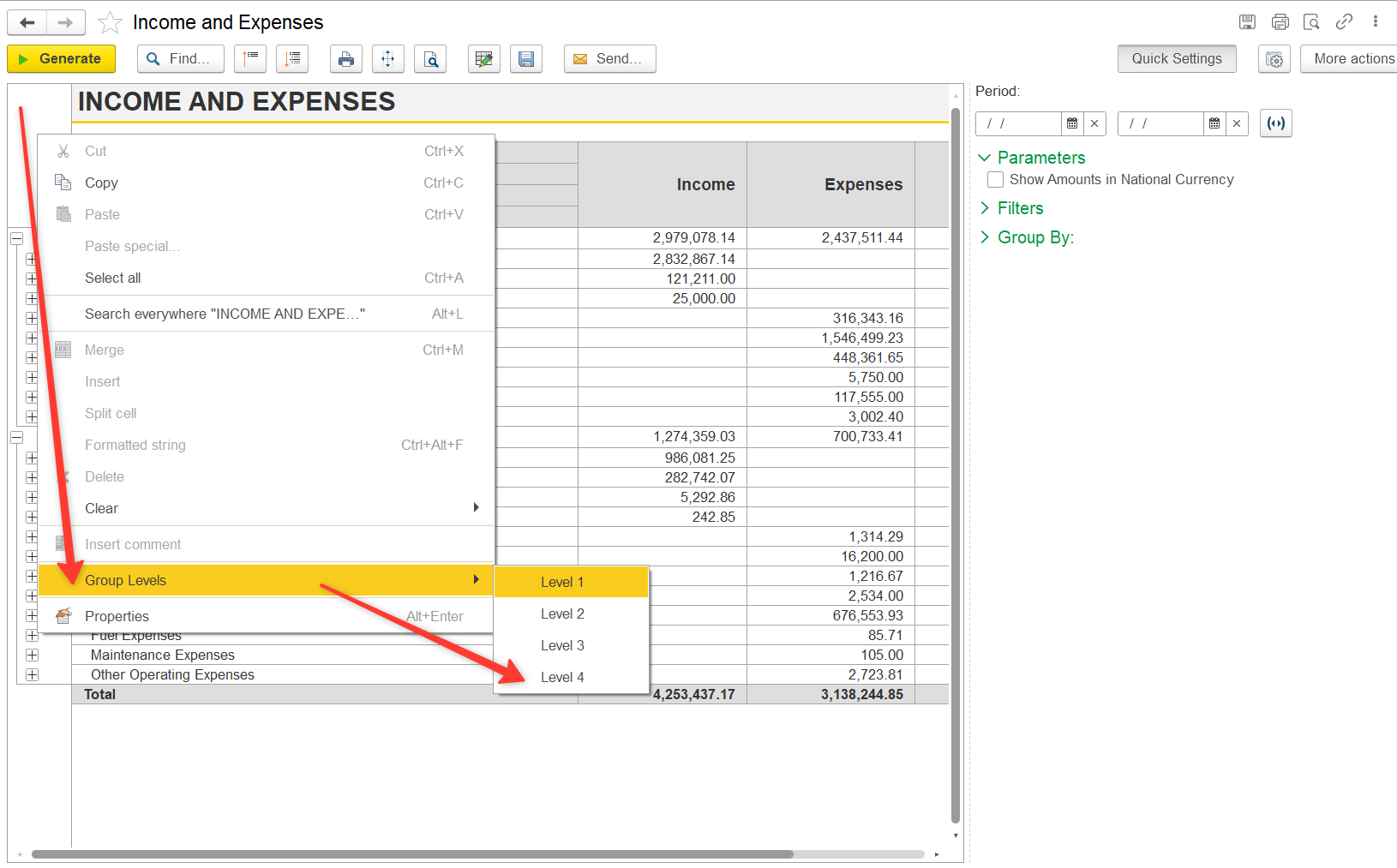
3.2. Add Project Information (Recorder.Project).
- Click More actions → Change report variant.
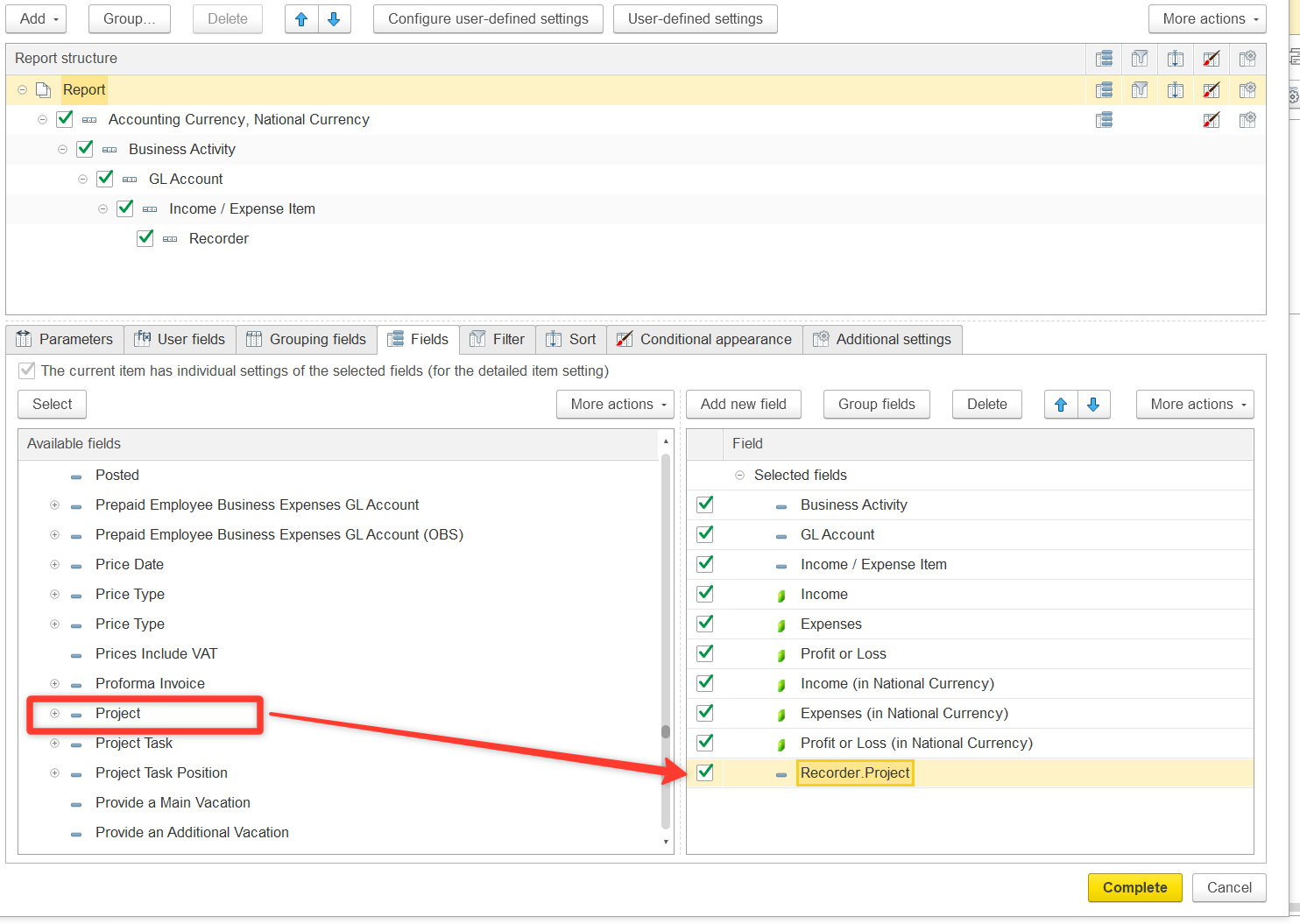
- Go to the Fields tab
- Find Recorder → Project
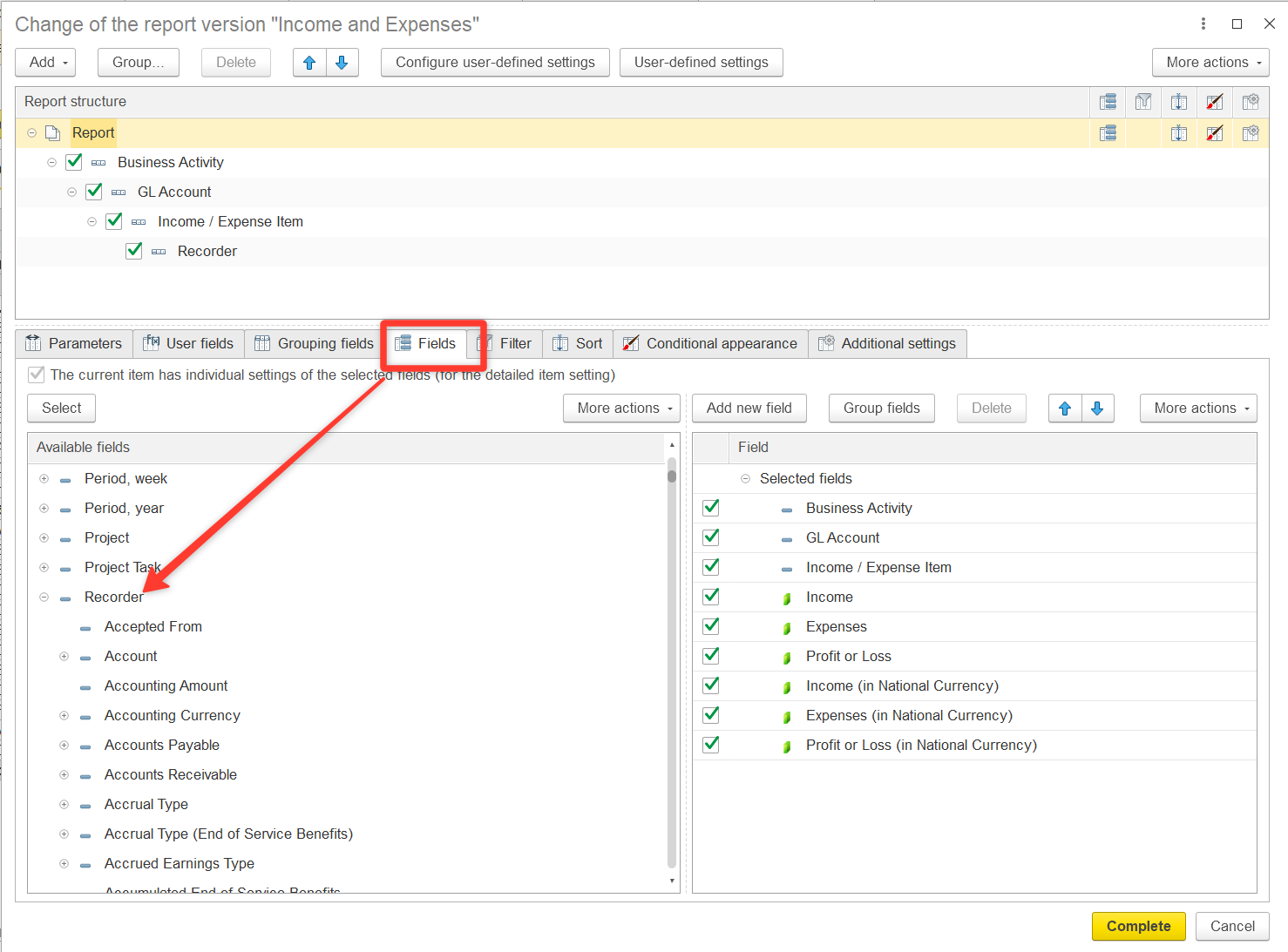
- Double-click to move Recorder.Project to the right section of the window
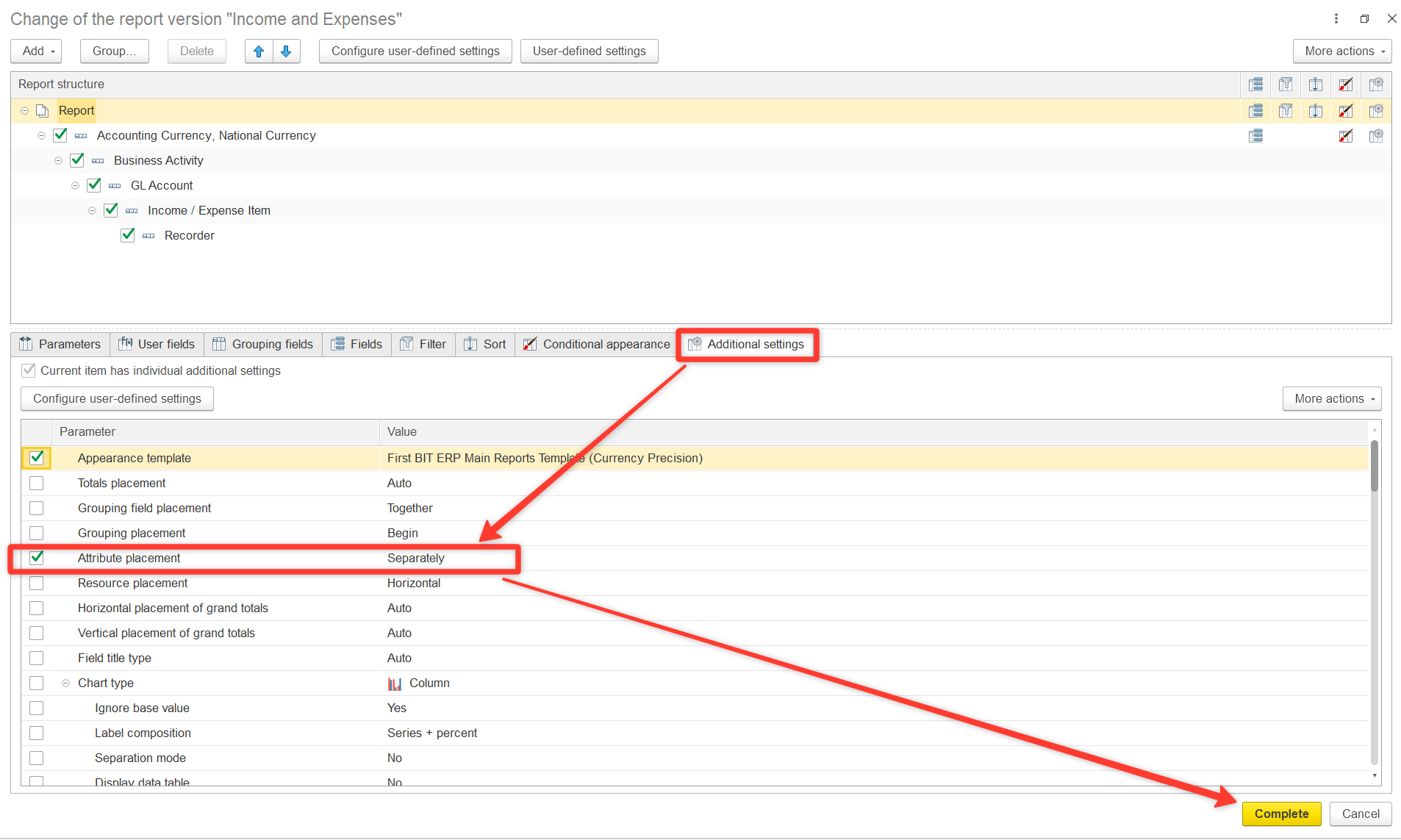
Configure column display:
- Go to Additional settings
- Set Attribute placement = Separately
- Click Complete
The new column Recorder.Project will now appear in your report. You can also adjust the order, title, and formatting of columns as needed. This will show which project each document is linked to.
If the Recorder.Project field is empty or shows “Not related to projects”, it means the costs are not allocated to any project.
2. Allocate the Costs
Option A: Direct Allocation in Documents
- Open the document where Recorder.Project is empty.
- Specify the correct Project.
- Save and post the document.
Option B: Allocation via Special Documents
- Use:
- Go to the Allocation tab.
- Click Fill and Allocate to retrieve unallocated costs.
- Assign costs to the required projects.
Use Split Row if you need to distribute costs across multiple projects.
Thanks for being a Firstbit Customer!
#CostAllocation #UnallocatedCosts #IncomeAndExpensesReport #ProjectCosts