This comprehensive guide explains how to track materials by project using the Project Costing module and how to resolve the «Cannot be set with option ‘Use Materials by Projects Tracking’» error.
Step 1. Verify that the Project Costing module is enabled and properly configured
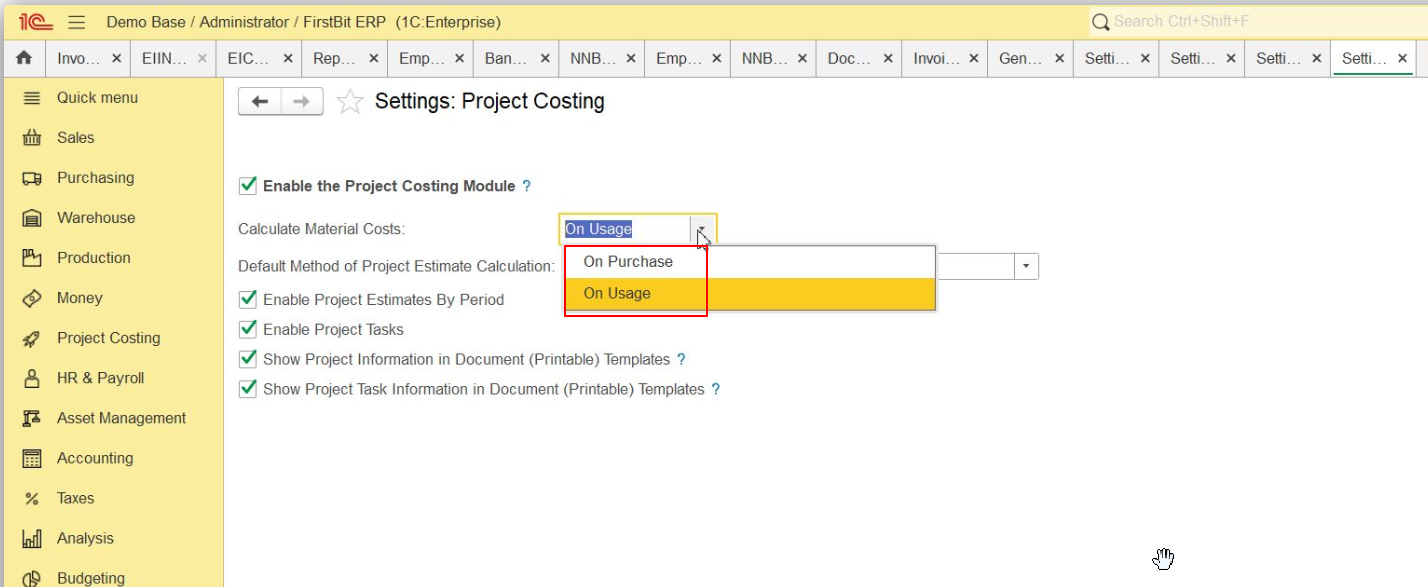
Navigate to Administration → Settings → Project Costing.
Check that the Project Costing option is activated (the checkbox is ticked).
Once enabled, the module allows you to:
create projects;
enter budget estimates;
track costs and revenues by project.
In the Project Costing settings, locate the section responsible for material cost calculation.
Check the selected method for calculating material costs for projects:
On Purchase (“On purchase”): costs are calculated when items are received into warehouses. Source documents for calculation include:
Invoices Received;
Employee Expense Reports.
On Usage (“On usage”): costs are calculated only when items are issued from warehouses. Source documents include:
Inventory write‑off;
Invoices.
Make sure the selected method aligns with your company’s business process. If it doesn’t:
change the setting to the appropriate method (On Purchase or On Usage);
save the changes.
Step 2. Linking materials to projects
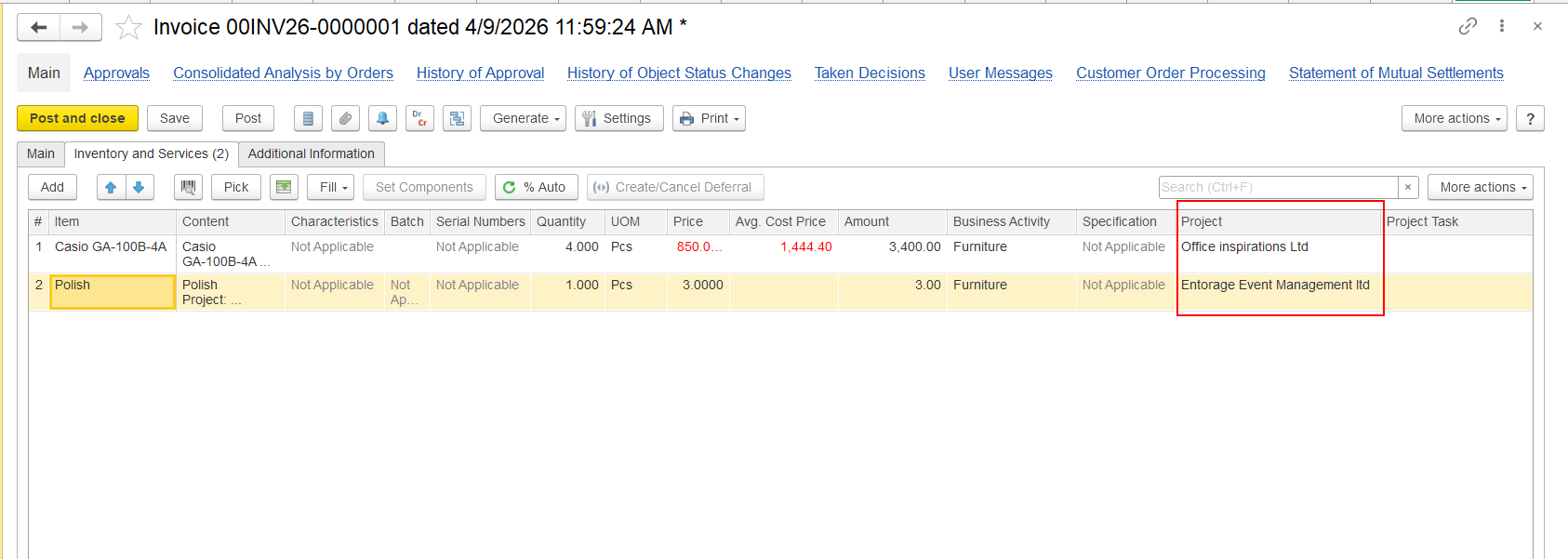
When entering documents, specify the project to which the materials are assigned. Supported document types include:
Inventory write‑offs;
Invoices.
To allocate different items to different projects within the same document:
Click the Settings button on the form toolbar. Move the Project field from the document header to the item list. Specify the project for each line item individually.
Step 3. Tracking and reporting
Direct material costs are calculated automatically based on:
documents linked to the project;
analytical parameters set for project cost tracking.
Indirect (overhead) costs (e.g., labor, depreciation) must be allocated manually or via data import:
use the Project Cost Allocations tool;
import allocation data from Excel.
To monitor project progress and costs:
open the project form and go to the Diagrams tab to view progress charts;
generate reports, including:
Work in Progress Balances (shows the current balance of unfinished work);
Statement of Work in Progress (detailed report on unfinished production).
Overview
For tracking materials related to project the system requires all material transactions to be linked to a Project.
When the error typically occurs
The error usually appears in the following situations:
when modifying warehouse or inventory settings;
when creating or editing inventory documents without specifying a Project;
when posting inventory transactions that must contain project analytics but do not include them.
How to resolve the issue
Solution - Assign a project in the document (recommended):
Use this solution if your company uses project‑based material tracking:
After assigning the project, the error should be resolved.
If the error continues to appear after assigning a project, verify that:
the selected Item supports project tracking;
the Warehouse transaction type allows project analytics;
the document date falls within a period where the setting is active.
Verify the Project Costing module is enabled and the correct cost calculation method (On Purchase / On Usage) is selected.
Link material transactions to projects when entering relevant documents (Inventory Issues, Invoices, Write Offs). If needed, move the Project field to the item list to assign different projects to different line items.
Allocate indirect costs using Project Cost Allocations or by importing data from Excel.
Monitor and report on material usage and project costs:
use the Diagrams tab in the project form for visual progress tracking;
run reports such as Work in Progress Balances and Statement of Work in Progress.
If you encounter the «Cannot be set with option ‘Use Materials by Projects Tracking’» error: assign a project in the affected document.
Thank you for being FirstBIT customer!