When generating a report in FirstBIT software, a user may encounter the following error:
Object Not found
This error usually indicates that the system cannot access a required object due to missing access rights, incorrect default settings, or unavailable reference data.
Below are the most common causes of this error and recommended solutions.
One of the most common reasons for this error is insufficient access rights to the selected Entity, especially if it is used as an attribute or filter in the report.
Example scenario:
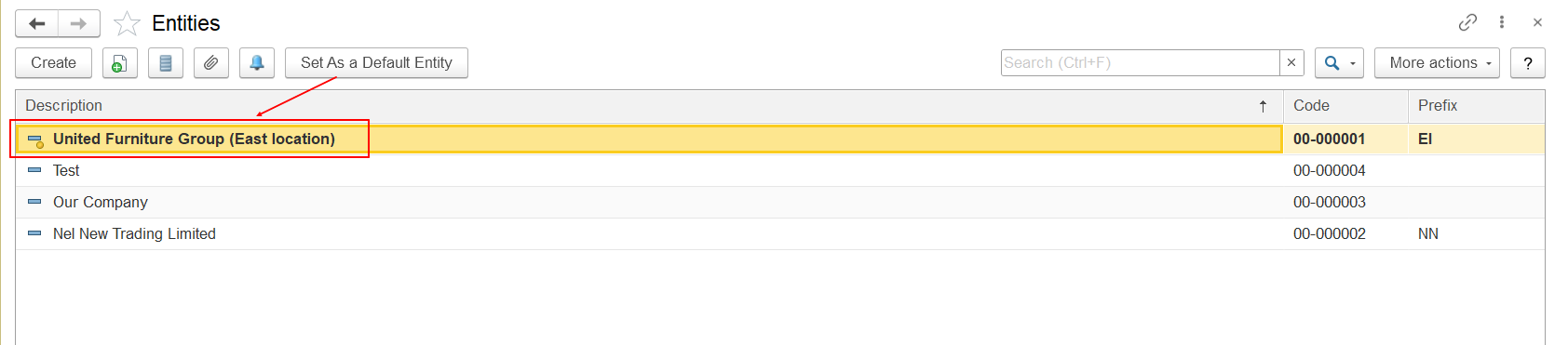
Entity United Furniture Group (East location) is set as the default Entity in system settings:
Access settings for user:
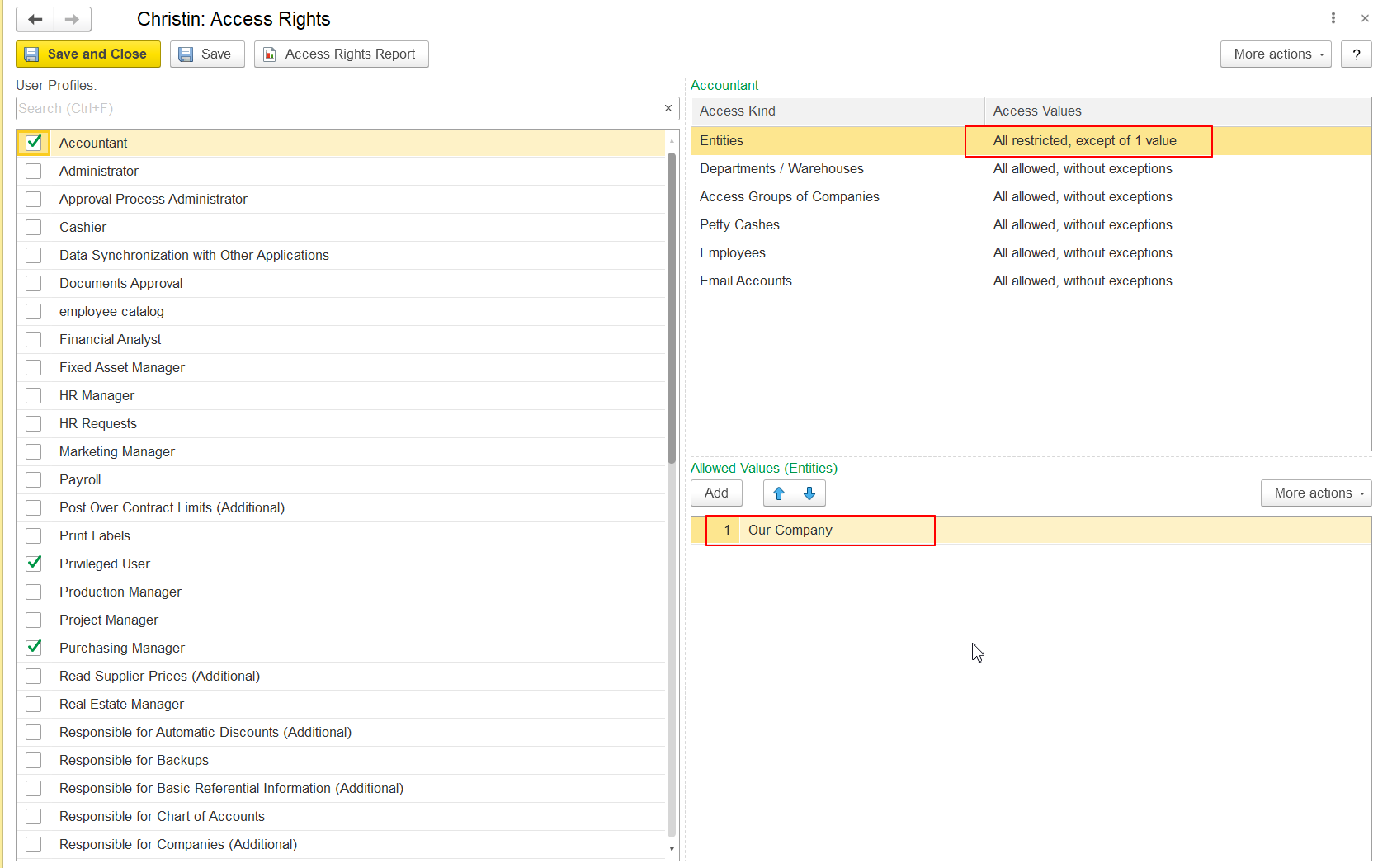
but the user does not have permission to view data for this Entity
Error:
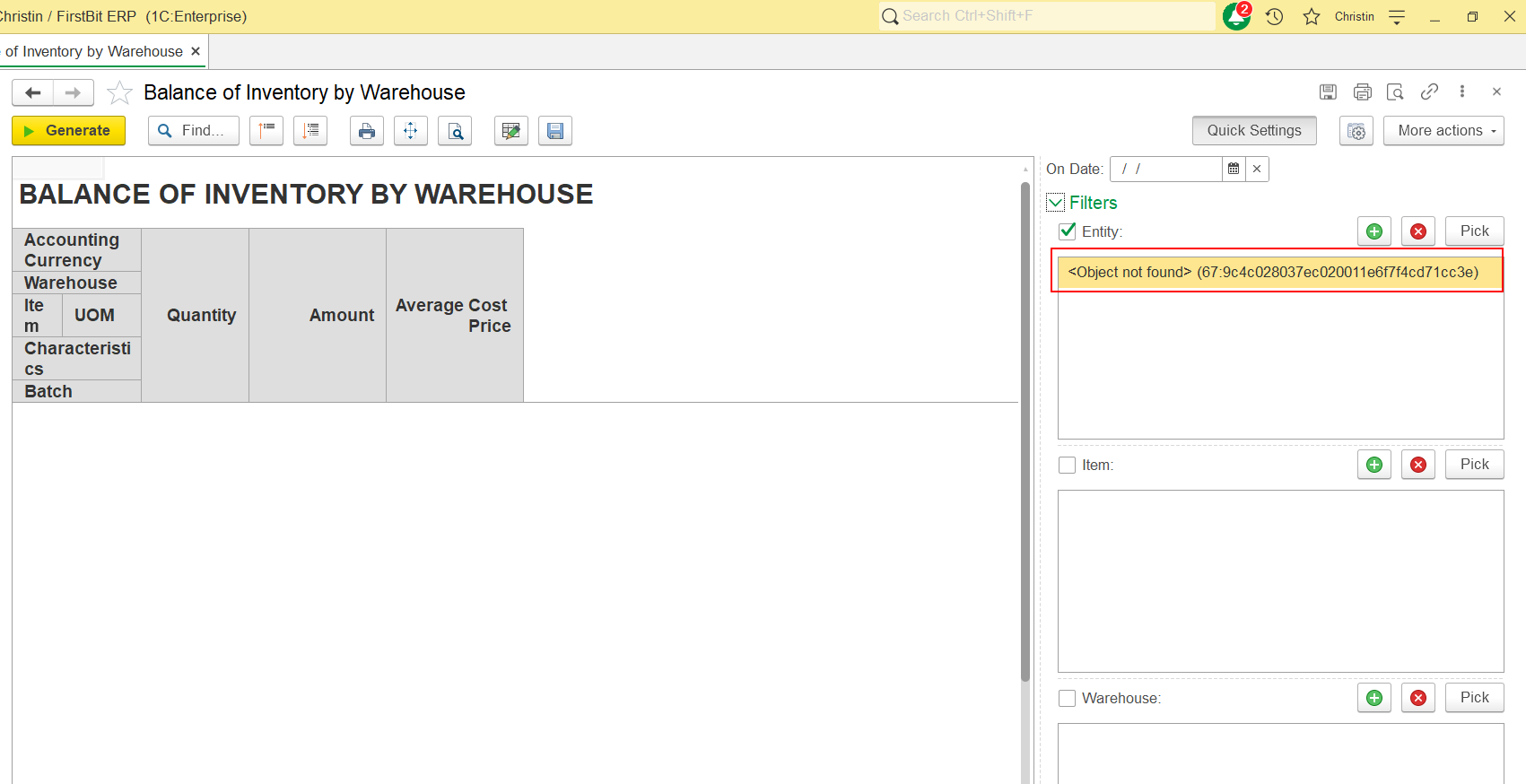
As a result, FirstBIT software attempts to generate the report using an Entity that is unavailable to the user, which triggers the Object Not found error.
Solution:
There are two possible ways to resolve the issue:
Option 1 — Grant the user access to the Entity
Contact your system administrator to verify and configure access rights to the corresponding Entity.
Option 2 — Change the default Entity in user settings
If access to the current Entity is not required, the user can change the default Entity:
Steps:
Go to Quick Menu - Personal Settings
Open the Default Values tab
Locate the Entity parameter
Select an Entity to which user has access
Save changes
Regenerate the report
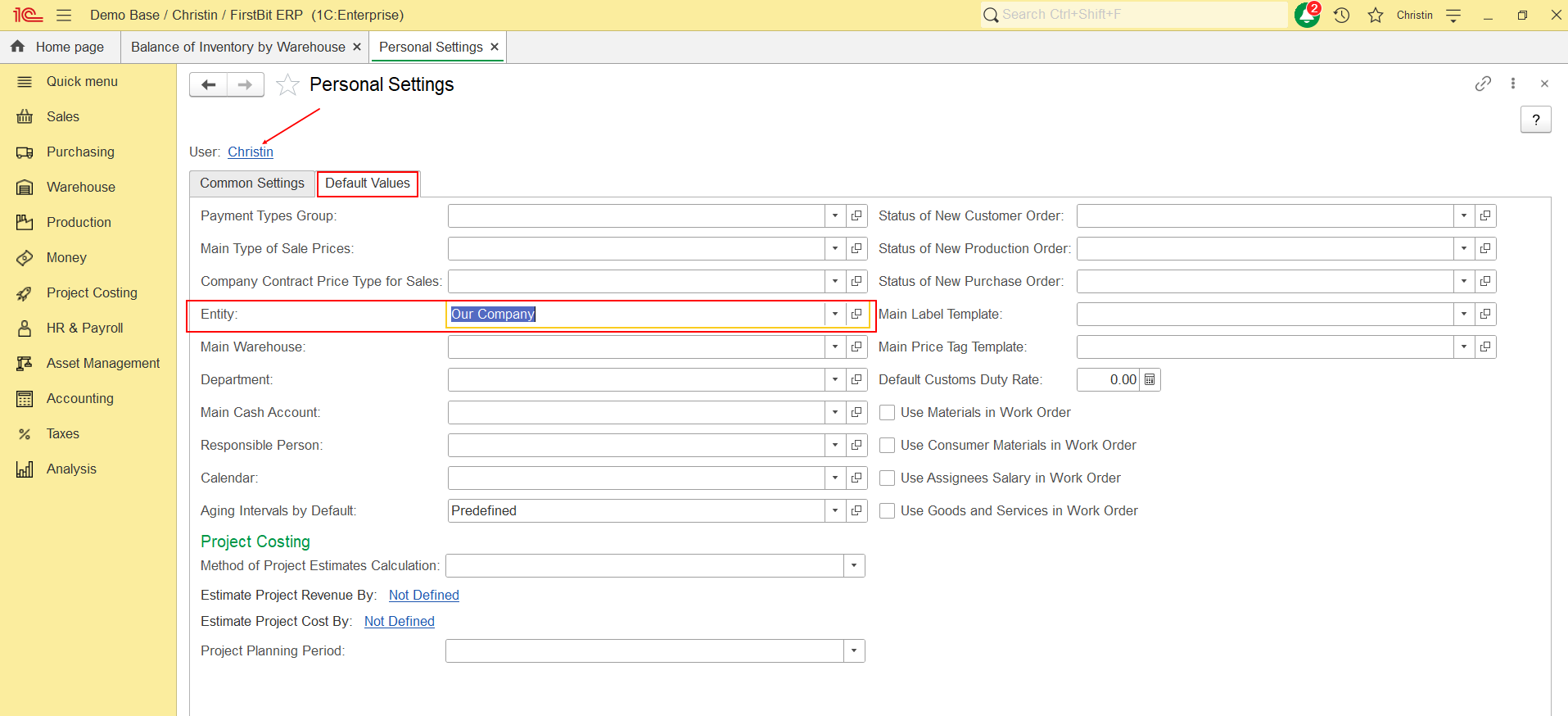
After changing the default Entity, FirstBIT software will use an accessible Entity when generating reports, and the Object Not found error is usually resolved.
Recommendation:
If a user works with multiple Entities, it is recommended to check the selected Entity before generating reports, especially when using saved report variants.
The error may occur if the user does not have permission to access the reference data used in the report, such as:
Employees;
Departments/ Warehouses;
Companies ;
Contracts;
Accrual types;
Other system reference objects.
Solution:
Contact the system administrator to review and adjust access rights to the required objects or set allowed values in personal settings.
If default parameters in user settings are configured incorrectly, the report may attempt to use unavailable objects.
Examples:
Default Entity
Default Company
Default Department
Default Employee in filters
Solution:
Check User Settings → Default Values and ensure that all selected objects are accessible to the user.
The error may occur if:
an object was deleted
an object was archived
a report filter references an unavailable object
Solution:
Clear report filters and reselect active objects.
If the user runs a saved report variant, it may include references to objects that are no longer available.
Solution:
Clear report filters
Use the global report settings reset via More Actions → Reset Settings
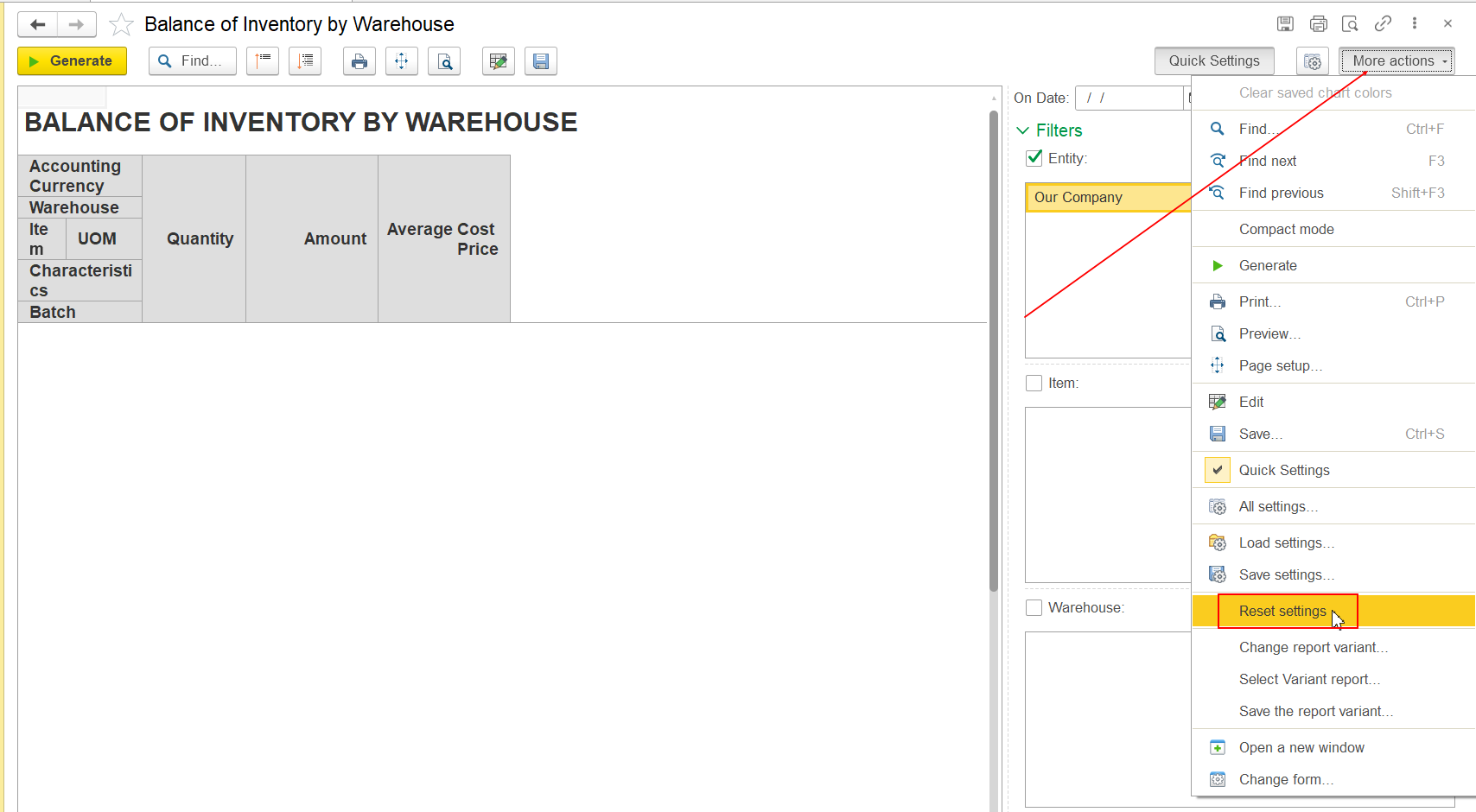
Note: Resetting via Reset Settings removes all personalized filters and parameters linked to the report variant, allowing you to start with a clean template.
If the error occurs:
Check the selected Entity
Ensure the user has access to the Entity
Review report filters
Reset saved report parameters or use More Actions → Reset Settings
Verify access to related reference objects
Contact the system administrator if the issue persists
Thank you for being FirstBIT customer!