Allocation of labor cost means distributing an employee’s salary (or total payroll cost) across different projects and departments.
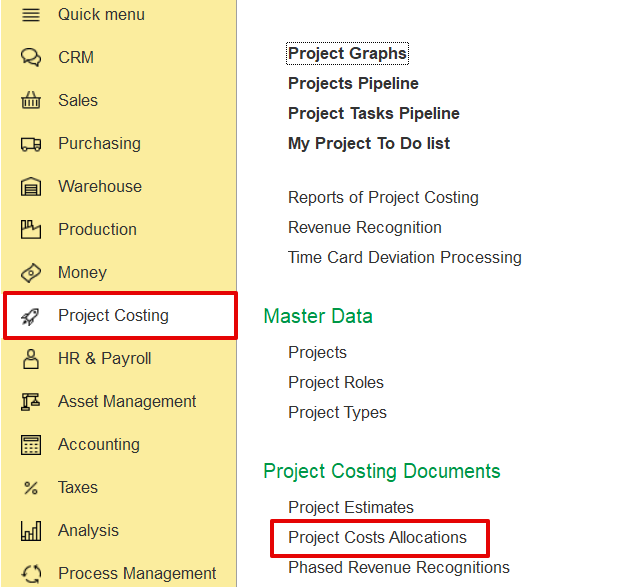
To access Project Costs Allocation, go to Project costing → Project Costing documents → Project costs Allocations
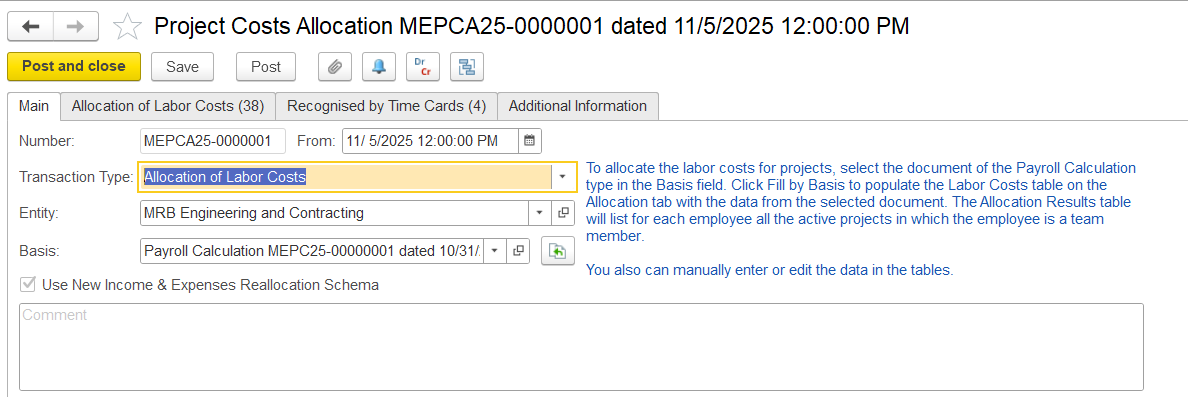
This tab is used to enter the key details for labor cost allocation, including the date, document number, entity, and the payroll document that will act as the basis.
The “Use New Income & Expenses Reallocation Schema” option refers to an updated internal method (schema) used by the system to manage cost allocation logic.
Note: This is a system-controlled setting and is not amendable by users.
This tab is available for documents with the Labor Cost Allocation transaction type. The tab contains two tables: Labor Costs and Allocation Results.
The Labor Costs table is automatically filled based on the payroll calculation document selected on the Main tab. Each employee may appear in one or more rows, depending on the number of accrual types included in the payroll document. Users can remove unnecessary rows and adjust the amounts to be allocated.
Deductions from payroll calculations are generally excluded from project cost allocation to avoid double-counting project costs. However, if a deduction is marked as manually adjusted during payroll calculation, it is included in the allocation as a negative amount and distributed across projects, thereby reducing the corresponding project costs.
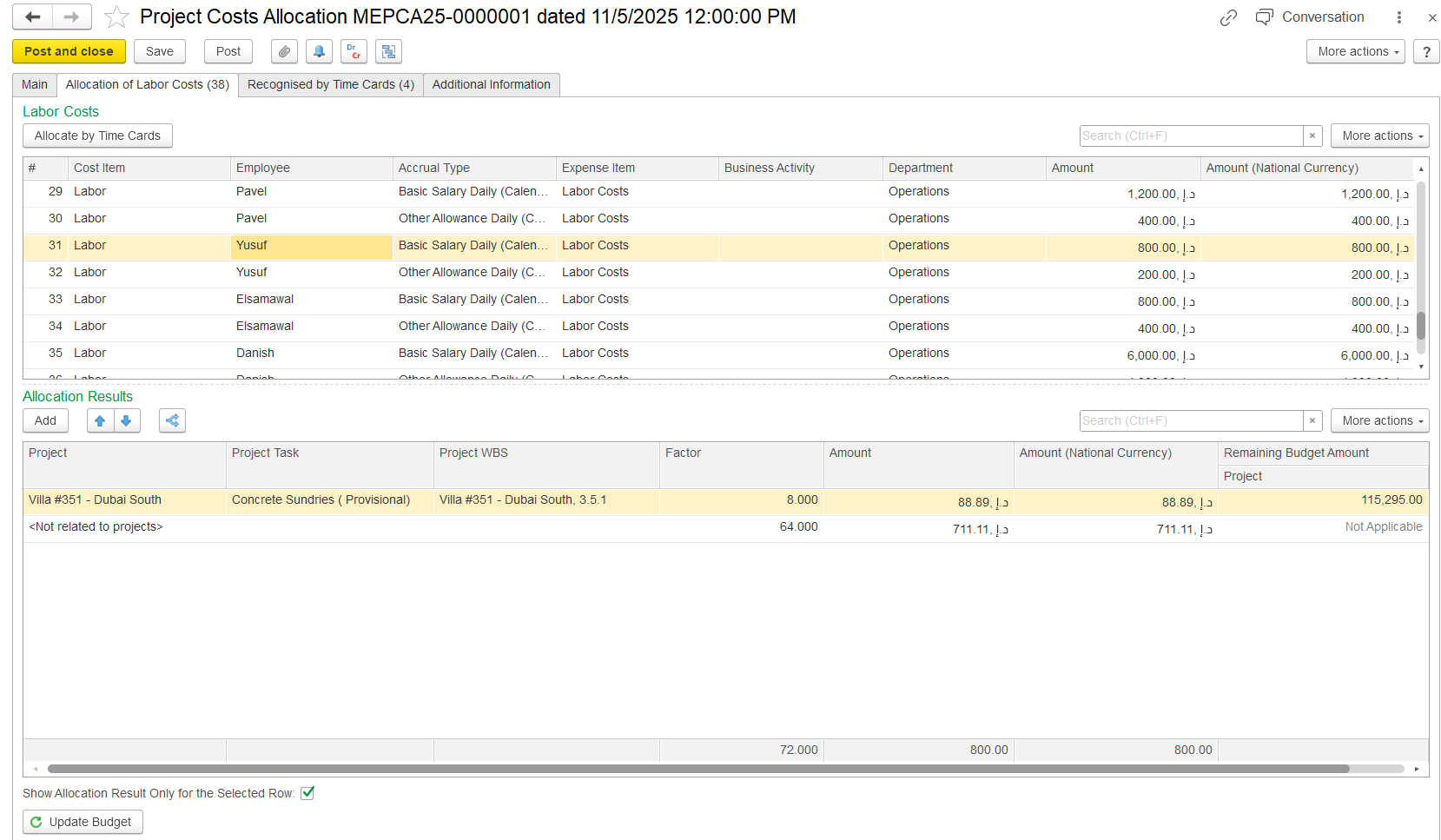
The Allocation Results table shows how labor costs are assigned to projects or tasks. It calculates how much of an employee’s labor cost goes to each project based on allocation factors. If an employee isn’t part of any project team, their cost is shown as <Not related to projects>.
Cost allocation can be done either using payroll calculation documents or by selecting the “Allocate by Time Card” option.
Once the basis is chosen and “Fill by Basis” is clicked, the system checks whether the employee is assigned to any active projects. If the employee is working on multiple projects, their salary is evenly distributed across them. Alternatively, when the Time Card option is selected, allocation is based on submitted time cards for the selected period, which reflect how working hours are split among projects, and salary costs are then distributed accordingly.
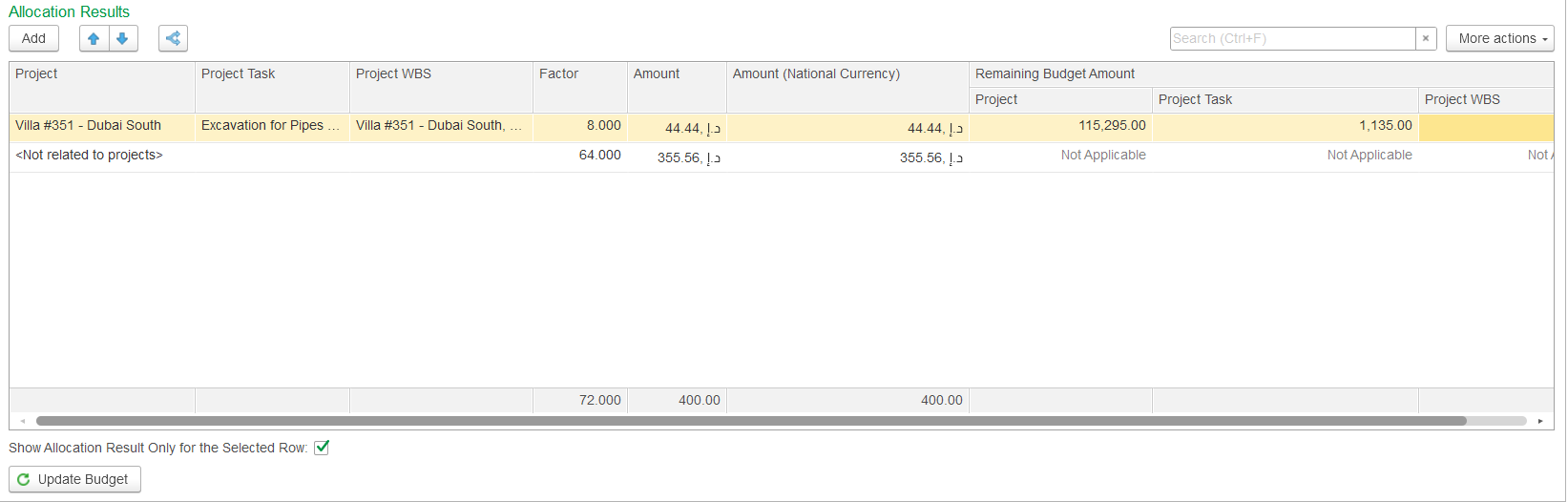
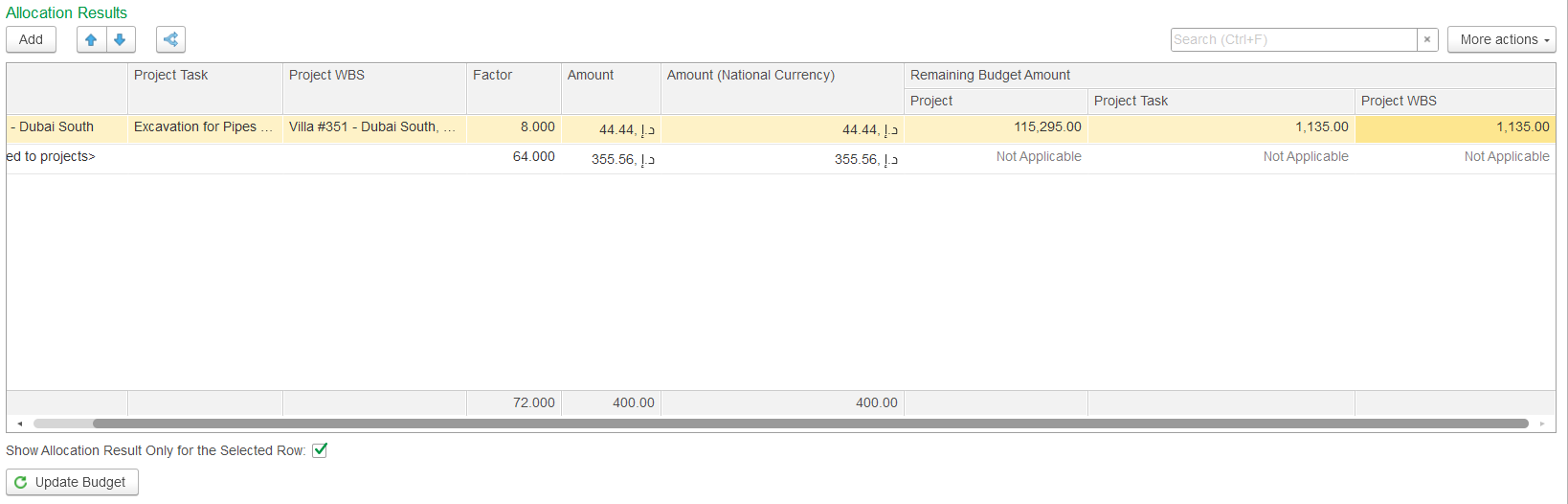
If the Show Allocation Results only for the Selected row checkbox is unchecked, the lower table displays all labor cost allocations (for all employees). If the checkbox is checked, the lower table shows allocation results only for the selected employee cost from the upper table.
To distribute costs automatically based on employees’ time cards, click Allocate by Time Card. Labor costs for employees on projects with Active or Proposed status are allocated proportionally to the hours recorded in their time cards, as shown in the Allocation Results table. Employees not assigned to any project appear as <Not related to projects> in the Project column, and their costs are not allocated. Hours not linked to a project remain unassigned, with the corresponding portion of the salary excluded from project allocations
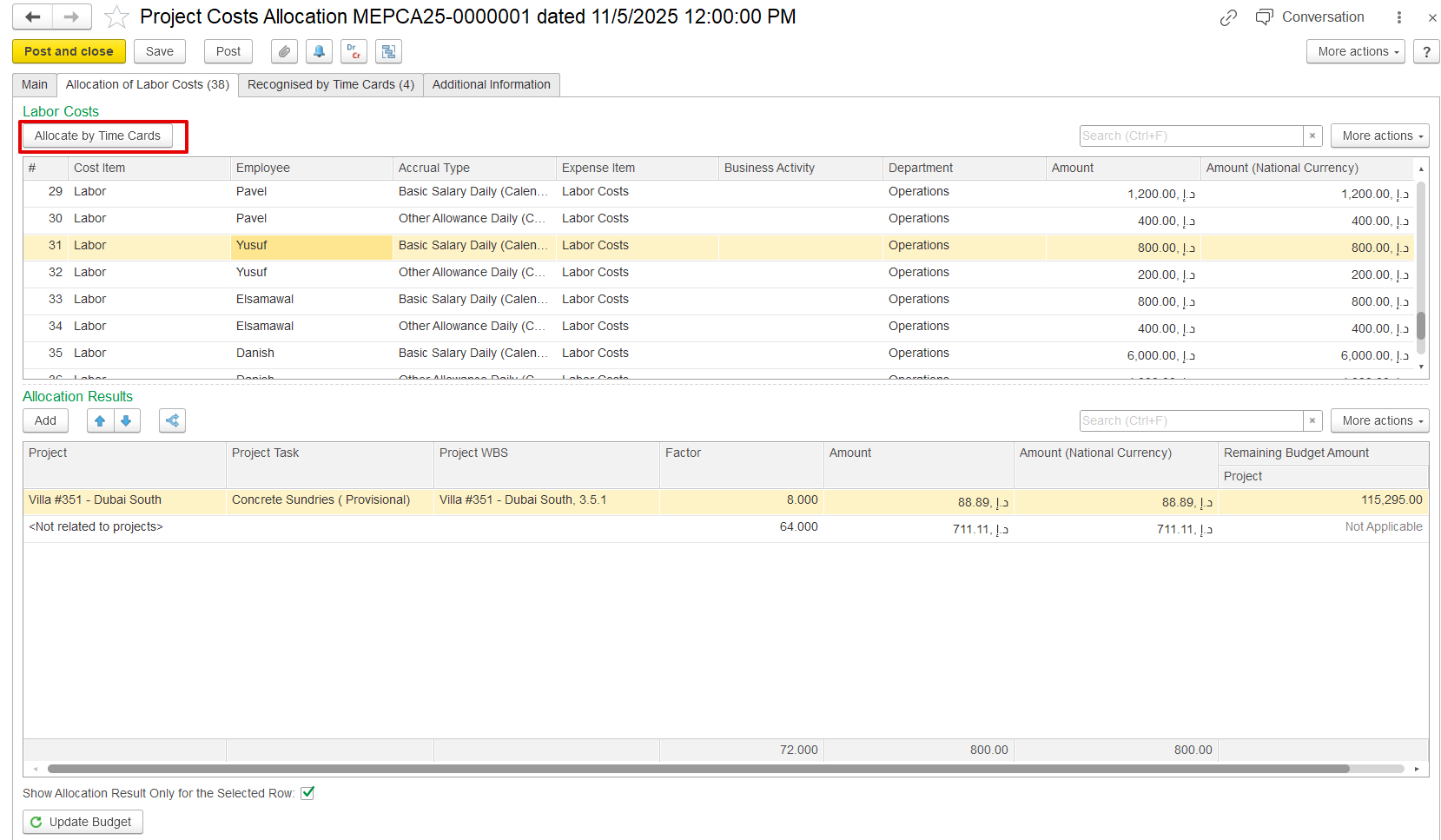
Project costs are allocated based on the time card date. The document date must match the time card date, and only hours within the project’s proposed period are applied. If the dates don’t align, no allocation occurs.
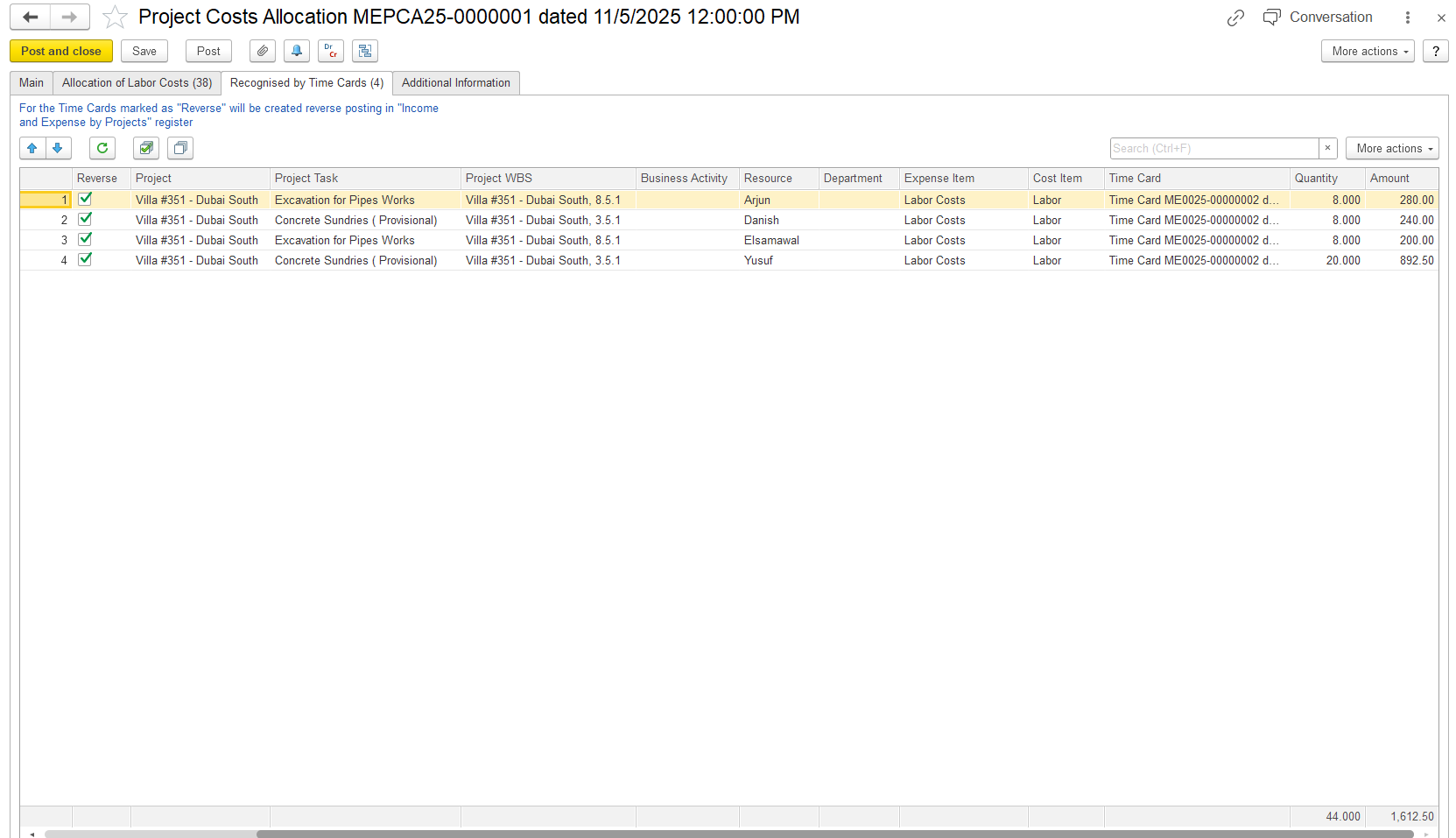
The Recognized by Time Cards tab reverses entries in the Income and Expense by Projects register that were created by time cards. This tab manages project cost allocation using employee timecards, allowing the system to reverse previous cost assignments with negative amounts and reallocate payroll costs based on actual hours worked. Only timecards from the same accounting period are considered, so costs are applied in the correct period, while any unassigned hours remain as non-project costs.
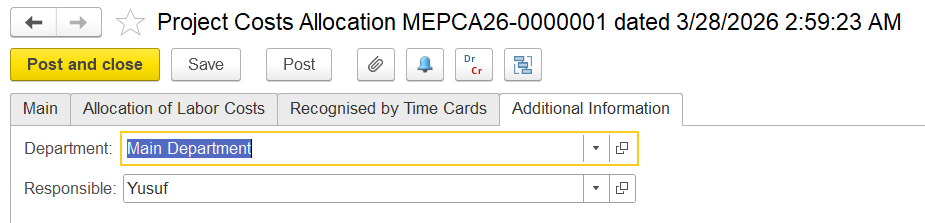
On this tab, users can enter optional details for the document, such as the department and the person responsible for the allocation. No fields are mandatory.