If FirstBIT software works slowly or freezes only on one specific user’s laptop, while other users work normally, the issue is usually caused by a local cache.
Please follow the steps below to clear it.
Before starting, completely close the 1C FirstBIT application.
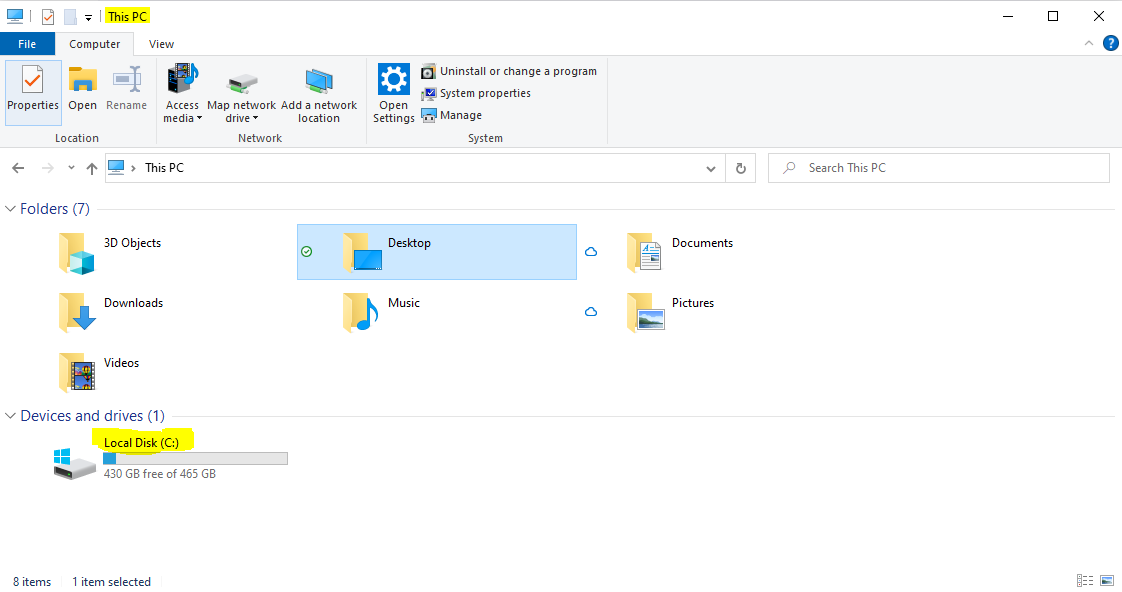
Open My PC - Local Disk (C:)
Open the folder:
Open Users Folder: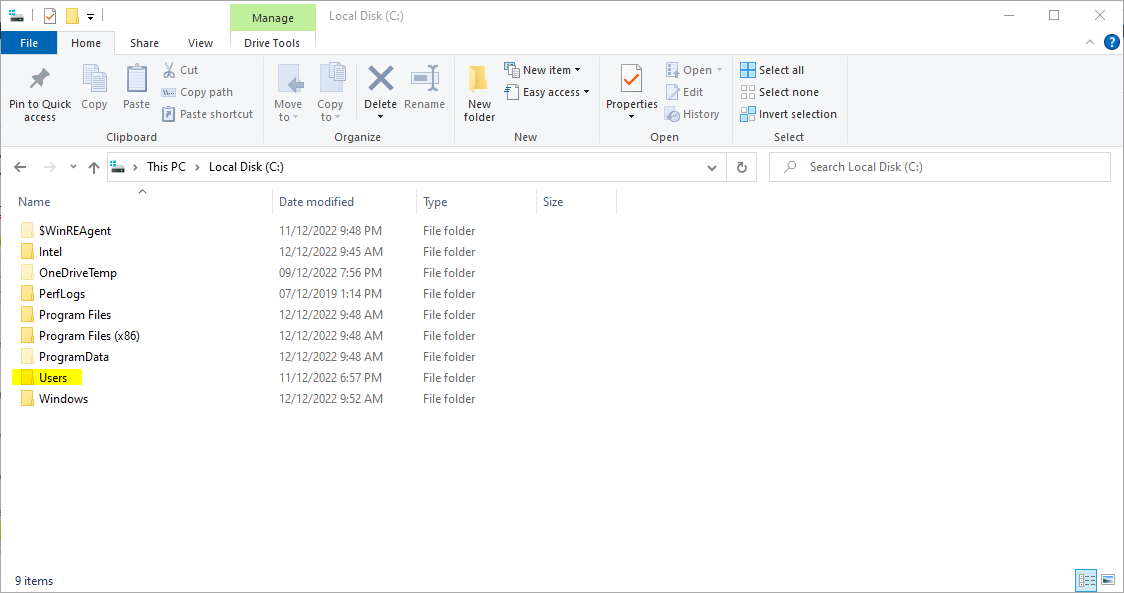
Select current user account: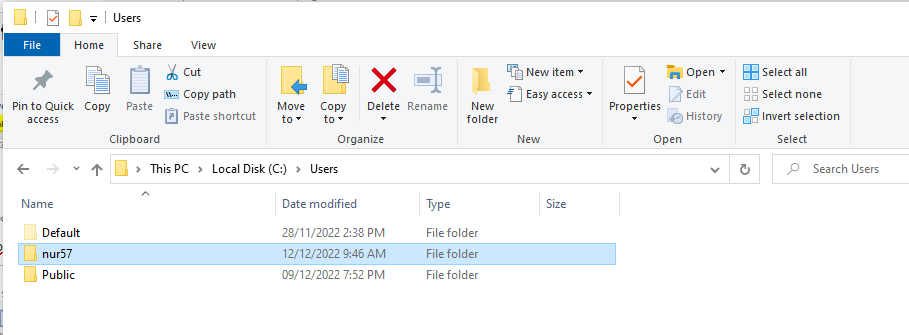
3. Enable Hidden items (View - Hidden items).
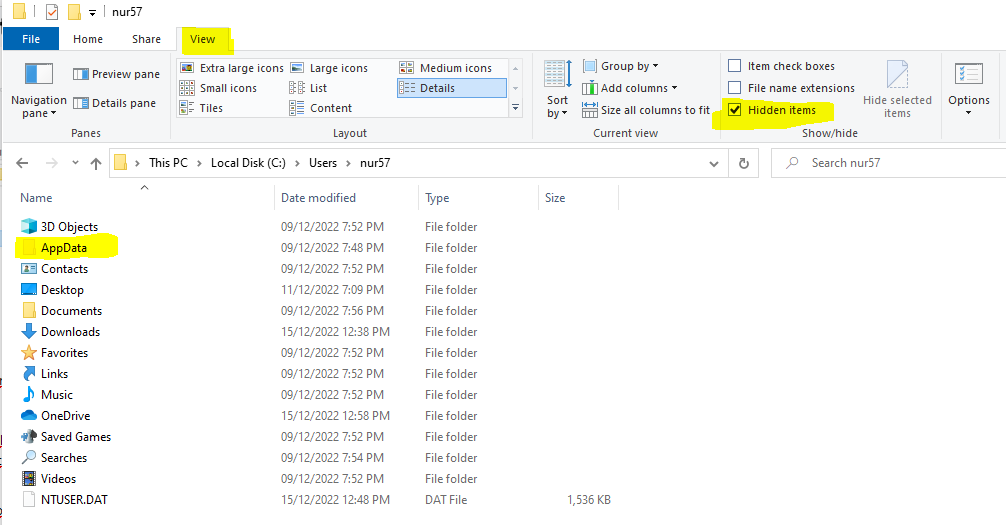
4. Open the AppData folder.
5. Go to the following folders one by one:
AppData\Local\1C\1cv8
AppData\Roaming\1C\1cv8
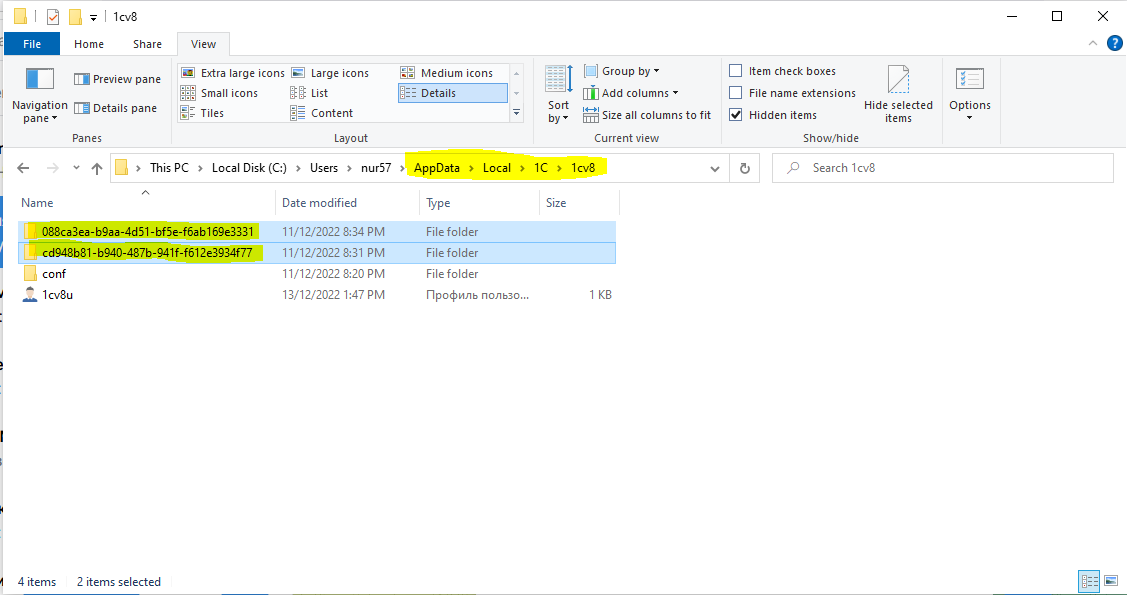
6. Delete all files and folders inside
(cache files usually have random names with letters and numbers).
These files are temporary and safe to delete.
If you are using on-premise FirstBIT (not cloud), please do the following:
Open FirstBIT.
In the main window, click Help - About.
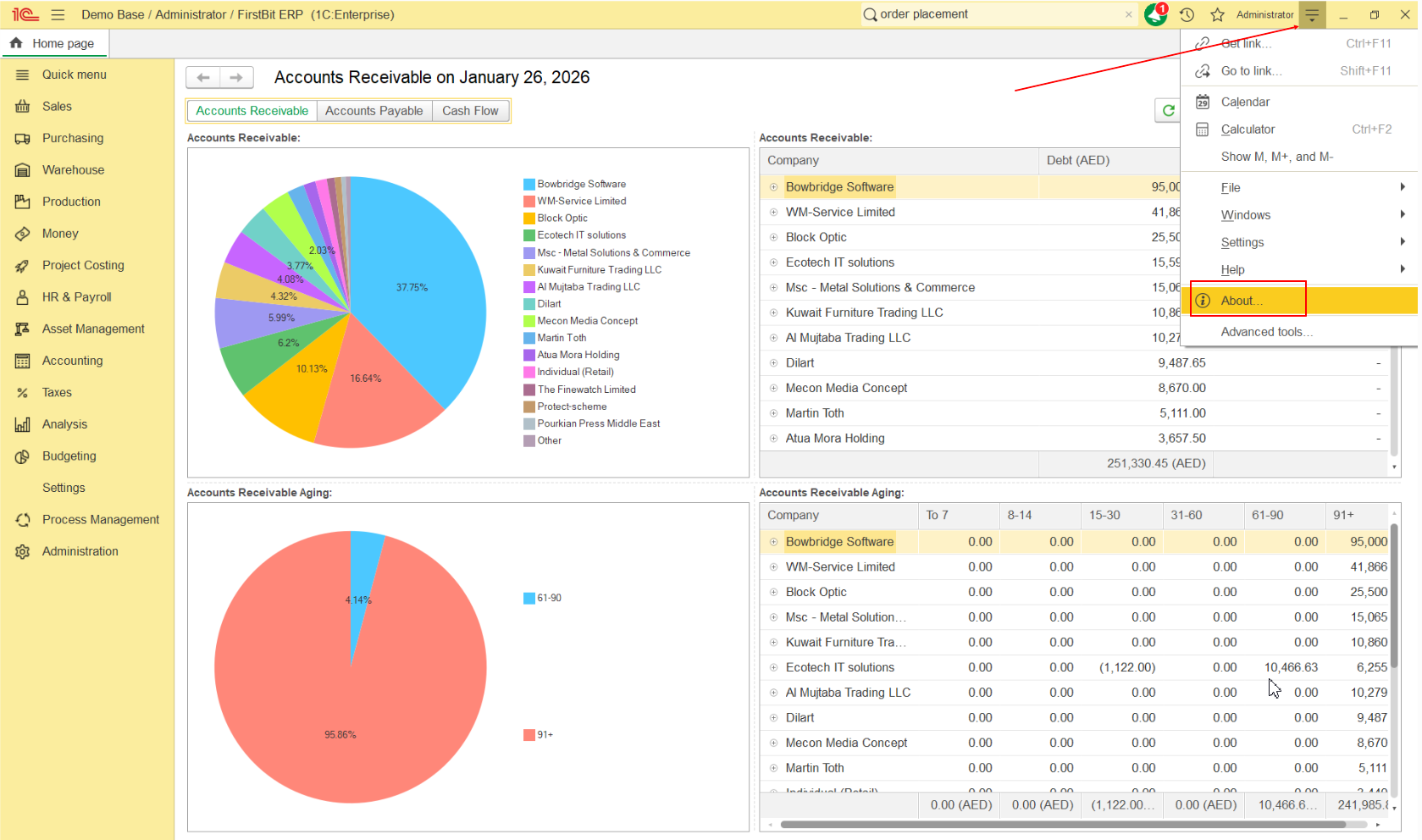
3. In the About window, find the Directory path.
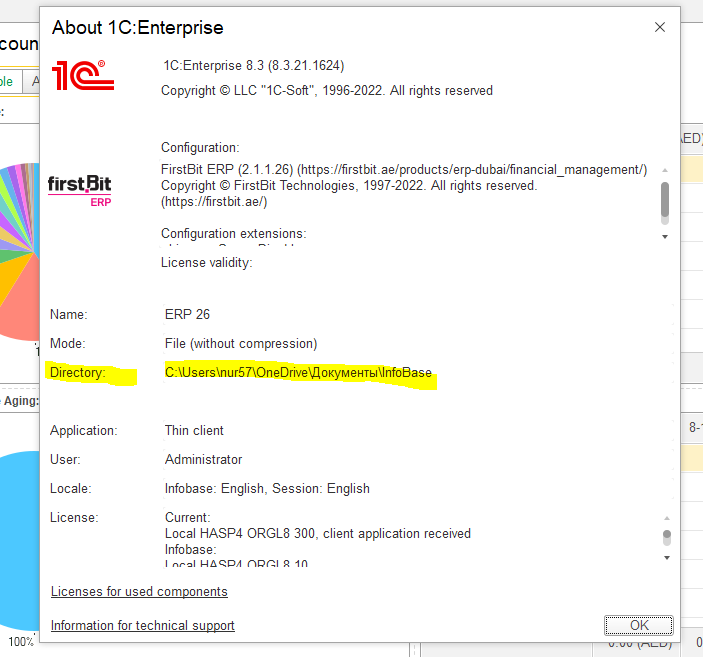
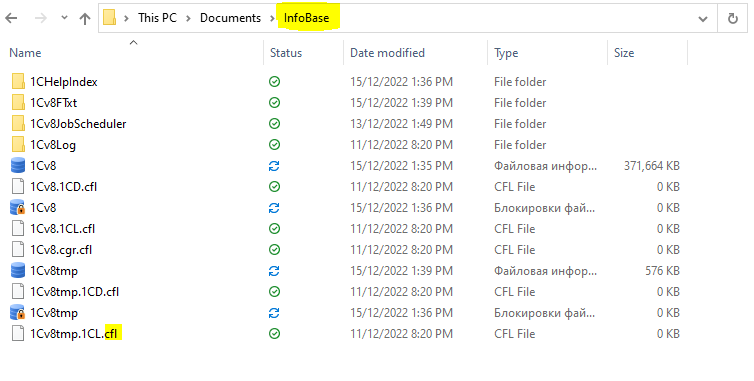
4. Open this folder on your computer.
Delete all files with extensions:
.cfl
.cdn
Start FirstBIT again.
Log in to the database.
Check if the system performance has improved.
Clearing cache does not delete any accounting data
First login after cache cleaning may be slightly slower
This procedure can be repeated if needed
Following these steps should resolve any lagging issues. If the problem persists, please contact the hotline for further assistance.
Alternatively, you can watch the video tutorial- https://portal.firstbit.ae/~5HP1m
Thank you for being a FirstBIT customer! #Slow system #Lagging of base #Clear cache