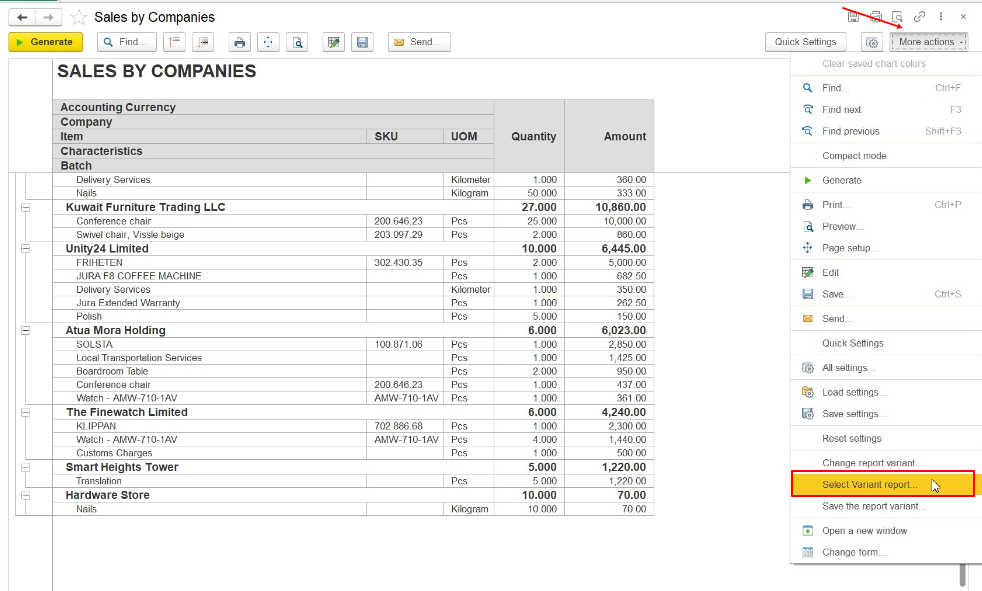
For the convenience of users in working with reports, the FirstBit ERP system provides an option - Variant of report.
A report variant is a combination of settings created in advance by the developer in the configurator, or configured and saved by the user in user mode. Report options allow you to receive different reports in one layout scheme, using the same data sets, with a different set of fields, design, selections, etc.
A report always has at least one option – the main one. Several report options appear when you need to display the same data in different views: table, sheet, chart. Or with various preset selections.
Each variant uses the same indicators calculated when generating the report. The default report options are those created by the developer. These report options are standard functionality of the system. Based on them, users can create their own options. The selection list contains parameters created by the report designer as well as parameters created by users themselves.
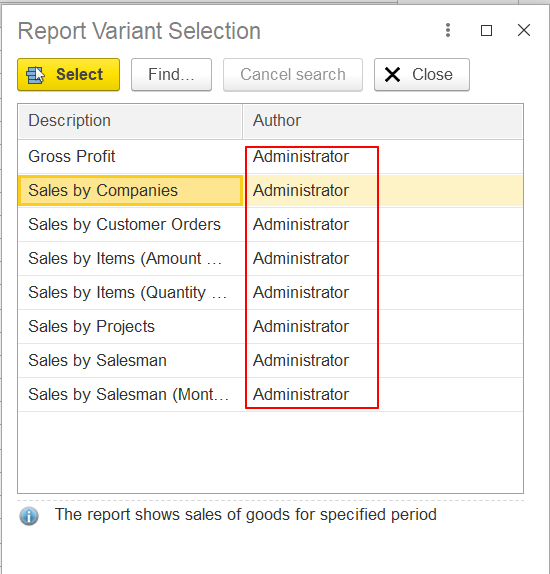
In Report Variant Selection form user can see all saved report variant - and also user may check - was it created by developers (author - Administrator) or by users (in this case in autror would me name of users, who made new report variant).
From Report Variant Selection form user can choose variant he needs and open it.
2. How to save new report variant.
In case when user created new report variant (if he changed something in standard report variant - appearance, filters, structure) user should do following steps:
More actions - Save the report variant:

In opened Report Variant Saving window it is necessary to select type of saving:
-new report variant;
-in existing report variant.
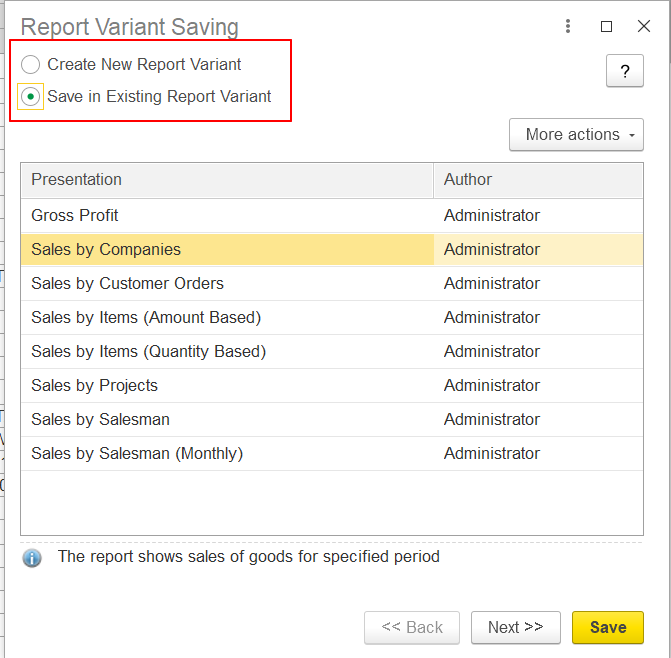
User should save in new report variant - in this way in the system user will be able to use standard and non standard variants of report.
Next step:
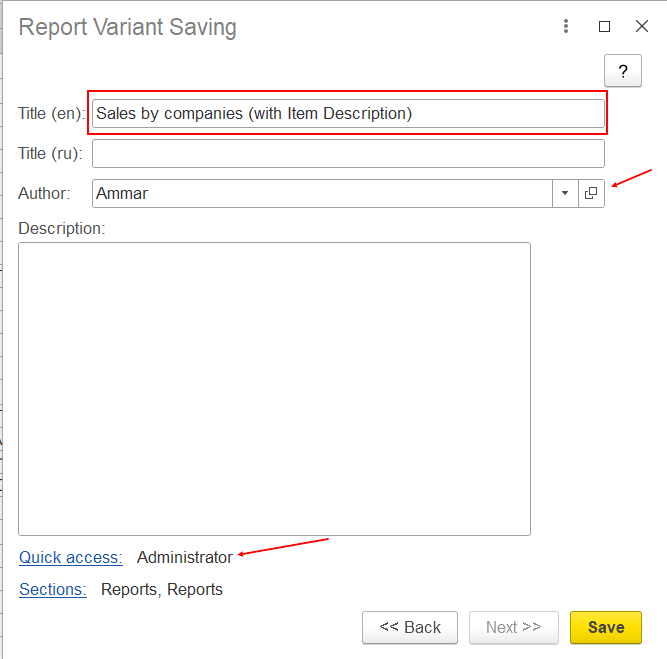
user should write Title for new variant of report, Author (mandatory), Description (not mandatory).
Author of new report variant also may give to another users rights to see new report variant in their quich access for current report (with making settings in Quick Access option:
In The Setting for Quick access form author of new report variant may select users who will be able to use new variant:
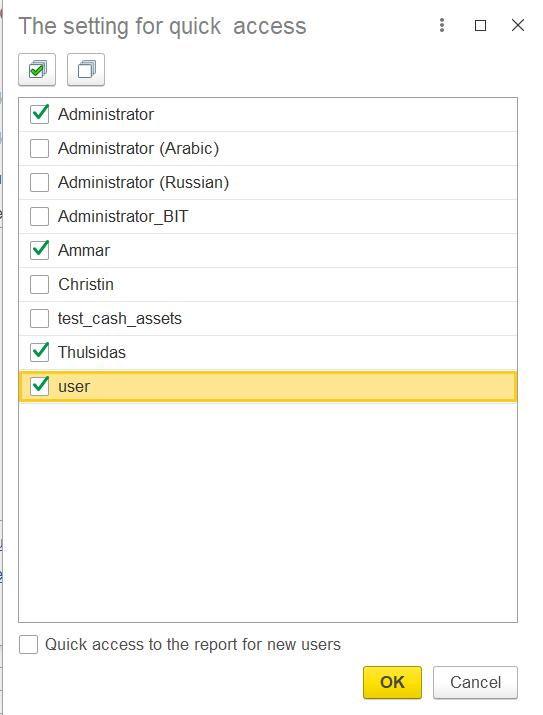
After making this actions author of new report variant shoud save it with Save button.
Then user can check in report variants:
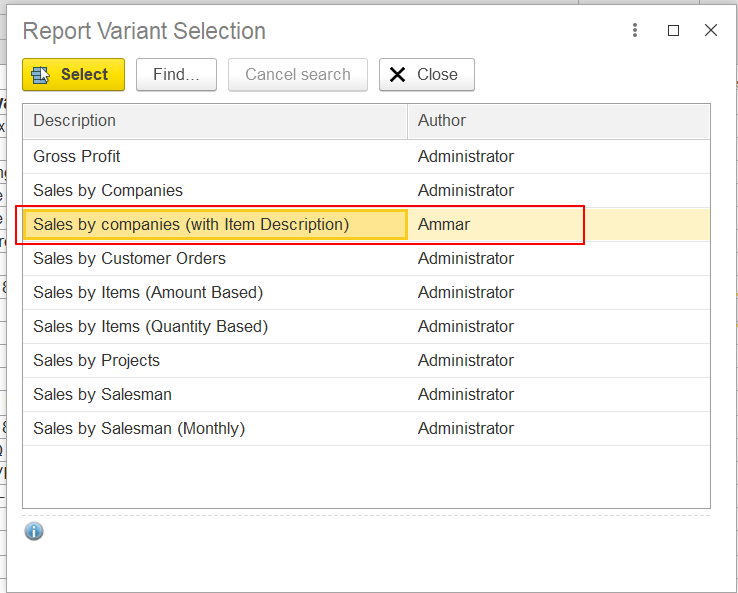
Now user can see new report variant in list of all report variants.
Thank you for being FirstBit Customer!