The Project Progress Report enables the tracking of actual progress for project tasks (WBS lines) during a selected reporting period. It is used to monitor performance, manage progress transfers (especially for variations), and support billing processes.
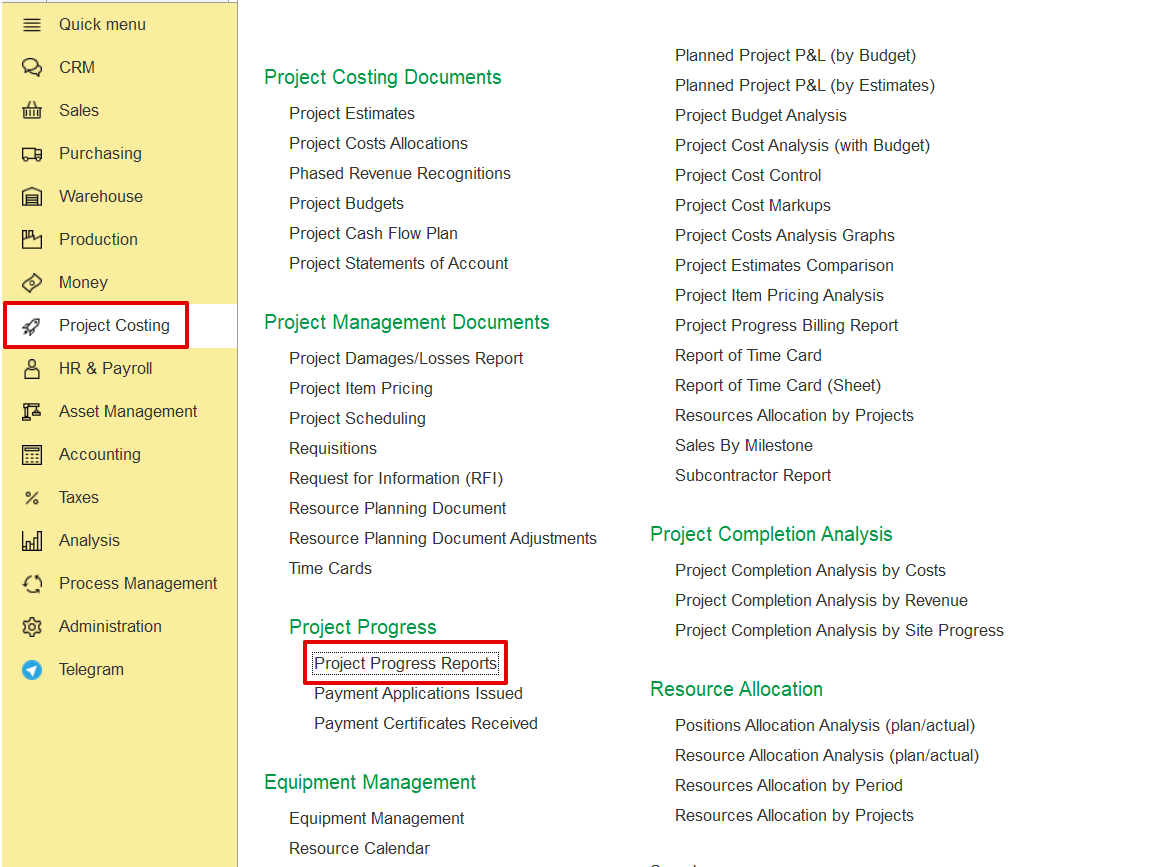
Project Costing → Project Progress → Project Progress Report.
Click Create and select the required Project from the list.
The system automatically fills in the fields using the defined project structure and associated parameters.
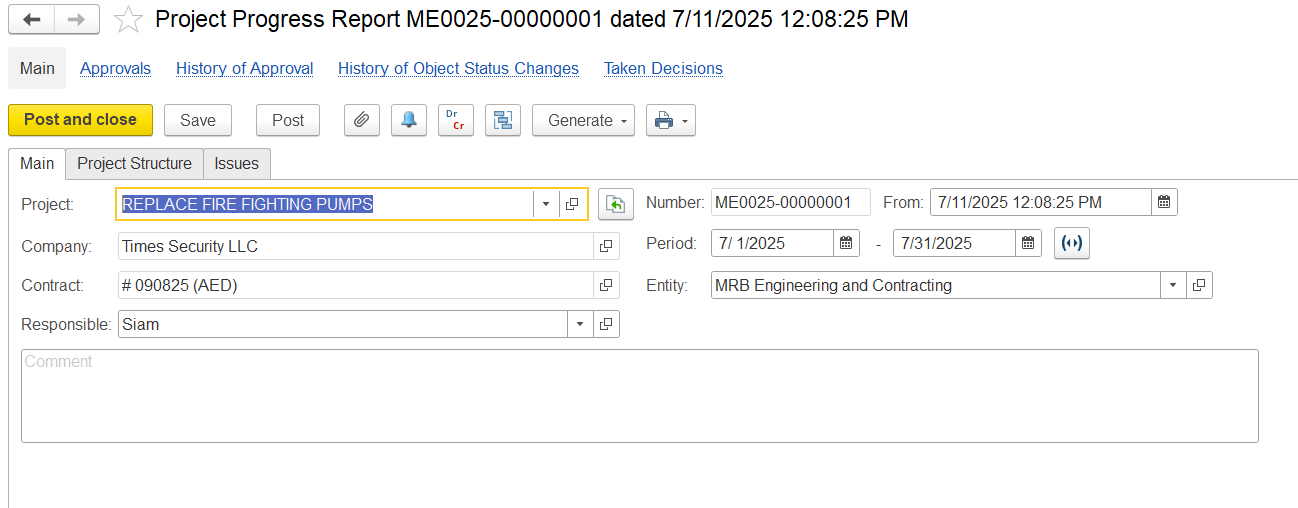
The Main Tab contains key header information relevant to the project progress report. It captures the following details-
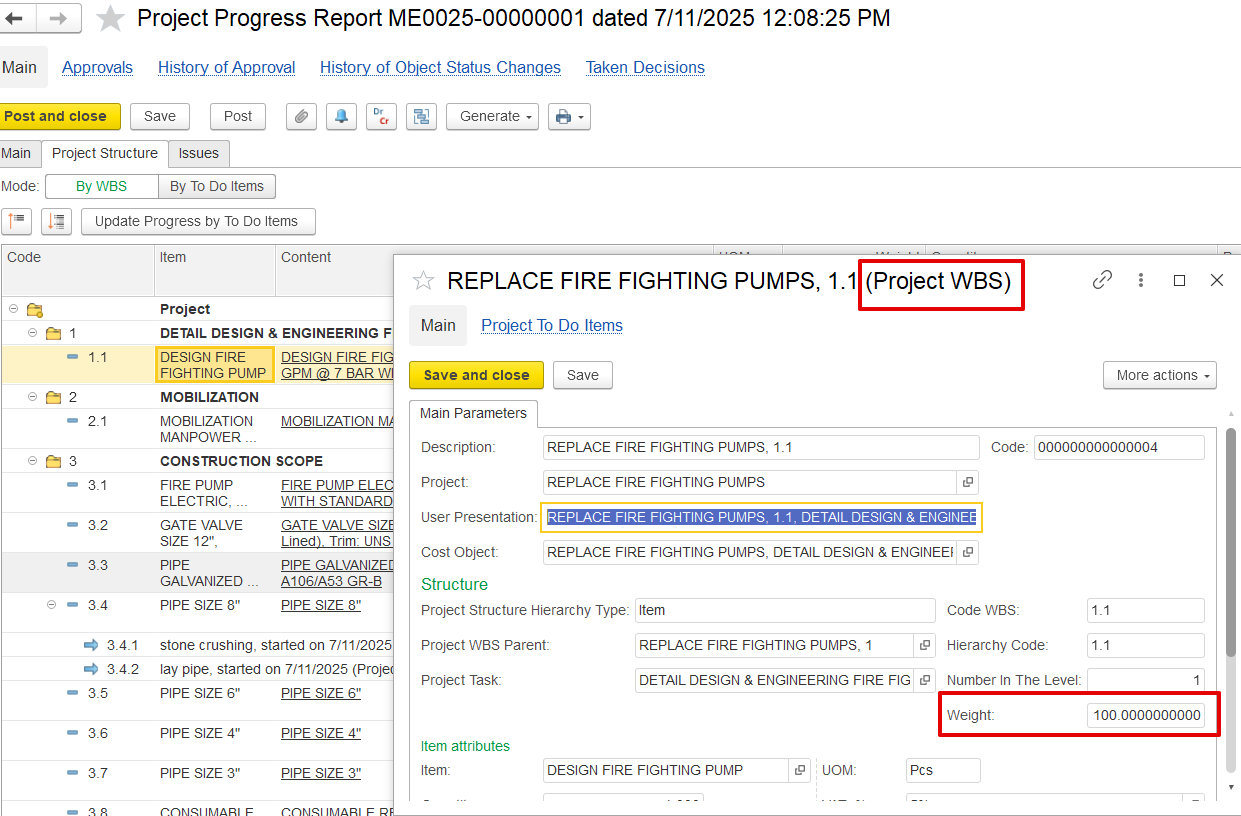
The Project Structure Tab outlines the breakdown of project work in a structured, hierarchical format based on the Work Breakdown Structure (WBS). It includes not only tasks, but also major phases, deliverables, and measurable item lines.
a)1 is the main task “Detail Design & Engineering…”
b)1.1 Refer to a specific item line under it (e.g., “Design Fire Fighting Pump”)
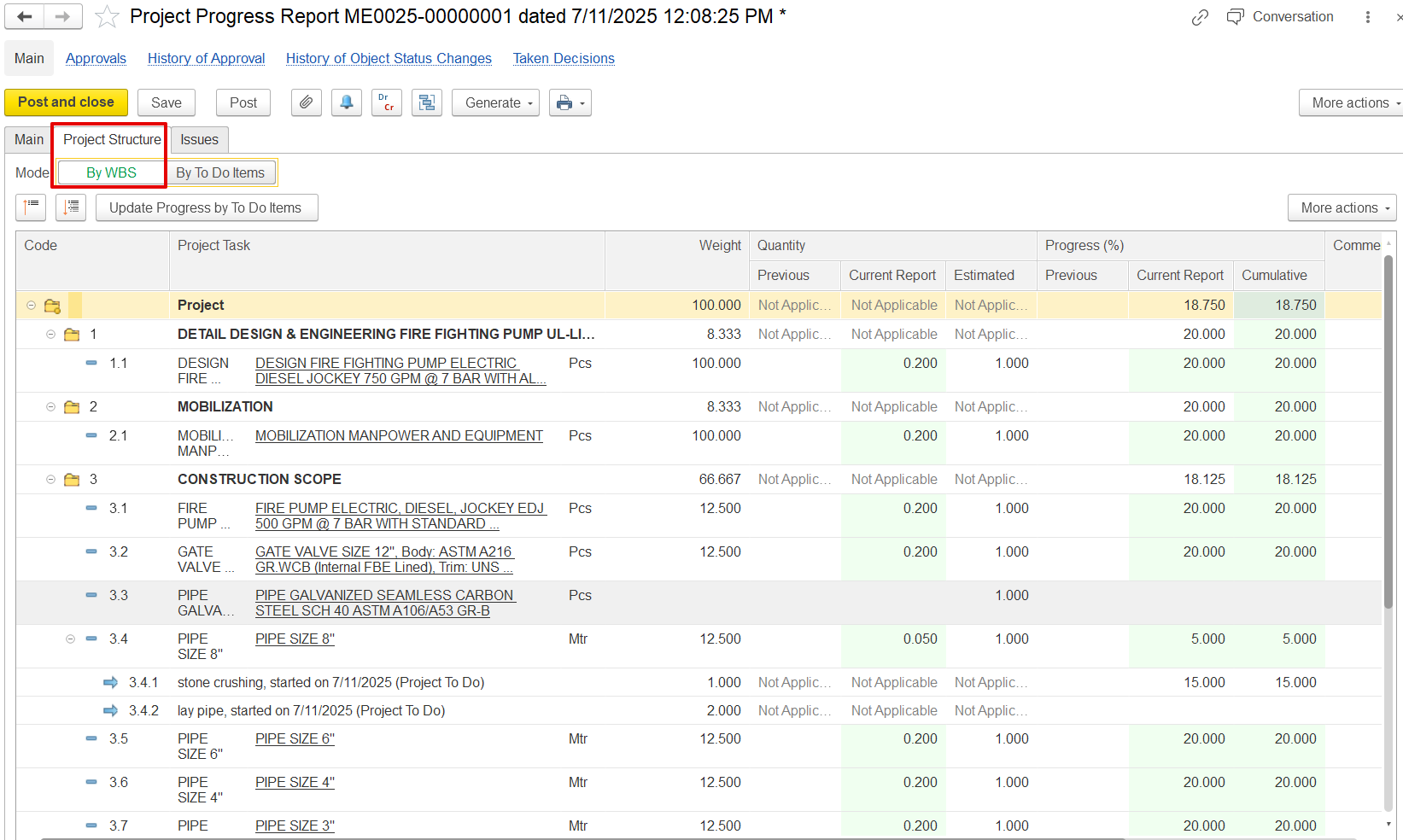
Previous – Quantity completed before the current report.
Current Report – Quantity newly completed in this reporting cycle.
Estimated – Total planned or expected quantity for the task.
Previous – Progress achieved before this report.
Current Report – Progress added in the current update.
Cumulative – Total progress so far.
Example- For the "PIPE SIZE 8" task, 30.000% cumulative progress is shown, all of which comes from this report.
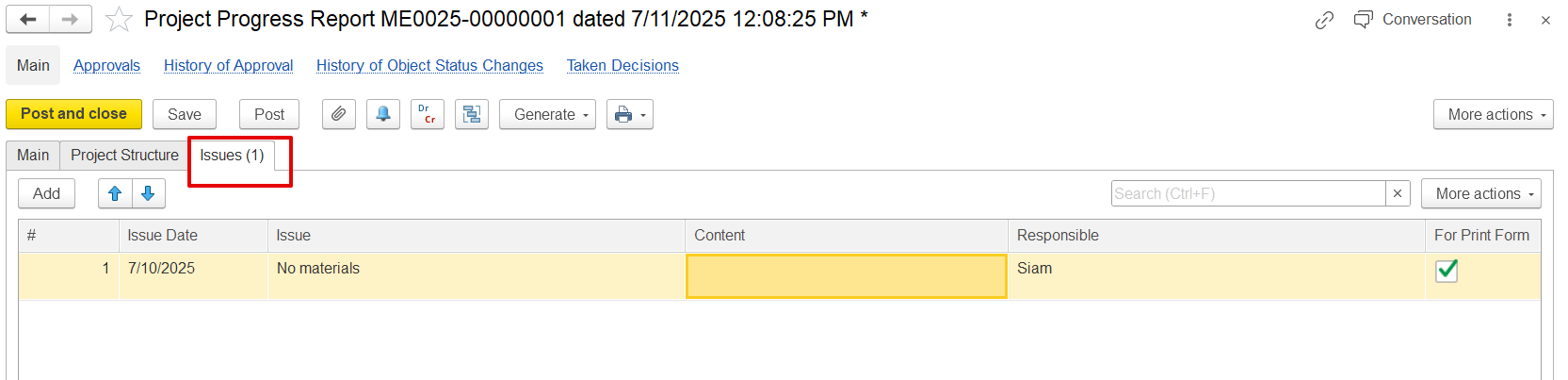
The Issues Tab records any problems or obstacles encountered during the reporting period that may affect project progress. It includes-
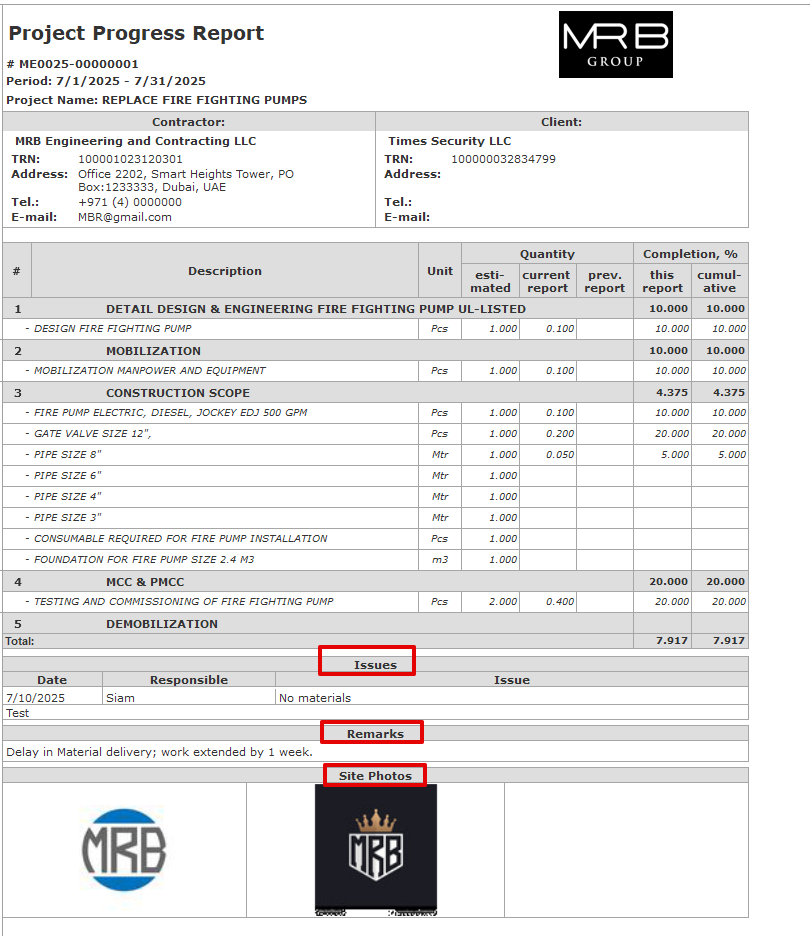
This print form provides a structured summary of the project's physical progress for a specific period. It includes:
Project, contractor, and client details.
Breakdown of work items according to the project structure (WBS).
Units, estimated quantities, and quantities reported in the current period.
Percentage of work completed in this period and cumulative to date.
Total cumulative progress is displayed at the bottom.
Issues table - populated from the Issues tab in the system and shown separately.
Remarks - populated from the Comments section in the Main tab.
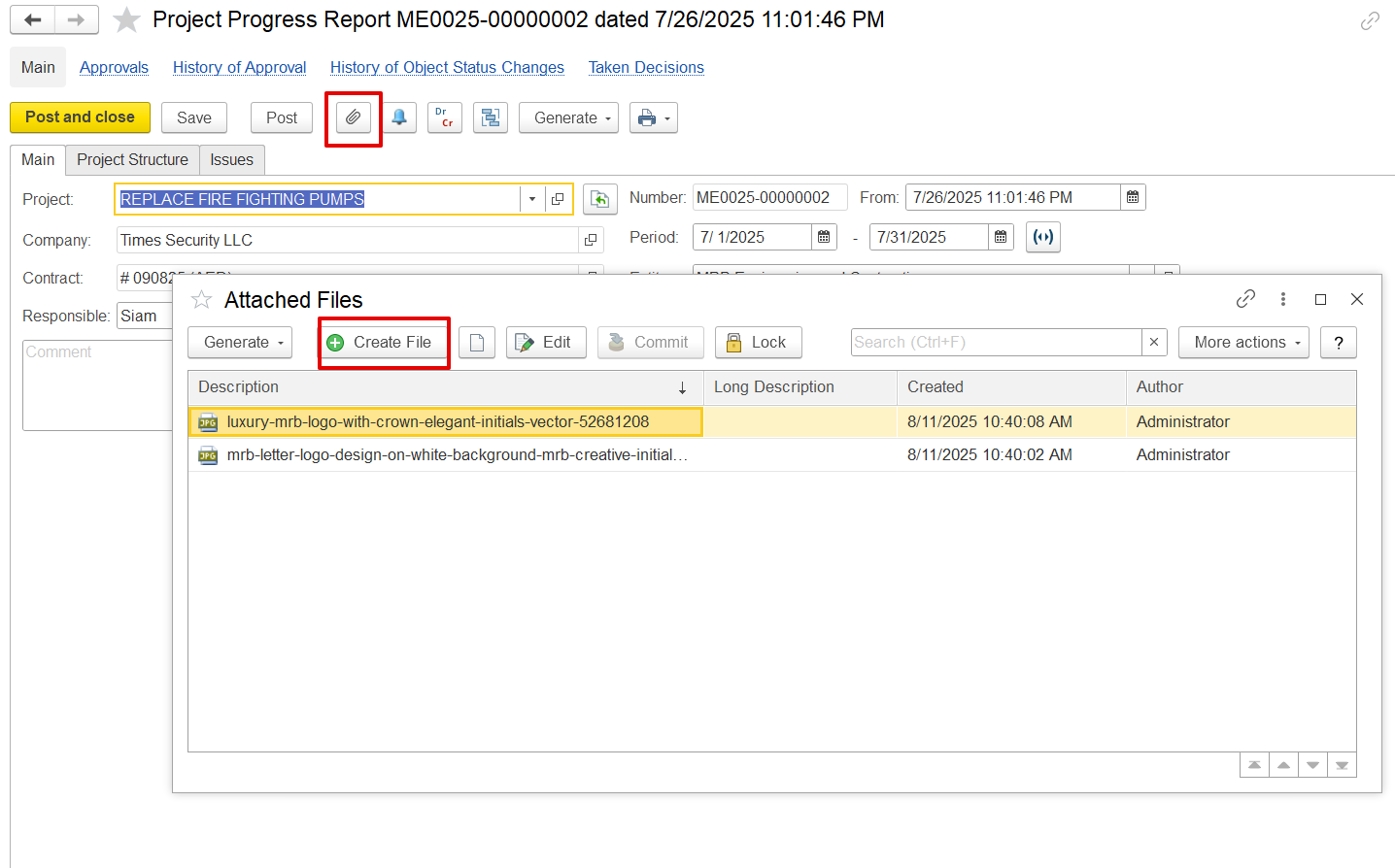
Site Photos - displayed when picture attachments are added to the document.