The Progress by To-Do Items mode helps track and update project progress based on individual tasks (To-Do Items) created in the Project Schedule. This helps:
Track individual task progress.
Update overall project progress by accumulating detailed To-Do task updates.
Provide clear accountability per team member.
Enable automated calculation of Work Breakdown Structure (WBS) line progress based on completed To-Do items.
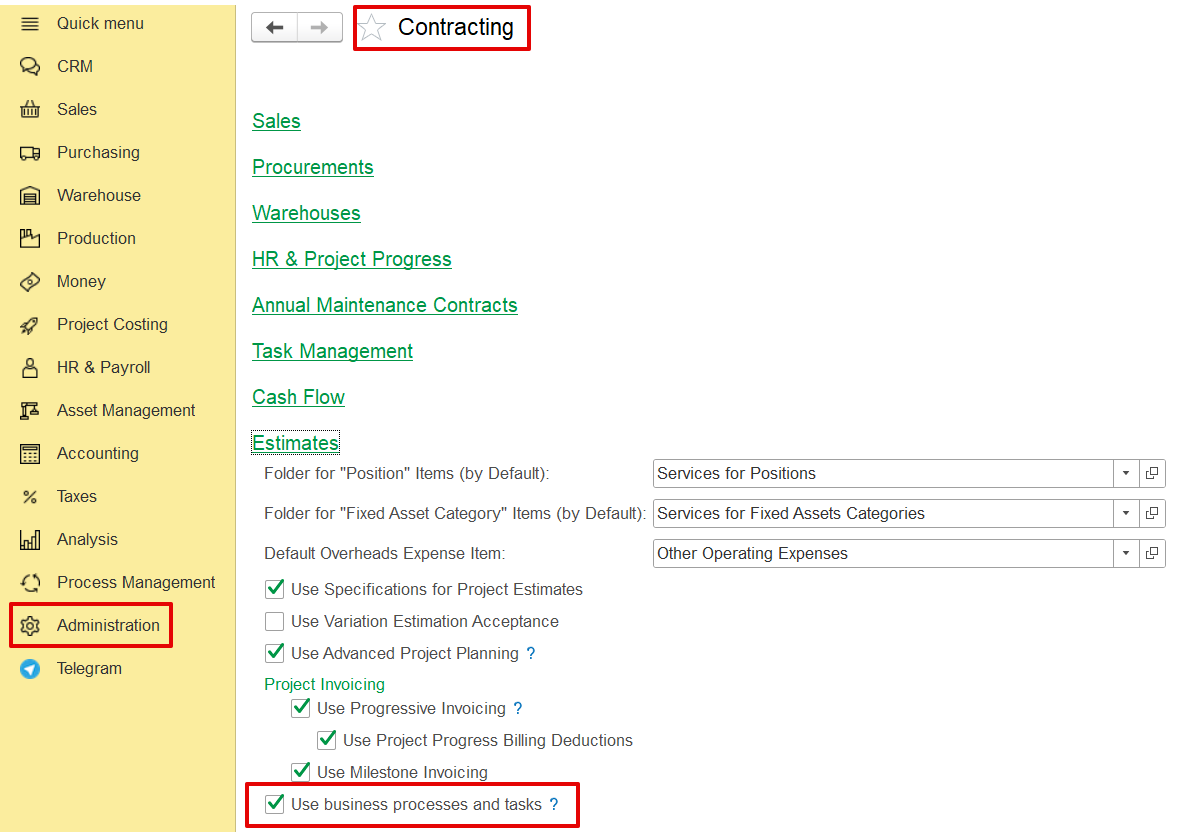
Administration → Contracting → Use business processes and tasks
The feature is included within the Project Scheduling and Project Progress modules.
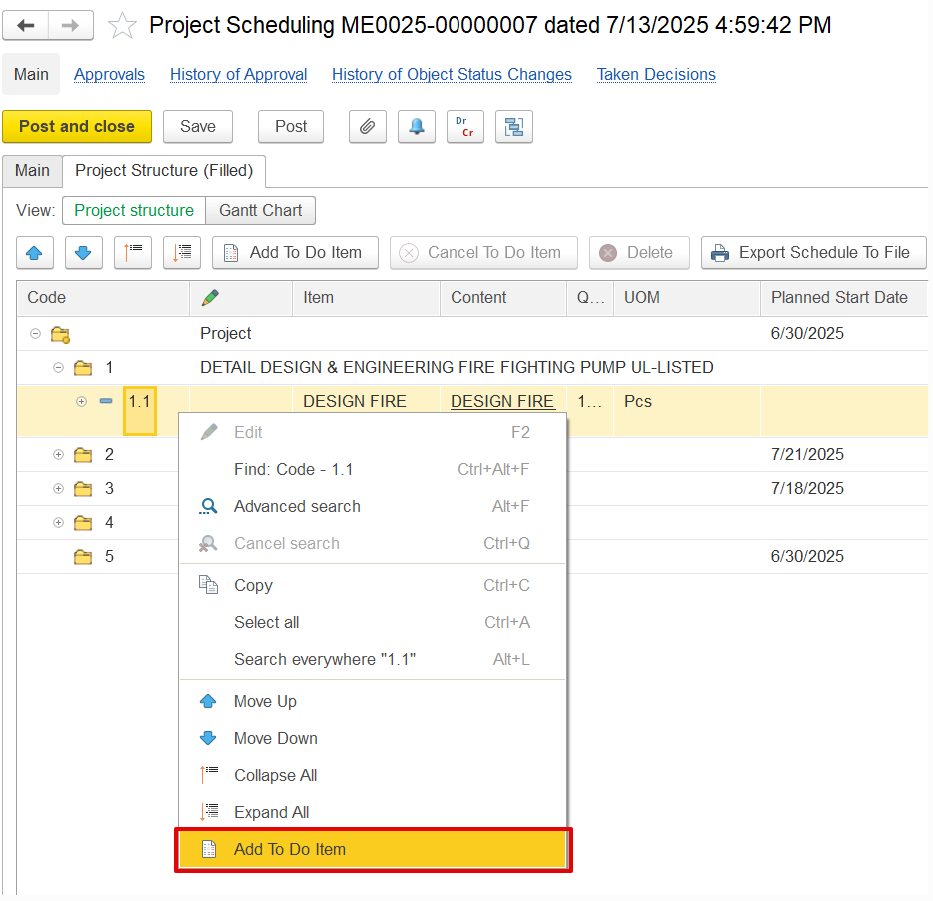
Project Schedule → right-click BOQ line → Create To-Do Item.
Or create directly from the My To-do items screen of Project scheduling.
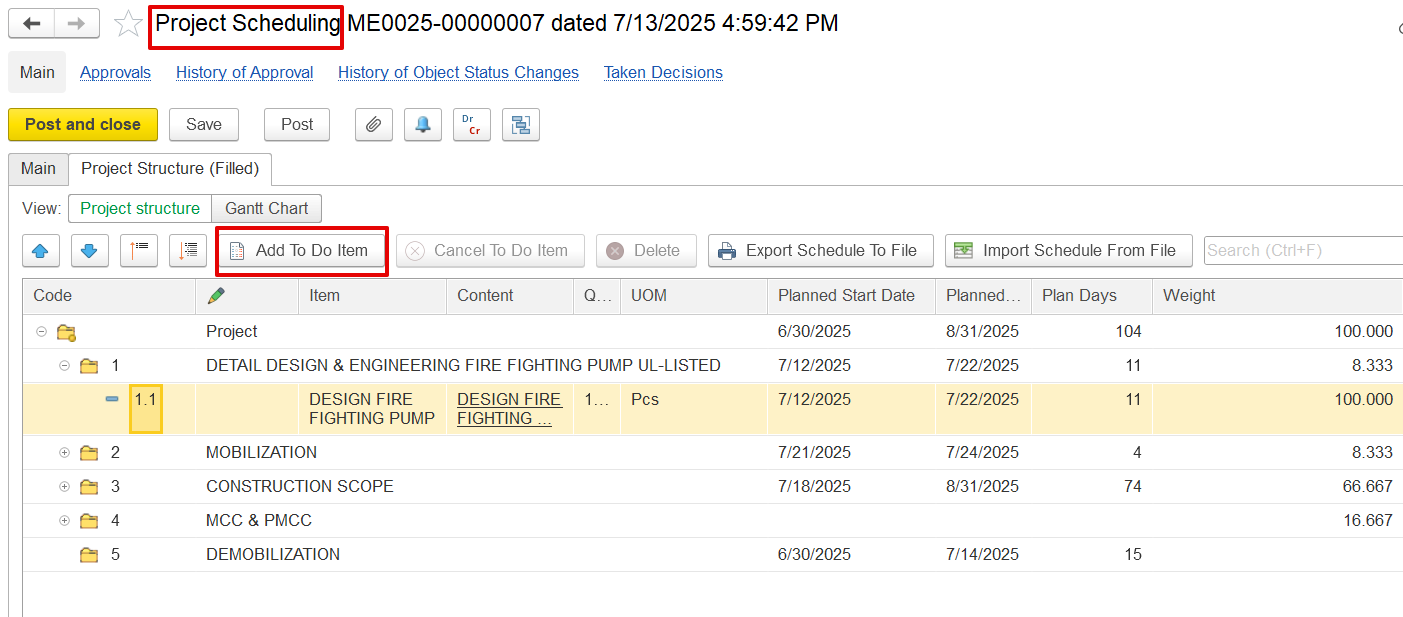
For details on creating and about each field, see 3.3.2.Project Scheduling
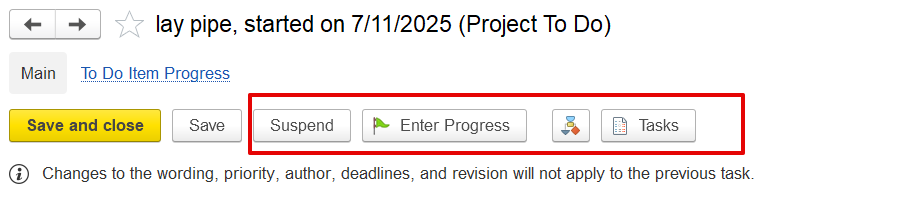
Suspend: Temporarily pauses the task.
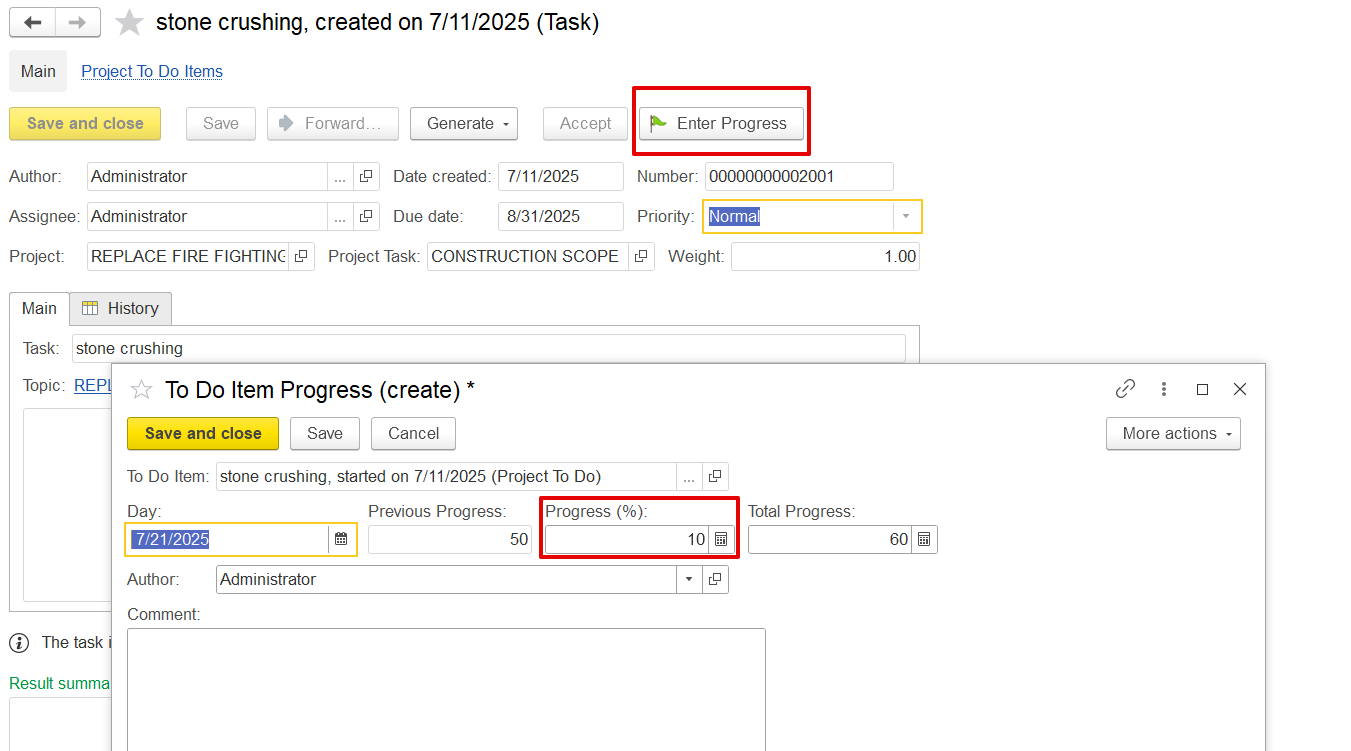
Enter Progress: Opens a dialog box to record or update the task’s completion percentage.
Tasks: Opens related tasks or subtasks linked to this To-Do item.
1. Record Progress in To-Do Item
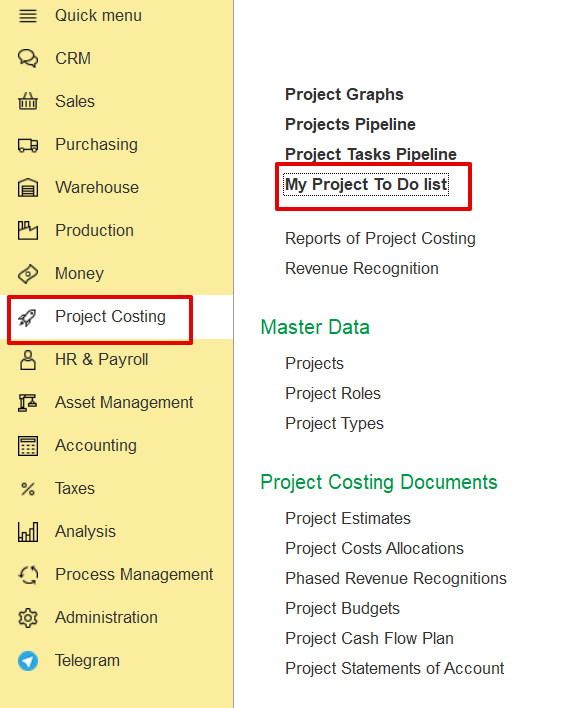
Open My Project To-do items from Project Costing.
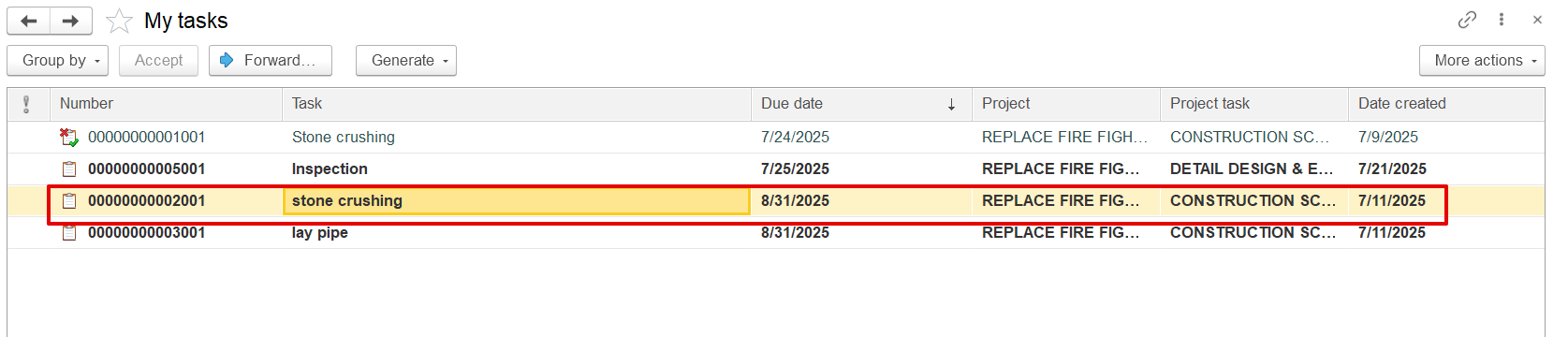
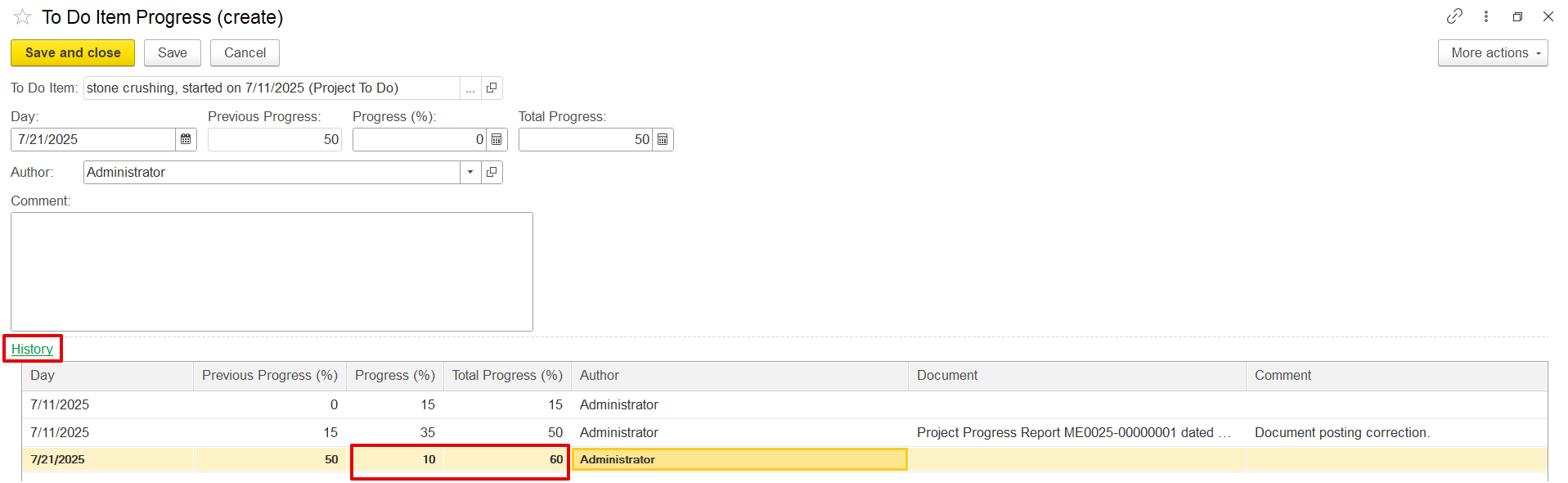
Click Enter Progress, input the current progress (e.g., 15%), and save. The update is recorded with a timestamp in the progress history.
2. Update Project Progress from To-Do Items
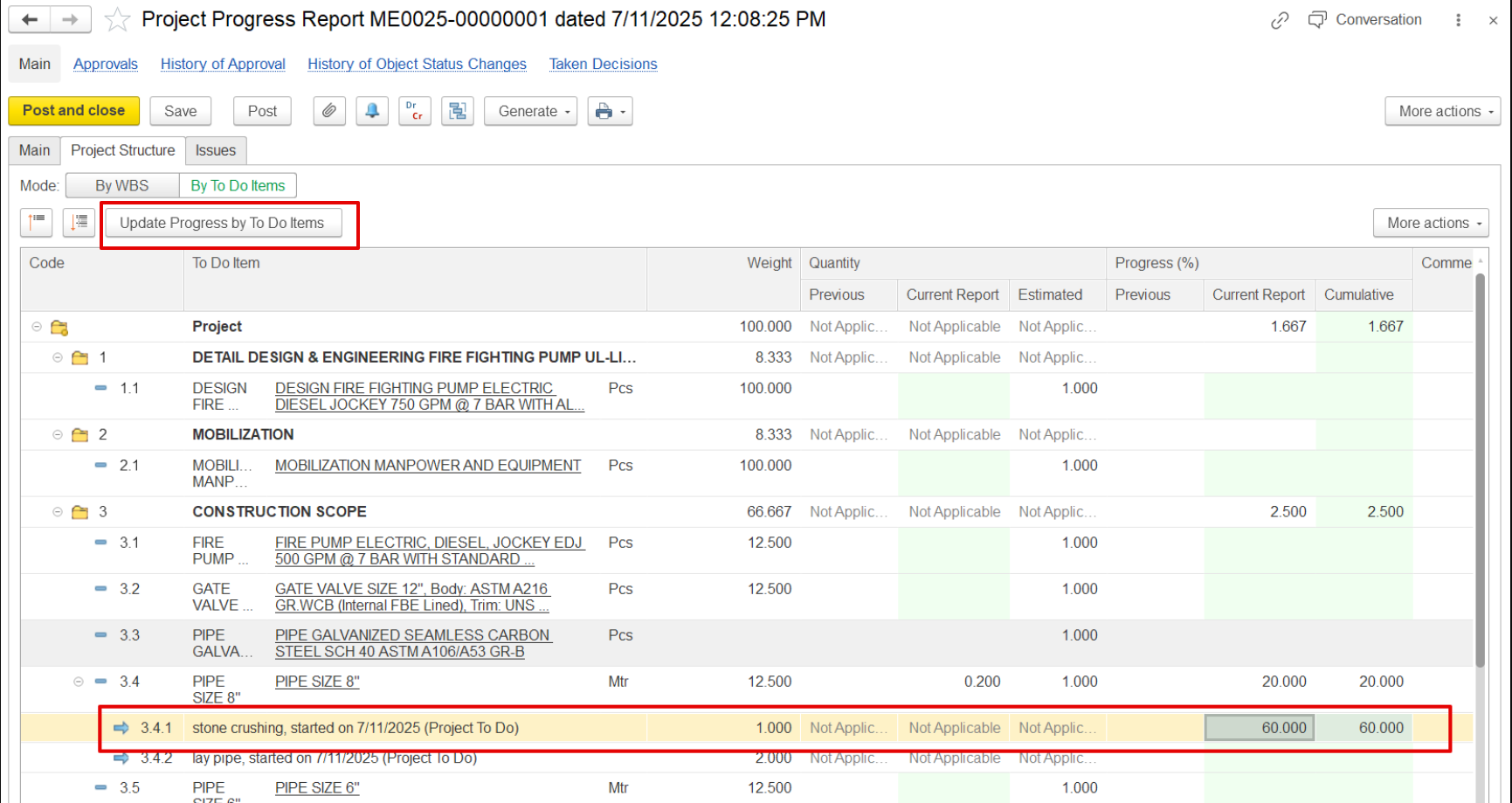
Open the Project Progress Report, select the period and project, and click "Update Progress by To-Do Items". This functionality works within the Project Progress Report when “By To Do Items” mode is selected. The system retrieves the latest progress from the To-do items and applies it to the BOQ line. The user can also manually adjust the percentage (e.g., from 50% to 70%).
Each To Do Item is assigned a weight (%) that represents its contribution to the total BOQ line progress. The system multiplies the To Do Item's progress (%) by its weight (%) to calculate its impact on the BOQ line. The total BOQ line progress is the sum of all weighted To Do Item progresses
If progress is recorded this way, it appears in the To-Do Item progress history as "Recorded by Project Progress Document."
Note: