The Progress by To-Do Items mode helps track and update project progress based on individual tasks (To-Do Items) created in the Project Schedule. This helps:
Track individual task progress.
Update overall project progress by accumulating detailed To-Do task updates.
Provide clear accountability per team member.
Enable automated calculation of Work Breakdown Structure (WBS) line progress based on completed To-Do items.
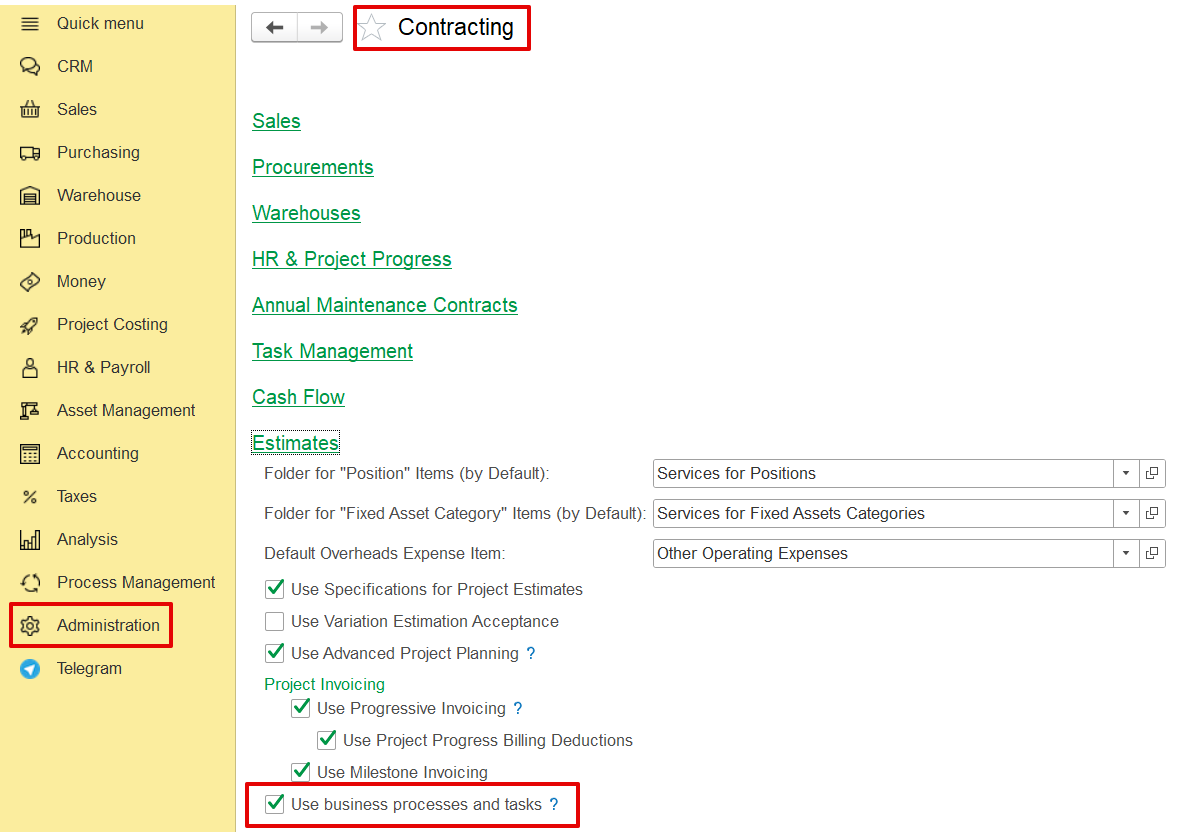
Administration → Contracting → Use business processes and tasks
The feature is included within the Project Scheduling and Project Progress modules.
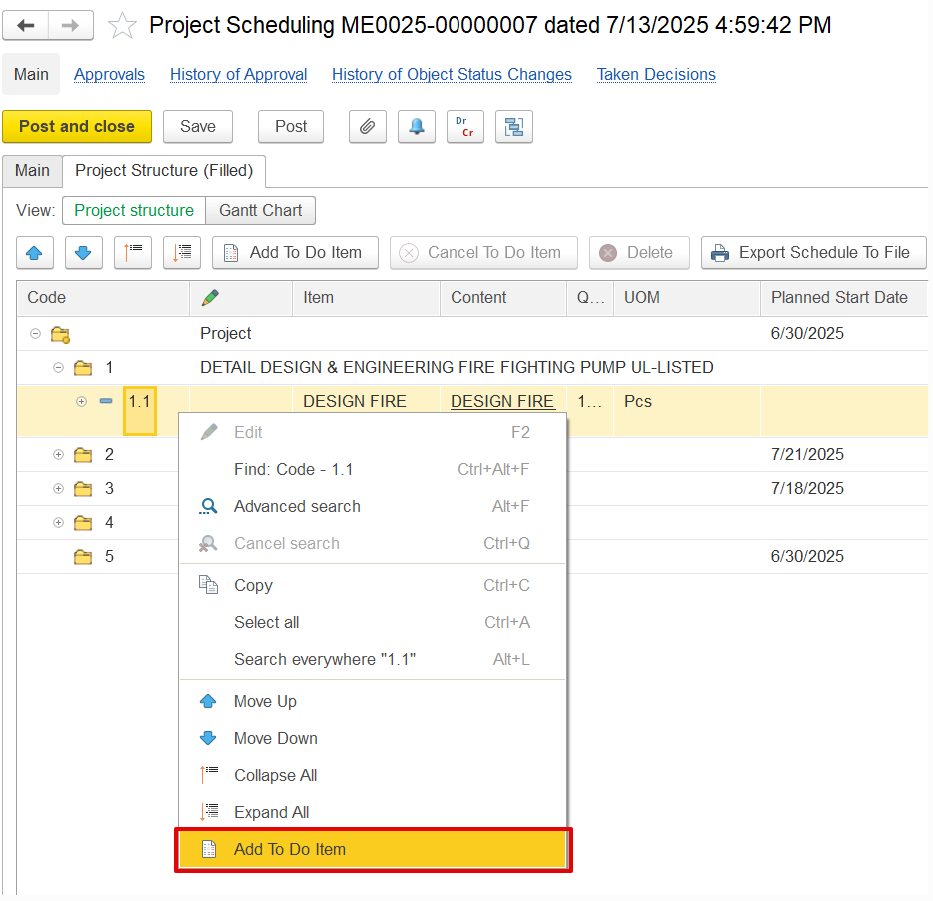
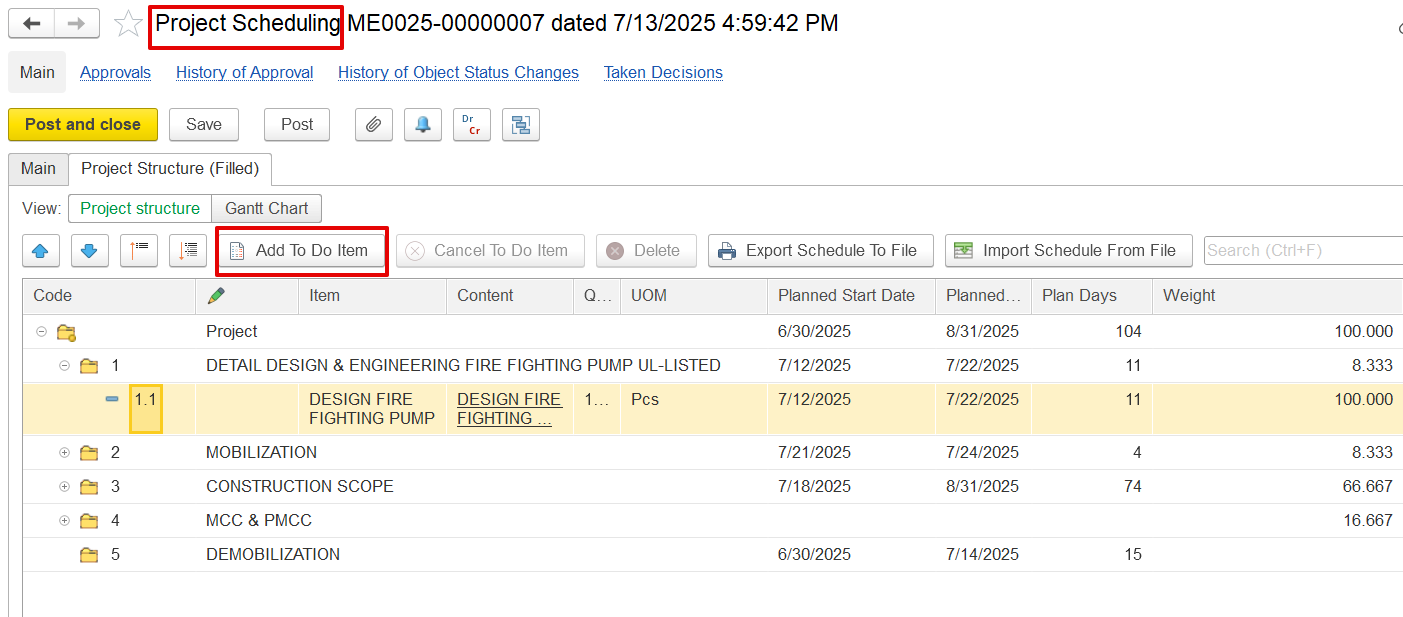
Project Schedule → right-click BOQ line → Create To-Do Item.
Or create directly from the My To-Do List screen of Project scheduling.
In the To-Do List, fill in the following fields:
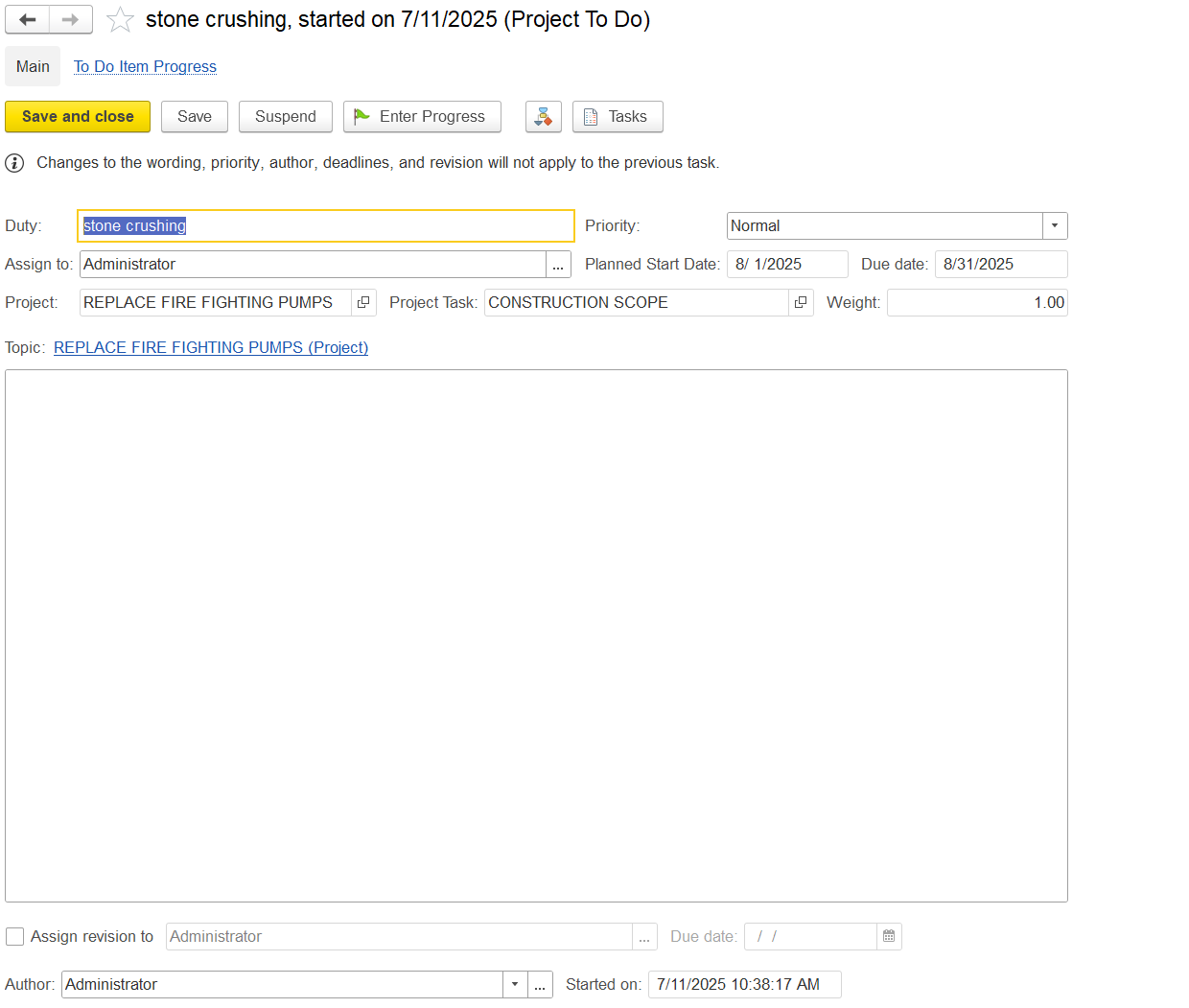
Duty: Defines the task name.
Assign to: Specifies the responsible user.
Due Date: Sets the task deadline.
Project / Project Task: Links the task to its relevant project and subtask.
Weight: Indicates task importance in progress calculation.
Priority: Defines the urgency level.
Control Buttons: Includes options to start, save, close, or update progress.
Enter Progress: Records progress against the task.
Assign Revision: Delegates responsibility for updates.
Author and Timestamps: Logs who created the task and when.
Once all details are filled, post the document.
Once all task details are filled in, post the To-Do item by clicking “Save” or “Save and Close.”
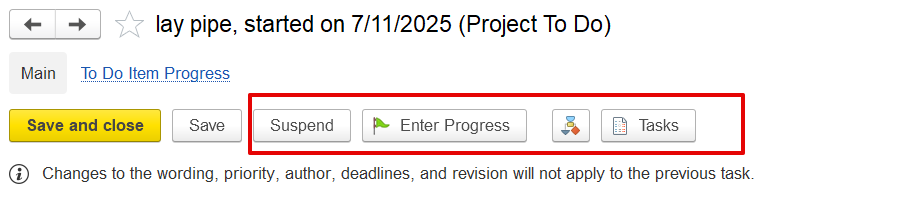
Suspend: Temporarily pauses the task.
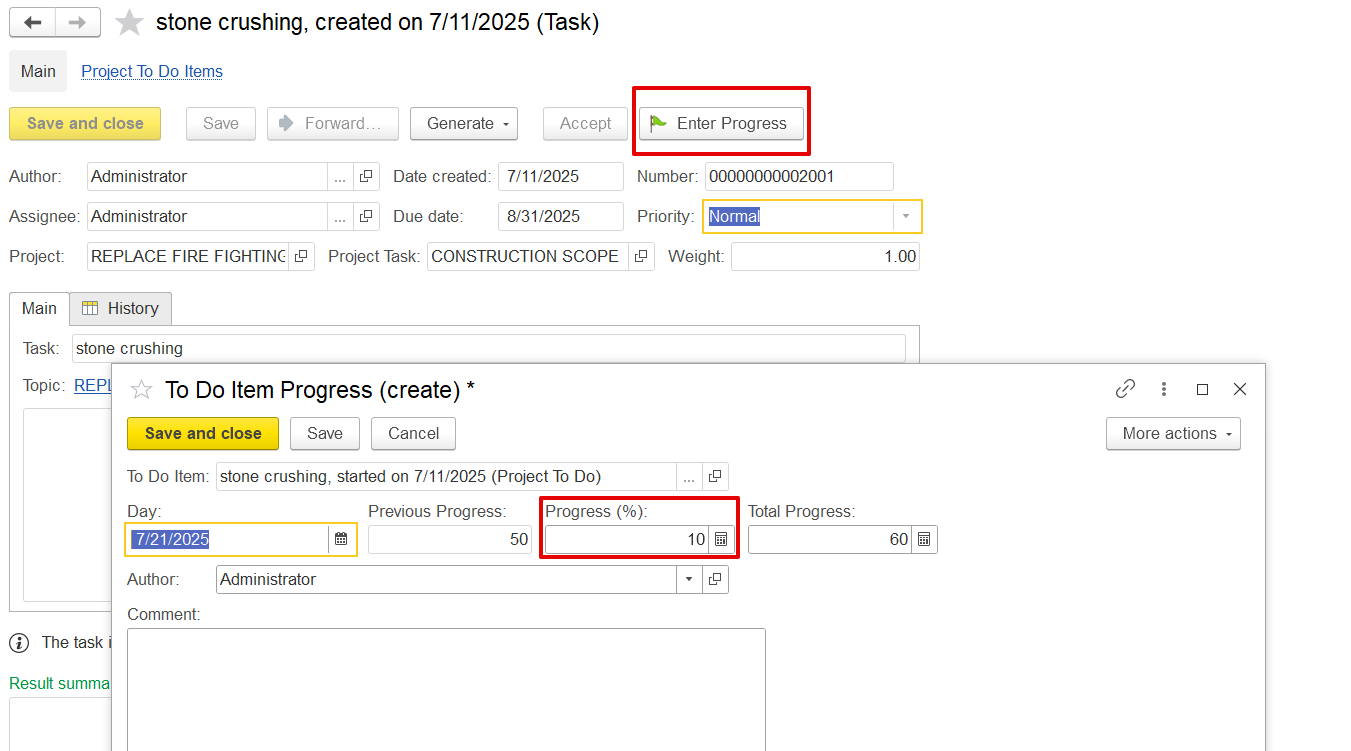
Enter Progress: Opens a dialog box to record or update the task’s completion percentage.
Tasks: Opens related tasks or subtasks linked to this To-Do item.
1. Record Progress in To-Do Item
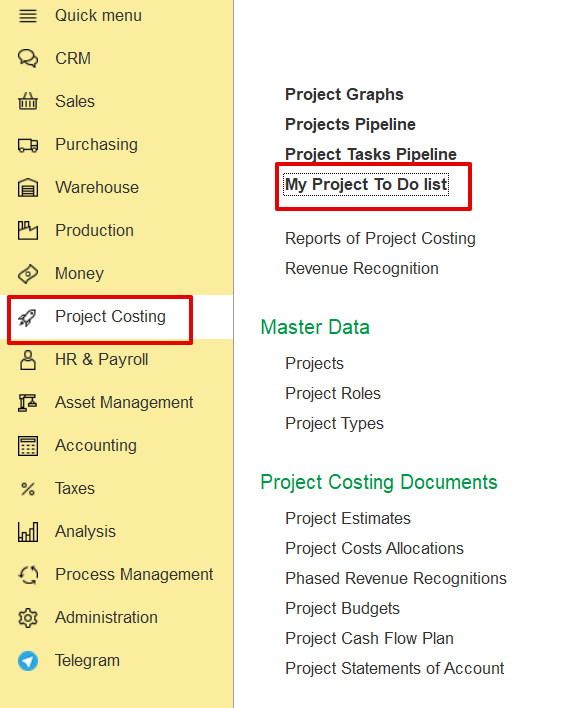
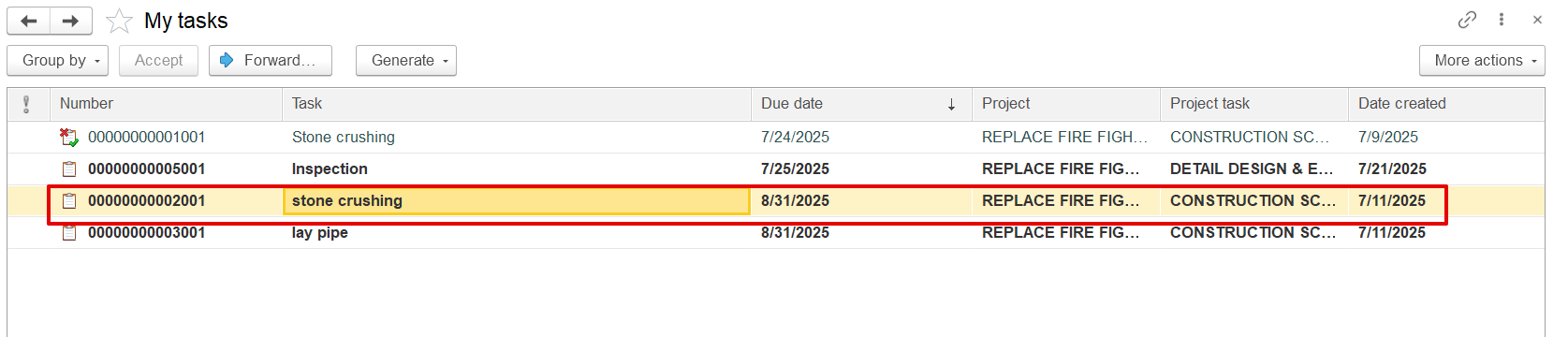
Open My Project To-Do List from Project Costing, click Enter Progress, input the current progress (e.g., 15%), and save. The update is recorded with a timestamp in the progress history.
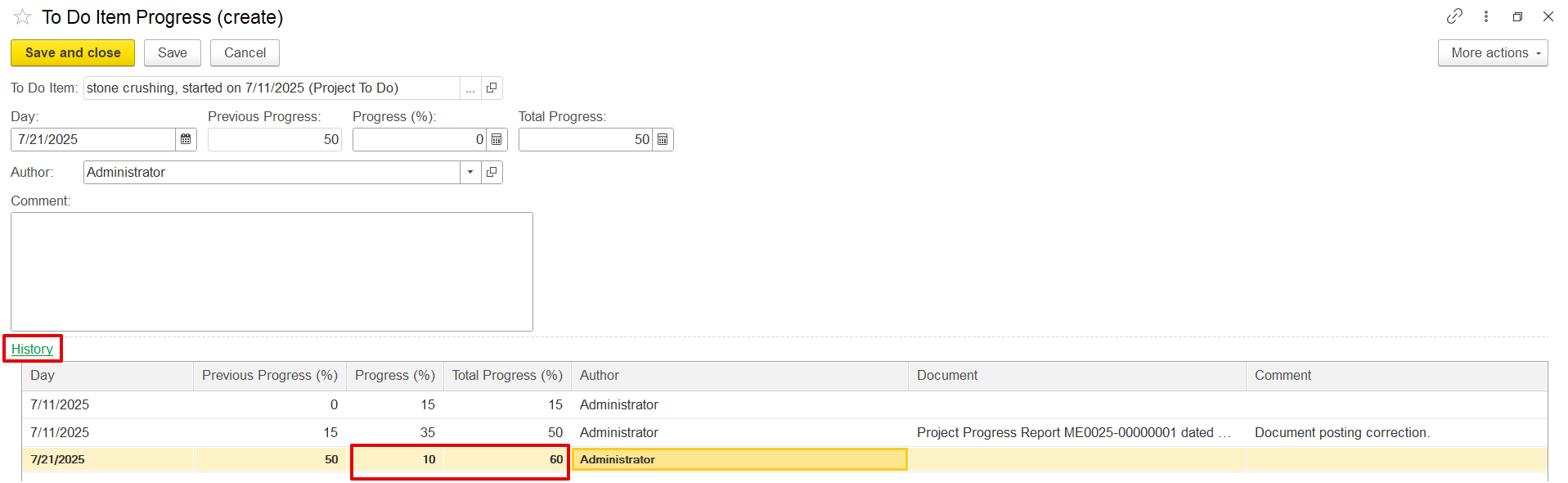
2. Update Project Progress from To-Do Items
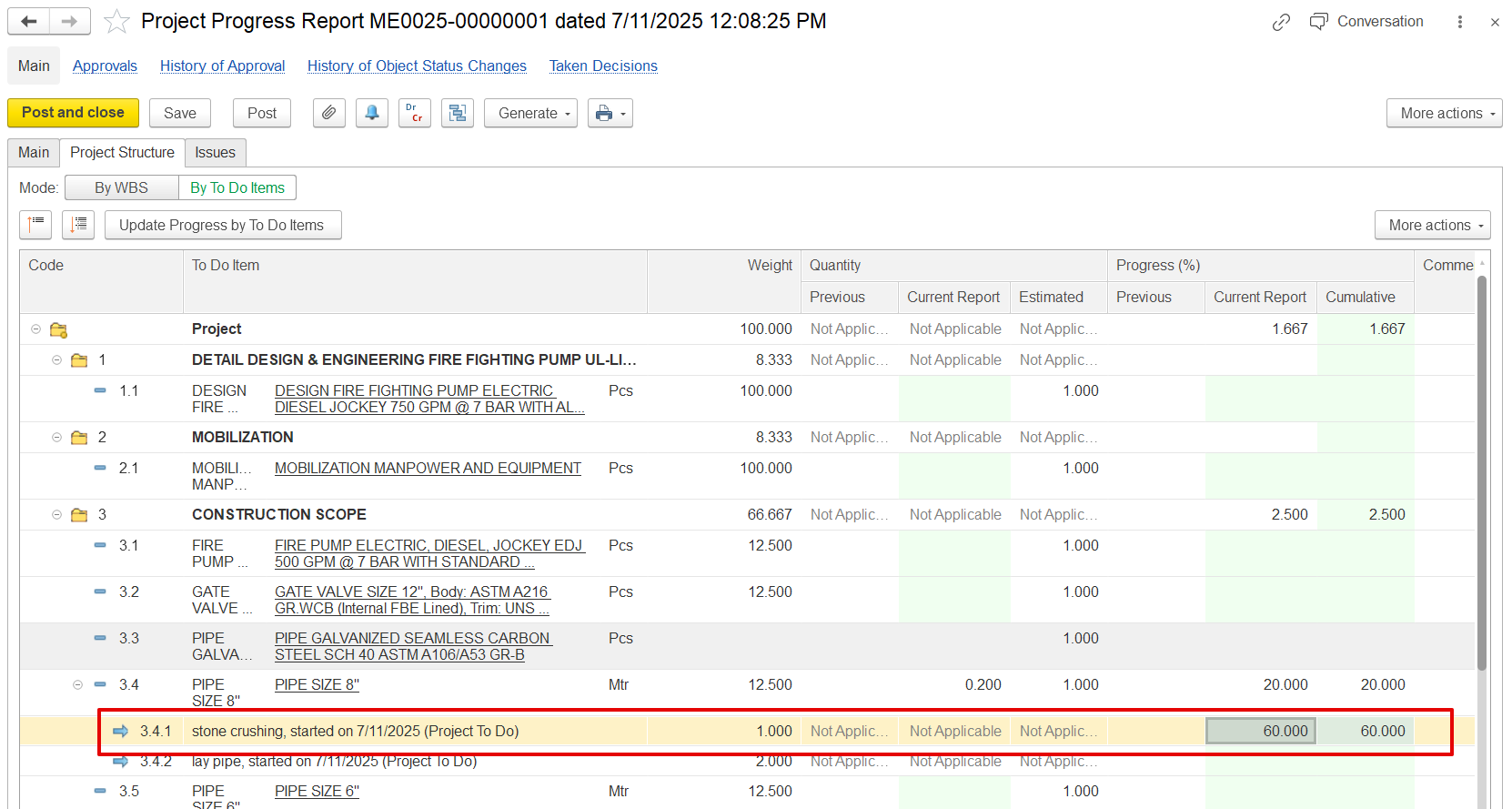
Open the Project Progress Report, select the period and project, and click "Update Progress by To-Do Items". The system retrieves the latest progress from the To-Do list and applies it to the BOQ line. User can also manually adjust the percentage (e.g., from 50% to 70%).
If progress is recorded this way, it appears in the To-Do history as "Recorded by Project Progress Document."
Note: