The Project Scheduling document is used to define the planned start and finish dates of project tasks. It helps structure the timeline and is essential for:
Tracking the sequence and duration of tasks.
Providing visibility into the planned timeline of the entire project.
Supporting communication between the project estimation and execution phases.
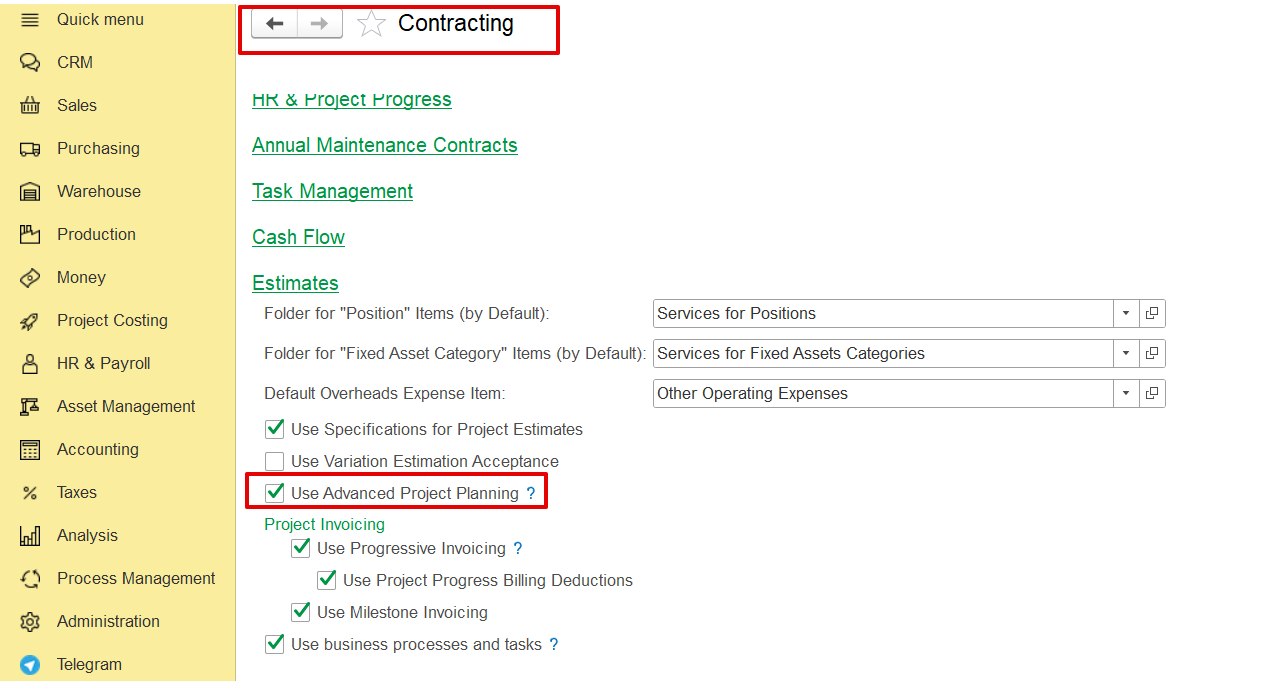
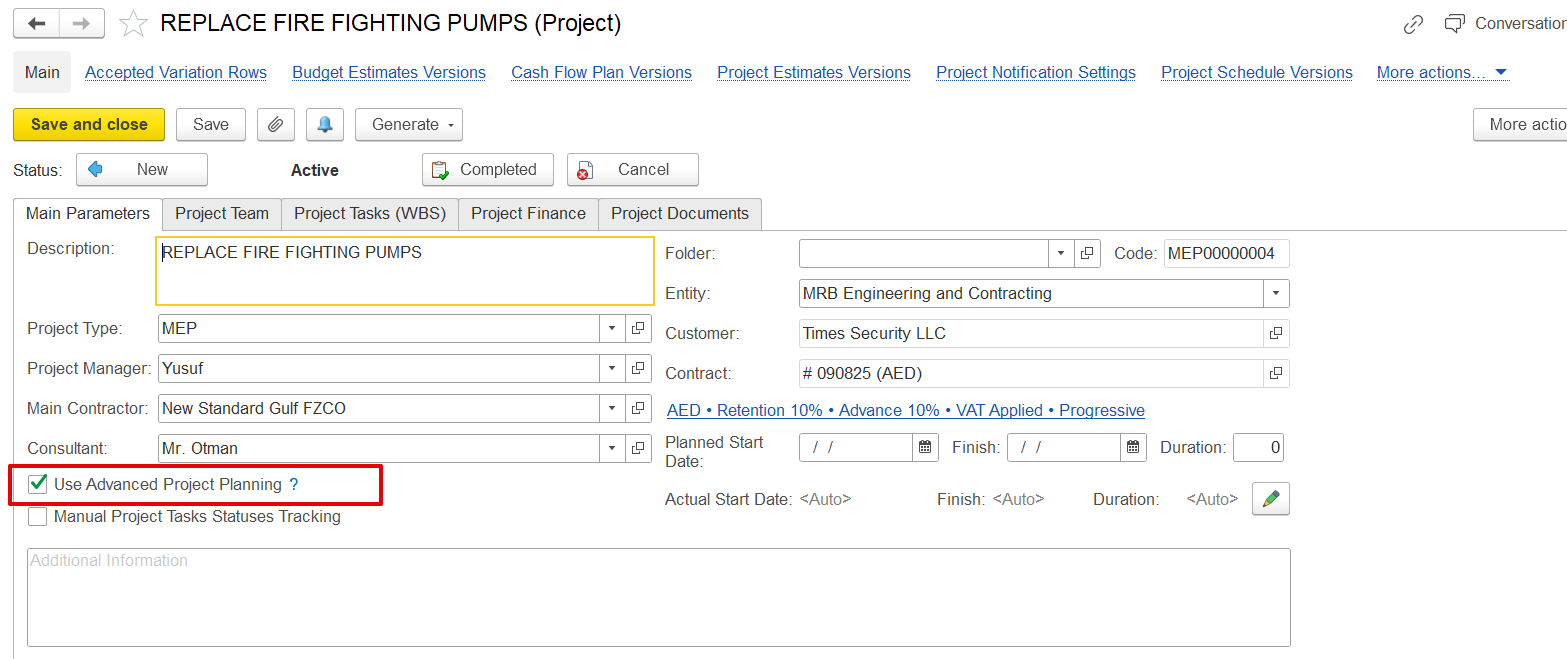
Note: This option becomes available only when "Use Advanced Project Planning" is enabled in both the Contracting Settings and the Project’s Main Parameters page.
This document can be created in two ways-
From the Project screen directly.
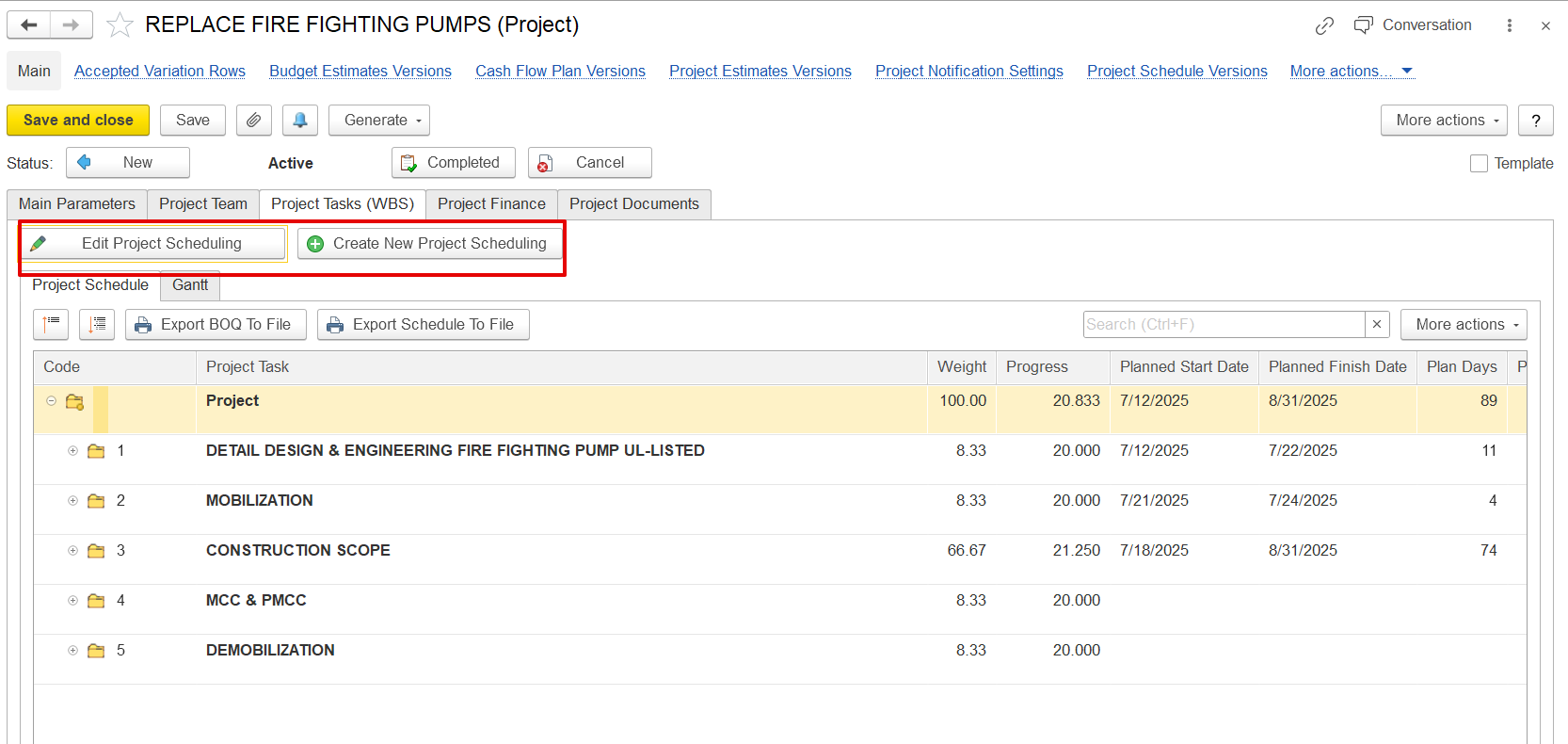
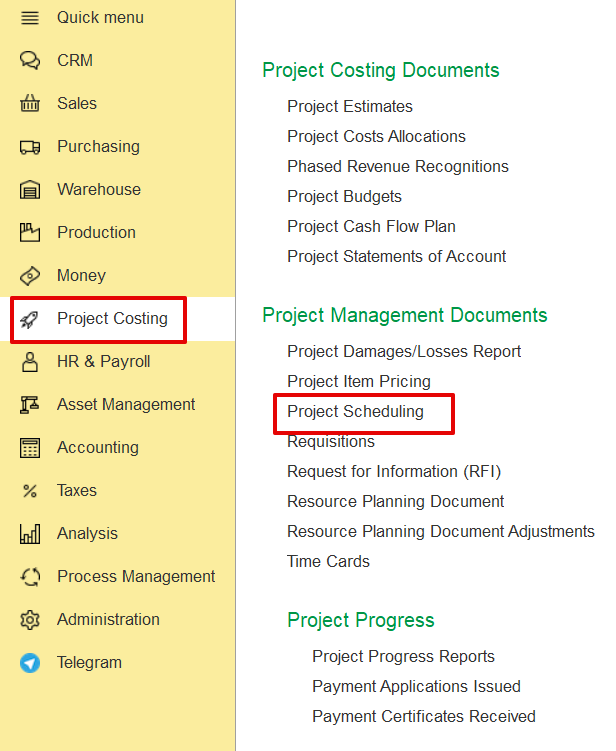
When creating a new Project Scheduling document, the system automatically pulls the structure from the previously created Estimation. The user can then modify and adjust the schedule as needed.
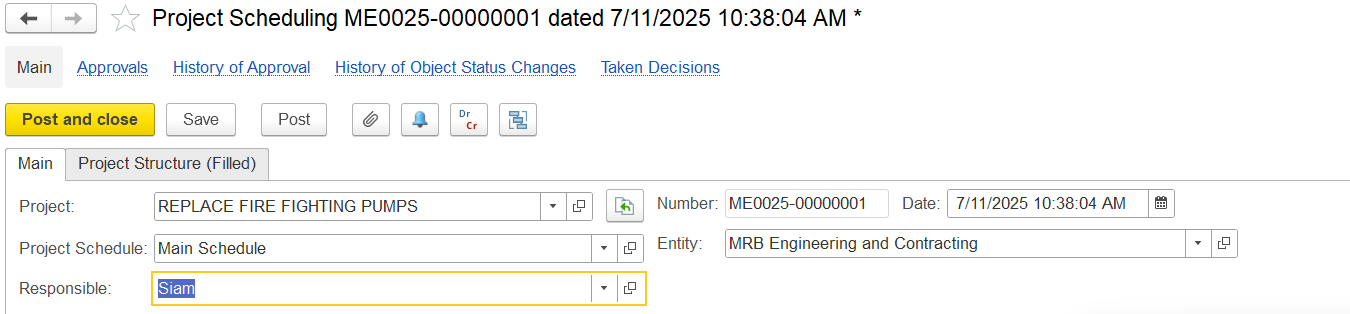
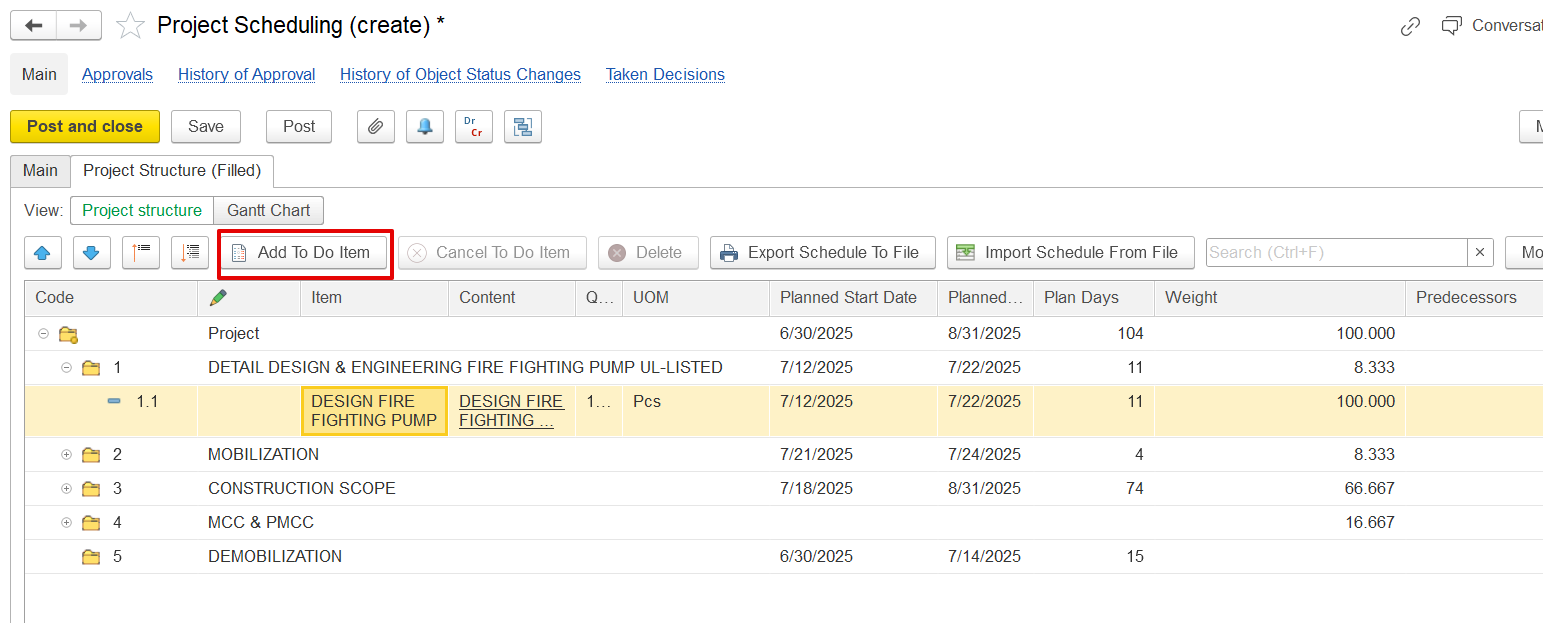
Project: The name of the project for which scheduling is done (e.g., REPLACE FIRE FIGHTING PUMPS).
Project Schedule: The name of the schedule version (e.g., Main Schedule).
Responsible: The person in charge of this schedule (e.g., Siam).
Number: The document number automatically given by the system.
Date: The date and time the schedule was created.
Entity: The Entity handling the project (e.g., MRB Engineering and Contracting).
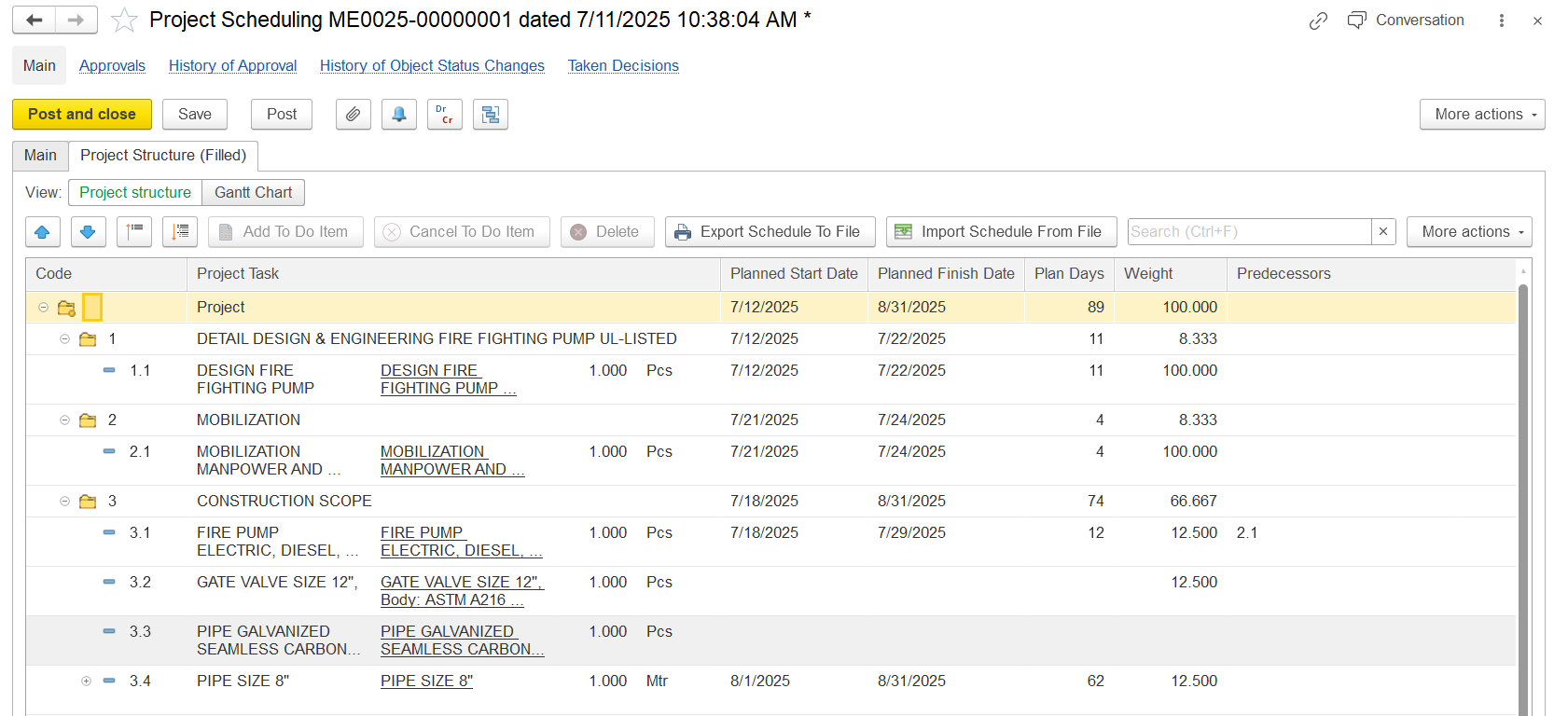
Task Code: Unique identifier for each task (e.g., 1.1, 2.1, 3.4) following WBS hierarchy.
Item and content: Name and content of the task (e.g., “DESIGN FIRE FIGHTING PUMP”).
Quantity & Unit: Specifies the scope (e.g., 1.000 Pcs or Mtr).
Planned Start/Finish Date: Scheduled timeline for execution.
Plan Days: Duration between start and finish dates.
Weight (%): Contribution of the task to overall project progress.
Predecessors: Task dependencies (e.g., Task 3.1 starts after 2.1)
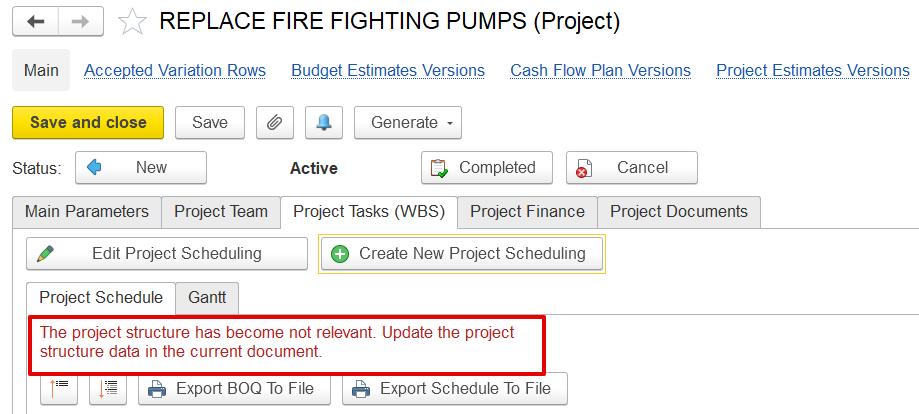
Note: This document is always connected to the most recent version of the estimation. Suppose any modifications, such as revisions or variation order, are made to the estimation. In that case, the system will detect them and notify that the current schedule is outdated, prompting an update.
A Gantt Chart is a timeline view of project tasks, showing start & end dates, duration, and dependencies.
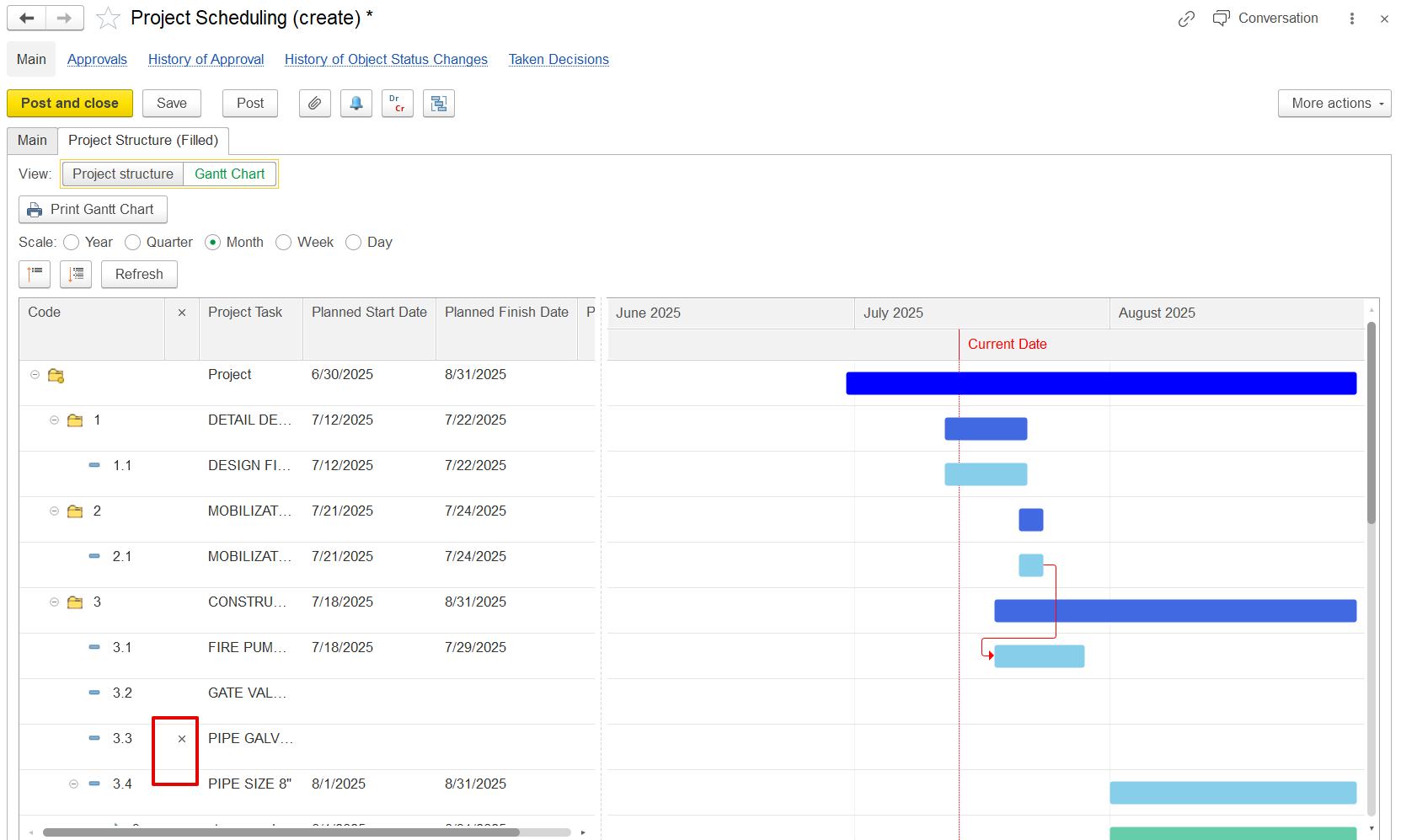
Allows drag-and-drop of tasks to set dependencies.
Supports predecessor linking (Finish-to-Start, Start-to-Start, etc.)
Indicators (x) help users to identify cancelled or modified tasks.
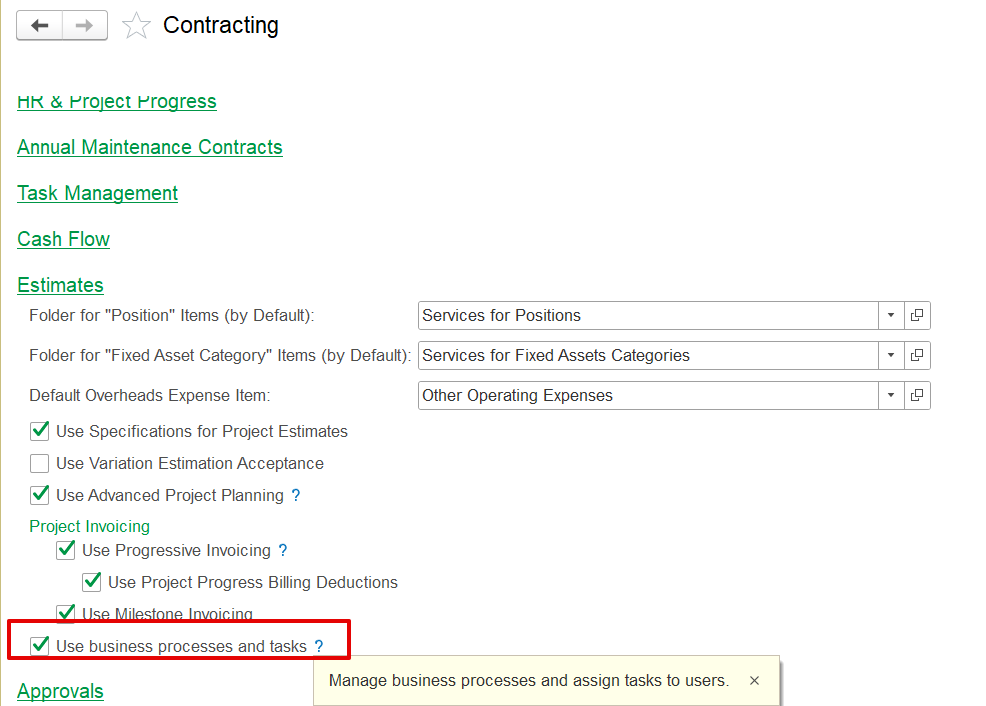
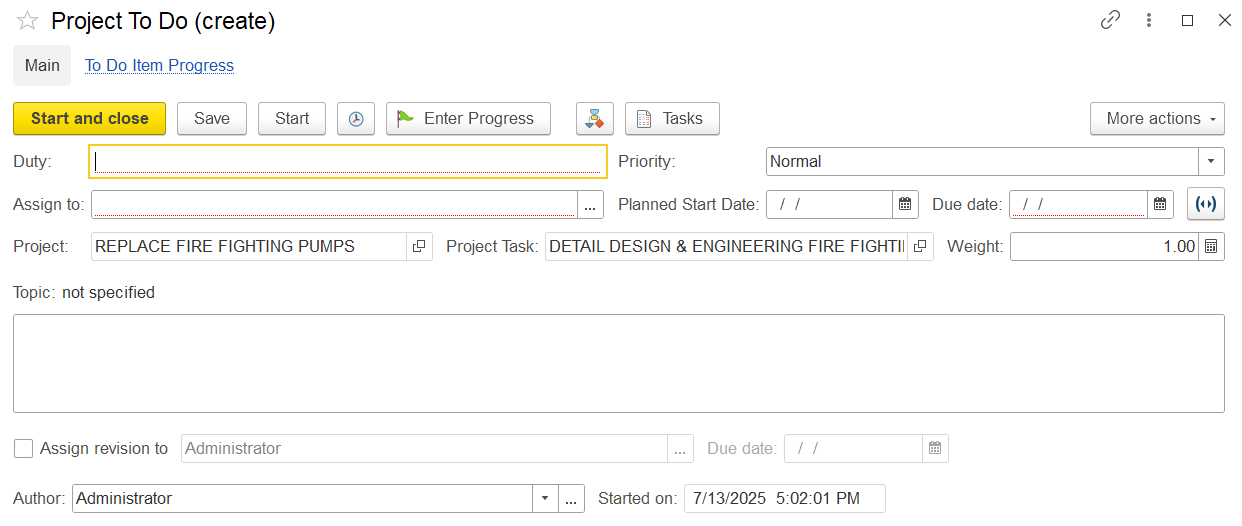
To-do items are internal tasks linked to specific project tasks or revenue line items. They are not visible to the client but help track internal work progress. The "Add To Do Item" button becomes available when the “Use Business Process and Tasks” option is checked in Contracting Settings.
It represents the internal steps the team must take to complete those deliverables. It can be created per project task or revenue line.
The system allows data import/export from the scheduling screen:
Export Schedule to File – Saves the current schedule (task names, planned dates, dependencies) into an Excel file; useful for sharing, external editing, or use in other software.
Import Schedule from File: Allows users to upload an Excel file with planning data (start/finish dates, dependencies).
Please note: Import/Export tools allow you to manage scheduling data in Excel, but changes apply only to dates and links, not the project structure.