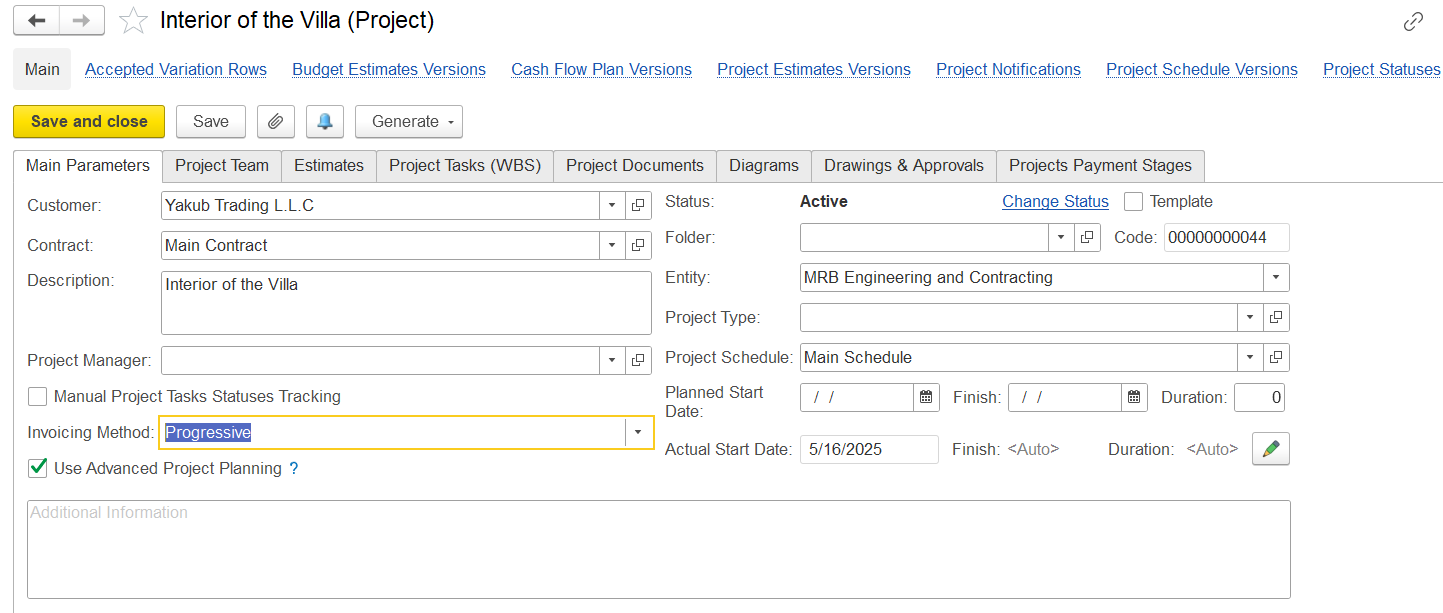
This tab contains the main information related to the project, including the entity, customer, project manager, and planned start and finish dates. As the project progresses through its life cycle, actual start and finish dates can also be entered.
The required fields are: Description and Entity
This tab contains key project attributes that define the structure and initial setup of the project.
Customer: Specifies the client for whom the project is intended.
Contract: Optionally links a specific contract relevant to the project.
Description: A clear and concise description that serves to identify the project in various project lists.
Project Manager: Indicates the responsible employee overseeing the project.
Manual Project Tasks Statuses Tracking: When enabled, allows progress to be manually updated by modifying the status of individual project tasks.
Project Warehouse: Defines the warehouse to be used for issuing materials and items needed for the project.
Status: Represents the current stage of the project. The default is Proposed, and can be changed as the project advances through different life cycle stages. Available statuses: Proposed, Active, Completed, Cancelled.
Folder: Allows grouping the project under a specific folder. New folders can be created directly from the field if required.
Code: A unique identifier automatically assigned to the project.
Entity: Specifies the legal entity of the company managing the project.
Project Type: Indicates the project classification, selected from predefined types in the Project Types form.
Planned Start / Finish Date: Shows the scheduled dates for starting and completing the project. The Duration is automatically calculated in days.
Actual Start / Finish Date: These fields reflect the real dates of commencement and completion. When the project status changes from Proposed to Active, the Actual Start Date is filled in automatically (indicated by <Auto>). Likewise, the Finish date is updated upon switching to Completed. If needed, the pencil icon (Edit) enables manual input of actual dates.
Additional Information: A free-text field for entering any extra details relevant to the project.
The toolbar buttons
After filling out the tab, click the Save button to save the project. Click Save and close to save the project with all the changes and close the form.
You can change the project status by using the Change status link to the right of the current project status. The link appears once you save the project.
The Project Status Change (create) form appears when you click the Change status link.
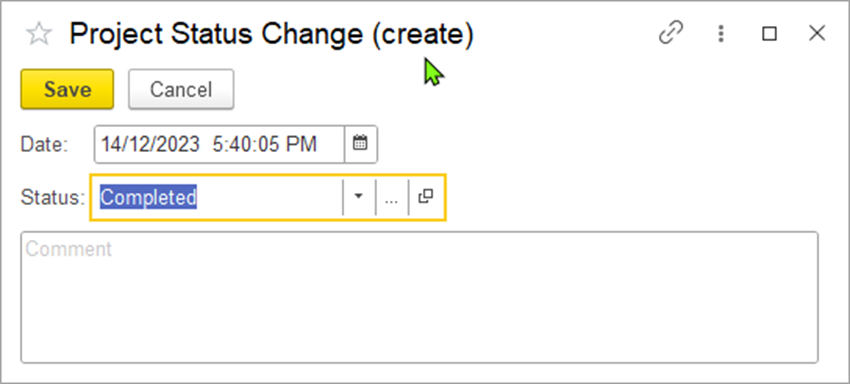
Select a new status for the project in the Status field. Optionally, you can edit the date of the status change.
Then, click Save to assign the selected new status.
Available links
The following links are available at the top of the form under the project title:
